Looking for a proven way to nudge hesitant shoppers into completing their purchase?
A well-timed discount is often all it takes. With Salla, you can create a discount coupon in minutes and control exactly who can use it, on which products, and how many times. In this guide, you'll learn what a discount coupon is, how to create a new coupon from your dashboard, and how to include or exclude specific products, customers, and shipping companies.
To create a coupon on Salla, go to (Marketing Tools) in your dashboard sidebar, click (Discount Coupons), then (Add) and (New Coupon). Enter the coupon code, discount type, dates, and usage limits, choose what the coupon includes and excludes, then save your details.
📌 Article overview
- What a discount coupon is
- How to create a new discount coupon
- Coupon inclusions and exclusions
- Frequently asked questions
What is a discount coupon?
A discount coupon is a code your customers can redeem for a discount or promotional offer in your online store. Coupons work for both existing and potential customers, and their goal is simple: give shoppers one more reason to buy a product or service from you.
👣 How to create a new discount coupon
1. From the dashboard sidebar, click (Marketing Tools).

2. From the Marketing Tools page, click (Discount Coupons).
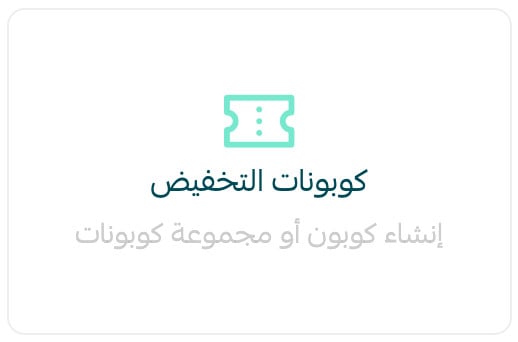
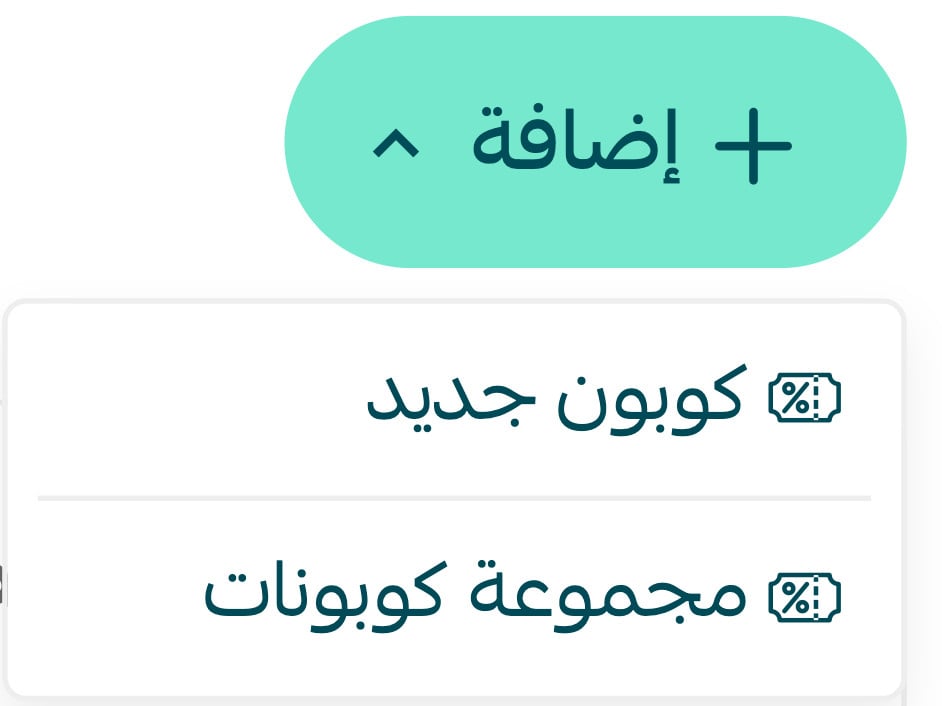
3. Click (Add), then (New Coupon).
4. Enter the required details in the (Coupon Details) tab.
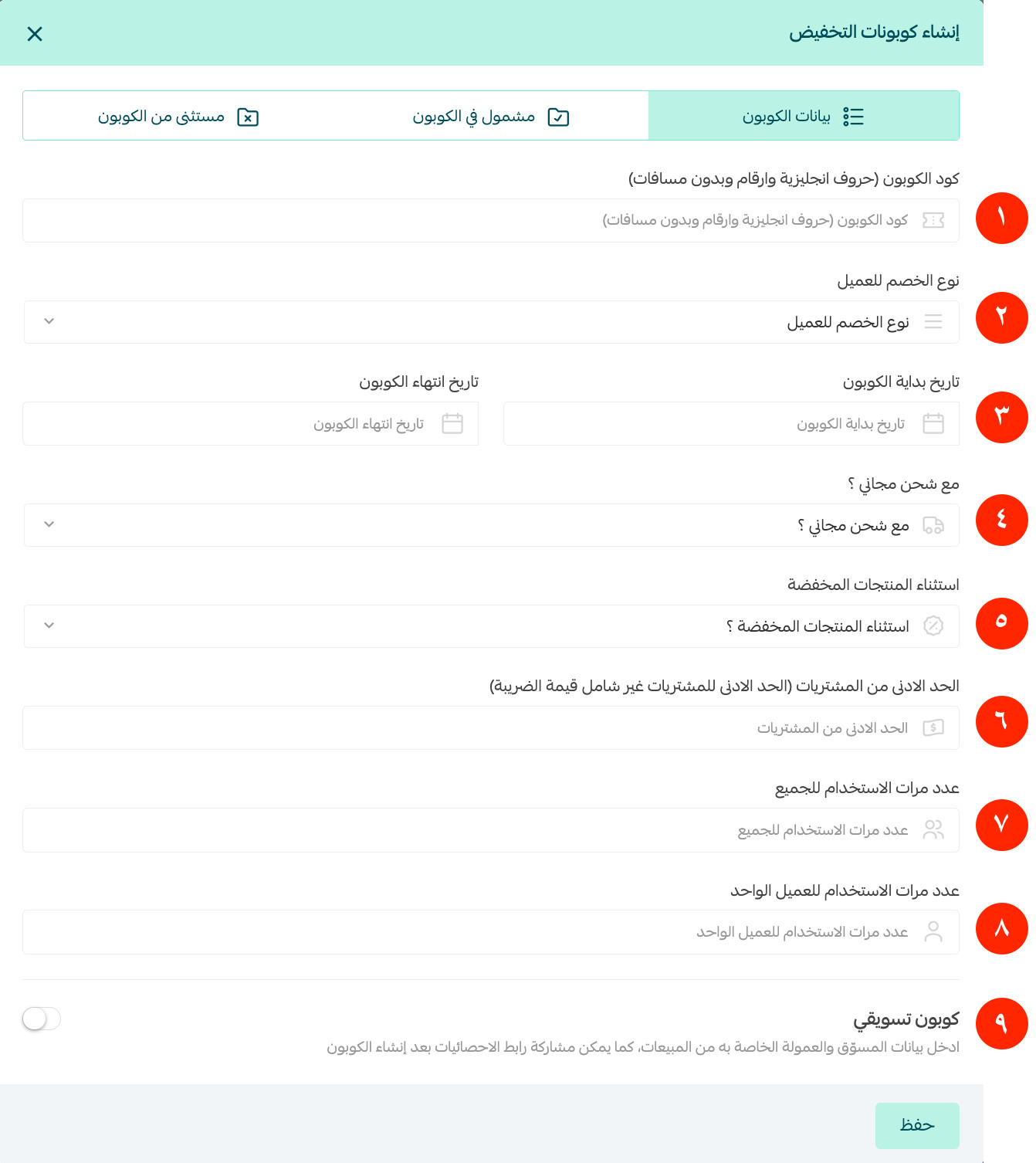
1. Coupon code — English letters and numbers only, with no spaces.
2. Discount type — a percentage taken off the total, or a fixed amount regardless of the order value.
3. Start and end dates — leave the dates empty if you want the coupon to run indefinitely.
4. Free shipping — choose yes or no.
5. Exclude discounted products — decide whether the coupon also applies to products already on sale.
6. Minimum purchase — the lowest order value the coupon can be applied to.
7. Total usage limit — cap how many times the coupon can be used across all customers.
8. Usage limit per customer — how many times a single customer can redeem the same coupon.
9. Marketing coupon — choose whether this is a marketing coupon. For more details, see (Marketing coupons).
Finally, save all the details you entered.
5. From the (Included in the Coupon) tab, choose what the coupon covers — categories, products, or customers.
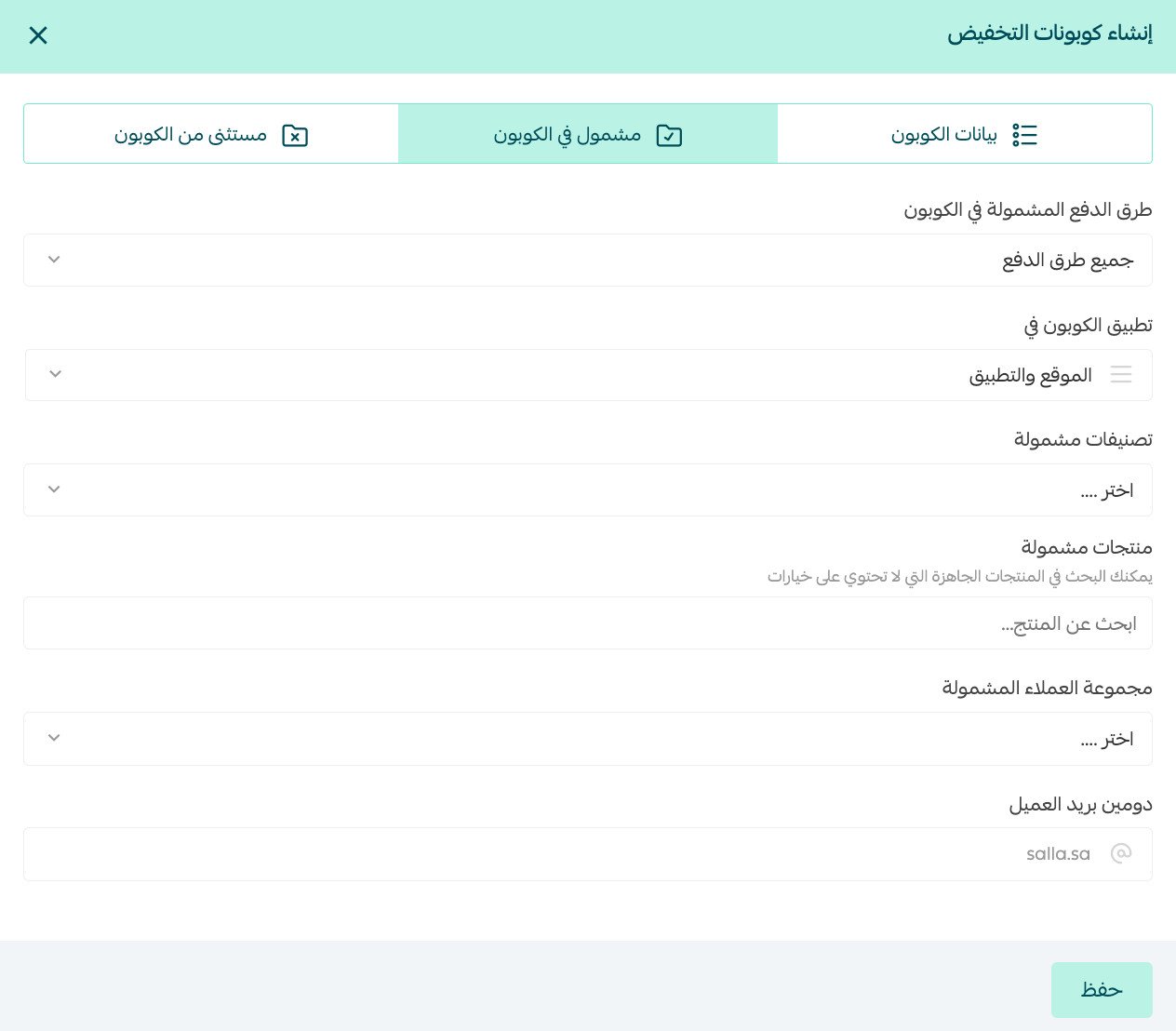
💡 Example: in the included customer groups, you can target customers who prefer paying by bank transfer.

📝 Important notes
You can use the customer email field to create a coupon reserved for a specific company or organization by entering their email domain.
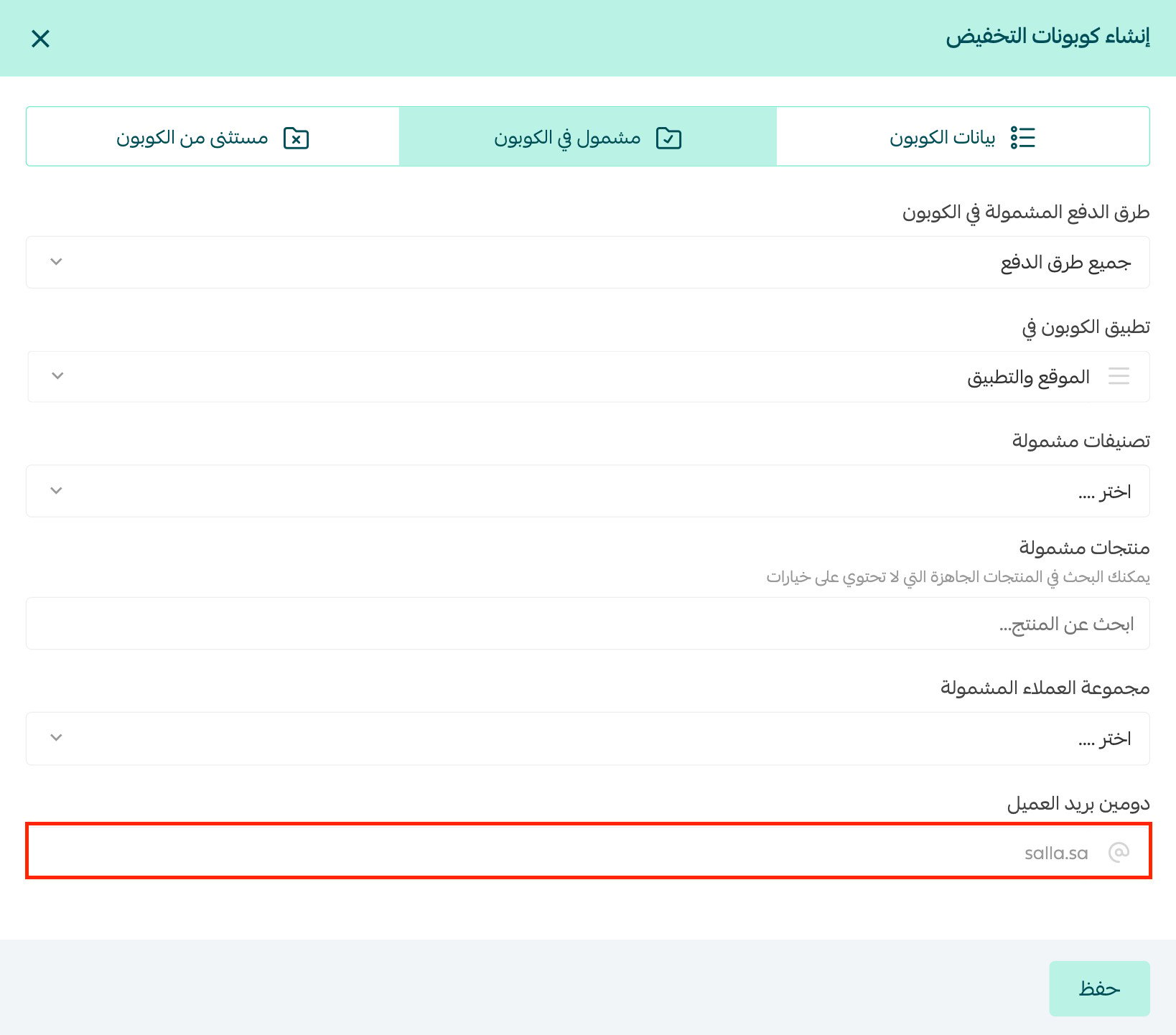
6. From the (Excluded from the Coupon) tab, choose what the coupon should not cover — categories, brands, shipping companies, products, or customers.
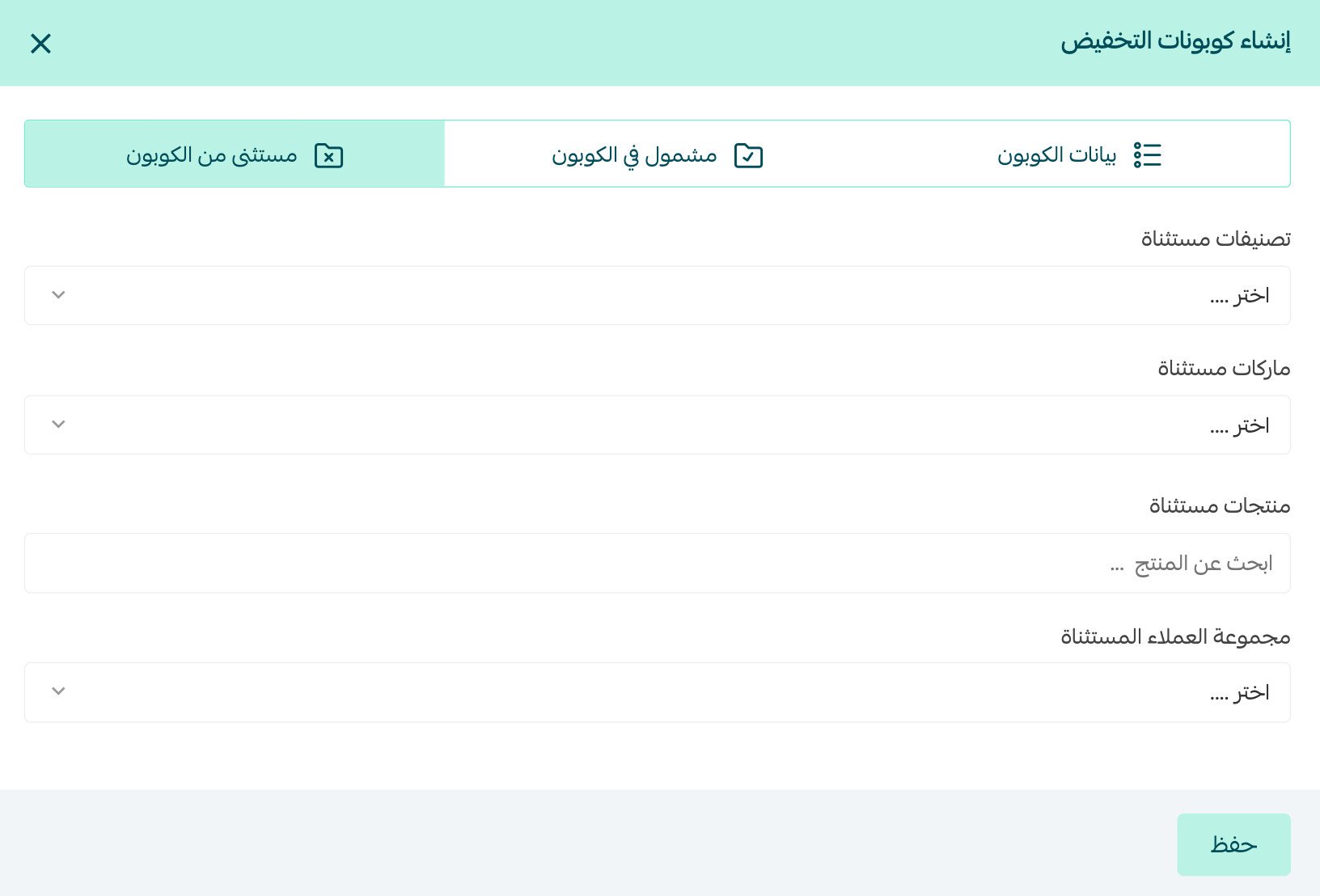
📝 Important notes
The (Excluded Shipping Companies) field appears only after you choose (Yes) in the free shipping field.
Frequently asked questions
❓ What characters can I use in a coupon code?
English letters and numbers only, with no spaces between characters.
❓ Can I make a coupon that never expires?
Yes. Leave the start and end dates empty and the coupon stays active until you disable it.
❓ Can a coupon apply to products that are already discounted?
That is up to you — the (Exclude discounted products) setting decides whether the coupon stacks with existing sale prices.
❓ Can I limit a coupon to specific customers?
Yes. Use the (Included in the Coupon) tab to restrict it to chosen customers, customer groups, products, or categories.
For more answers, see (Frequently asked questions about discount coupons).
🔍 Additional learning resources
🎯 Make every offer feel tailor-made for the customer! Read this article to learn how coupon personalization and customer segmentation can drive higher sales and engagement.