Is your best offer sitting on a banner that most visitors scroll straight past?
An offer only works if people see it. The Coupon Pop app puts your promotion in a popup on your storefront, complete with the image, the message, and the discount code you choose. You decide when it appears, so the offer reaches visitors at the moment they're still deciding, without you touching your theme. In this guide, you'll learn how to install Coupon Pop, activate it, customize the popup, switch it off when a campaign ends, and cancel your subscription.
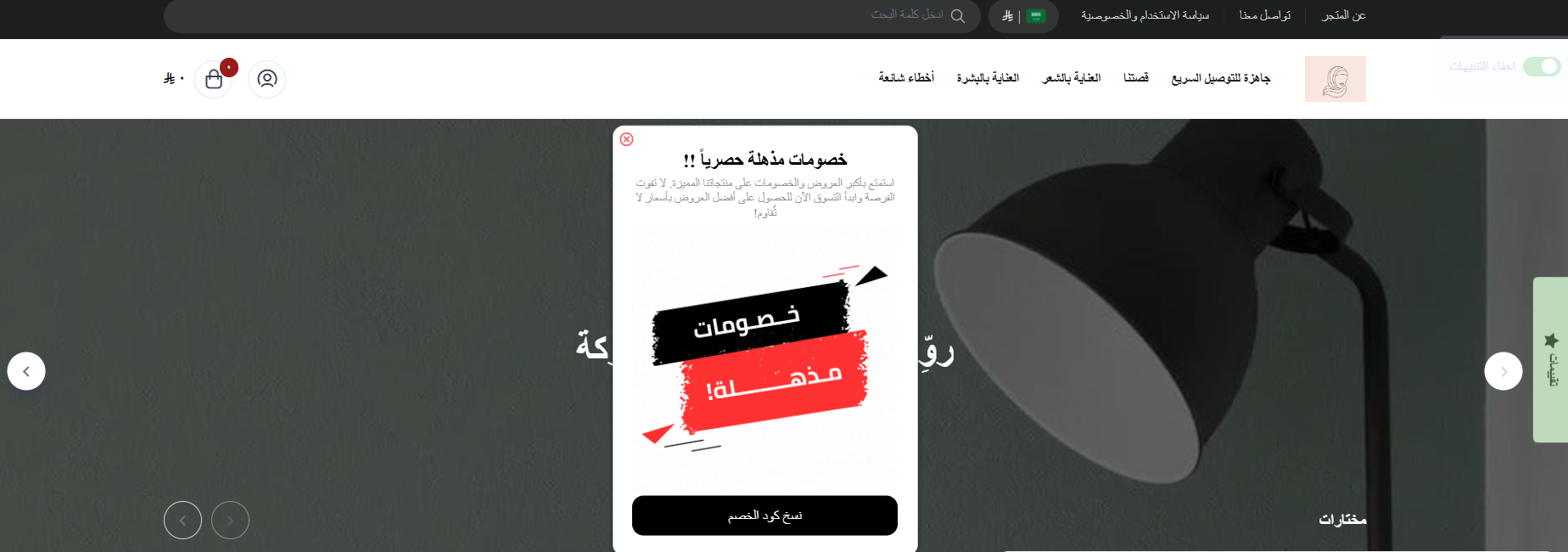
Coupon Pop displays a promotional popup on your Salla storefront. You choose the image, the message, and the discount code, and control when the popup shows. Install it from the Salla App Store, activate it from (App actions), save your settings, and the offer appears to visitors right away.
📌 Article overview
- How to install the Coupon Pop app
- How to activate Coupon Pop
- How to customize the popup
- How to turn the popup off or cancel your subscription
- Frequently asked questions
🚀 How to install the Coupon Pop app
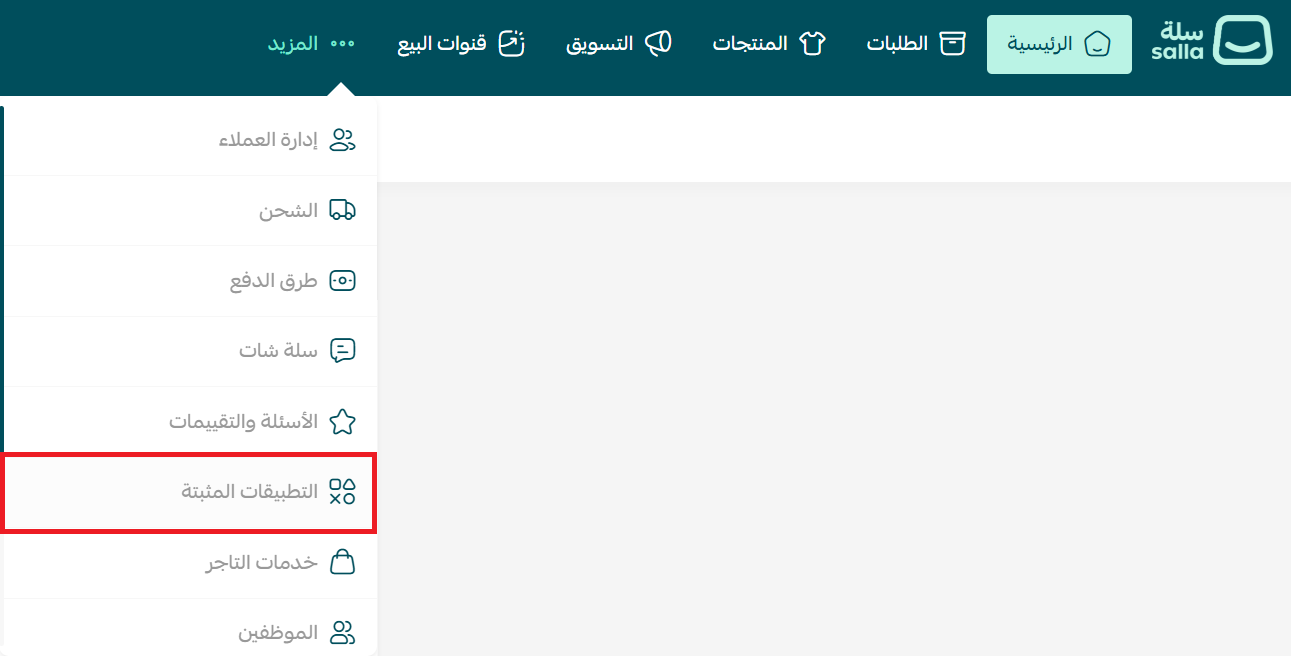
1. From the main menu, click (More), then click (Installed apps).
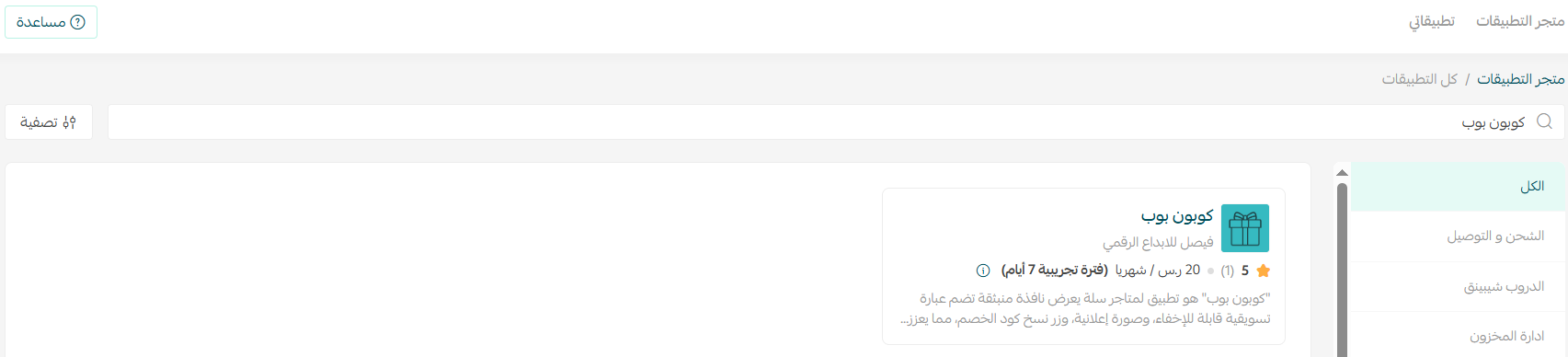
2. Search for Coupon Pop using the search field.
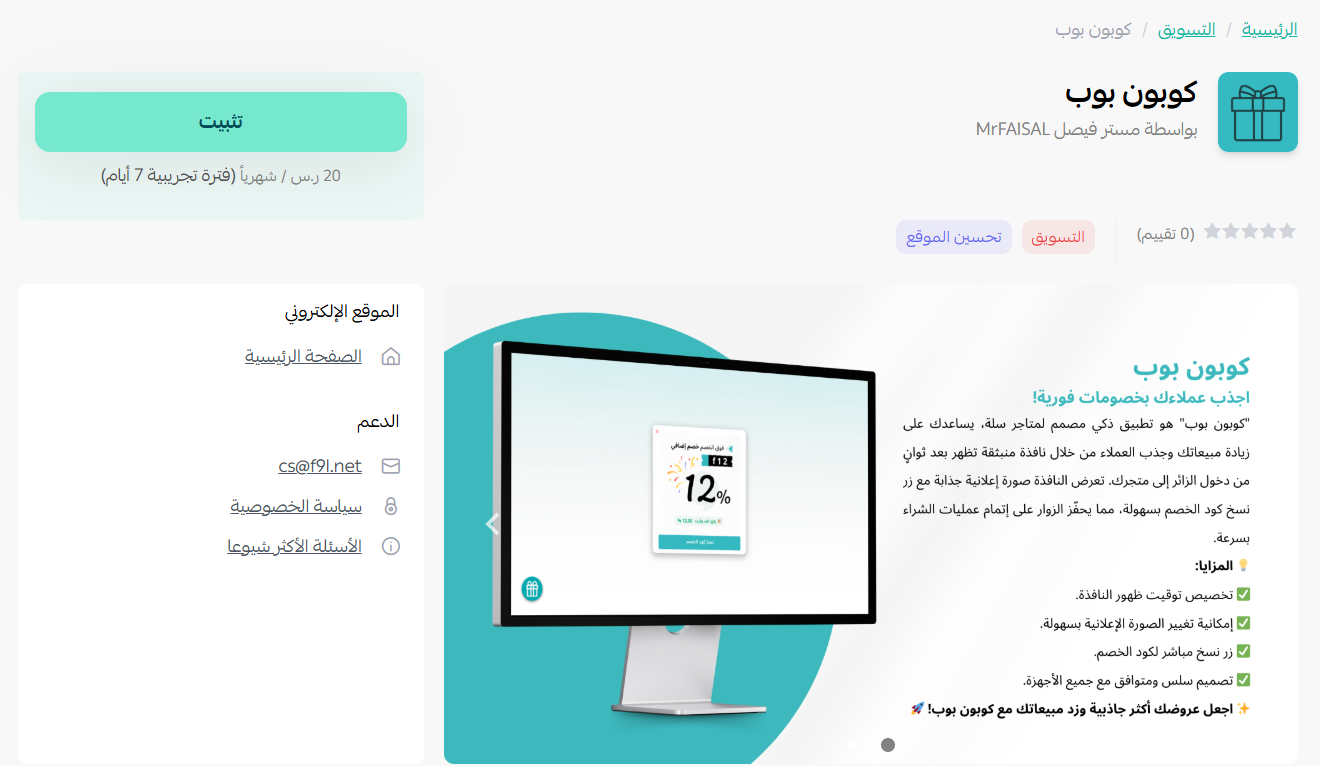
3. Open the Coupon Pop app page, then click (Install).
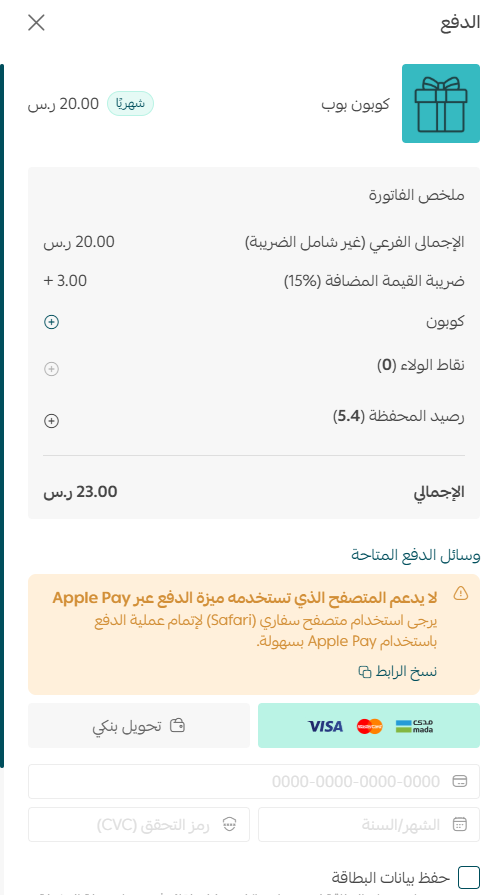
4. Complete the payment to unlock the app's features.
The app is now installed on your store.
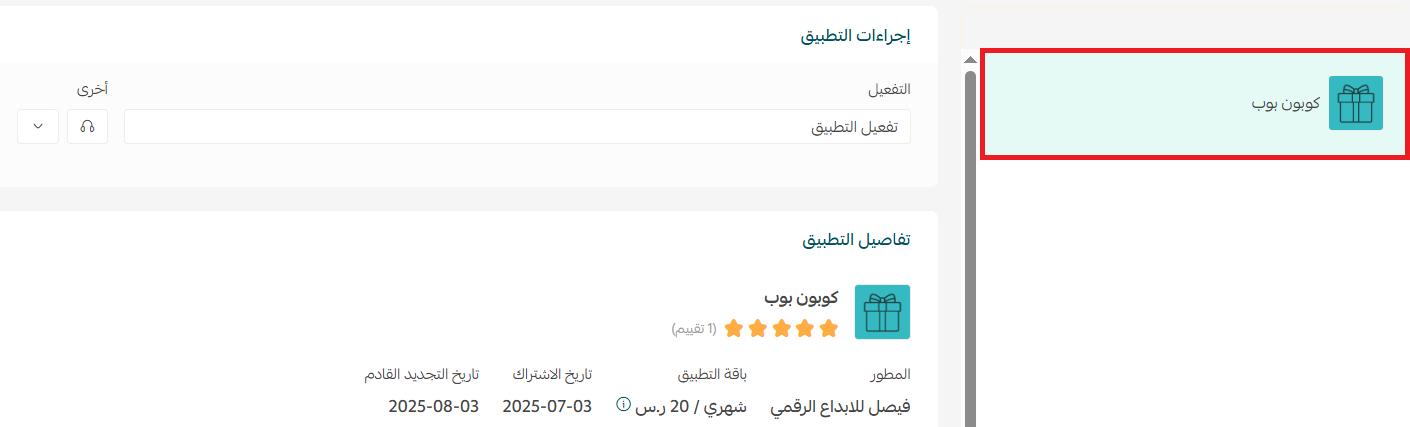
👣 How to activate Coupon Pop
1. From the (App actions) section, click (Activate app).

2. Fill in the app settings, then click (Save).
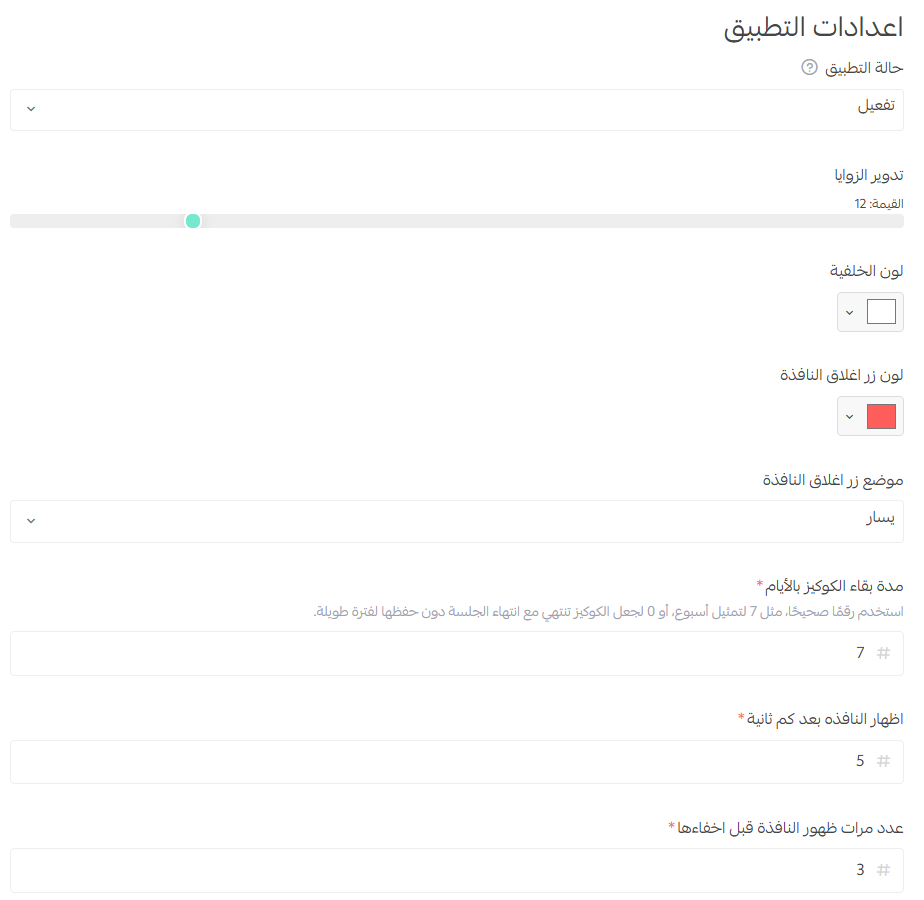
The app is now active.

🚀 How to customize the popup
From the app settings menu, you can:
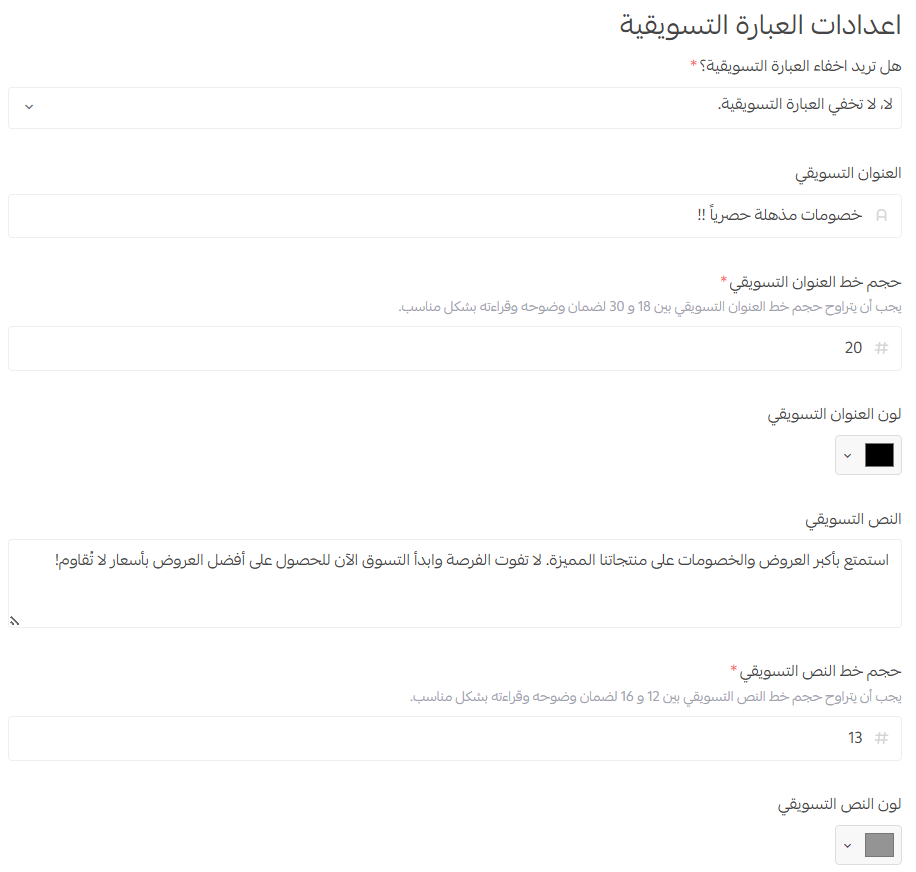
- Write the promotional message exactly as you want it to appear.
- Choose the image visitors will see in the popup.
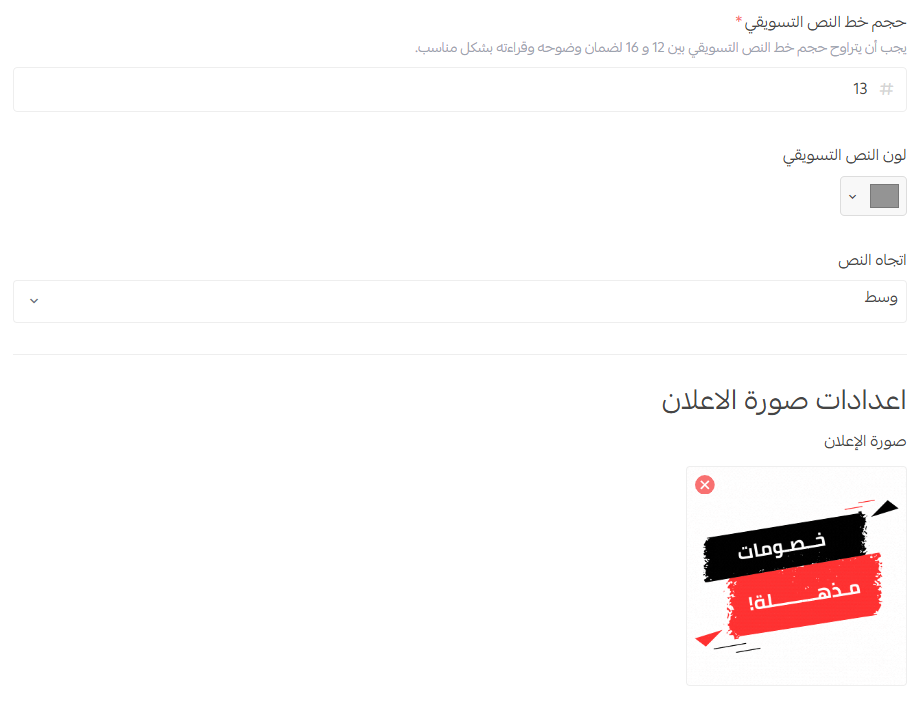
Once you save, the popup appears on your storefront exactly as you set it up.
🚀 How to turn the popup off or cancel your subscription
Stop showing the popup
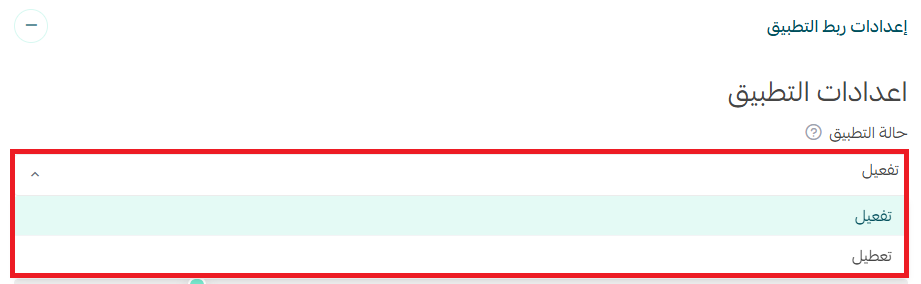
From the app settings section, click (Disable). The popup stops appearing in your store while the app stays installed.
Cancel your subscription
From the (App actions) section, click ( ), then click (Cancel subscription).

For more details, visit the Coupon Pop website.
📝 Important notes
- Installing the app is not enough on its own. The popup only goes live after you activate the app and save your settings.
- Disabling the popup and canceling the subscription are two different actions. Disable pauses the offer; cancel ends the paid plan.
- Changes take effect on the storefront as soon as you save.
❓ Frequently asked questions
What appears in the Coupon Pop popup?
An image, a promotional message, and a discount code, all of which you set yourself from the app settings.
Do I need to edit my theme to use it?
No. The popup is controlled entirely from the app settings and appears on your storefront once you save.
How do I pause a campaign without losing my setup?
Click (Disable) in the app settings. Your content stays saved, and you can switch the popup back on later.
Where do I cancel the subscription?
Open the (App actions) section, click the options icon, then click (Cancel subscription).
Can I change the popup after it's live?
Yes. Update the message or the image in the settings, save, and the storefront reflects the new version.
A promotion works best when it's specific and time-bound. Set the popup up for one clear offer, watch how visitors respond, then swap the content when the campaign ends.