In this article, we’ll walk through the Contacts page in Salla Chat, which is one of the core sections. It provides you with a complete database of all people who have contacted you, allowing you to store and manage their information easily in one place.
📌Article overview
- How to access contacts
- Contacts details
How to access contacts
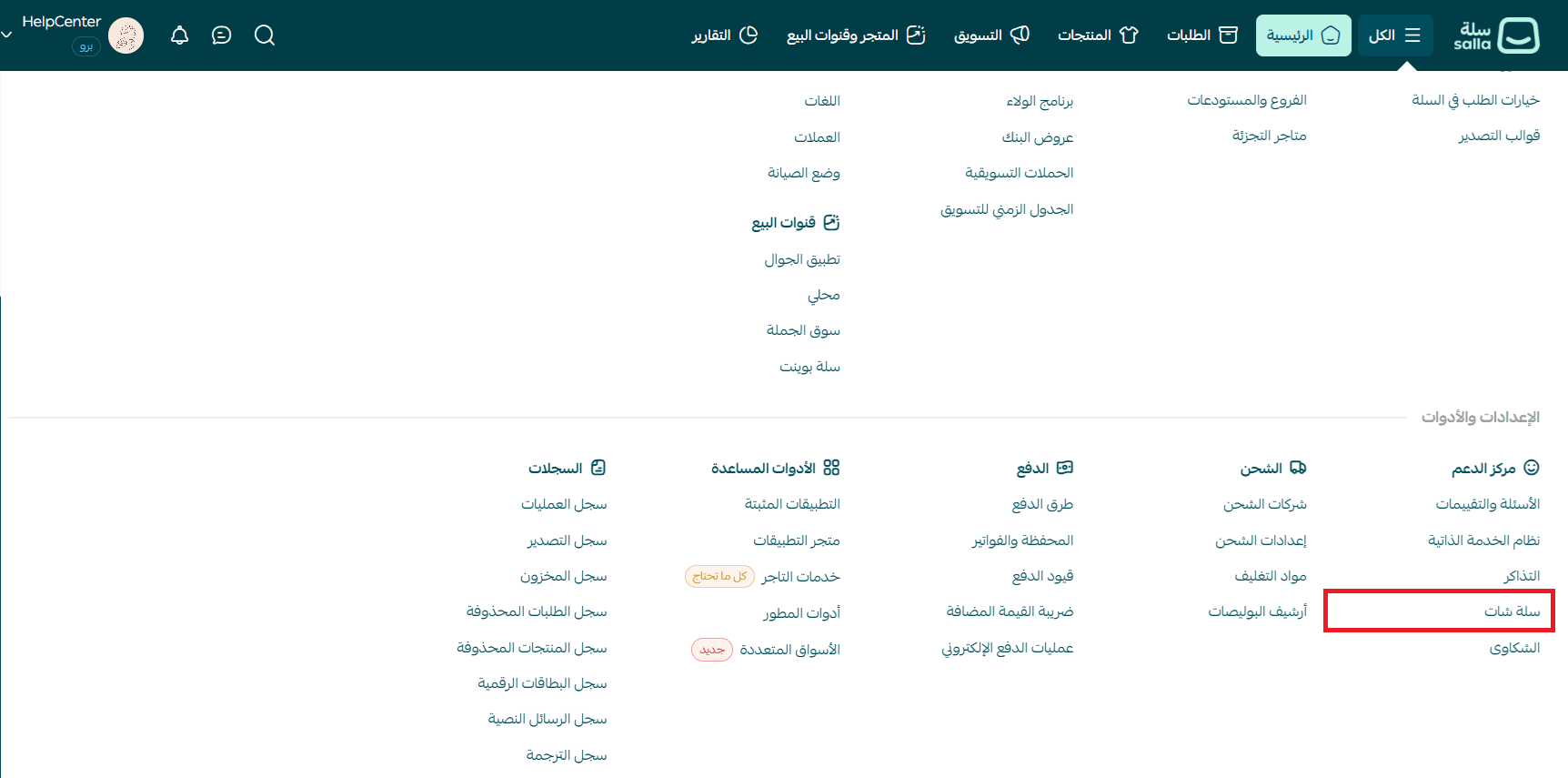
- From the main menu, click All, then from the Settings & tools section select Salla Chat.
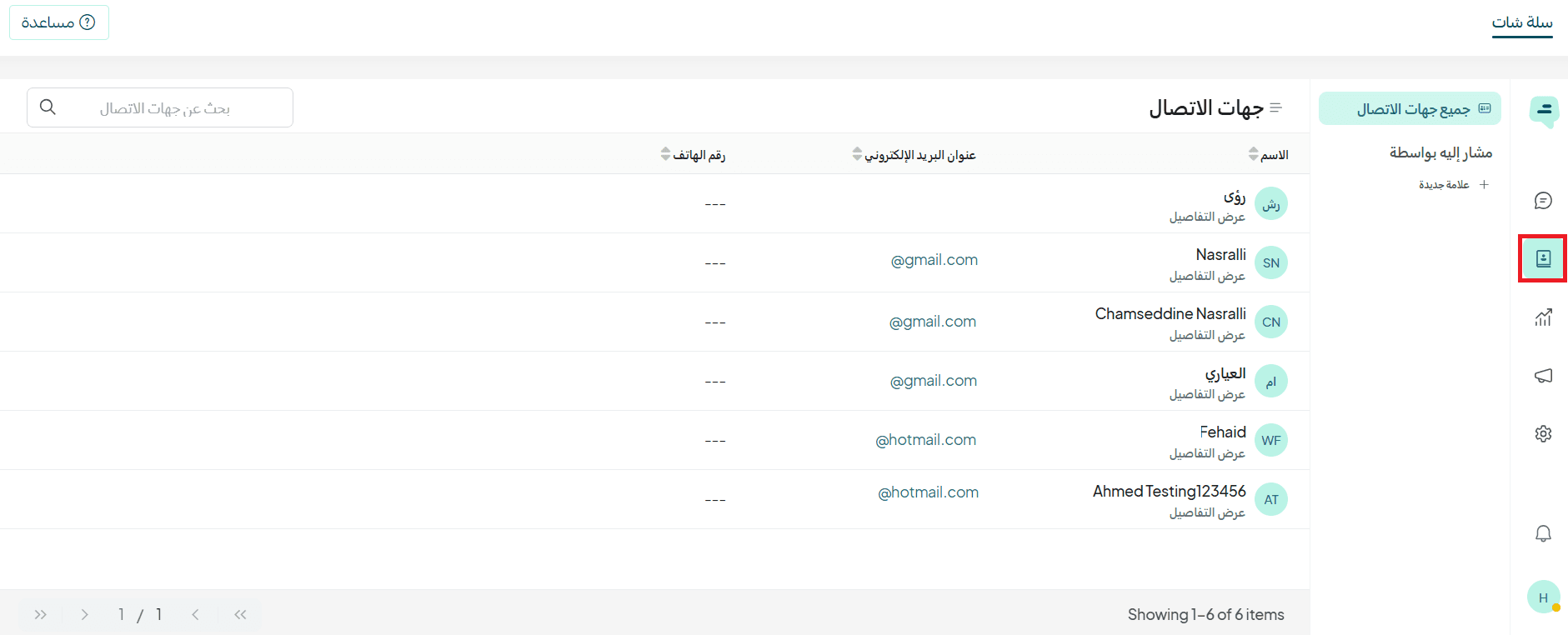
- From the Salla Chat menu, click the Contacts icon.
Contacts details
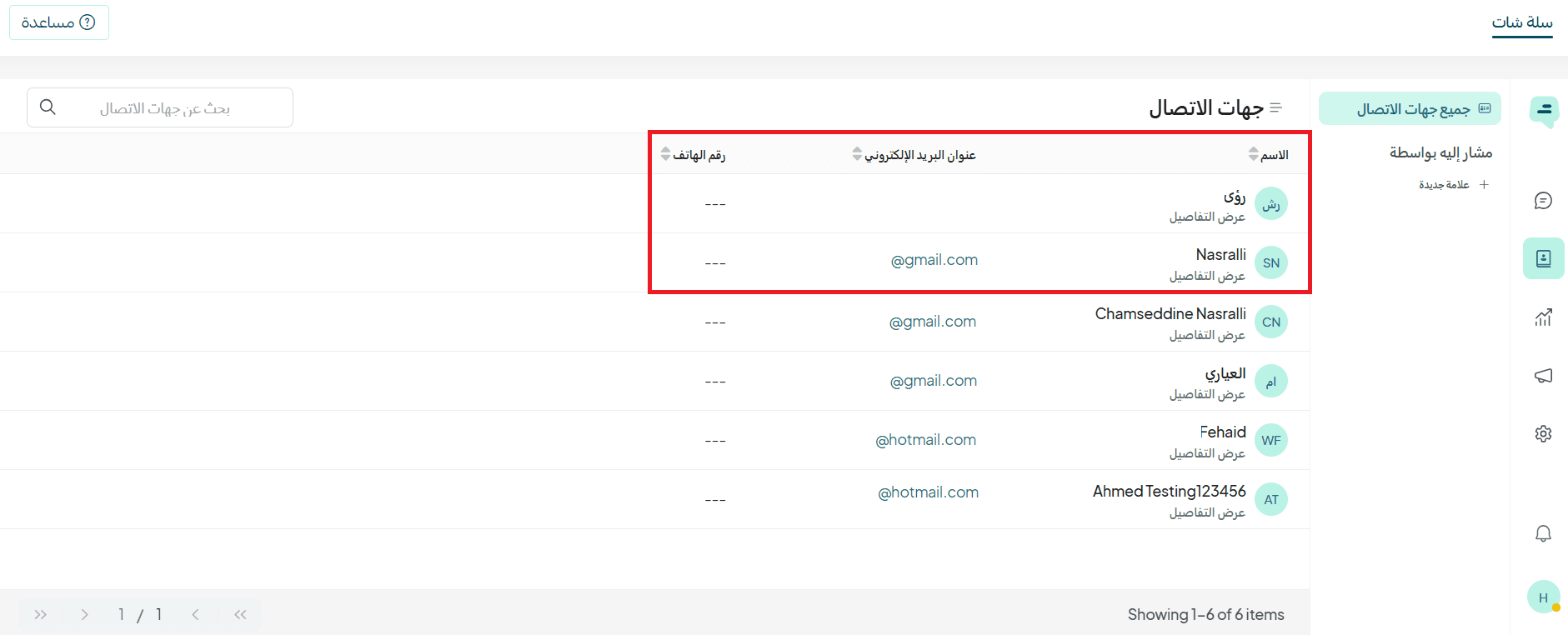
1. Contact Information
The main page displays key details for each contact, including:
- Name
- Email address
- Phone number
2. Searching contacts
You can search for a specific customer by typing their name in the search bar.

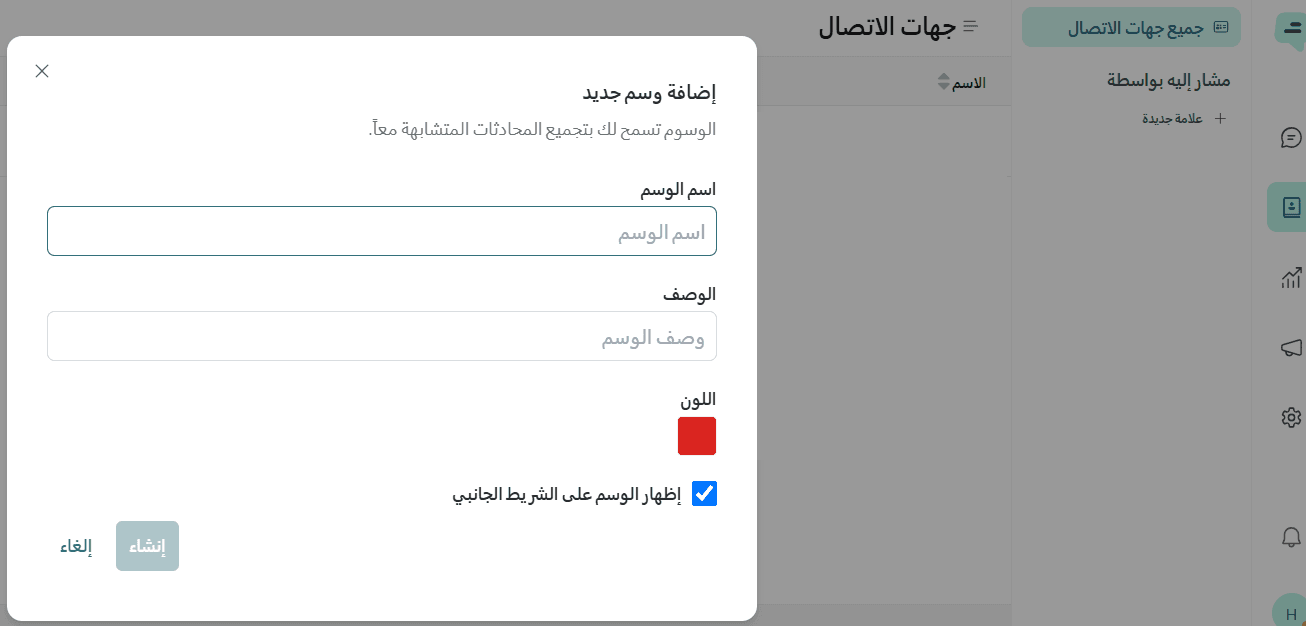
3. Adding tags
Tags help you group similar conversations together, making it easier to search for them later or organize them based on priority.
You can add a tag by clicking + New tag.

Then:
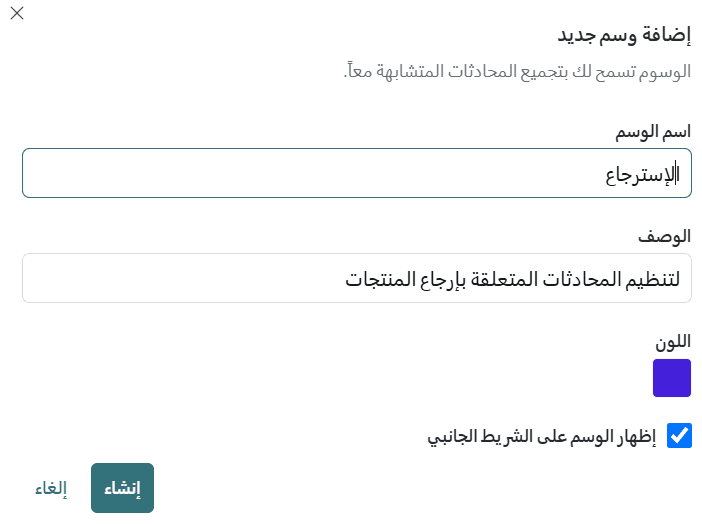
- Enter the tag name
- Add a short description explaining its purpose
- Choose a color to easily identify the tag
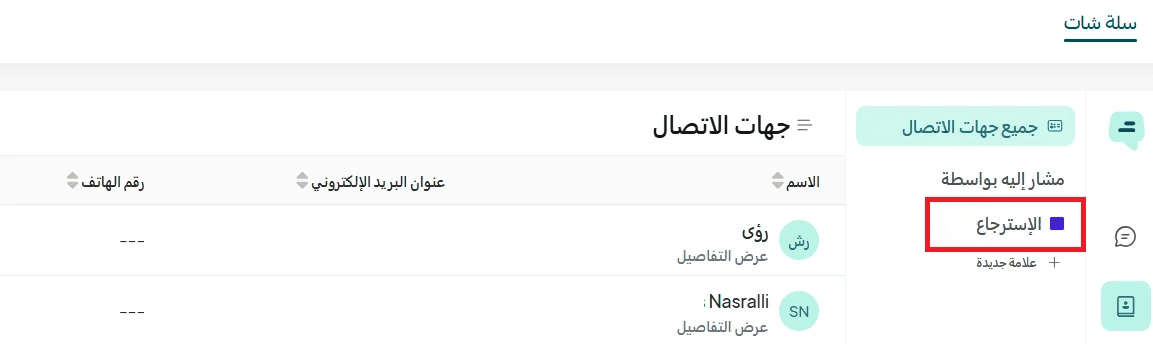
Click Create to save and add the tag to the system.
💡 Example: Create a blue tag for Return requests to organize conversations related to product returns.
🎉 Done! The tag has been added successfully.
Frequently asked questions
How can I benefit from tags?
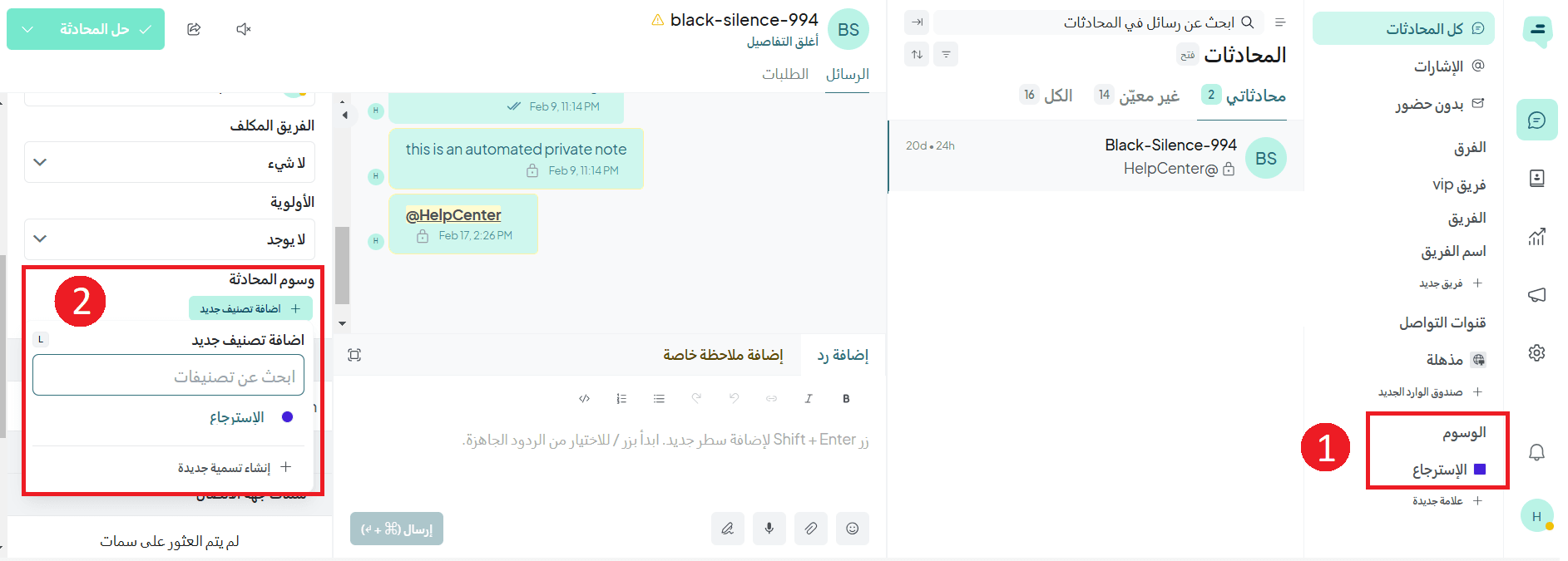
Tags appear within conversations and help you organize them more effectively:
- Conversation sidebar: Tags appear in the sidebar, making it easier to access and categorize conversations
- Conversation actions: You can add tags directly from conversation actions to better organize and label conversations