How many places do you have to check before you can answer one customer's question?
Shoppers message stores wherever it suits them — WhatsApp one day, Instagram the next — and every extra tab is another chance to miss a sale. Connectly AI pulls those conversations into a single dashboard and lets AI handle the routine replies while your team steps in for anything that needs a human. In this guide, you'll learn how to install Connectly AI on your store, activate your account, upgrade your plan, and remove the app when you no longer need it.
Connectly AI is a Salla app that brings your store's messaging channels, including WhatsApp and Instagram, into one inbox. It blends AI replies with human agents so customers get fast answers. Install it from the Salla App Store, pick a plan, then activate your account by email.
📌 Article overview
- How to install Connectly AI
- How to manage Connectly AI
- Frequently asked questions
🚀 How to install Connectly AI
1. From the main menu, click (All), then under helper tools, click (App Store).

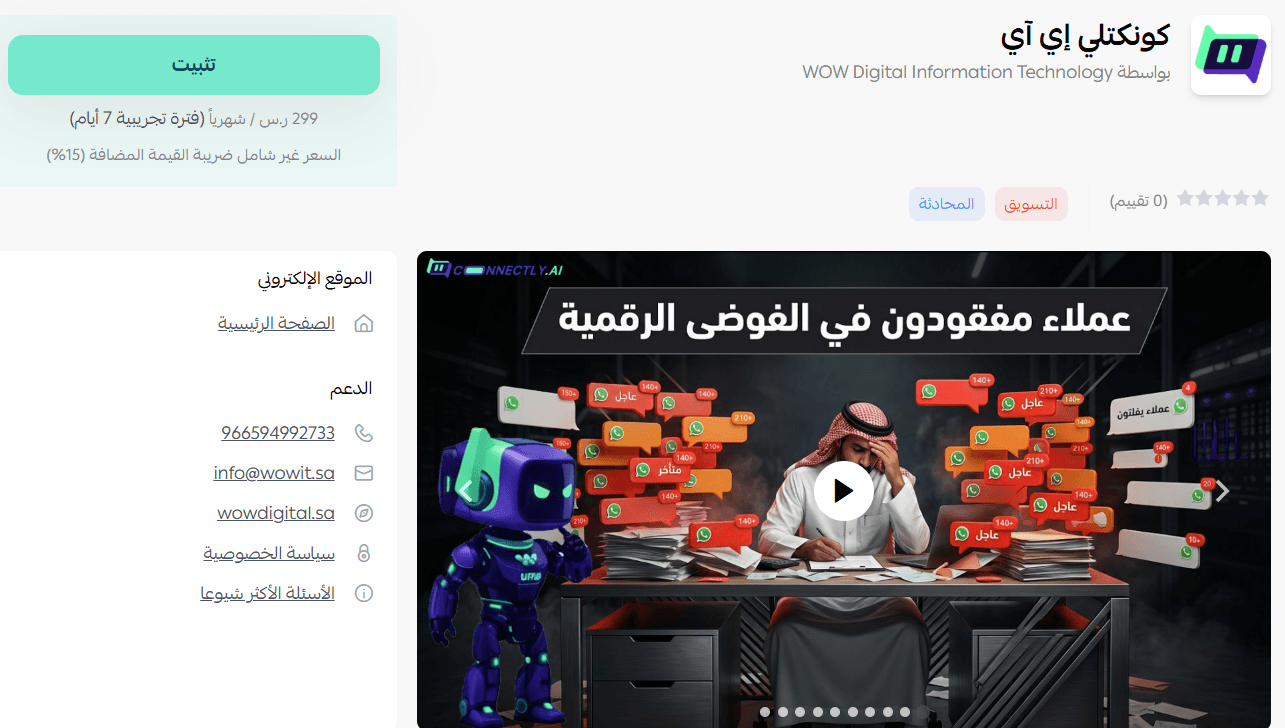
2. On the Connectly AI app page, click (Install).
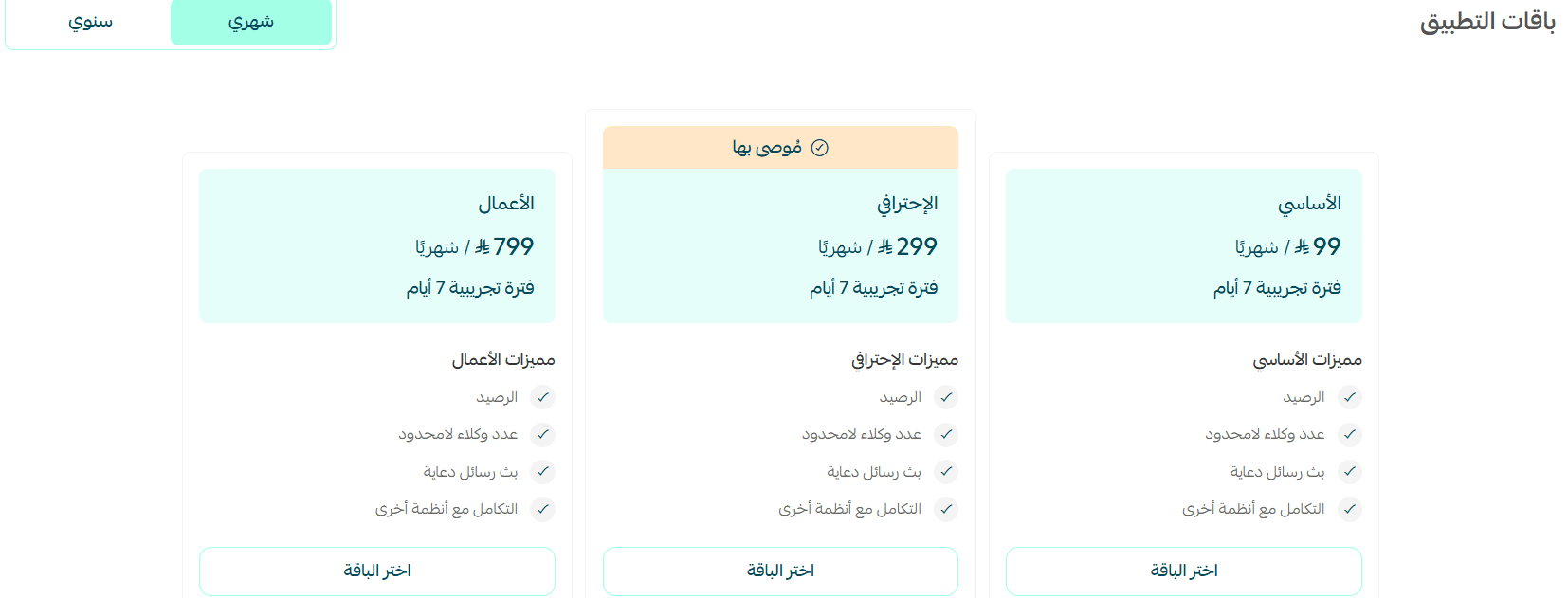
3. Choose the plan that fits your business to continue with the installation.
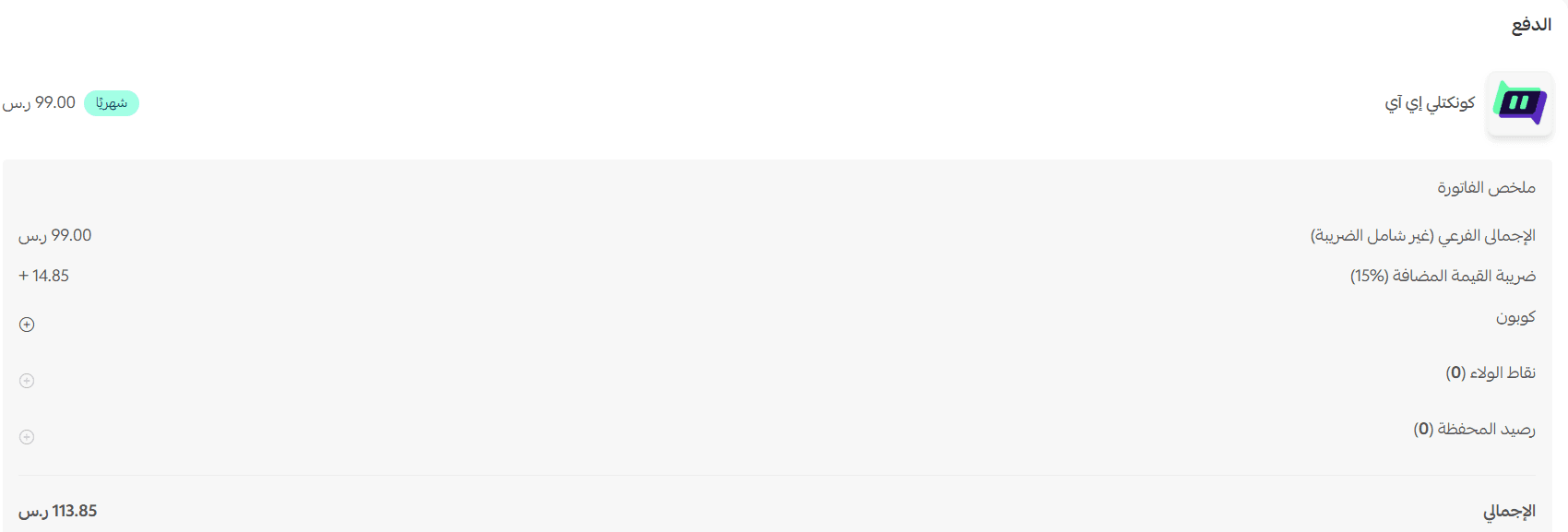
4. Complete the payment, then click (Confirm).
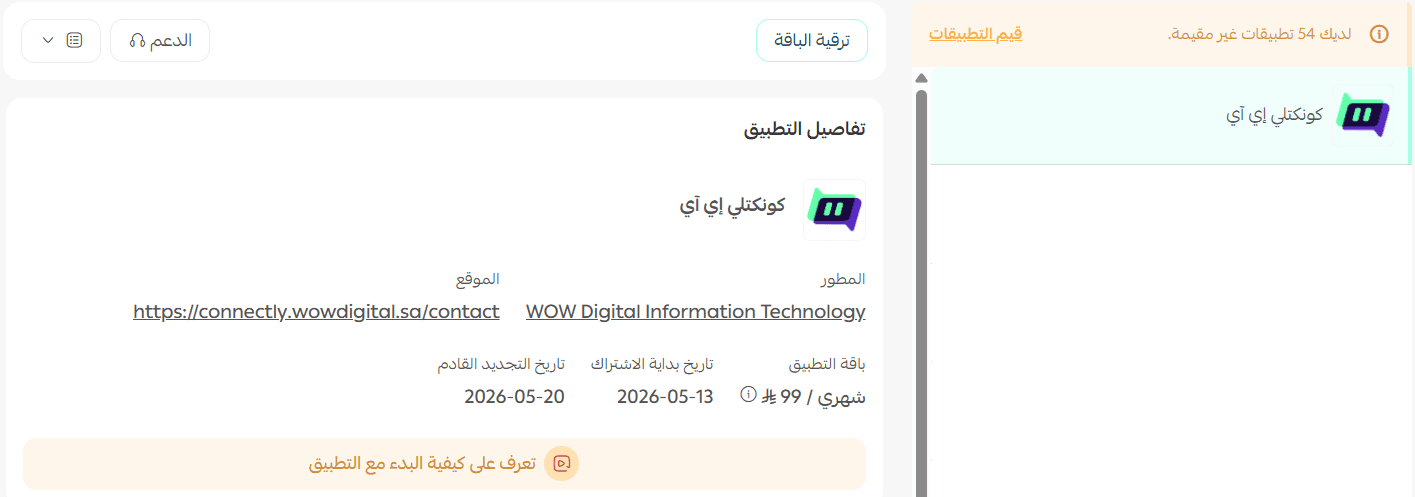
🎉 That's it. The app is now installed on your store.
How to manage Connectly AI
Upgrade your plan
1. From the app details page in your store, click (Upgrade plan).

2. Select the plan you want, then click (Go to payment).

3. Enter your payment details, then click (Confirm) to finish the upgrade.

Set up the app
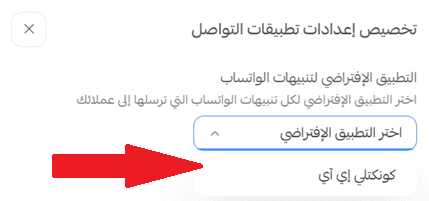
1. From the (App settings) page, choose (Customize).

2. Click Connectly AI in the list of apps.
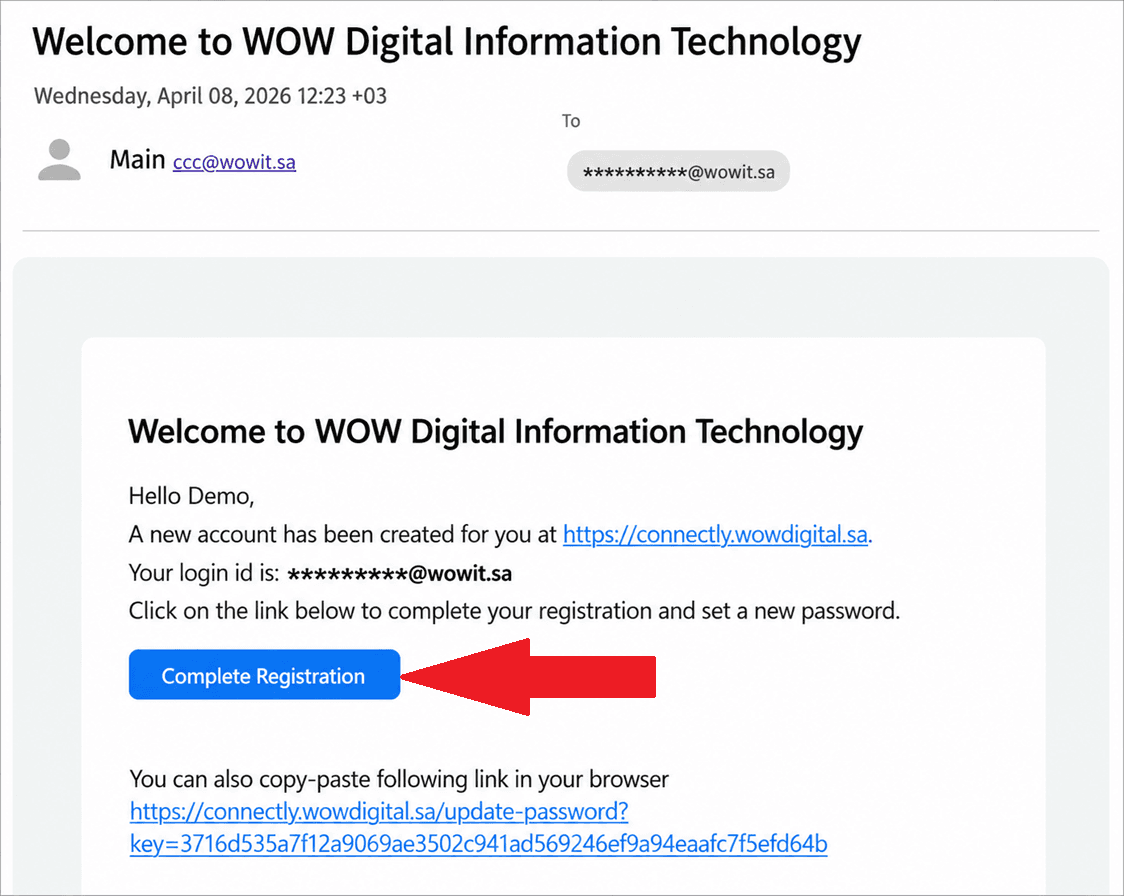
3. Open the email the app sends you and click Complete Registration.
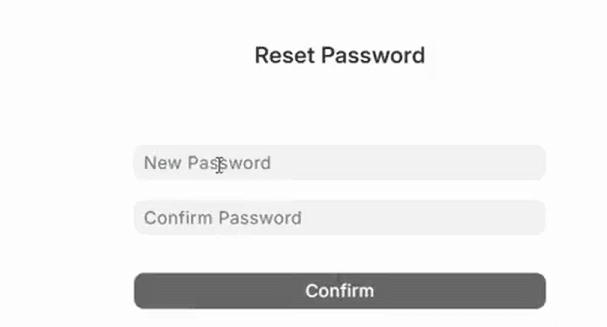
4. Set the password for your account to finish activation.
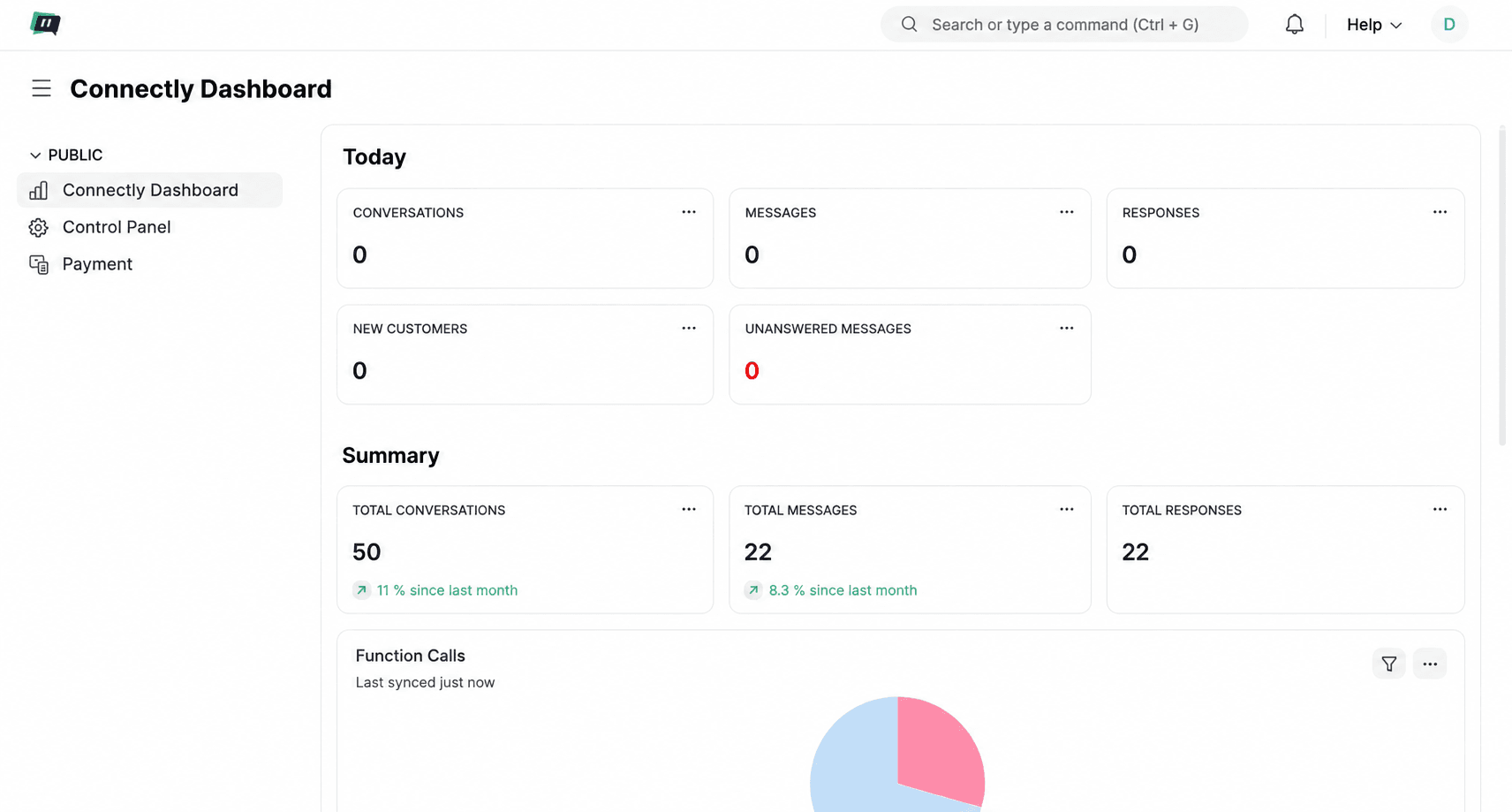
Once activation is done, the Connectly AI dashboard opens and you can start connecting your messaging channels.
For more on managing your account and the Connectly AI dashboard, see the app's own user guide.
Remove the app
1. From the app options menu, click (Cancel subscription) and choose a reason for cancelling.

2. From the app options menu, click (Delete app) and choose a reason for deleting.

3. From the deleted apps page, open the app options menu and click (Delete app permanently) to remove it from your store for good.

📝 Important notes
- Deleting the app is a two-stage process: it first moves to the deleted apps page, and it is only fully removed once you click (Delete app permanently).
- Cancelling the subscription and deleting the app are separate actions, so do both if you want to stop billing and remove the app.
❓ Frequently asked questions
Which channels can I manage from Connectly AI?
The app is built to unify the messaging channels your customers already use, including WhatsApp and Instagram, in one dashboard.
Does AI reply to my customers instead of my team?
Connectly AI combines automated replies with human agents, so routine questions can be answered instantly while your team handles the conversations that need a person.
Where do I activate my Connectly AI account?
Activation happens by email. After you open the app from (App settings) and click (Customize), the app emails you a Complete Registration link where you set your password.
Can I move to a bigger plan later?
Yes. Open the app details page in your store, click (Upgrade plan), pick the plan you want, and confirm the payment.
For more about the app, visit Connectly AI.
Fast replies are one of the cheapest ways to win a sale. Putting every channel in one place is what makes them possible.