A visitor with a question and no one to ask usually leaves without buying.
Tawk.to is a free live chat service that puts a chat widget on your store, shows you who is browsing right now, and lets you start the conversation yourself instead of waiting to be asked. It is free and, per the company, stays free. You design the chat window to match your store, and you connect it to Salla by pasting one tracking code. In this guide, you'll learn how to create a Tawk.to account and how to connect it to your store.
Tawk.to is a free live chat service you can add to your store. Connect it in two stages: sign up at tawk.to, complete the setup, and copy your tracking code, then paste that code into the Tawk.to app settings in your Salla dashboard and click activate connection.
📌 Article overview
- What Tawk.to is
- Stage 1: sign up for Tawk.to
- Stage 2: paste the tracking code into your store
- Frequently asked questions
🎯 What Tawk.to is
Tawk.to is a free live chat service, and the company states it will stay free. It lets you watch who is on your site and talk to them directly, even when they have not asked to chat, and you can design the chat window yourself.
🚀 How to connect your store to Tawk.to
The connection happens in two stages:
1. Sign up for Tawk.to.
2. Paste the Tawk.to tracking code into your store.
Stage 1: sign up for Tawk.to
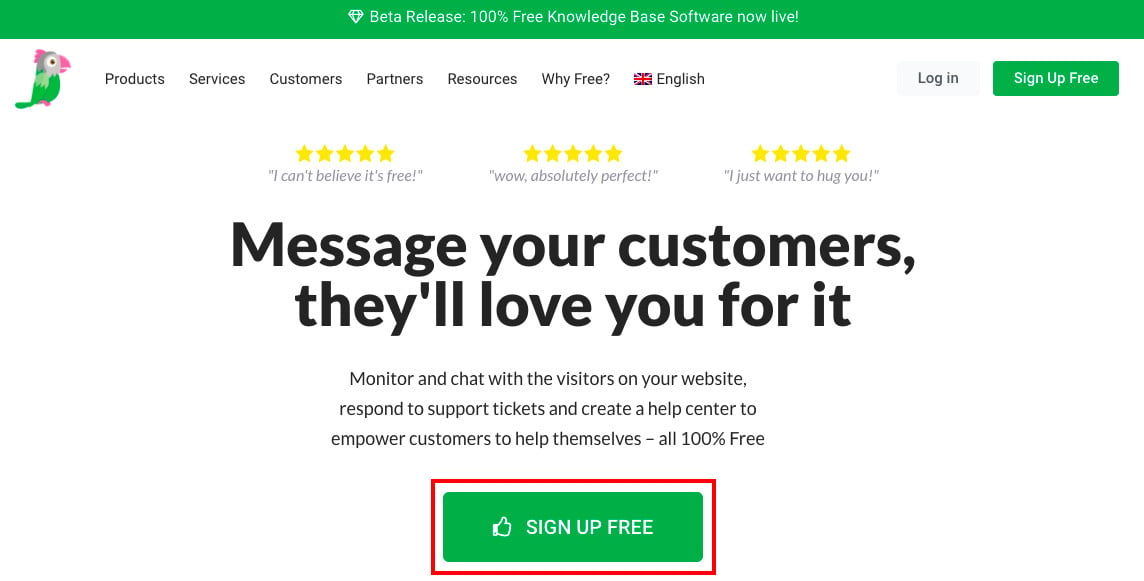
1. Go to Tawk.to and click (Sign Up Free).
2. Enter the basic details for a new account, then click (Signup for free).
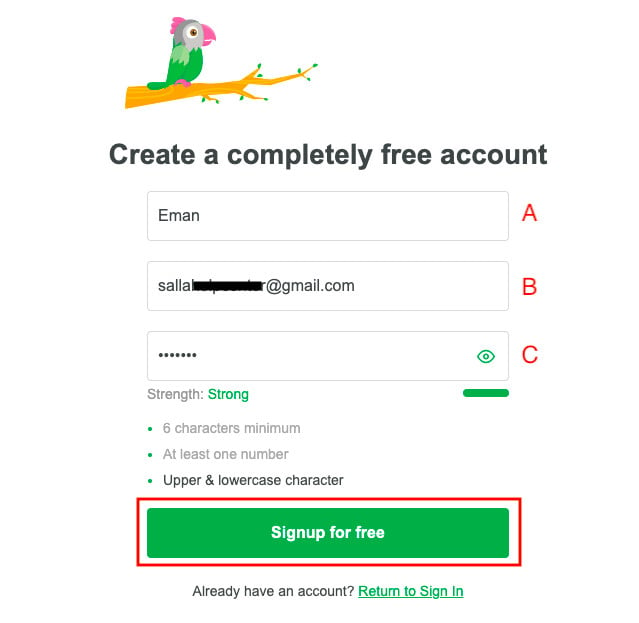
A. Your username.
B. Your email address.
C. A new password, at least 6 characters, made up of numbers, Latin letters, and symbols.
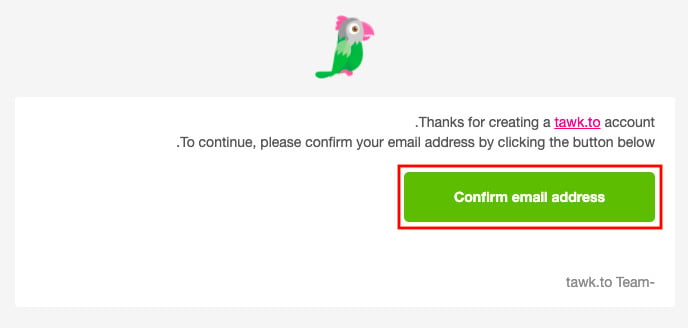
3. Open the message Tawk.to sends to that email address and click (Confirm email address) to activate the account.
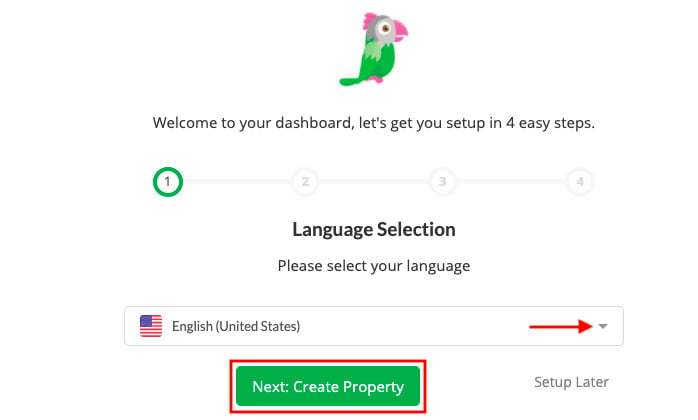
4. The activation link takes you on to the rest of the setup. Choose your language, then click (Next: Create Property).
5. Enter your store details, then click (Next).
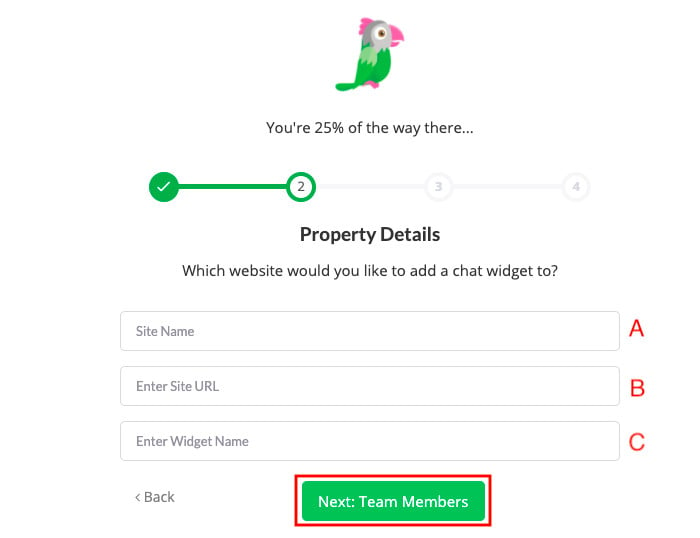
A. Your store name.
B. Your store or website URL.
C. Your app name.
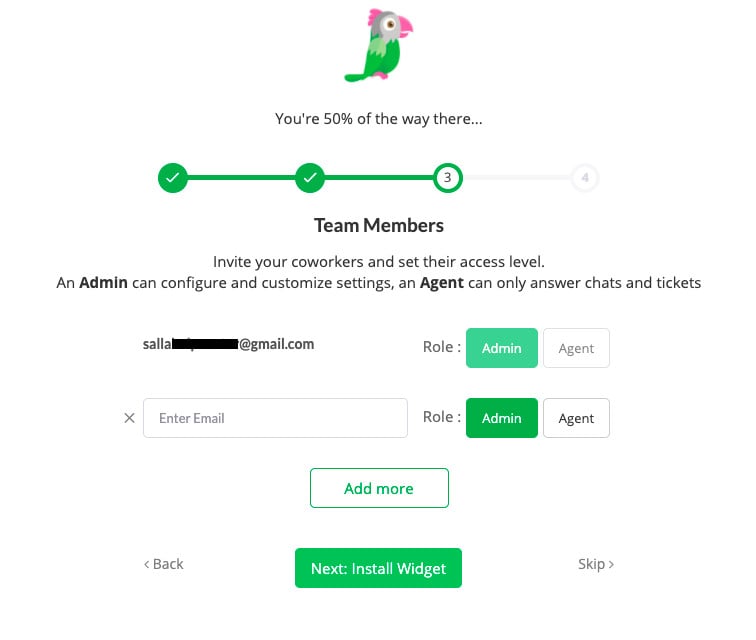
6. Enter the email addresses of the staff who will reply to your customers. You can add more than one and give each of them a role, administrator or agent. Then click (Next).
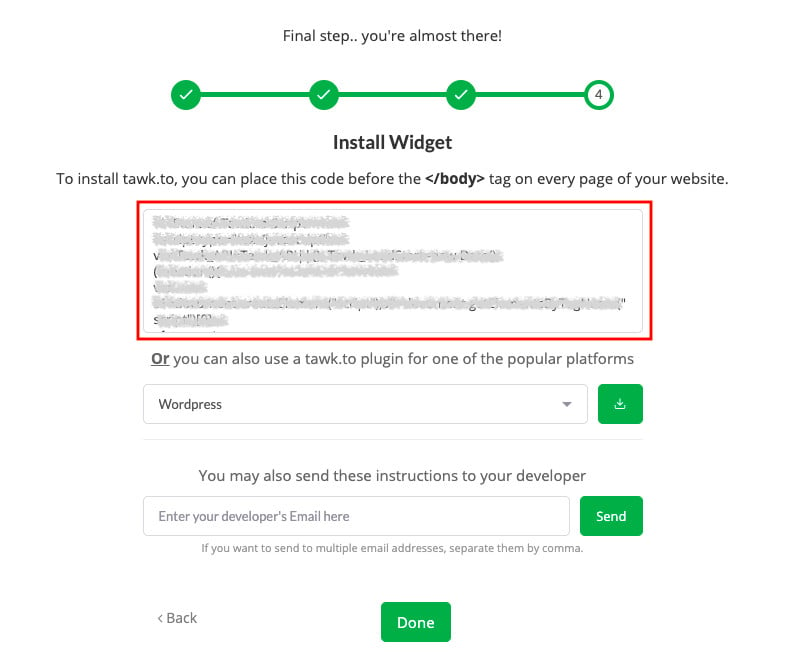
7. Copy the tracking code, ready to paste into your store.
Stage 2: paste the tracking code into your store
1. From the dashboard side menu, click (Installed apps).

2. On the Tawk.to app, click (App settings).
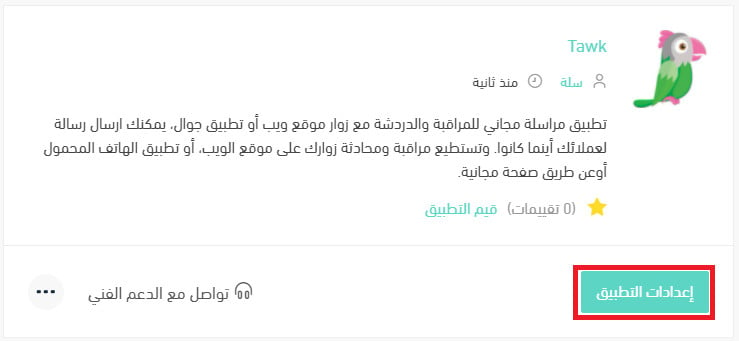
If the app is not installed in your store yet, install it first. For the full walkthrough, see installing an app from the Salla App Store.
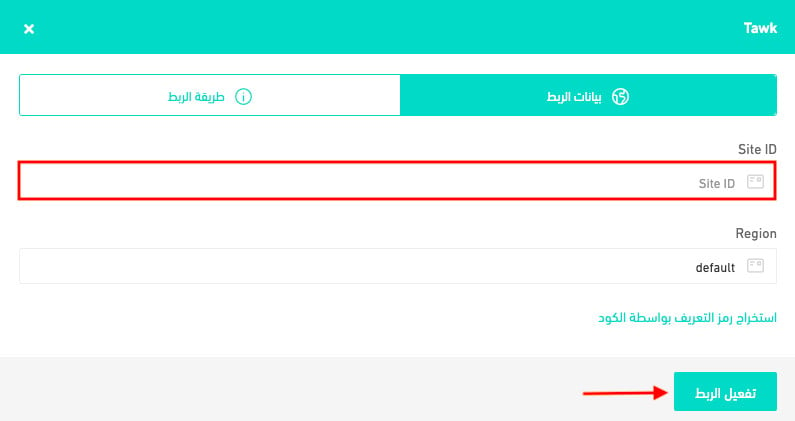
3. Paste the tracking code you copied from Tawk.to in stage 1, then click (Activate connection).
❓ Frequently asked questions
Why use Tawk.to?
1. Add an unlimited number of staff and assign them to an unlimited number of stores to talk to your visitors.
2. Keep your full chat history forever, until you delete your account.
3. Change how the chat looks on your store: where it appears, its shape, its colors, and its bubbles.
4. Edit the text, add a welcome message, and set up simple, professional automated replies for common questions.
5. Get alerts about new visitors to your store and incoming chat requests.
Can I disconnect my store from my Tawk.to account?
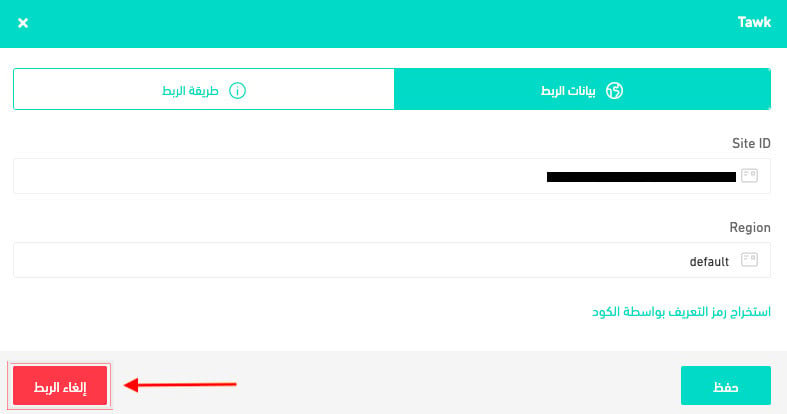
Yes. On the Tawk.to connection page, click (Disconnect).
Do I have to install the Tawk.to app first?
Yes. The connection settings live inside the app, so install it from the Salla App Store before stage 2.
Does Tawk.to cost anything?
No. The service is free, and the company states it will stay free.
Live chat pays off when someone is actually there to answer. Add the staff who will reply, write a welcome message that sounds like your store, and set up automated replies for the questions you already answer ten times a week.