Want to know which of your X (Twitter) ads actually turn into store sales?
If you advertise on X, tracking conversions is how you find out what works. Connecting the X pixel to your Salla store lets X record what visitors from your ads do in your store. In this guide, you'll learn how to copy your pixel code from X, install the X Pixel app, and activate the connection.
To connect your Salla store with X, copy your pixel code from the Events manager in X analytics, install the X Pixel app from the Salla App Store, then activate the app and paste the pixel code in its settings. Click (Activate connection) and the pixel starts tracking your store.
📌 Article overview
- Stage one: copy the pixel code from your X account
- Stage two: install the X Pixel app on your store
- Stage three: paste the pixel code in the app settings
- Frequently asked questions
👣 Stage one: copy the pixel code from your X account
1. Log in to X analytics, then click (Events manager).

2. From the Events manager page, click (Copy) to copy the pixel code.

🚀 Stage two: install the X Pixel app on your store
1. From the side menu of your dashboard, click (Installed apps).

2. From the Salla App Store banner, click (Browse Salla App Store).

3. From the X Pixel app page, click (Install).
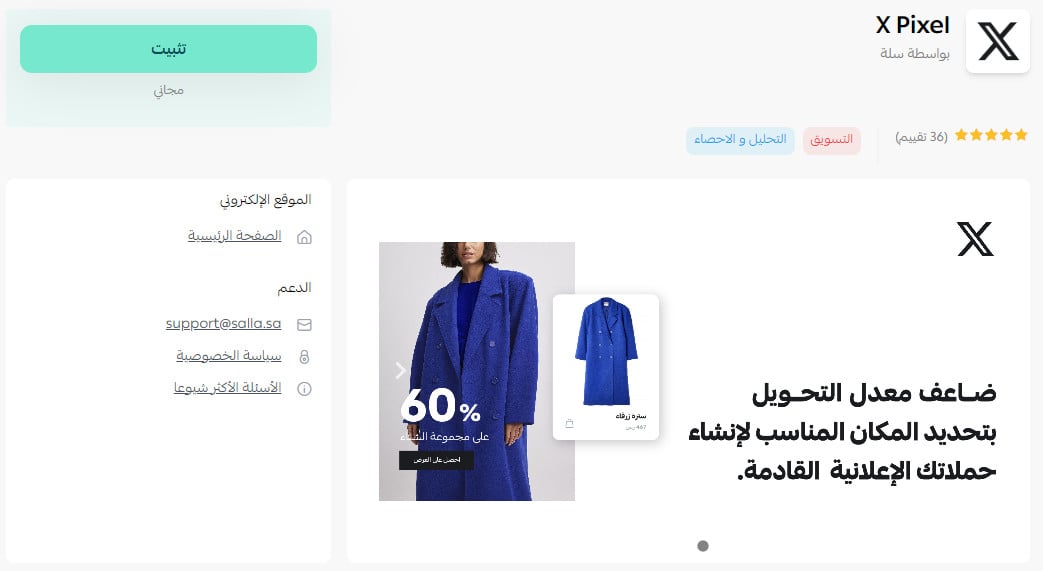
The X Pixel app is now installed on your store.
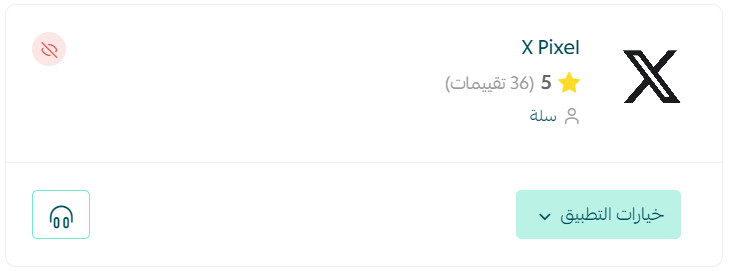
🚀 Stage three: paste the pixel code in the app settings
1. From the side menu of your dashboard, click (Installed apps).
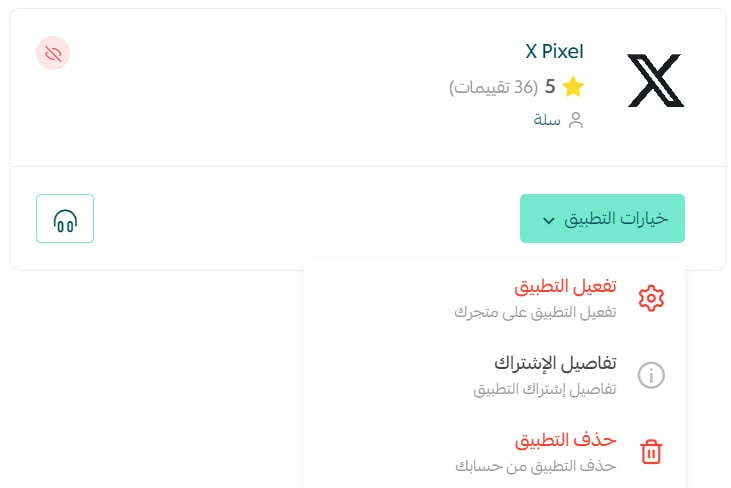
2. From the X app, click (App options), then (Activate app).
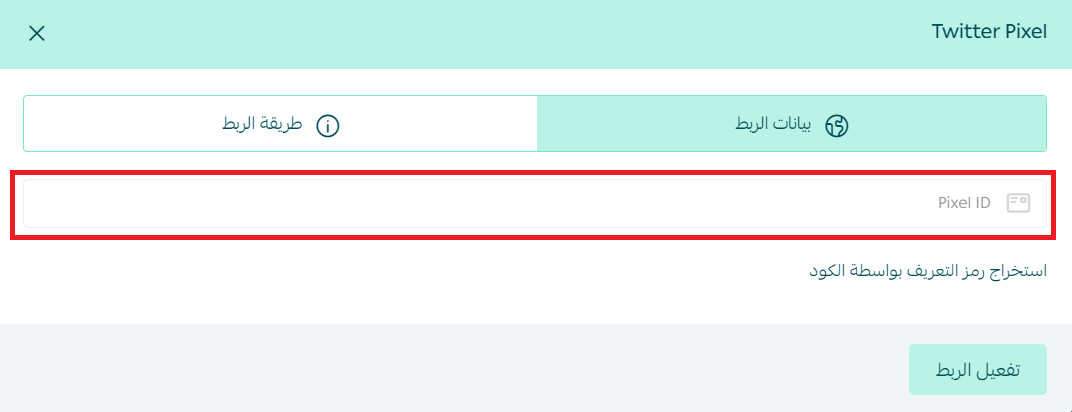
3. Paste the pixel code you copied from your X settings in stage one, then click (Activate connection).
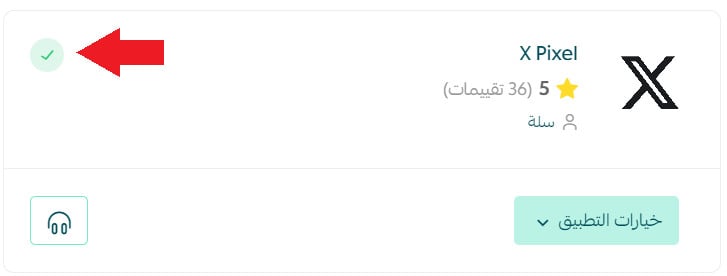
The X Pixel app then appears on your store like this:
❓ Frequently asked questions
Where do I find my X pixel code?
Log in to X analytics, open (Events manager), and click (Copy) next to your pixel code. That is the code you paste into the X Pixel app on Salla.
Do I need the X Pixel app installed before connecting?
Yes. Install the X Pixel app from the Salla App Store first, then activate it and paste your pixel code in its settings.
What happens after I click (Activate connection)?
The connection between your store and X is live, and the X Pixel app appears among your store's active apps, tracking activity from your X campaigns.
With the X pixel connected, every campaign you run on X reports back real store activity — so you can spend your ad budget on what actually converts.