Are your WhatsApp conversations turning into sales, or piling up unanswered?
Most customers would rather message a store than call it, but answering every WhatsApp message by hand stops working the moment order volume grows. Wazzn is a WhatsApp marketing app for Salla stores that uses AI to handle customer inquiries automatically, lets you build and track marketing campaigns, save custom message templates, share the workload across your support agents, and follow detailed analytics from one simple dashboard. In this guide, you'll learn how to connect Wazzn to your store, upgrade your subscription, and remove the app.
To connect the Wazzn WhatsApp marketing app, open (More) in your Salla dashboard, click (Installed apps), browse the Salla App Store, and install Wazzn. Approve the requested permissions, sign in to your account, then choose the WhatsApp Business account you want to link. Your Wazzn dashboard opens right after.
📌 Article overview
- How to connect Wazzn to your Salla store
- How to upgrade your Wazzn plan
- How to remove Wazzn from your store
- Frequently asked questions
🚀 How to connect Wazzn to your Salla store
1. From the main menu, click the (More) tab, then click (Installed apps).
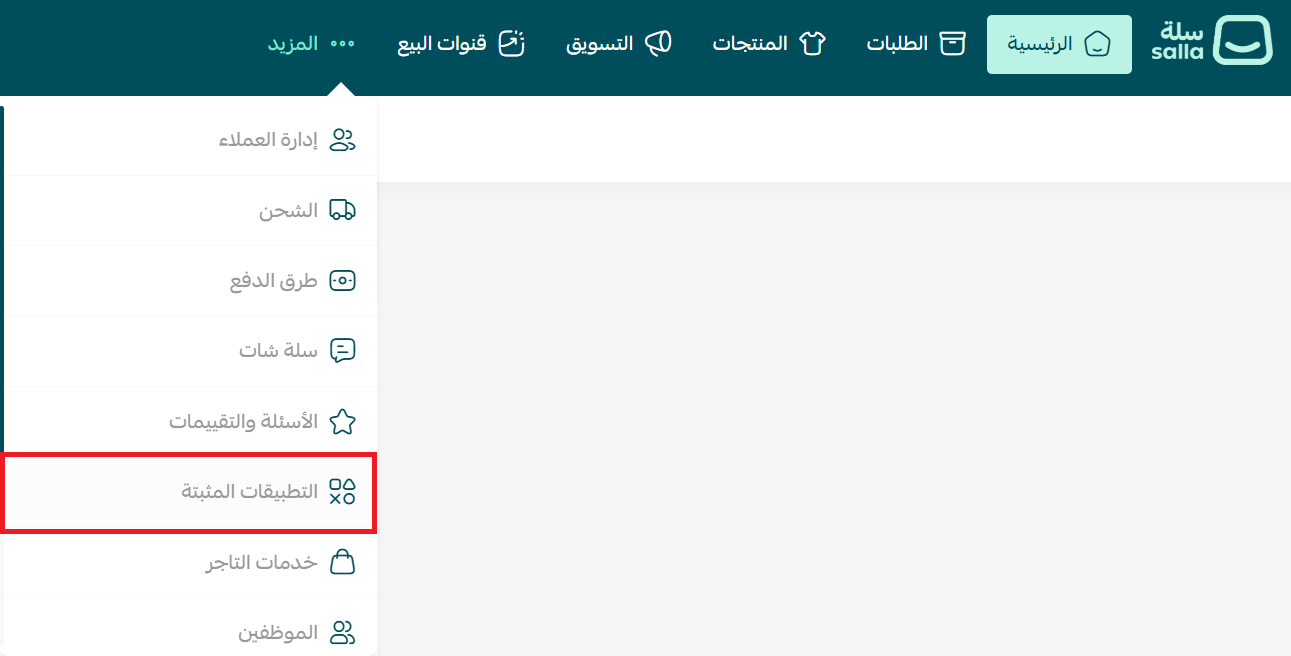
2. On the Salla App Store banner, click (Browse the Salla App Store).

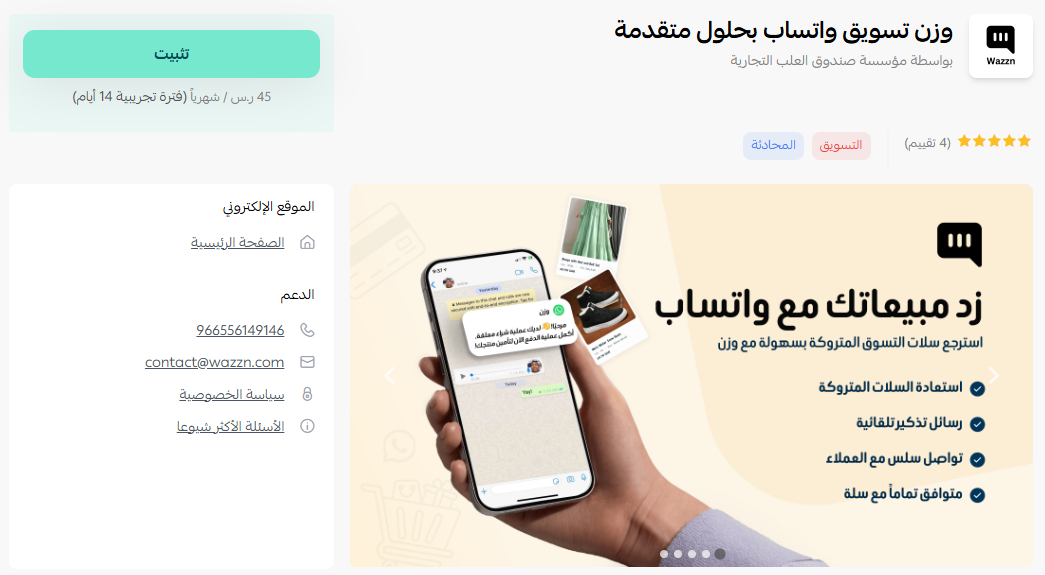
3. On the Wazzn WhatsApp marketing app page, click (Install).
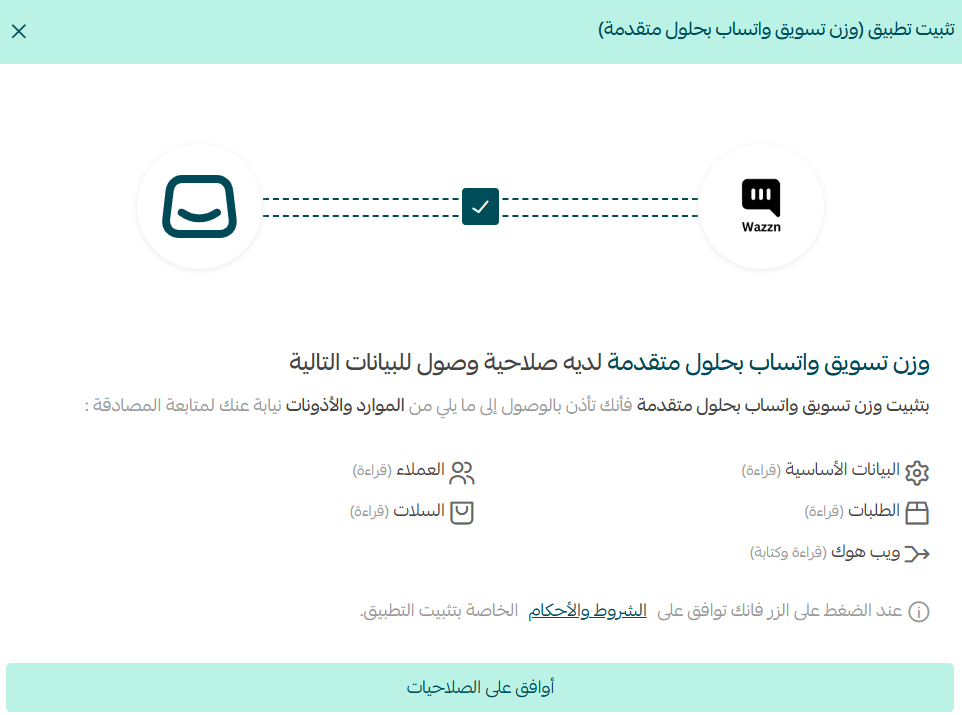
4. Review the permissions the app requests, then click (Approve permissions).
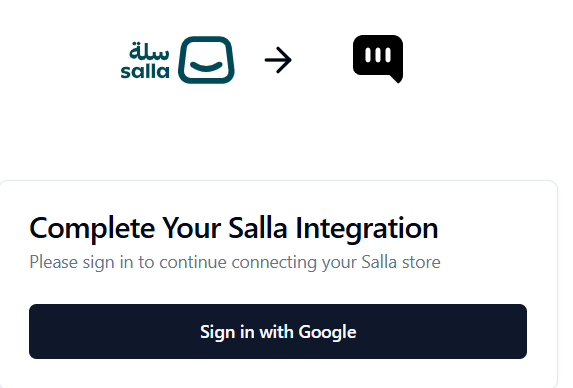
5. Sign in to your account to continue. This is what links the app to your Salla store.
6. Select the WhatsApp Business account you want to use for customer conversations, then click (Continue with selected account).
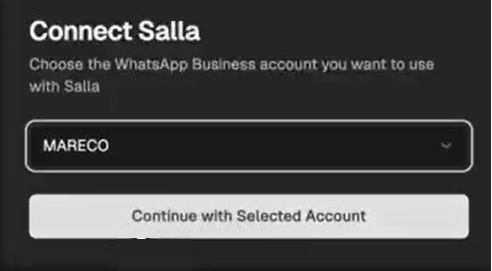
That's it. The connection is live, and your Wazzn dashboard opens so you can start managing conversations and campaigns.
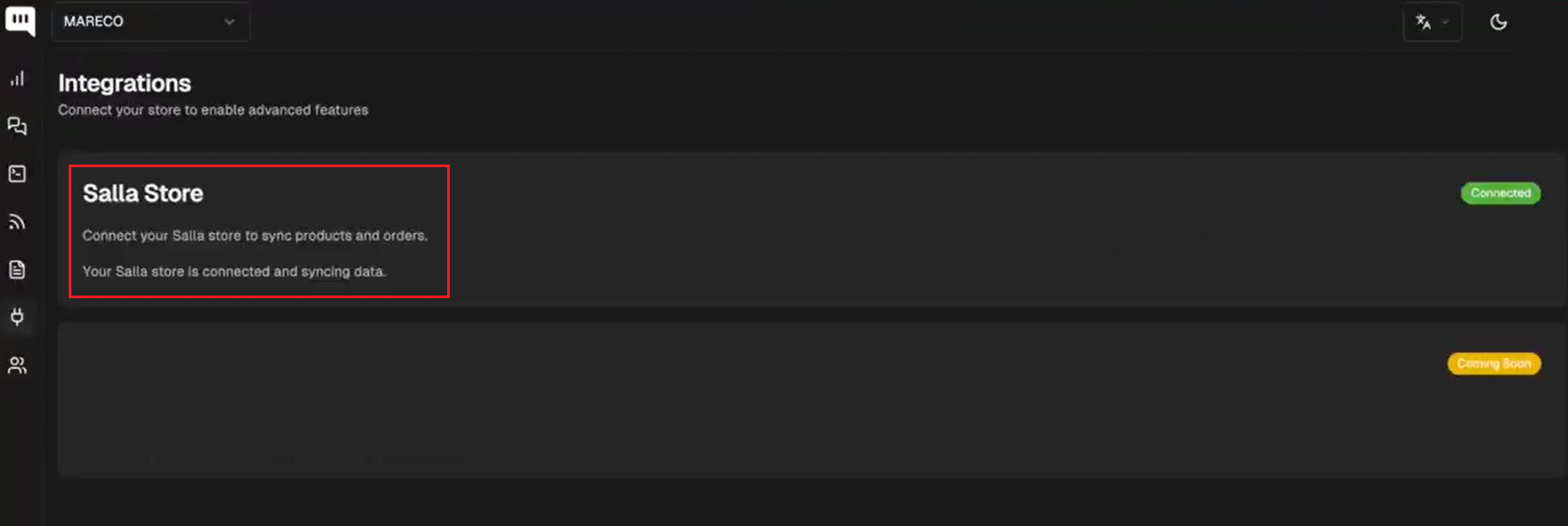
👣 How to upgrade your Wazzn plan
Ready for more campaigns or more agents? Move to a bigger plan without disconnecting anything.
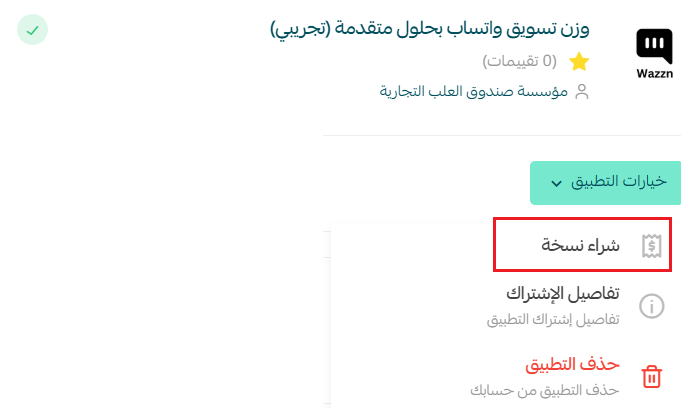
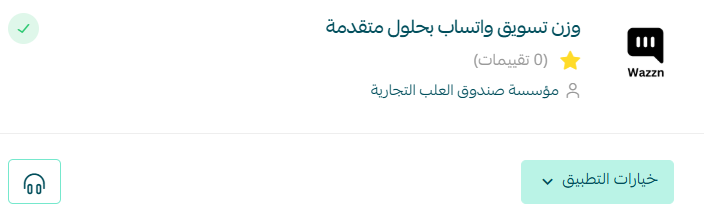
1. Open the Wazzn app, click (App options), then click (Buy version).
2. Review the permissions the app requests, then click (Approve permissions).
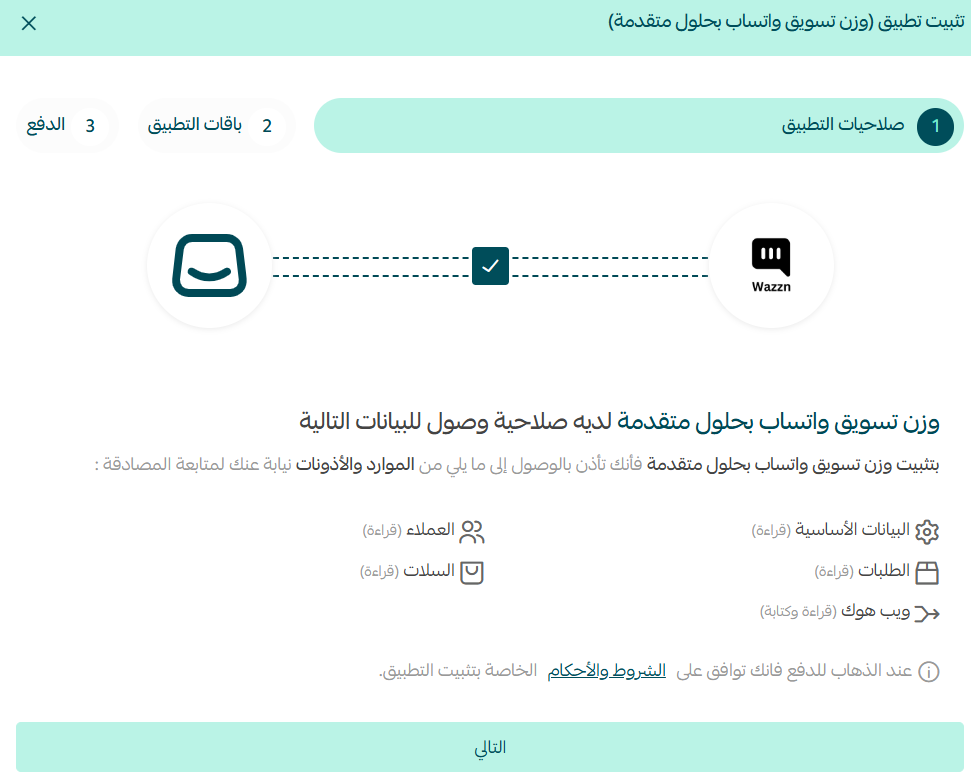
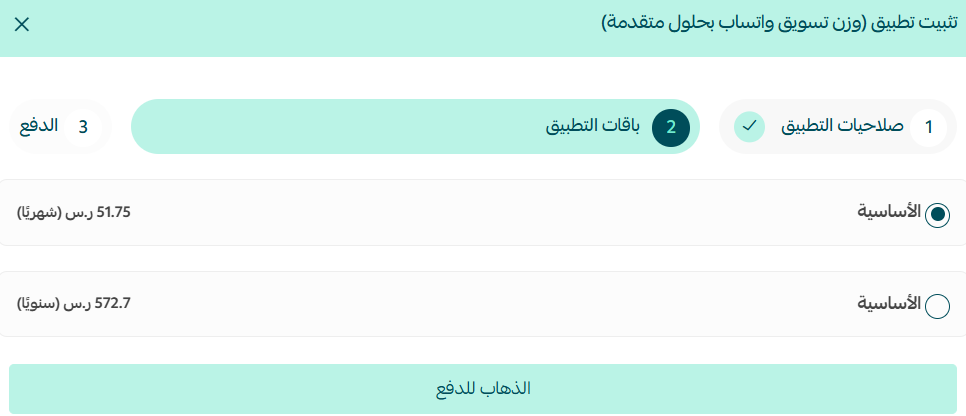
3. Choose the plan that fits your store, then click (Go to payment).
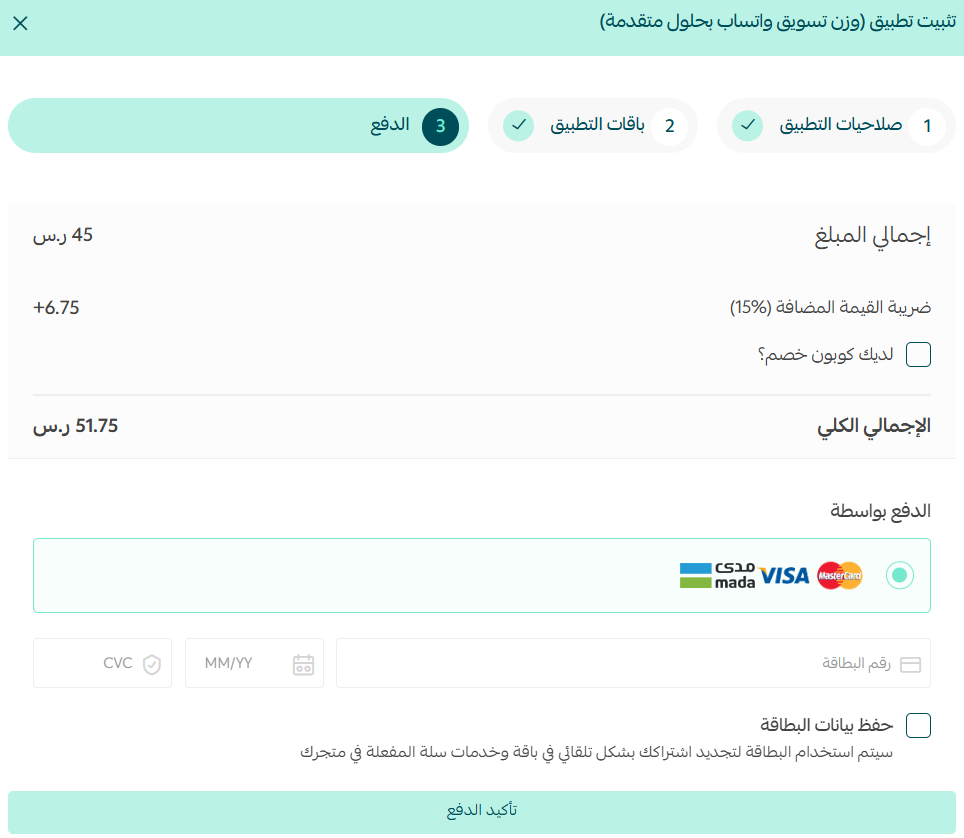
4. Enter your card details, then click (Confirm payment).
Your upgraded Wazzn subscription is now active on your store.
How to remove Wazzn from your store
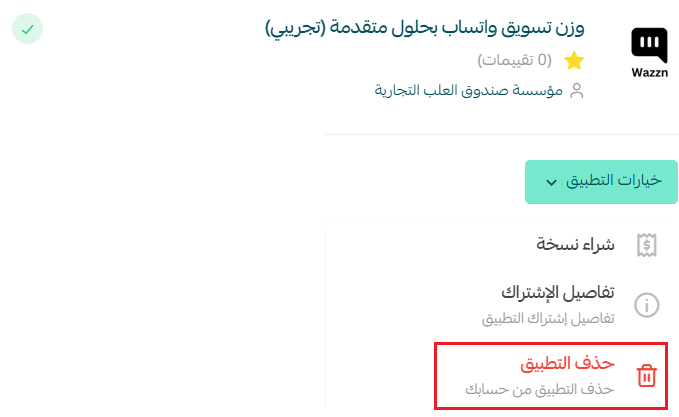
Open the Wazzn app, click (App options), then click (Delete app).
📝 Important notes
- Wazzn works with a WhatsApp Business account. Have that account ready before you start, since you select it during setup.
- Deleting the app disconnects it from your store and stops the automated replies and campaigns it was running.
- For more details, visit the Wazzn website.
❓ Frequently asked questions
Do I need a WhatsApp Business account to use Wazzn?
Yes. During setup you're asked to pick the WhatsApp Business account Wazzn will use to message your customers.
Where do I manage campaigns and automated replies?
In the Wazzn dashboard, which opens as soon as the connection succeeds. Your Salla dashboard is only used to install, upgrade, or delete the app.
Can I change my plan after installing?
Yes. From the Wazzn app, click (App options), then (Buy version), and choose the plan that fits your store.
Why am I asked to approve permissions again when I upgrade?
A new plan can cover more of your store data, so Salla shows the permission screen again before the purchase goes through.
Automating WhatsApp is not about sending more messages. It's about answering faster than a customer expects, so the conversation ends in an order instead of a missed reply.