Are shoppers leaving your store because nobody answered their question in time?
Live chat closes that gap, and connecting Tidio with Salla is one of the quickest ways to add it. Tidio is a free live chat service with ready-made chat templates and automated replies, so you can answer faster, keep customers happy, capture leads, and sell more. In this guide, you'll learn what Tidio offers, how to create an account, and how to connect it to your Salla store.
To connect Tidio with Salla, first create a free Tidio account and copy the tracking code it gives you. Then open (Installed apps) in your Salla dashboard, click (App settings) on the Tidio app, paste the tracking code, and click (Activate connection).
📌 Article overview
- What is Tidio?
- How to connect your Salla store with Tidio
- Frequently asked questions
🎯 What is Tidio?
Tidio is a free live chat and customer messaging service. It gives you ready-made chat templates and smooth, fast automated replies — so you can keep customers satisfied, increase sales, generate leads, and more.
🚀 How to connect your Salla store with Tidio
The connection happens in two stages:
1. Sign up for Tidio.
2. Paste the Tidio tracking code into your Salla store.
Stage one: sign up for Tidio
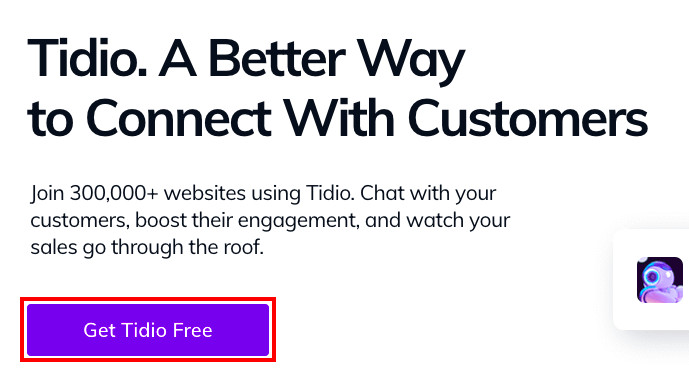
1. Go to the Tidio website and click (Get Tidio Free) to create your account.
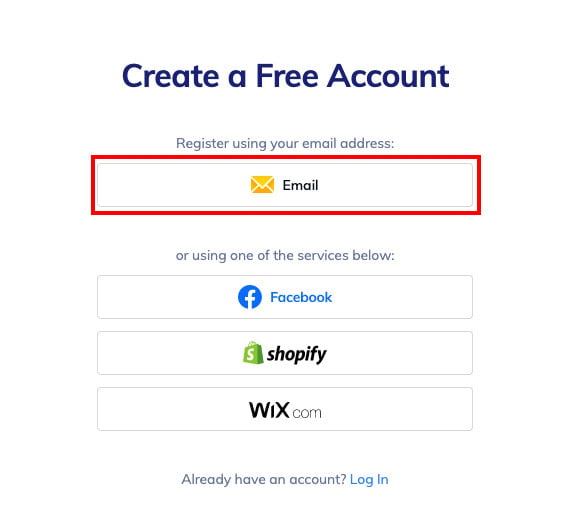
2. Choose to sign up with your email address to get started.
3. Enter your basic details, then click (Create Free Account).
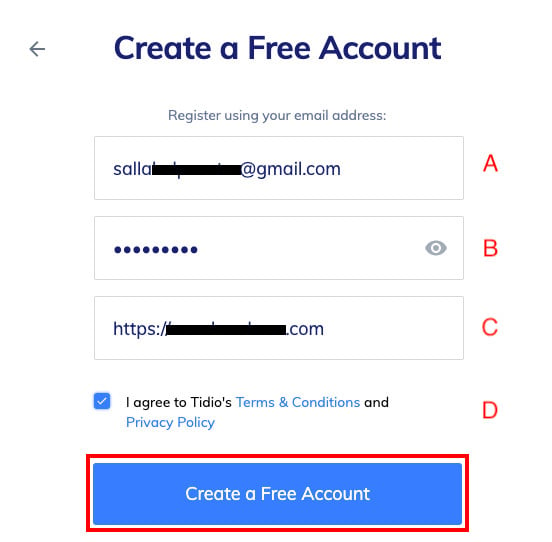
A. Your email address.
B. A new password (at least 8 characters, mixing numbers, English letters, and symbols).
C. Your store or website link.
D. The checkbox that accepts the terms and conditions.
4. Continue through the setup, adjust the chat settings, then click (Continue).
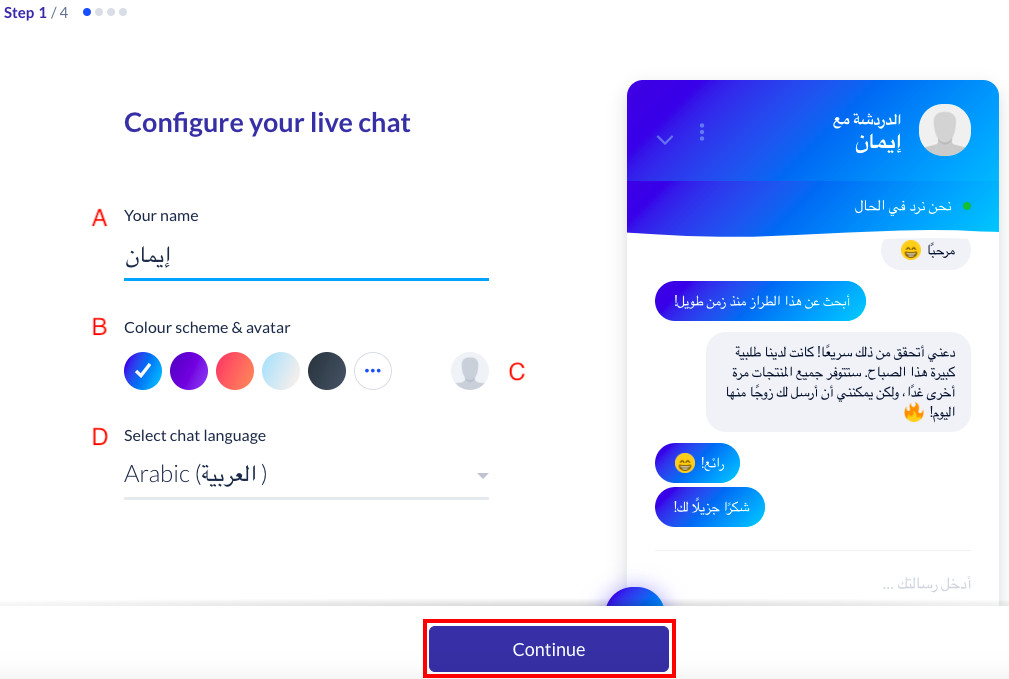
A. The name shown to customers in chats.
B. The chat template color.
C. The chat icon.
D. The chat language.
5. Enter your business information, then click (Continue).
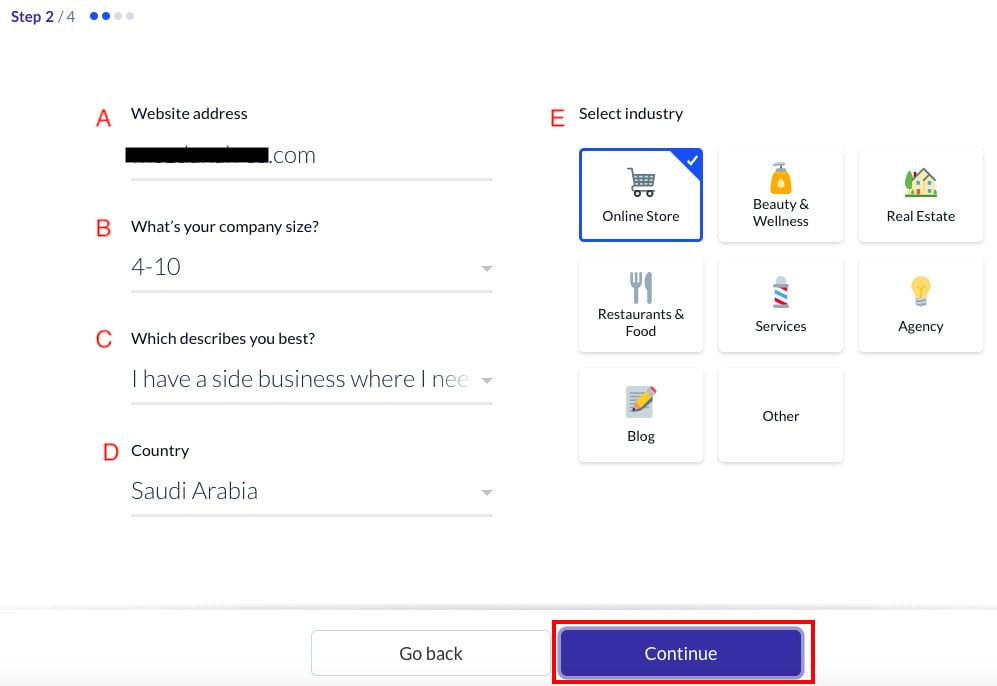
A. Your store or website link — filled in automatically.
B. Your business size, based on your number of employees.
C. A description of why you're signing up.
D. The country.
E. Your line of business.
6. Pick one of the two options for the first chat message, then click (Continue).
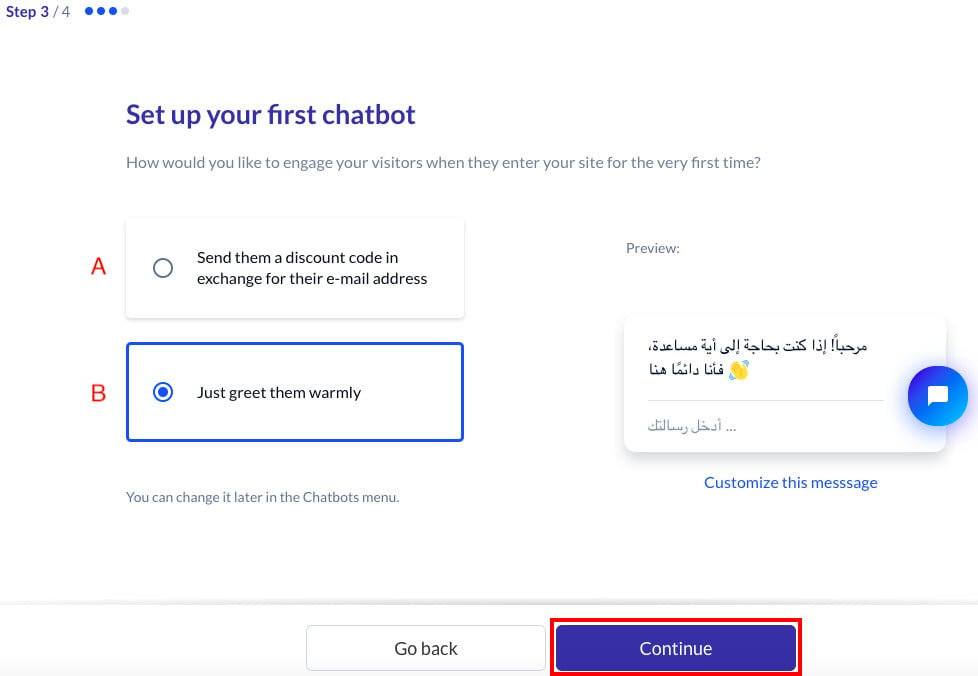
A. Sends new customers a promotional offer, such as a 10% discount.
B. Starts the chat when a customer needs help.
📝 Important notes
You can change these settings later.
7. Choose how you'll get to your tracking code, then click (Continue).
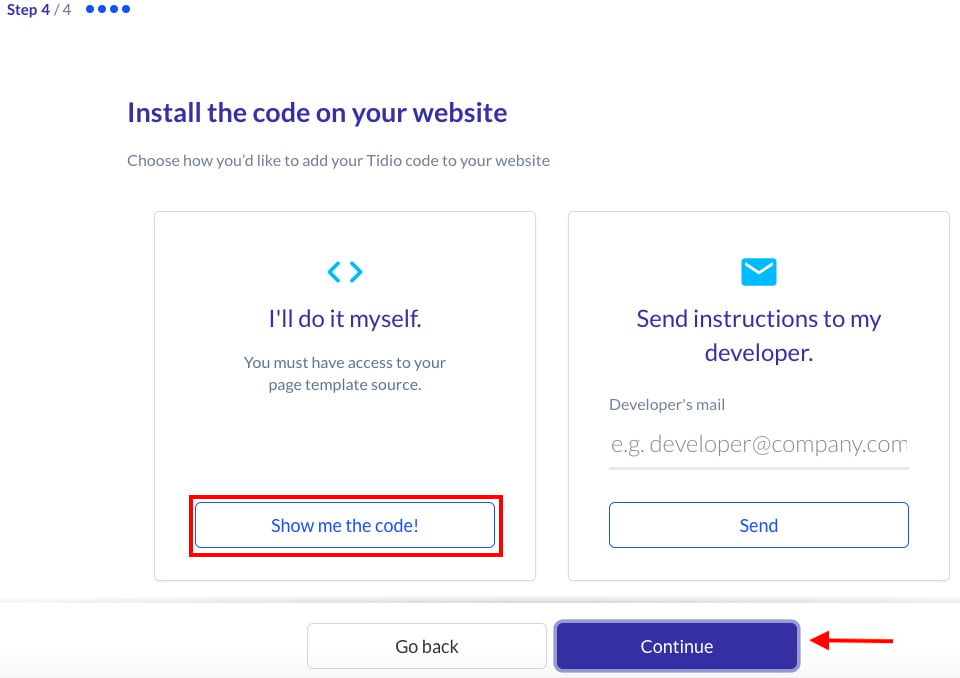
8. Copy the tracking code so you can paste it into your store, then click (Continue) — the Tidio home page opens.
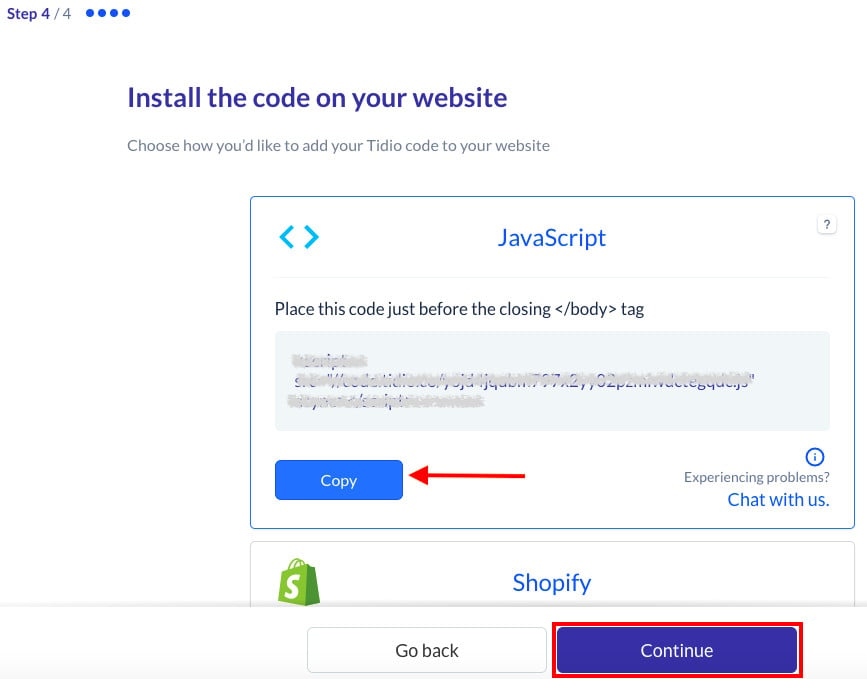
Stage two: paste the Tidio tracking code into your Salla store
1. From the side menu of your dashboard, click (Installed apps).

2. On the Tidio app, click (App settings).
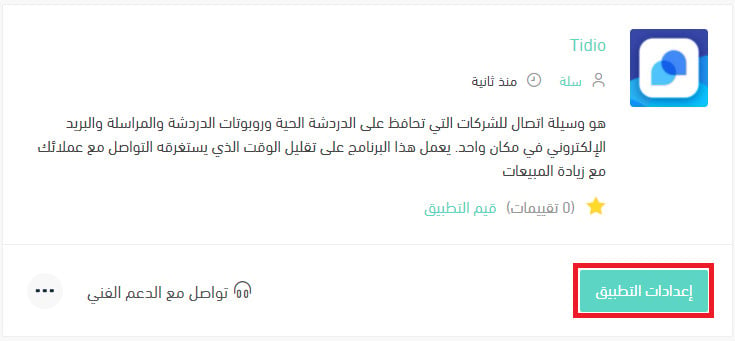
If the app isn't installed in your store yet, install it first. For more details, see installing an app from the Salla App Store.
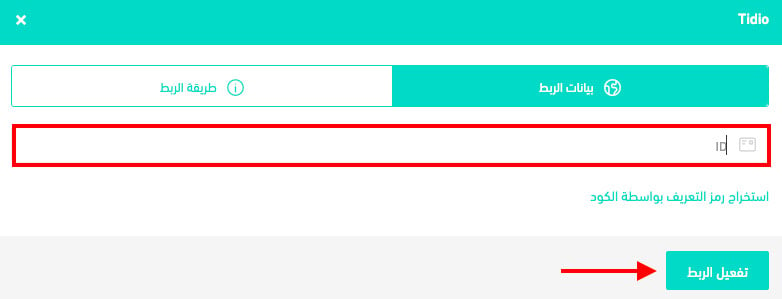
3. Paste the tracking code you copied from Tidio in stage one, then click (Activate connection).
❓ Frequently asked questions
Why should I use Tidio?
1. One-click answers to common questions, so you can spend more time on the complicated ones.
2. Chatbots that keep capturing leads while you're offline.
3. A list of every visitor browsing your website.
4. Customer details such as IP address, city, country, device type, and browser.
5. Notifications for new messages, even when the app is closed.
Can I disconnect my store from my Tidio account?
Yes. On the Tidio connection page, click (Disconnect).
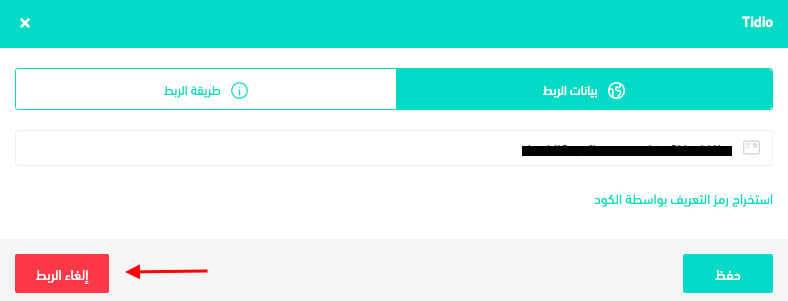
You can reconnect to any other Tidio account whenever you want.