Are your store's sales and stock levels still being copied into your accounts by hand?
Manual data entry is where accounting errors start. Fai Sync is an integration app that connects your Salla store to the Daftra accounting platform, syncing sales and inventory automatically and posting orders according to the statuses you define. It can also bring several stores from different platforms into one accounting account, which makes it a practical fit for businesses that want everything managed centrally. In this guide, you'll learn what you need before you start, how to connect Daftra via Fai Sync, and how to manage the app afterward.
Fai Sync connects your Salla store to the Daftra accounting platform. Once installed, sales and inventory sync automatically and orders post to Daftra based on the statuses you choose. You need an active Salla account, an active Fai account, and an active Daftra account before you start.
📌 Article overview
- What you need before you start
- Why connect Daftra via Fai Sync
- How to connect Daftra via Fai Sync
- How to manage the app
- Frequently asked questions
What you need before you start
1. An active Salla account.
2. An active Fai account.
3. An active Daftra accounting account.
✅ Why connect Daftra via Fai Sync
- Sales and inventory are fully automated, with no manual entry.
- Orders post automatically, and you decide which statuses and which periods they post for.
- Several stores across different platforms can feed one unified accounting account.
- Accounting work is faster and more accurate, with fewer mistakes.
- The interface makes it easy for your accountant to follow up and reconcile.
- Technical support is available 24/7 for questions or issues.
🚀 How to connect Daftra via Fai Sync
1. From the main menu, click (All), then under the helper tools section, click (App Store).

2. Search for the app using the search field.

3. On the Daftra via Fai Sync page, click (Install).

4. Review the permissions the app requests, then click (I agree to the permissions).
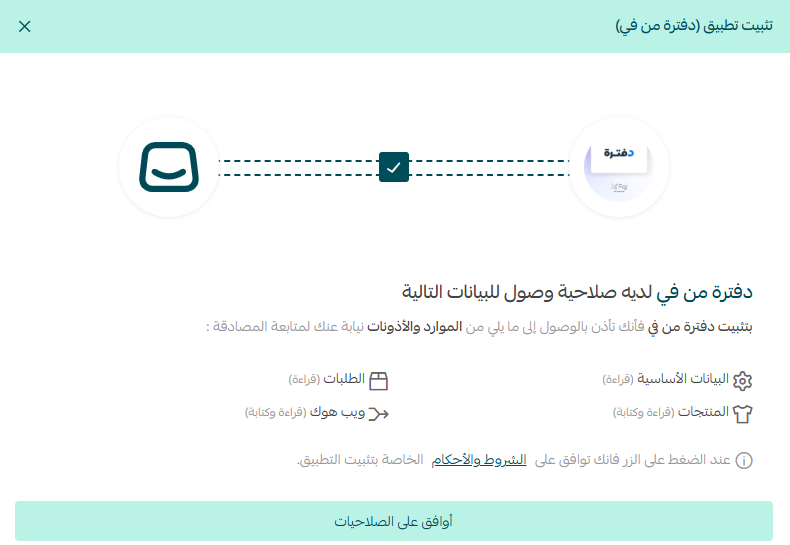
The Daftra via Fai Sync app is now installed on your store.
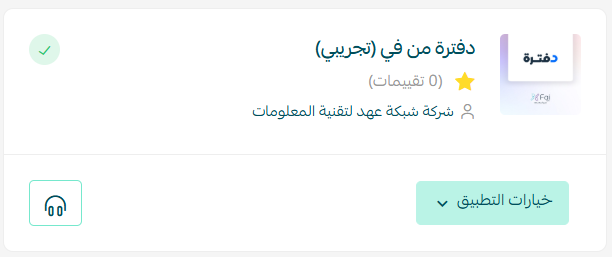
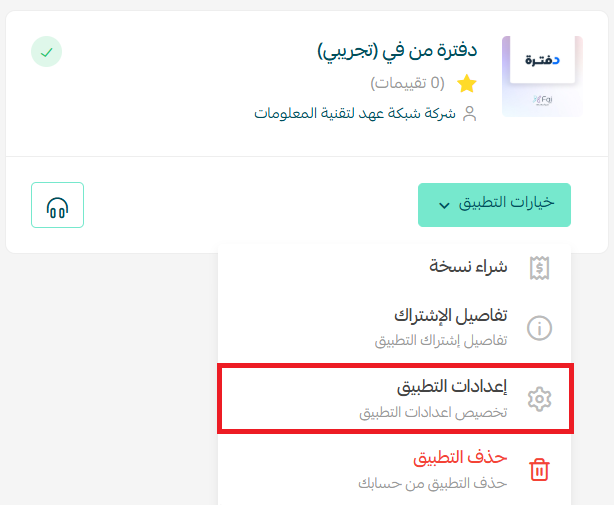
5. From the installed apps page, open the app options for Daftra via Fai Sync, then click (App settings).
6. Click (Open app).

7. Sign in using the credentials sent to your email.
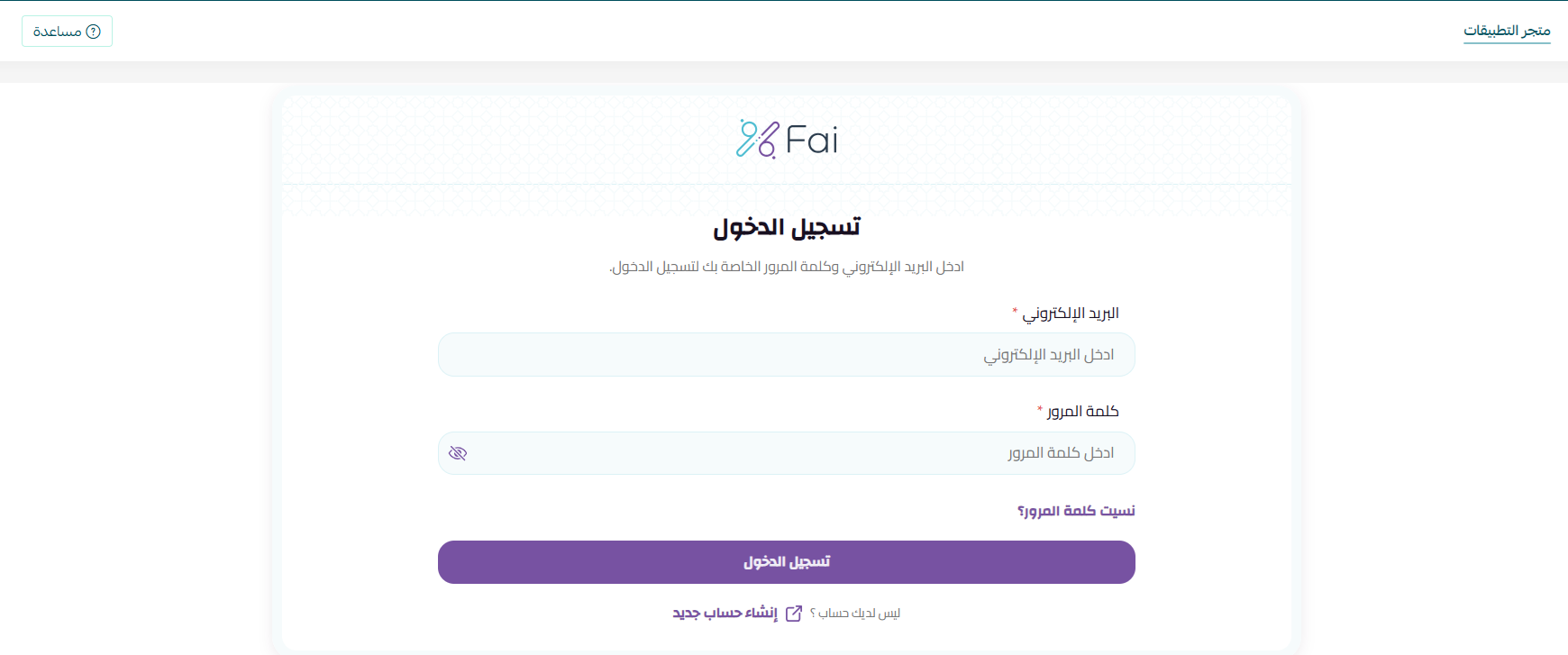
📝 Note: this is what the link in that email looks like.

Your account home page opens, showing a company created under your store's name.
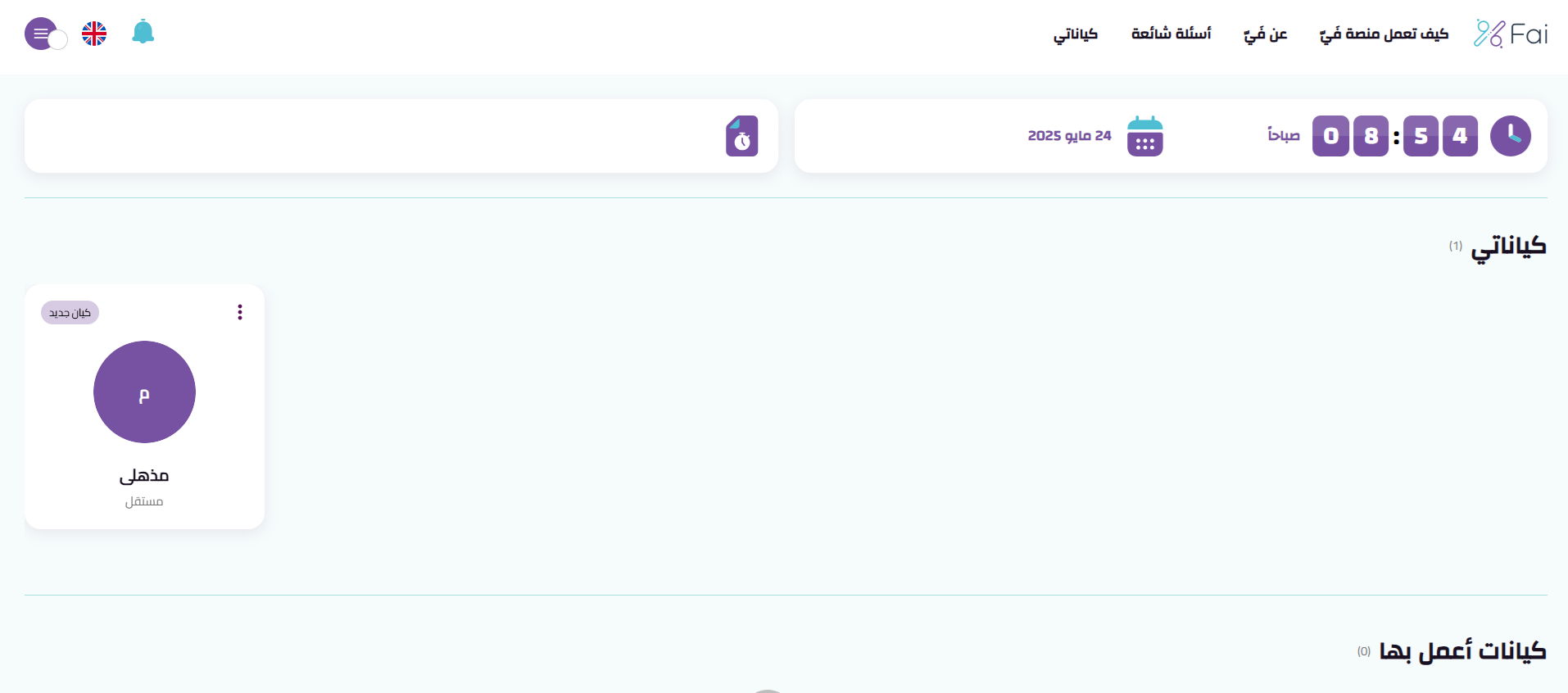
The connection is complete.
How to manage the app
Remove the app
Click (App options), then click (Delete app).
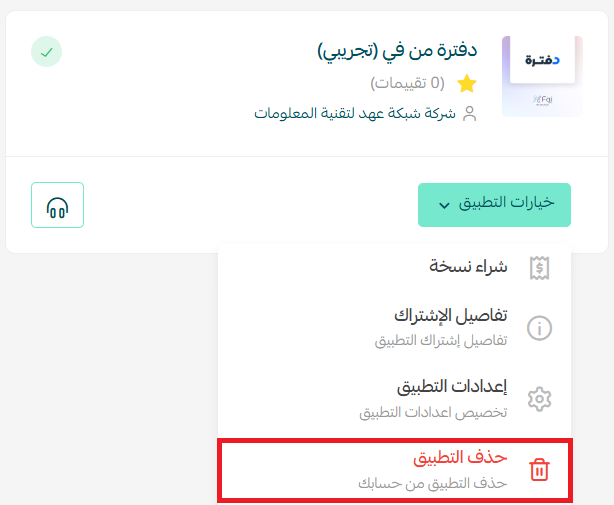
For more details, see the Daftra via Fai Sync app page.
❓ Frequently asked questions
What do I need before I can connect Daftra to my store?
Three active accounts: your Salla account, a Fai account, and a Daftra accounting account.
What syncs automatically once the connection is live?
Sales and inventory sync without manual entry, and orders post automatically according to the statuses and periods you set.
Can I connect more than one store to the same accounting account?
Yes. Fai Sync can bring several stores, including stores on other platforms, into one unified accounting account.
How do I log in to the app for the first time?
Open the app from its app settings page, then sign in with the credentials sent to your email after installation.
How do I remove the app?
From the installed apps page, click (App options), then click (Delete app).
The value of an accounting integration shows up at month end. When sales, stock, and order statuses arrive in Daftra on their own, closing the books becomes a review job rather than a data-entry one.