How much of your customer follow-up still happens by hand, one WhatsApp message at a time?
WhatsApp is where most shoppers in the region actually read their messages, which makes it the best place to recover an abandoned cart or confirm an order. The Social Lab app automates that channel for your Salla store: abandoned cart reminders, promotional messages and instant order updates go out on their own, so you stop chasing customers manually. In this guide, you'll learn how to install the Social Lab WhatsApp app, upgrade to a paid plan, sign in to the Social Lab dashboard, and cancel the subscription if you no longer need it.
Social Lab is a WhatsApp marketing and automation app for Salla stores. Install it from the Salla App Store, then upgrade to the plan that fits your business and complete payment. Social Lab emails your login details, and from its dashboard you set up automated WhatsApp notifications for carts, offers and order updates.
📌 Article overview
- What the Social Lab app does for your store
- How to install the Social Lab app
- How to upgrade your plan
- How to sign in to the Social Lab dashboard
- How to cancel your subscription
- Frequently asked questions
🎯 What the Social Lab app does for your store
Social Lab connects your store to WhatsApp and sends the messages your team would otherwise write one by one.
- Send automated reminders to shoppers who left items in their cart.
- Promote offers and campaigns to your customers over WhatsApp.
- Notify customers instantly when their order status changes.
- Automate the follow-up so customer communication runs without daily effort.
🚀 How to install the Social Lab app
1. From the main menu, click (All), then under helper tools, click (App Store).

2. Search for the app using the search field.

3. On the Social Lab app page, click (Install).
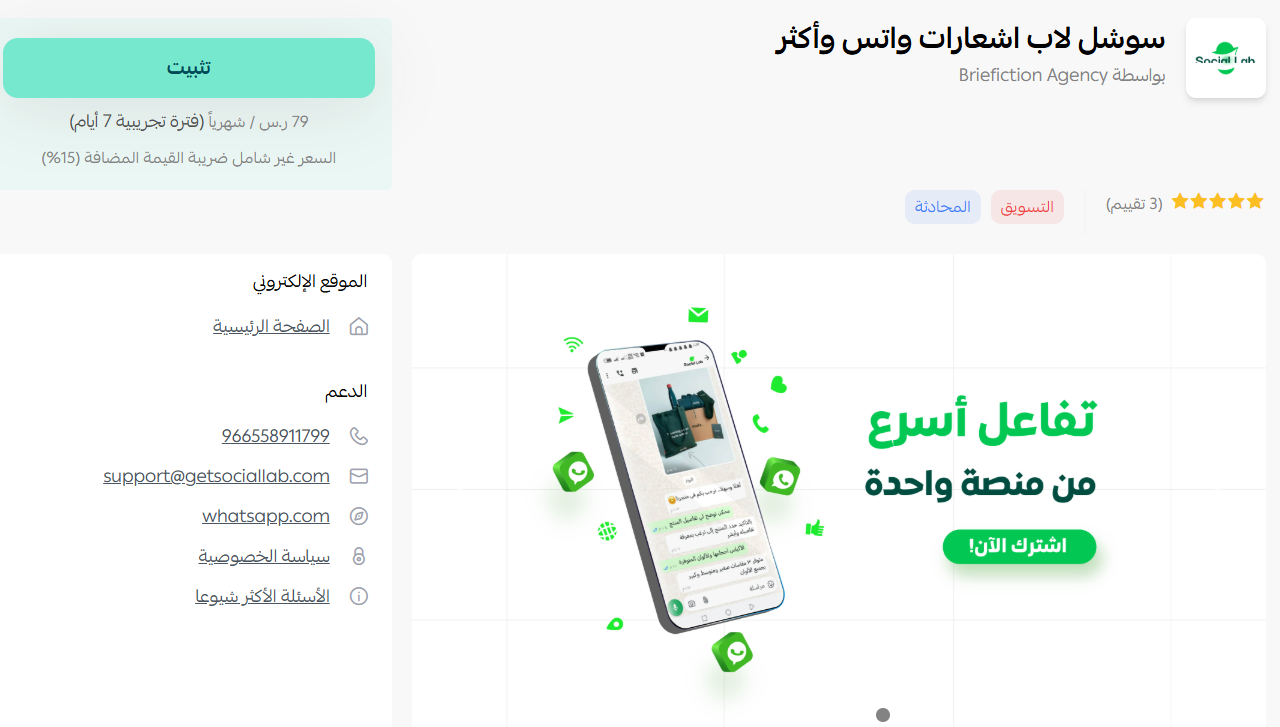
The app is now installed on your store.
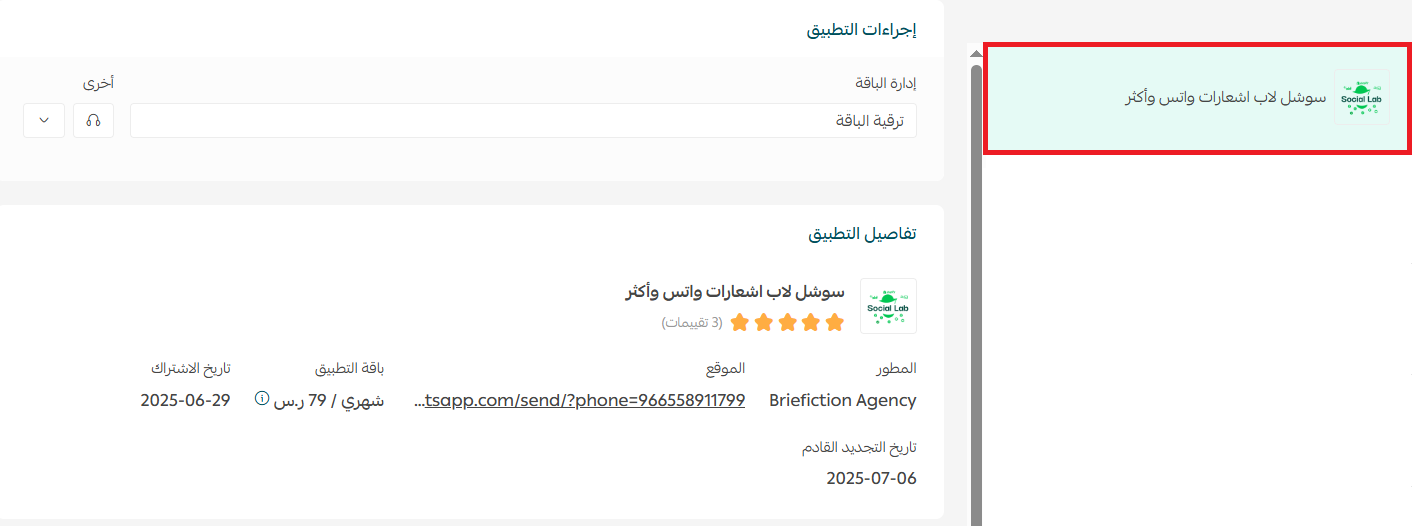
👣 Manage the Social Lab app
Upgrade your plan
1. Under (App actions), click (Upgrade plan).

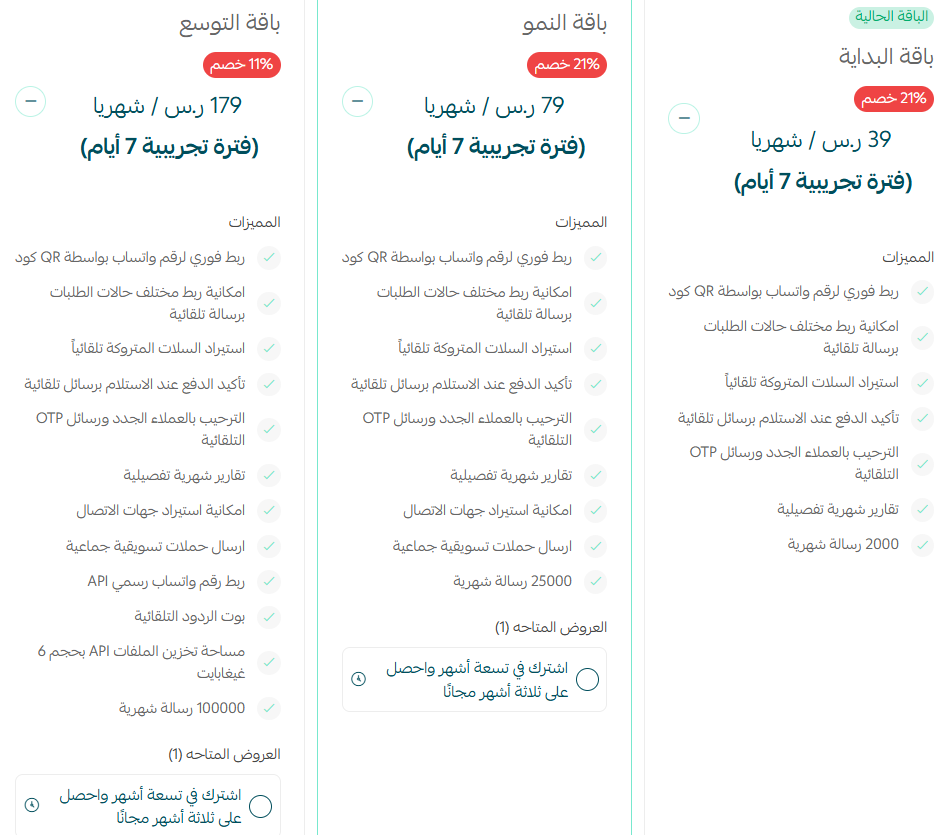
2. Choose the plan that suits your business, then click (Continue to payment).
3. Complete the payment to unlock the app's features.
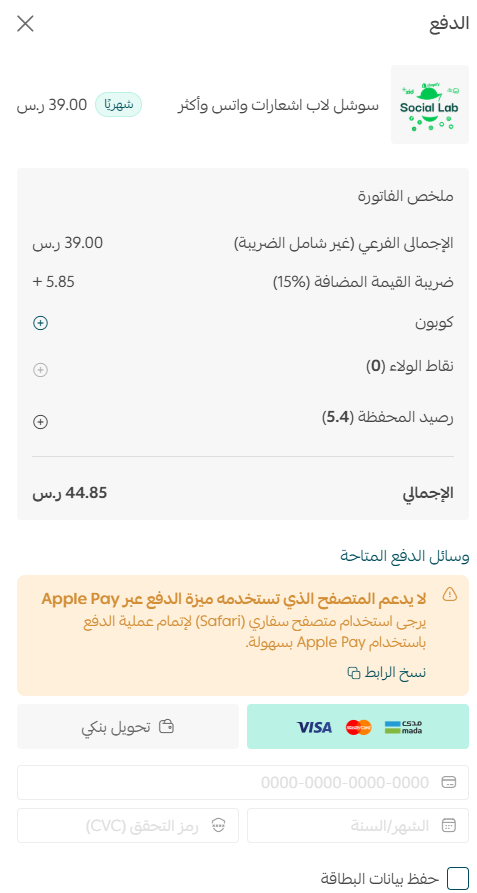
Social Lab is now active on your store.
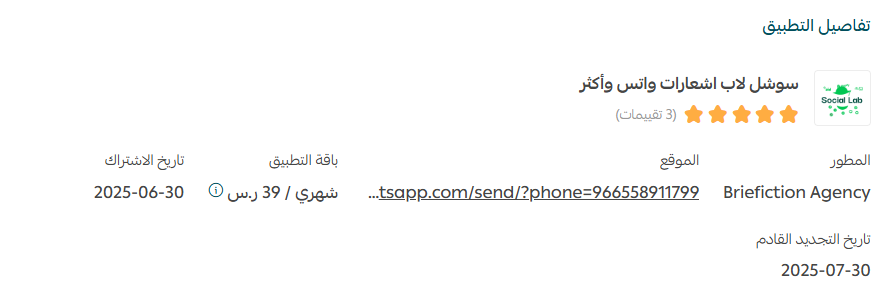
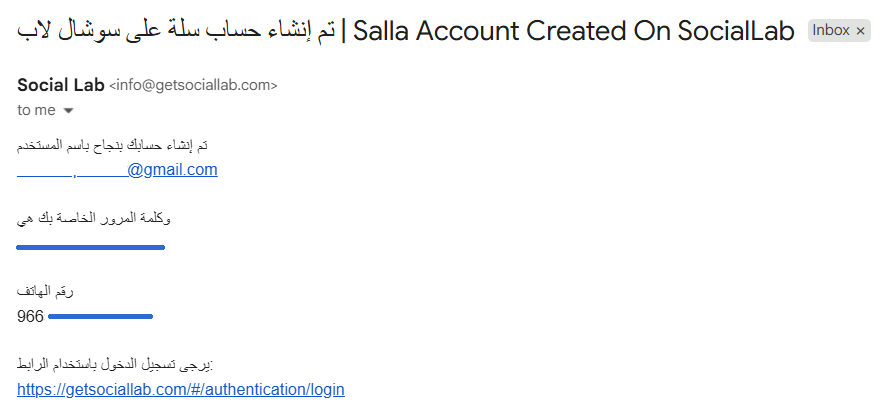
Once the installation is complete, Social Lab sends your login details to the email address registered on your store.
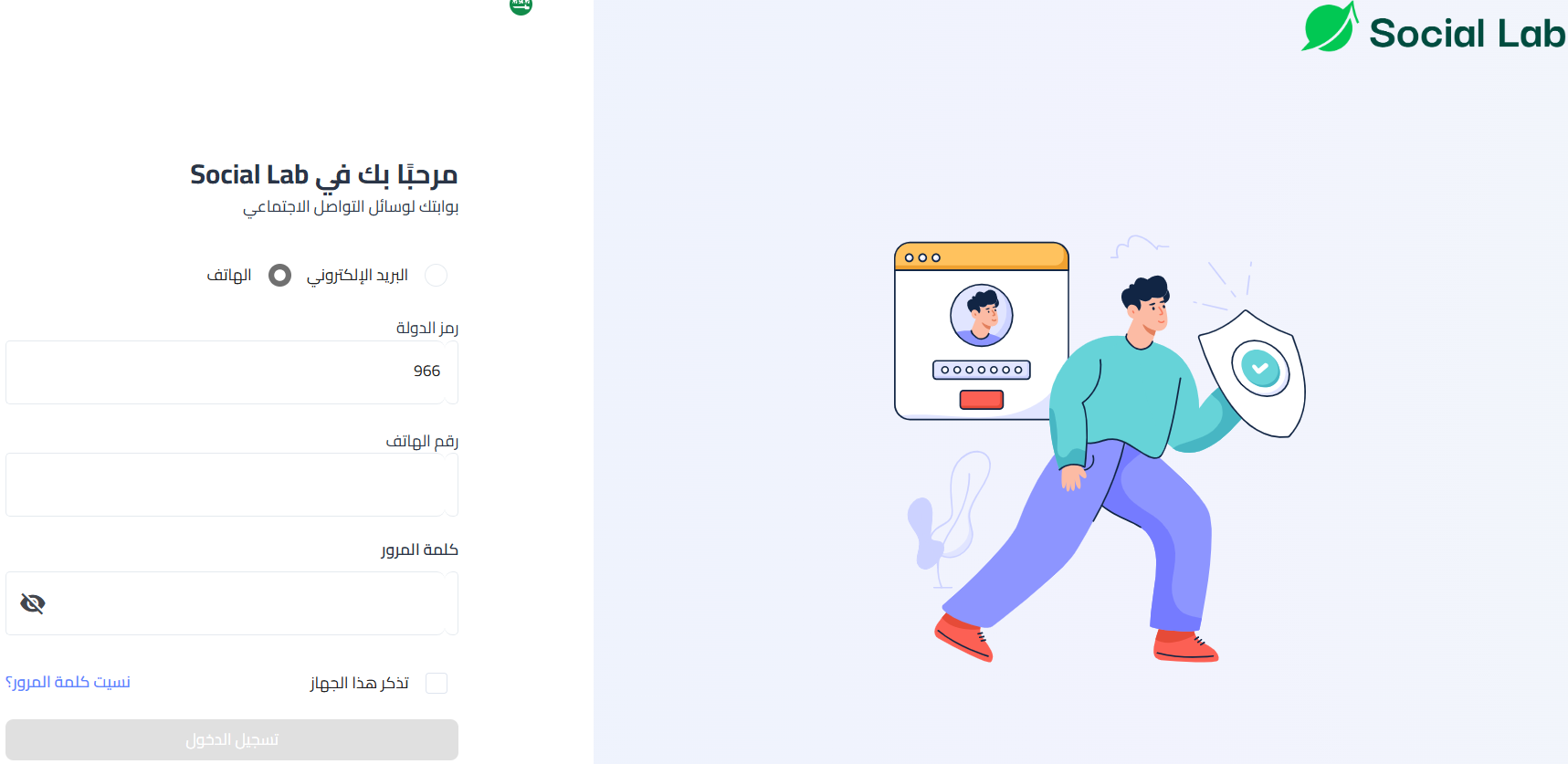
Sign in to the Social Lab dashboard
1. Sign in to the Social Lab website using the login details sent to your email.
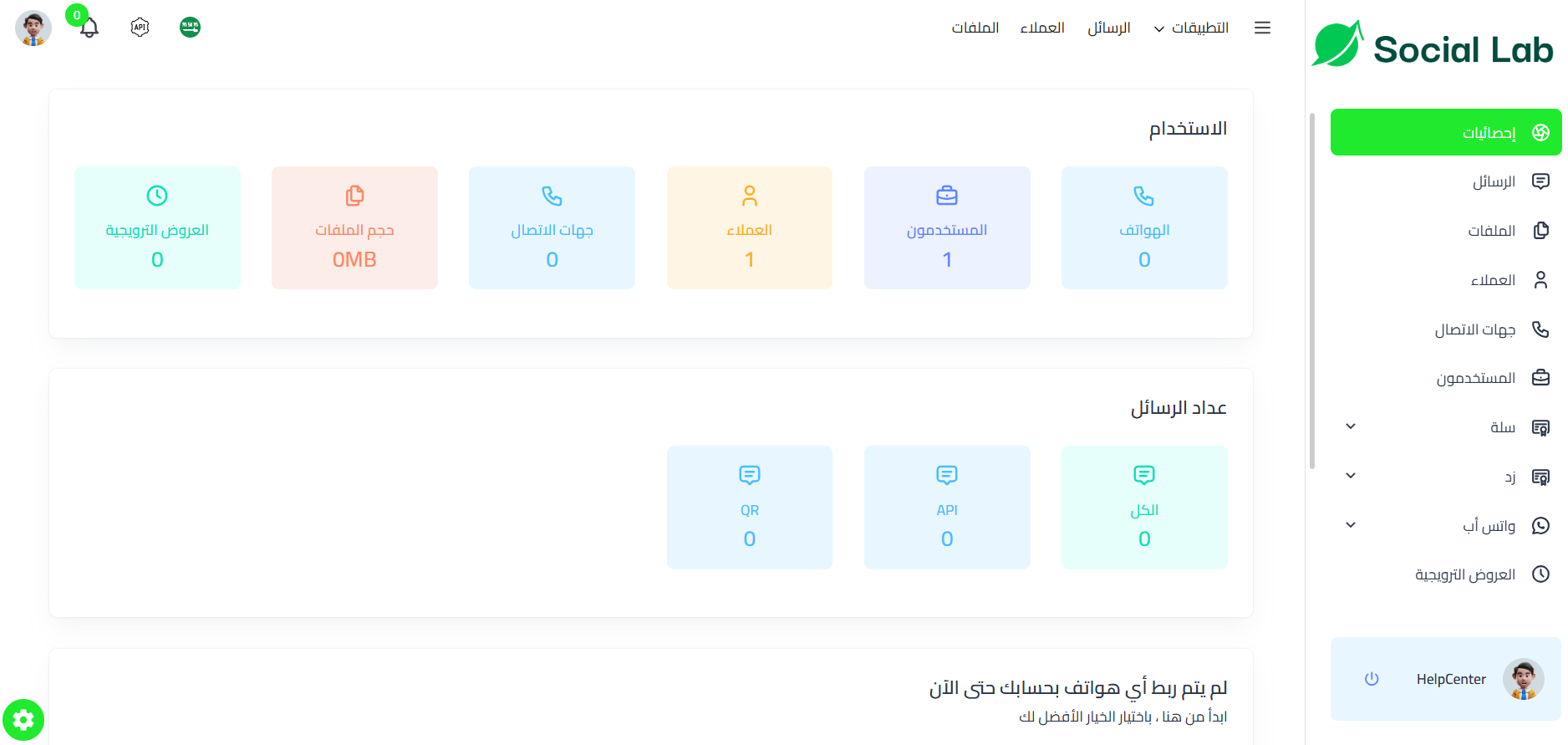
2. You land on the Social Lab home page, where you can start setting up WhatsApp notifications and the rest of the automation features.
Cancel your Social Lab subscription
Under (App actions), click ( ), then click (Cancel subscription).

📝 Important notes
Installing the app is the first step only. The features become available after you upgrade to a paid plan and complete the payment.
Your Social Lab login details arrive by email, so check the inbox of the address registered on your store.
WhatsApp messages and automations are configured on the Social Lab website, not in your Salla dashboard.
❓ Frequently asked questions
Is the Social Lab app free?
You can install it from the Salla App Store, but the app's features run on a paid plan. Choose a plan under (App actions), then click (Upgrade plan) and complete the payment.
Where do I set up the WhatsApp messages?
On the Social Lab website. Your Salla dashboard is used to install the app, upgrade the plan and cancel the subscription.
What kind of messages can Social Lab send?
Abandoned cart reminders, promotional messages, and instant updates when an order changes status.
How do I stop using the app?
Under (App actions), click the options icon, then click (Cancel subscription).
For more details, see the Social Lab website.