Need a shipping partner that handles both local delivery and international freight?
QuickBox is a privately owned logistics company offering local transport, international freight management, worldwide shipping, and value-added services. The QuickBox shipping integration connects the company to your Salla store, so you can offer its rates at checkout and manage your shipping pricing from your dashboard. In this guide, you'll learn what QuickBox does, whether you need an account first, how to connect it, how to set your shipping rates, and how to pause or remove the app.
To connect QuickBox, open (My installed apps) from your dashboard side menu, click (Browse Salla App Store), then open the QuickBox app page and click (Install). Review the permissions the app requests and click (Grant permission). Your store is linked as soon as the permission is granted.
📌 Article overview
- What QuickBox is
- Whether you need a QuickBox account first
- How to connect QuickBox to your store
- Frequently asked questions
🎯 What QuickBox is
QuickBox was founded in October 2019. It is a privately owned company providing local transport services, international freight management solutions, worldwide shipping, and value-added services.
The company runs a non-asset-based supply chain operation, designing and delivering shipping solutions built to keep business moving. Its stated focus is on sustainability and on sharing the benefits of that work with its customers, which shapes how it approaches shipping services.
🎯 Do you need a QuickBox account first?
No. When you install the QuickBox app from the Salla App Store, a new QuickBox account is created for you automatically. If you already have a QuickBox account, contact QuickBox technical support instead and ask them to activate that account on your Salla store.
🚀 How to connect QuickBox to your store
1. From the side menu of your dashboard, click (My installed apps).

2. From the Salla App Store banner, click (Browse Salla App Store).

3. From the QuickBox app page, click (Install).
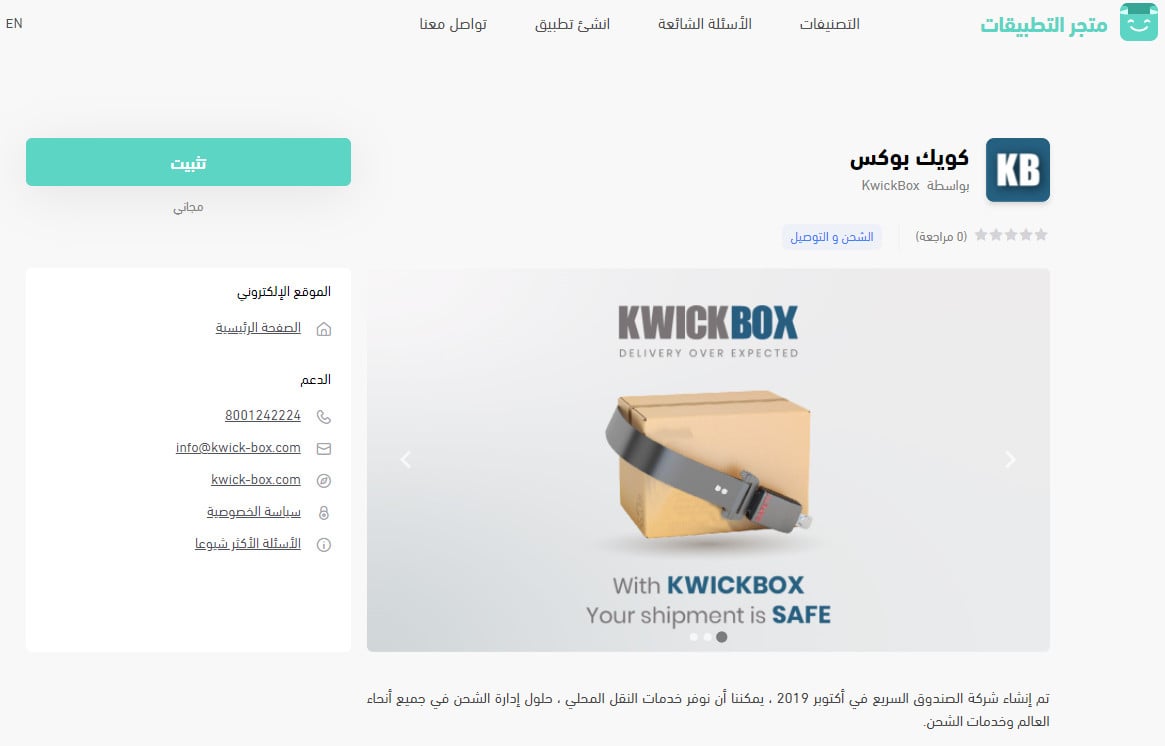
4. Review the permissions the app requests, then click (Grant permission).
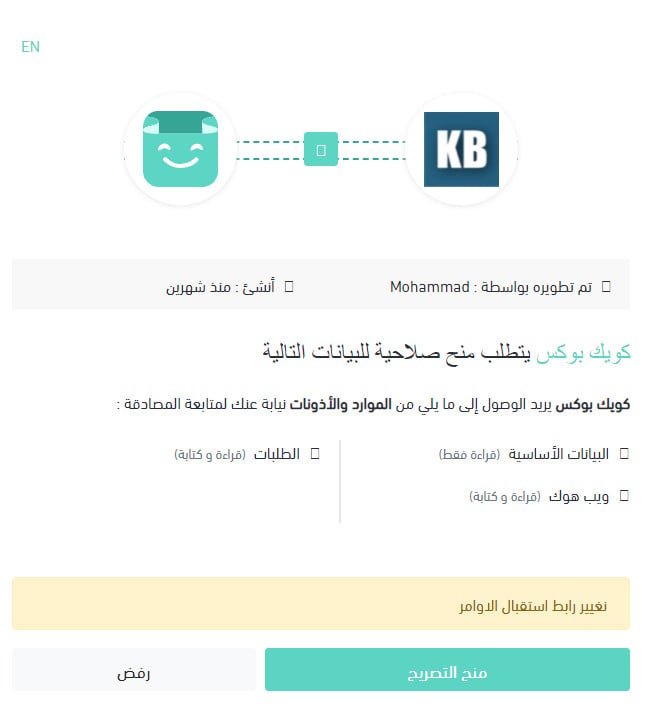
Your Salla store is now connected to your QuickBox account.

For more detail, read Managing my store's apps.
❓ Frequently asked questions
How do I set up shipping rates on QuickBox?
1. From the side menu of your dashboard, click (My installed apps).

2. From the all apps page, on the QuickBox app, click (App settings).
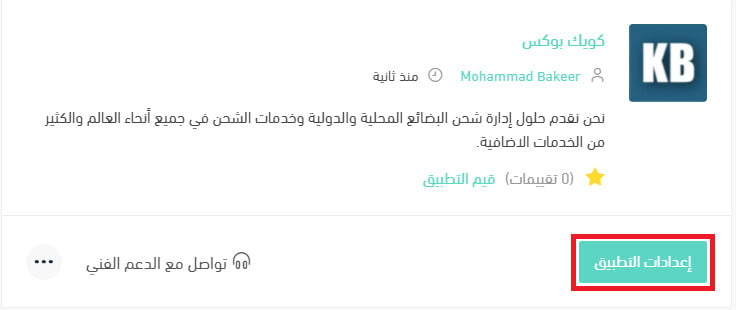
3. On the (Shipping rates) tab, enter your shipping rates for the cities and regions you want.
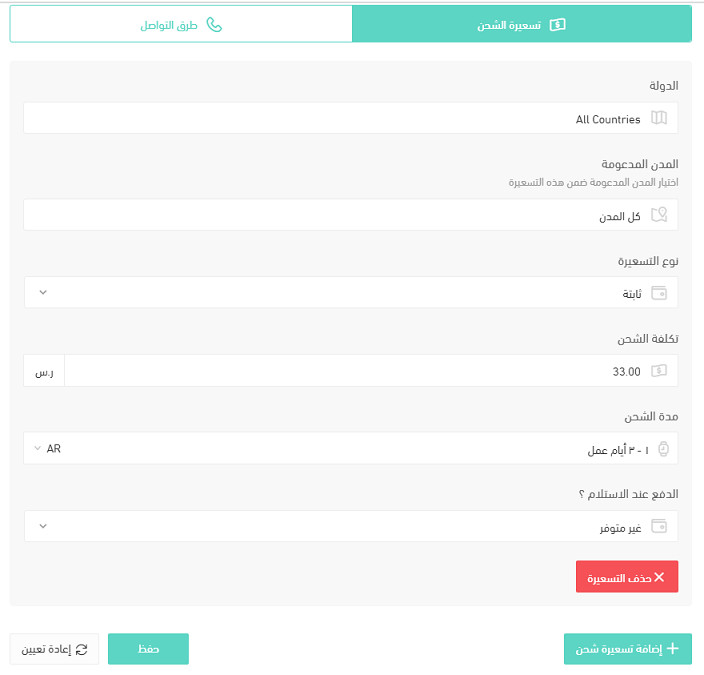
For more detail, read Shipping and delivery option settings.
How do I turn the QuickBox app off temporarily?
1. From the side menu of your dashboard, click (My installed apps).
2. From the all apps page, on the QuickBox app, click (App settings).
3. Turn the (Hide shipping company from the checkout page) option on or off.
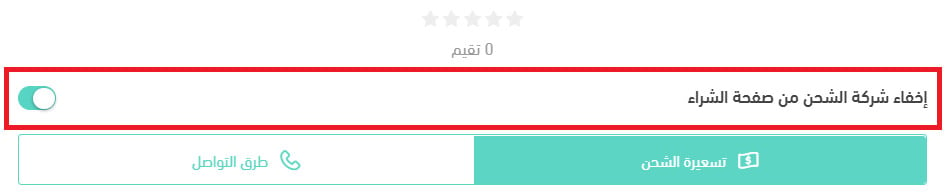
What's the difference between hiding the app and deleting it?
Hiding the shipping company keeps the app installed and connected but takes the option off your checkout page, so you can bring it back with one click. Deleting removes the app from your store entirely.
How do I remove the QuickBox app from my store?
1. From the side menu of your dashboard, click (My installed apps).
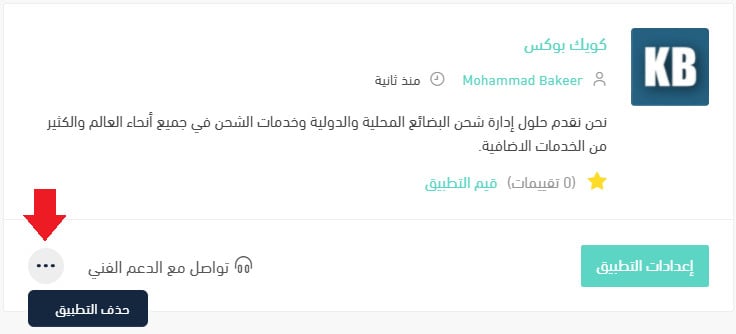
2. From the all apps page, on the QuickBox app, click the (...) icon, then click (Delete app), as shown below.
Shipping rates are the part of the setup customers actually feel at checkout. Get them right in the app settings before you turn the option on, and the rest of the integration takes care of itself.