Are your products showing up where shoppers go looking for ideas?
Pinterest is an image and social media sharing service built around saving and discovering things online through pictures. People browse boards of images and videos, which makes it an effective marketing channel for putting your products in front of shoppers quickly. The Pinterest integration connects your Salla store to your Pinterest ad account so your catalog syncs across. In this guide, you'll learn how to create a Pinterest account, get your tag ID, and connect it to your store.
Connecting Salla to Pinterest takes three stages. Create a Pinterest account, upgrade it to a business account and generate a tag ID from your ads page, then install the Pinterest app from the Salla App Store, activate it, and paste your tag ID to finish the connection.
📌 Article overview
- What Pinterest is
- How to connect your Salla store to Pinterest
- Frequently asked questions
🎯 What Pinterest is
Pinterest is an image and social media sharing service designed to let people save and discover information online through pictures. It works like a social app built on sharing photo and video content in the form of a pinboard, and it is an effective marketing channel for showing off your products quickly and easily.
🚀 How to connect your Salla store to Pinterest
The setup runs in three stages:
1. Create a Pinterest account.
2. Get your tag ID from your Pinterest profile.
3. Connect your Salla store to Pinterest.
Stage one: create a Pinterest account
1. Open the Pinterest home page to create your account, and click (Sign up).

2. Enter your email address and a password.
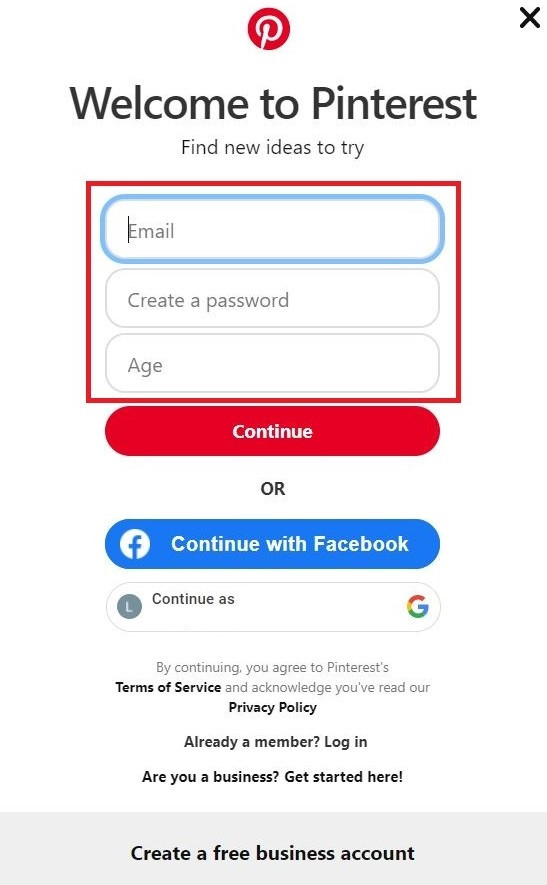
You can also sign in with a Facebook or Google account.
Stage two: get your account's tag ID
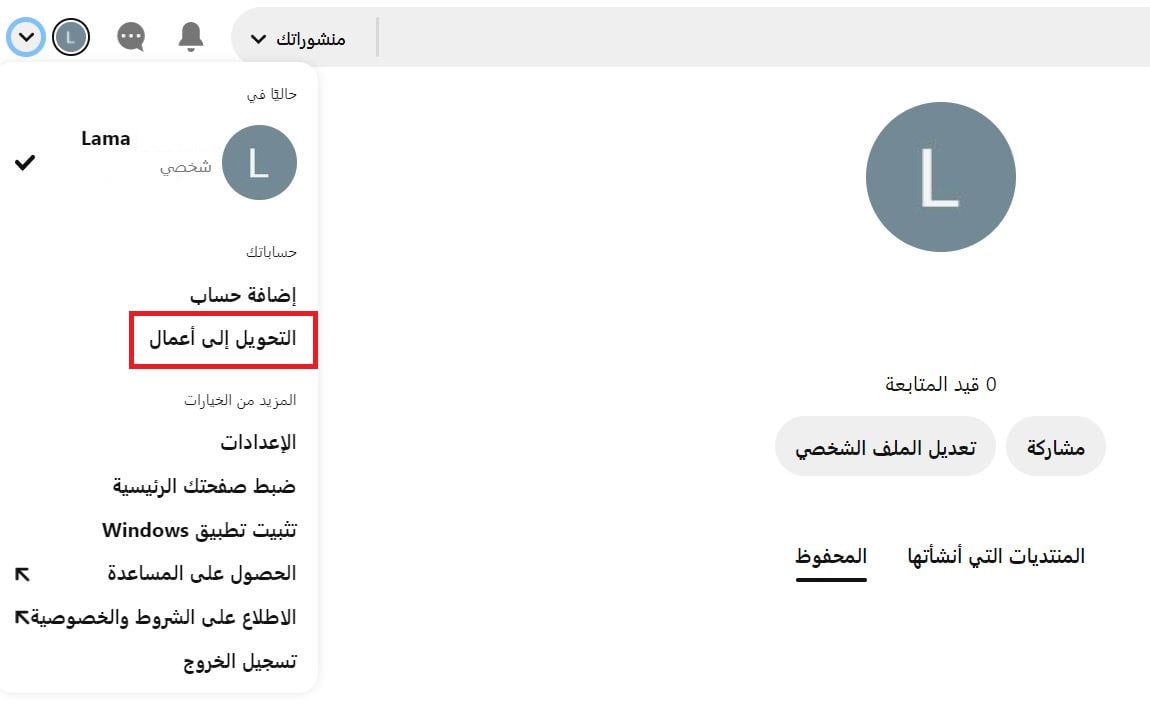
1. From your Pinterest page, switch your account to a business account by clicking (Convert to business).
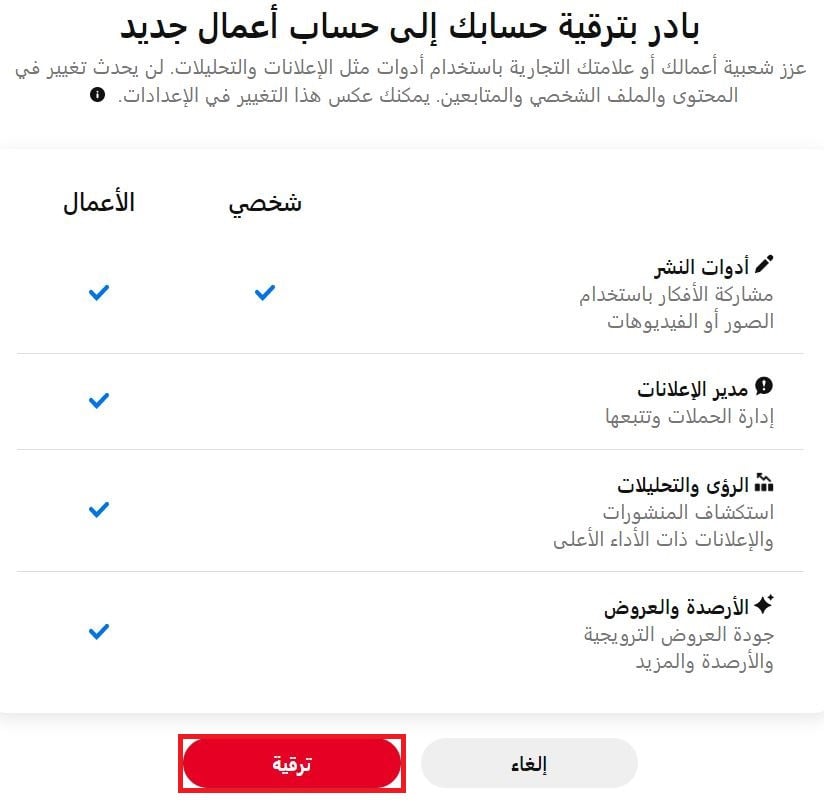
2. Click (Upgrade).
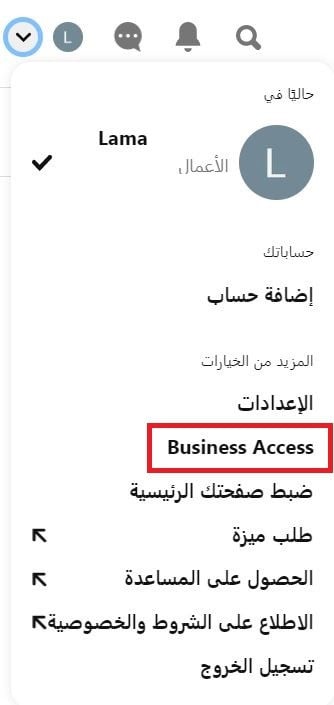
3. Click (Business Access).
4. Click (Ad accounts).
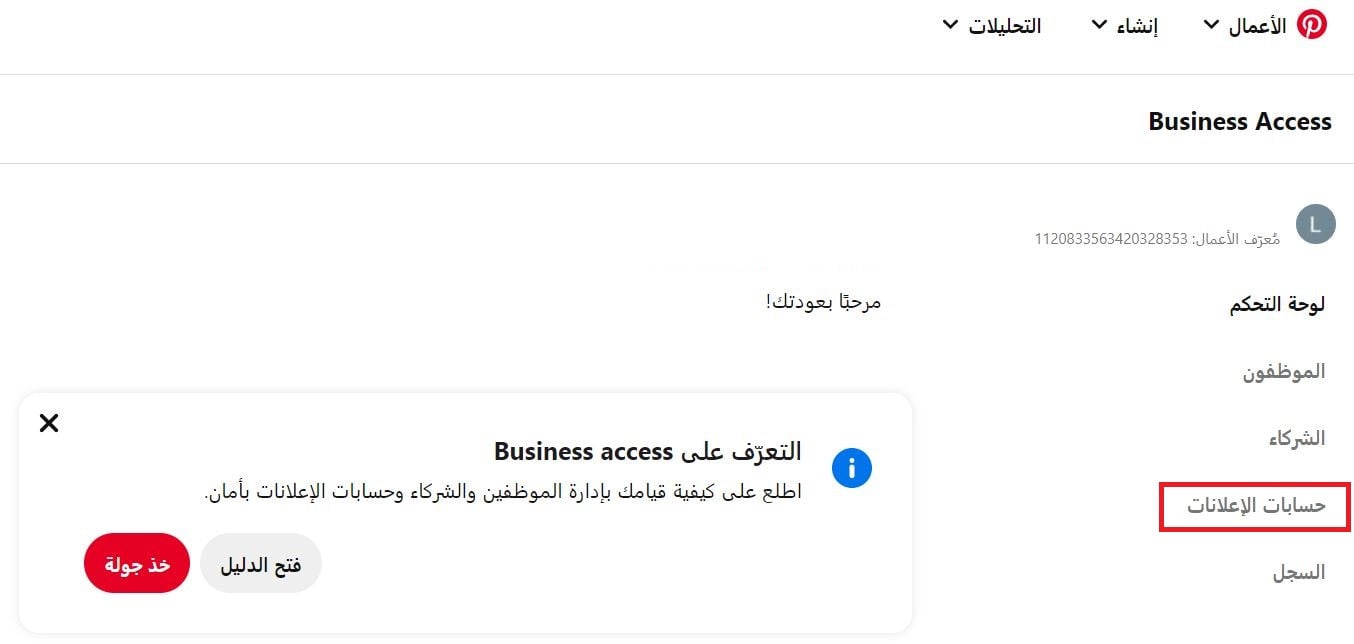
5. Click (Create ad account).

6. Enter the account name and country, then click (Create).

7. Select the ad account on the ad accounts page, then click (Go to ad account).

8. Click (Create ad), and you'll be taken straight to your ads page.
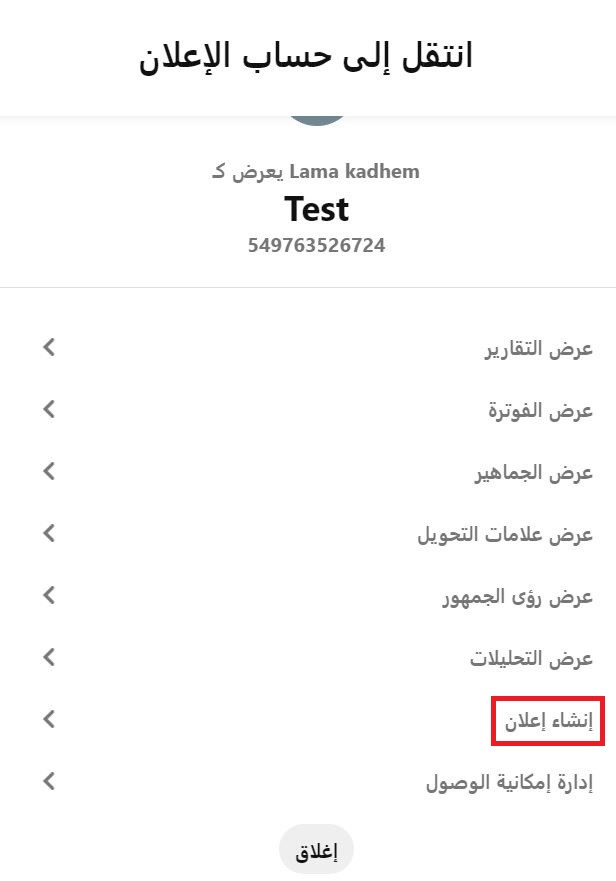
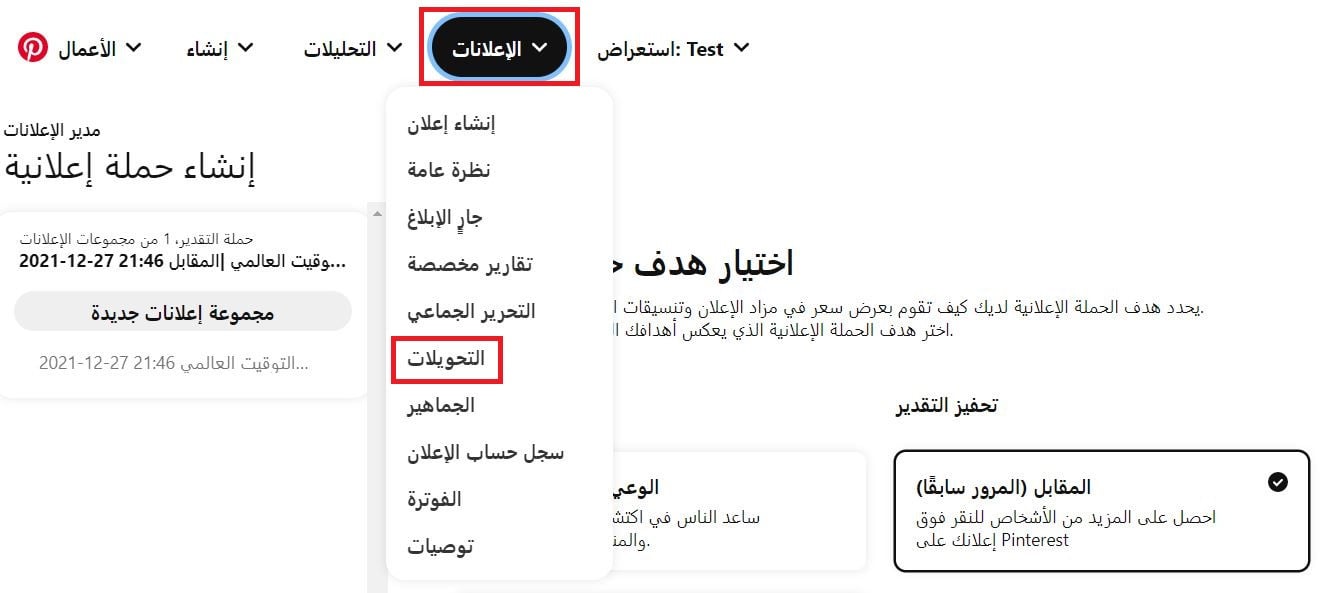
9. From your ads page, click (Ads), then (Conversions).
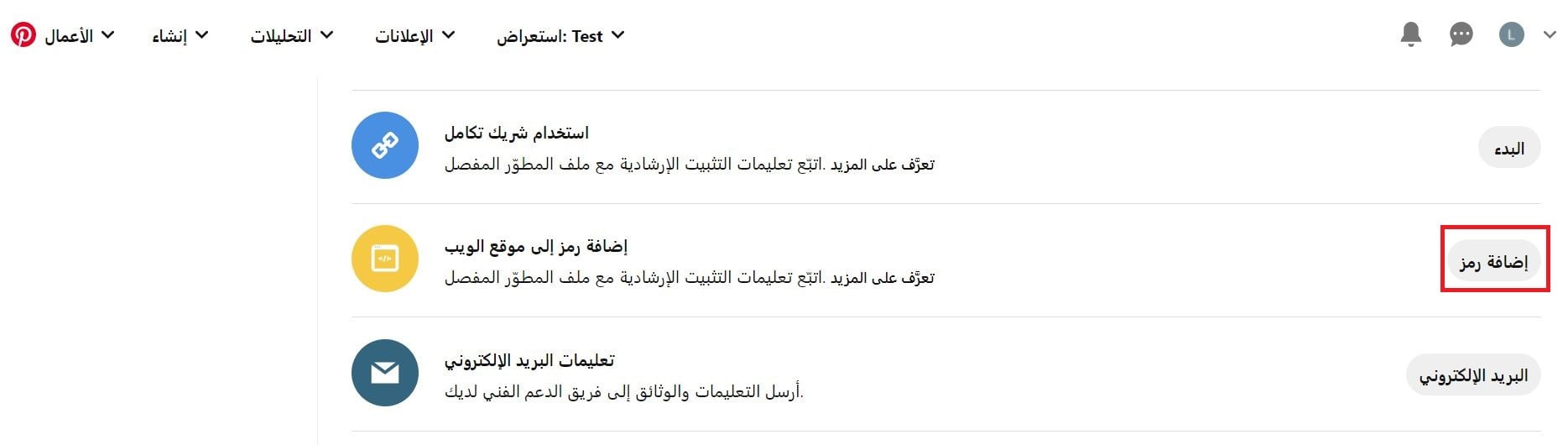
10. Under the option to add a code to your website, click (Add code).
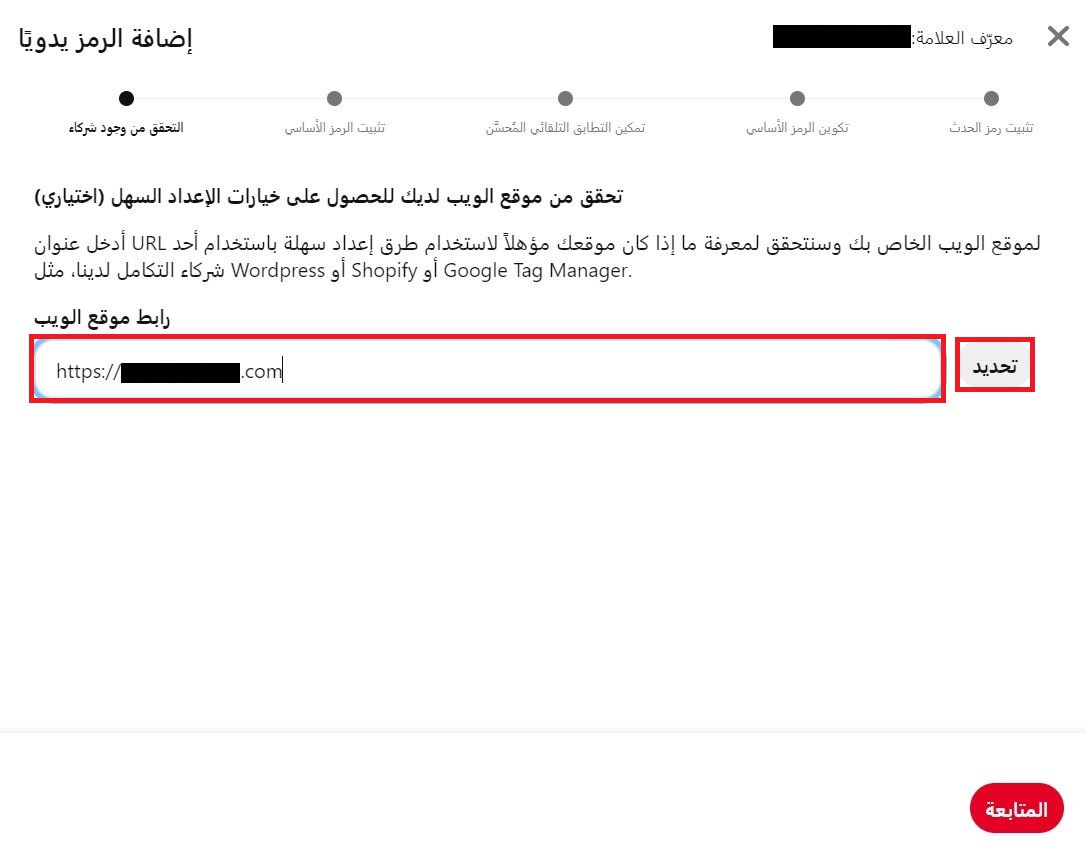
11. Paste your store link as shown, then click (Select).
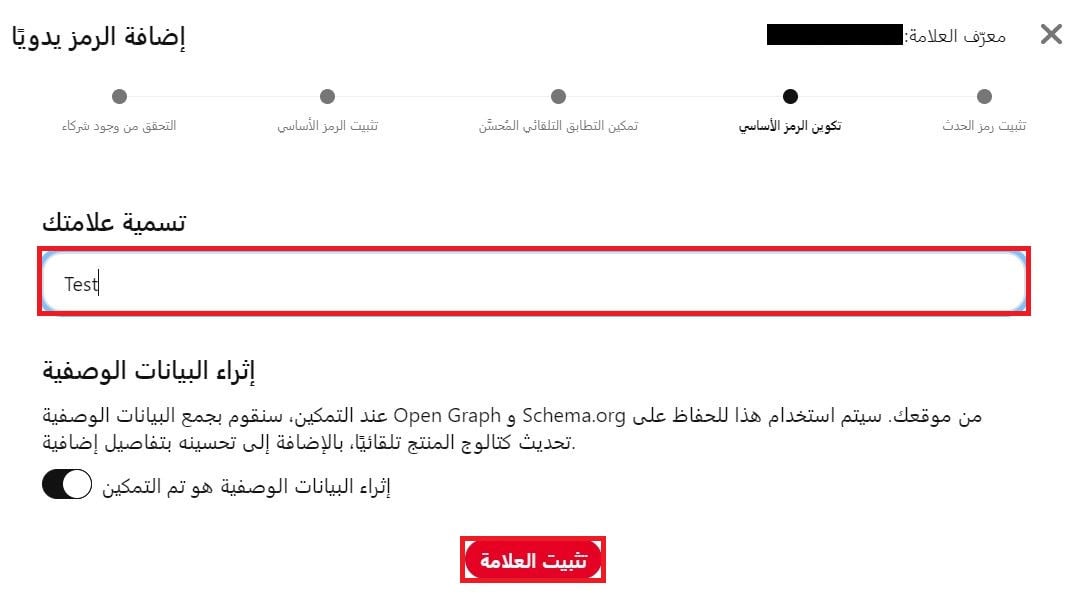
12. Name your tag, then click (Install tag).
13. From the ads page, open conversions again and click (Validate tag).
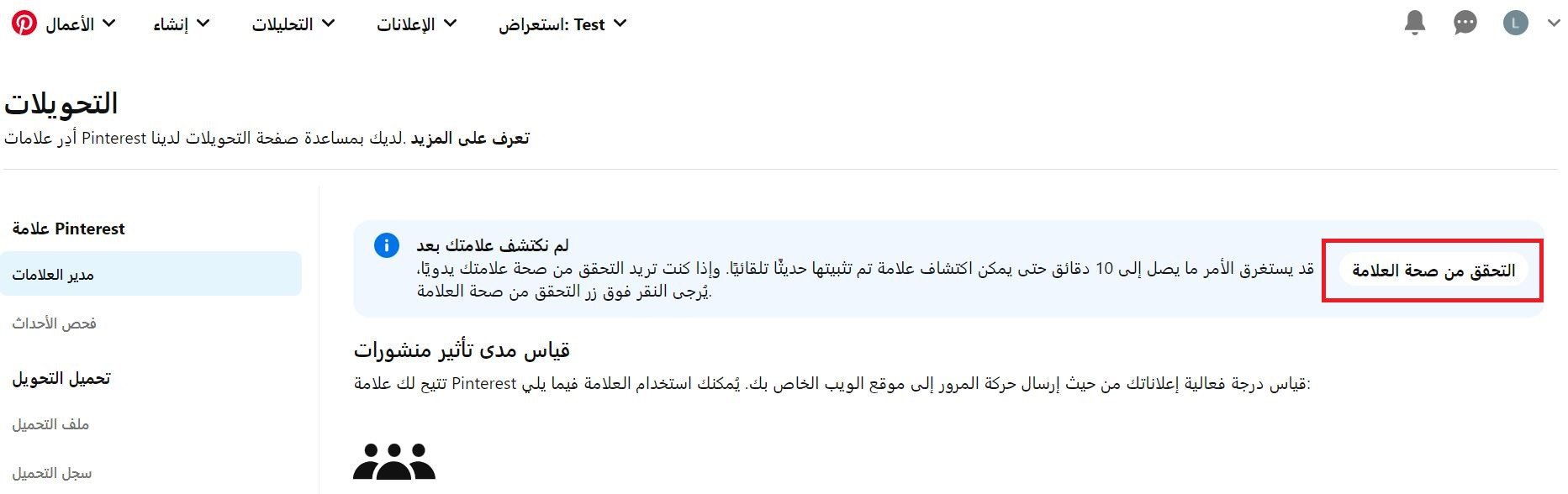
14. Your tag ID then appears.

Stage three: connect your Salla store to Pinterest
1. From the side menu of your dashboard, click (My installed apps).

2. From the Salla App Store banner, click (Browse Salla App Store).

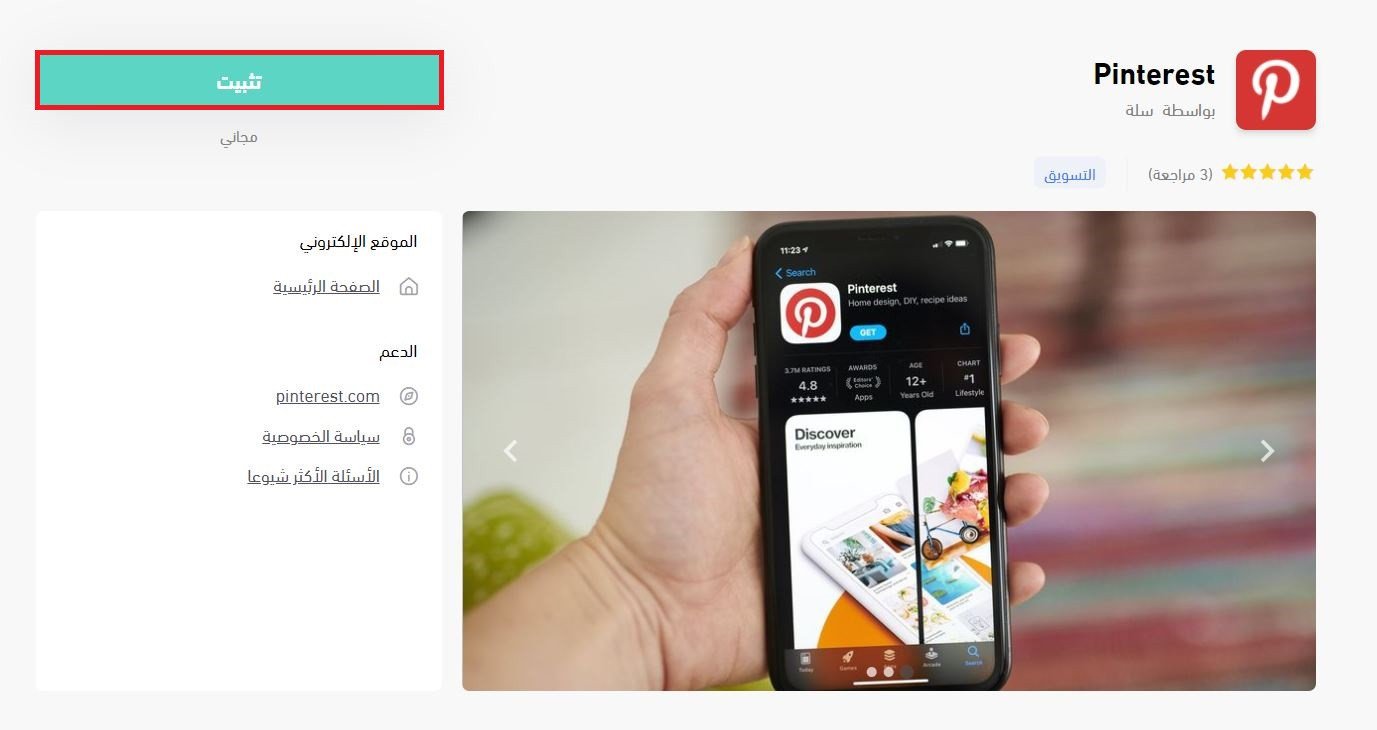
3. From the Pinterest app page, click (Install).
4. Click (Activate app).

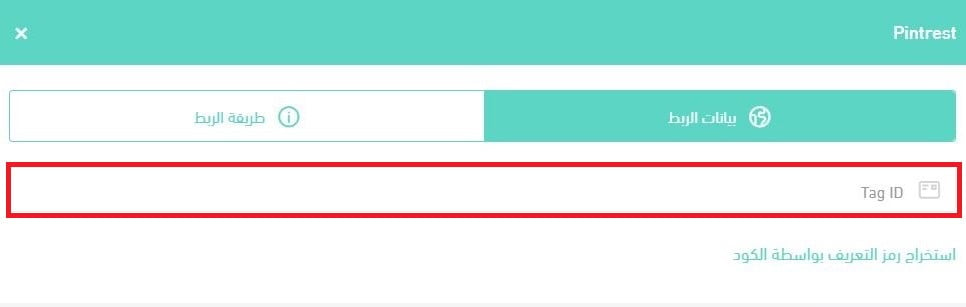
5. Paste the tag ID you got in stage two, then click (Activate connection).
❓ Frequently asked questions
Is the app free?
Yes, it's free.
Is the app available on every Salla plan?
It is available on the Salla Pro plan only.
How long does the product catalog take to sync?
The first product catalog sync can take up to 48 hours.
What do I gain by connecting my store to Pinterest?
- Your products go in front of more than 400 million people on Pinterest.
- Once your product catalog is uploaded, people on Pinterest can discover, save, and buy your products easily, with no ad spend on your side.
- You can reach more people through campaigns that build awareness, all from your Salla store.
Once the tag is validated and your catalog has synced, Pinterest becomes another storefront for your products — one where shoppers are already browsing for ideas.