Want to start selling without buying stock, storing it, or packing a single box?
Sourcing, warehousing, and shipping are usually the hardest part of launching an online business. Makhazen is an electronic warehouse that supplies products to your Salla store and handles storage, packing, and shipping for you, so you can start with no capital tied up in inventory. In this guide, you'll learn what Makhazen is, how to create an account, and how to connect it to your store.
Connecting Salla with Makhazen takes two stages: create an account on the Makhazen website, then install the Makhazen app from the Salla App Store, grant its permissions, and save the API key from the Salla integration codes page in your Makhazen dashboard.
📌 Article overview
- What is Makhazen?
- How to connect your store with Makhazen
- Frequently asked questions
What is Makhazen?
Makhazen is an electronic warehouse that lets you build a commercial project easily and without capital. All you need to do is start your project, and Makhazen supports you by supplying products for your store. It also handles storage, packing, and shipping on generous terms, and it serves large, mid-sized, and early-stage businesses alike.
🚀 How to connect your store with Makhazen
Connecting to Makhazen happens in two stages:
- Stage one: create an account on Makhazen.
- Stage two: install the Makhazen app.
Stage one: create an account on Makhazen
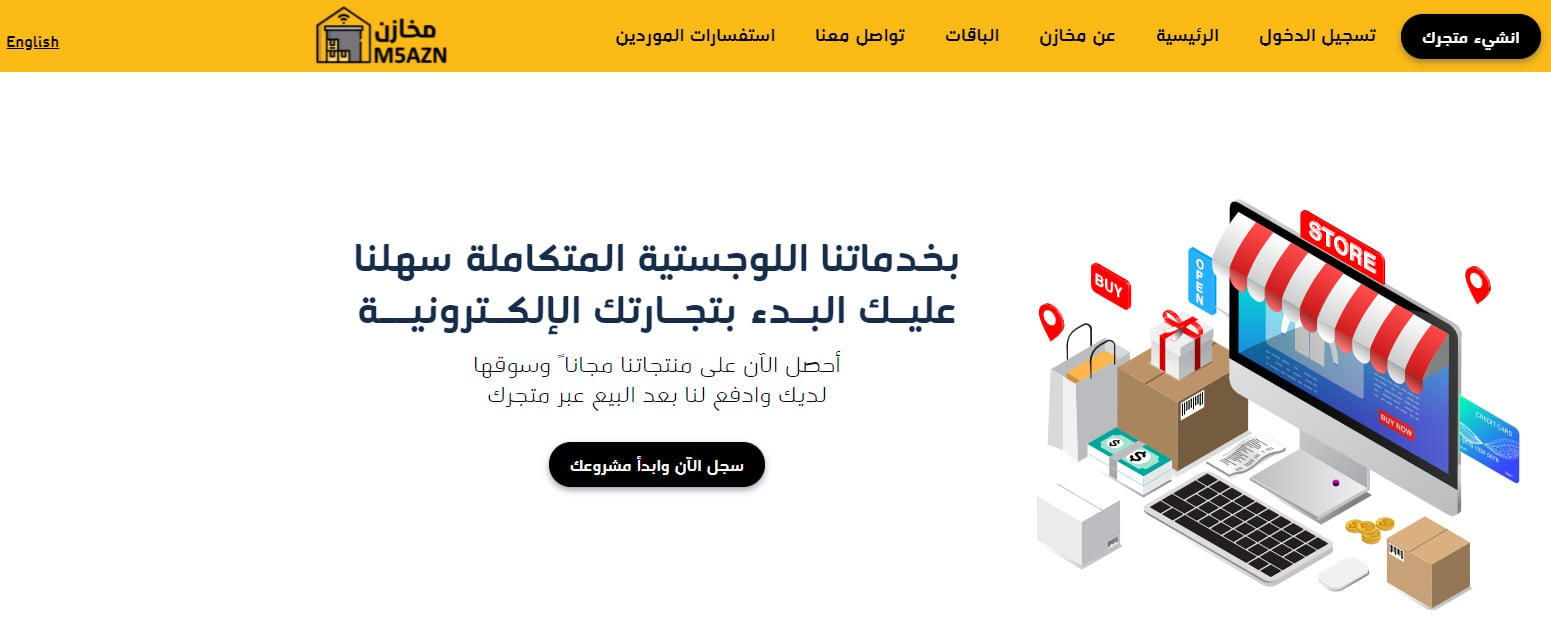
1. Go to the Makhazen website and click (Register now and start your project).
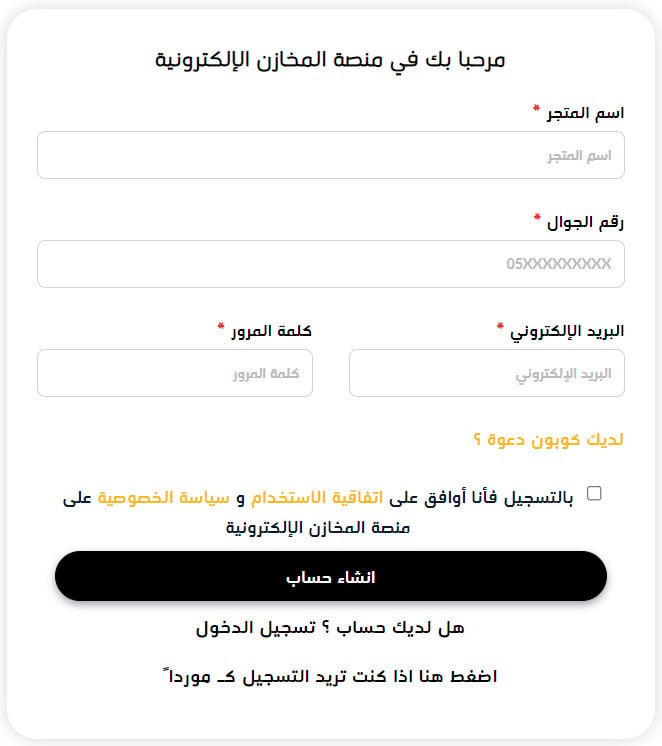
2. Enter the details needed to set up a Makhazen account: your store name on Makhazen, mobile number, email address, and password, then click (Create account).
Your store on Makhazen is now ready.
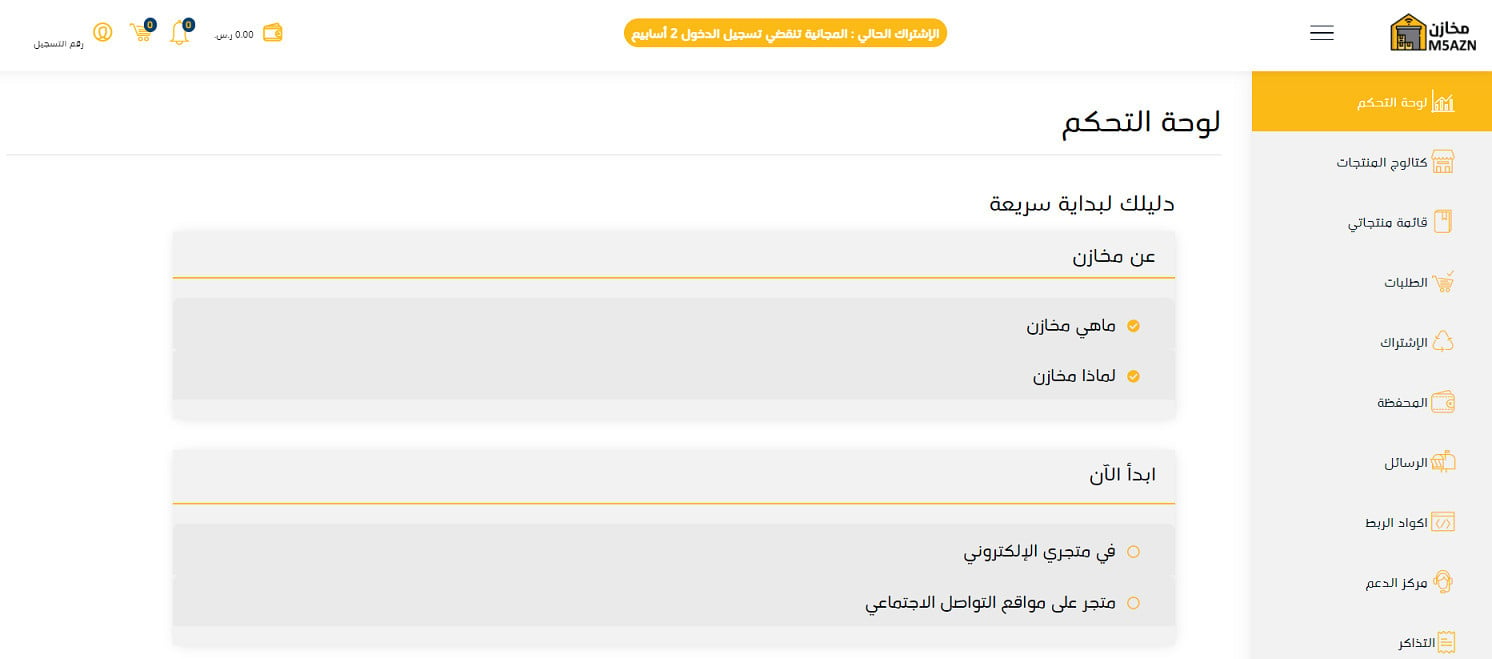
Stage two: install the Makhazen app
1. From the side menu of your dashboard, click (Installed apps).

2. From the Salla App Store banner, click (Browse Salla App Store).

3. On the Makhazen app page, click (Install).
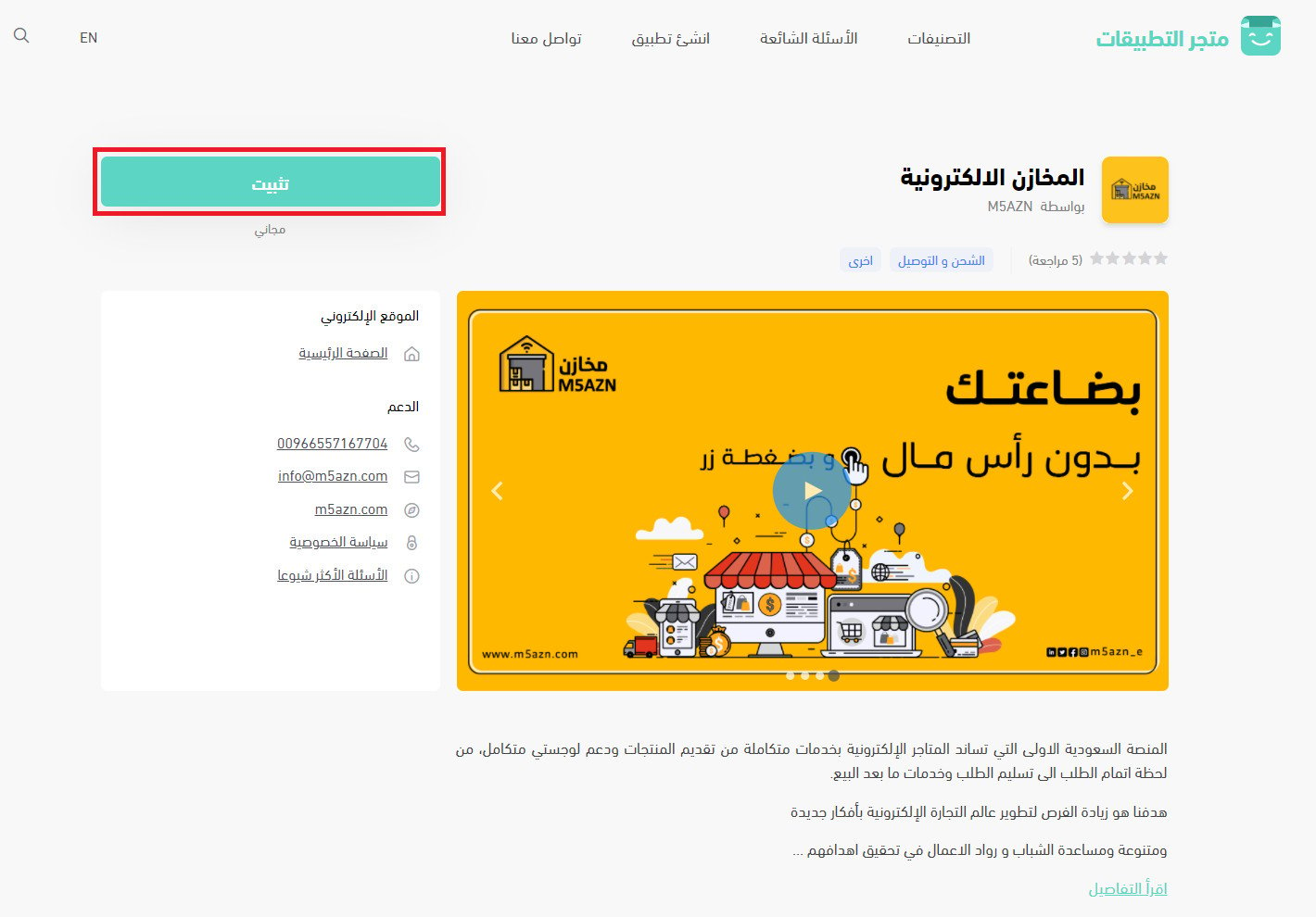
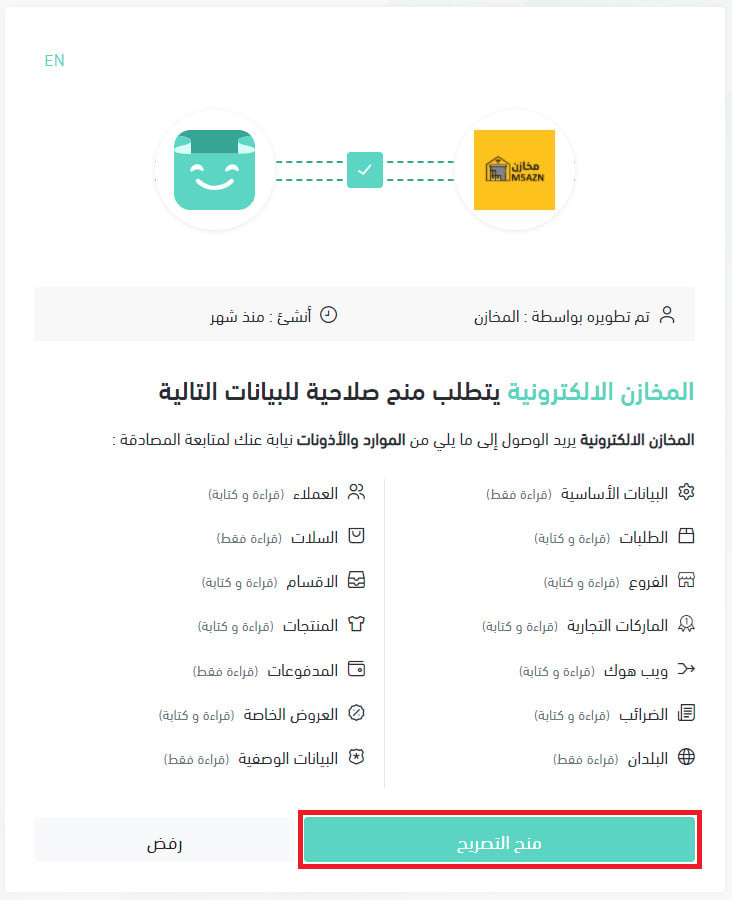
4. Review the permissions the app requests, then click (Grant permission).
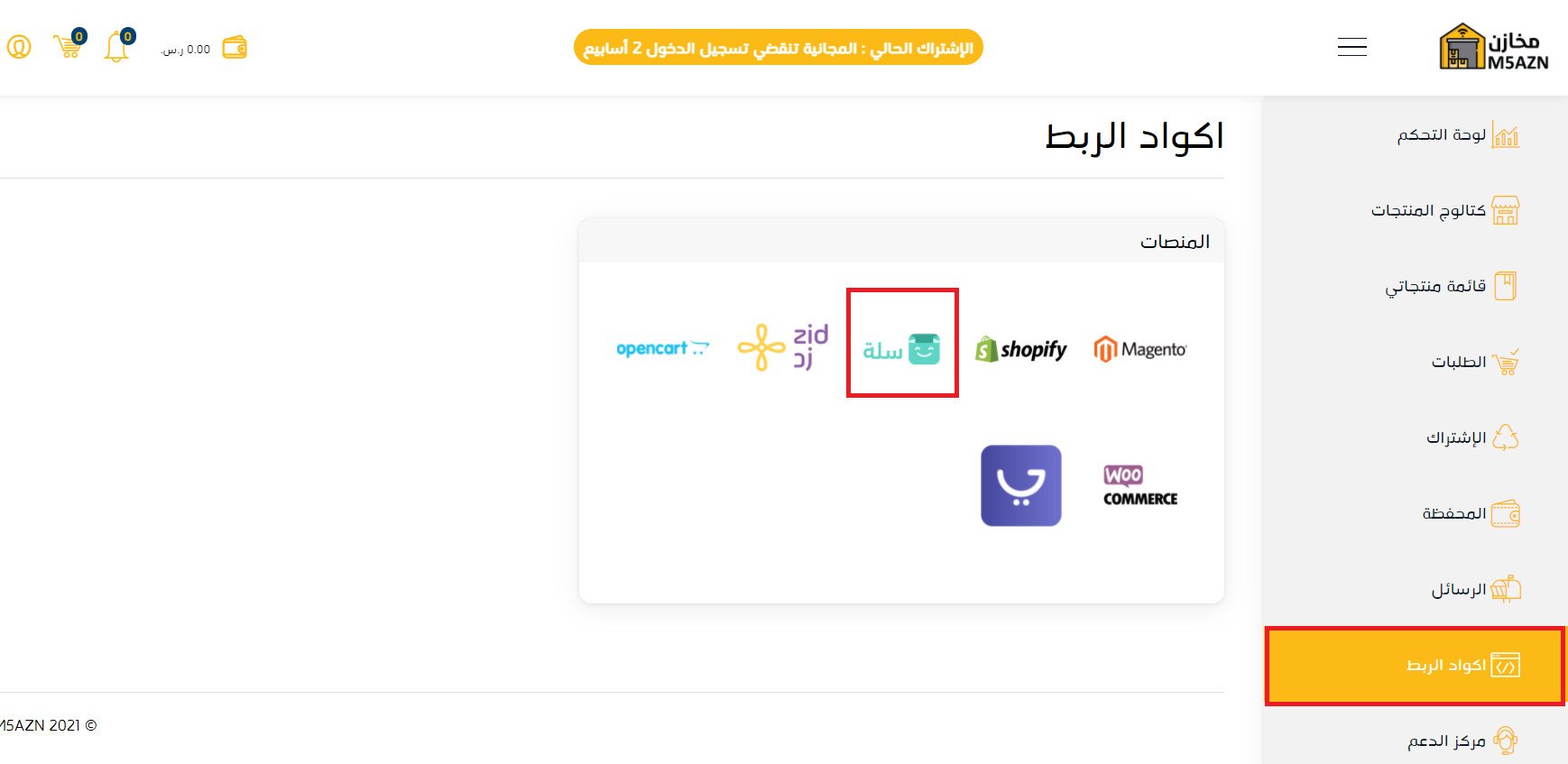
5. From your Makhazen account dashboard, click (Integration codes), then click (Salla).
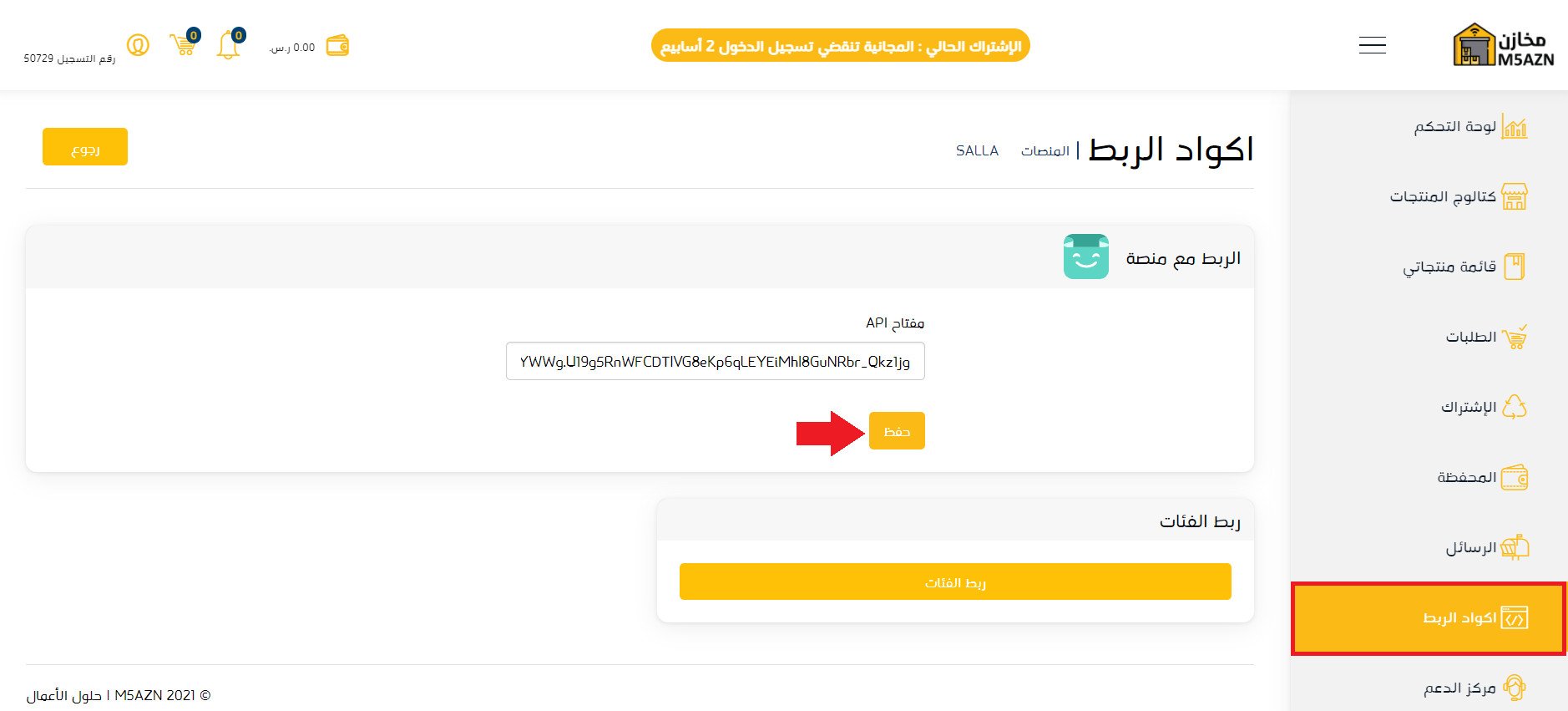
6. On the Salla integration codes page, click (Save) to save the API key. [Verify: the Arabic reads "press (Save) the API key" without saying where the key comes from or where it is entered.]
Your Salla store is now connected to your Makhazen account.

You can now add selected products from Makhazen to your Salla store.
For more details, see managing your store's apps.
❓ Frequently asked questions
This section answers the following questions:
- Do my store's products have to be limited to Makhazen products?
- How is an order handled when it mixes Makhazen products with my own, in terms of shipping and waybills?
- Does the Makhazen name appear to the end customer?
- How do I add products from Makhazen to my Salla store?
- How do I remove the Makhazen app from my store?
Do my store's products have to be limited to Makhazen products?
If you do not have a contract with Makhazen and your products are already available there, it is better to limit your store to items added from Makhazen, so you do not end up paying double shipping charges.
How is an order handled when it mixes Makhazen products with my own, in terms of shipping and waybills?
Say your store carries its own core items, you have also added products from Makhazen, and a customer order includes both:
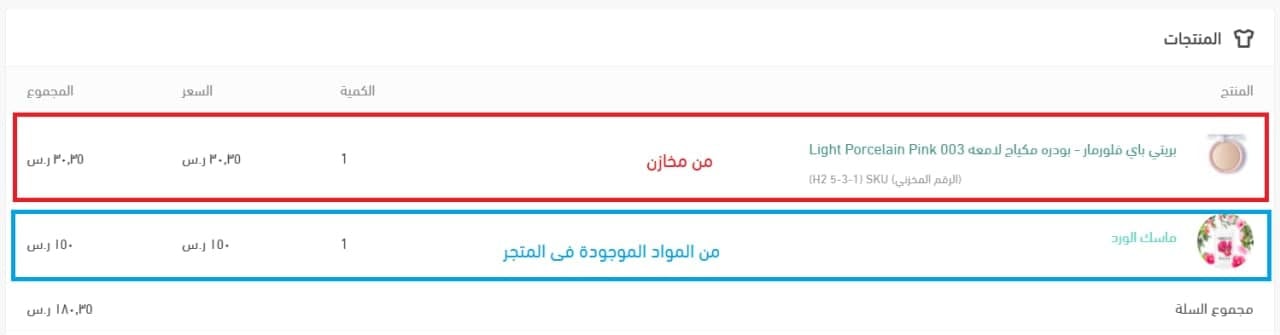
In that case, two shipping waybills are issued for the order:
1. A waybill from your store for its own core items.
2. A waybill from Makhazen.
The customer receives the order as two separate shipments.
Does the Makhazen name appear to the end customer?
No. Waybills issued by Makhazen carry your store's name, and Makhazen never appears on the storefront.
How do I add products from Makhazen to my Salla store?
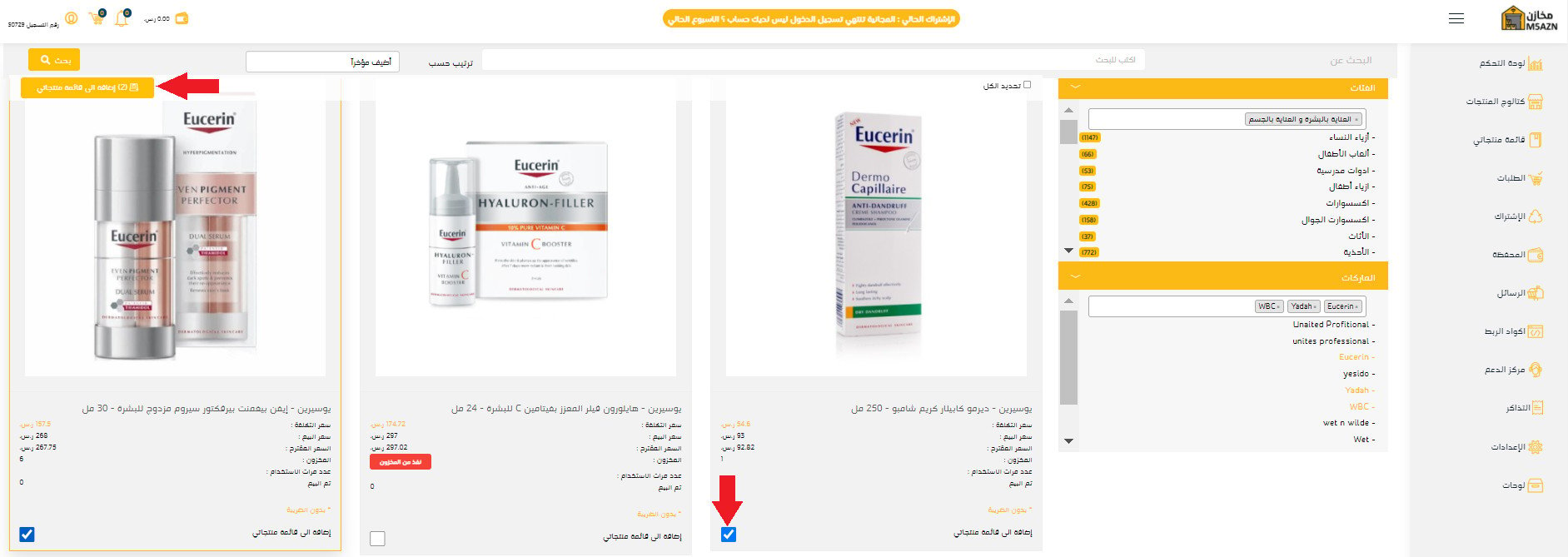
Once the connection is complete, sign in to your Makhazen account, go to (Product catalog) in the dashboard, select the products you want to add to your Makhazen account, then click (Add to my product list).
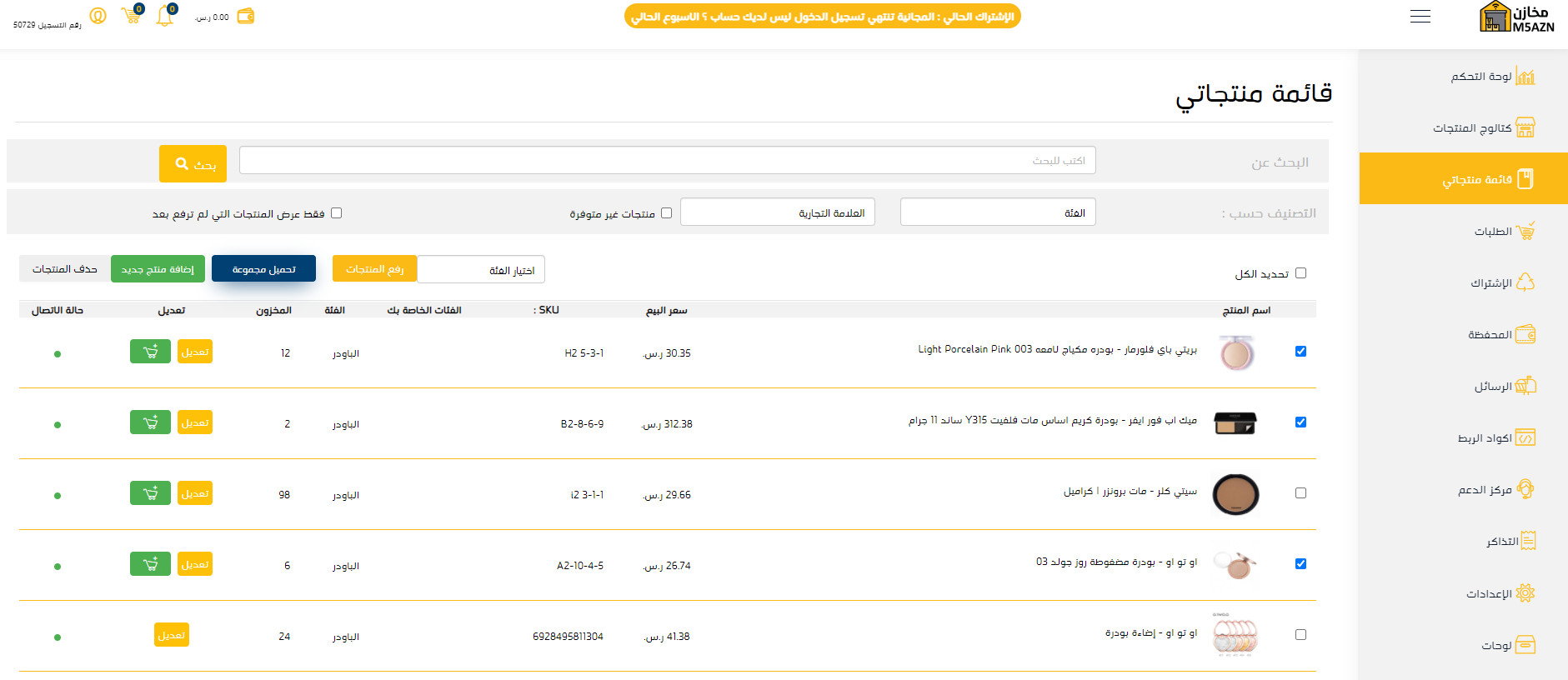
Then, in your Makhazen dashboard, go to (My product list), select the products you want to publish to your Salla store, and click (Upload products).
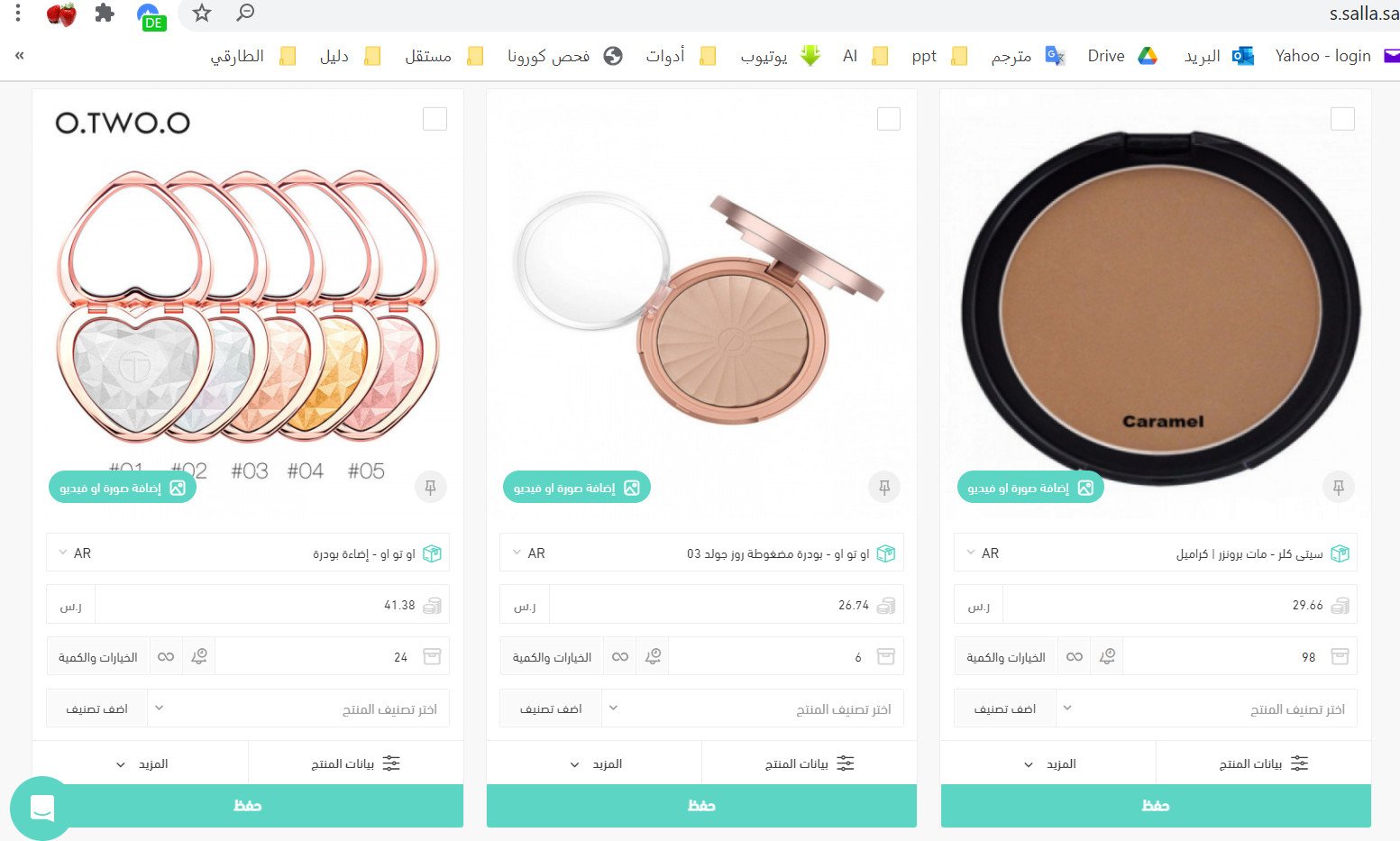
The uploaded products then appear on your store's products page like this:
How do I remove the Makhazen app from my store?
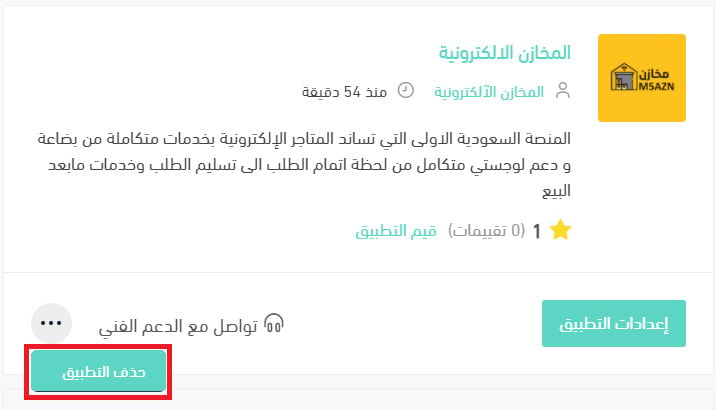
1. From the side menu of your dashboard, click (Installed apps).

2. On the all apps page, under the Makhazen app, click (...), then click (Delete app).
With Makhazen connected, you can stock your store from its catalog and let it handle storage, packing, and delivery while your store name stays on every shipment.