Gold moves by the minute — can your product prices keep up?
Gold and silver prices change constantly, and store owners who sell precious metals lose real money every time a product page is still showing yesterday's number. The Live Gold integration ties the prices in your Salla store to global market rates, so your catalog reprices itself instead of waiting on you. In this guide, you'll learn what Live Gold does, whether you need an account first, how to connect it to your store, and how to remove it later.
To connect Live Gold, open (My installed apps) from your dashboard side menu, click (Browse Salla App Store), then open the Live Gold app page and pick the plan you want. Complete payment if the plan is a paid one, review the permissions the app requests, and click (Grant permission).
📌 Article overview
- What Live Gold is
- Whether you need a Live Gold account first
- How to connect Live Gold to your store
- Frequently asked questions
🎯 What Live Gold is
Live Gold links the prices of gold and silver products in Salla stores to global market rates. Precious-metal prices move moment to moment, and keeping a catalog current by hand is close to impossible — which is how a store ends up selling at a price that no longer covers its cost.
The tool grew out of a single case. An online store selling gold bullion and coins was among the first on Salla to have its products tied to global prices, and the results were strong enough that the connection was turned into a product any store can install.
🎯 Do you need a Live Gold account first?
No. When you install the Live Gold app from the Salla App Store, a new Live Gold account is created for you automatically. If you already have a Live Gold account, contact Live Gold technical support instead and ask them to activate that account on your Salla store.
🚀 How to connect Live Gold to your store
1. From the side menu of your dashboard, click (My installed apps).

2. From the Salla App Store banner, click (Browse Salla App Store).

3. Open the Live Gold app page. [Verify: the Arabic step ends here without an action — confirm whether the merchant clicks (Install) at this point.]
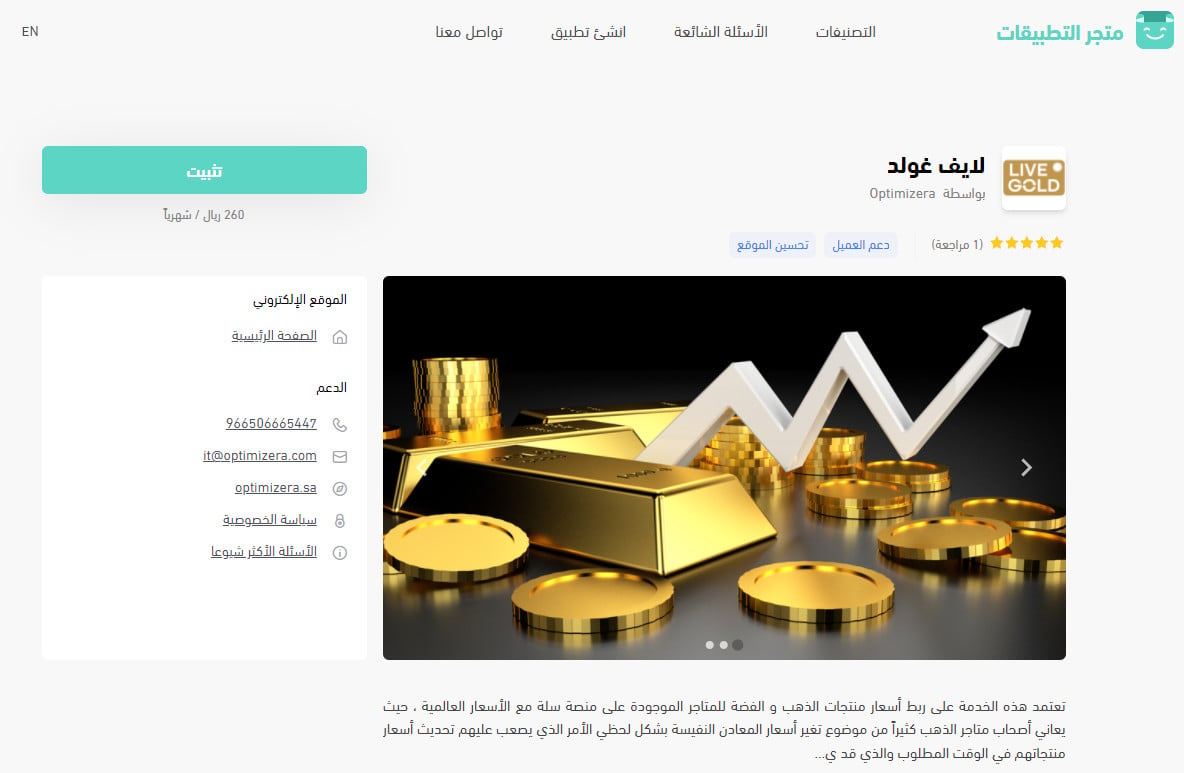
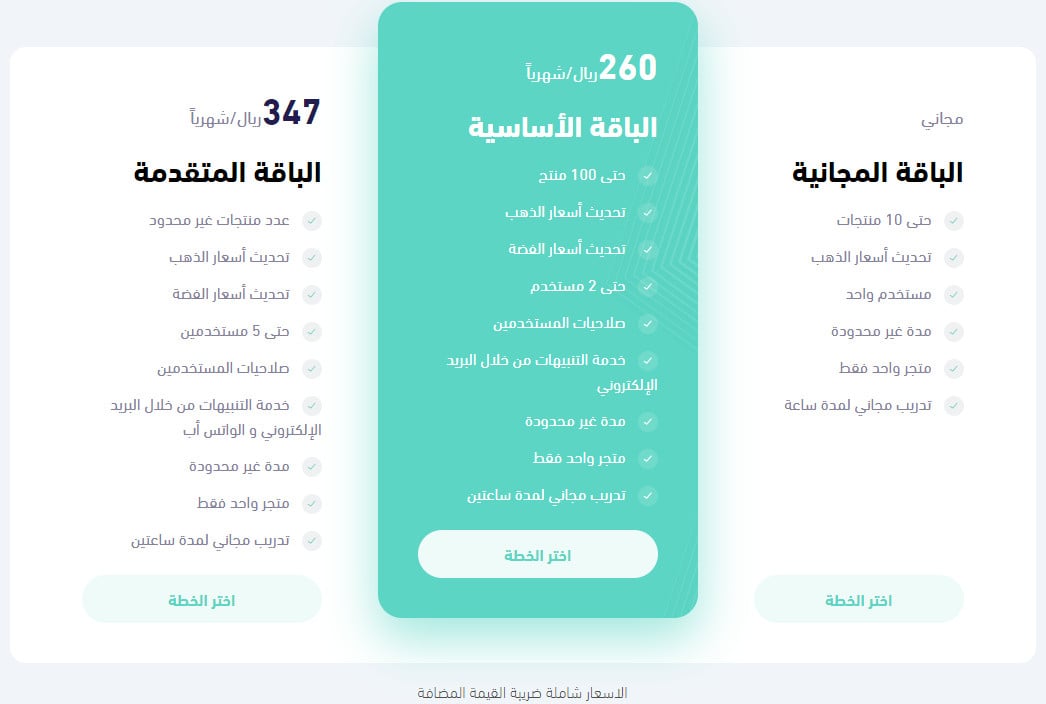
Choose the plan you want to subscribe to, then click (Choose plan).
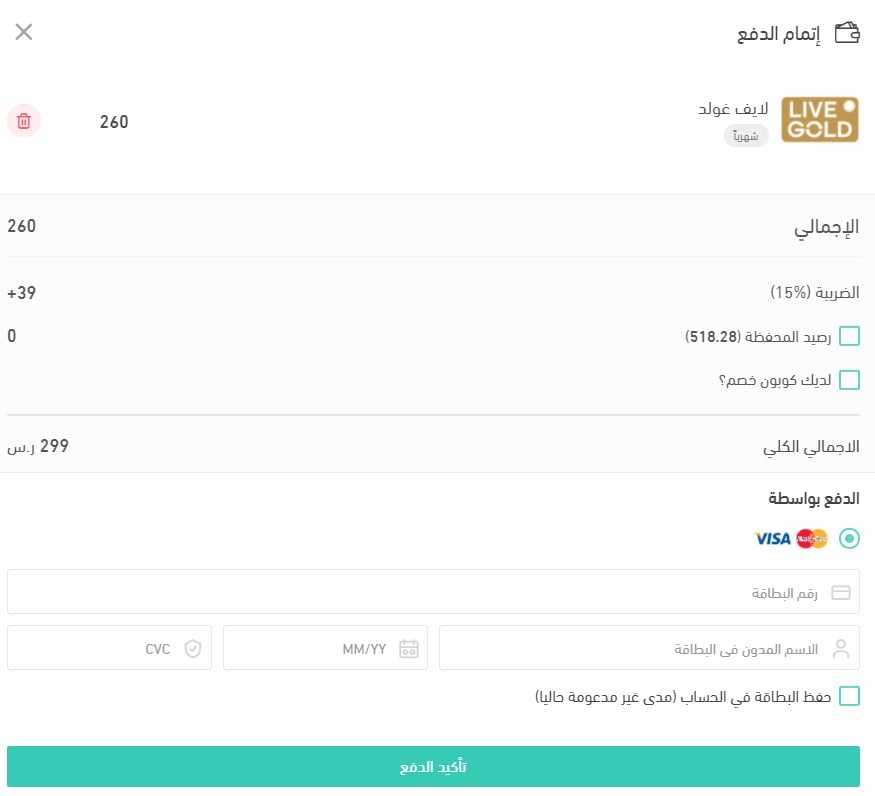
4. Complete the payment step if you picked a paid plan.
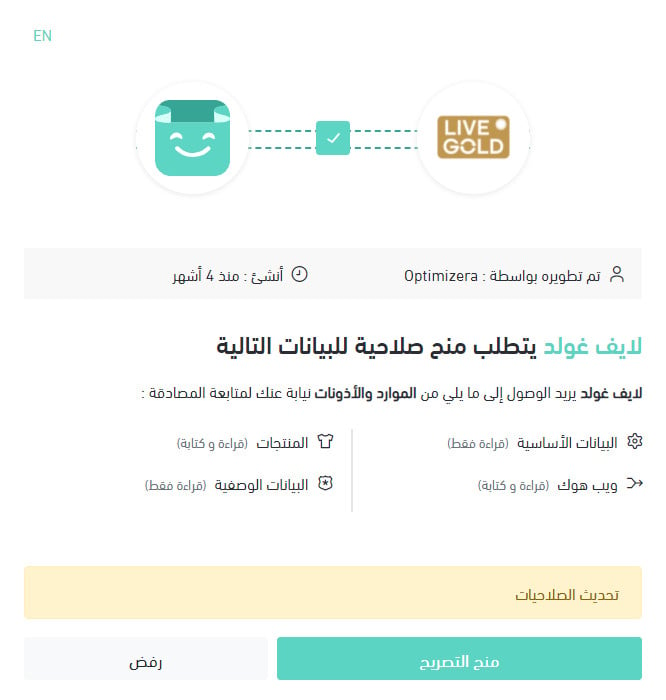
5. Review the permissions the app requests, then click (Grant permission).
The home page of your store's account then looks like this:
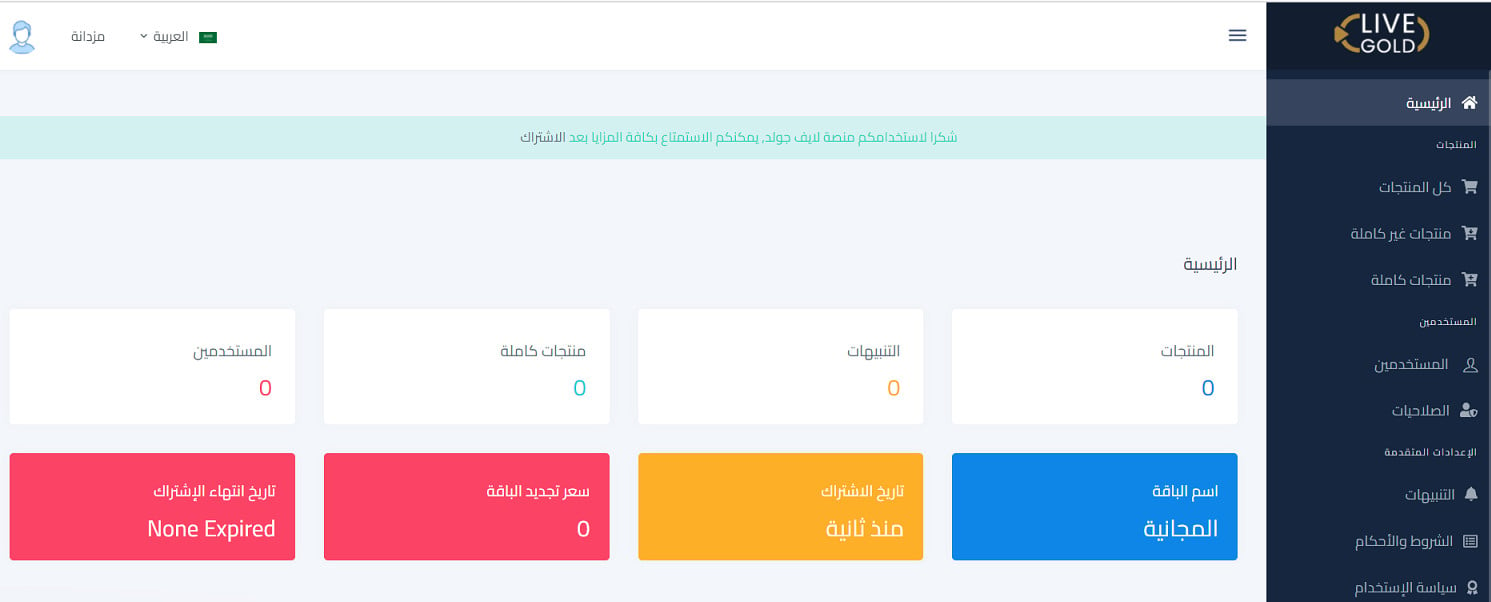
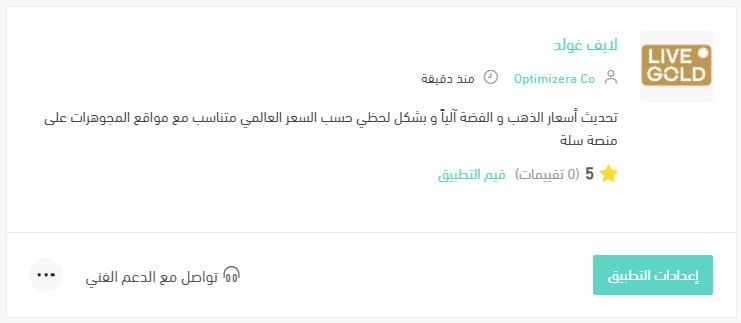
Your Salla store is now connected to your Live Gold account, and the app appears on your installed apps page like this:
For more detail, read Managing my store's apps.
❓ Frequently asked questions
What are the main features of Live Gold?
1. Set your own pricing formula for gold or silver, with no code changes.
2. Connect securely to a global gold price provider.
3. Pull all of your Salla products into the tool, edit them there, and send them back so product data updates automatically.
4. Refresh prices every minute.
5. Get email alerts when prices rise or fall.
6. Enter global gold prices manually when circumstances call for it.
How often do my prices update?
Every minute, as long as the app is connected. You can also enter global gold prices by hand when you need to override the feed.
Do I have to edit code to change how my products are priced?
No. You set the pricing formula for gold or silver inside Live Gold, with no programming work on your store.
How do I remove the Live Gold app from my store?
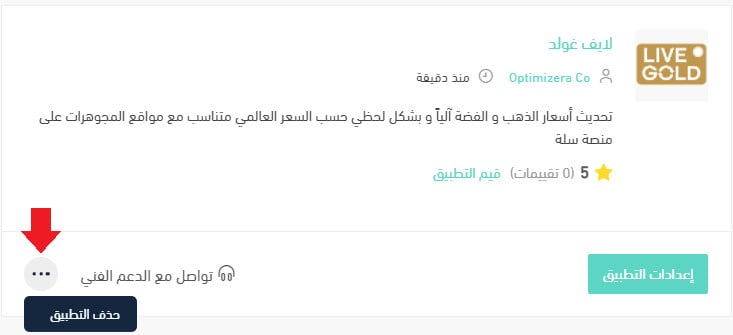
1. From the side menu of your dashboard, click (My installed apps).

2. From the all apps page, on the Live Gold app, click the (...) icon, then click (Delete app), as shown below.
In a market where the underlying price moves all day, the store that prices automatically protects its margin. The one that prices by hand is always a step behind.