Do your customers in Kuwait want to pay with the bank card they already trust?
Offering a familiar local payment option is one of the simplest ways to cut abandoned checkouts. The Knet integration lets your Salla store accept Knet card payments through Tap, with OTP verification protecting every transaction. In this guide, you'll learn what Knet is, what you need before you connect it, and how to switch it on from your dashboard.
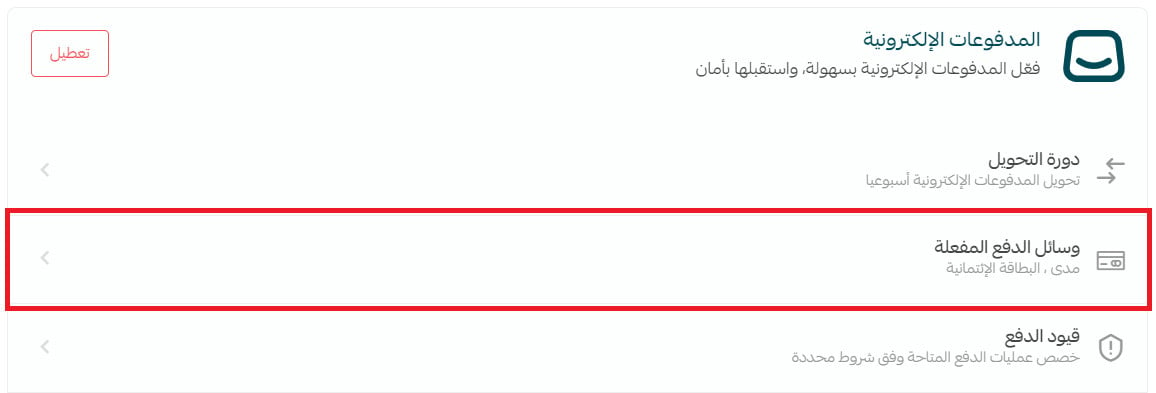
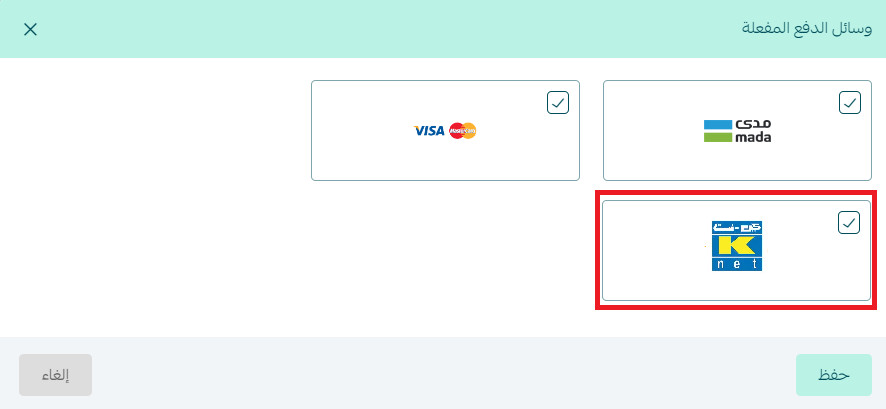
To connect Knet on Salla, activate the Tap payment service first, then open (Store settings) from your dashboard's side menu, click (Payment methods), open (Activated payment methods), select (Knet) from the available options, and click (Save) to make it live at checkout.
📌 Article overview
- What is Knet?
- What you need before connecting Knet
- How to connect Knet through Tap
- Frequently asked questions
What is Knet?
Knet is an electronic payment option that runs card payments through OTP technology, so every purchase is confirmed with a one-time code. That extra step gives credit and debit card holders a stronger layer of protection when they pay in your store.
What you need before connecting Knet
Knet runs on top of the Tap payment service, so Tap has to be active in your store first.
📝 Important notes
If you later cancel the Tap payment service, Knet is disconnected from your store automatically.
👣 How to connect Knet through Tap
1. From the side menu of your dashboard, click (Store settings).

2. From the store settings page, click (Payment methods).
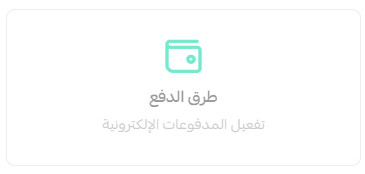
Then click (Activated payment methods).
3. On the payment methods page, under the available payment methods, select (Knet), then click (Save).
❓ Frequently asked questions
What is an OTP code?
OTP stands for one-time password. It is a security technology that issues a pass code valid for a single use within a set time window. A new random code is generated for every payment attempt and sent to the customer by SMS, which is far safer than reusing one fixed code across multiple payments.
How does a customer use the OTP code?
1. Enter your card details:
- Choose your bank (Select your Bank).
- Enter your card number (Card Number).
- Enter the card expiry date (Expiration Date).
- Enter your card PIN (PIN) to complete the transaction.
- Click (Submit) to complete the payment.
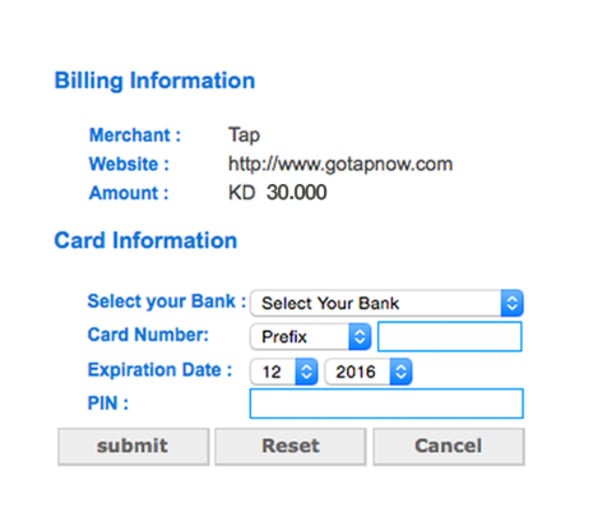
2. You'll receive an SMS with a six-digit code (the OTP). Enter it in the OTP field, then click (Confirm).
Do I need a Tap account to accept Knet?
Yes. Knet is only available once the Tap payment service is active in your store.
What happens to Knet if I cancel Tap?
Knet is unlinked from your store automatically as soon as the Tap payment service is cancelled.
With Knet switched on, shoppers who prefer their local bank card can check out in a few taps, and every payment is confirmed with a fresh one-time code.