Are your customer conversations scattered across email, chat, phone calls and social media?
Connecting Kayako with Salla brings all of those channels into one help desk, so nothing gets missed and no customer waits twice. Kayako is a paid live chat and support service built for fast-growing companies, and it plugs into Facebook and Twitter alongside your inbox and phone line. In this guide, you'll learn how to sign up for Kayako, install the app in your store, and activate the connection.
To connect Kayako with Salla, start a free Kayako trial, open (Settings) in Kayako and copy the embed code. Then install the Kayako app from the Salla App Store, open (App settings) from your installed apps, paste the code, and click (Activate connection).
📌 Article overview
- What is Kayako?
- How to connect your Salla store with Kayako
- Frequently asked questions
🎯 What is Kayako?
Kayako is a paid instant messaging service that helps high-growth companies deliver frictionless customer service and internal IT support. It brings together channels such as email, live chat and phone calls, and it also connects to social platforms like Facebook and Twitter.
🚀 How to connect your Salla store with Kayako
The connection happens in three stages:
1. Sign up for Kayako and copy the embed code.
2. Install the Kayako app in your store.
3. Paste the Kayako tracking code into your Salla store.
Stage one: sign up for Kayako
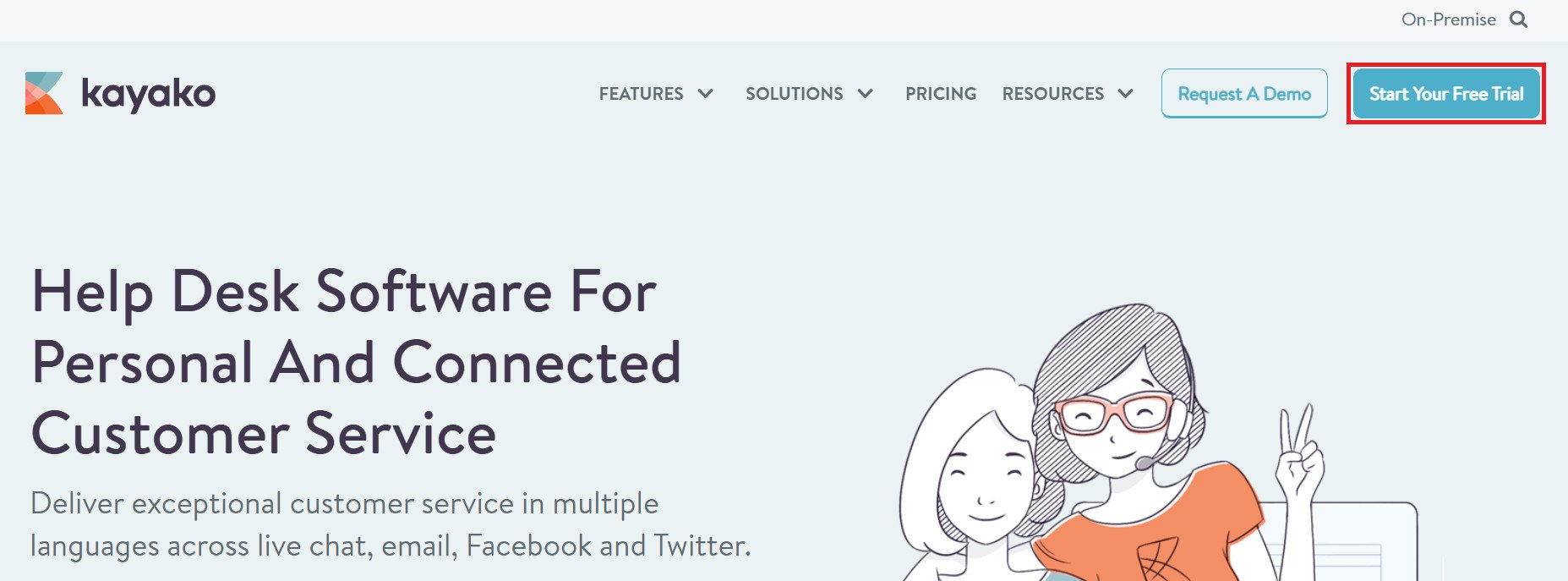
1. Go to the Kayako home page and click (Start Your Free Trial) to sign up for a trial — you can subscribe later.
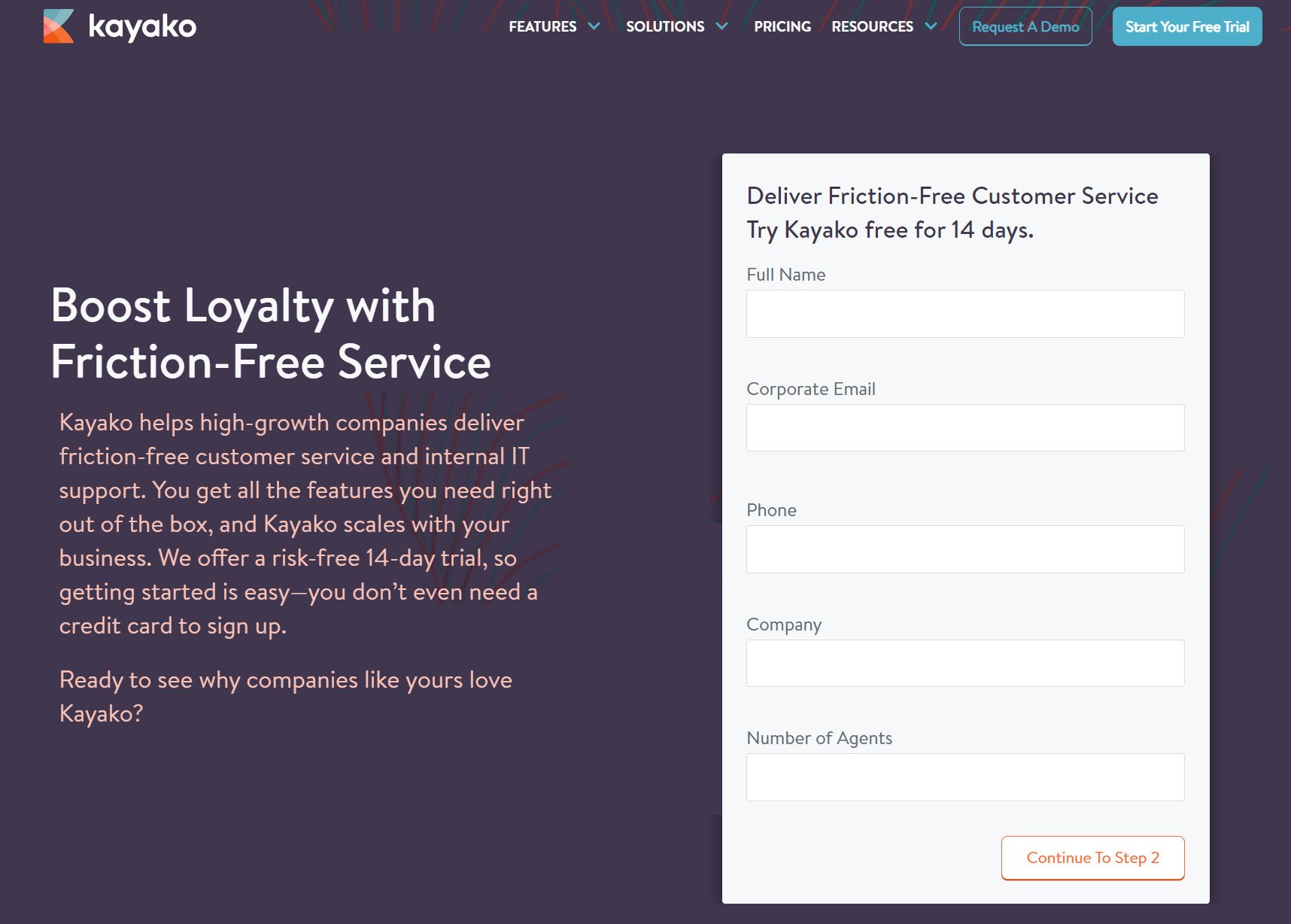
2. Enter the details Kayako asks for — full name, email address, phone number, company name, and the number of agents or branches — then click (Continue To Step 2).
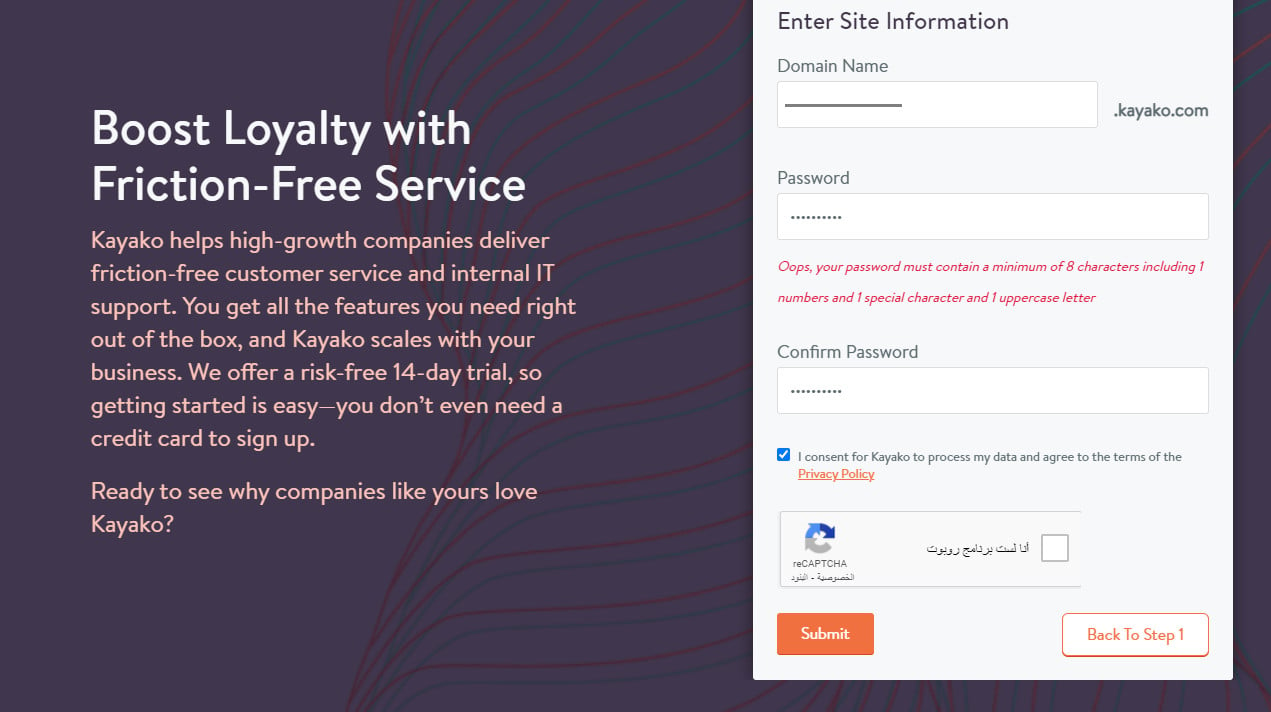
3. Set a new password and confirm it, accept the terms and usage policy, then click (Submit).
Copy your tracking code
1. From your Kayako dashboard, click (Settings), then click (Configure).
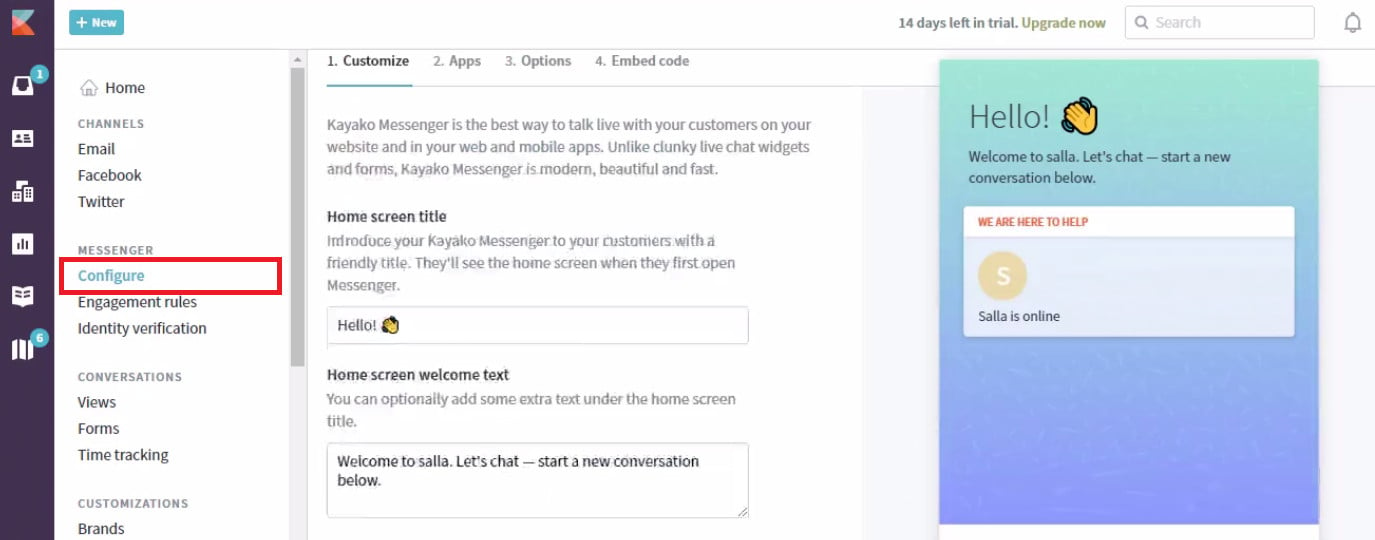
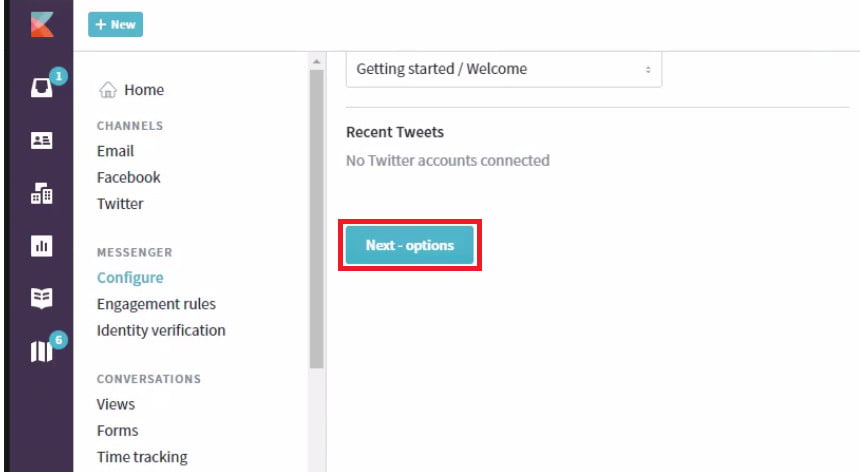
2. At the bottom of the (Configure) page, click (Next - options) to show the remaining options.
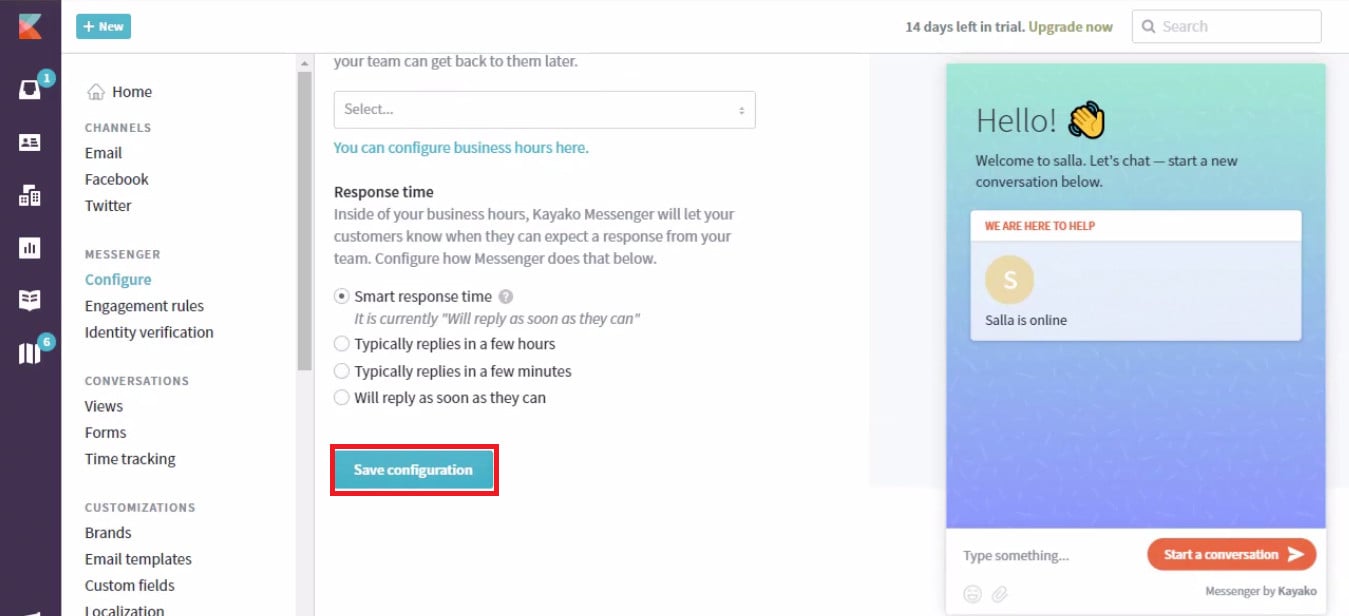
3. Select (Smart response time), then click (Save Configure).
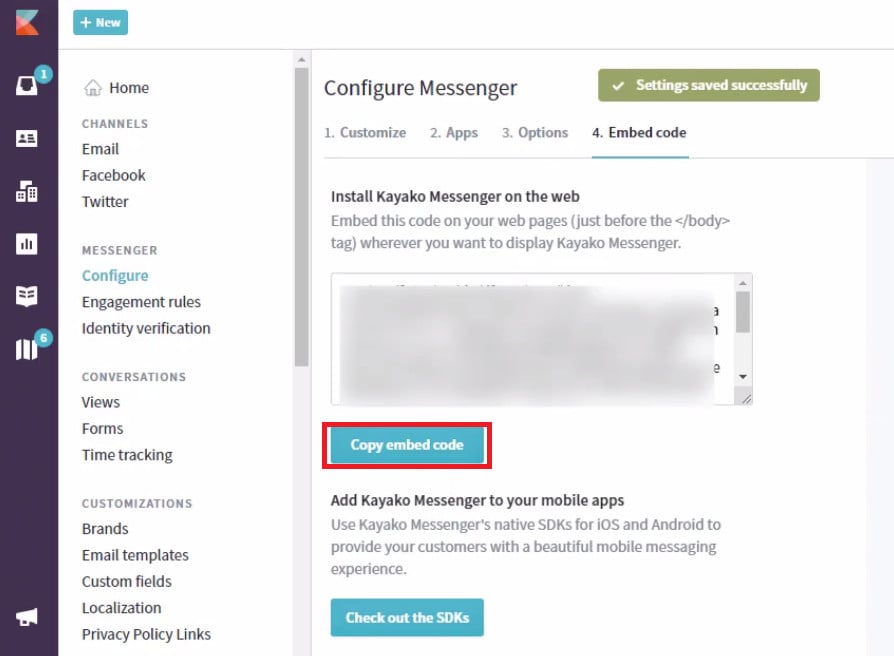
4. Click (Copy embed code) to copy the tracking code.
Stage two: install the Kayako app
1. From the side menu of your dashboard, click (Installed apps).

2. From the installed apps page, click (Browse the Salla App Store).

3. On the Kayako app, click (Install).
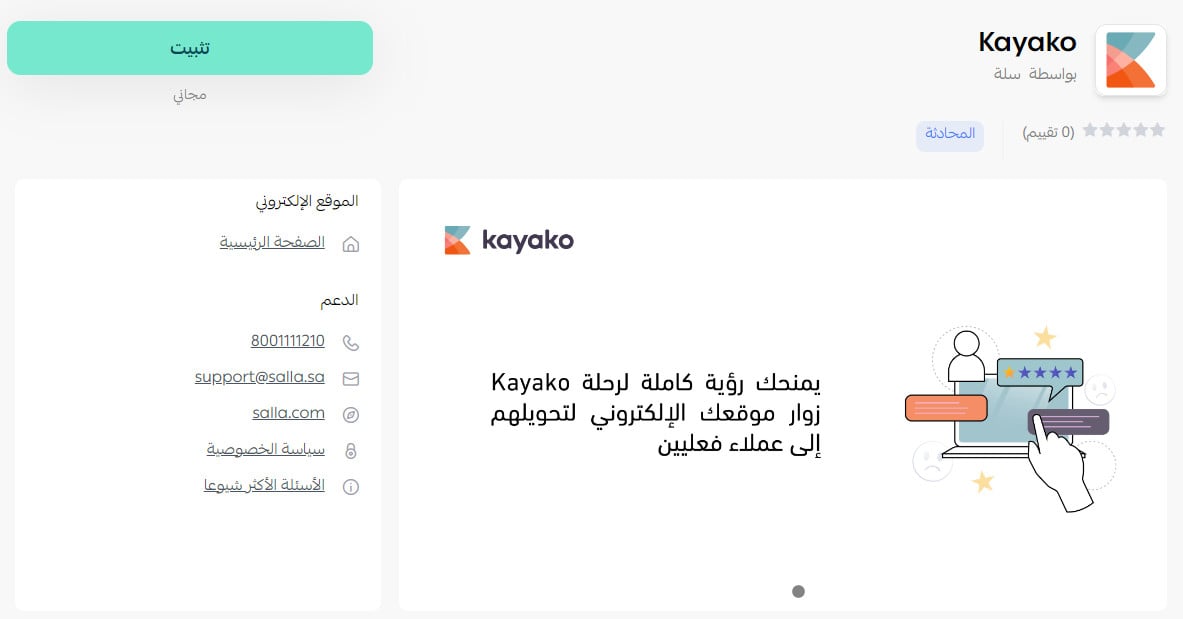
Once it's installed, the app card looks like this:
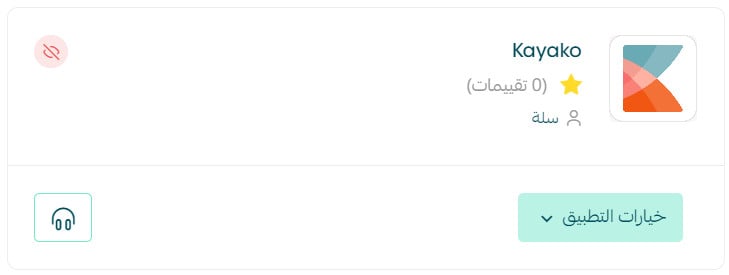
Stage three: paste the Kayako tracking code into your Salla store
1. From the side menu of your dashboard, click (Installed apps).
2. On the Kayako app, click (App options), then click (App settings).
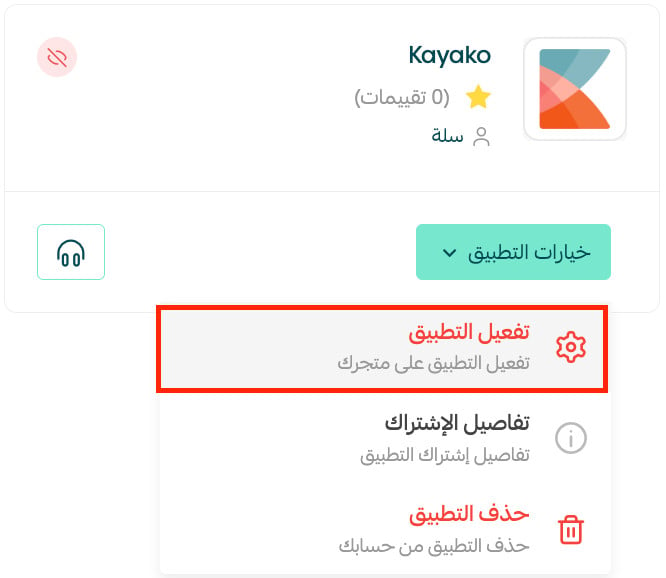
If the app isn't installed in your store yet, install it first. For more details, see installing an app from the Salla App Store.
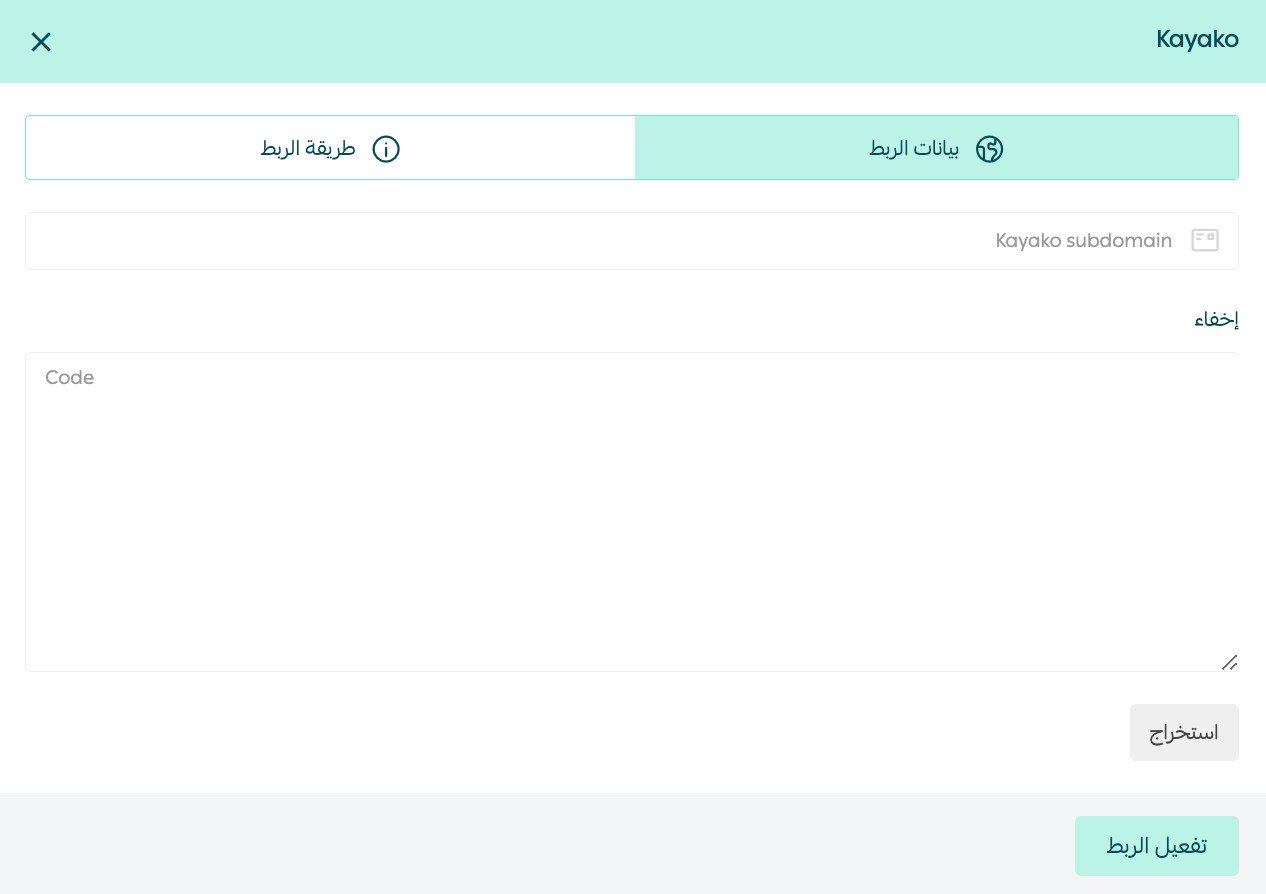
3. Click (Extract the ID using the code).
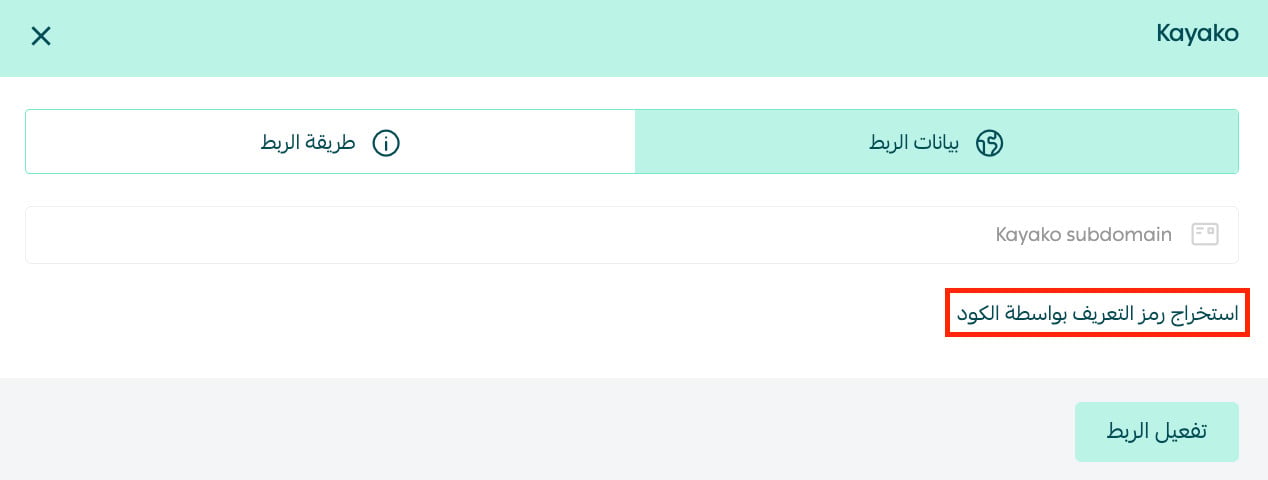
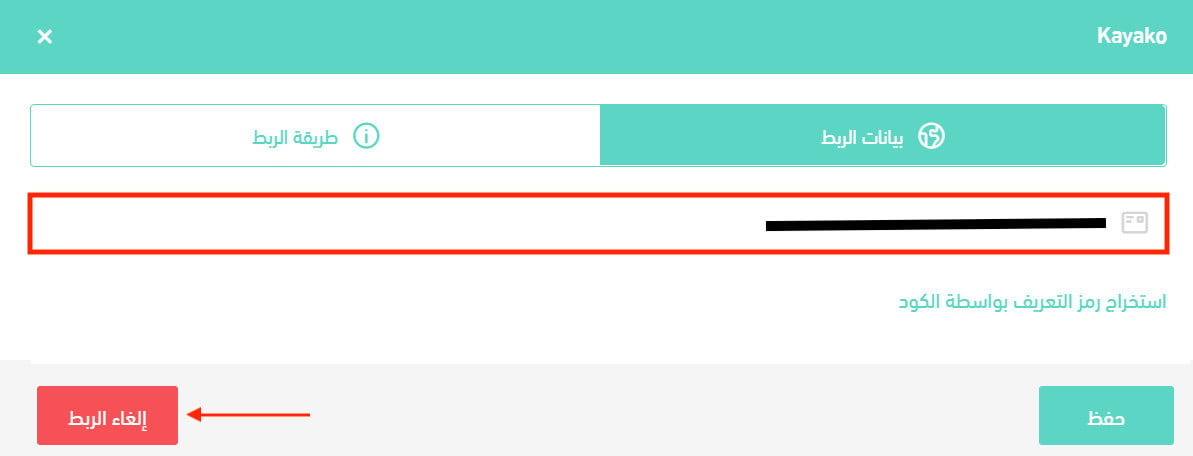
4. Paste the tracking code you copied from Kayako in stage one, click (Extract), then click (Activate connection).
❓ Frequently asked questions
Why use Kayako?
- Beyond social media, it also connects to apps such as Salesforce, Slack, LinkedIn and Stripe.
- You can add agents and managers, who can build shortcuts for repetitive tasks and set up automated replies for common questions.
- You can track and manage conversations across email, chat, social media and help desk tickets in one place.
- The ticketing system lets you organize tickets with tags or sort them by priority based on their current status.
Is Kayako free or paid?
It's a paid service, with a range of plans to suit what you need. It also gives you a trial period of up to 14 days.
Can I disconnect my store from my Kayako account?
Yes. On the Kayako connection page, click (Disconnect).