How quickly does your store answer a customer who's about to buy?
When you connect Intercom with Salla, you can talk to shoppers at the exact moment they need help. Intercom is a paid service that lets you build relationships with customers throughout their journey in your store, using customizable screens and a broad library of chat apps that automate how you reach out. In this guide, you'll learn how to create an Intercom account, copy your workspace ID, install the app, and activate the connection.
To connect Intercom with Salla, create an Intercom account, then open Settings, click (Messenger), open the (Install) tab, and copy your workspace ID. Next, install the Intercom app from the Salla App Store, open (App options) and (Activate app), paste the code, and click (Activate connection).
📌 Article overview
- What is Intercom?
- How to connect your Salla store with Intercom
- Frequently asked questions
- Additional support services
🎯 What is Intercom?
Intercom is a paid service that lets you reach the customers in your store the moment they need support. It helps you build relationships with them by engaging throughout their journey — through customizable screens and a varied library of chat apps that automate how you communicate with your customers.
🚀 How to connect your Salla store with Intercom
Stage one: sign up for Intercom
1. Go to the Intercom website and click (Start free trial) to create your account.
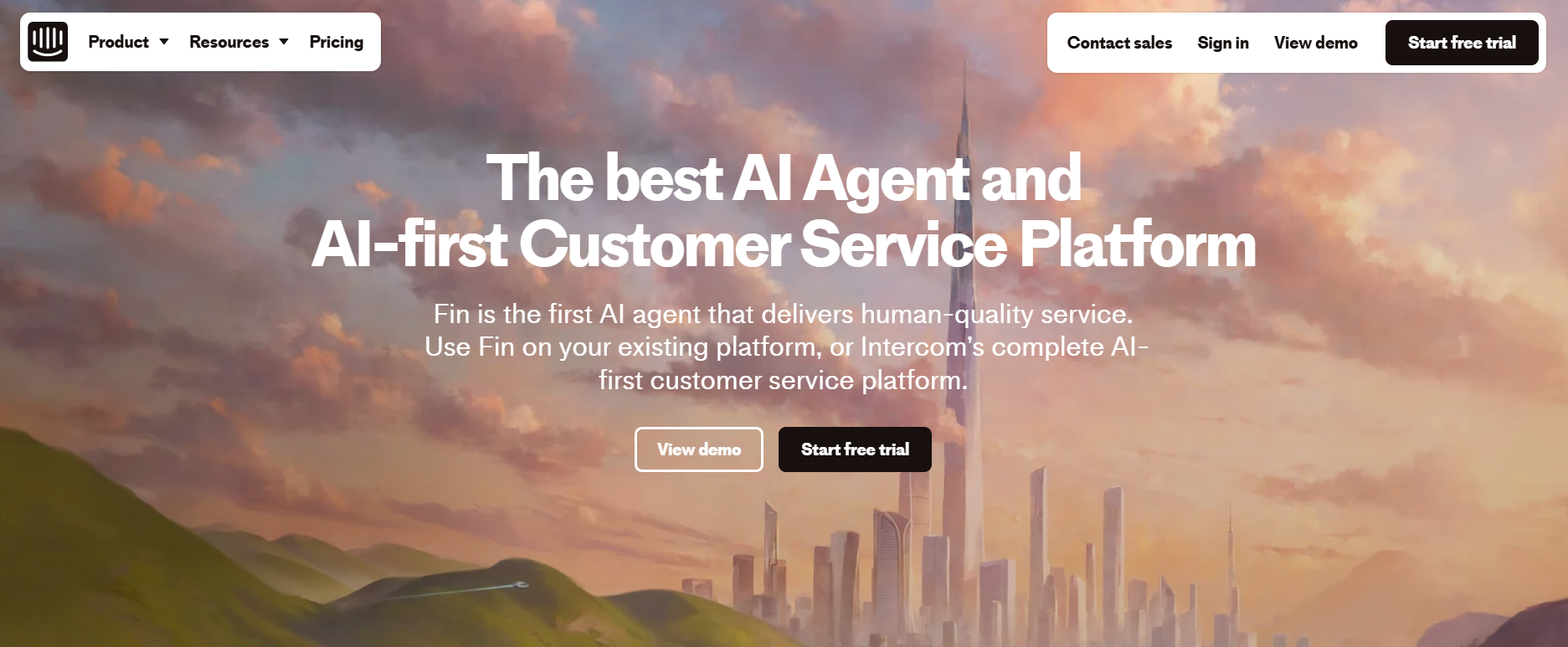
2. Enter your email address to sign up.
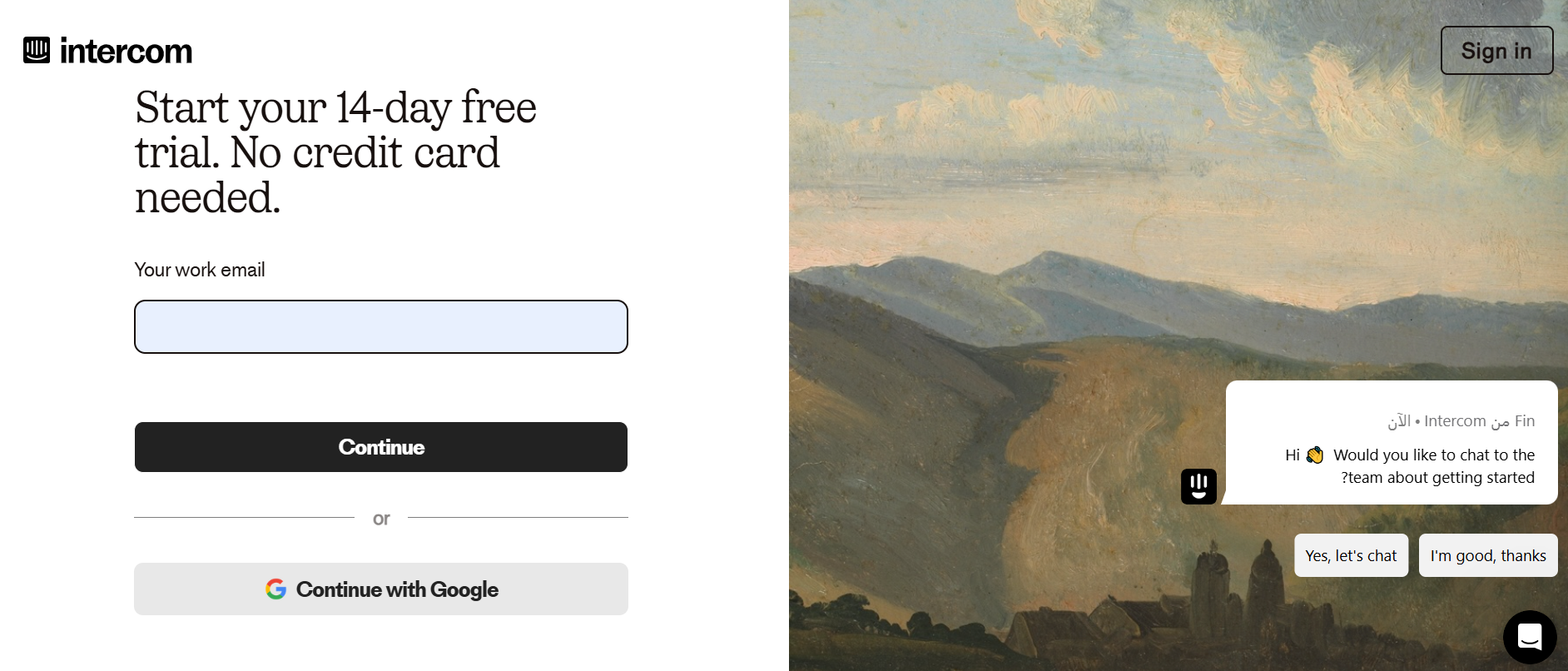
3. Enter your full name, then click (Continue).
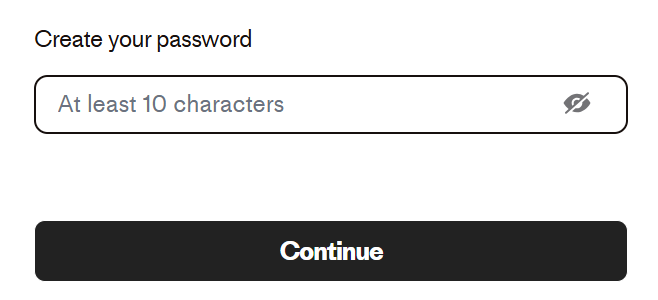
4. Enter a strong password of at least ten characters, then click (Continue).
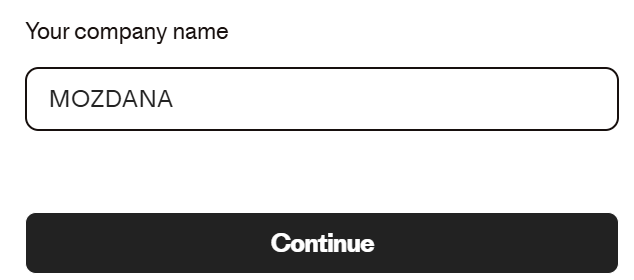
5. Enter your company name, then click (Continue).
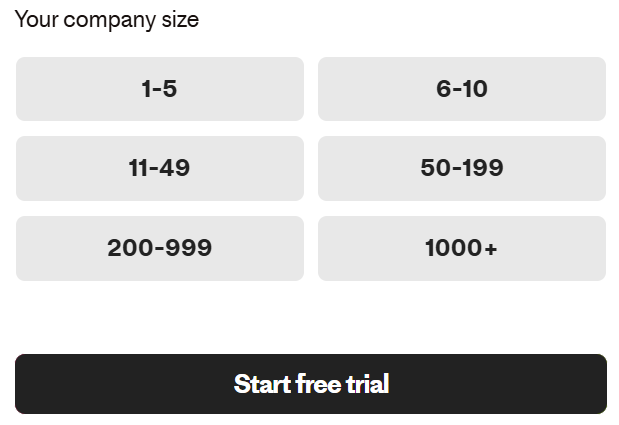
6. Choose how many employees your company has, then click (Start free trial).
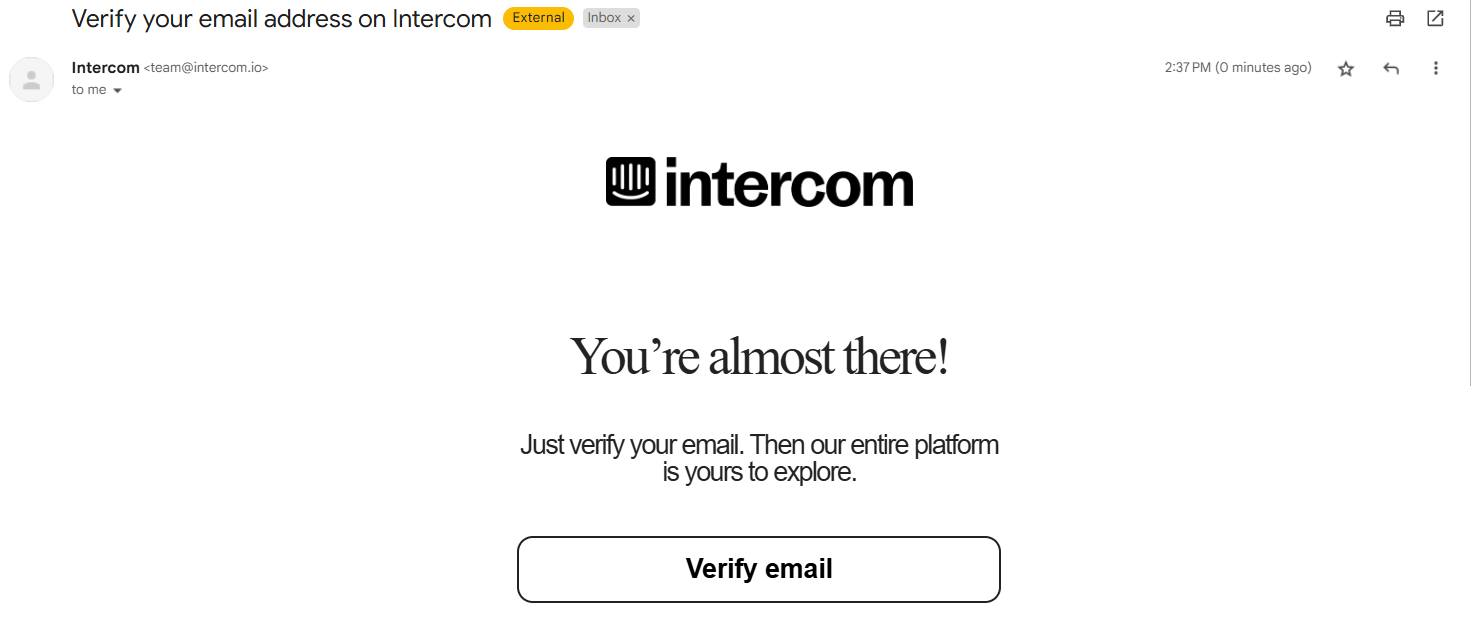
7. Open the confirmation email you receive and click (Verify email).
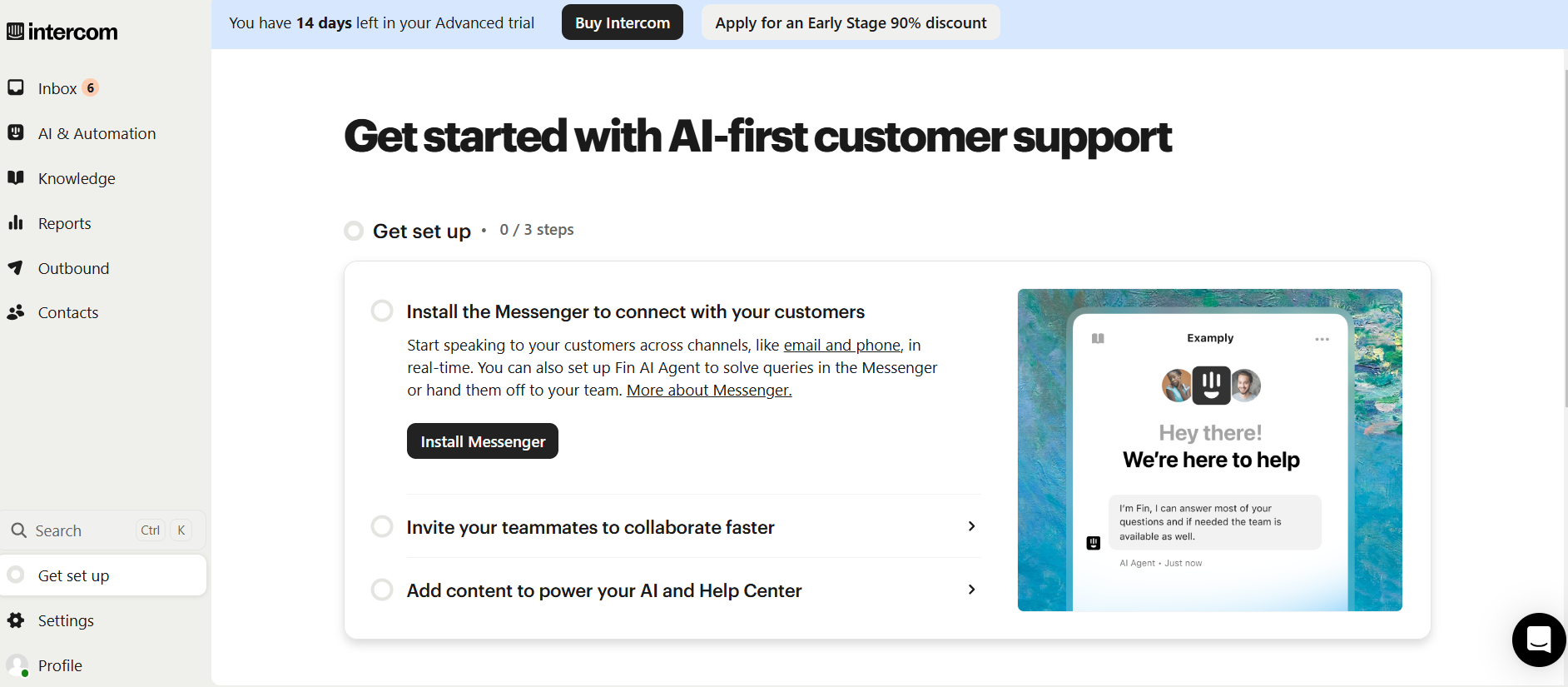
Once your account is verified, the Intercom home page looks like this:
Stage two: copy the activation code from your Intercom settings
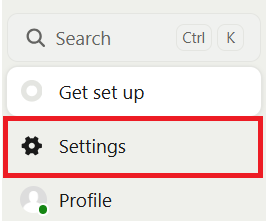
1. From the home page of your Intercom account, click (Settings).
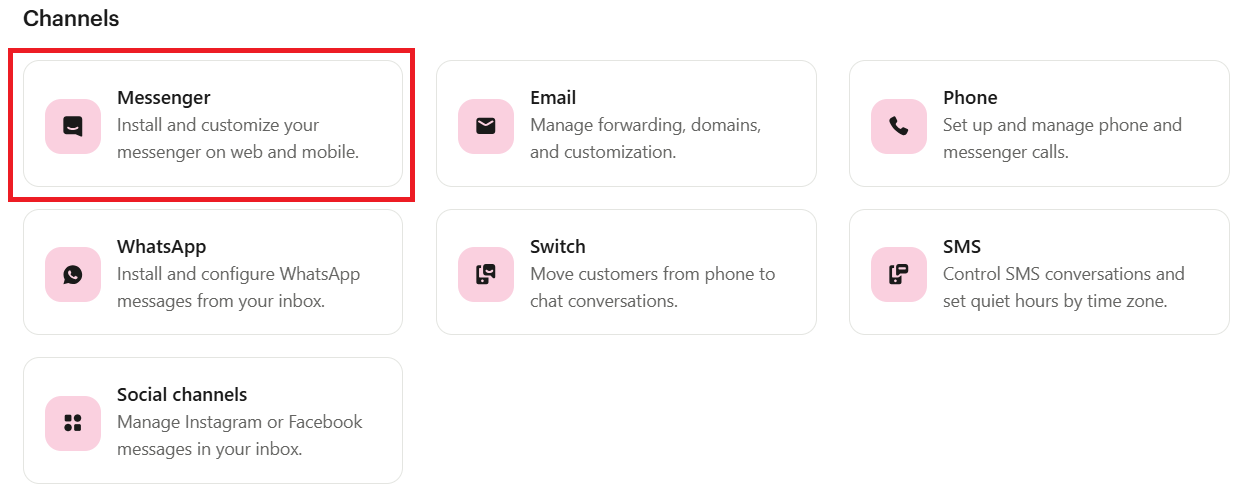
2. Under the Channels section, click (Messenger).
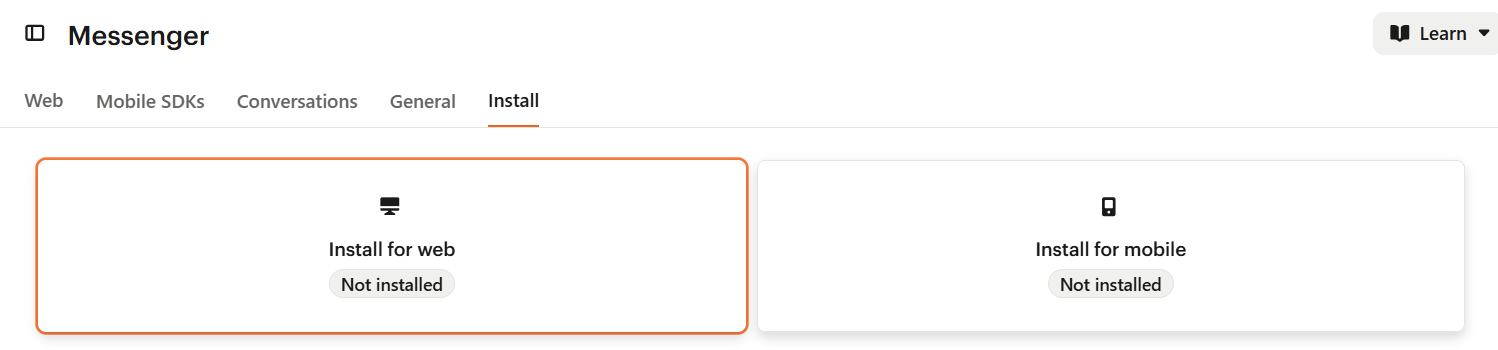
3. On the Messenger page, open the (Install) tab, then click (Install for web).
4. Click (Google Tag Manager).
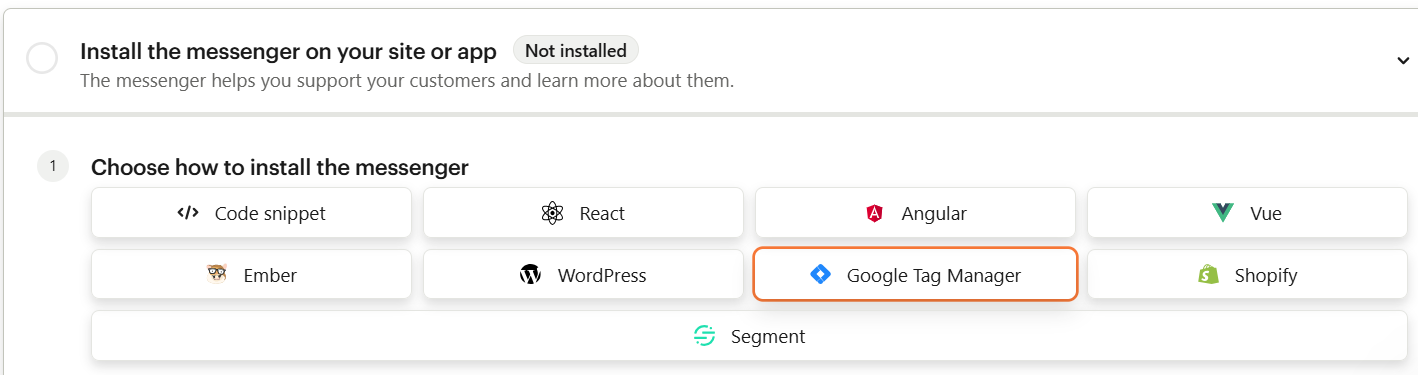
5. Finally, click (Copy workspace ID) to copy the tracking code to your clipboard.
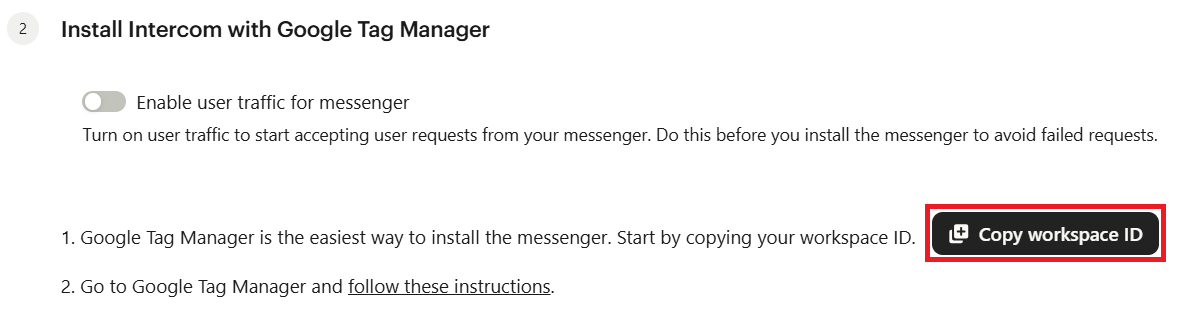
Stage three: install the app
1. From the side menu of your dashboard, click (Installed apps).

2. On the installed apps page, click (Browse the Salla App Store).

3. Open the Intercom app and click (Install).
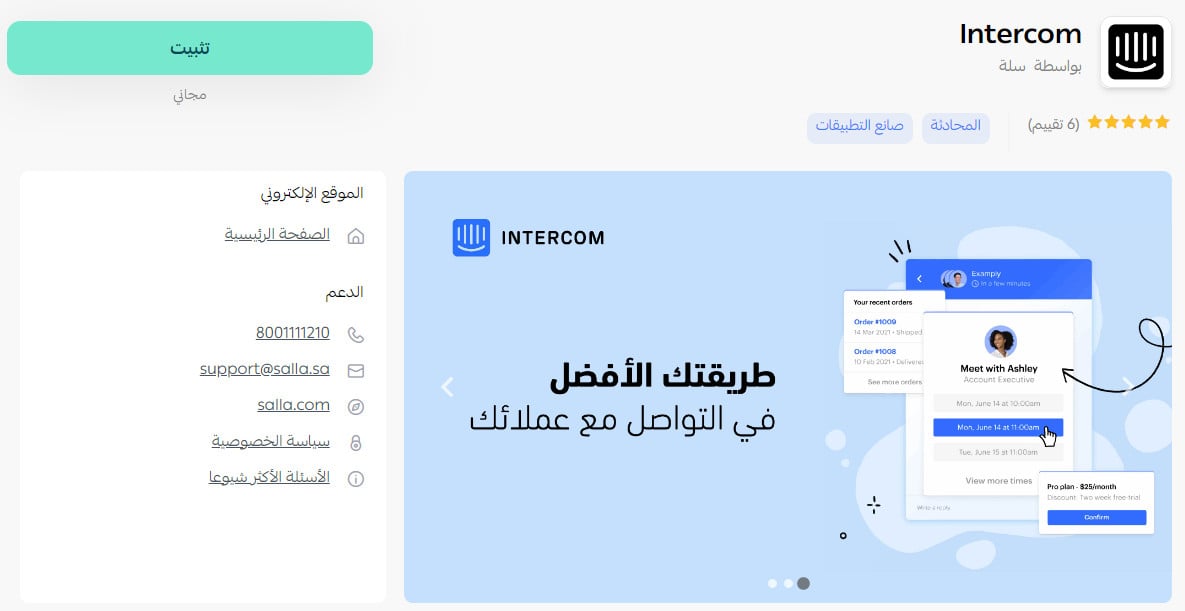
After installation, the app card looks like this:
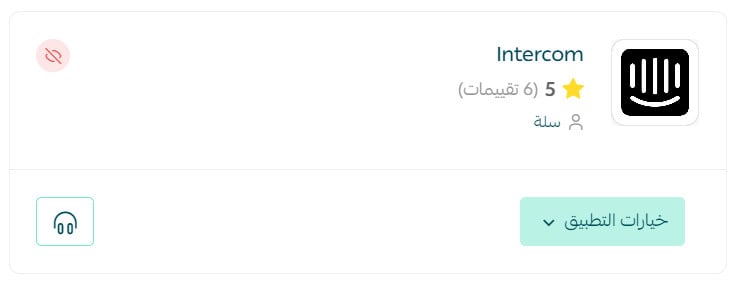
Stage four: paste the Intercom tracking code into your Salla store
1. From the side menu of your dashboard, click (Installed apps).

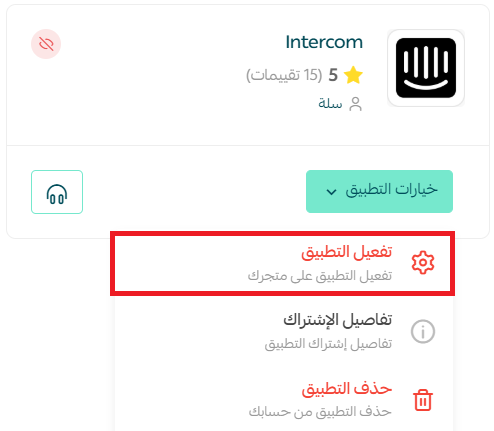
2. On the Intercom app, click (App options), then (Activate app).
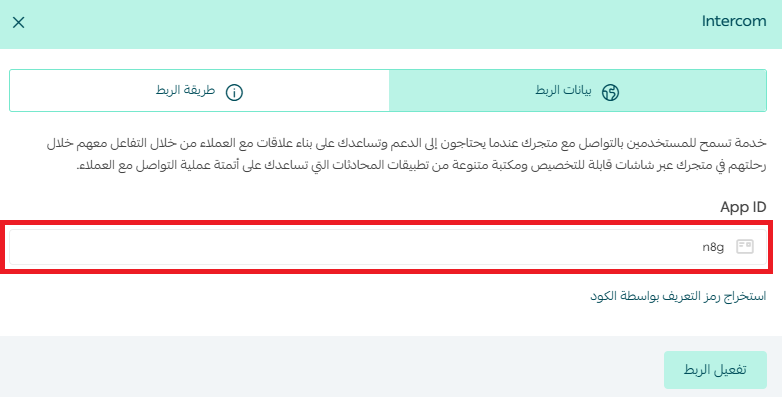
3. Paste the tracking code you copied from Intercom in stage two, then click (Activate connection).
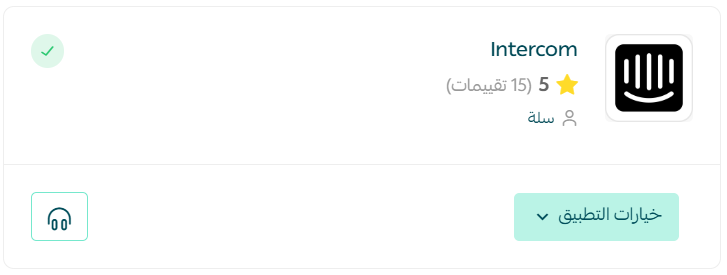
Congratulations — the Intercom app is now active on your store.
And the chat icon appears in your store like this:

❓ Frequently asked questions
Why should I use Intercom?
1. It helps you build stronger customer relationships through personalized, messaging-based experiences across the customer journey.
2. You can create automated messages, doubling engagement and driving adoption of a new feature by delivering the right message at the right time.
3. It supports more than 30 languages.
Can I disconnect my store from my Intercom account?
Yes. On the Intercom connection page, click (Disconnect).
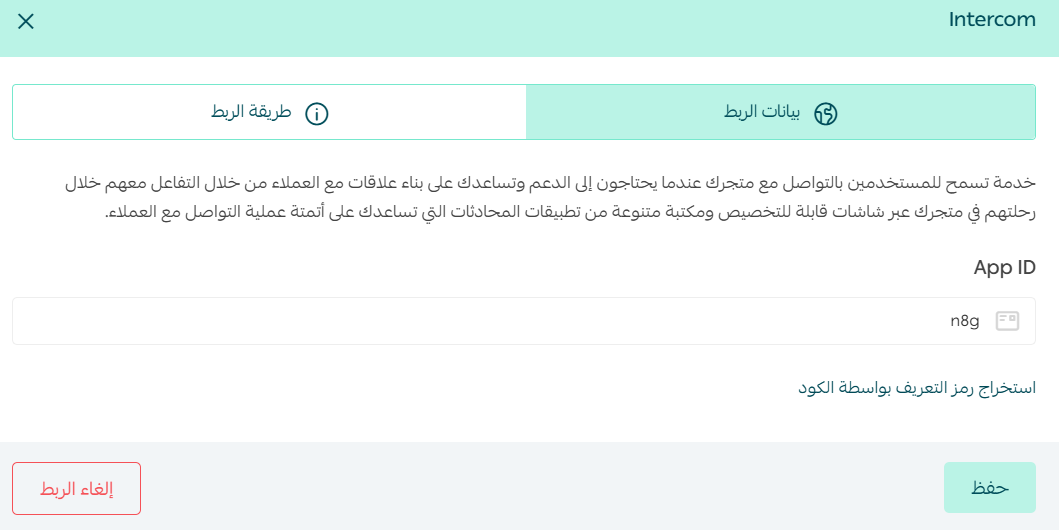
You can reconnect to any other Intercom account whenever you want.
✅ Additional support services
If you need help connecting Intercom, you can request the Intercom AI customer service and marketing chat service from the merchant services page, which brings together a select group of trusted providers delivering high-quality professional work.