Do you know how many people visit your store, where they come from, and which pages keep them browsing?
Google Analytics is a partially free service from Google that tracks visitors to a website and generates reports about them. Connecting Google Analytics to your Salla store turns guesswork into data: you see who visits, what they do, and which channels actually bring buyers. In this guide, you'll learn how to connect Google Analytics to your Salla store in two stages, plus answers to common questions.
To connect Google Analytics to your Salla store, first create an account and a new data stream on Google Analytics, then install the Google Analytics app from the Salla App Store and select your store's data stream in the app settings. Data collection can take up to 48 hours to begin.
📌 Article overview
- What is Google Analytics?
- What you can learn from Google Analytics
- Stage one: create a Google Analytics account for your store
- Stage two: install the Google Analytics app and choose your store's account
- Frequently asked questions
🎯 What you can learn from Google Analytics
The most useful data this tool gives you:
- How many people visited your store.
- How many are first-time visitors.
- How many are returning visitors.
- Which pages get the most traffic.
- The average time visitors stay.
- Which keywords attract the most visitors.
- How many users arrive from search results.
- How many users arrive from ads.
👣 How to connect Google Analytics to your Salla store
The connection happens in two stages:
- Create an account for your store and a new data stream on Google Analytics.
- Install the Google Analytics app and choose your store's Google Analytics account.
🔔 You can also watch a video on connecting Google Analytics to your online store.
Stage one: create a Google Analytics account for your store
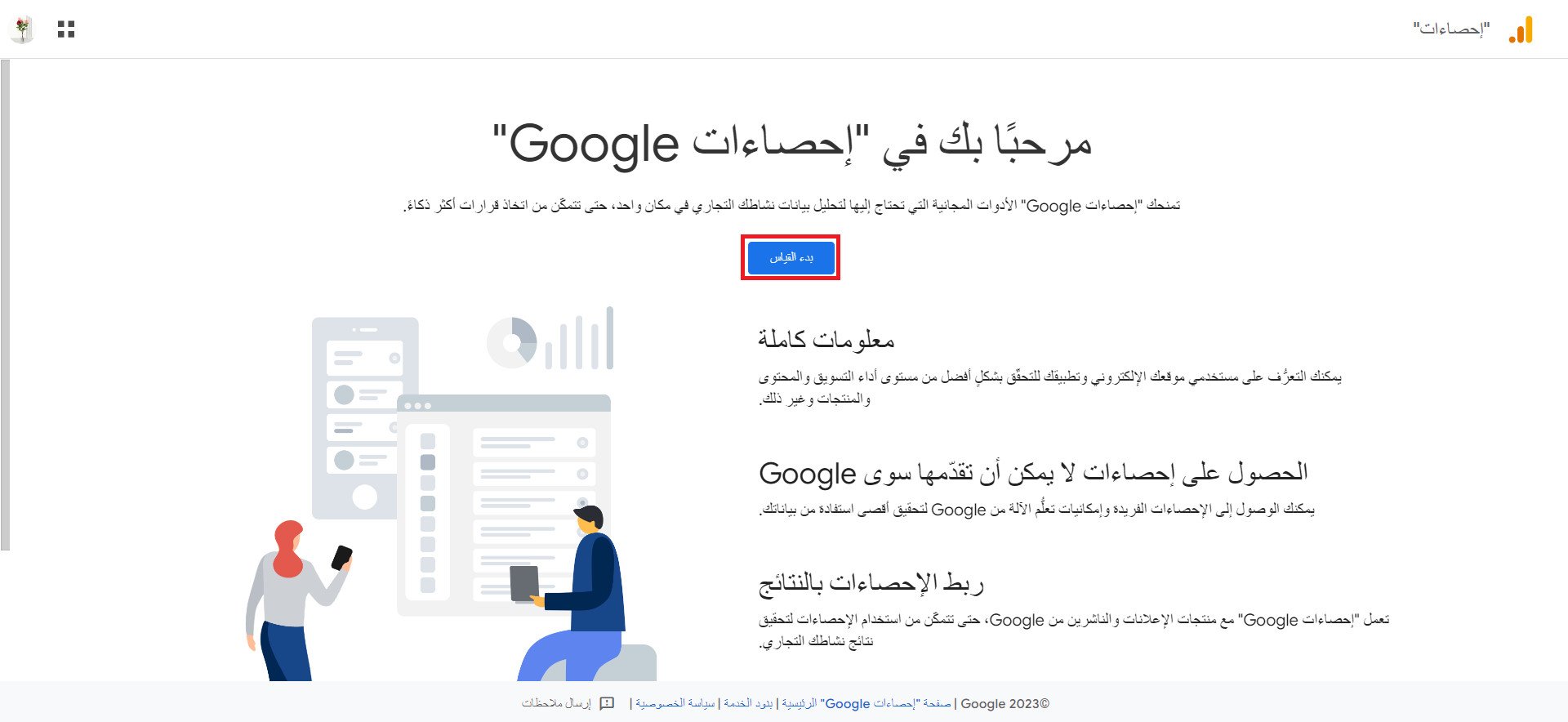
Sign in to Google Analytics with your Gmail account, then click Start measuring to begin.
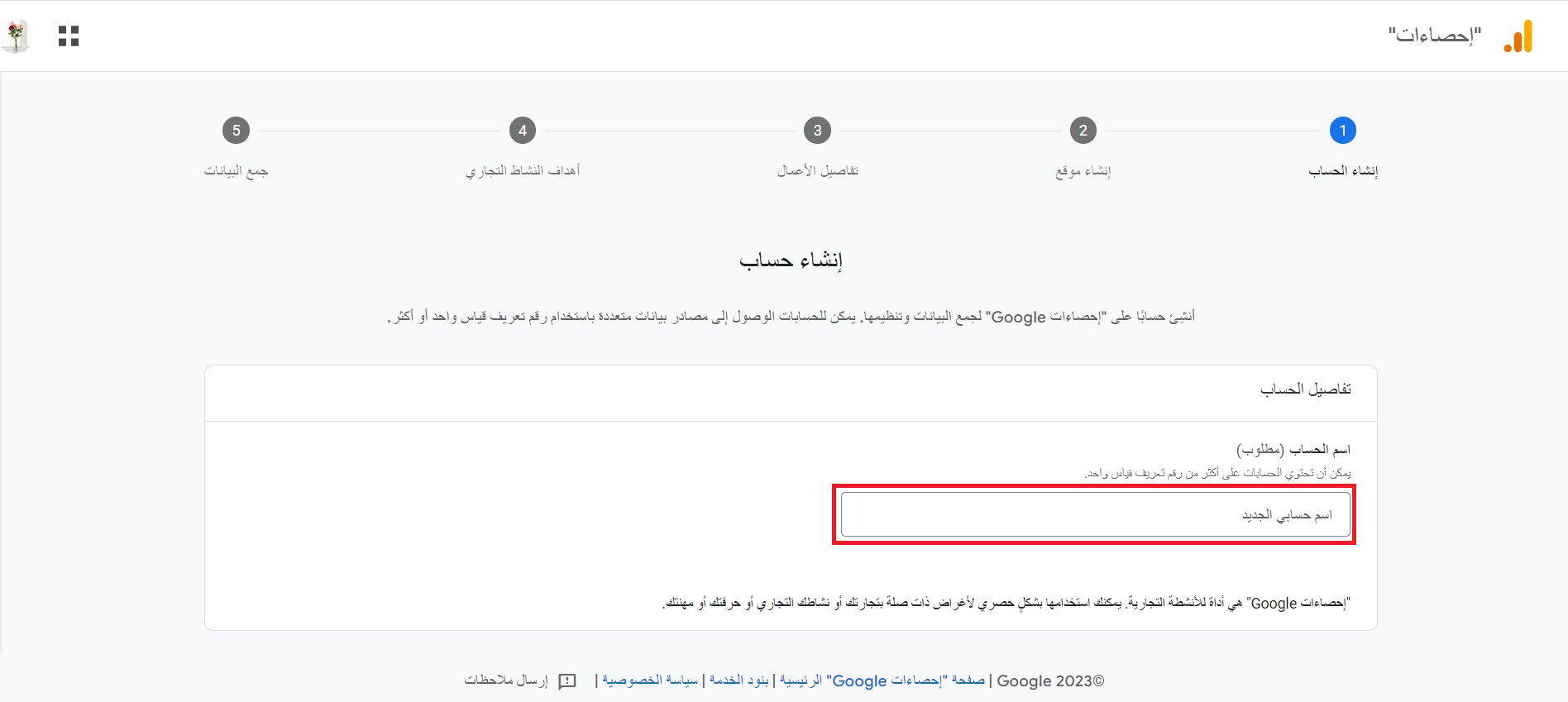
1. Enter the account name (required). One account can hold more than one tracking ID.
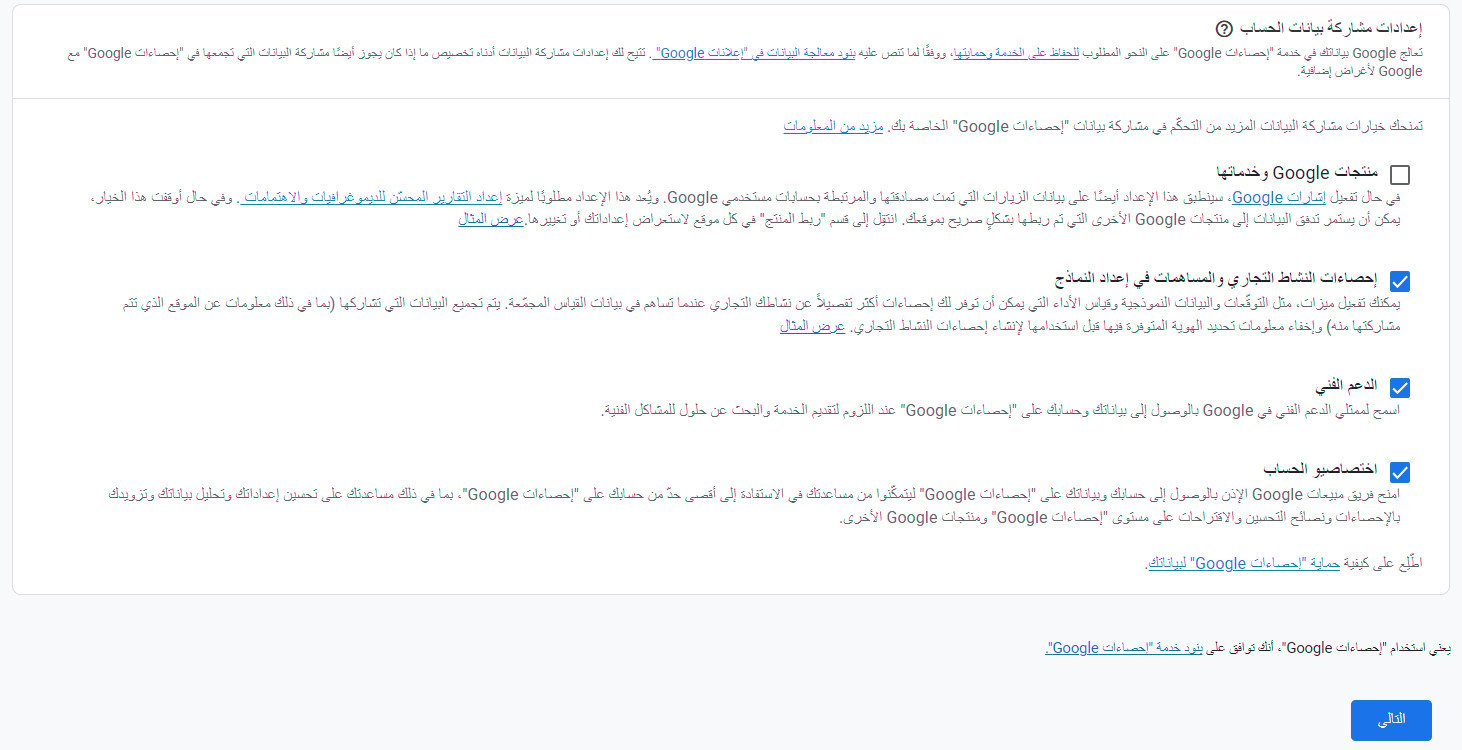
Choose your data-sharing settings (Google products and services, benchmarking, technical support, account specialists), then click (Next).
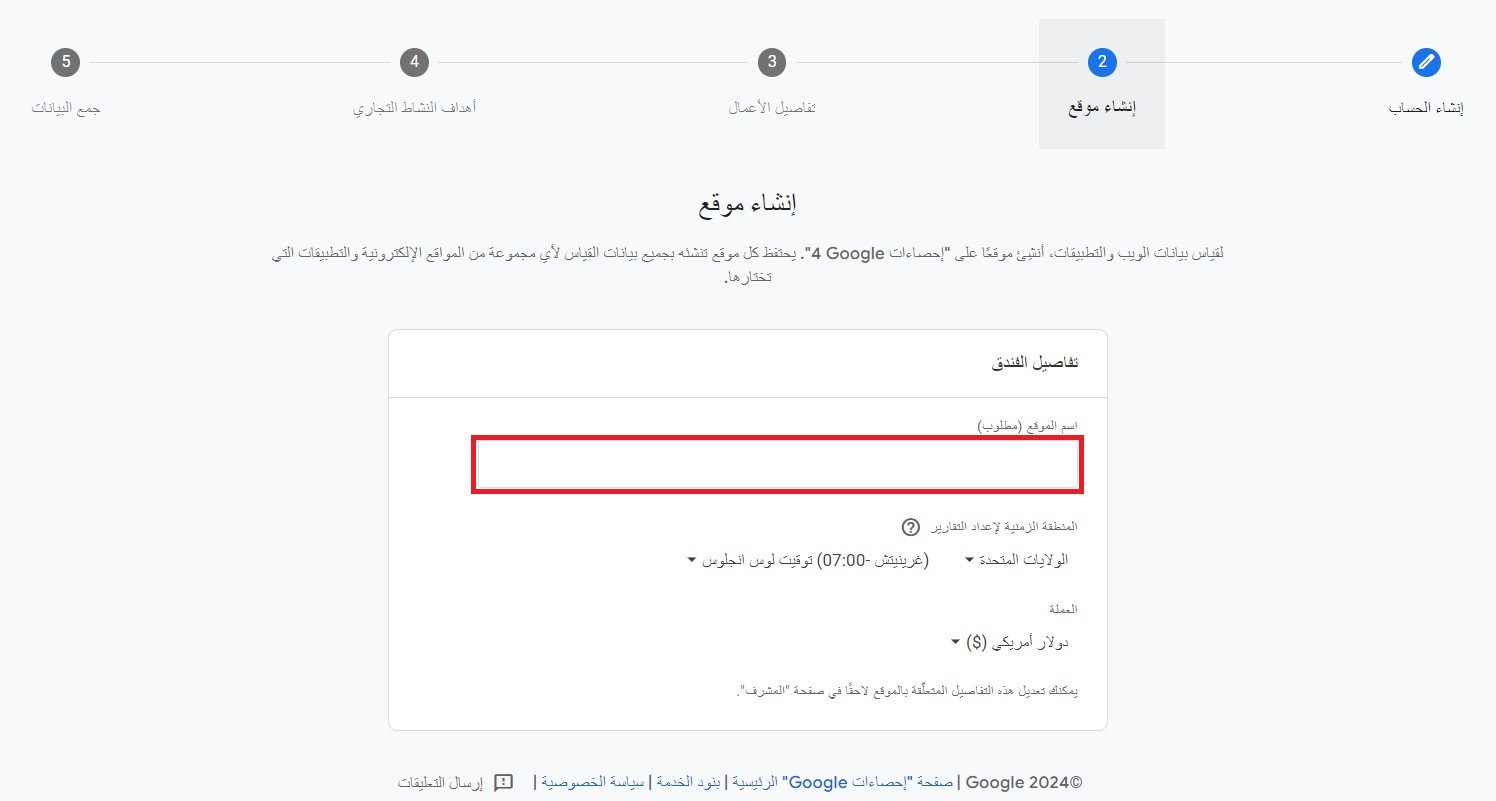
2. Enter the site name, choose the currency and time zone, then click (Next).
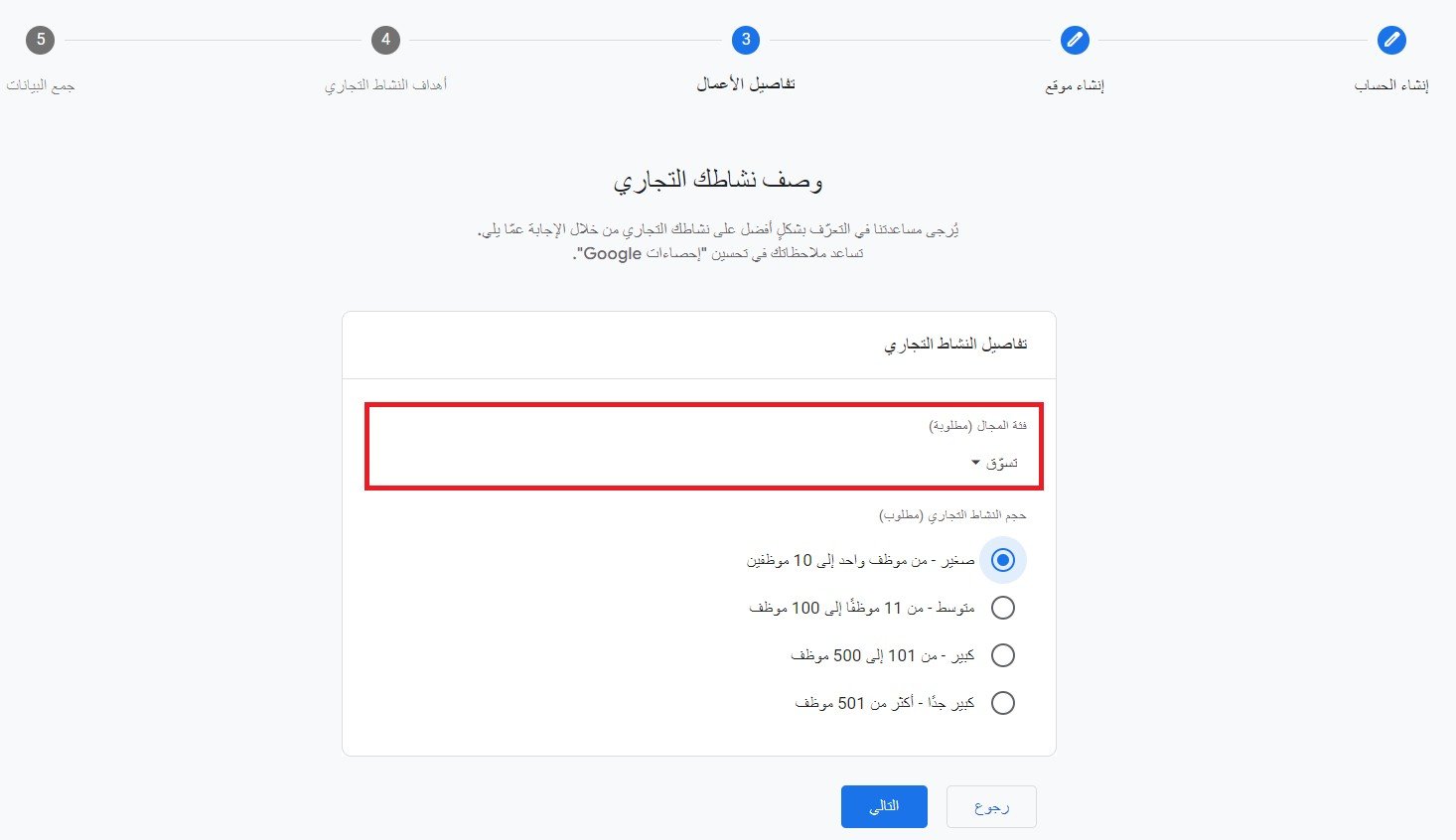
3. Enter your business information: select your business category and size, then click (Next).
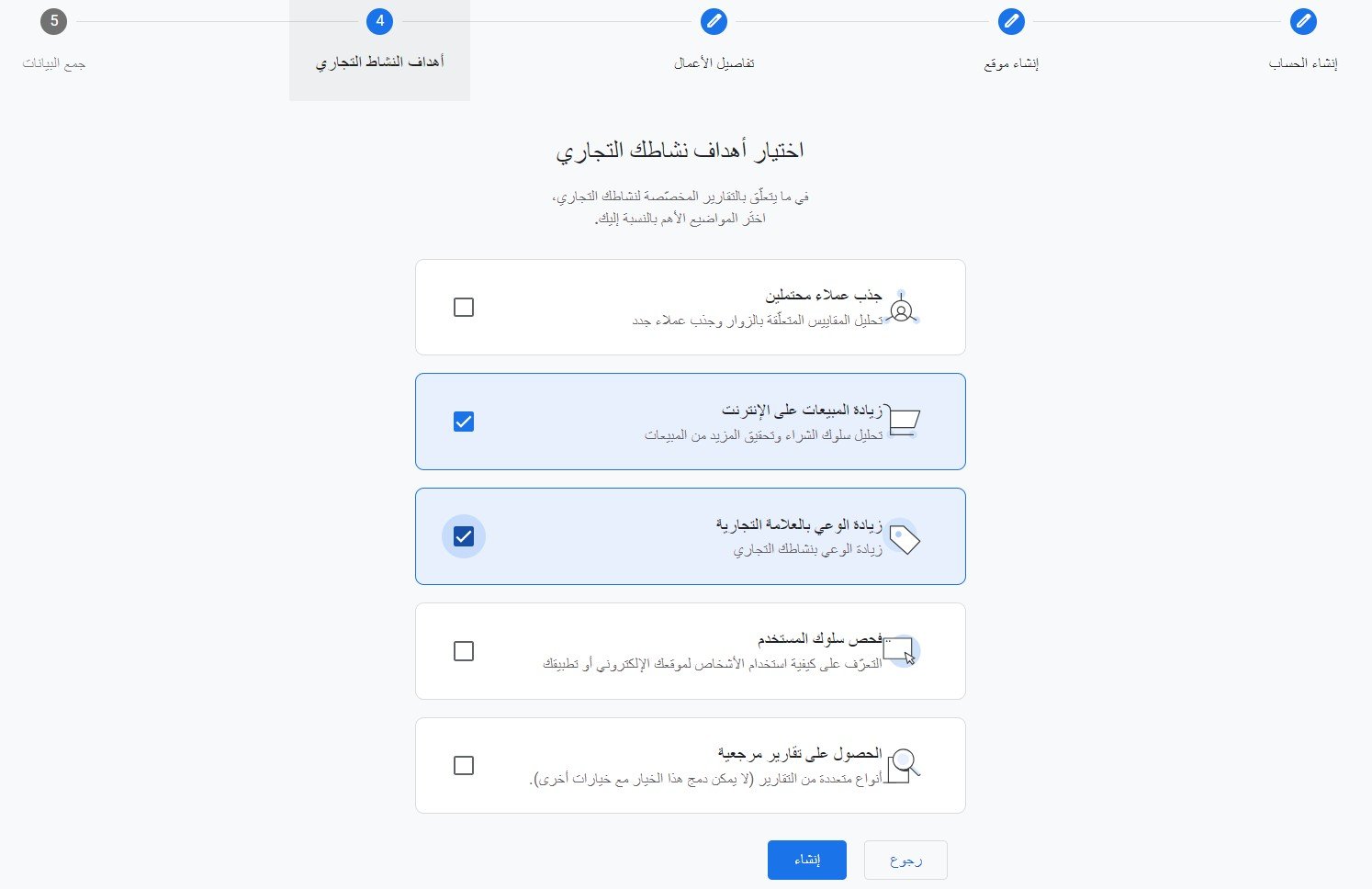
4. Select your business objectives, then click (Create).
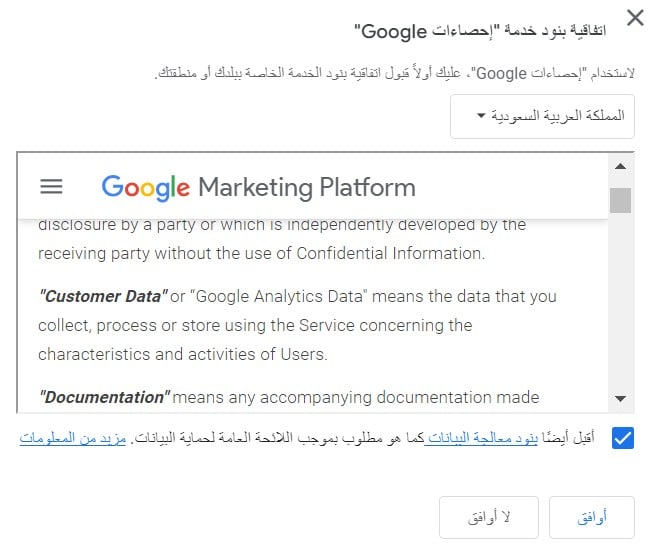
5. Accept Google's terms and conditions.
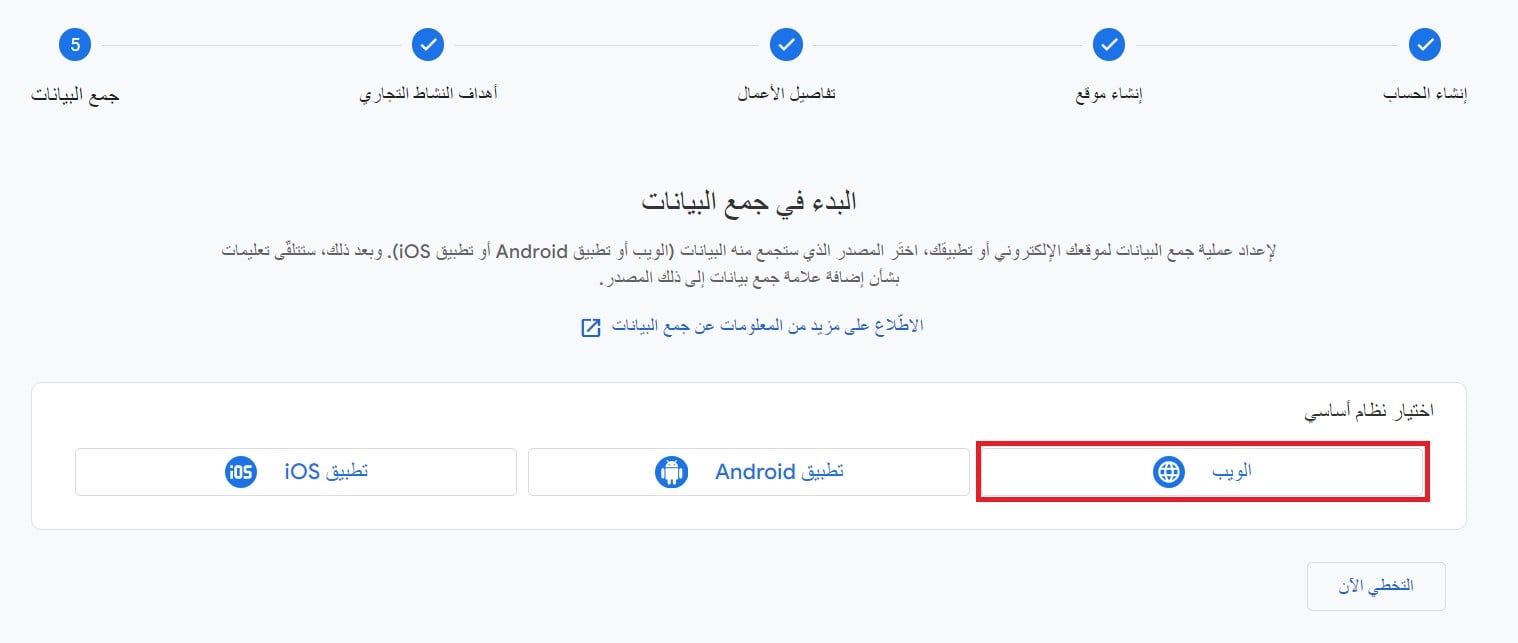
6. Set up a data stream to start collecting data — click (Web).
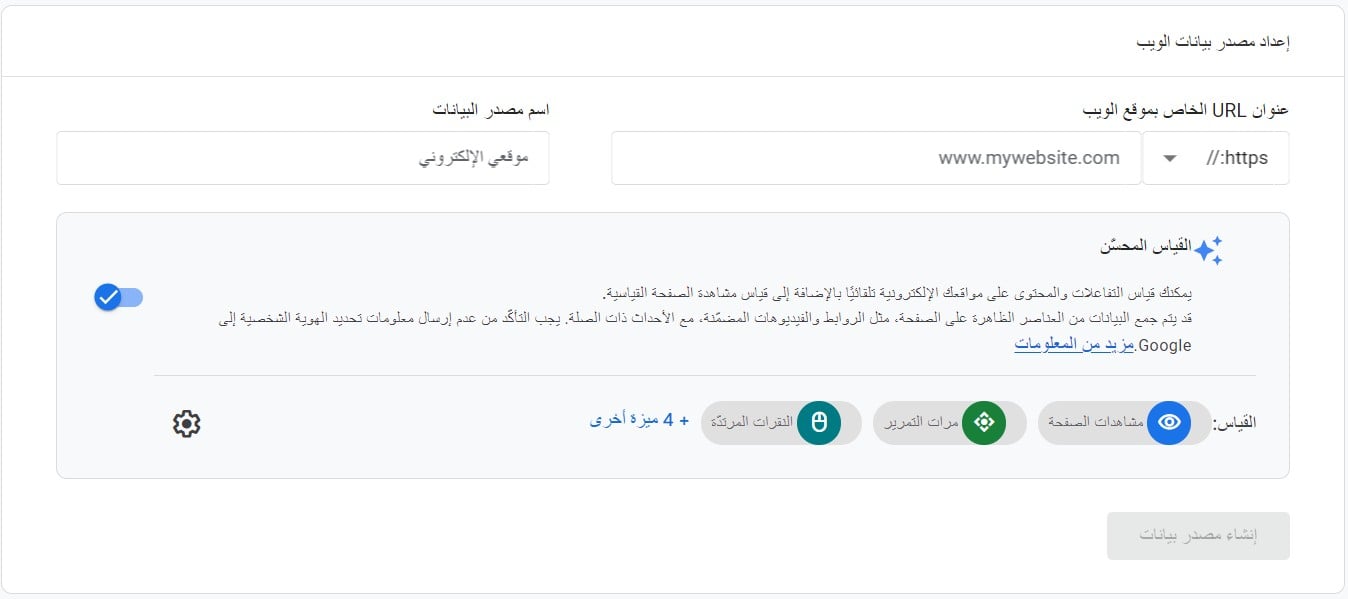
7. Enter your store's domain without (https://), enter the store name, then click (Create stream).
Congratulations — a new data stream now exists for your store on Google Analytics. Save the measurement ID so you can pick it from the list when you link Google Analytics inside your store.
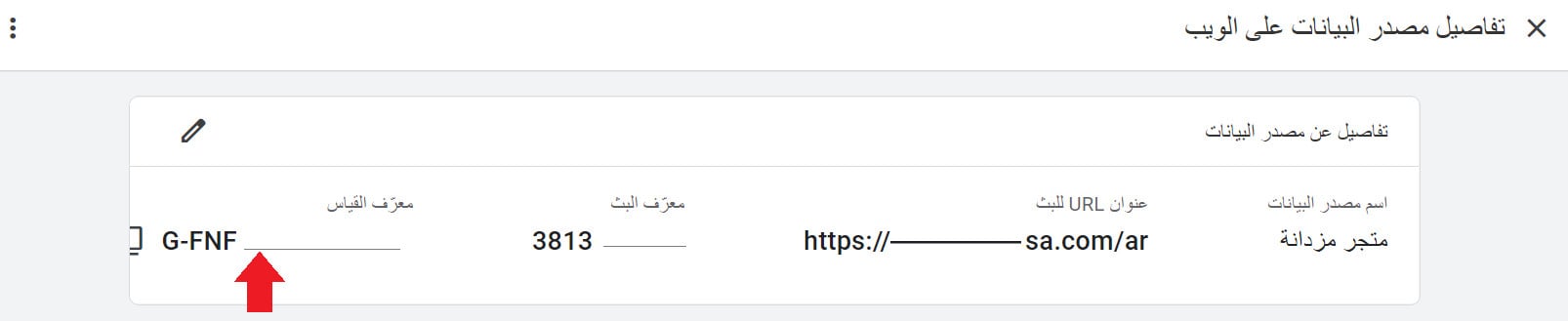
📝 Important note: when connecting with Google Analytics GA4, the measurement ID starts with (G-...).
Your site can take up to 48 hours to start collecting data.
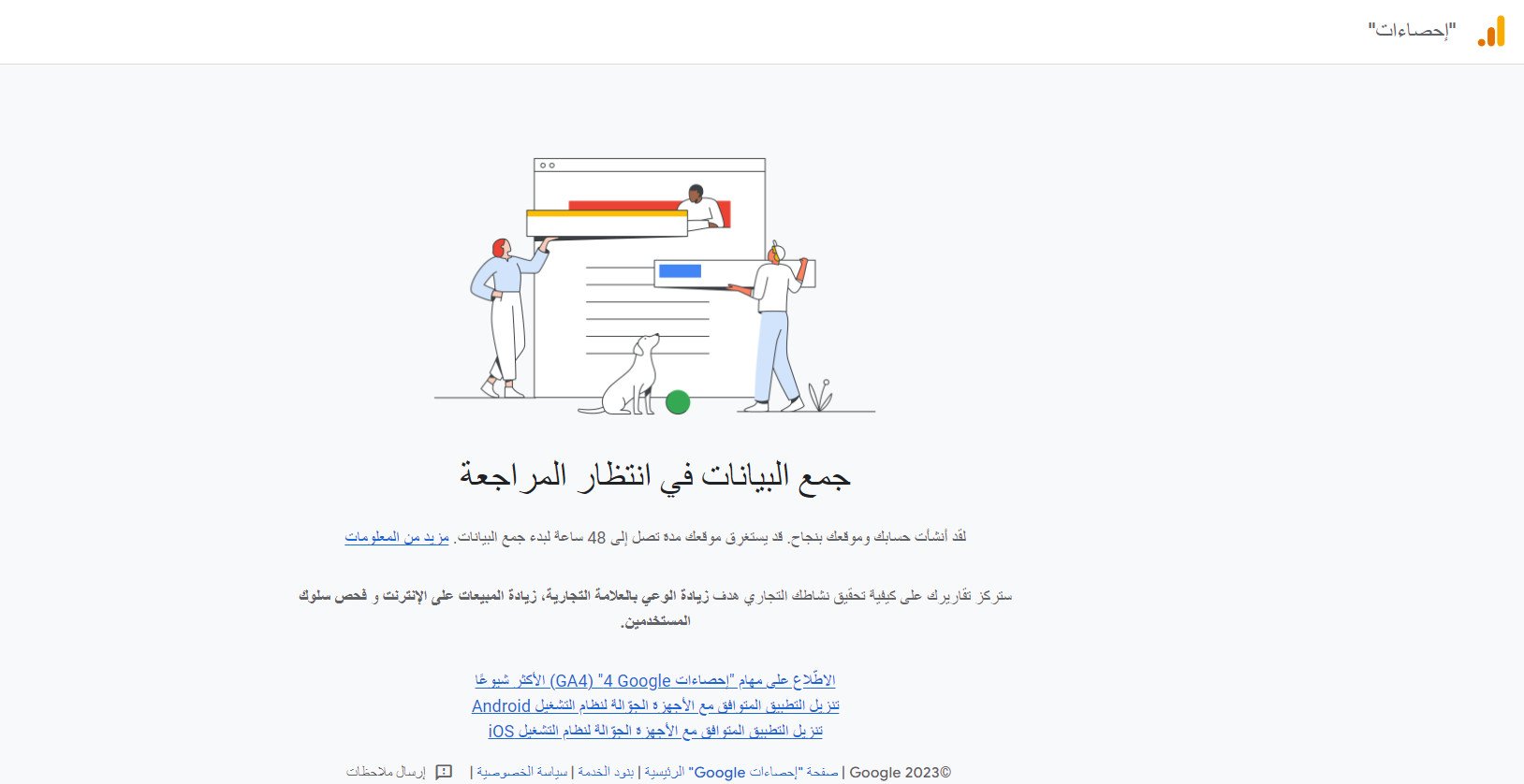
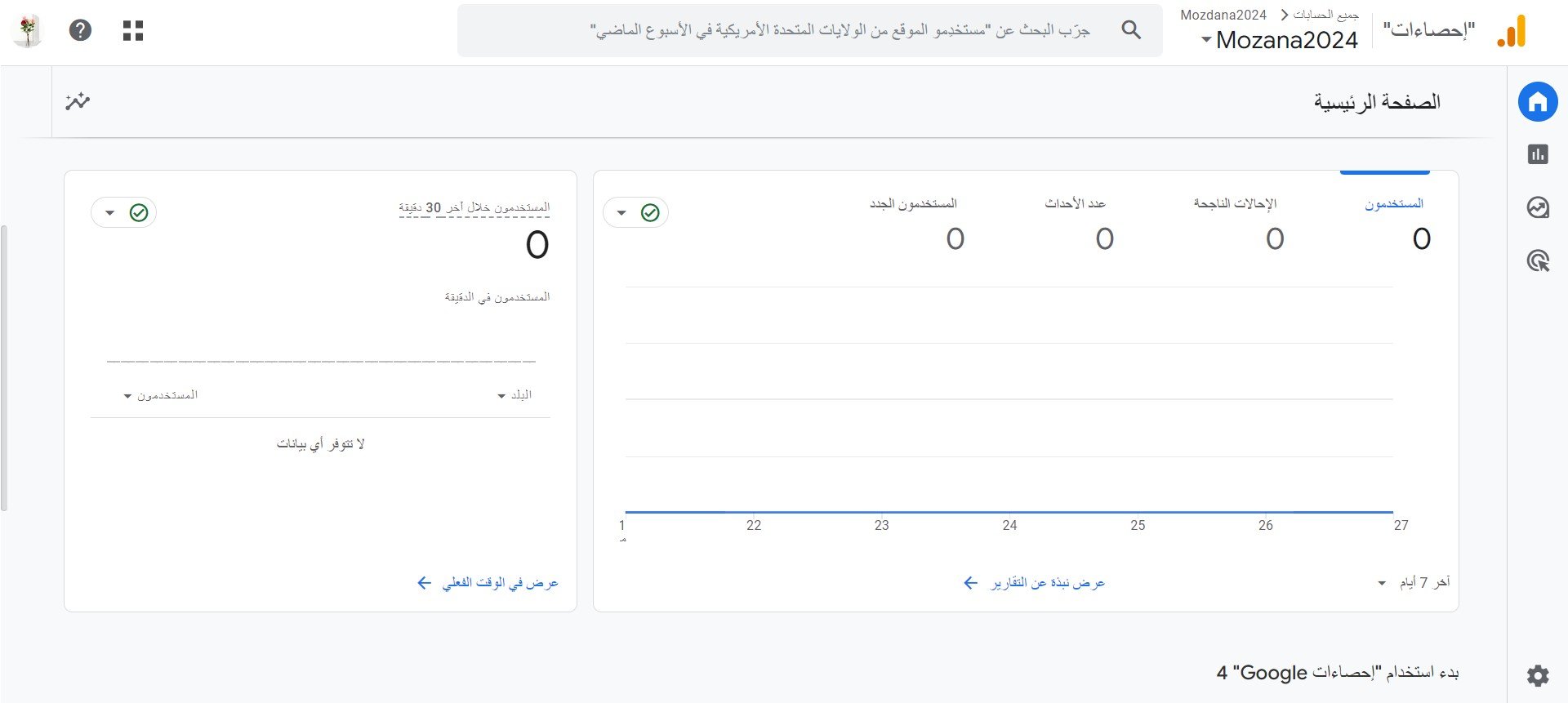
Before any data is collected, the Google Analytics home page looks like this:
Stage two: install the Google Analytics app and choose your store's account
1. From the side menu of your dashboard, click (Installed apps).
2. From the Salla App Store banner, click (Browse Salla App Store).

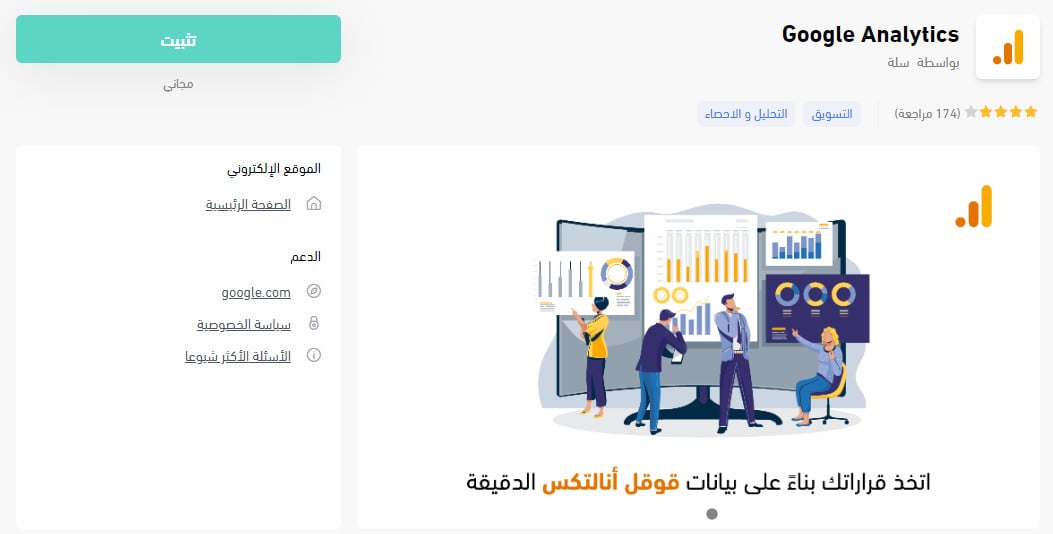
3. From the Google Analytics app, click (Install).
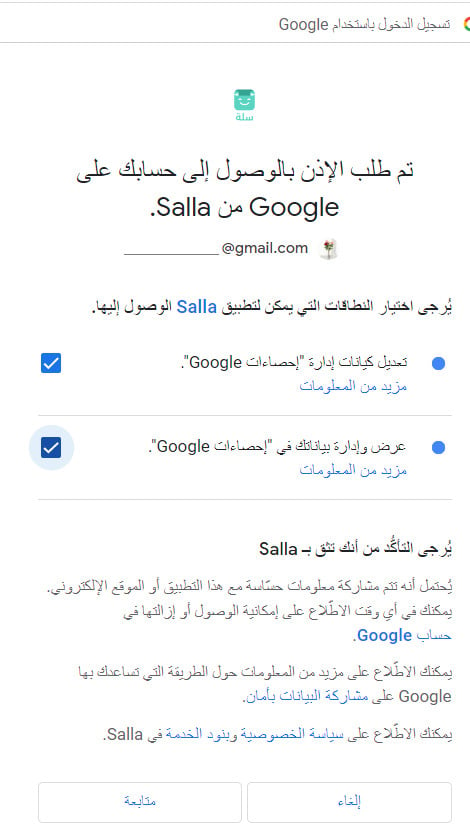
4. Review the scopes the app can access in your Salla store, then click (Continue).
5. From the installed apps page, in the Google Analytics app options, click (App settings).
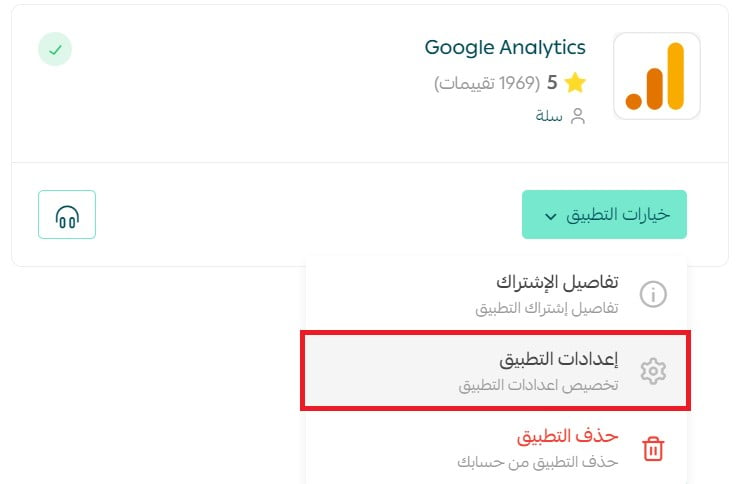
To activate the Google Analytics app, choose your store's data stream from the available list, then click (Save).
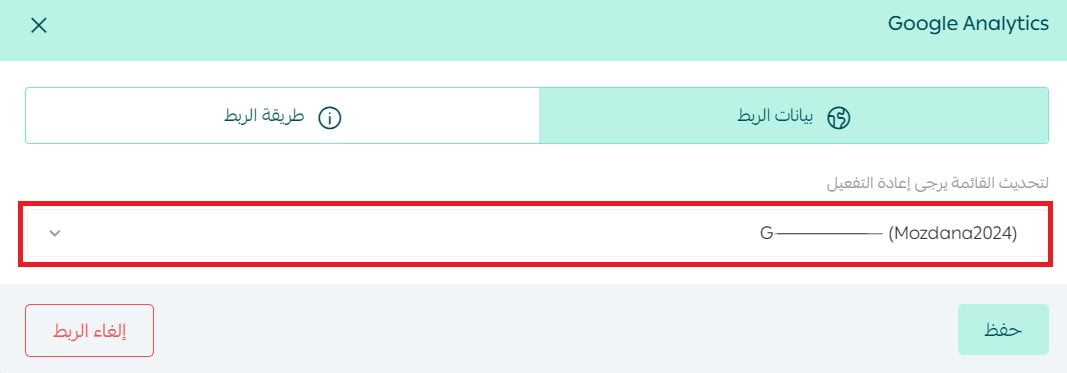
The entries listed here after linking are your Google Analytics accounts. Choose the measurement ID of the site you registered for your store on Google Analytics.
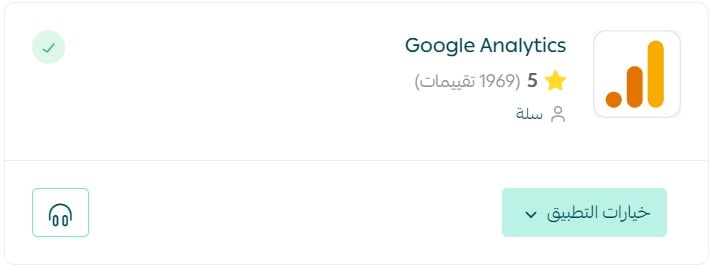
Once activated, the app appears among your installed apps:
❓ Frequently asked questions
What does the Google Analytics home page show?
After connecting your store to your Google Analytics account, the Analytics home page looks like this:
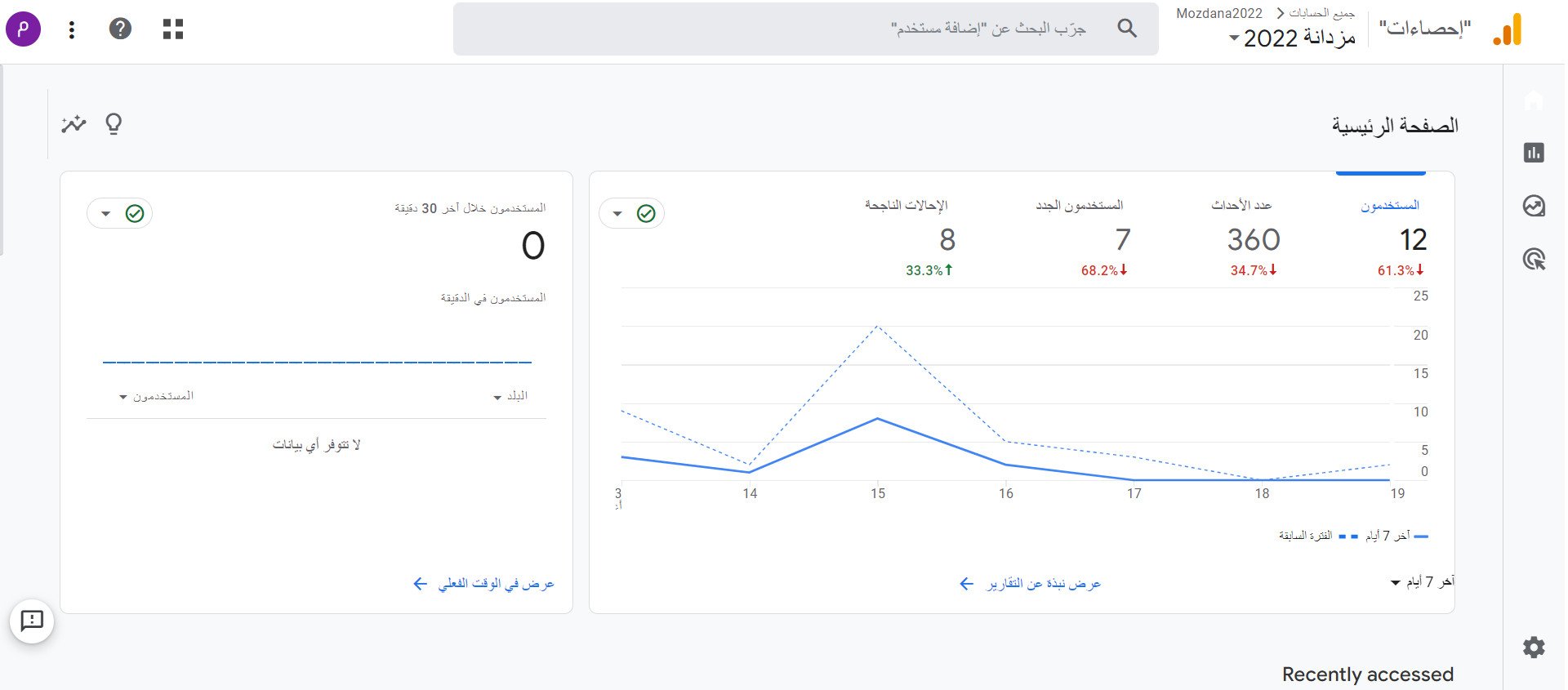
You'll see data such as visits to your site or blog, the page conversion rate, revenue earned, and the number of new sessions started over the last seven days — the tool's standard default view.
The blue panel on the side of the page shows how many visitors are on your site at that very moment, along with a list of the five pages with the most active users.
Can I disconnect my store from my Google Analytics account?
Yes — from the Google Analytics linking page, click (Unlink).
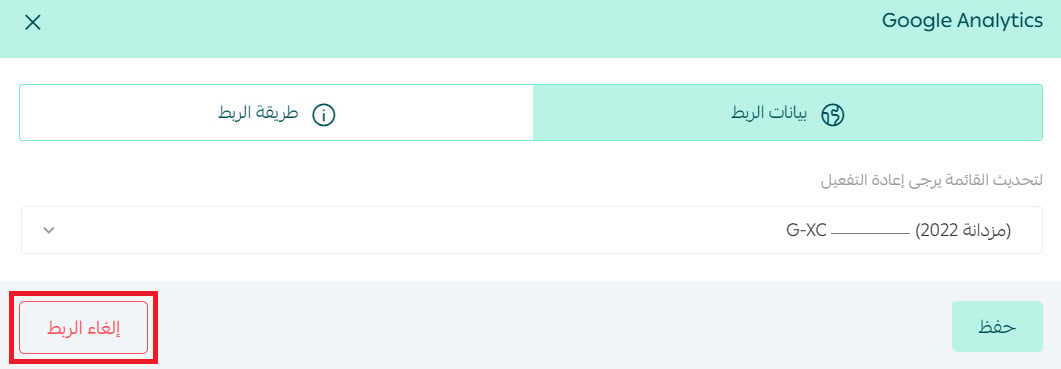
You can reconnect with any other Google Analytics account whenever you like.
Additional support services
If you need help with connecting Google Analytics to analyze your store's performance, the merchant services section offers specialized services from third-party providers to get your business tasks done professionally.