How many shoppers fill a cart in your store and then quietly disappear?
Most abandoned carts are not lost sales, they are unfinished ones. A well-timed reminder that reaches the shopper on the same device they were browsing on is often all it takes to bring them back. The Go Mubasher app adds that reminder layer to your Salla store: browser notifications you can schedule, target by device, personalize with the customer's own data, and send with a payment link and the outstanding amount attached. In this guide, you'll learn how to install the Go Mubasher app, activate your account, and use it to follow up on abandoned carts.
Go Mubasher is an abandoned cart notification app for Salla stores. Install it from the Salla App Store, pick a plan and complete payment, then activate your account from the email Go Mubasher sends you. From its dashboard, refresh your cart data and send notifications to a group of customers or to one shopper at a time.
📌 Article overview
- What the Go Mubasher app does for your store
- How to install the Go Mubasher app
- How to activate your Go Mubasher account
- How to send abandoned cart notifications
- How to delete the app
- Frequently asked questions
🎯 What the Go Mubasher app does for your store
Go Mubasher is built around one job: getting shoppers back to a cart they left behind.
- Send notifications to visitors of your store to remind them about an unfinished order.
- Control when the notification appears and where it is displayed.
- Target specific devices instead of sending to everyone.
- Personalize the message automatically using the customer's own data.
- Include a payment link and the amount due so the shopper can finish checkout in one step.
🚀 How to install the Go Mubasher app
1. From the main menu, click the (More) tab, then click (Installed apps).
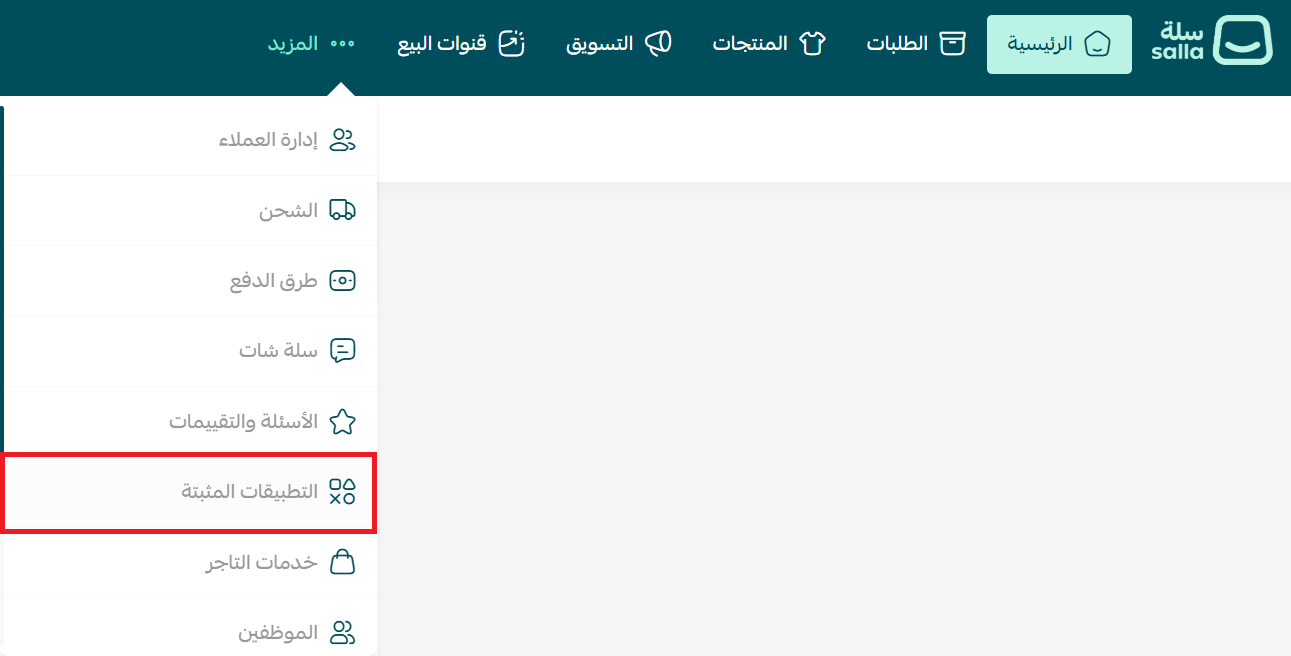
2. On the Salla App Store banner, click (Browse the Salla App Store).

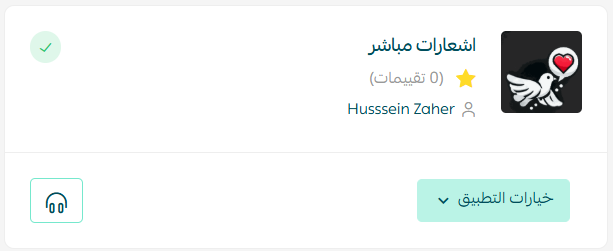
3. On the Go Mubasher app page, click (Install).

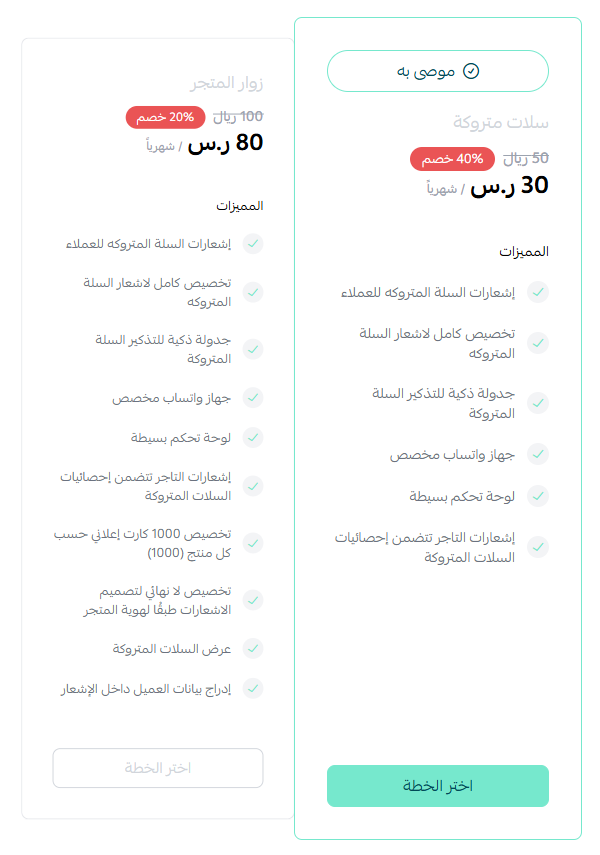
4. Choose the plan that suits your business to continue with the installation.
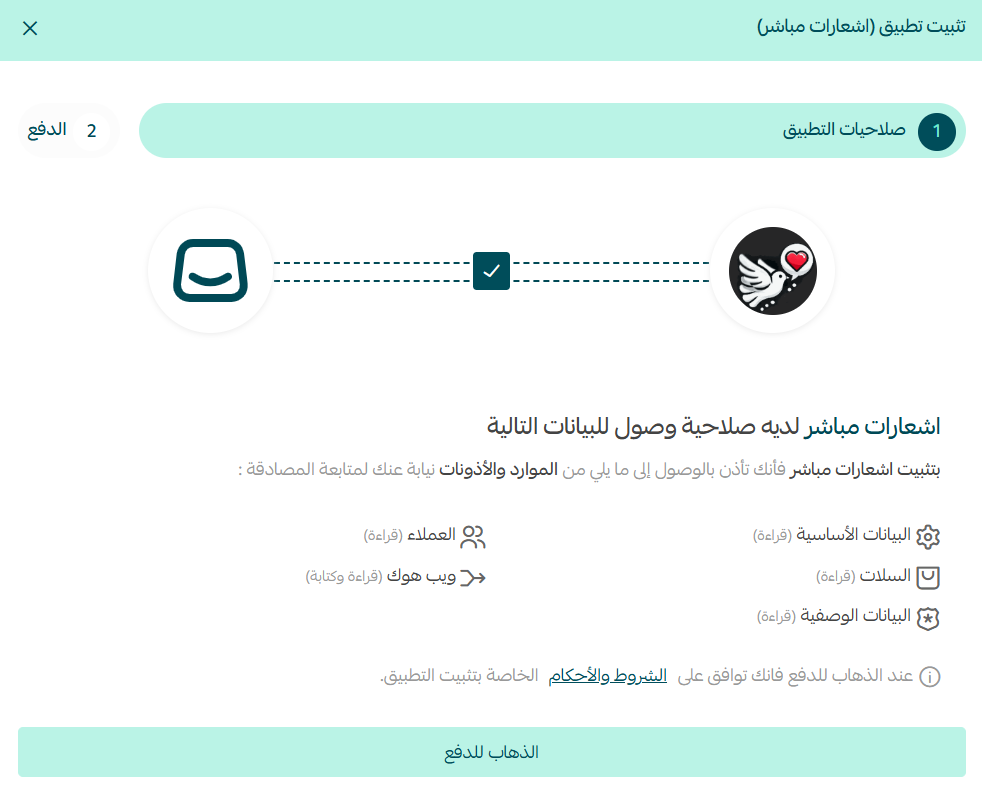
5. Review the permissions the app requests, then click (Go to payment).
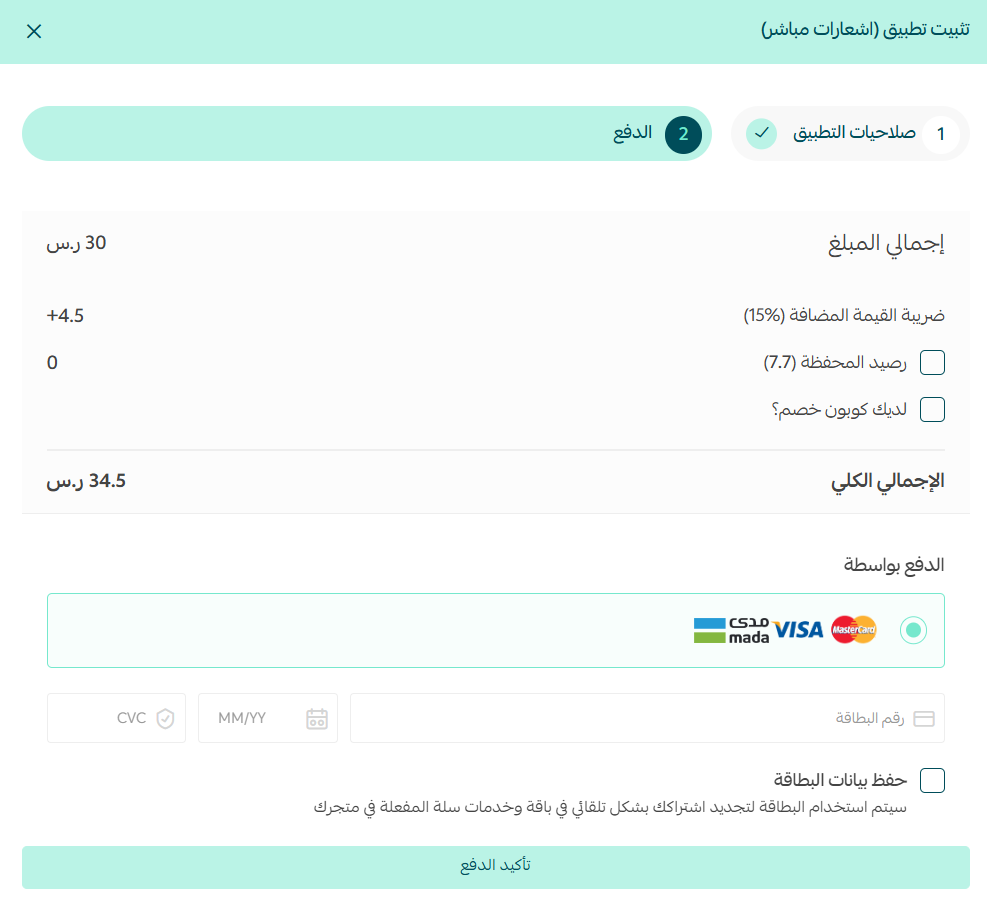
6. Complete the payment to unlock the app's features.
Go Mubasher is now installed on your store.
👣 Manage the Go Mubasher app
Activate your Go Mubasher account
1. Once the installation finishes, Go Mubasher emails you your login details. Open that email and click ( ).
).
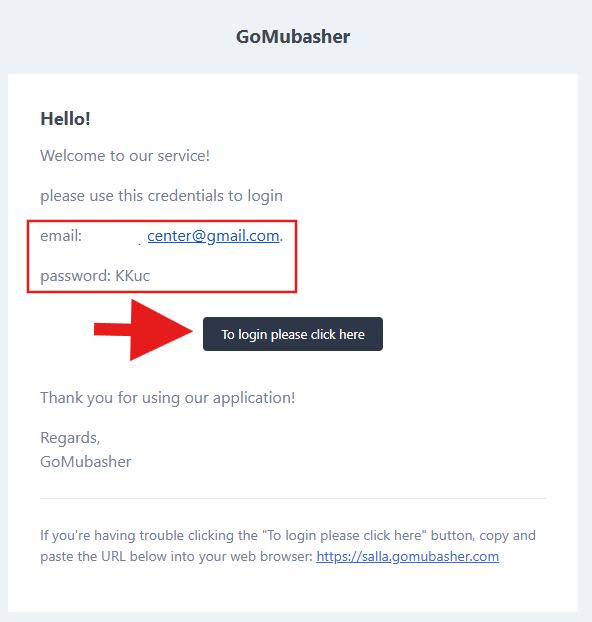
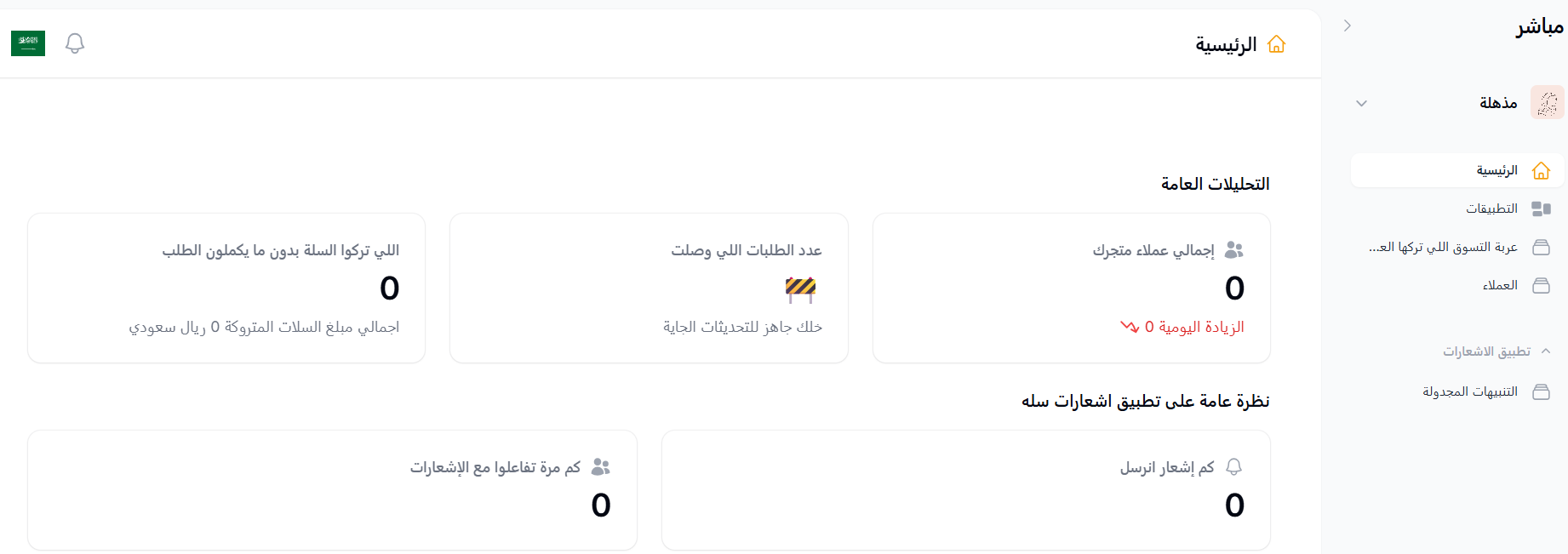
2. 🎉 Your Go Mubasher account is now active, and you are taken straight to the Go Mubasher dashboard.
Send abandoned cart notifications
1. From the side menu of the dashboard, click (Customer abandoned cart).
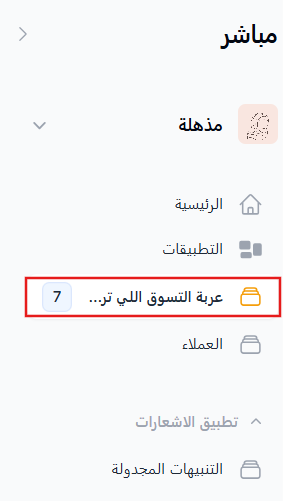
2. Click (Refresh data) to load the list of abandoned carts.
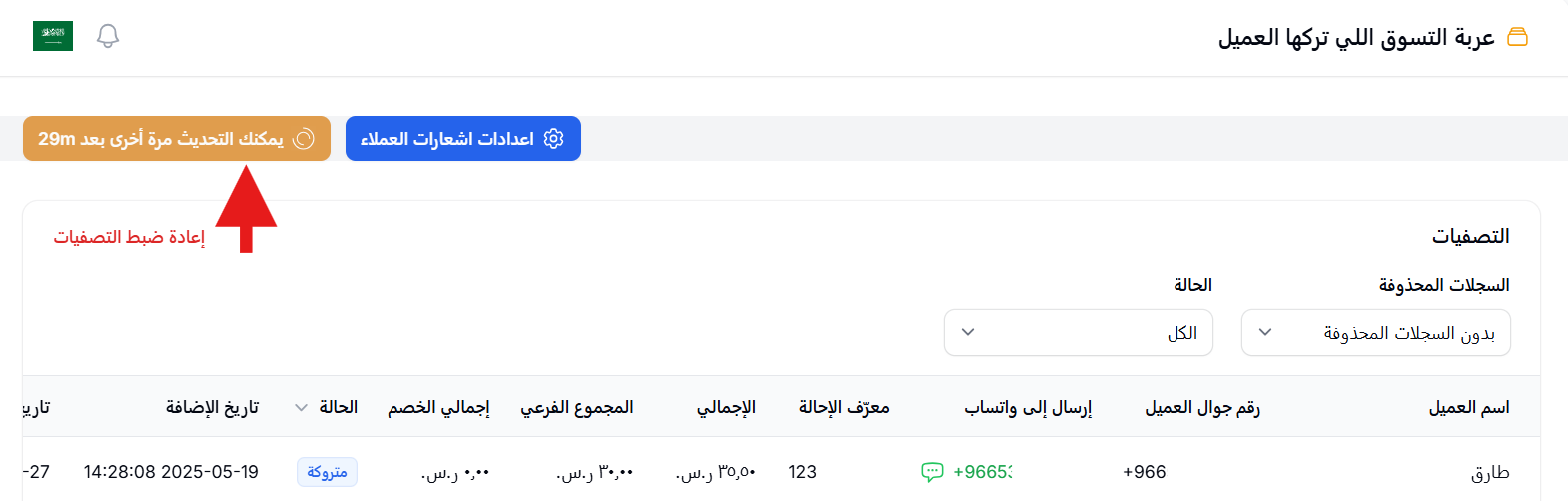
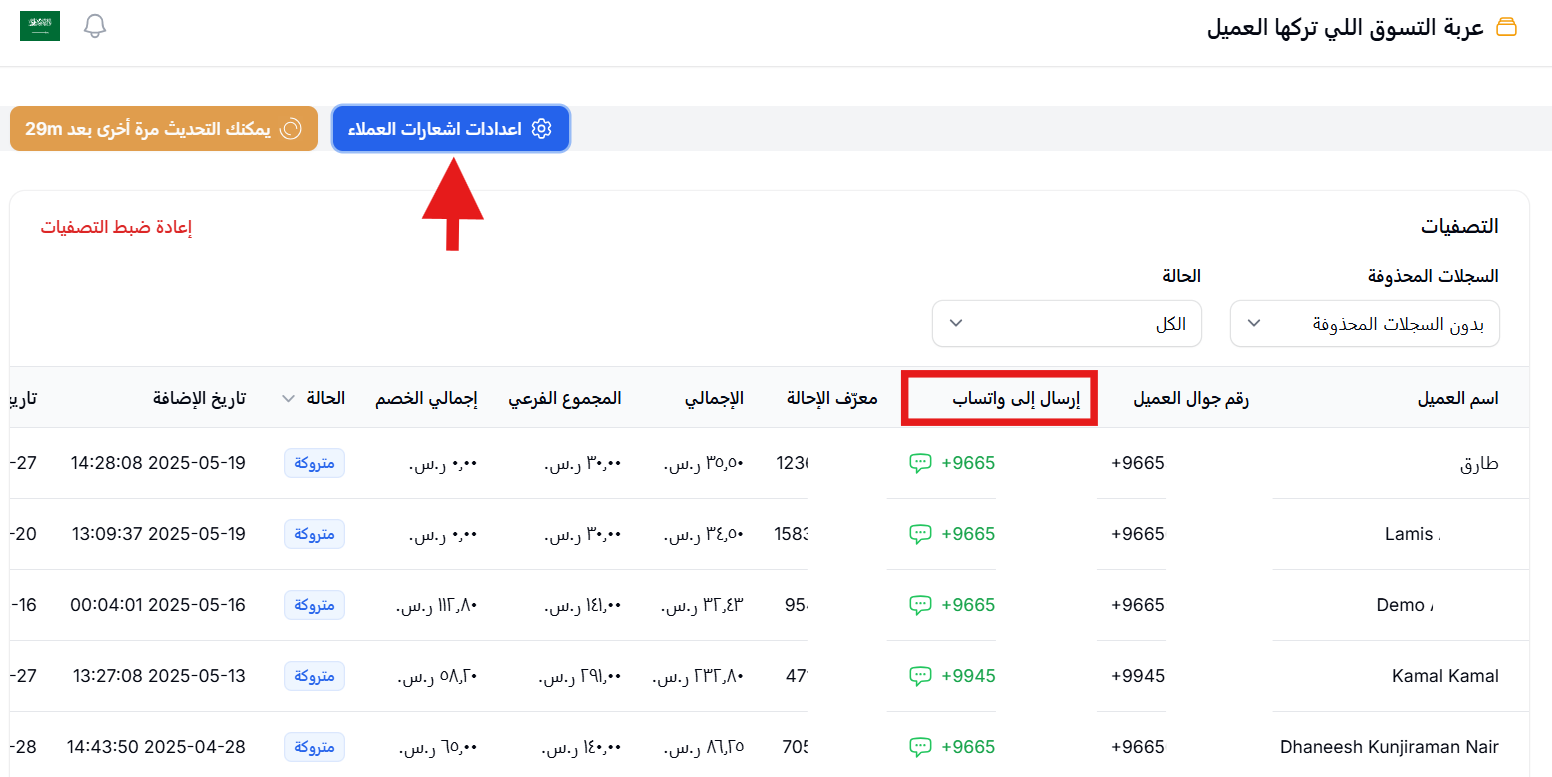
3. Click (Customer notification settings) to notify a group of customers at once, or send a message to one customer directly from their row.
For more detail on running your account, see the Go Mubasher help pages.
Delete the app
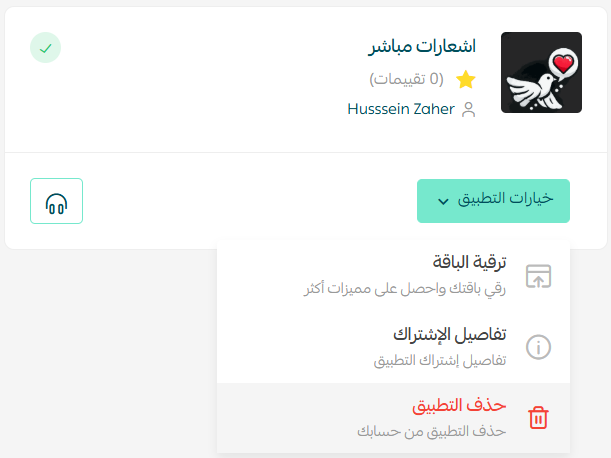
Open the Go Mubasher app from your installed apps, click (App options), then click (Delete app).
📝 Important notes
Go Mubasher is a paid app. You choose a plan and complete the payment before the installation finishes.
Your login details are sent to the email address registered on your store, so check that inbox after installing.
Abandoned cart data is not live. Click (Refresh data) each time you want the newest carts.
❓ Frequently asked questions
Do I manage notifications from my Salla dashboard?
No. Your Salla dashboard is used to install and remove the app. Carts and notifications are managed in the Go Mubasher dashboard.
Can I send a notification to a single customer?
Yes. In the abandoned cart list you can message one customer on their own, or use (Customer notification settings) to reach a group.
Can the notification include the amount the customer still owes?
Yes. Go Mubasher supports sending a payment link along with the outstanding amount, so the shopper can complete checkout from the notification.
What happens to my data if I delete the app?
Deleting the app removes it from your store and ends its access to your cart data. For questions about your Go Mubasher account itself, see the Go Mubasher FAQ.