Would your visitors buy faster if they could see how many other shoppers were looking at the same product?
The Fomoo app adds interactive pop-up notifications to your store pages, so visitors see live activity, limited-time discount codes, and any announcement you want to put in front of them. The Fomoo integration installs straight from the Salla App Store and starts working on your store pages right away. In this guide, you'll learn what Fomoo does, why merchants use it, how to install it on your Salla store, and how to remove it if you no longer need it.
To connect Fomoo, open (My installed apps) from your dashboard side menu, click (Browse Salla App Store), open the Fomoo app page, and click (Install). Review the permissions, click (Grant permission), and you'll be redirected to your Fomoo account with a 14-day free trial already running.
📌 Article overview
- What is the Fomoo app?
- Why use Fomoo in your store
- How to install the Fomoo app
- Frequently asked questions
🎯 What is the Fomoo app?
Fomoo lets merchants place interactive pop-ups on their store pages. Those pop-ups nudge visitors toward a purchase, show discount codes, and carry any announcement you want to run across the store.
✅ Why use Fomoo in your store
Fomoo gives you more control over what visitors see on your store pages. Interactive banners and pop-ups help turn browsers into buyers: when a visitor notices that a product is getting a lot of views or a lot of orders, or that a discount coupon is about to expire, they are far more likely to buy before the moment passes.
🚀 How to install the Fomoo app
1. From the side menu of your dashboard, click (My installed apps).

2. From the Salla App Store banner, click (Browse Salla App Store).

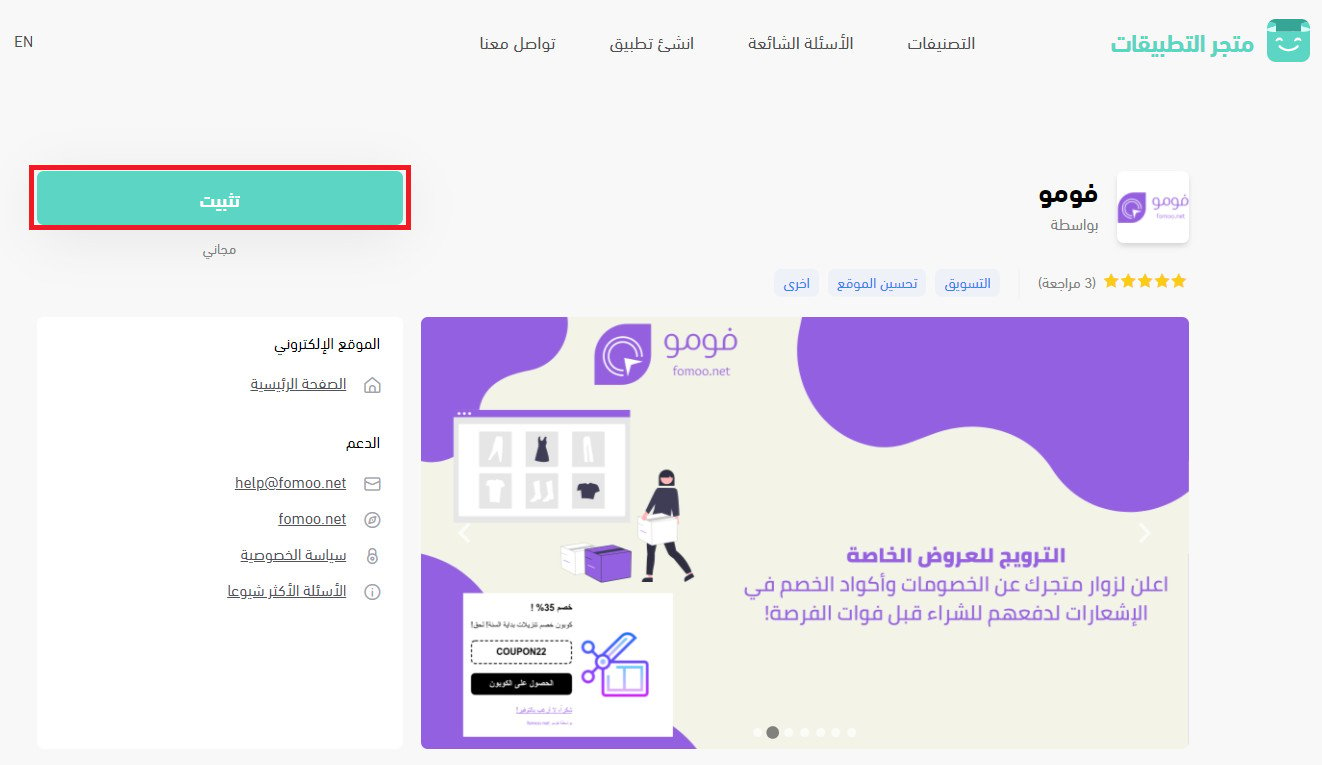
3. From the Fomoo app page, click (Install).
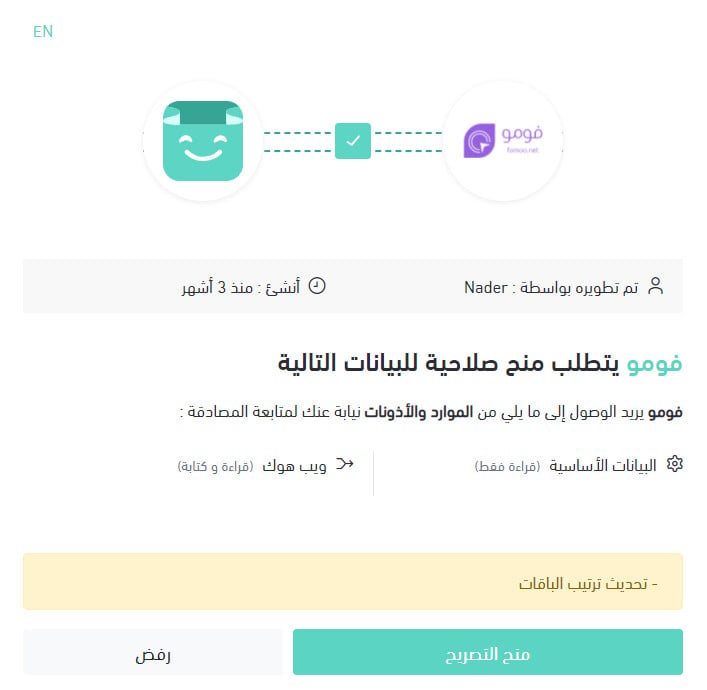
4. Review the permissions the app requests, then click (Grant permission).
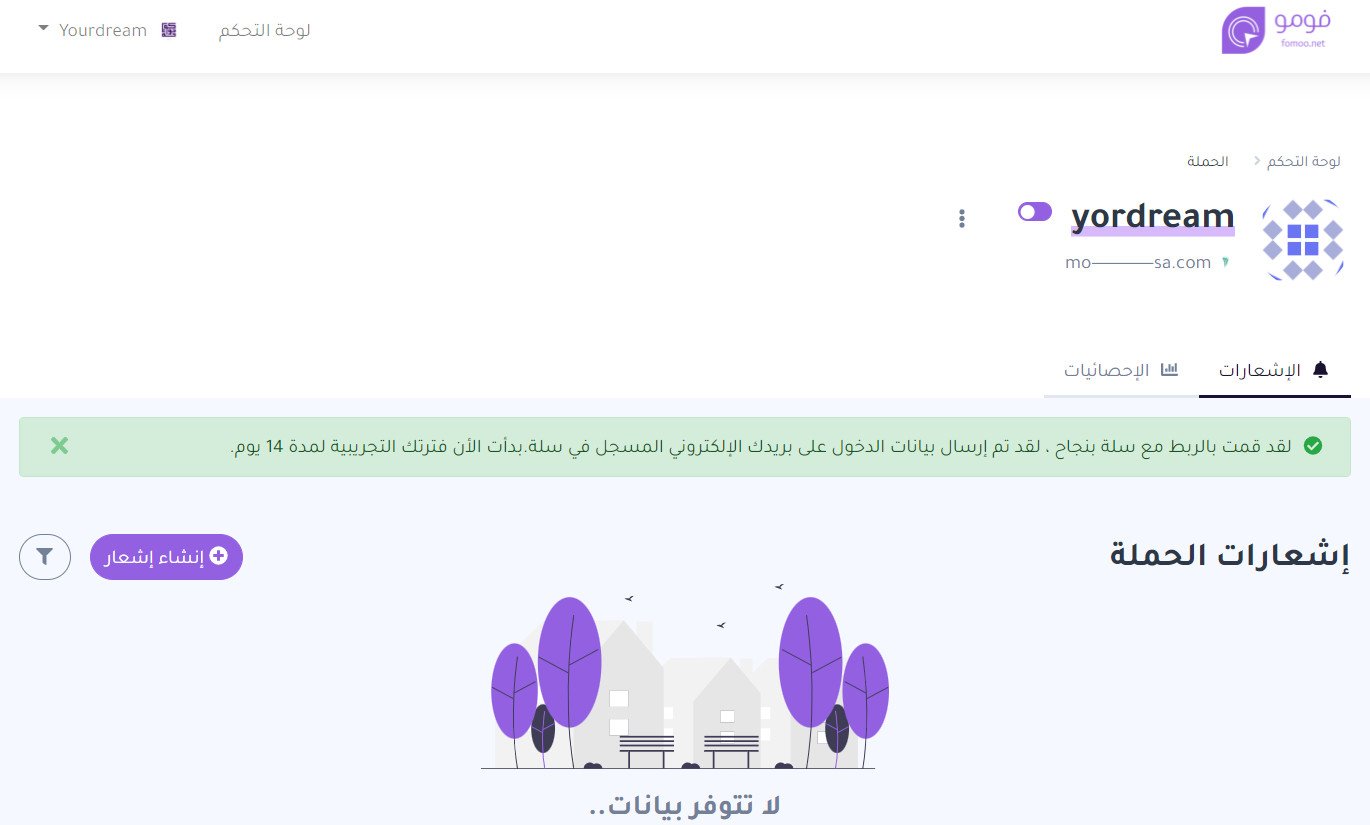
Wait a moment while you are redirected to your Fomoo account. That completes the connection, and your 14-day free trial starts from here.
For more details, see managing your store apps.
❓ Frequently asked questions
How does a custom Fomoo notification look on my store?
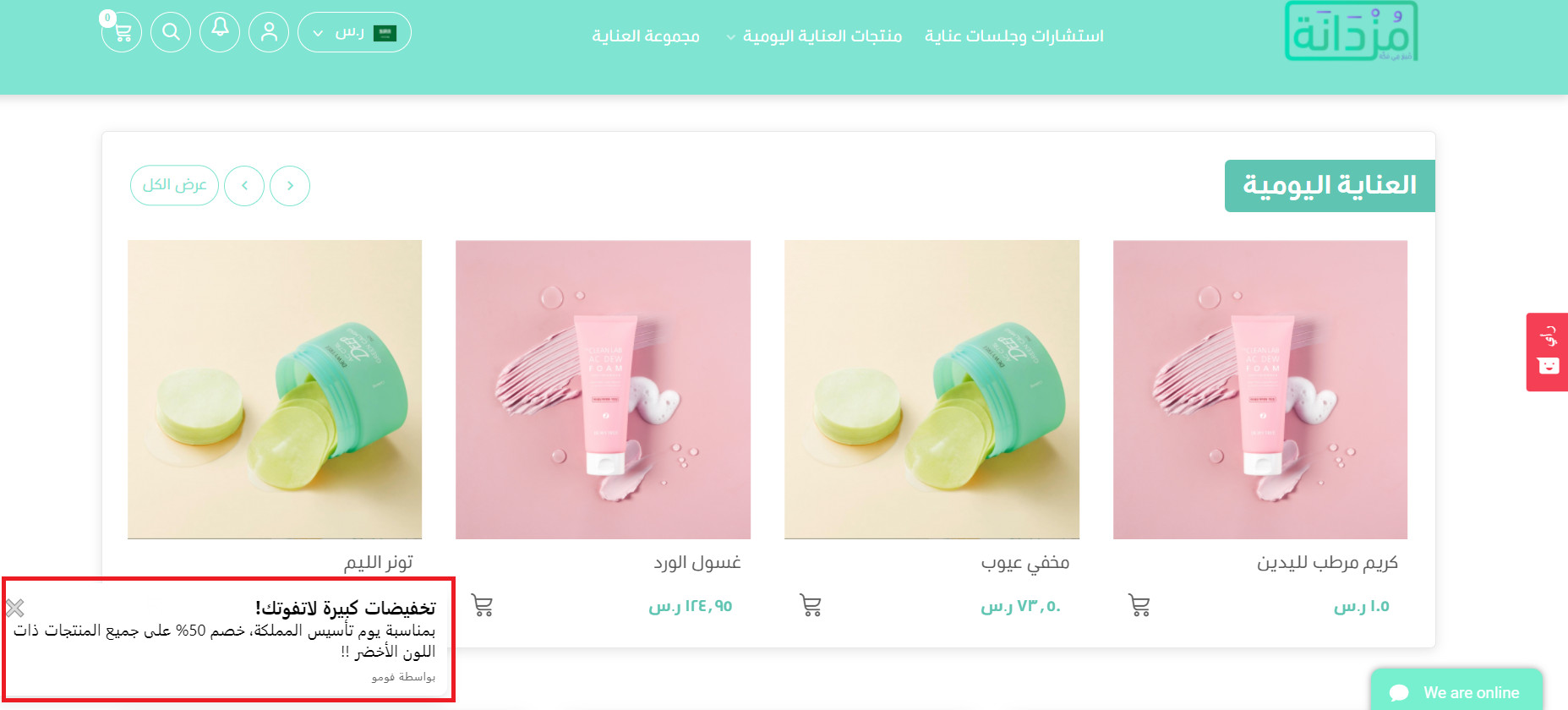
You can add the message and an image, link the notification to a page in your store, and set several other options. Here is how a notification can appear on your storefront:
Is there a free trial, and how long does it last?
Yes. You can try Fomoo on your store free of charge before paying. The free period lasts 14 days and starts automatically once the app is installed.
How do I create a notification after connecting the app?
To learn how to create a notification on your store, click here.
Are there video guides for all of Fomoo's features?
Yes, there are full guides covering every Fomoo feature. Click here.
How much does a Fomoo subscription cost?
The subscription costs SAR 79 per month.
How do I subscribe to Fomoo?
Through your store's dashboard in Salla.
How many notifications can I add to my store?
There is no limit on the number of notifications. Still, it's best not to overdo it, since too many pop-ups can put visitors off.
Can I add the notifications to another store?
No. The connection applies to your store and its own domain only. If you run more than one store, create an account on the Fomoo site and subscribe separately for each store.
Do I need my own custom domain for my store?
No. You can activate Fomoo on your store even if you don't have a custom domain.
Can I edit the notifications?
Yes. Several options let you change the text, the image, how long the notification shows, and what triggers it.
Can I change how long notifications show and how often they repeat?
Yes. You can also create several notifications and give each one its own settings.
I'm subscribed to the Salla Plus plan. Can I use Fomoo?
Yes.
Can I add notifications to every page?
Yes. You can show notifications across all store pages, or pick a single page where the notification appears.
Can I add notifications to specific pages only?
Yes, you can.
How do I remove the Fomoo app from my store?
1. From the side menu of your dashboard, click (My installed apps).

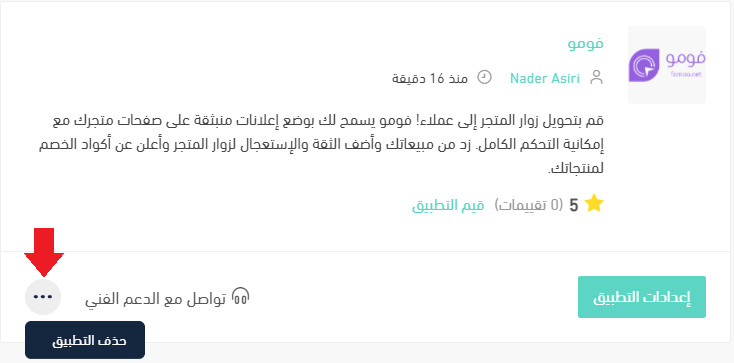
2. On the all apps page, find the Fomoo app, click the (...) icon, then click (Delete app), as shown below.
Used with restraint, Fomoo turns quiet store pages into ones that show real activity — and that sense of momentum is often what moves a hesitant visitor to check out.