Want to know exactly what shoppers do on your store after they see your Facebook or Instagram ads?
The Facebook Pixel app connects your Salla store to Meta Pixel, an analytics tool that measures how well your ads perform by tracking what visitors do on your store, such as adding a product to the cart or completing a purchase. You can then retarget those same customers with future Facebook ads. In this guide, you'll learn how to set up Meta Pixel and connect it to your Salla store.
To connect Facebook Pixel to your Salla store, set up Meta Business Manager, create a dataset in Events Manager and copy the pixel base code, then install the Facebook Pixel app from the Salla App Store, paste the code to extract your Pixel ID, and click (Activate connection).
📌 Article overview
- What is Meta Pixel?
- How to connect Facebook Pixel to your store
- Frequently asked questions
What is Meta Pixel?
Meta Pixel (formerly Facebook Pixel) is a piece of code that reports your store visitors' actions back to Meta. Seeing which ads lead to carts and purchases helps you measure ad effectiveness and reach those customers again with better-targeted campaigns.
👣 How to connect Facebook Pixel to your store
The connection is completed in three stages:
First - set up Meta Business Manager
Second - create and copy your Meta Pixel base code
Third - install the Facebook Pixel app on your store
First: set up Meta Business Manager
Add the business section to your Facebook account and configure your Meta Business Manager settings.
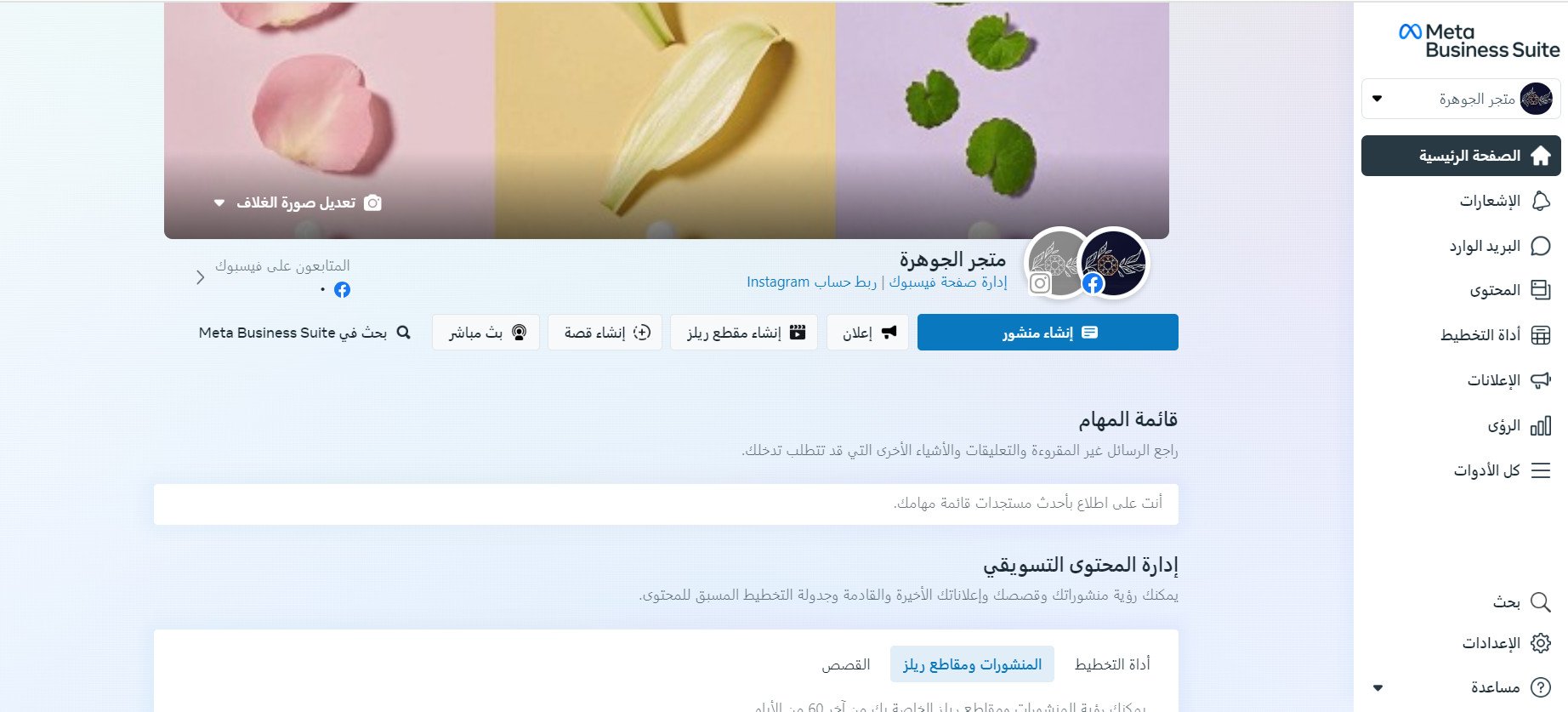
For more details, see setting up Meta Business Manager.
Second: create and copy your Meta Pixel base code
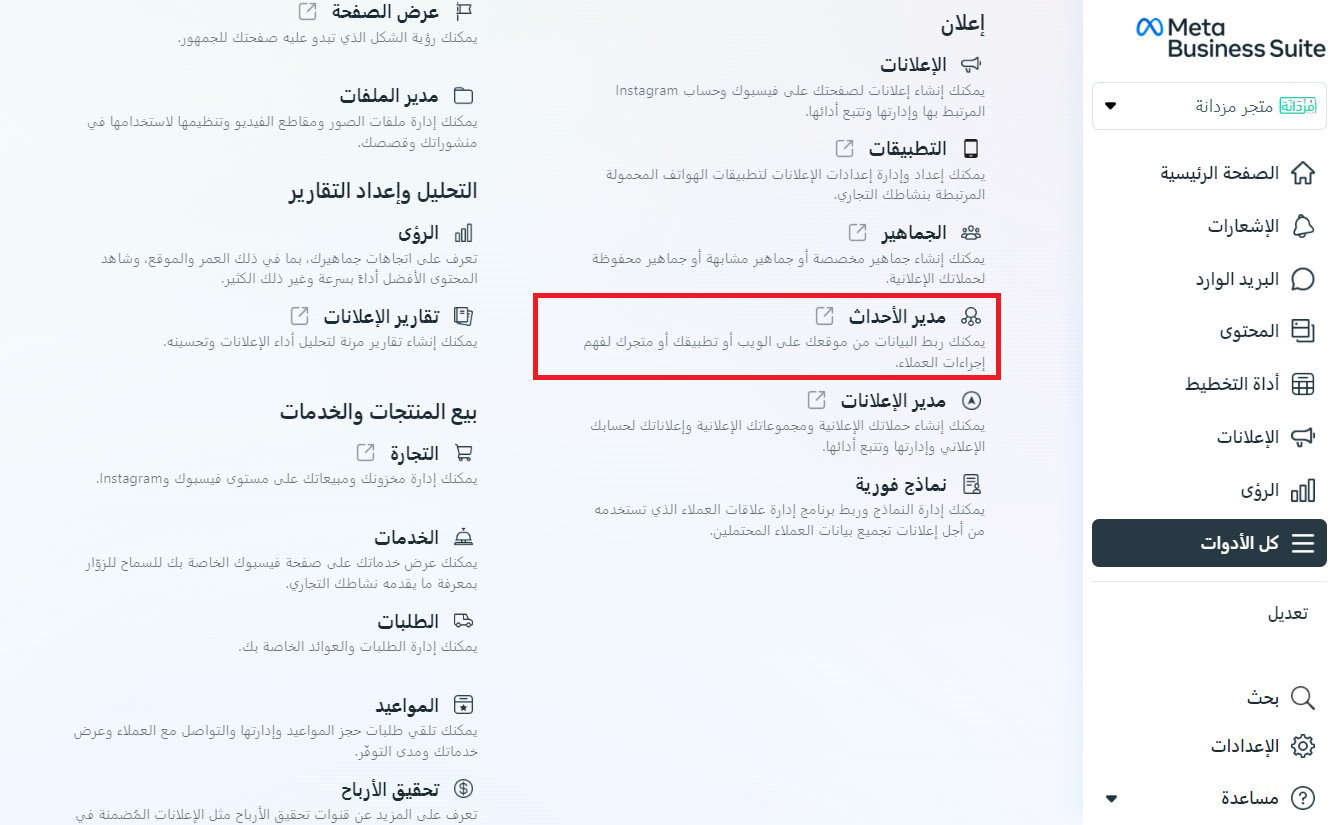
1. Go to Business settings in Business Manager. From the side menu, click (All tools), then click (Events Manager).
2. From the Events Manager page, click (+ Connect data sources).
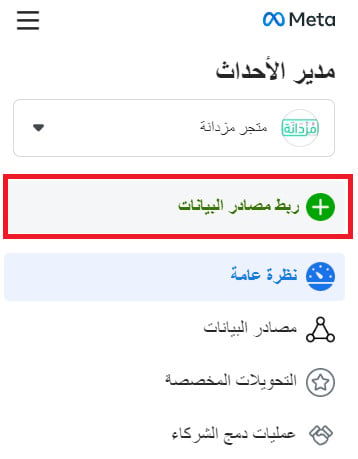
Select (Web) as the data source, then click (Connect).
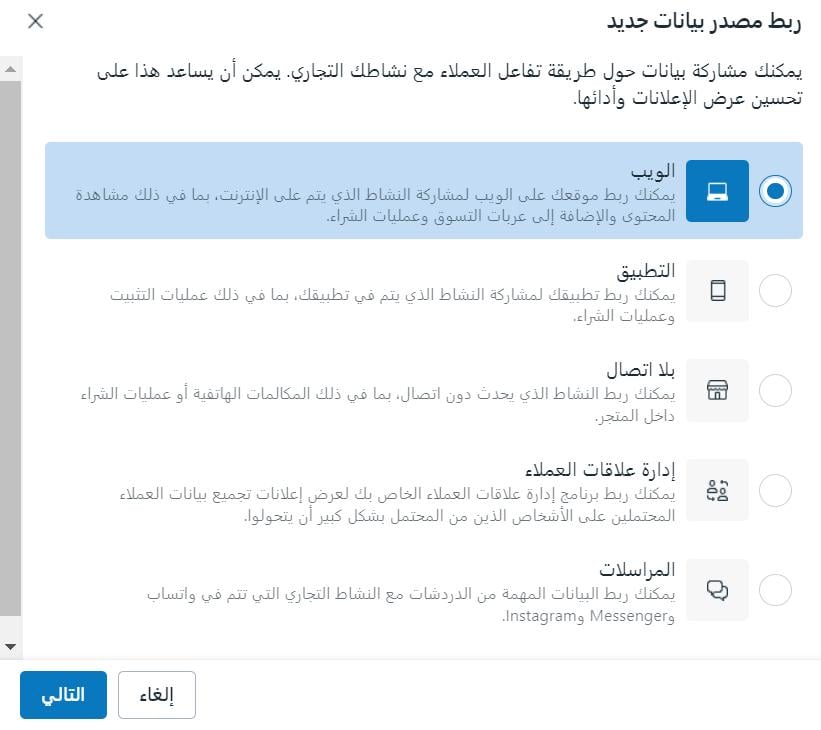
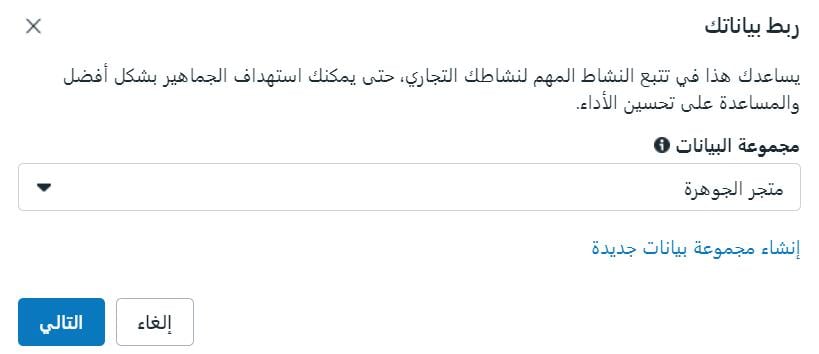
3. Choose a dataset to help target audiences more accurately, or click (Create a new dataset), then click (Next).
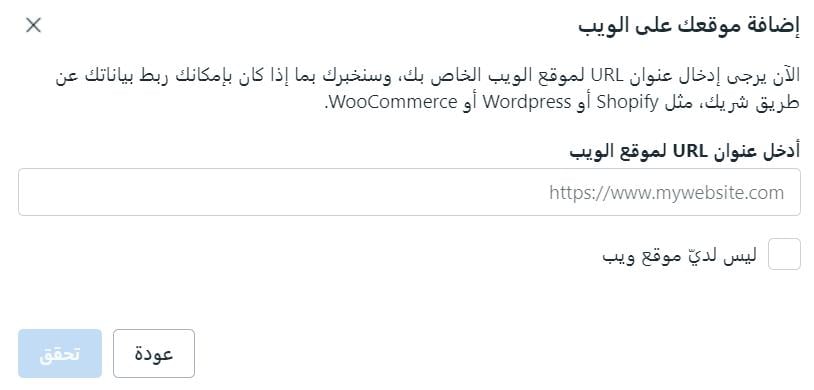
4. Enter your Salla store URL, then click (Check).
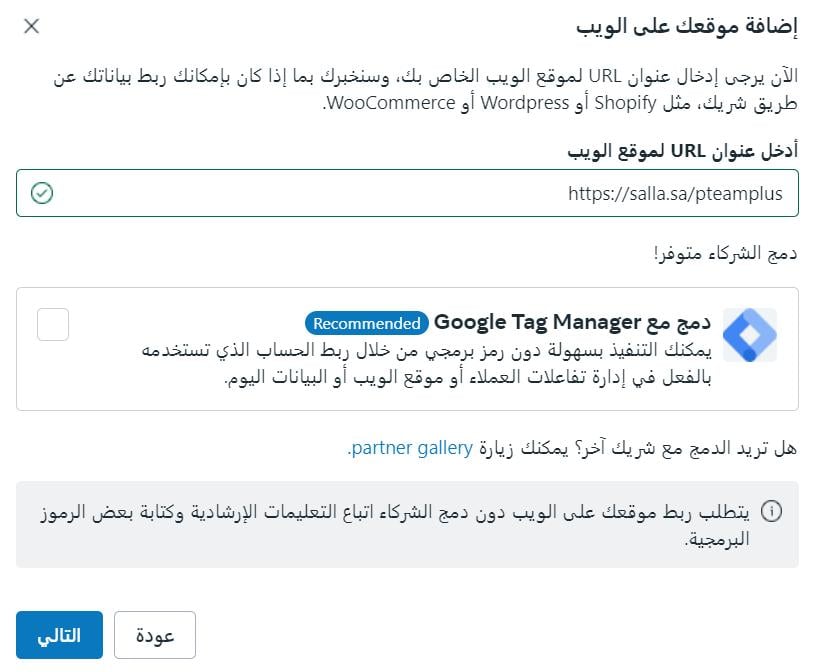
5. Uncheck (Integrate with Google Tag Manager) so you can connect using a code snippet instead, then click (Next).
6. Set the way you want to connect your website to (Meta Pixel only), then click (Next).
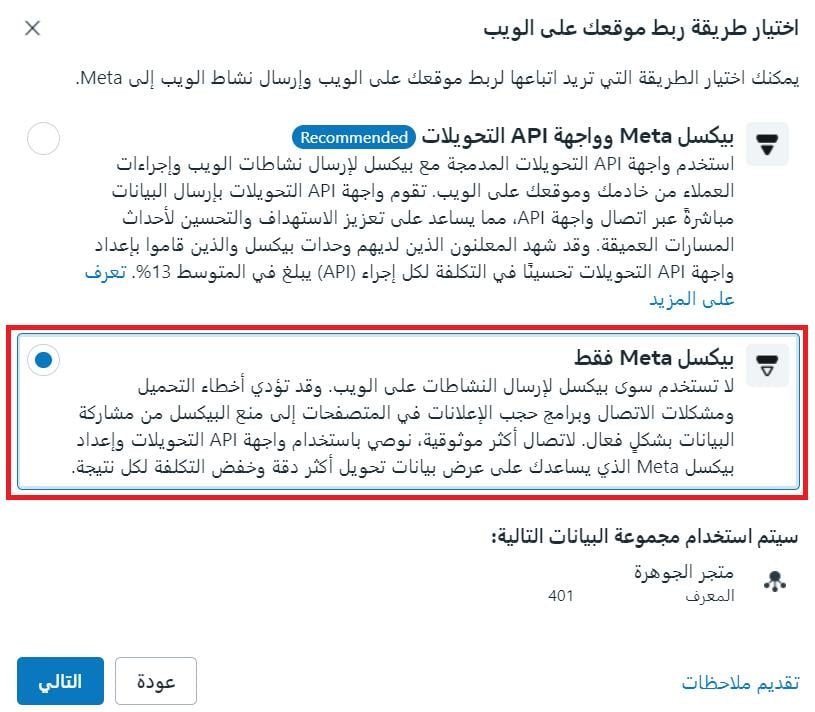
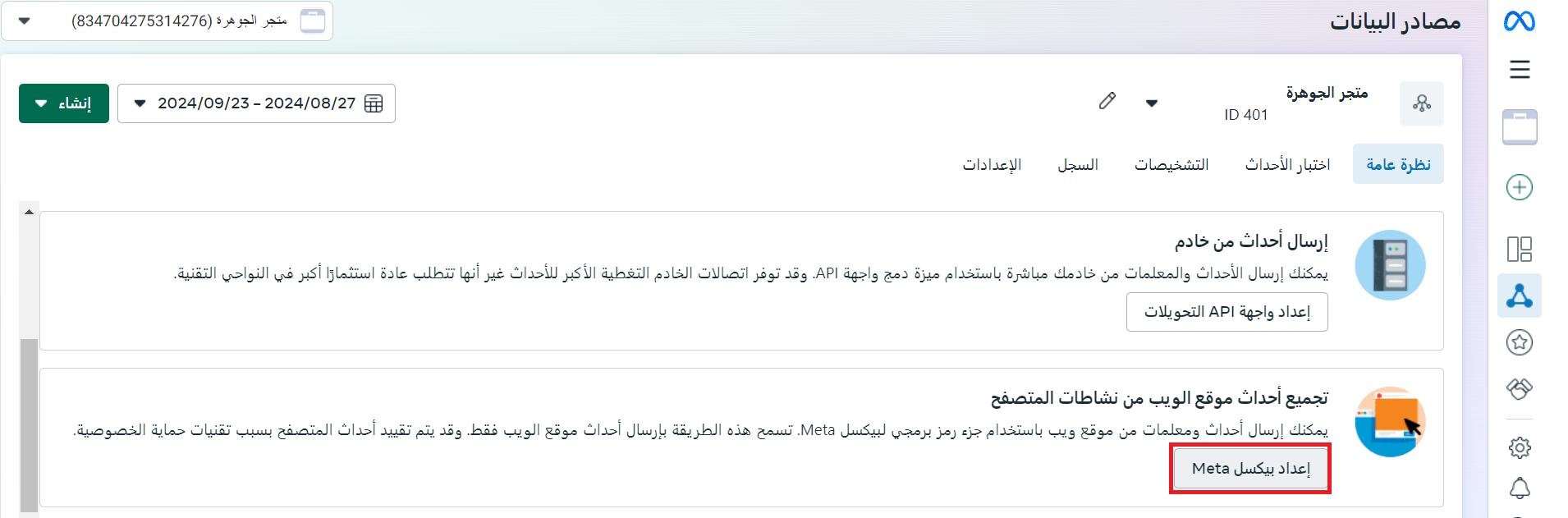
7. From the data source page in Events Manager, click (Set up Meta Pixel).
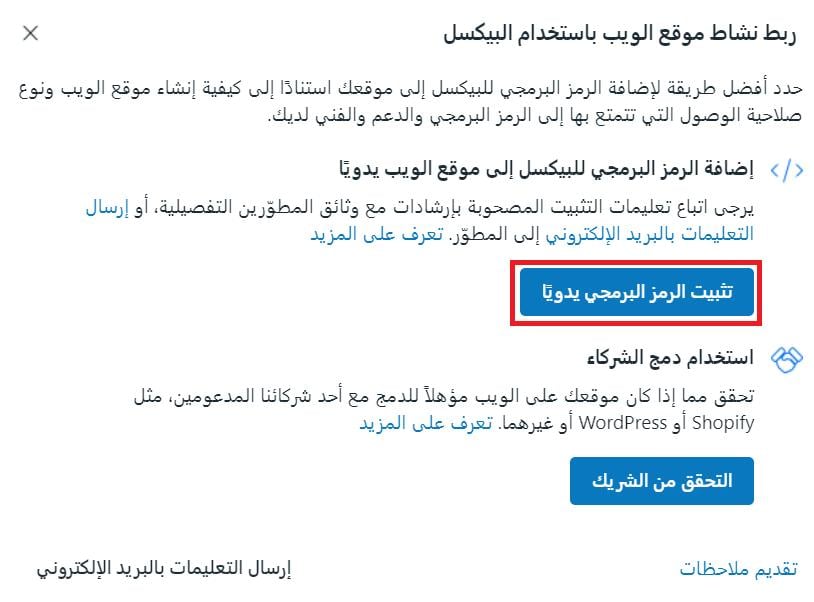
8. Click (Install code manually).
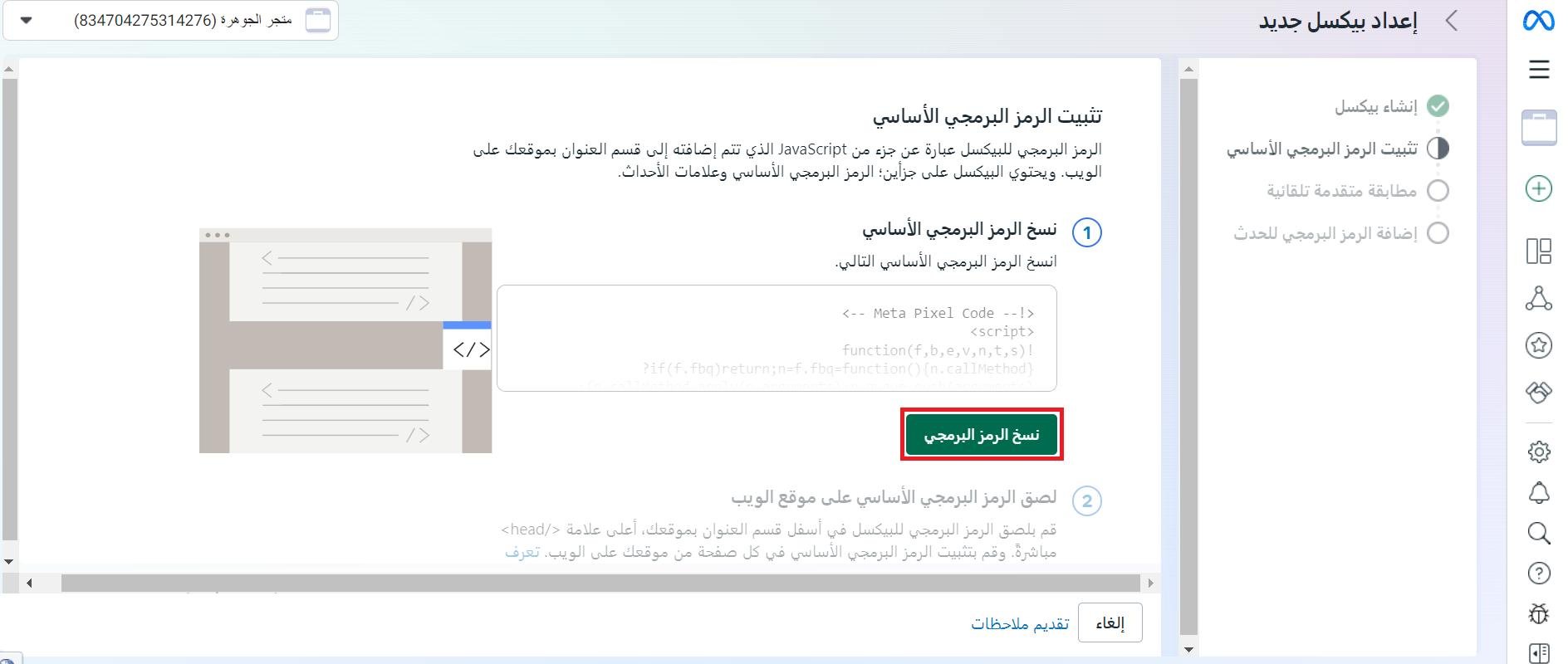
9. Click (Copy code).
Third: install the Facebook Pixel app on your store
1. From the side menu of your dashboard, click (Installed apps).

2. From the Salla App Store banner, click (Browse Salla App Store).

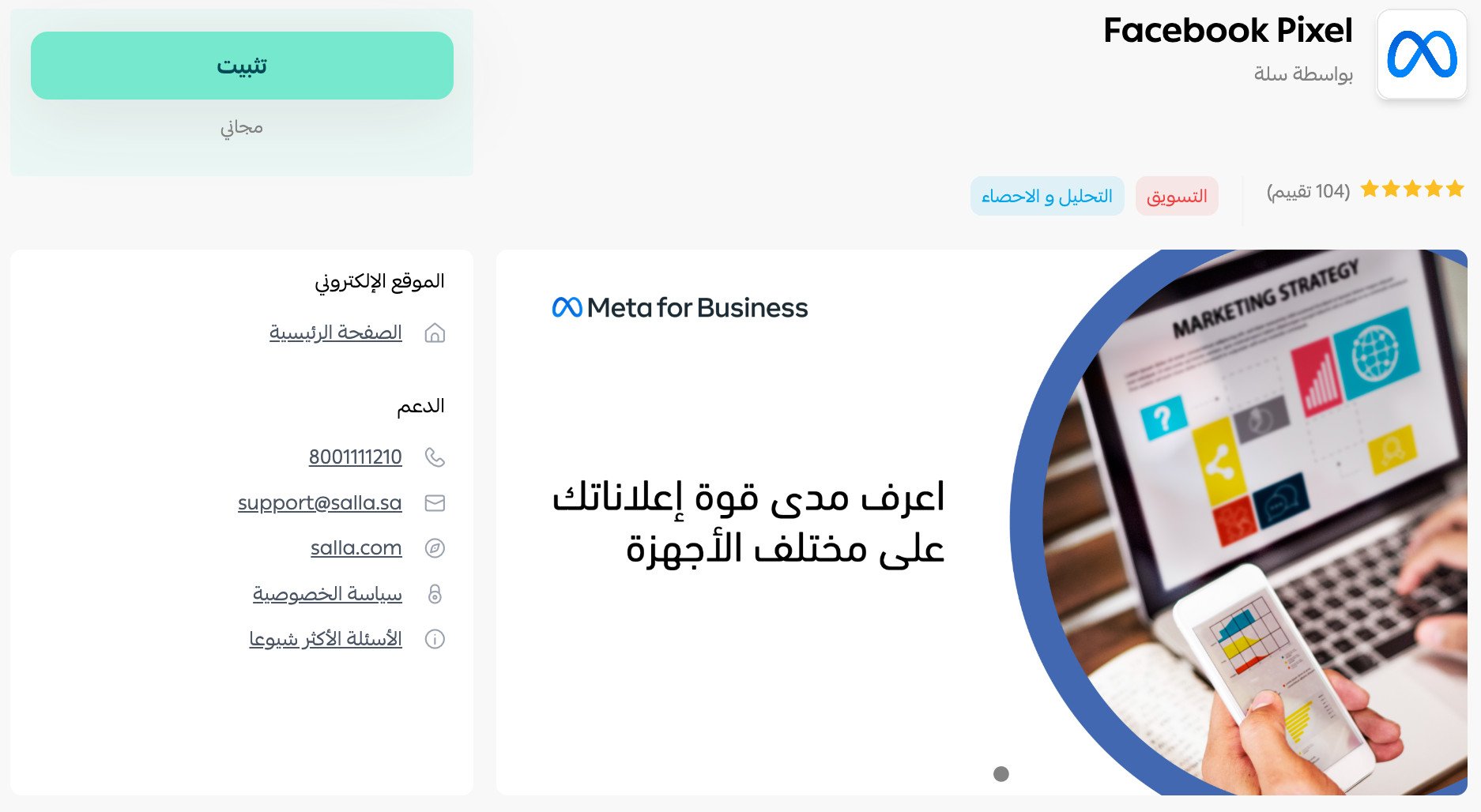
3. From the Facebook Pixel app page, click (Install).
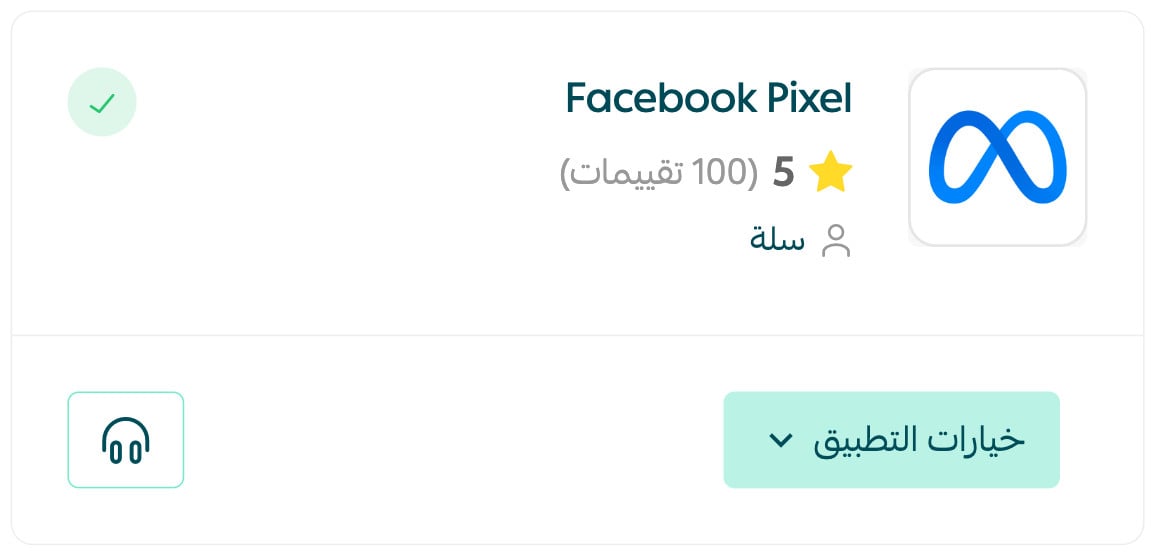
4. From the installed apps page in your store, on the Facebook Pixel app, click (Activate app).
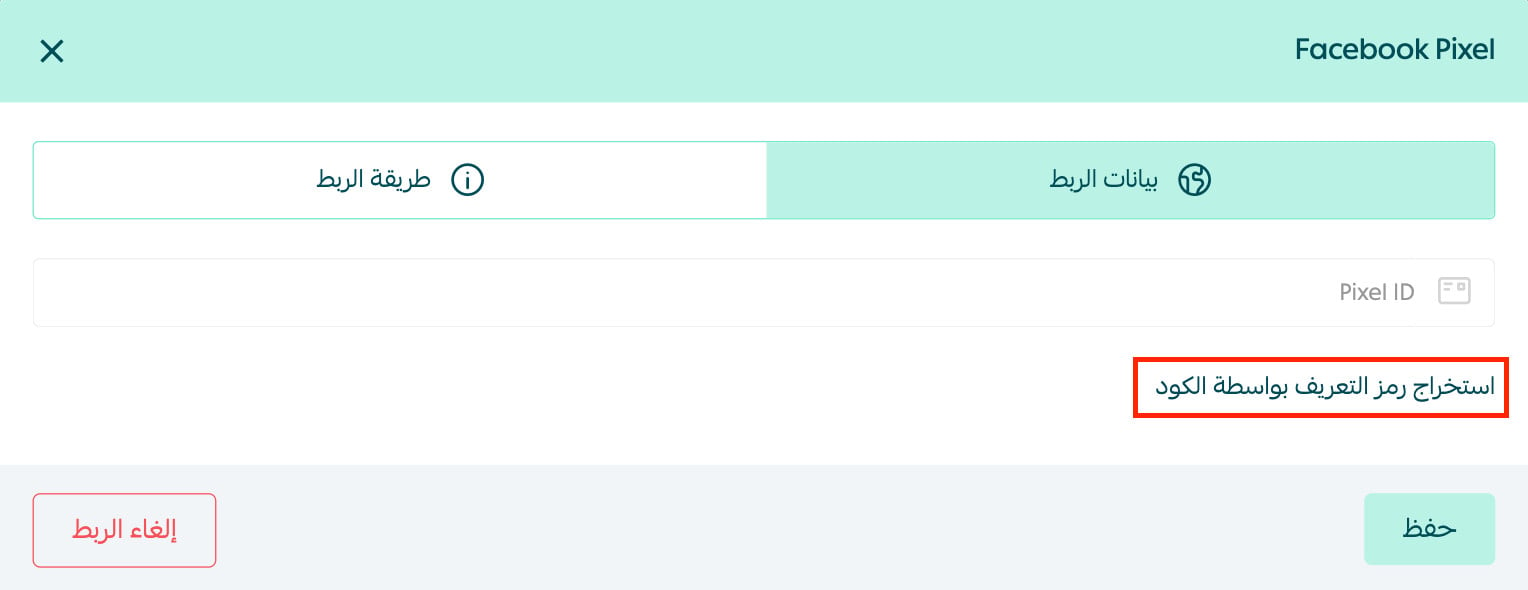
5. Click (Extract the ID from the code).
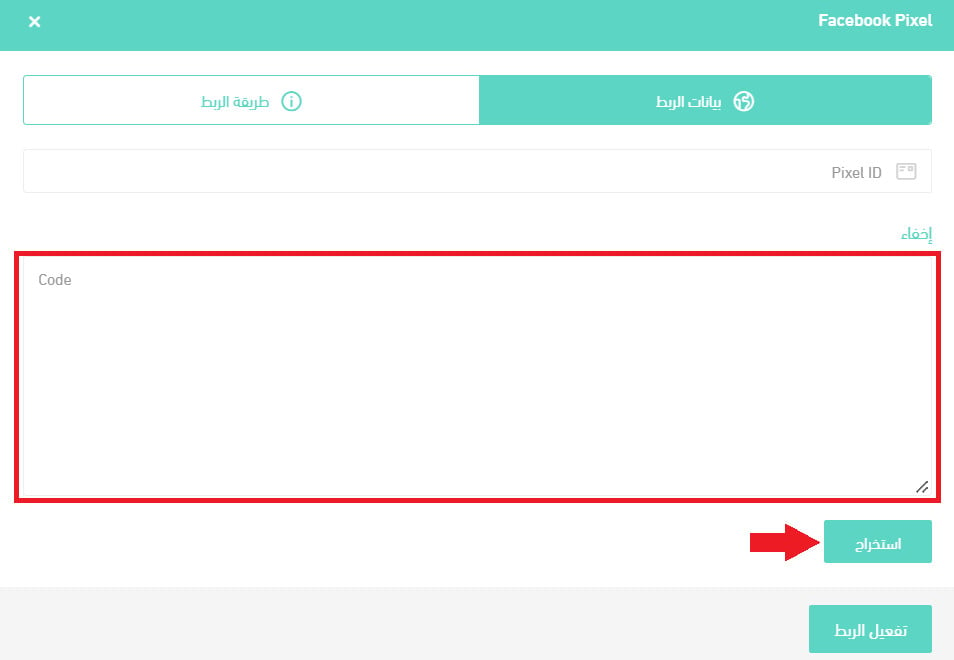
6. Paste the code you copied into the (code) box, then click (Extract). The (Pixel ID) is pulled from the code automatically. Then click (Activate connection).
Congratulations! You have connected Facebook Pixel to your Salla store.
You can also launch ad campaigns on Snapchat and Shahid with Sweply's integrated, precisely targeted ads, and start benefiting from audience engagement in just a few steps.
For more details, see launching Snapchat campaigns with Sweply.
For more details, see Sweply and marketing campaigns on Shahid.
❓ Frequently asked questions
How do I verify my domain and prove domain ownership on Facebook?
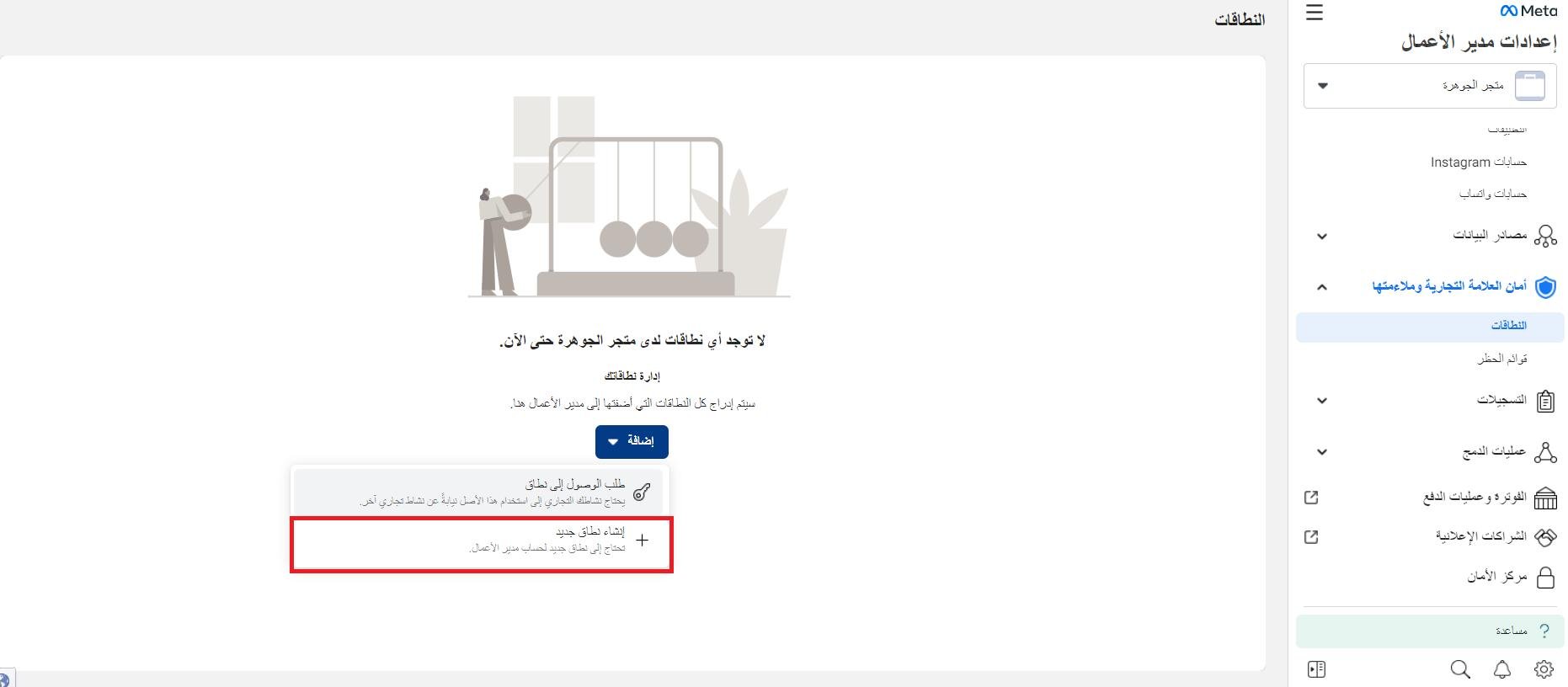
1. From the Brand safety page in Meta Business Manager settings, open the Domains page, click (Add), then (+ Create a new domain).
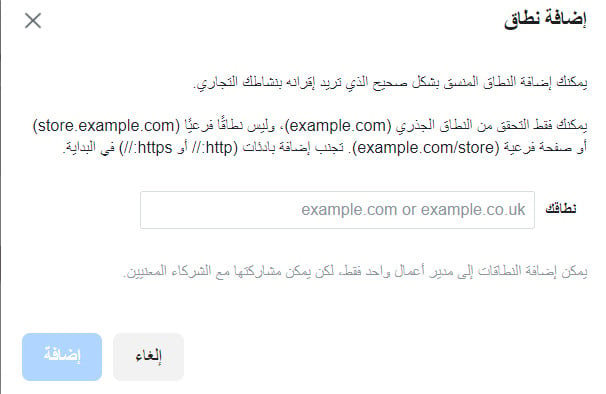
2. Enter your domain (your store URL) in the field provided, then click (Add).
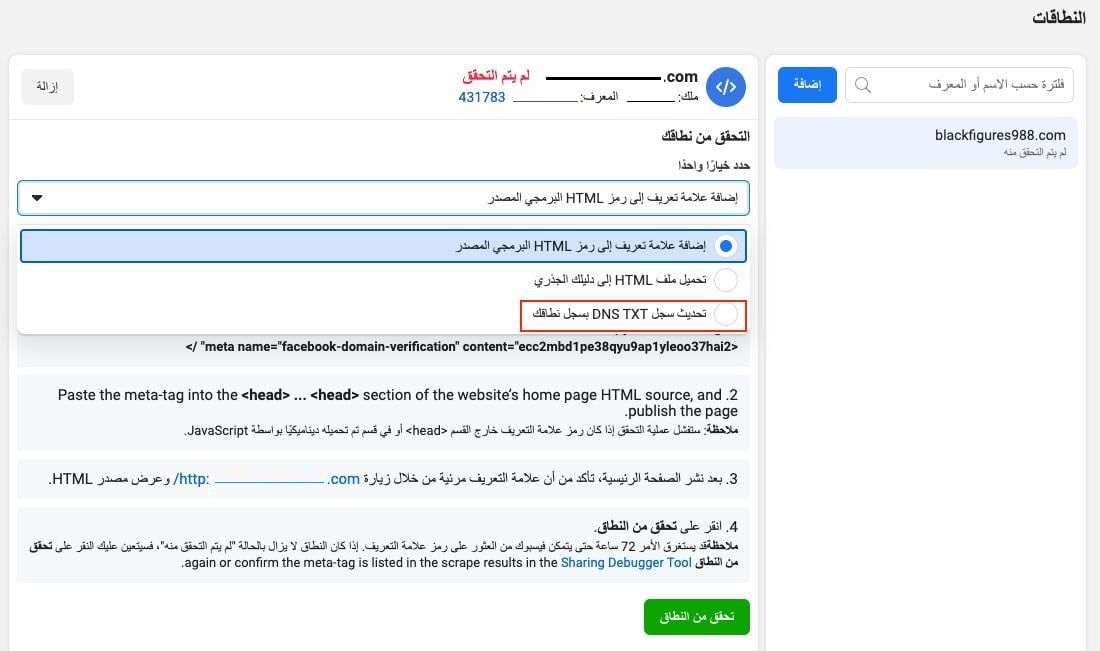
3. Select the (Update the DNS TXT record with your domain registrar) option.
How do I deactivate the Facebook Pixel app on my store without deleting it?
You may want to connect your store to a different Facebook account, or simply pause the service for a while. To do either:
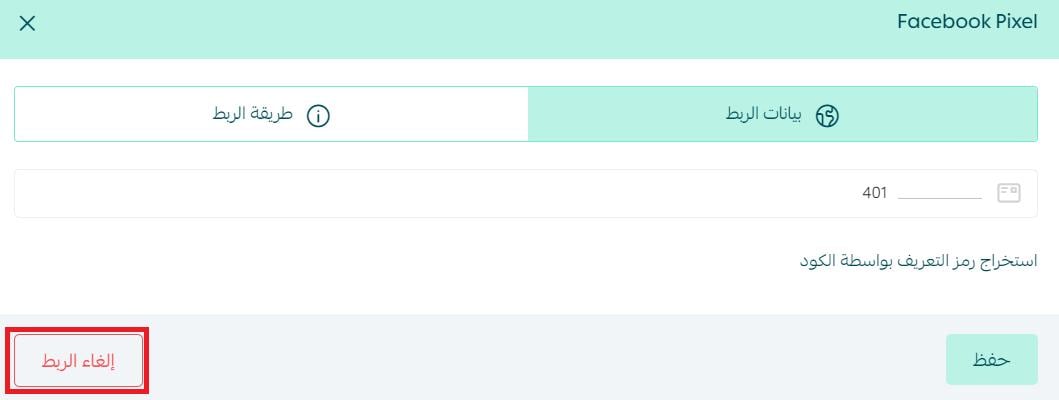
From the installed apps page, on the Facebook Pixel app, click (Disconnect).
What can Meta Pixel track on my store?
Meta Pixel tracks the actions visitors take on your store, such as adding a product to the cart or completing a purchase, so you can measure your ads' results and retarget those visitors later.
Additional support services
If you need help connecting Facebook Pixel to your store, or want support with related integrations such as Twitter, Snap Pixel, or TikTok Pixel, head to the merchant services section, where specialized third-party providers can handle the work for you professionally.