Your customers already message on Messenger — why not let them message your store there too?
Connecting Facebook Messenger with Salla puts a chat button on your store that leads straight into the inbox you already check. Messenger is a free, full-featured messaging app covering text, voice calls, video calls, and group video chats. In this guide, you'll learn how to set up the chat plugin on your Facebook Business page, get your tracking code, and activate the connection in Salla.
To connect Facebook Messenger with Salla, set up the chat plugin on your Facebook Business page, publish it, then open your page settings and copy the page ID. In Salla, open (Installed apps), click (App settings) on the Facebook Messenger app, paste the ID, and click (Activate connection).
📌 Article overview
- What is Facebook Messenger?
- How to connect your Salla store with Facebook Messenger
- How to get your tracking code
- Frequently asked questions
🎯 What is Facebook Messenger?
Facebook Messenger is a free instant messaging app. It's a complete package, with unlimited text messaging, voice calls, video calls, and group video chats.
📝 Important notes
You need a Facebook Business account to use this integration.
For more details, see setting up Business Manager on Facebook.
🚀 How to connect your Salla store with Facebook Messenger
The connection happens in two stages:
1. Set up Facebook Messenger.
2. Paste the Facebook Messenger tracking code into your Salla store.
Stage one: set up Facebook Messenger
1. Go to the Facebook Messenger site and click (Create ad).

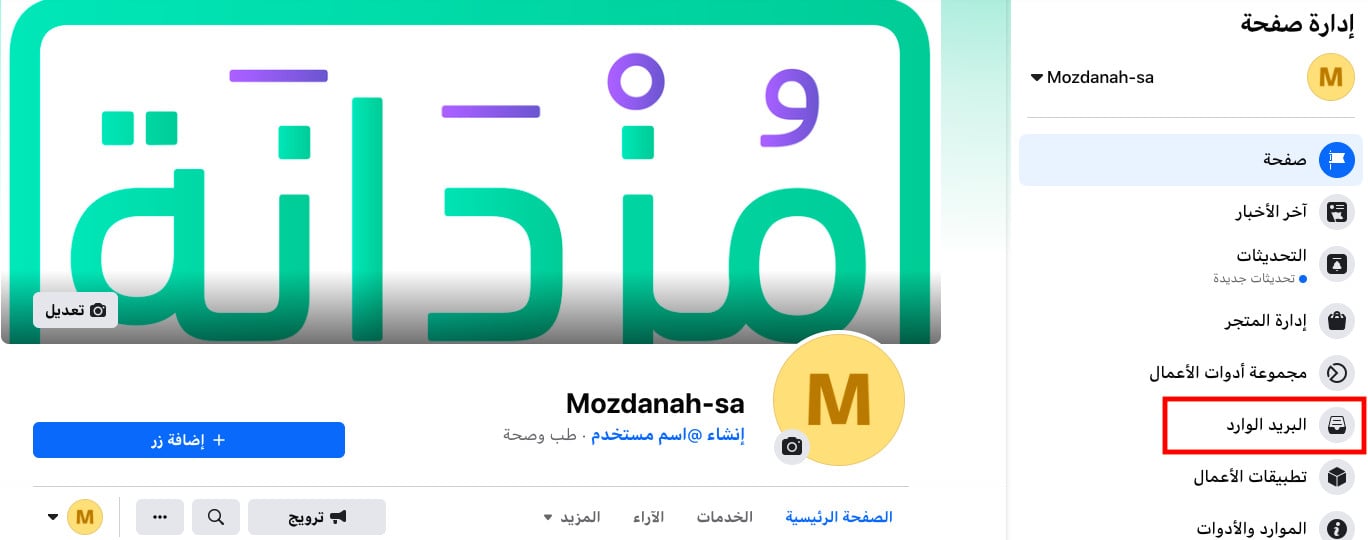
2. From the home page, go to your Facebook Business page, then click (Inbox) in the side menu.
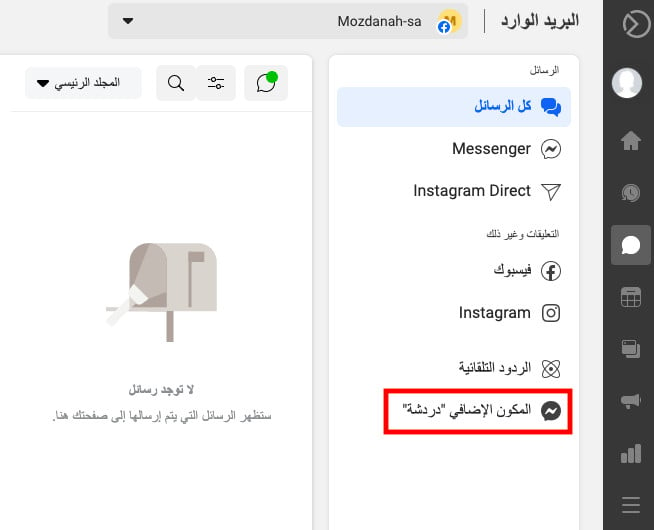
3. Click the ("Chat" plugin) icon, as shown here:
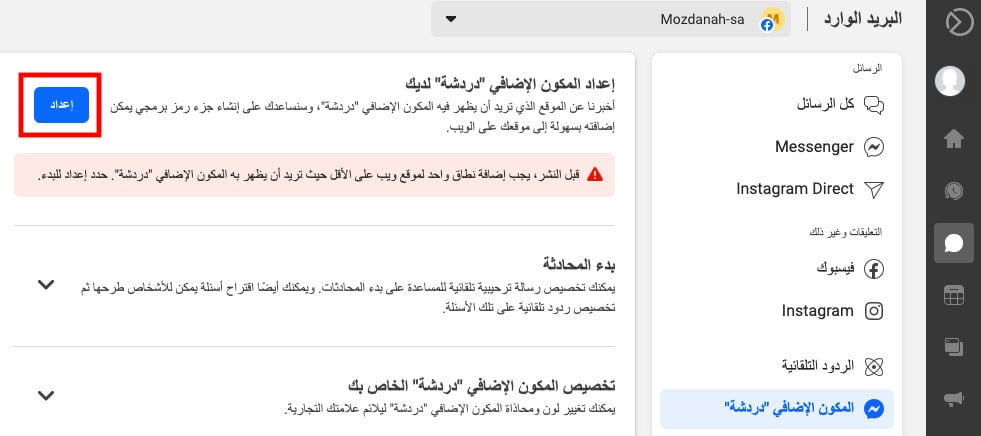
4. Click (Set up) to start configuring your chat.
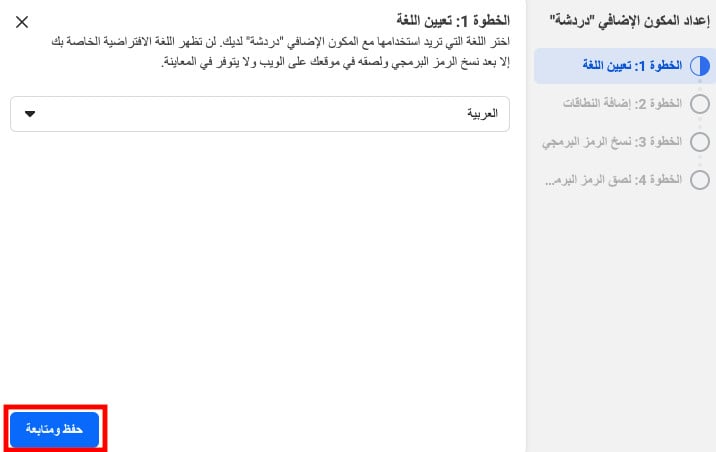
5. Continue the setup: choose the language you want to use in the chat, then click (Save and continue).
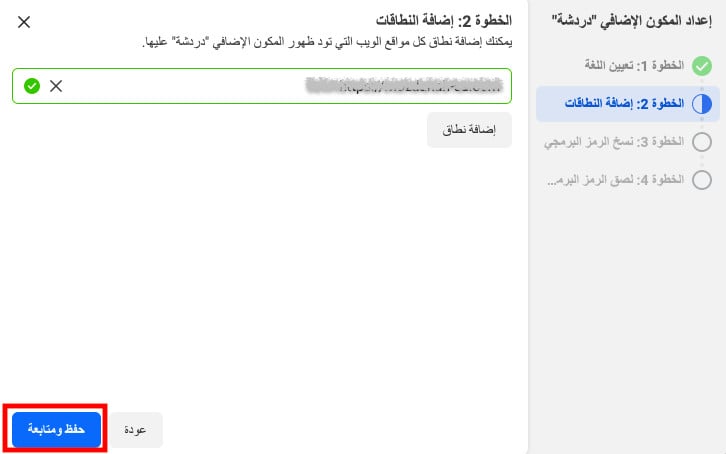
6. Enter your store link, then click (Save and continue).
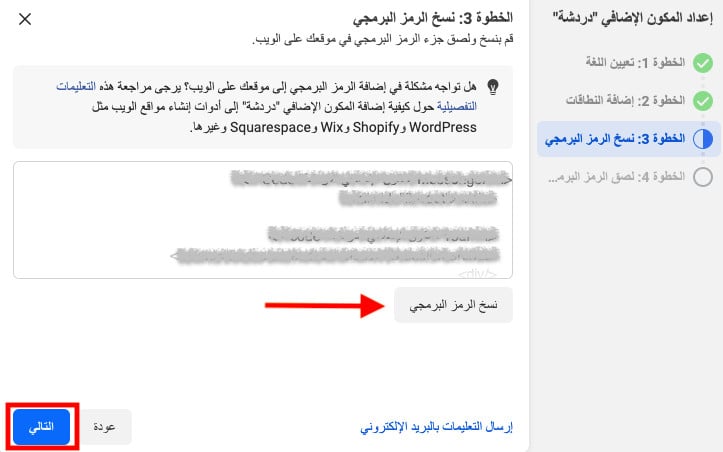
7. Copy the code snippet and click (Next).
8. Click (Finish) to complete the setup.
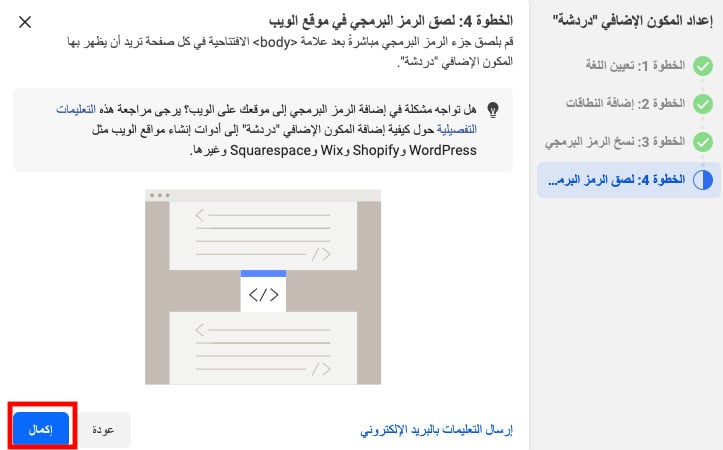
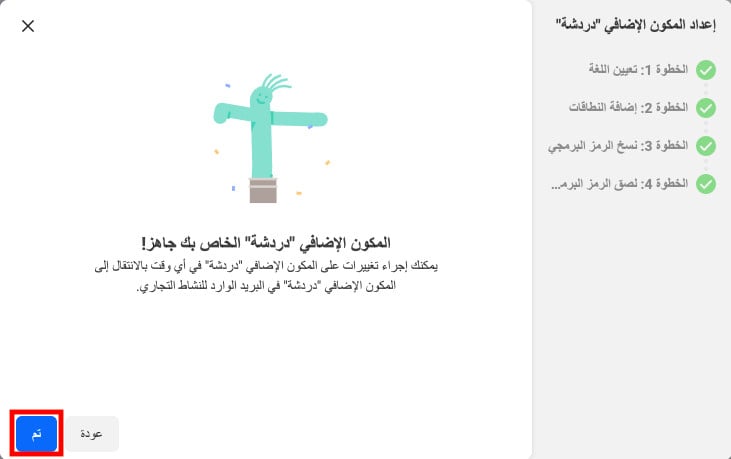
9. A message confirms the setup is done — click (Done).
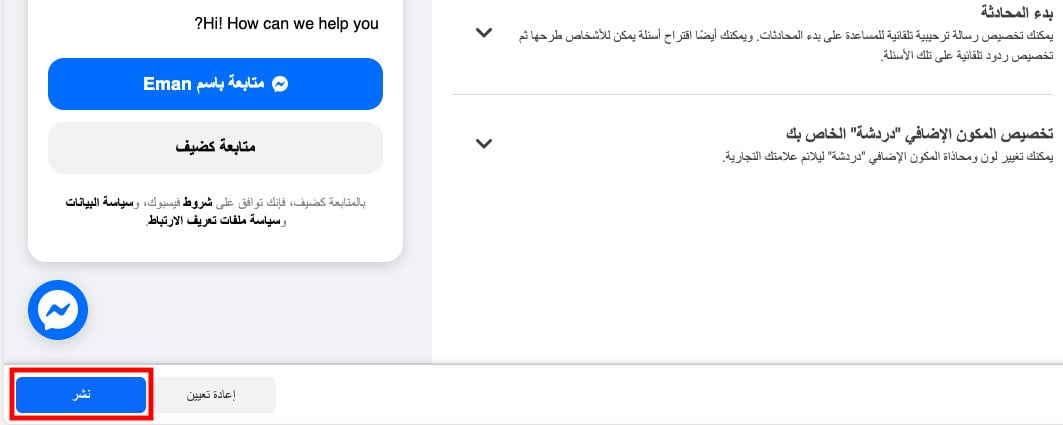
10. Click (Publish) to publish the plugin.
How to get your tracking code
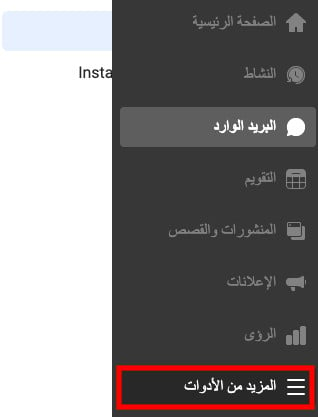
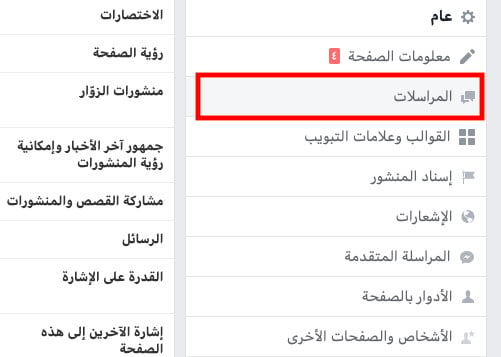
1. In the side menu, click (More tools).
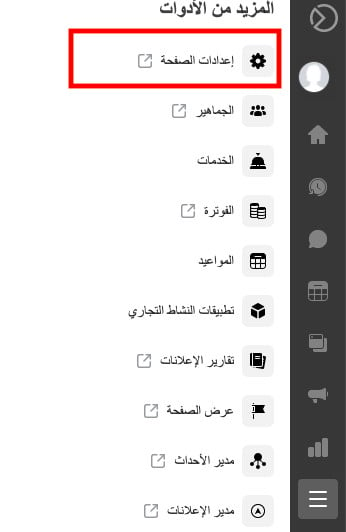
2. Click (Page settings).
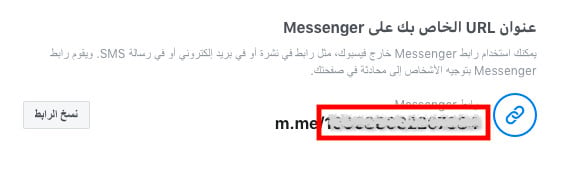
3. Choose (Messaging) to reach your tracking code (the page ID).
4. Copy the tracking number from the link only, so you can paste it into your store.
Stage two: paste the Facebook Messenger tracking code into your Salla store
1. From the side menu of your dashboard, click (Installed apps).

2. On the Facebook Messenger app, click (App settings).
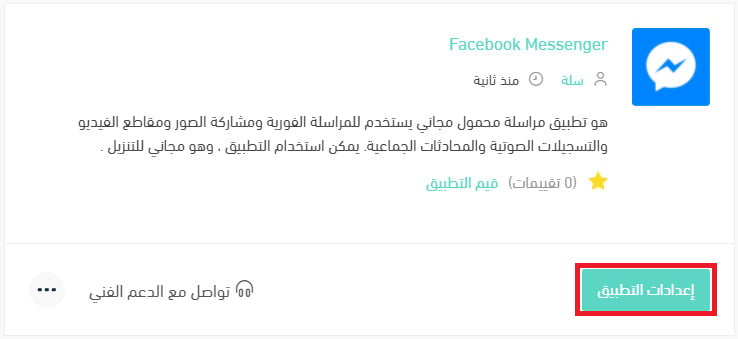
If the app isn't installed in your store yet, install it first. For more details, see installing an app from the Salla App Store.
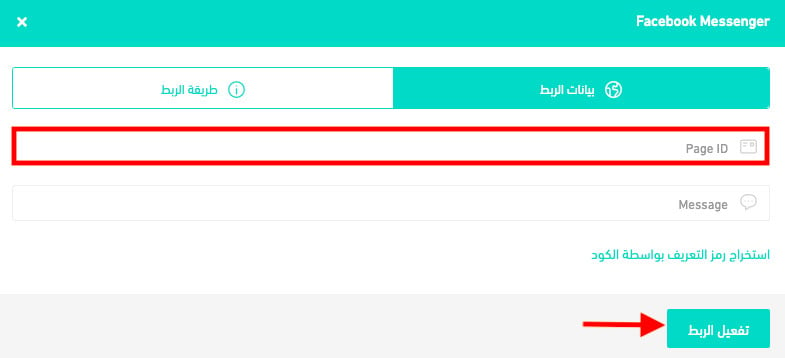
3. Paste the tracking code you copied from Facebook Messenger in stage one, then click (Activate connection).
❓ Frequently asked questions
Can I connect my store to a personal Facebook account?
No. Your Facebook account has to be a Business account for the connection to your store to work properly.
Why don't I see the "Chat" plugin icon?
If your page is set to a category Facebook doesn't support, the plugin icon won't appear. Make sure you pick a supported category from the category dropdown when you create your Facebook Business page.
Why doesn't the Facebook Messenger icon appear after connecting?
You have to finish setting up the plugin and publish it for the connection to work properly.
Why should I use Facebook Messenger?
1. You can send messages that last only moments using vanish mode, where messages disappear once they've been seen and you leave the chat.
2. You can personalize your reactions, with plenty of emoji to choose from, plus chat colors and themes.
3. You can send a link for a group video chat to anyone, even people without Messenger, and host more than 50 people with no time limit.
4. You can record and send voice and video messages.
5. You can use more than one account in the app and switch between them.
6. You can share your location easily.
Can I disconnect my store from my Facebook Messenger account?
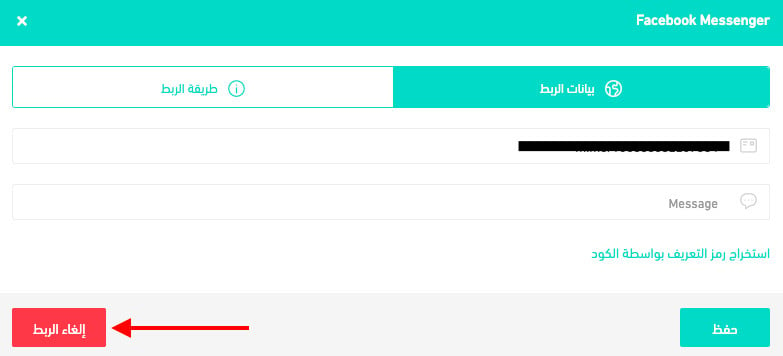
Yes. On the Facebook Messenger connection page, click (Disconnect).