Want a shipping partner that gets orders to your customers fast, without adding work to your day?
Fast delivery is one of the clearest signals that a store is worth buying from again. The Delway integration connects your Salla store to Delway, a logistics provider focused on express shipping and on keeping the end customer satisfied. Once the app is installed, Delway appears as a shipping option at checkout and you manage its rates from your dashboard. In this guide, you'll learn what Delway offers, how to connect it to your store, and how to handle its settings afterwards.
To connect Delway to your Salla store, open (Installed apps) from your dashboard's side menu, click (Browse Salla App Store), and install the Delway app. Grant the requested permissions, then sign in to your Delway account or create a new one to finish the connection.
📌 Article overview
- What is Delway?
- How to connect your store with Delway
- Frequently asked questions
What is Delway?
Delway is a logistics provider that aims to apply the highest standards in logistics and express shipping services, meeting the merchant's needs while keeping the end customer satisfied.
👣 How to connect your store with Delway
1. From the side menu of your dashboard, click (Installed apps).

2. From the Salla App Store banner, click (Browse Salla App Store).

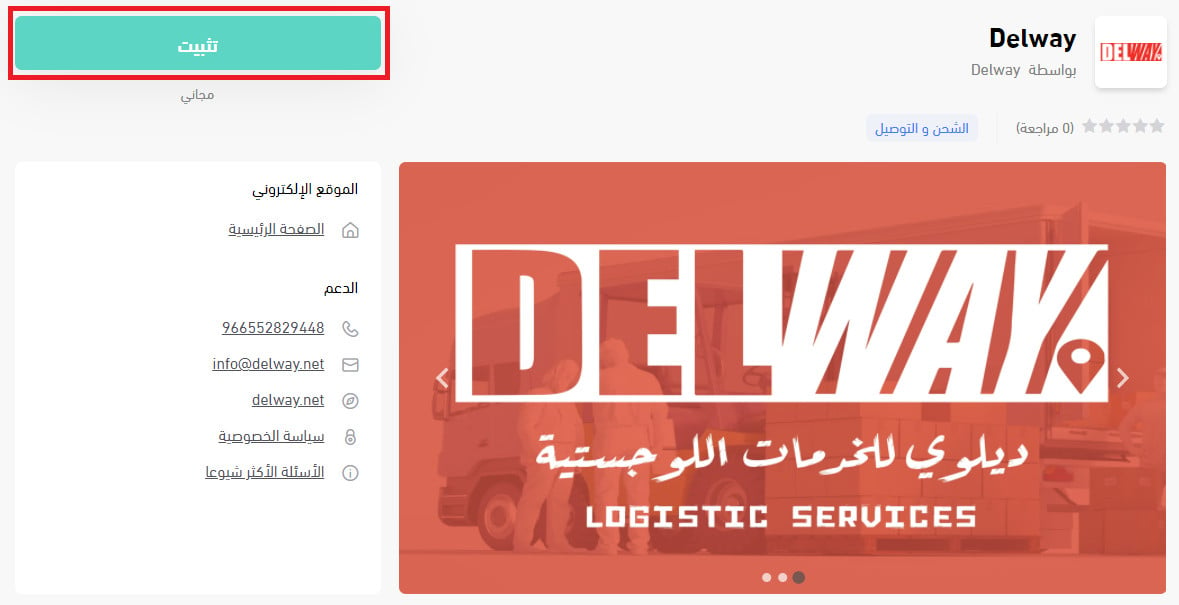
3. From the Delway app page, click (Install).
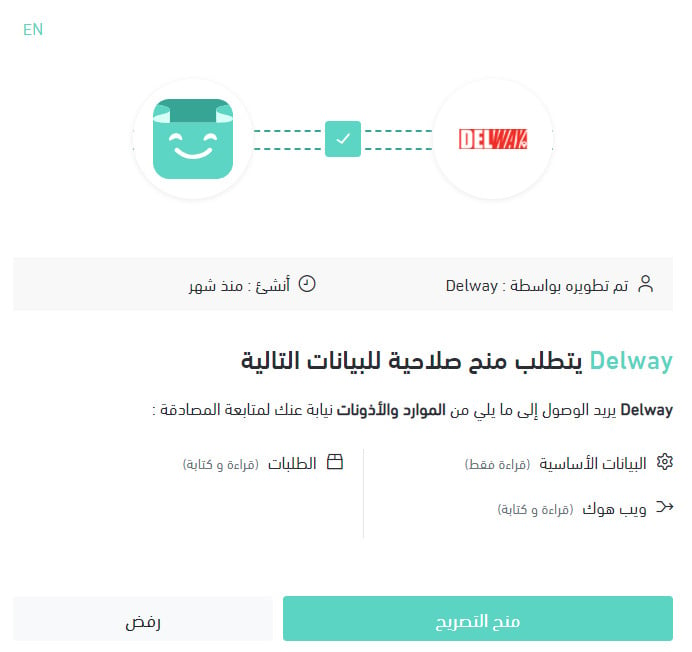
4. Review the permissions the app requests, then click (Grant permission).
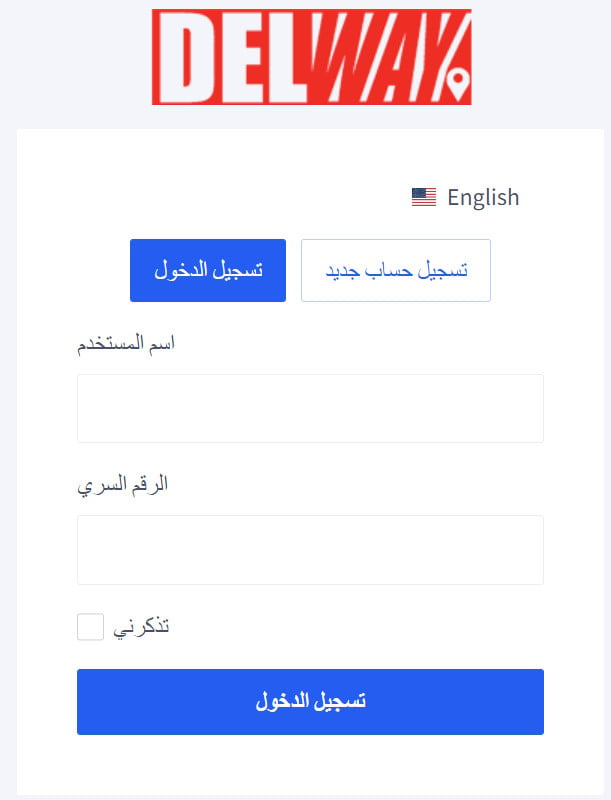
5. Sign in to your Delway account, or create a new one.
Your Salla store is now connected to your Delway account.
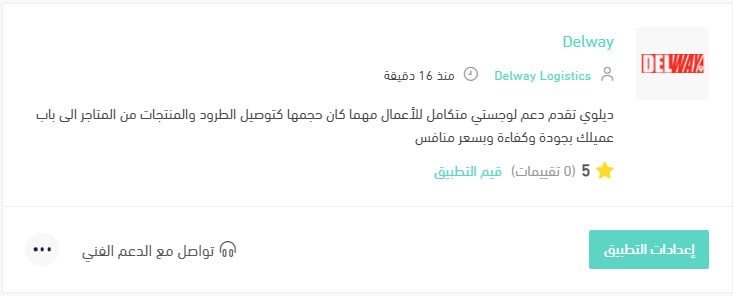
For more details, see managing my store apps.
❓ Frequently asked questions
How do I set up shipping rates for Delway?
1. From the side menu of your dashboard, click (Installed apps).

2. From the all apps page, on the Delway app, click (App settings).
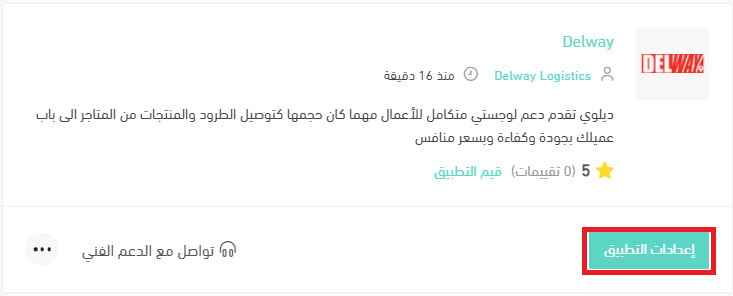
3. From the (Shipping pricing) tab, enter the shipping rates for the cities and regions you need.
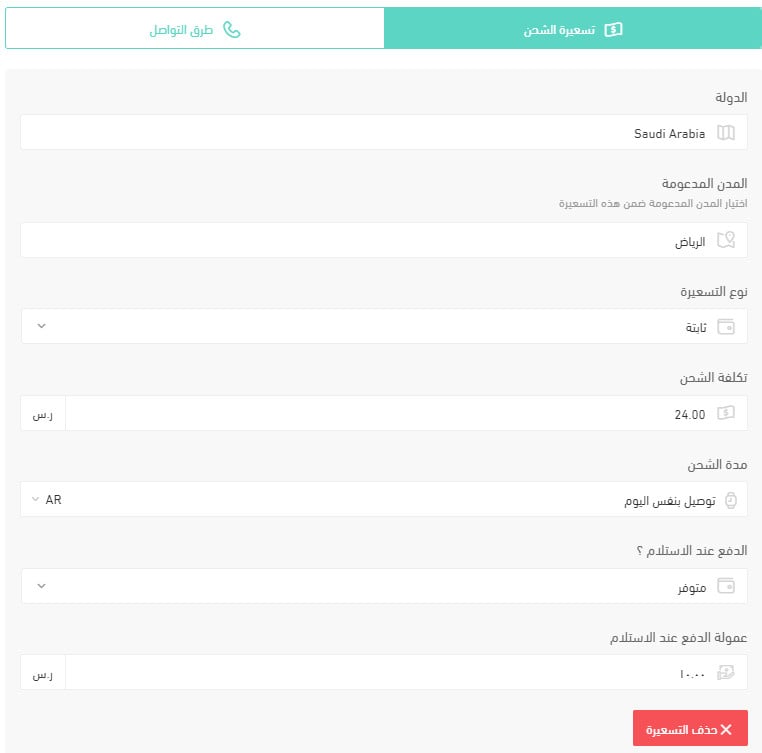
For more details, see shipping and delivery options settings.
How do I temporarily disable the app in my store?
1. From the side menu of your dashboard, click (Installed apps).
2. From the all apps page, on the Delway app, click (App settings).
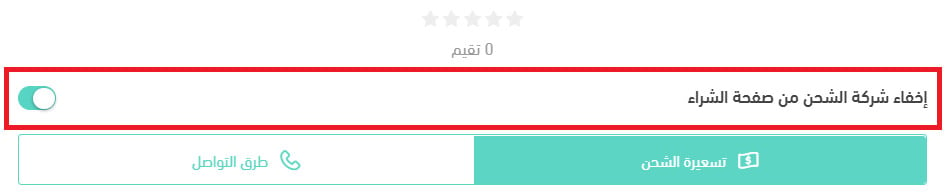
3. Turn the (Hide the shipping company from the checkout page) option on or off.
How do I remove the Delway app from my store?
1. From the side menu of your dashboard, click (Installed apps).
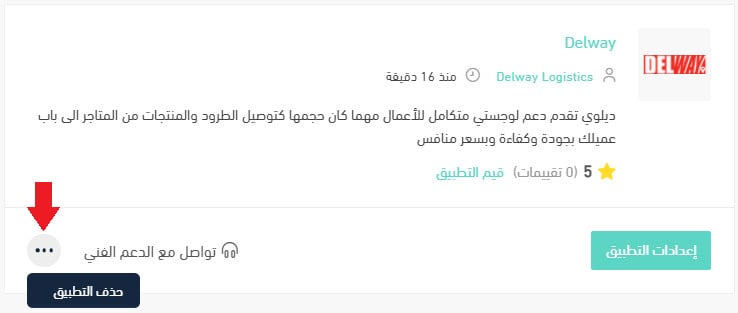
2. From the all apps page, on the Delway app, click the (...) icon, then click (Delete app), as shown in the image.