Want more control over how products and product details appear throughout your store?
Product options let you tailor recommendations, product availability displays, cart behavior, offers, pricing, and weight information. In this guide, you'll learn how to configure the available settings and what each supported option changes for customers.
Salla product options control recommendations, sold-out product placement, purchase-count visibility, repeat cart entries, free-offer items, zero-price display, special offers, price ranges, and product weight. Open Store settings, choose Store options, adjust the product settings your store needs, and save the page when finished.
📌 Article overview
- How to configure product options
- Product recommendations and availability
- Purchase counts and repeat cart entries
- Offers and price display
- Product weight and measurement units
- Frequently asked questions
👣 How to configure product options on Salla
1. From the dashboard sidebar, click Store settings.

2. Click Store options.

3. On the Store options page, configure the product options your store needs, then click Save.
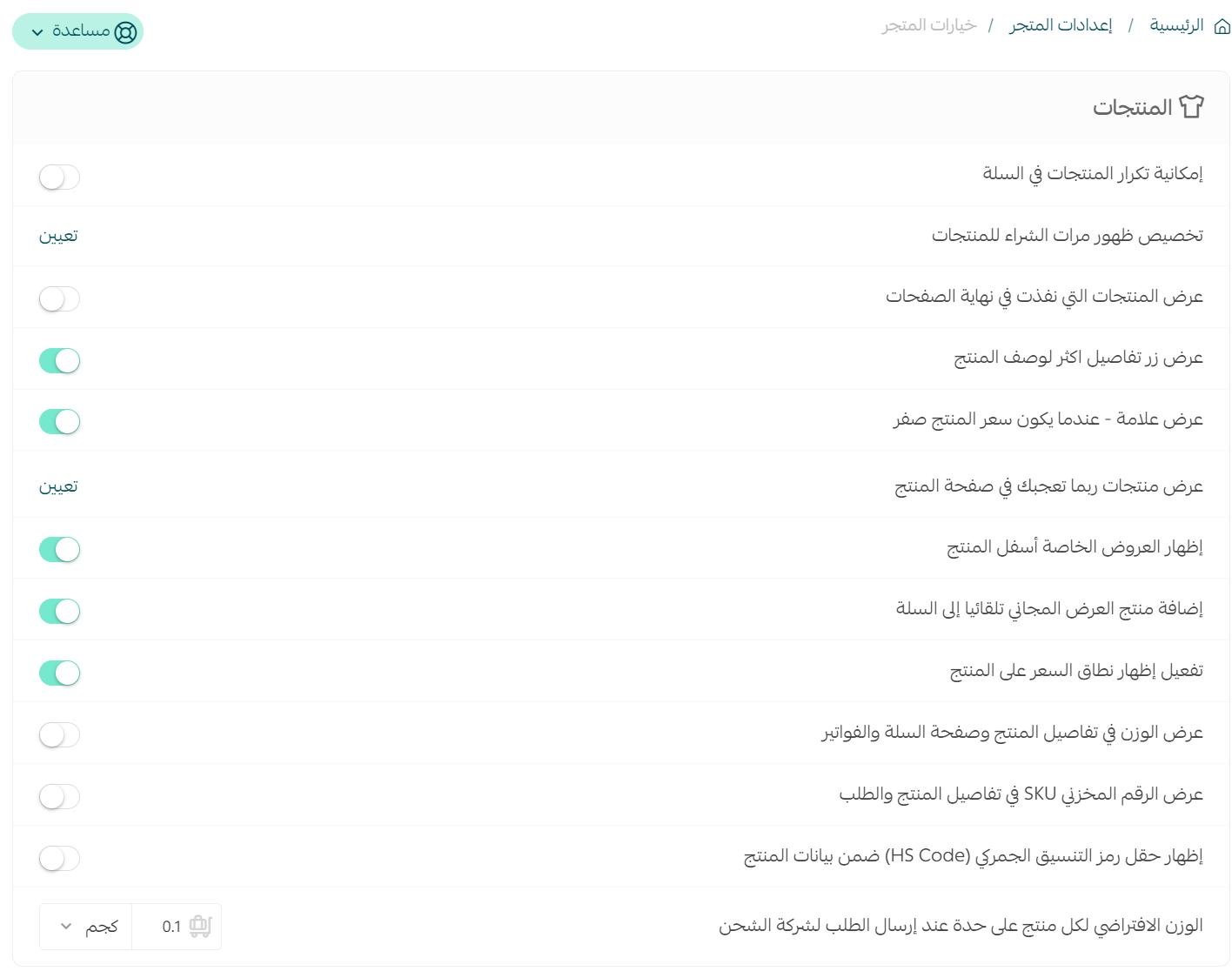
🎯 Show recommended products
Under Product options, click Assign for the setting that displays products customers may like on the product page.

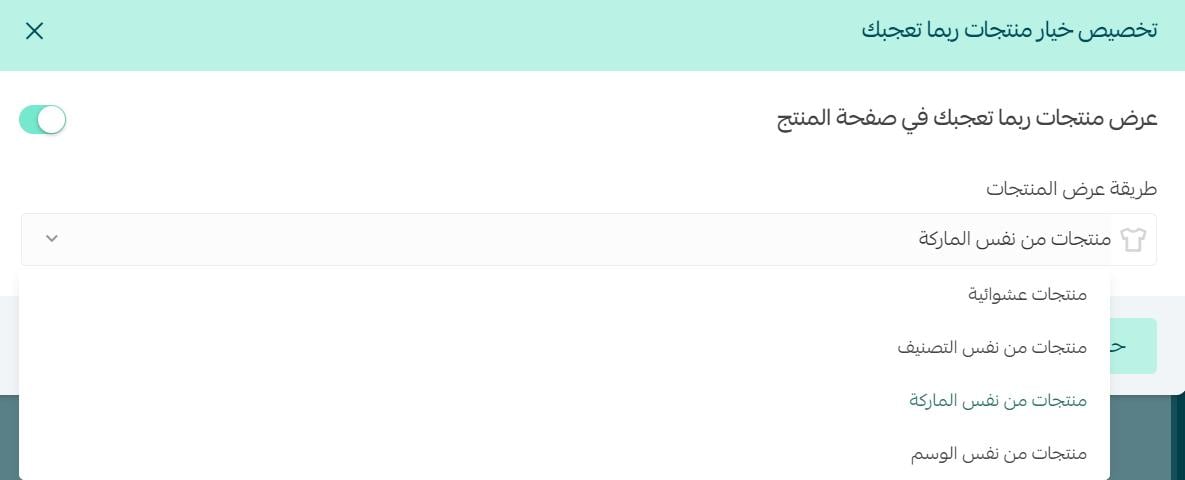
Enable the recommendation setting, choose the display method that suits your store, then click Save.
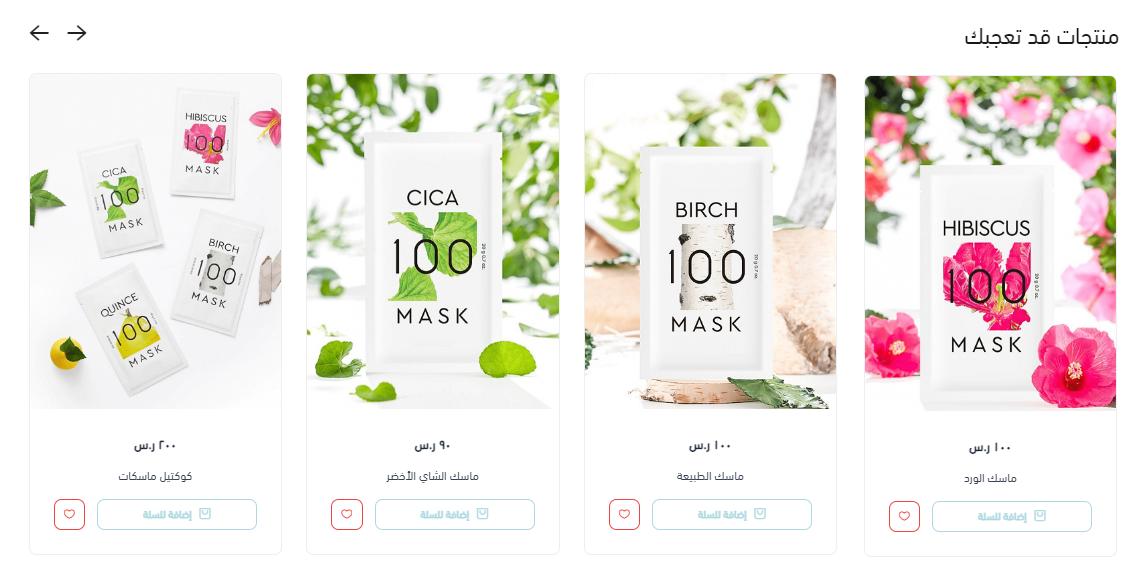
Recommendations then appear near the bottom of the product page:
🎯 Control sold-out product placement
When a product runs out of stock, it appears in the store as shown below:
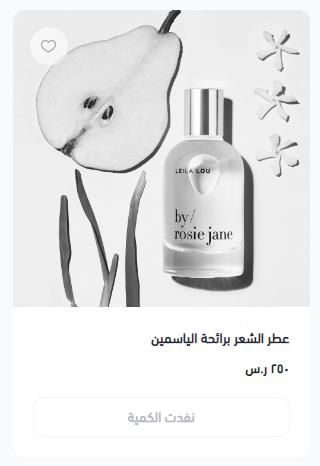
If you want sold-out products to remain visible so customers can add them to their wish lists, enable Show sold-out products at the end of pages.

🎯 Display product purchase counts
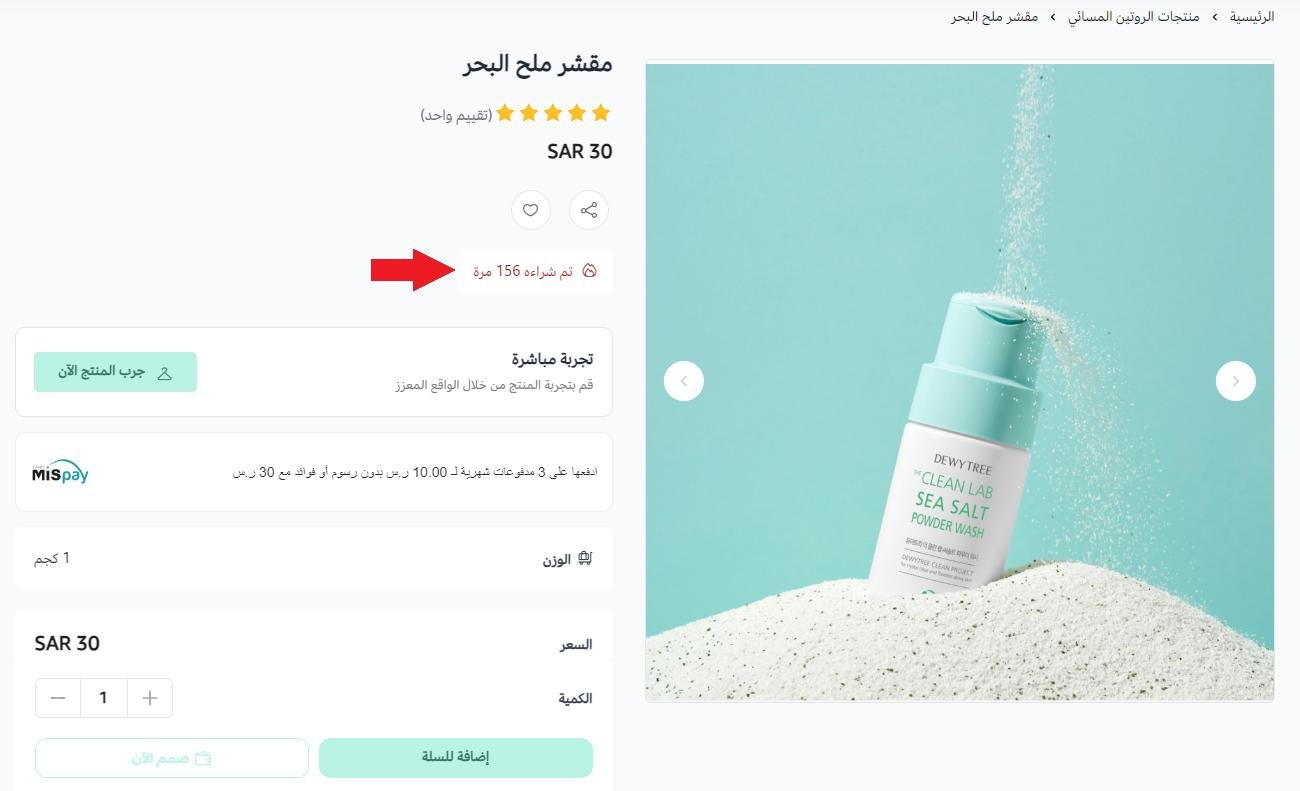
Showing that a product has been purchased can encourage customers, particularly when the product also has positive ratings.
Under the product settings, click Assign for the purchase-count visibility setting.

Enable the purchase information you want to display.
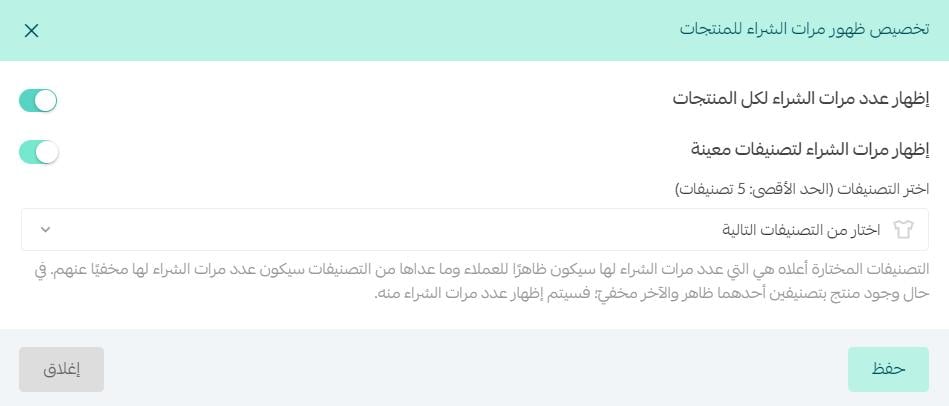
The selected purchase information appears to customers as shown below:
🎯 Allow repeat product entries in the cart
If products have attributes such as color, size, volume, or weight, enable the option that allows products to be repeated in the cart. Customers can then add the same product with different attribute selections.

🎯 Add free-offer products automatically
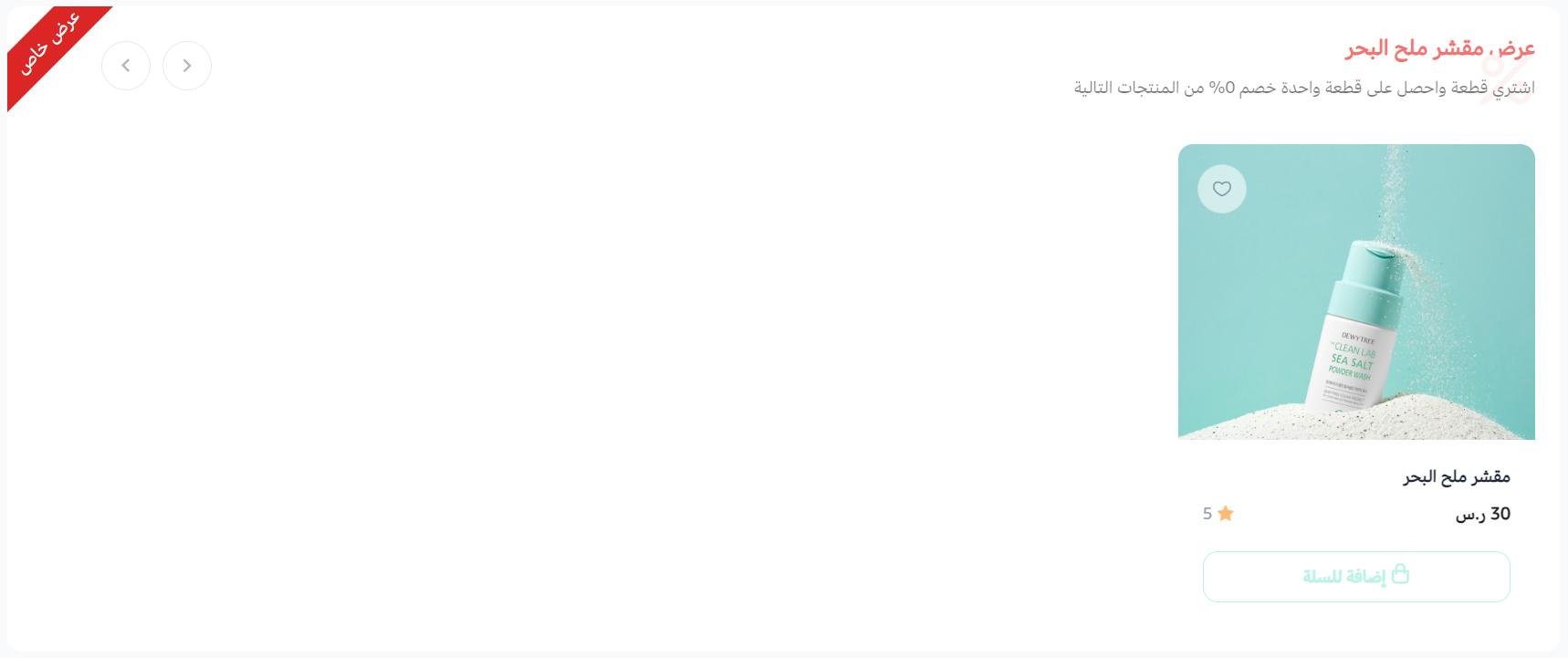
Enable the option that automatically adds a free-offer product to the cart.

The offer appears on the product details page:
🎯 Replace a zero price with a dash
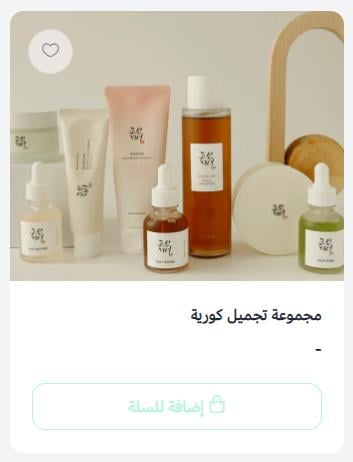
Enable Show a dash when the product price is zero.

Customers then see a dash instead of a zero price on the product page:
🎯 Show special offers below the product
From Store options, configure the setting that displays special offers below the product.

🎯 Show a product price range
When a product has multiple options with different prices, the price-range setting tells customers that its price starts from a particular amount and varies by their selected option.

Manage the price-range display from the Product options area of Store options.

🎯 Display product weight and its unit
Under Product options, configure Show weight in product details and the cart page.

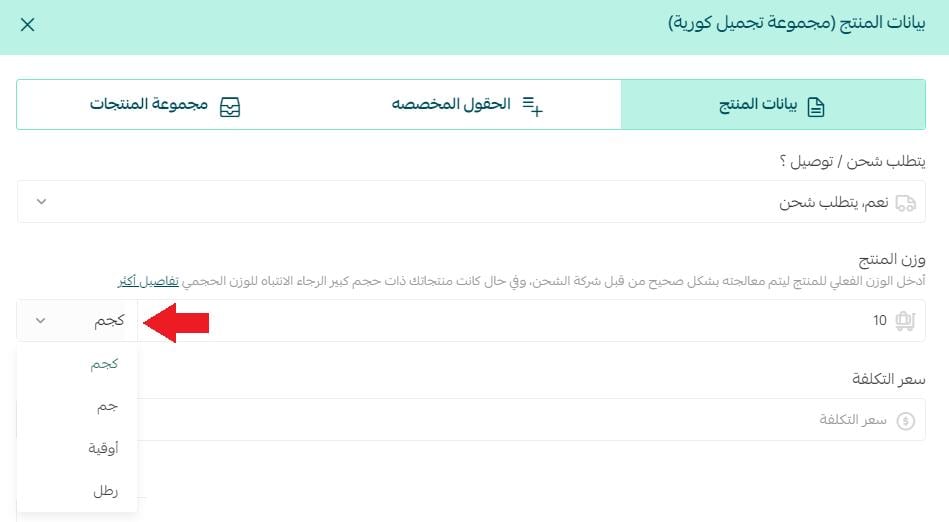
To set a default product weight, enter the value and select its unit.
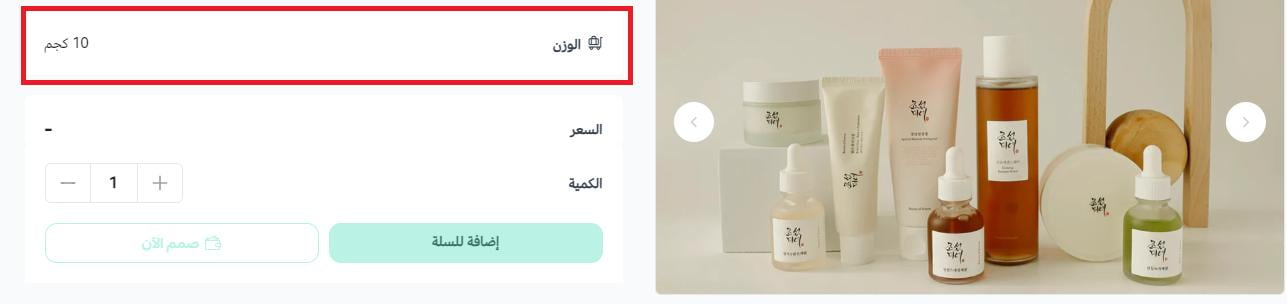
The weight appears on the product details page as shown below:
📝 Important notes
A product weight cannot be zero. Salla automatically applies the default weight to products for which the merchant has not entered a weight.
Frequently asked questions
❓ Can customers add the same product with different options?
Yes. Enable repeat product entries in the cart when a product has choices such as color, size, volume, or weight.
❓ Can sold-out products stay visible?
Yes. Enable the setting that places sold-out products at the end of pages so customers can still add them to their wish lists.
❓ What happens when a product price is zero?
You can enable the setting that shows a dash instead of the zero price on the product page.
❓ When should I show a price range?
Use it when a product has options with different prices. Customers will see that the product starts from a stated price.
❓ How is the default product weight used?
Salla applies the default weight to products that do not have a product-specific weight. The source states that zero is not accepted as a product weight.
Review the product options together so product pages, cart behavior, pricing information, and fulfillment details stay consistent for customers.