Are your customer conversations scattered across personal phones and half-remembered chats?
The Chatberry app connects your Salla store to WhatsApp so customer conversations and store alerts run through one organized channel instead of several personal devices. It automates replies, keeps order follow-up moving, and gives customers a smoother experience, which is what lets you run the store with fewer loose ends. In this guide, you'll learn how to install Chatberry, create your account, upgrade your plan, customize the app, and remove it if you need to.
Chatberry is a Salla App Store app that links your store to WhatsApp for organized customer messaging and alerts. You install it from the app store, pick a plan, then create a Chatberry account to manage everything. Settings, automation, and order follow-up are all handled from the Chatberry dashboard.
📌 Article overview
- How to install and connect Chatberry
- How to manage Chatberry: upgrade, customize, and remove
- Frequently asked questions
👣 How to install and connect Chatberry
1. From the main menu, click (All), then under helper tools, click (App Store).

2. Search for the app using the search field.

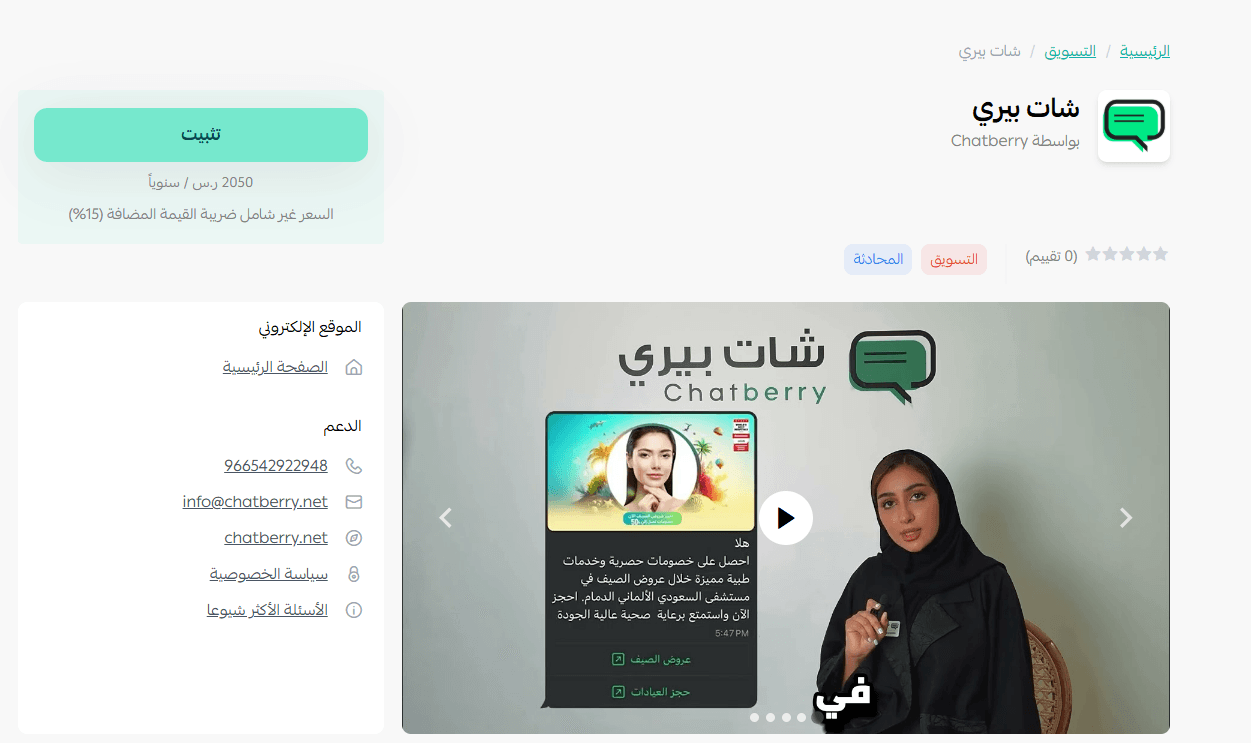
3. On the Chatberry app page, click (Install).
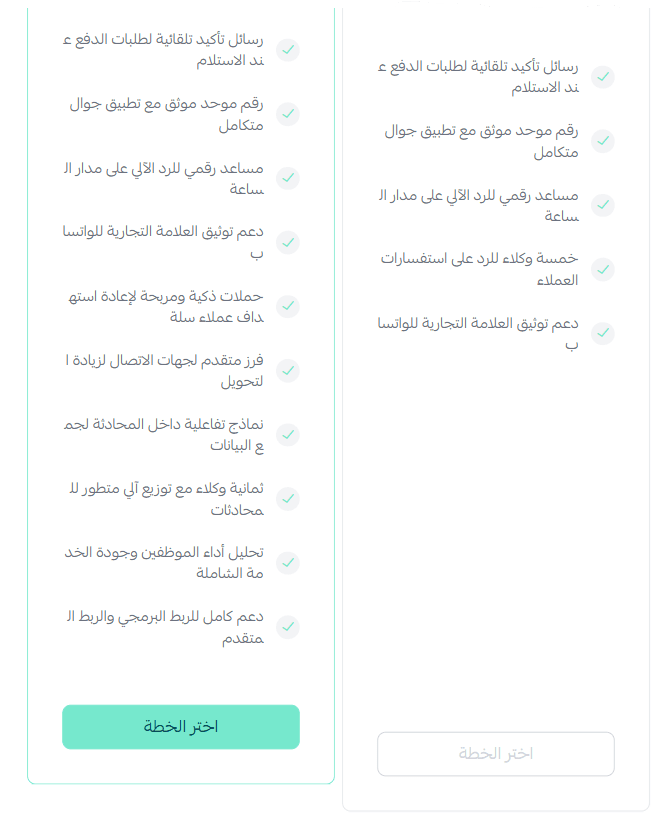
4. Choose the plan that suits you.
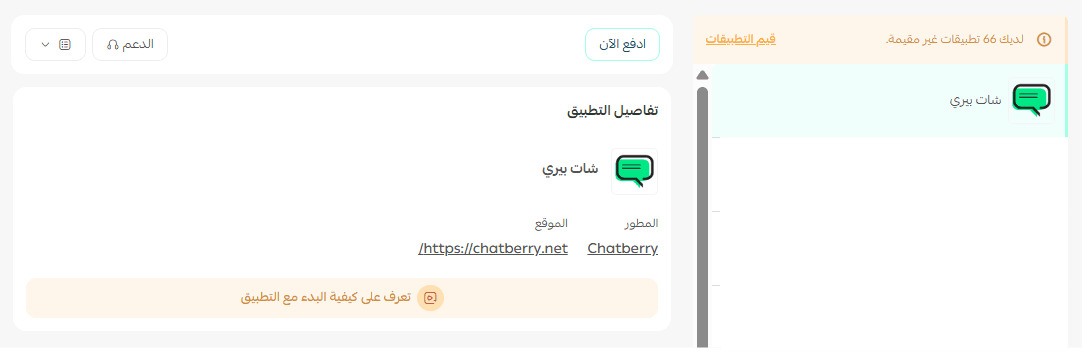
5. The app then appears on your My apps page.
6. Create a new account on the Chatberry site by entering the required details, then click (Create account).
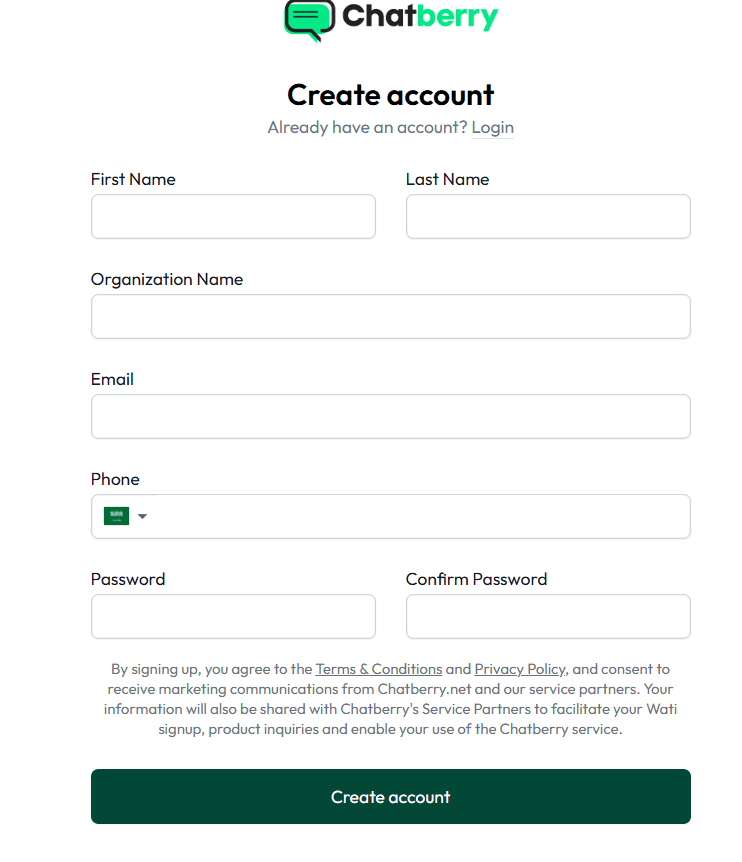
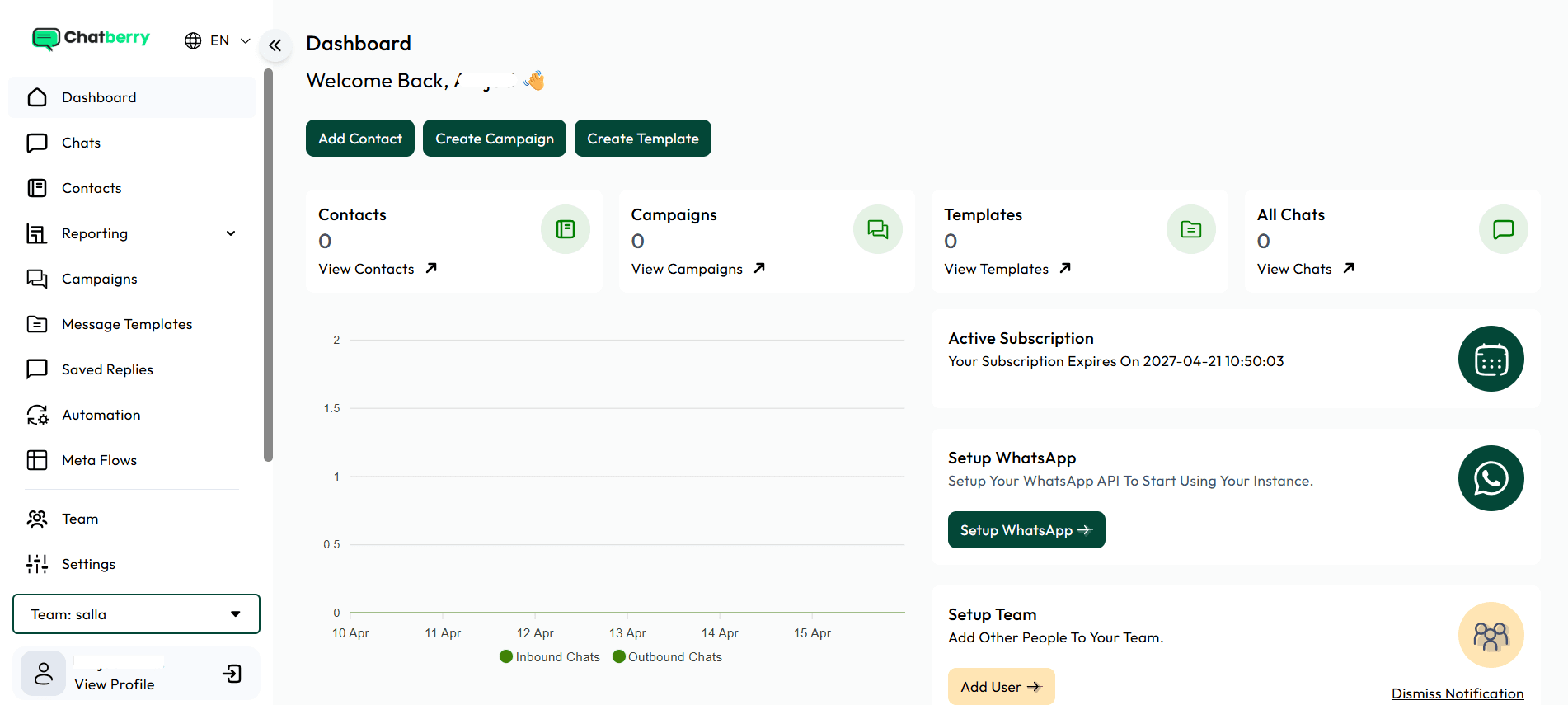
Once the account is created, the Chatberry home page opens.
🚀 How to manage the Chatberry app
Upgrade your plan
1. On the app details page in your store, click (Upgrade plan).

2. Choose the plan you want, then click (Go to payment).

3. Complete your payment details, then click (Confirm) to finish the upgrade.

Customize the app
🎯 App settings are controlled from your account dashboard on the Chatberry site, not from your Salla dashboard.
Remove the app
1. From the app options list, click (Cancel subscription), then choose your reason for cancelling.

2. From the app options list, click (Delete app), then choose your reason for deleting.

3. On the Deleted apps page, open the app options list and click (Delete app permanently) to remove it from your store for good.

📝 Important notes
- Deleting the app happens in two stages: it moves to the deleted apps page first, and is only gone for good after you click (Delete app permanently).
- Day-to-day settings live in the Chatberry dashboard, so keep your account details safe.
- For more, see the Chatberry app page.
❓ Frequently asked questions
Where do I change Chatberry's settings?
In your account dashboard on the Chatberry site. The Salla side handles installation, plan, and removal.
Do I need a Chatberry account as well as the Salla app?
Yes. After the app appears on your My apps page, you create a Chatberry account with the required details and click (Create account).
How do I move to a bigger plan later?
Open the app details page in your store, click (Upgrade plan), choose the plan, click (Go to payment), then confirm your payment details.
Does deleting the app also cancel my subscription?
Cancelling the subscription and deleting the app are separate actions in the app options list. Cancel the subscription first, then delete the app, then delete it permanently.
Conversations only feel effortless to a customer when they are organized on your side. Chatberry is what puts that structure behind your WhatsApp channel.