What happens in the seconds between a customer adding an item and clicking checkout?
That is the moment orders grow or quietly shrink. The Cart Drawer app turns the cart itself into a selling surface: it shows suggested products inside the cart before the order is completed, and lets you shape the checkout experience so it matches your store's identity. The result is a smoother buying moment, less hesitation before payment, and a higher order value. In this guide, you'll learn how to install the Cart Drawer app, manage it, upgrade your plan, and remove it.
The Cart Drawer app displays suggested products inside your customer's cart before checkout, giving you a chance to raise order value at the last step. You can also customize the cart experience to match your store's identity, using elements that support the purchase decision and reduce hesitation before payment.
📌 Article overview
- What the Cart Drawer app does
- How to install the Cart Drawer app
- How to upgrade your plan
- How to customize and remove the app
- Frequently asked questions
🎯 What the Cart Drawer app does
- Shows suggested products inside the cart, before the customer completes the order.
- Turns the cart into an opportunity to increase sales rather than a simple summary screen.
- Lets you customize the buying experience so it fits your store's identity.
- Reduces hesitation before payment with elements that support the purchase decision.
👣 How to install the Cart Drawer app
1. From the main menu, click (All), then under the helper tools section, click (App Store).

2. Find the app using the search field.

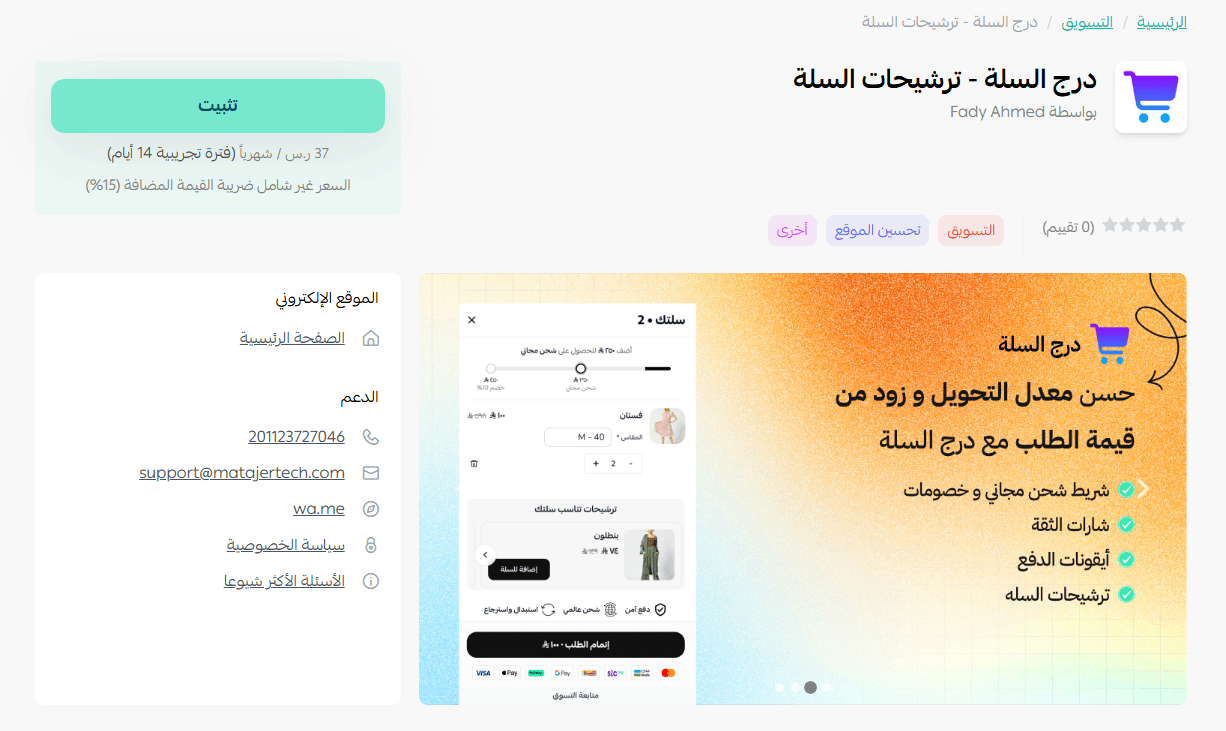
3. On the Cart Drawer app page, click (Install).
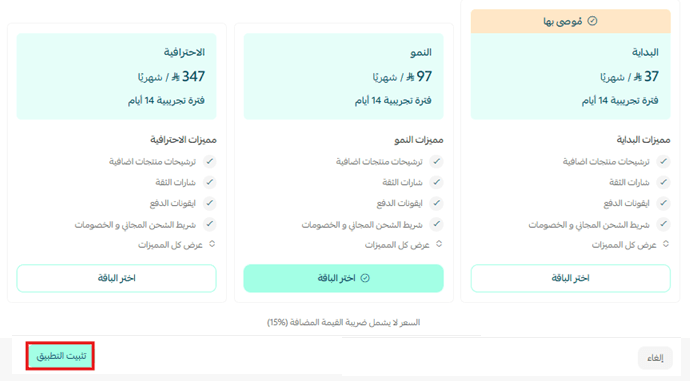
4. Choose the plan that fits your store, then click (Install app).
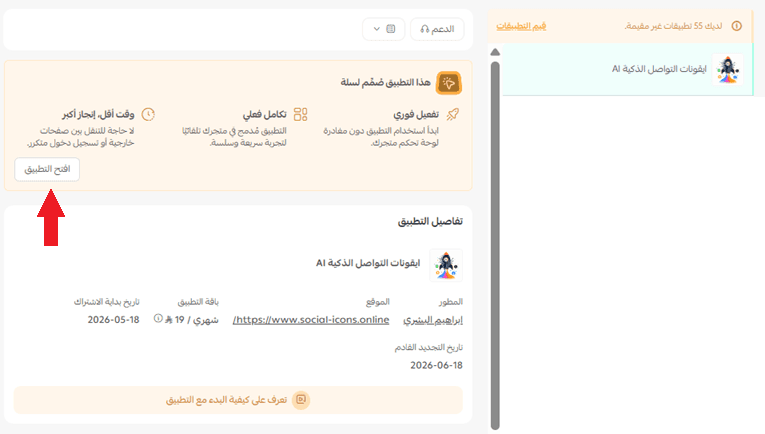
5. Once it is installed, open the app details page from your (My apps) page and click (Open app) to start managing it.
🚀 Managing the Cart Drawer app
Upgrading your plan
1. On the app details page in your store, click (Upgrade plan).

2. Choose the plan you want, then click (Go to payment).

3. Fill in your payment details and click (Confirm) to complete the upgrade.

Customizing the app
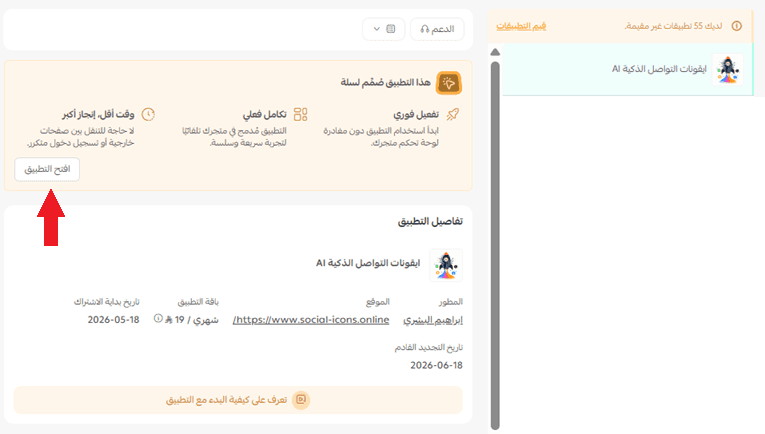
🎯 You control and manage the app from the app details page in your store, using the (Open app) button.
Removing the app
1. From the app options menu, click (Cancel subscription) and choose your reason for cancelling.

2. From the app options menu, click (Delete app) and choose your reason for deleting it.

3. On the Deleted apps page, open the app options menu and click (Delete app permanently) to remove it from your store for good.

📝 Important notes
- All app settings are handled through (Open app) on the app details page, not from a separate site.
- Cancelling the subscription and deleting the app are separate steps. Delete permanently if you want the app gone completely.
For more details, see the Cart Drawer app page.
❓ Frequently asked questions
How does the Cart Drawer app increase order value?
It shows suggested products inside the cart while the customer is still deciding, so they can add another item before completing the order.
Can I make the cart match my store's design?
Yes. The app lets you customize the buying experience so it fits your store's identity.
Where do I manage the app after installing it?
Open the app details page from your (My apps) page and click (Open app).
Can I switch to a different plan later?
Yes. From the app details page, click (Upgrade plan), choose the plan you want, and complete the payment.
The cart is the last place a customer is still open to buying more, and the first place they start second-guessing. Getting that screen right is one of the cheapest ways to lift average order value.