BuzzBip is an app that transforms WhatsApp into a powerful sales and customer support channel by using automation and AI-driven marketing. It helps you recover abandoned carts, recommend products, and run personalized WhatsApp campaigns around the clock to boost engagement and sales.
📌 Article overview
- Steps to connect the BuzzBip app
- Managing the BuzzBip app
Steps to connect the BuzzBip app
- From the main menu, click All, then under Tools, select App Store.
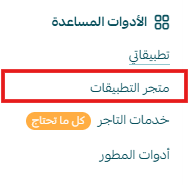
- Search for the app using the search bar.

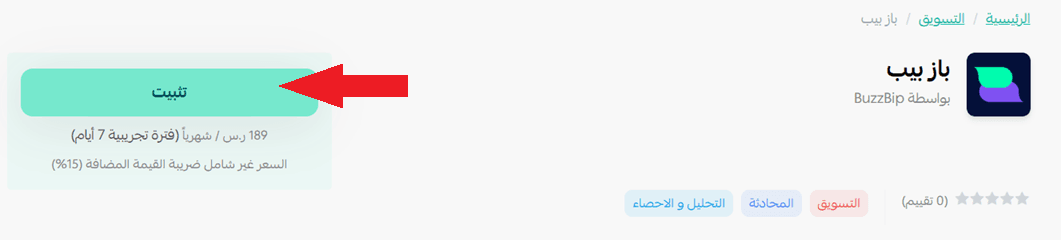
- From the BuzzBip app page, click install.
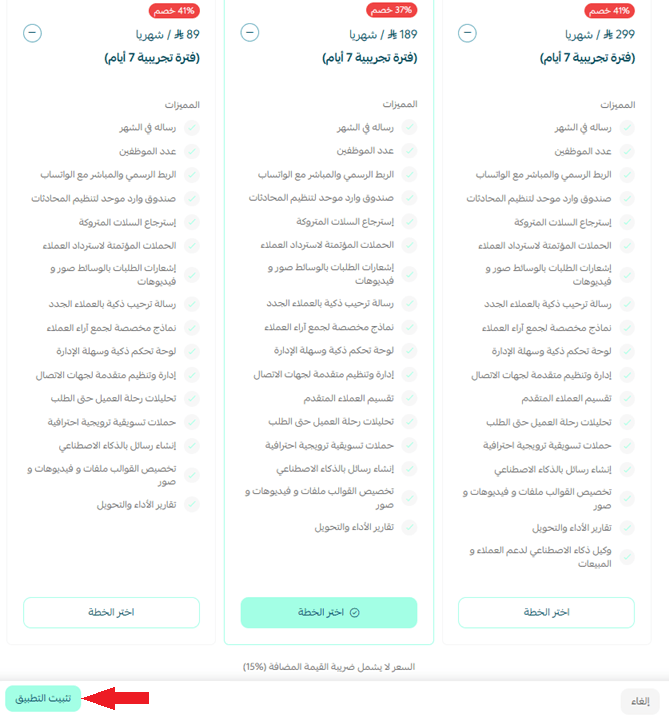
- Choose the plan that suits you, then click install app.
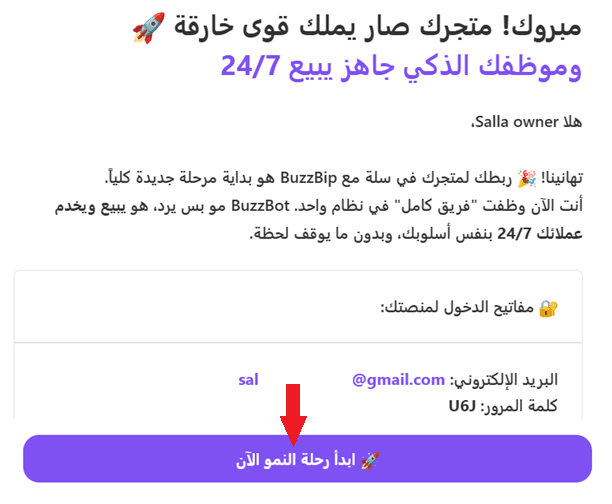
- You will receive an email with your login details for your BuzzBip account. Click Start your growth journey now.
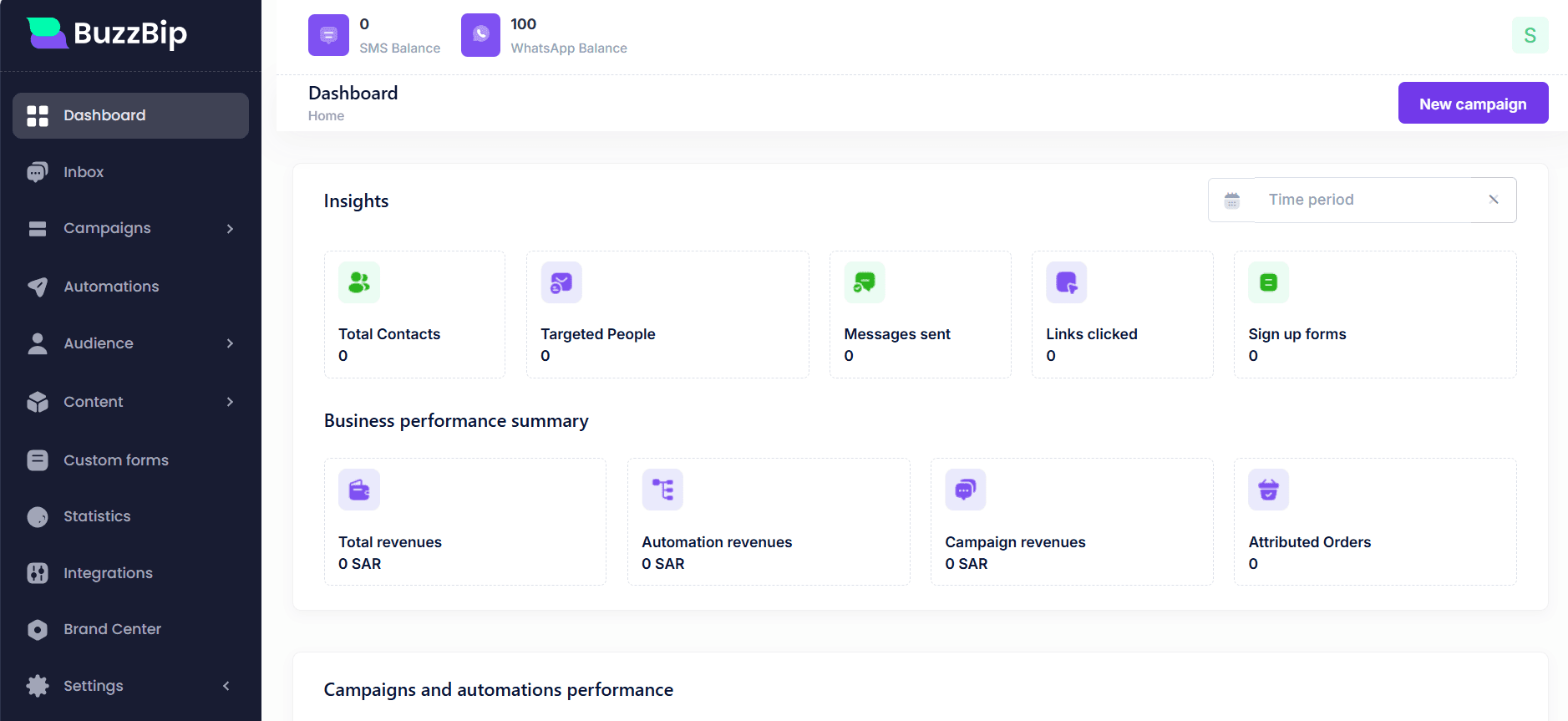
🎉 After logging in, the BuzzBip dashboard will appear, where you can manage your WhatsApp account and marketing campaigns.
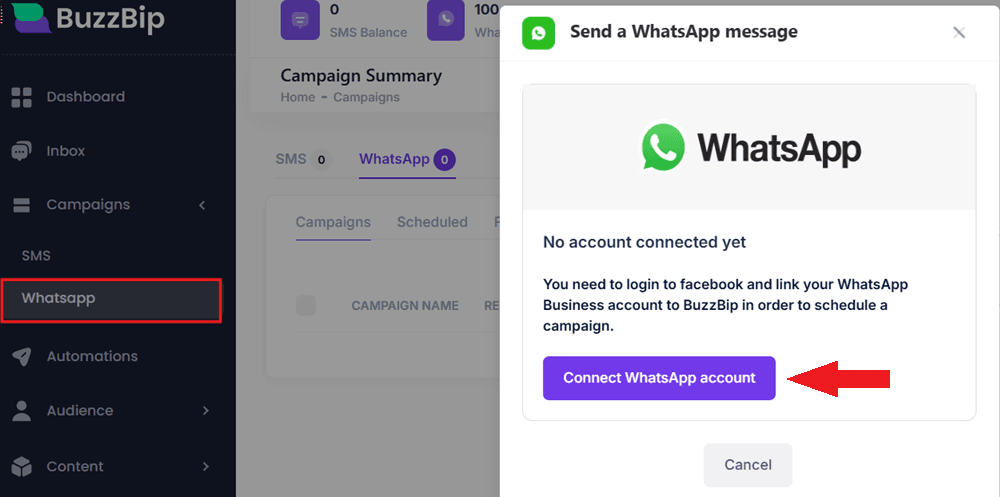
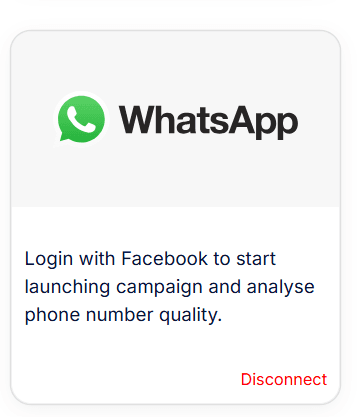
- From the side menu, under the WhatsApp section, click Connect WhatsApp account.
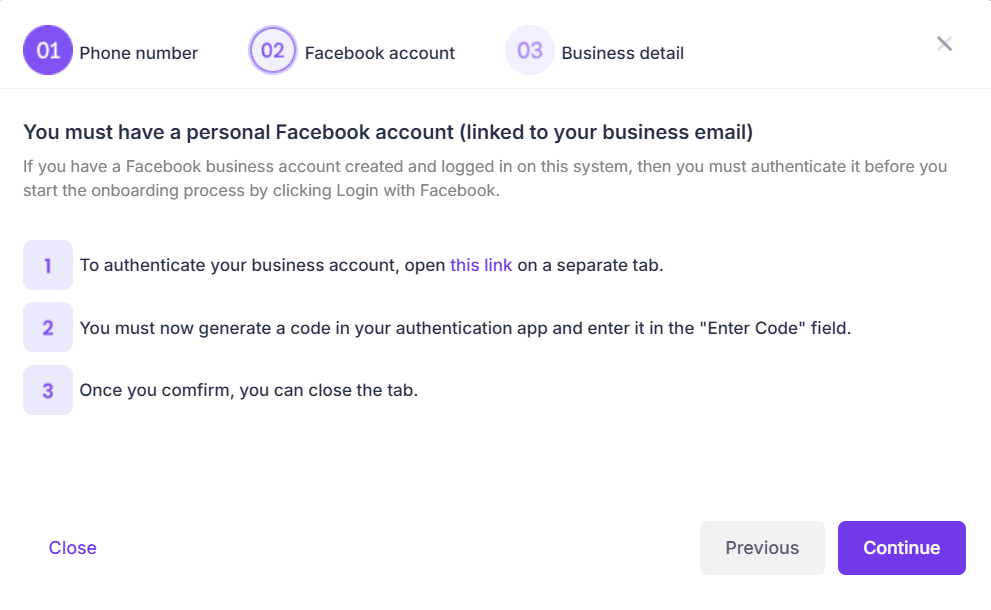
- You’ll need to connect your WhatsApp Business account via Facebook. Click Continue to proceed.
- Click Finish to complete the WhatsApp Business connection.
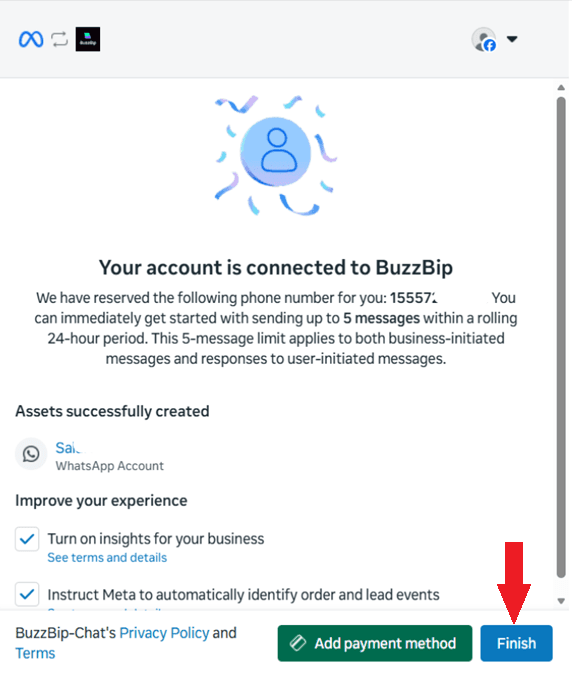
- Your WhatsApp Business account is now successfully connected.
- From the Content tab in the side menu, select WhatsApp Templates, then create a campaign message template by clicking Create Template.

- Your template request will be submitted for approval.
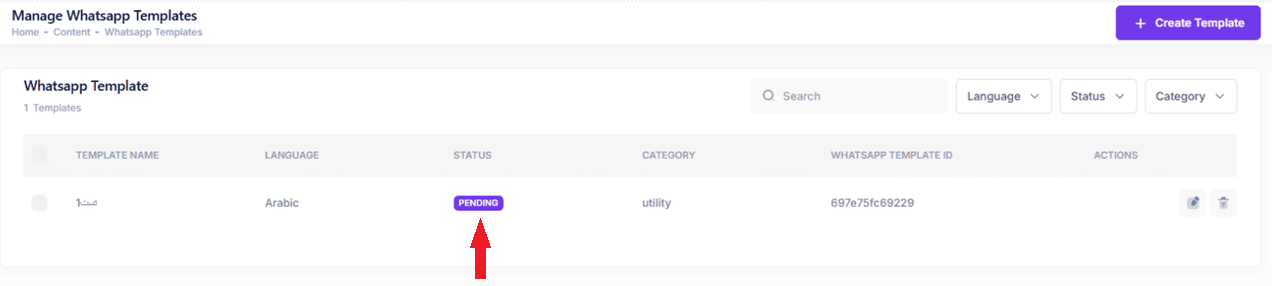
- Once approved, you can use the template to create marketing campaigns.

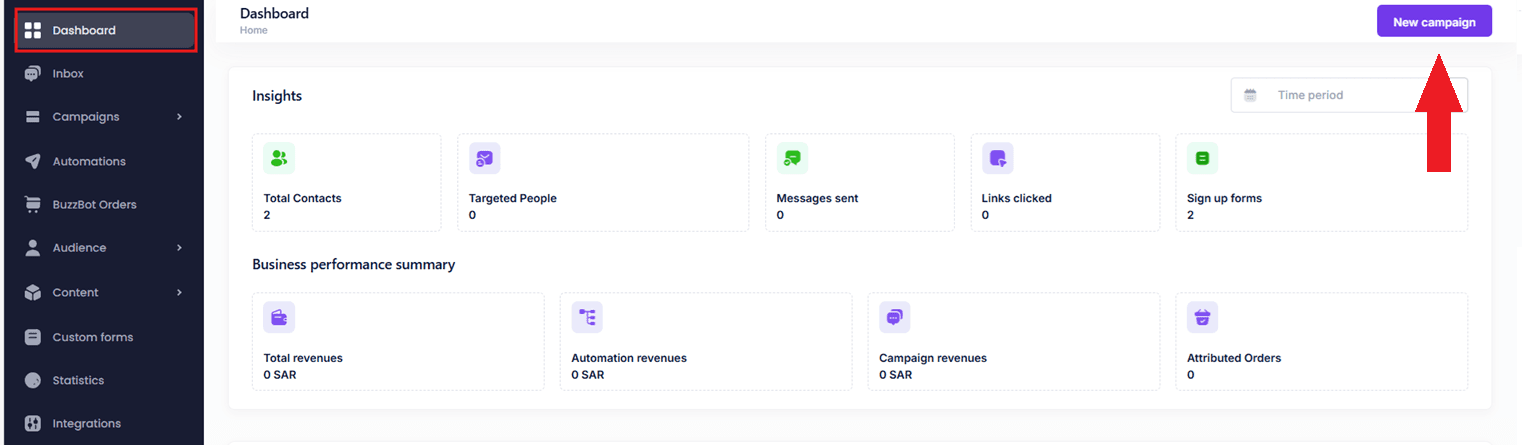
- From the BuzzBip dashboard, you can create campaigns by clicking New campaign.
Managing the BuzzBip app
Upgrade plan
- From the app details page in your store, click upgrade plan.

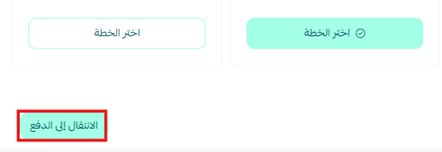
- Choose the plan that suits you, then click proceed to payment.
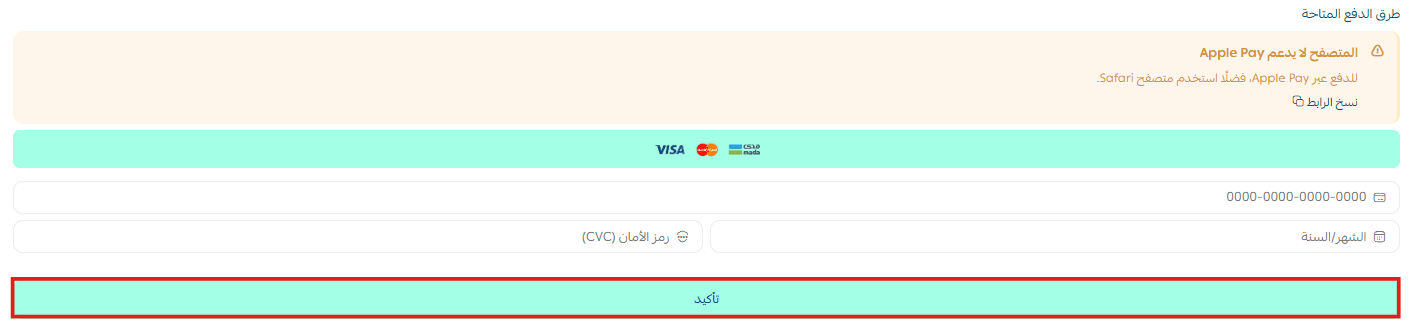
- Complete the payment details, then click confirm to upgrade your plan.
Customize the app
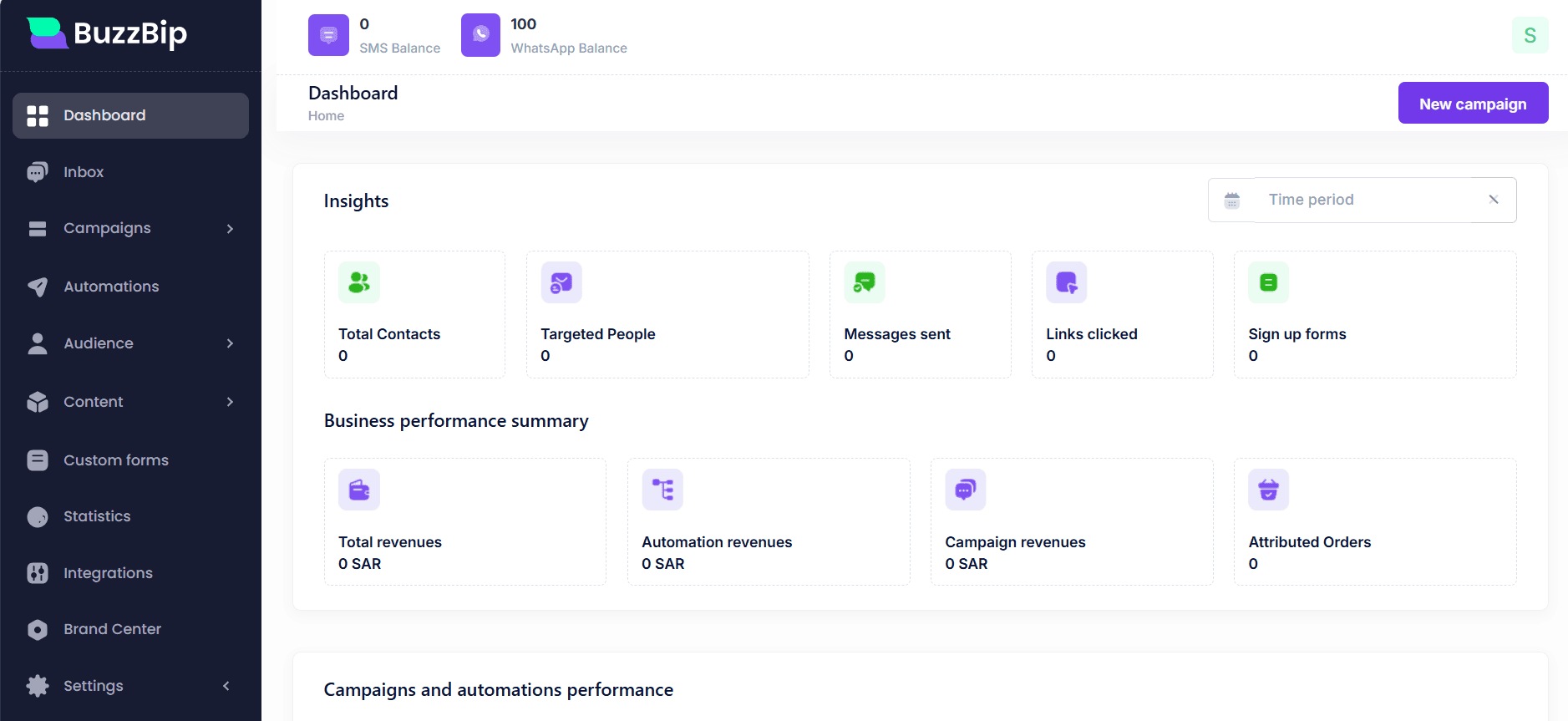
You can manage your WhatsApp account and campaigns directly from the BuzzBip dashboard.
Delete the app
- From the app options menu, click unsubscribe, then select a reason.
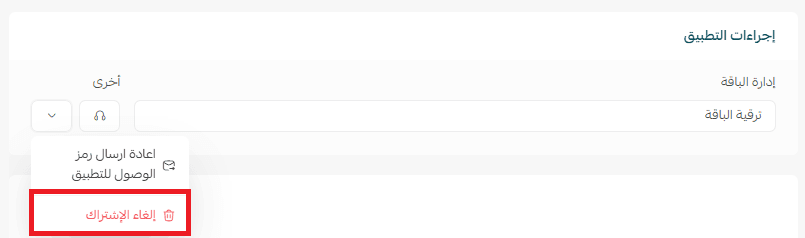
- From the app options menu, click delete app, then select a reason.
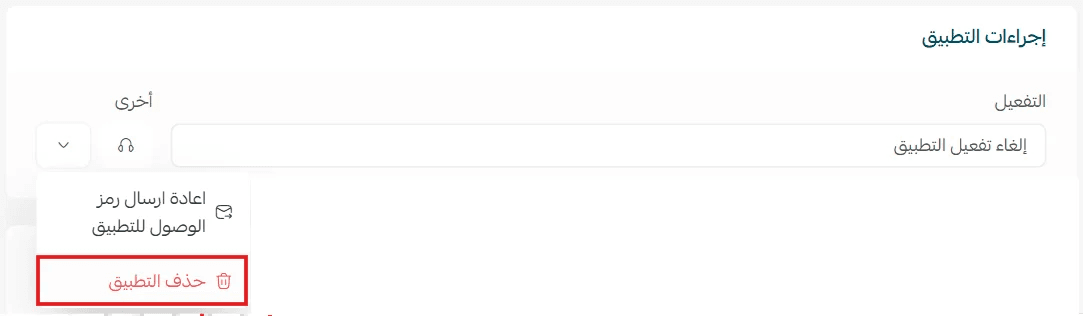
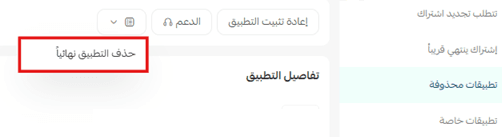
- From the deleted apps page, go to the app options and click delete app permanently to remove it completely from your store.