Need to update prices across many products without opening every product card?
The bulk edit product prices tool helps you respond to promotions, market changes, or margin goals across all products or a filtered set.
To bulk edit product prices on Salla, open Products, select Services, and choose Edit prices. Choose the target price, adjustment type, value, and whether the change applies to products, options, or both. Preview the results, filter or search when needed, review every change, then click Save.
📌 Article overview
- Open the bulk price editor
- Choose the price field, adjustment, and scope
- Preview and save the changes
- Limit the update with filters or search
- Edit multiple prices manually
- Frequently asked questions
How to bulk edit product prices on Salla
1. From the dashboard side menu, click Products.

2. On the Products page, click Services, then click Edit prices.
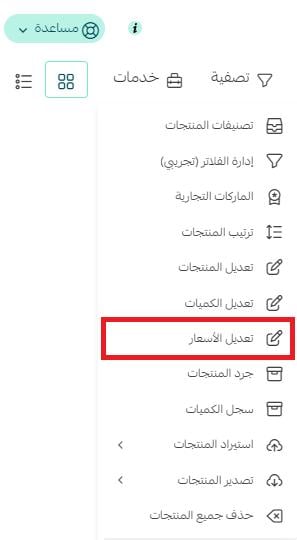
3. Configure the price update, then click Preview.

Choose the price field, adjustment, and scope
A. Choose the price field to update: discounted price, cost price, or selling price.
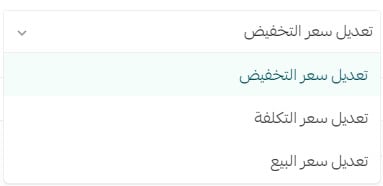
B. Choose the adjustment: add a fixed amount, add a profit percentage, or enter a new price. The available result follows the price field selected in the previous step.

C. Enter the required fixed amount or percentage.

D. Choose whether the update applies to the product only, its options only, or both.

Preview and save the price update
Review the preview before saving. The source example shows a 5% increase after a corresponding supply-chain cost change; verify that the selected target field matches the price you intend to update.
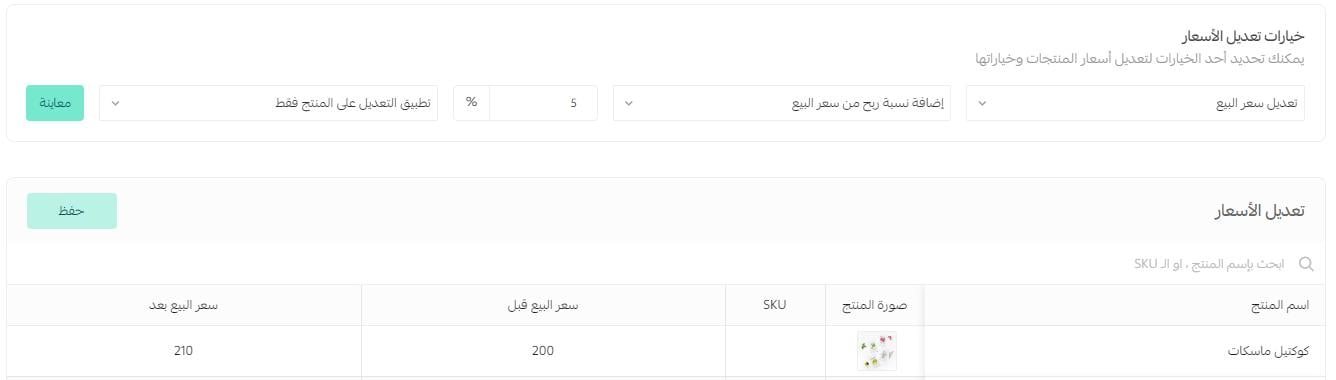
When the preview is correct, click Save.
📝 Important notes
A saved bulk price update cannot be undone with a rollback action. You can apply another update to restore the previous values.
Check the target price field, adjustment, value, scope, and preview carefully before saving.
Limit bulk price changes to selected products
You can narrow the update in two ways.
Method 1: Use filters
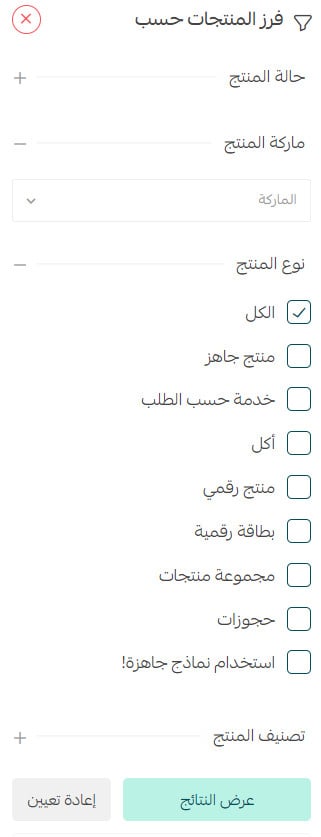
On the Edit prices page, click Filter.

Set the required filters, then click View results.
Method 2: Search by product name or SKU
In the search box on the Edit prices page, enter part of the product name or its SKU. Update the matching products, then click Save.

Edit multiple product prices manually
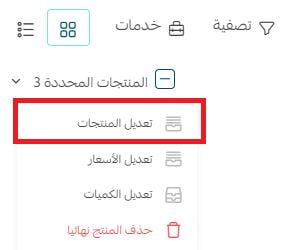
From the Products page, click Services, then click Edit products.
A table opens with the selected products. Edit the required selling, cost, or discounted price cells.
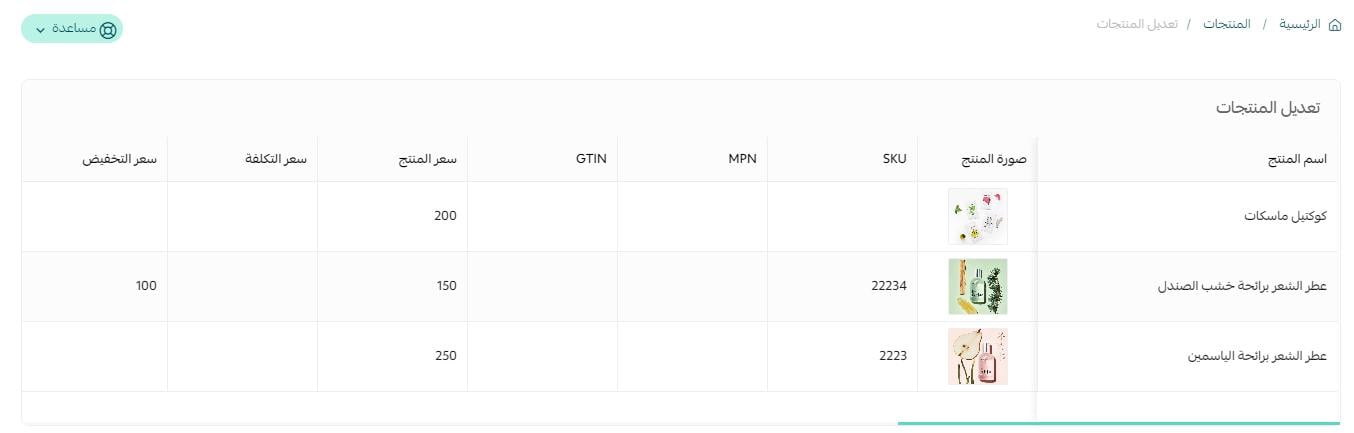
After entering a value, press Enter to confirm it in the cell and move to the next cell.
For the complete bulk-product workflow, see (bulk product editing).
Frequently asked questions
Which price fields can I update in bulk?
You can select the discounted price, cost price, or selling price as the target field.
Can I apply a bulk price update to specific products?
Yes. Filter the products and click View results, or search by part of the product name or SKU before saving.
Can I undo a bulk price update after saving?
No direct rollback is documented. Apply another price update to return the affected values to their previous amounts.
Can I edit several product prices manually?
Yes. Open Services, choose Edit products, update the table cells, and press Enter after each value to confirm it and move forward.
Use the preview and filtering controls to keep large price changes focused, reviewable, and accurate before you save them.