Is someone on your team re-typing every Salla order into your accounting system by hand?
Manual data entry is where stock counts drift, invoices go missing and month-end takes twice as long as it should. The Bayan accounting and warehouse app links your Salla store directly to Bayan software, so orders move across on their own, products and stock stay in sync, and customer records update automatically. In this guide, you'll learn what the integration keeps in sync, how to install Bayan from the Salla App Store, how to start a free trial, and how to remove the app.
The Bayan integration connects your Salla store to Bayan accounting and warehouse software. Install the app from the Salla App Store, pick a plan, approve the permissions and pay, then open the app settings to create your Bayan account. Orders, products, stock and customer data then sync automatically.
📌 Article overview
- What the Bayan accounting and warehouse integration syncs
- How to connect Bayan to your Salla store
- Manage and activate the Bayan app
- Frequently asked questions
🎯 What the Bayan accounting and warehouse integration syncs
The connection between your store and Bayan is a direct data link. It covers:
- Orders, transferred from your store into Bayan.
- Products and stock levels, kept in sync between the two systems.
- Customer information, updated automatically.
The goal is simple: run your accounting and your warehouse from one set of records, without manual entry.
🚀 How to connect Bayan to your Salla store
1. From the main menu, click (All), then under helper tools, click (App Store).

2. Find the app using the search field.

3. From the Bayan for accounting and warehouses app page, click (Install).

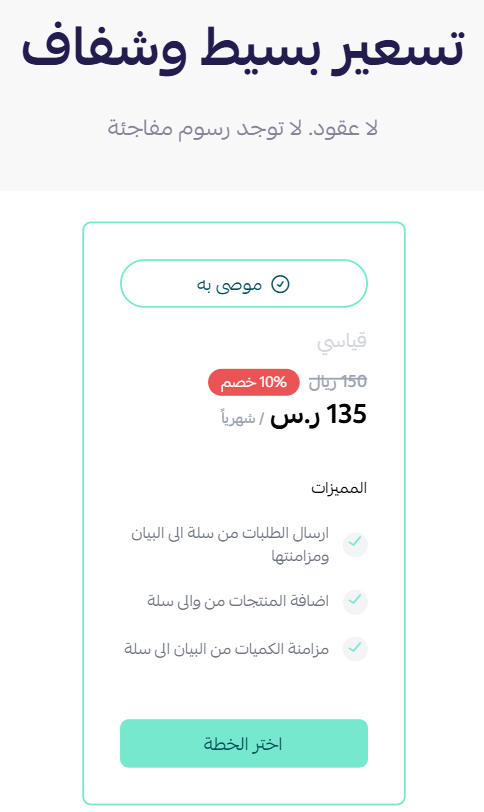
4. Choose the plan that fits your business to continue the installation.
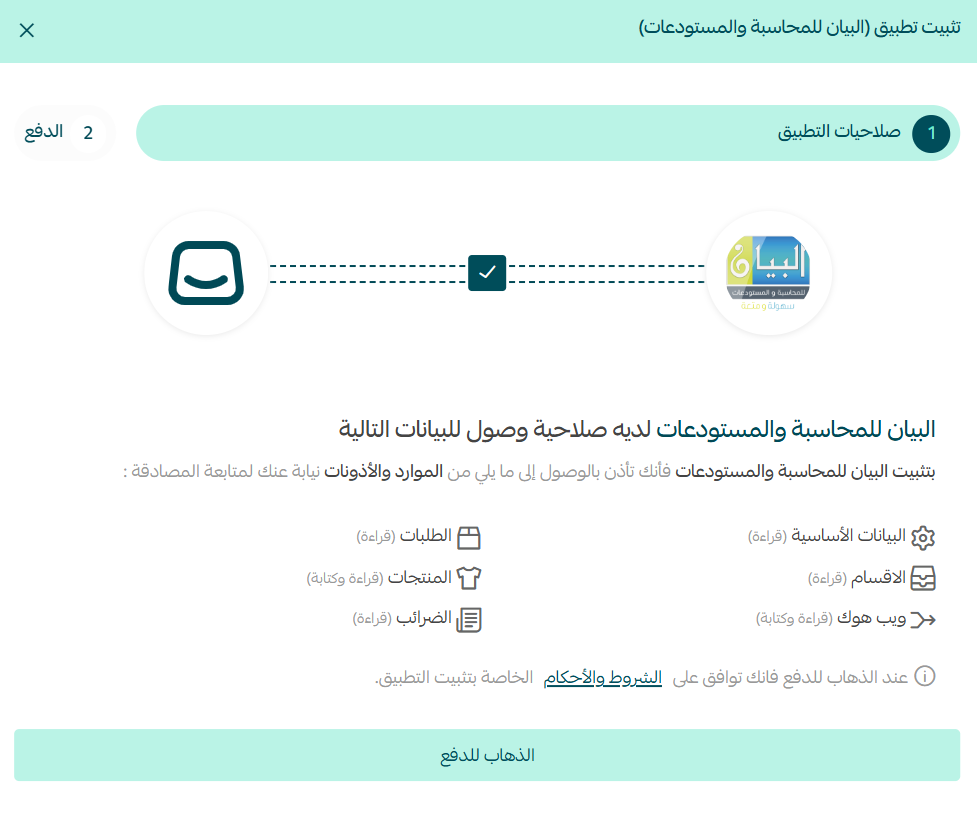
5. Review the permissions the app asks for, then click (Go to payment).
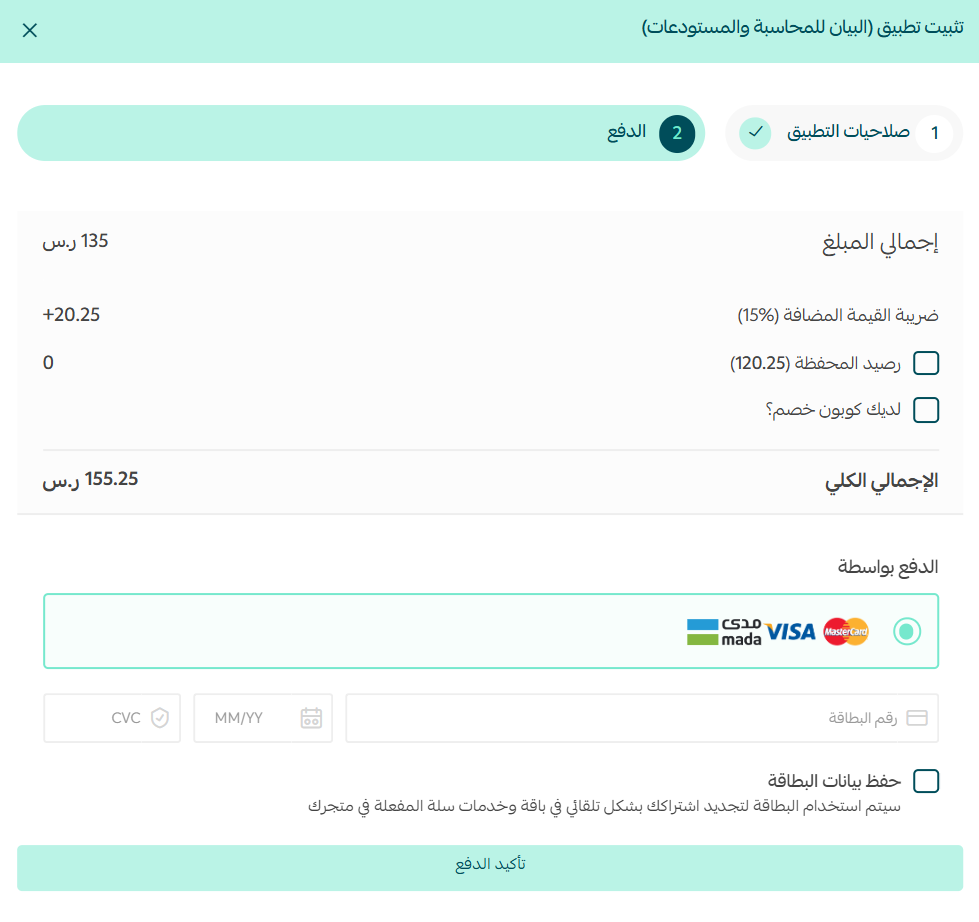
6. Complete the payment to activate the app's features.
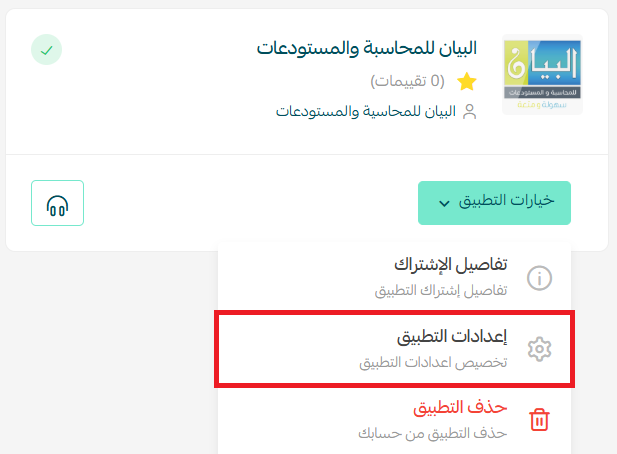
7. On the installed apps page, open the Bayan app's options menu and click (App settings).
8. To get a free trial version, click the link.
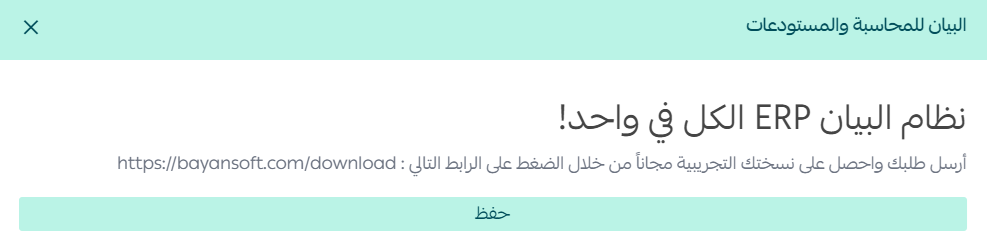
9. Create your Bayan account to start the trial.

📝 Important notes
- The plan you choose at step 4 is what you pay for, so pick it before going to payment.
- The Bayan account is created on the Bayan side; your Salla login doesn't work there.
🚀 Manage and activate the Bayan app
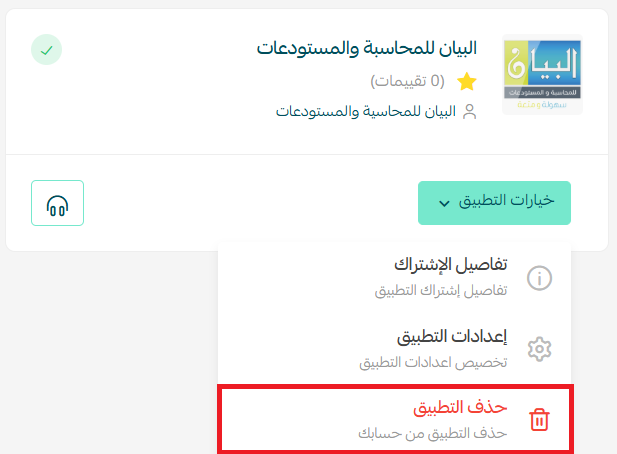
Remove the Bayan app
Click (App options), then click (Delete app).
For more details, see the Bayan app page.
❓ Frequently asked questions
What data moves between Salla and Bayan?
Orders, products, stock levels and customer information. The link runs in both directions as a direct data connection, so you don't re-enter anything by hand.
Do I need a Bayan account as well as the app?
Yes. After installing the app, open its settings and create an account on the Bayan side. That account is where your accounting and warehouse records live.
Can I try Bayan before committing?
Yes. From the app settings, use the download link to request a free trial version, then create your account to start using it.
Do I still have to enter orders manually?
No. That's the point of the integration — orders are transferred and product, stock and customer data is updated automatically.
When your store and your accounting system share the same records, stock counts stop drifting and month-end stops being a reconstruction project.