How many of your customers would rather message you on WhatsApp than wait for an email?
WhatsApp is where most shoppers in the region already are, but replying by hand does not scale. The Bab Plus app automates WhatsApp messaging for your Salla store, so order updates go out on their own, abandoned carts get followed up, and support conversations land in one place. In this guide, you'll learn how to install the Bab Plus app, connect your WhatsApp Business account, build message templates, tie them to order events, and manage or remove the app.
Bab Plus automates customer communication over WhatsApp. It sends automated messages, recovers abandoned carts, runs marketing campaigns, and handles customer service through a direct WhatsApp integration. You install it from the App Store, connect it to your Facebook Business account, then link message templates to your store's order events.
📌 Article overview
- What the Bab Plus app does
- How to set up the Bab Plus app
- How to manage the Bab Plus app
- Frequently asked questions
🎯 What the Bab Plus app does
Bab Plus gives you a set of tools that all run through WhatsApp:
- Automated messages triggered by what happens to an order.
- Abandoned cart recovery.
- Marketing campaigns sent to your customers.
- Customer service handled in one dashboard.
👣 How to set up the Bab Plus app
1. From the main menu, click (All), then under helper tools click (App Store).

2. Search for the app using the search field.

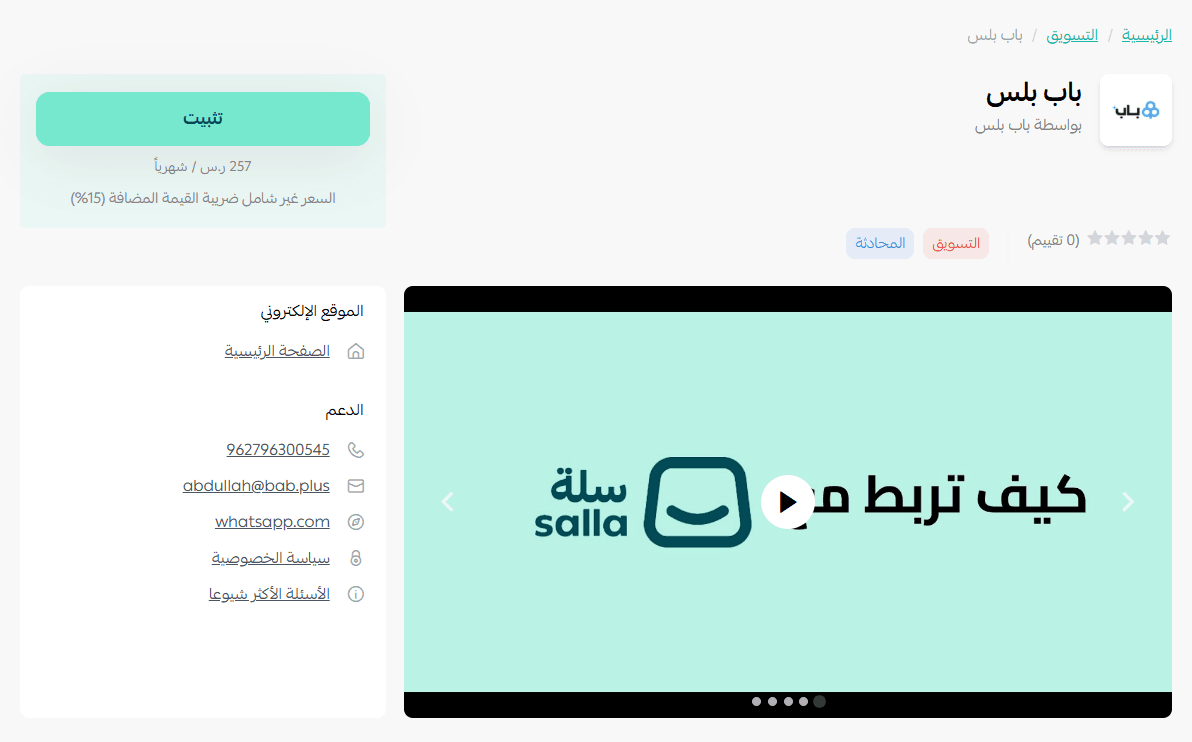
3. On the Bab Plus app page, click (Install).
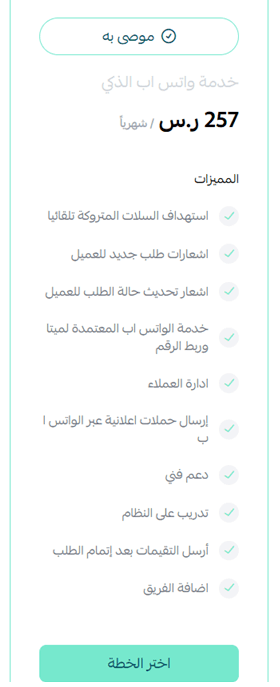
4. Choose the plan that suits you, then click (Install app).
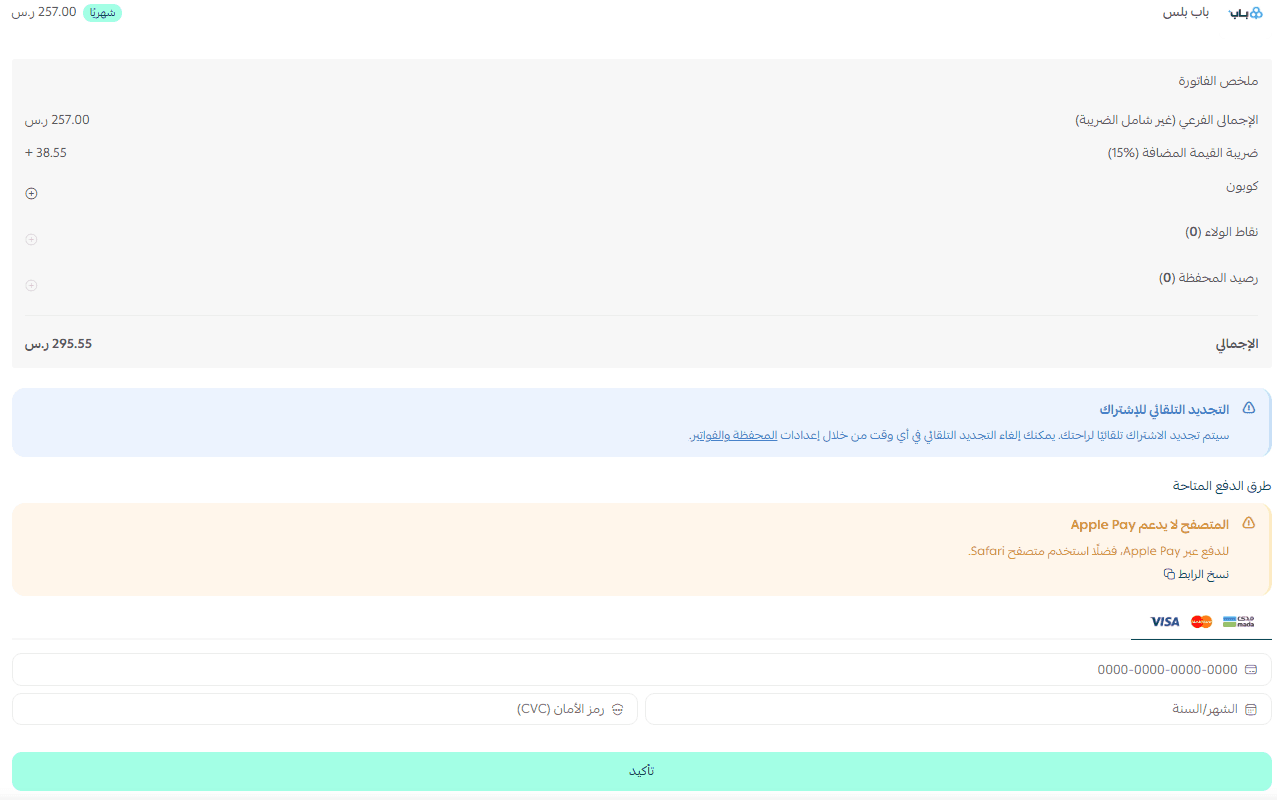
5. Fill in your payment details, then click (Confirm).
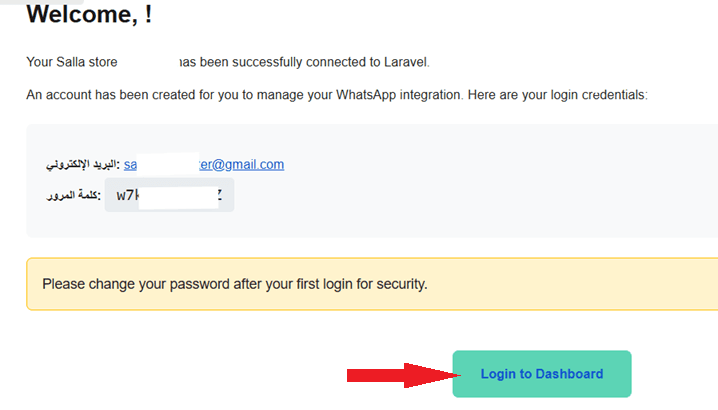
6. Once the app is installed, you receive an email with your login details. Click (Login to dashboard).
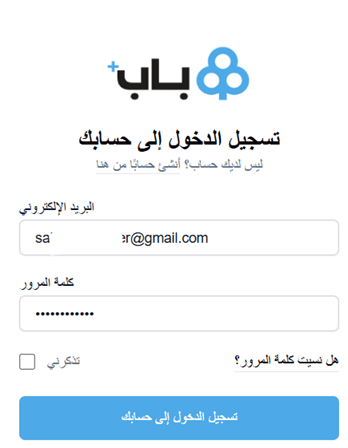
7. Enter your account details, then click (Log in to your account).
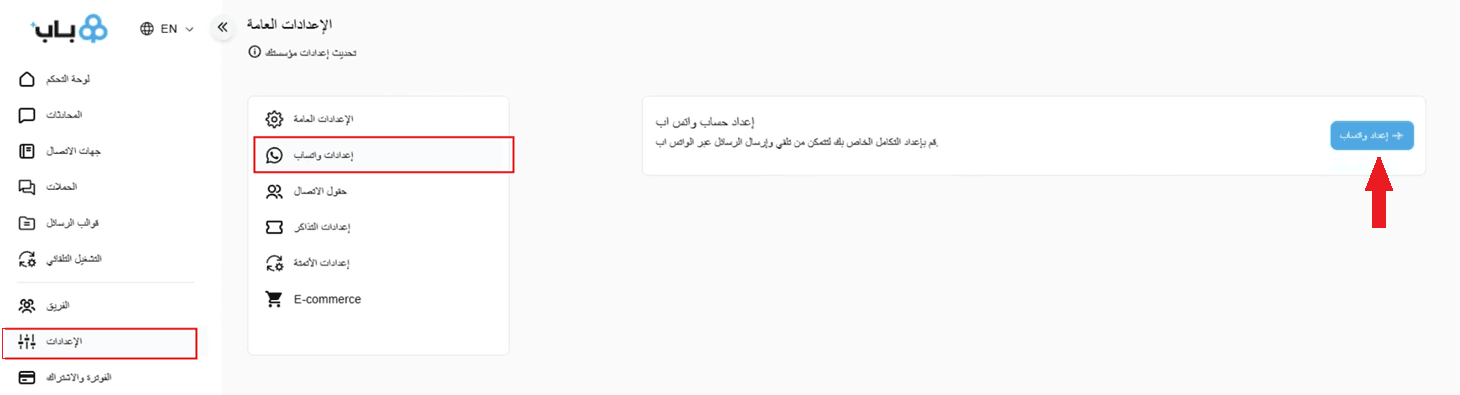
8. In the dashboard, open the (Settings) tab, choose (WhatsApp settings), then click (+WhatsApp setup).
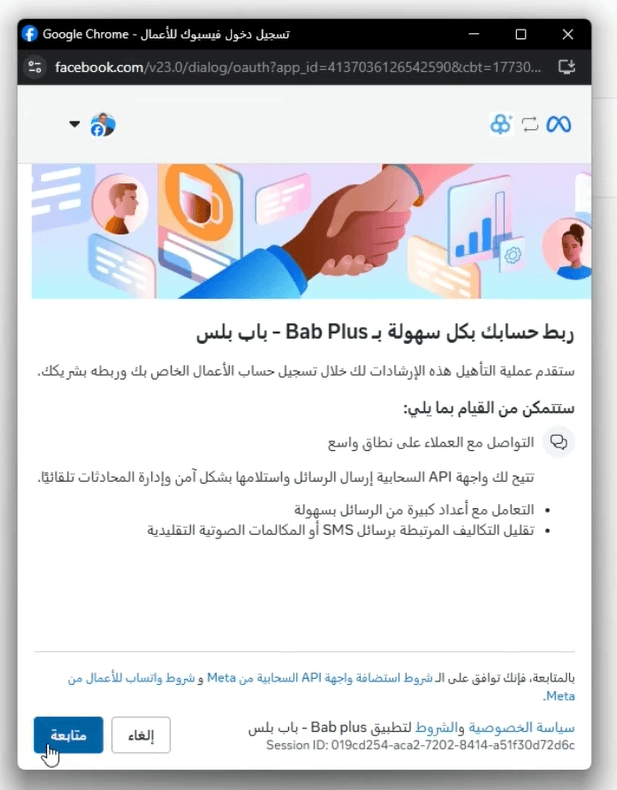
9. Complete the connection steps between your Bab Plus account and your Facebook Business account.
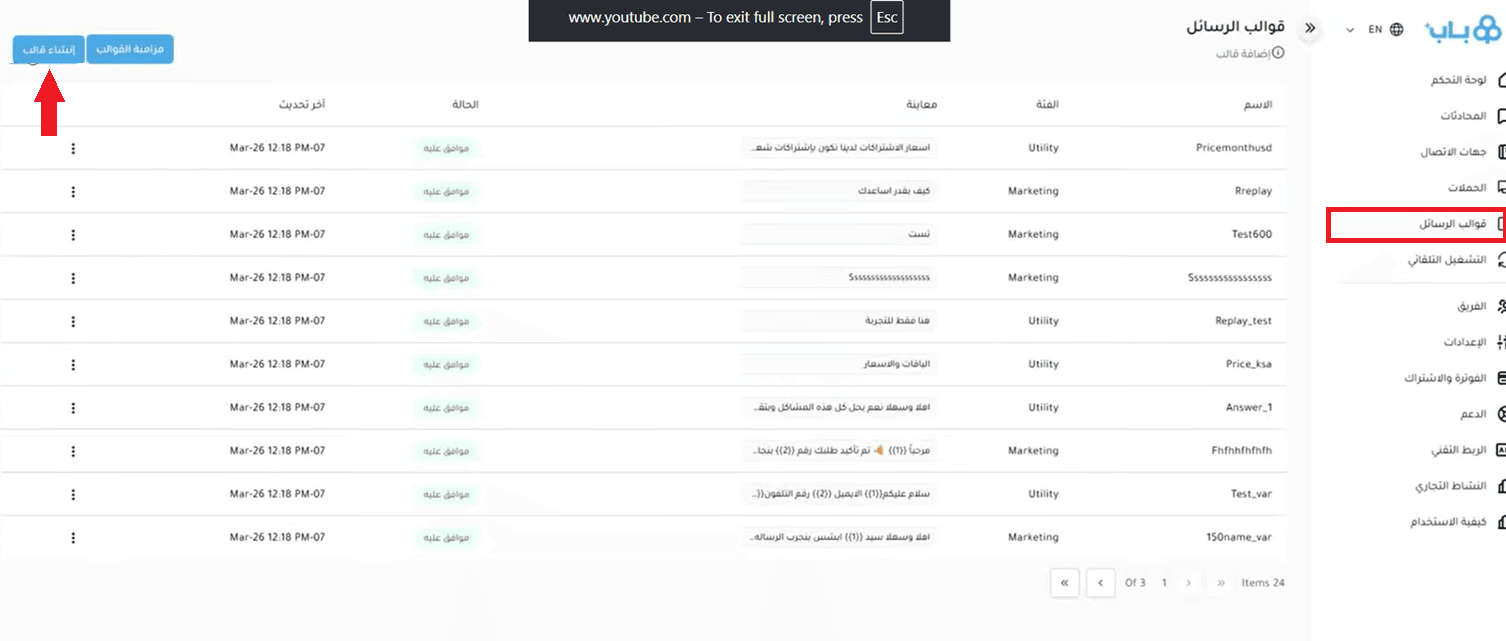
10. Open the (Message templates) tab, then click (Create template).
11. Add the template details.
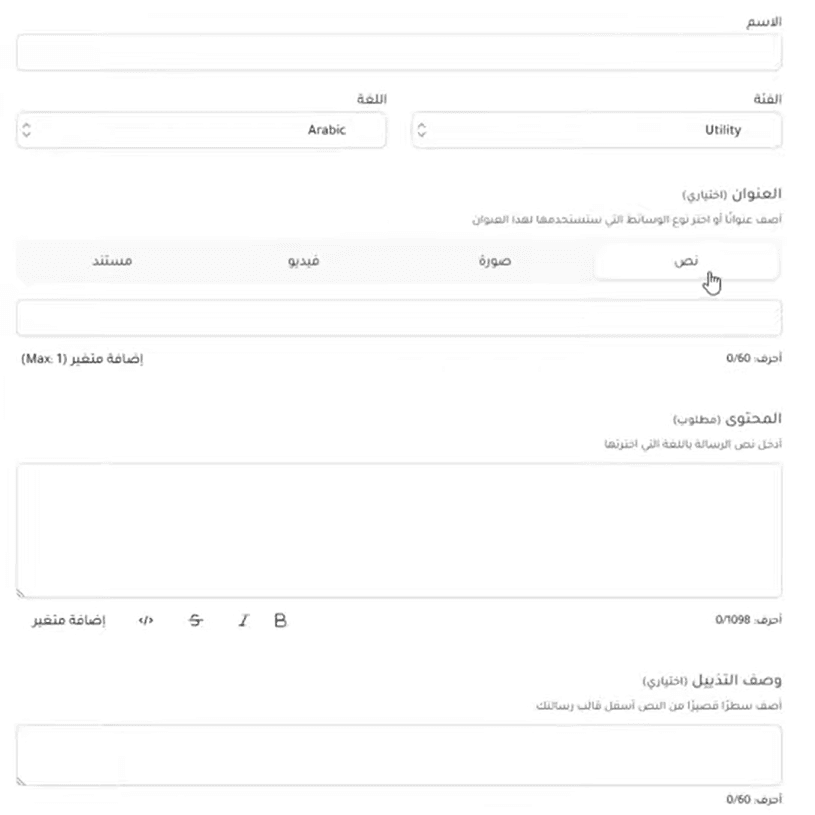
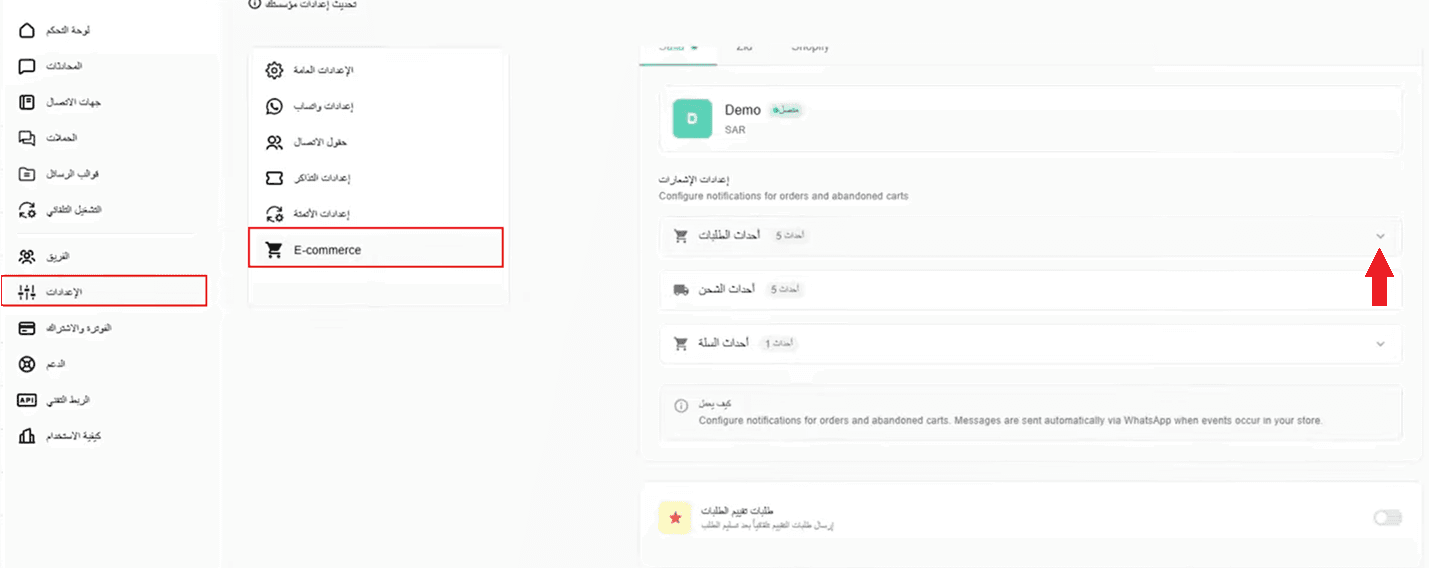
12. To link templates to events, open the (Settings) tab, choose (E-commerce), then click (Order events).
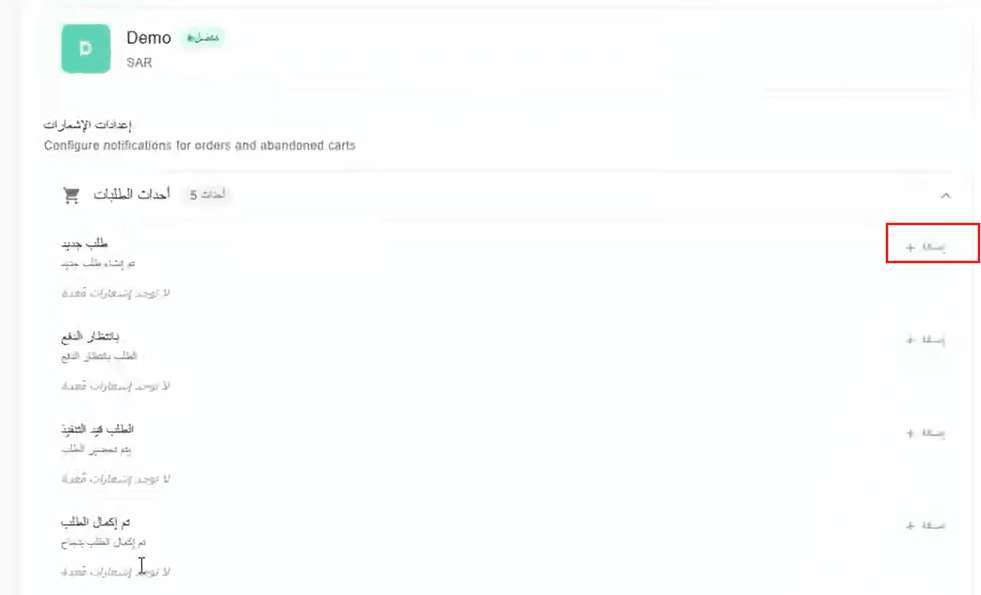
13. Choose the event, then click (Add) to attach a template to it.
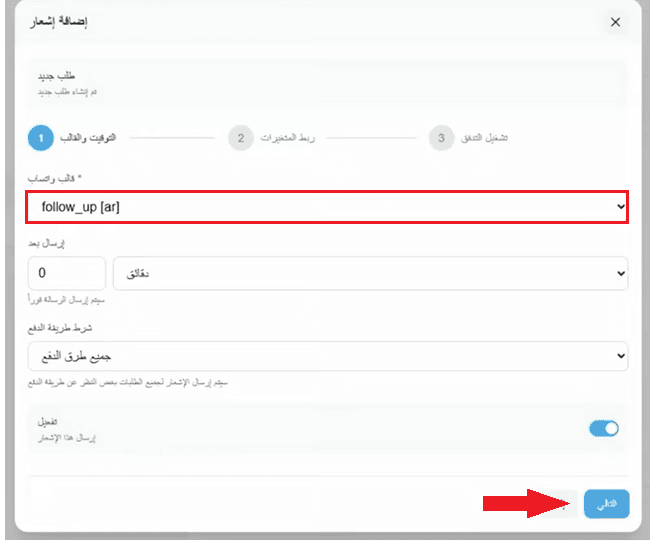
14. Add the template, then click (Next).
15. To show the WhatsApp icon on your storefront, open the (Settings) tab, choose (E-commerce), then click (WhatsApp widget).
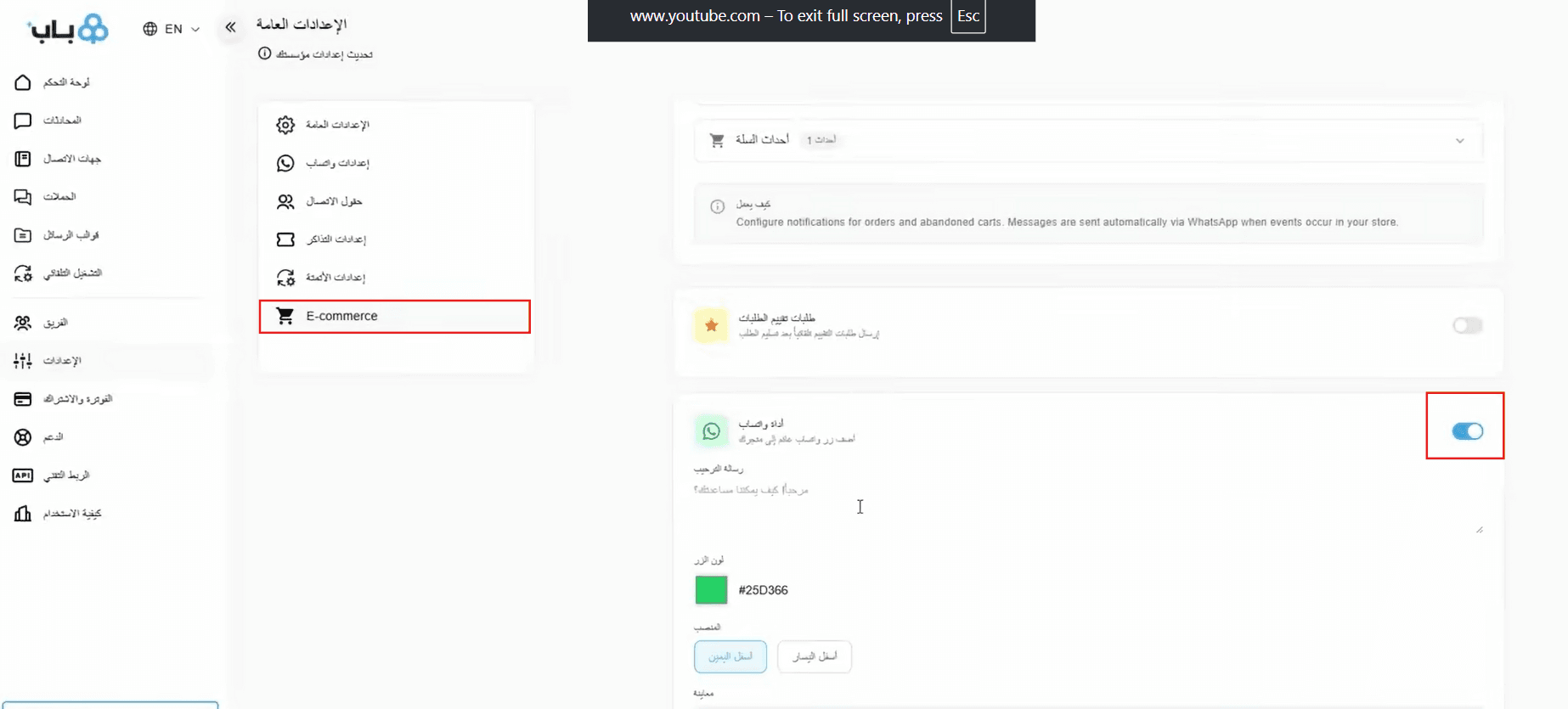
🎥 Watch the video for a fuller walkthrough of connecting the Bab Plus app.
🚀 How to manage the Bab Plus app
Upgrade your plan
1. From the app details page in your store, click (Upgrade plan).

2. Choose the plan you want, then click (Go to payment).

3. Fill in your payment details, then click (Confirm) to complete the upgrade.

Customize the app
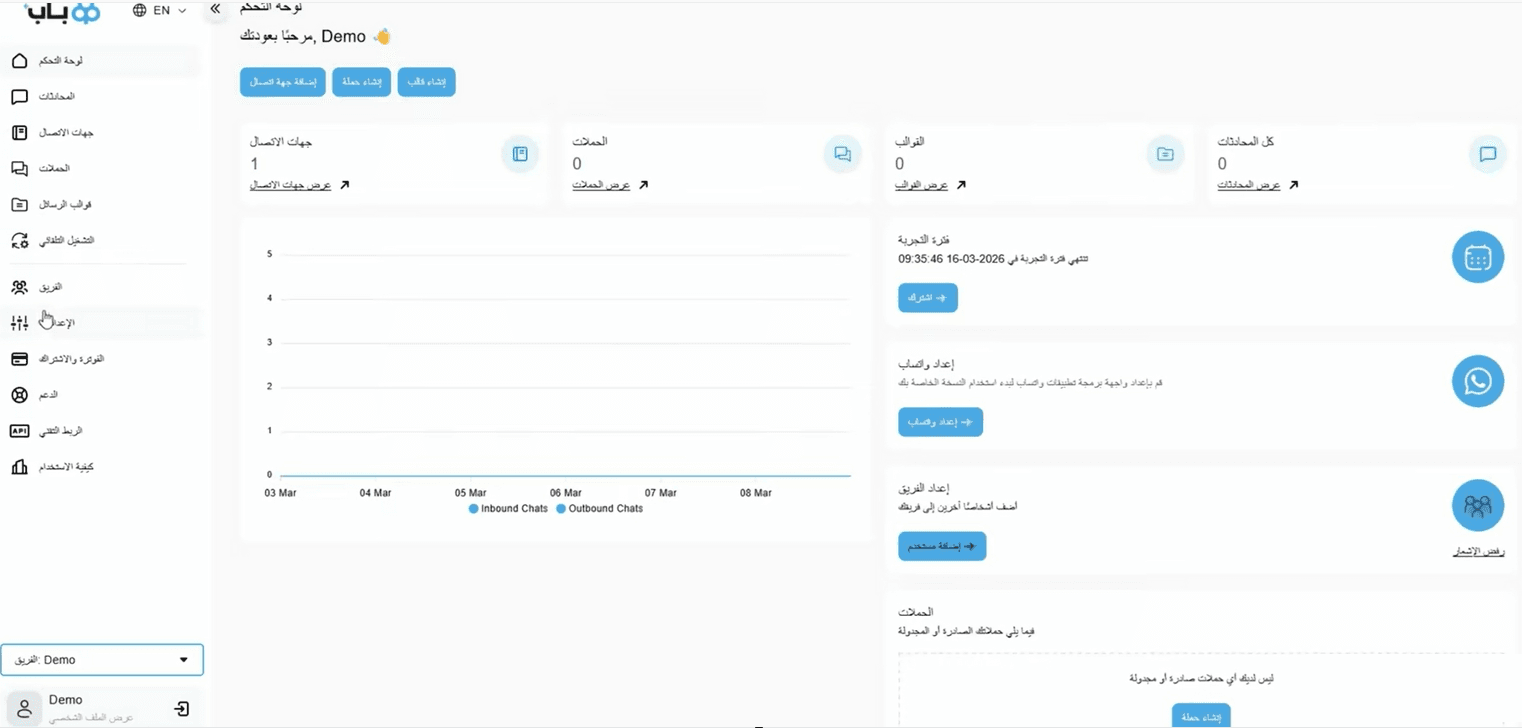
🎯 You control the app's settings from your account dashboard on the Bab Plus website.
Cancel and delete the app
1. From the app options menu, click (Cancel subscription), then choose a reason for cancelling.

2. From the app options menu, click (Delete app), then choose a reason for deleting.

3. From the deleted apps page, open the app options menu and click (Delete app permanently) to remove it from your store for good.

For more details, visit the Bab Plus app page.
❓ Frequently asked questions
Do I need a Facebook Business account to use Bab Plus?
Yes. WhatsApp setup runs through Facebook Business, so you complete the connection between your Bab Plus account and your Facebook Business account during setup.
How do messages get sent automatically?
You create a message template, then attach it to an order event under (Settings) and (E-commerce). When that event happens in your store, the template goes out.
Can I add a WhatsApp button to my storefront?
Yes. Open (Settings), choose (E-commerce), then click (WhatsApp widget) to switch on the WhatsApp icon in your store.
Where do I manage the app's settings?
In your account dashboard on the Bab Plus website, not in your Salla dashboard. Your login details arrive by email once the app is installed.
Does deleting the app remove it completely?
Not straight away. A deleted app moves to the deleted apps page, and you remove it for good with (Delete app permanently) from the options menu there.
Automated WhatsApp messages only work when they say something worth reading. Start with the two events that matter most — order confirmation and abandoned cart — get those templates right, then expand.