Need Salla to mark eligible orders Completed without changing every order manually?
The automatic Completed order status setting controls when orders paid electronically or by cash on delivery move to Completed, with optional exclusions for selected product types.
To set the automatic Completed order status, open Store settings, select Store options, and choose the Completed-status setting under Orders. Enable the electronic-payment rule, the cash-on-delivery rule, or both; select any product types to exclude; then save. Excluded or mixed-product orders may remain In progress.
📌 Article overview
- Why use an automatic Completed status
- Configure the setting
- Set payment rules and exclusions
- Understand the documented examples
- Frequently asked questions
Why use the automatic Completed order status?
The source presents two uses for this setting:
- Make digital products or digital cards available to the customer as soon as electronic payment is completed.
- Avoid setting an expectation that an order is already completed when it uses cash on delivery or includes a product that still requires work, such as a made-to-order product.
How to set the automatic Completed order status
1. From the dashboard side menu, open Store settings.

2. Open Store options.

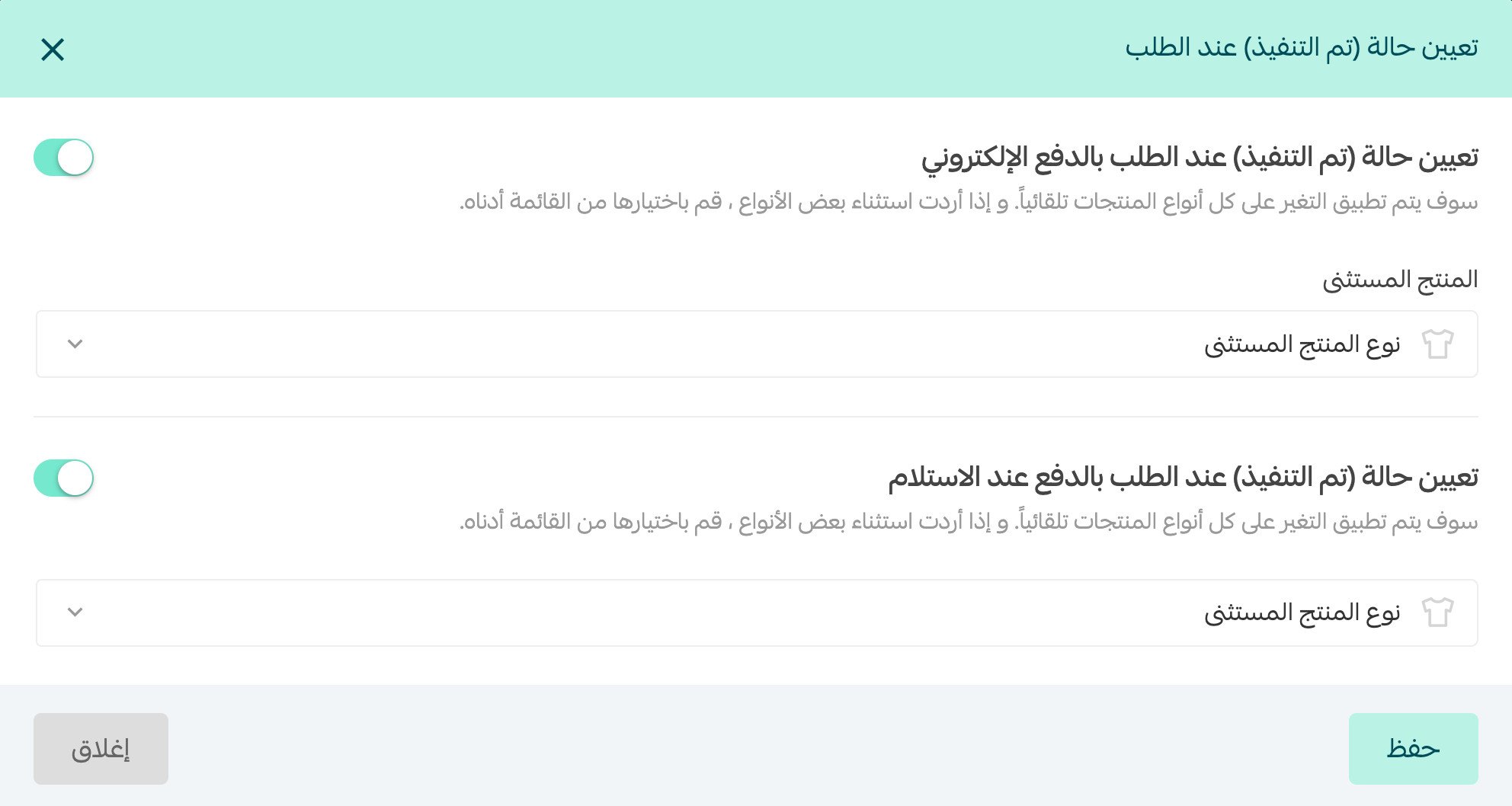
3. Under Orders, click Set for the setting that assigns Completed status to an order.
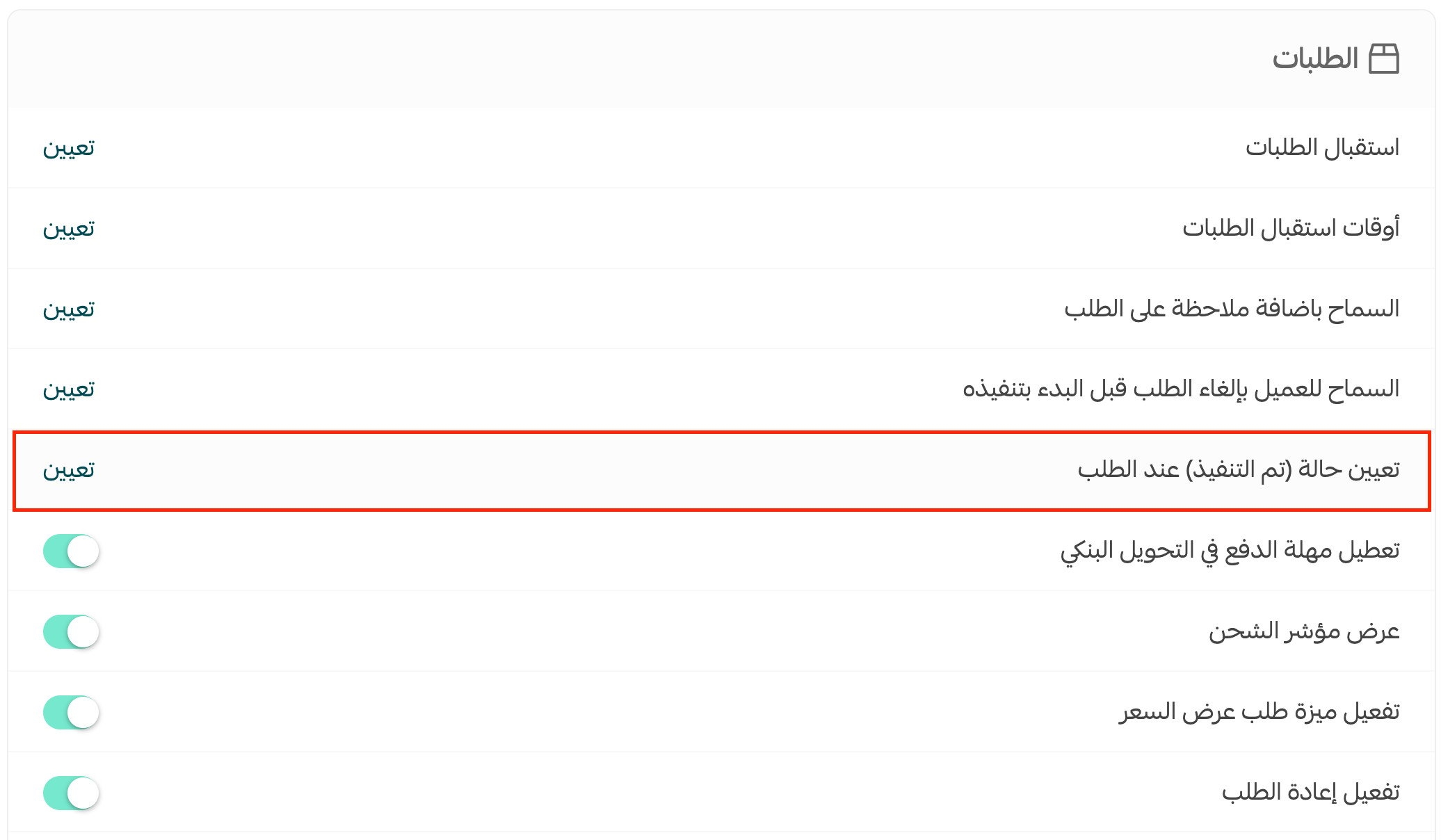
4. Enable either payment rule or both, choose any product types to exclude, then click Save.
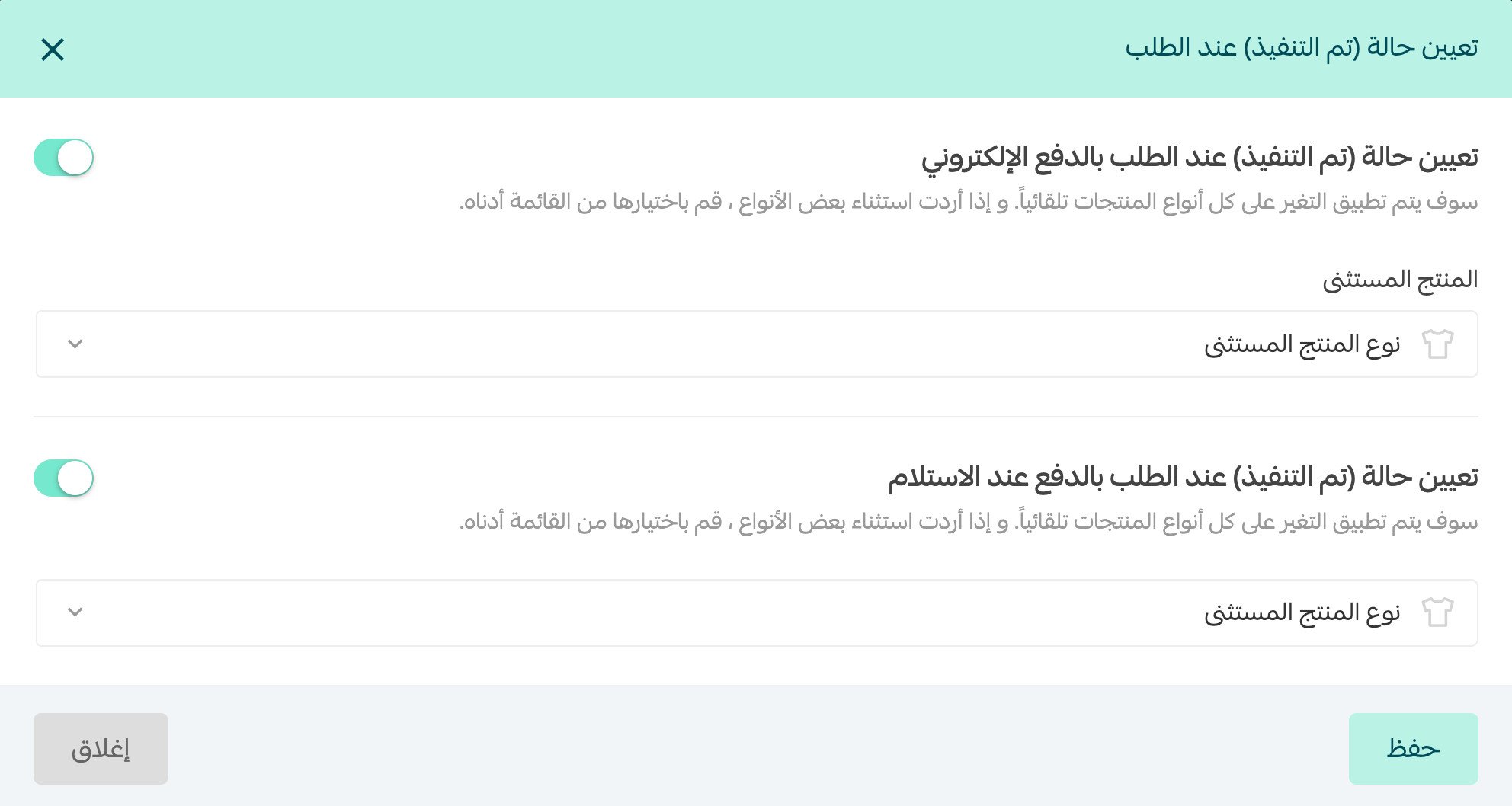
Configure payment rules and product exclusions
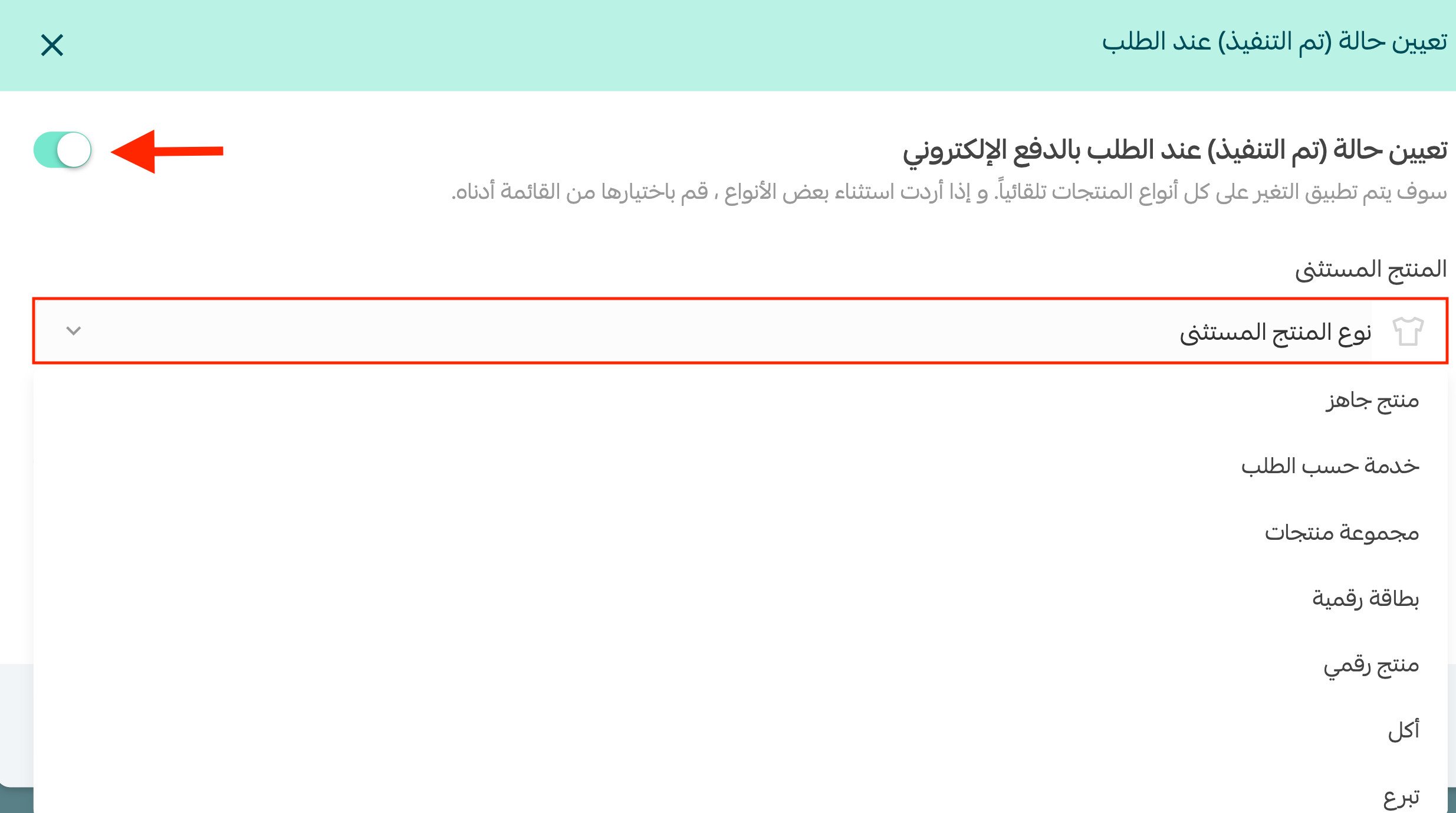
Electronic payments
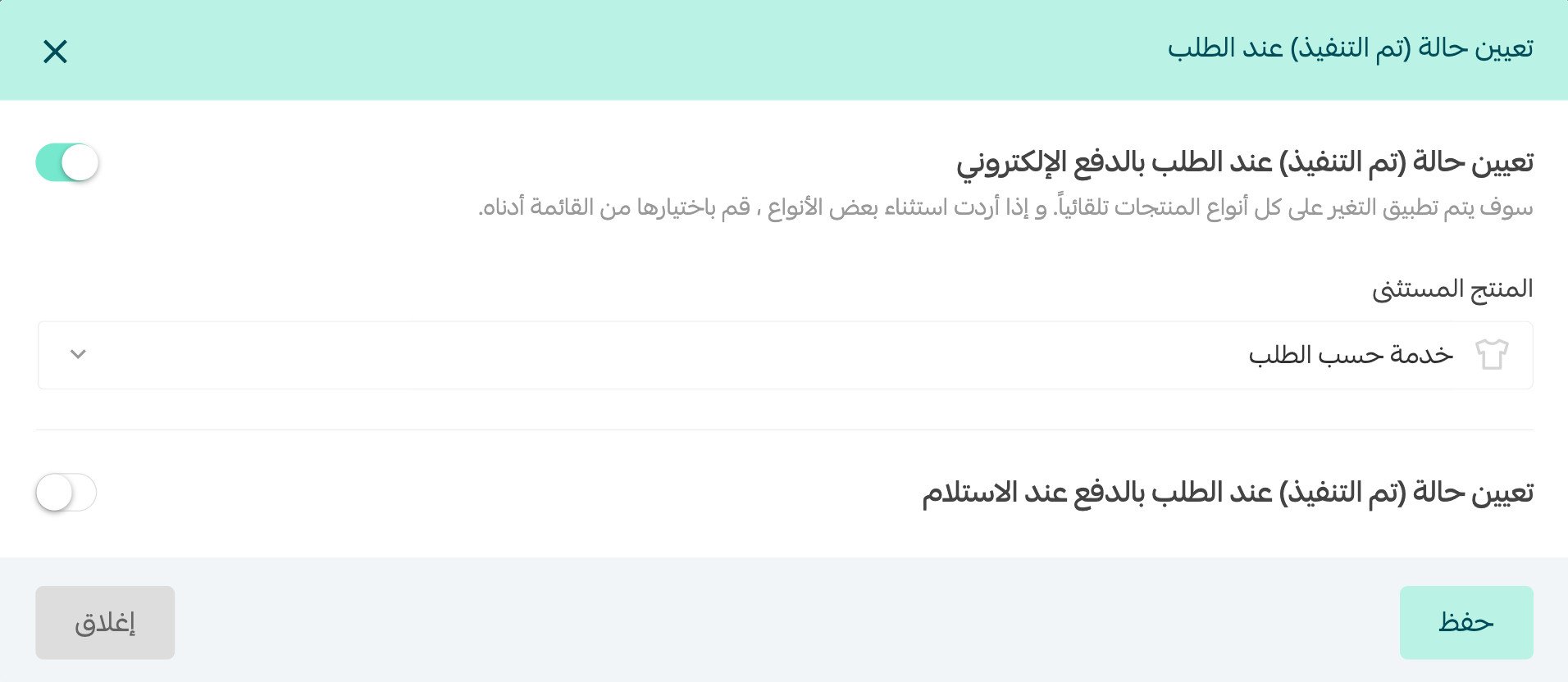
Enable the rule that assigns Completed status to electronically paid orders. If some product types should not be completed automatically, select them as exclusions.
📝 Important note: The source recommends this rule to help customers receive digital products or digital cards promptly after payment.
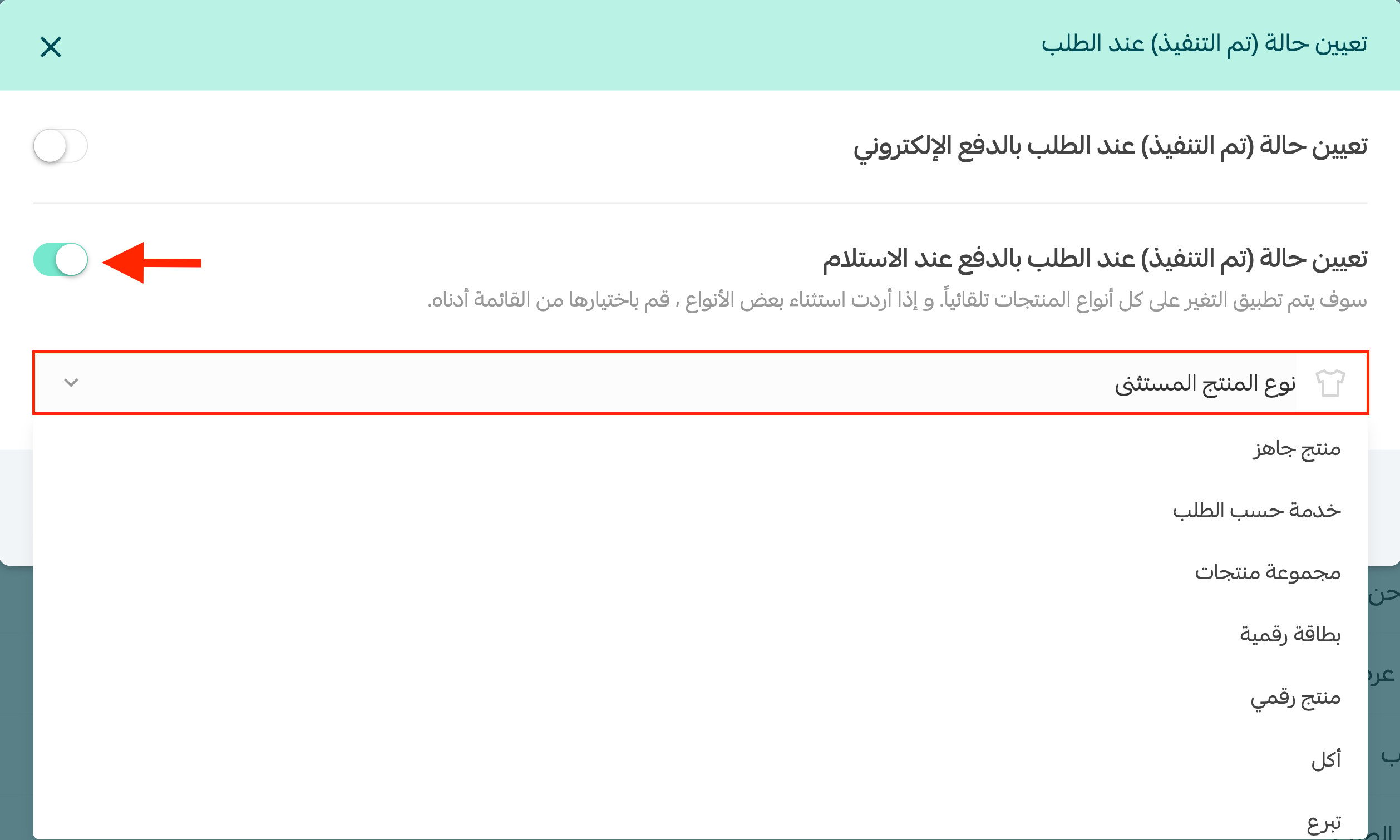
Cash on delivery
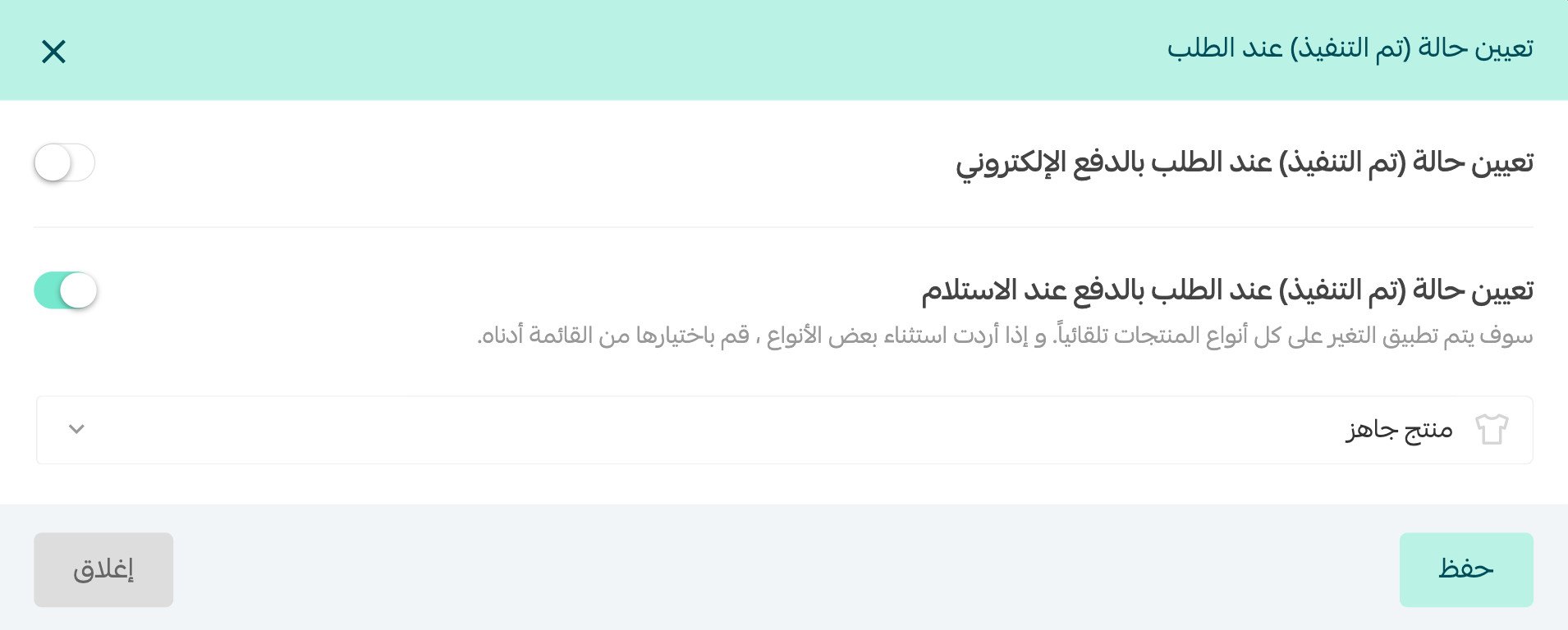
Enable the rule that assigns Completed status to cash-on-delivery orders. You can also select product types that should be excluded from this rule.
How the documented order examples work
No excluded product types
When either rule or both rules are enabled without product-type exclusions, the source states that a matching order is marked Completed.
An excluded product type
When a rule is enabled and the order contains an excluded product type, the source states that the order remains In progress. Its example is a made-to-order service paid electronically.
A mixed-product order
The source states that an order containing both excluded and non-excluded product types remains In progress.
[Verify: The Arabic example does not identify which product in the mixed order is excluded, so the example is incomplete.]
Frequently asked questions
Can I enable the rule for both payment methods?
Yes. The source says you can enable the electronic-payment rule, the cash-on-delivery rule, or both.
Can I exclude specific product types?
Yes. Select the product types that should not be assigned Completed status automatically.
What status does an excluded product receive?
In the documented examples, an order with an excluded product type remains In progress.
What happens when an order mixes excluded and non-excluded products?
The source states that the order remains In progress, but its mixed-order example needs clarification from the content owner.
Review both payment rules and their exclusions together so each order status matches the work still required for that order.