The Apple Developer Program Account dashboard is the central hub for managing and publishing your applications. From this dashboard, you can control all essential settings related to app distribution on the Apple App Store, including access, analytics, agreements, and membership details.
📌 Article overview
- Accessing the Apple Developer Program dashboard
- Program Resources overview
Accessing the Apple Developer Program Dashboard
Open the Apple Developer Program
To access the Apple Developer dashboard, visit:
Go to Your Developer Account
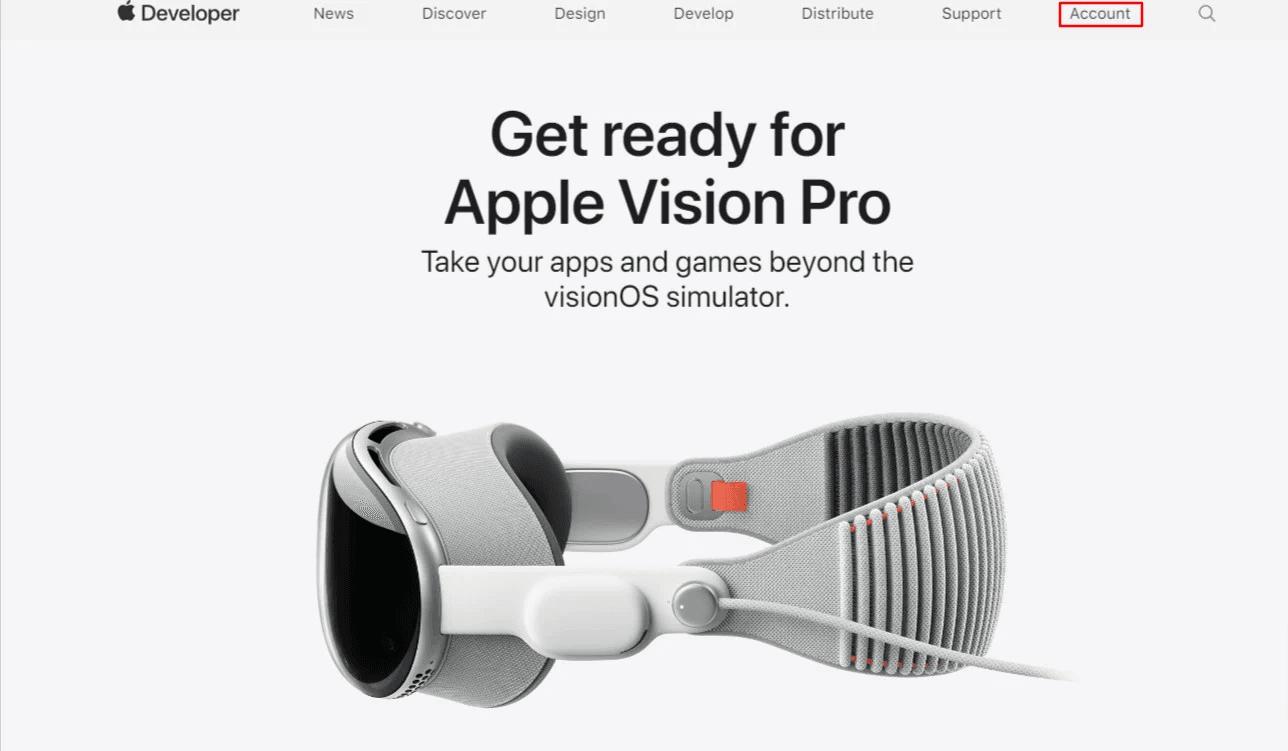
Sign in to the Apple Developer Program account you previously created by clicking Account.
📖 Learn more:
- Creating an Apple Developer Account (Company or Organization)
- Creating an Apple Developer Account (Individual)
Sign In and Verify Your Identity
Log in using your Apple ID and password.
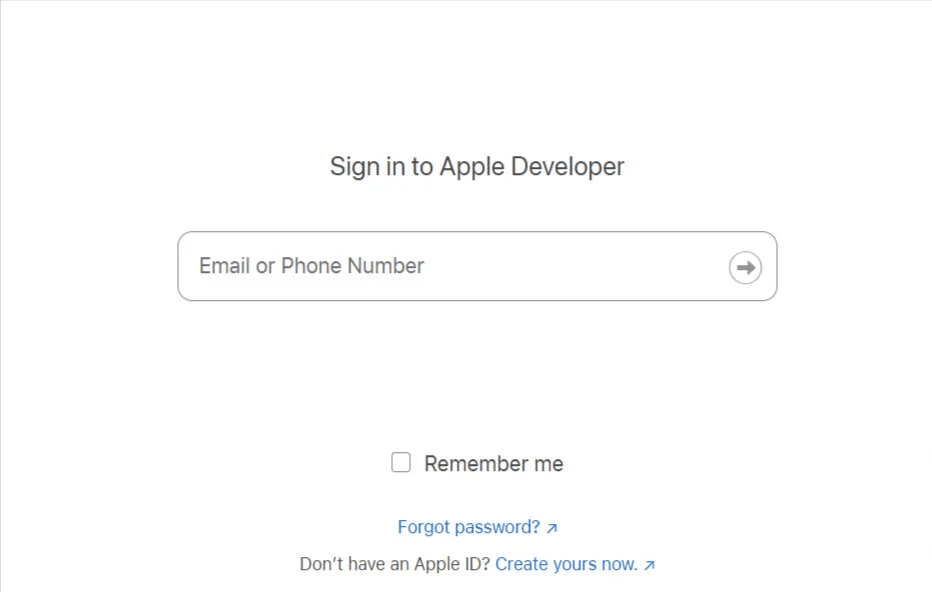
You may be asked to enter a verification code sent to the mobile number associated with your account.
Developer Account Dashboard Overview
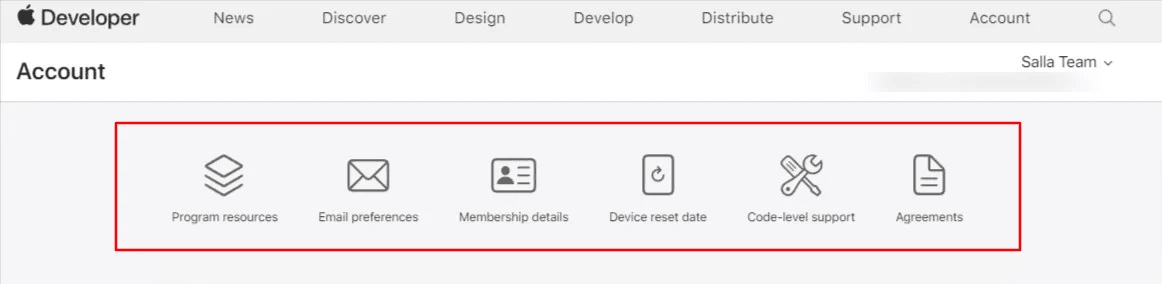
Once logged in, the Developer Account dashboard appears, displaying all available services associated with your account.
Core Services Available in the Developer Dashboard
As a developer (Individual or Organization), you can manage your apps and account using the following sections:
1️⃣ Program Resources
Provides access to:
- App Store Connect (app management and publishing)
- Certificates, Identifiers & Profiles (available for Organization accounts only)
- Additional developer resources
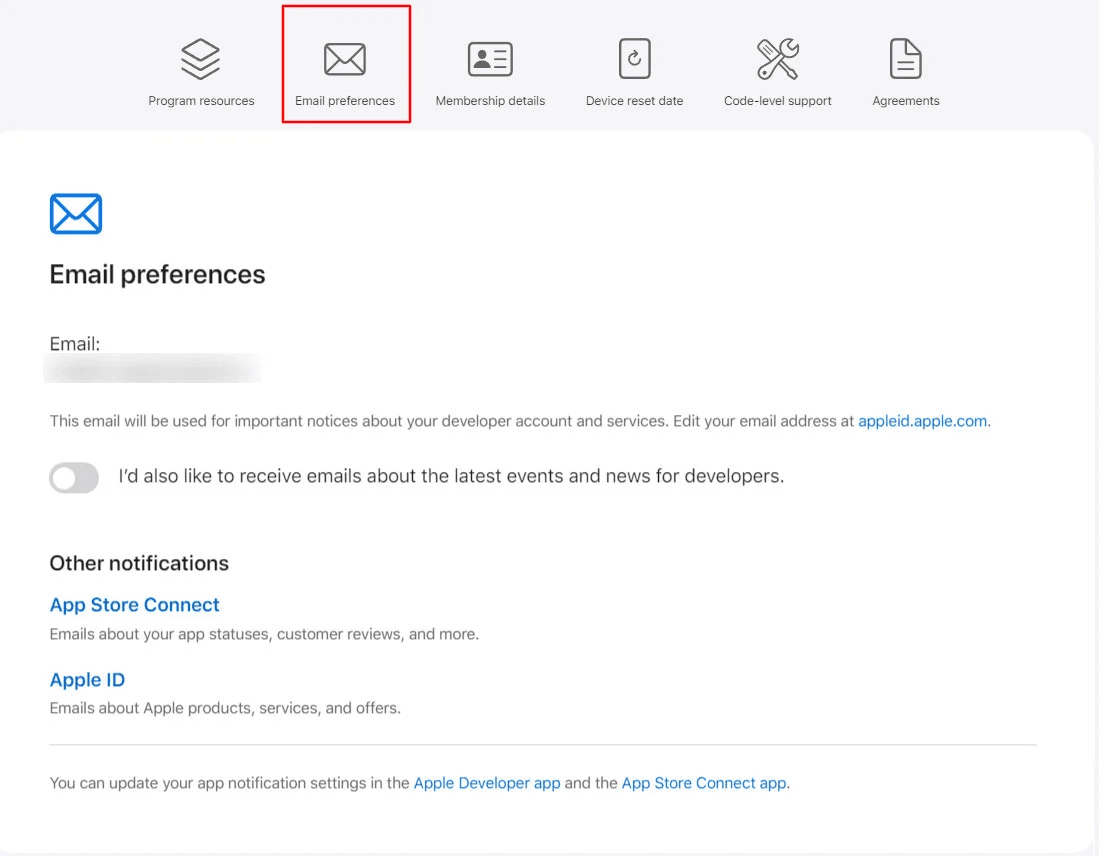
2️⃣ Email Preferences
Manage and customize email notifications related to:
- Account activity
- App updates
- Apple developer news and announcements
3️⃣ Membership Details
View your membership information, including:
- Team ID
- Membership type
- Renewal date and status
4️⃣ Device Reset Date
Manage test devices linked to your developer account.
5️⃣ Code-Level Support
Access technical support for code-related issues during your active membership.
6️⃣ Agreements
Review and manage current and upcoming legal agreements issued by Apple.
Program Resources Overview
1️⃣ App Store Connect and Developer Resources
From Program Resources, you can access:
- App Store Connect
- Certificates and profiles
- Additional Apple developer tools
🔔 Note: Certificates and profiles are available only for Organization accounts.
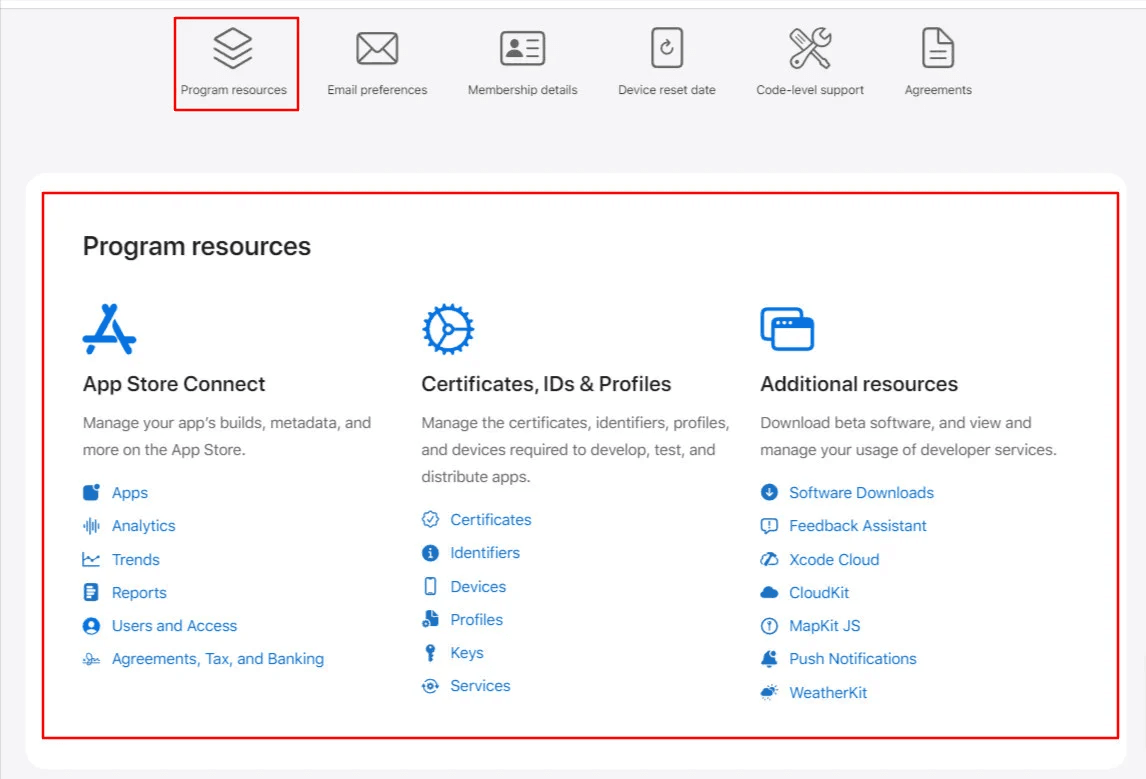
As an app administrator, most of your work will take place in App Store Connect, where you can:
- Manage app metadata
- Monitor analytics and reports
- Control user roles and permissions
2️⃣ Managing Apps
From Program Resources → App Store Connect, click Apps.
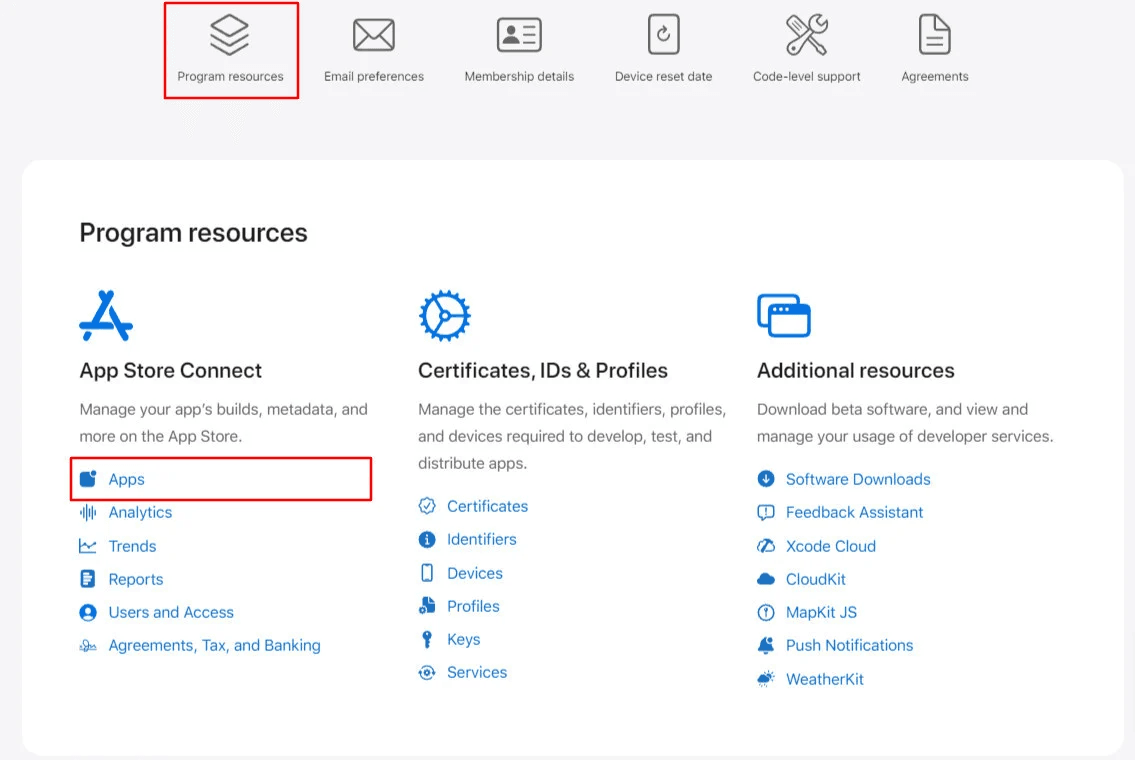
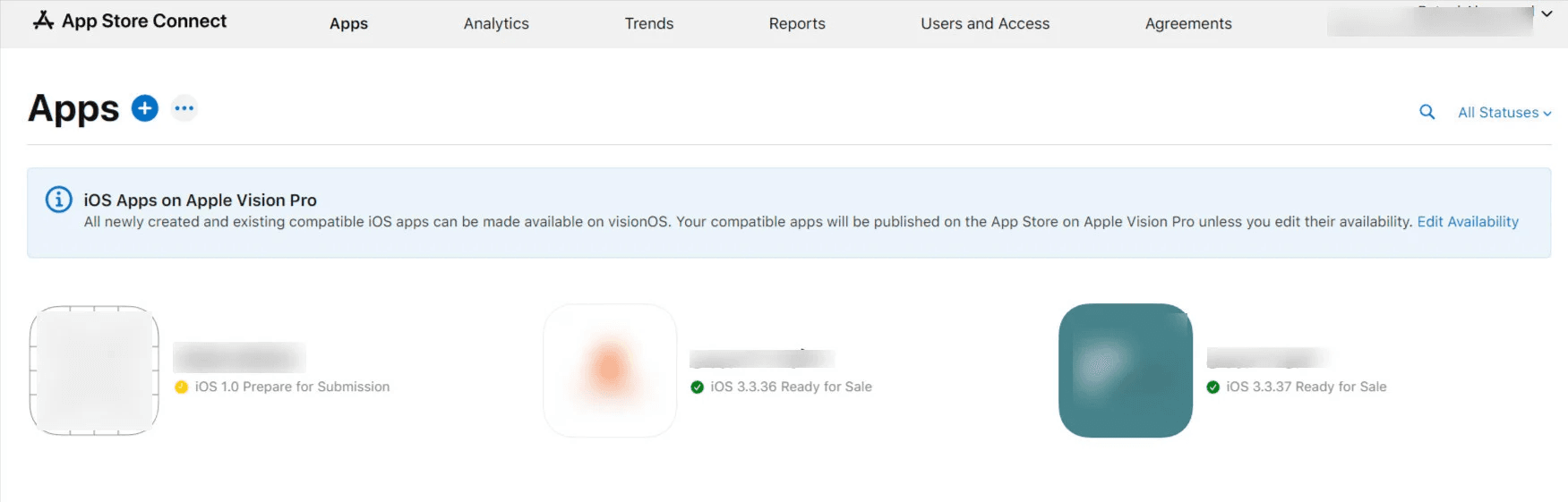
You’ll see a list of all apps linked to your account.
Select the app you want to manage to access its full details.
📖 Learn more: My Apps – App Management in Apple App Store Connect
3️⃣ Viewing App Analytics
From Program Resources → App Store Connect, click Analytics.
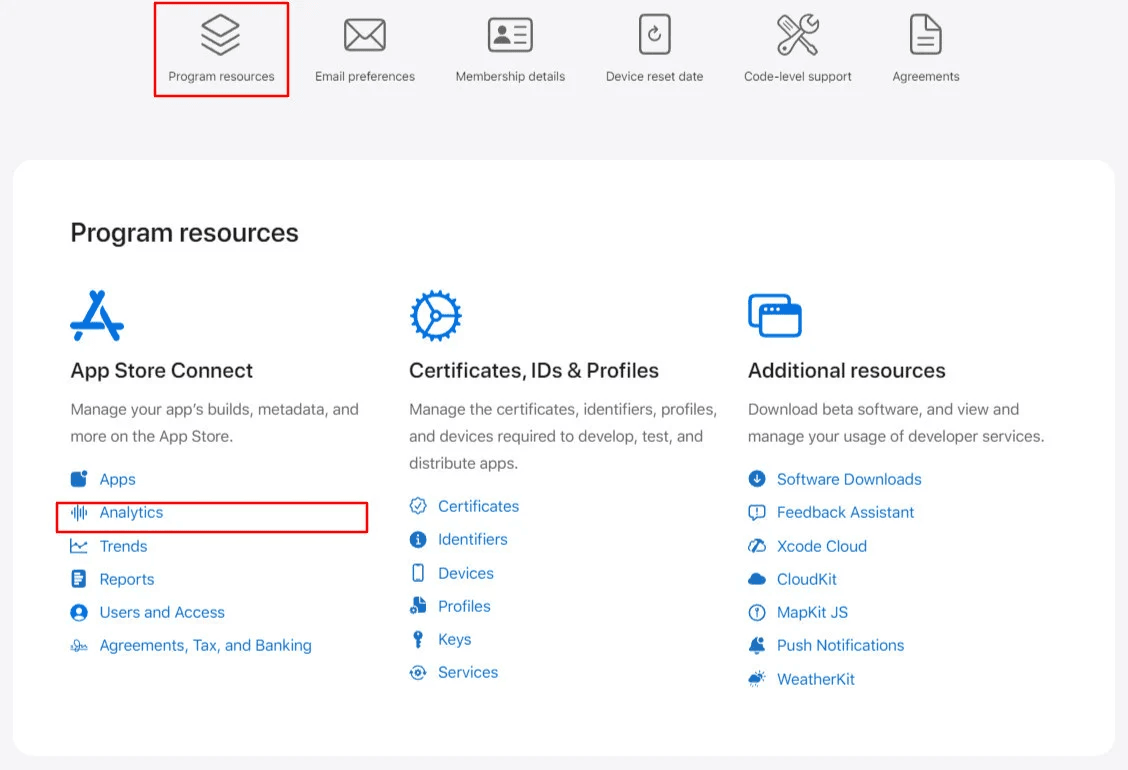
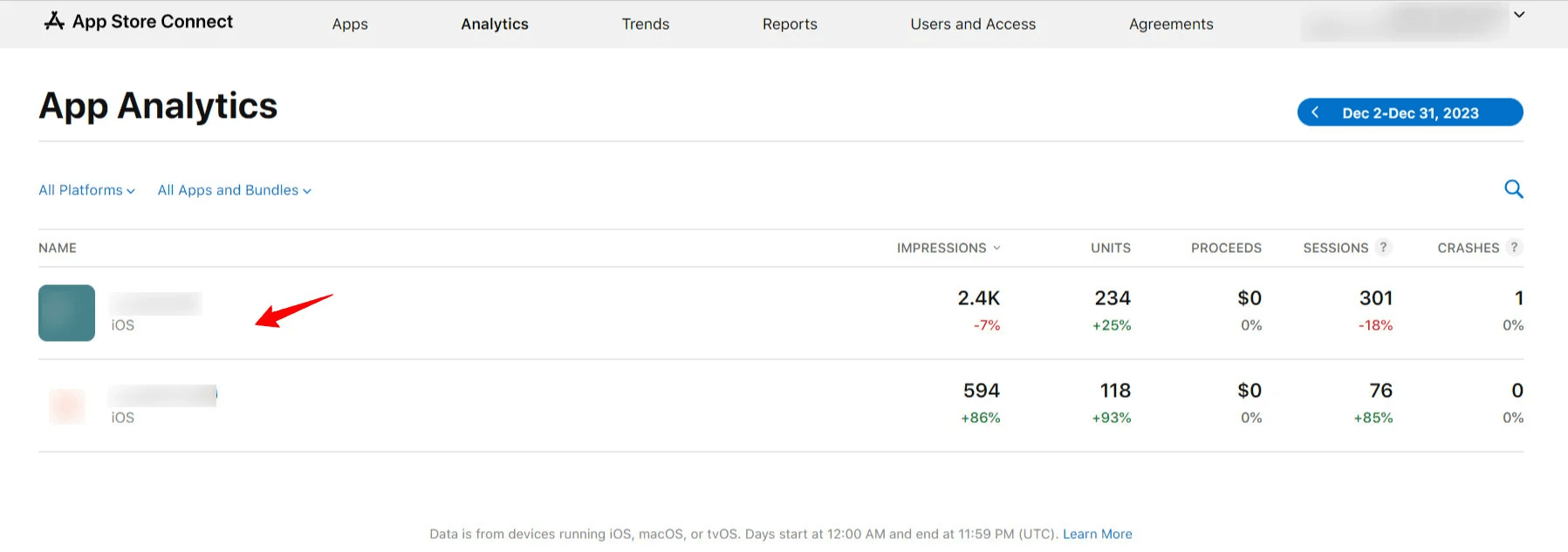
You’ll see a summary of analytics for all apps in your account.
Select an app to view detailed performance insights.
📖 Learn more: Viewing Apple App Analytics
4️⃣ Managing Users and Permissions
From Program Resources → App Store Connect, click Users and Access.
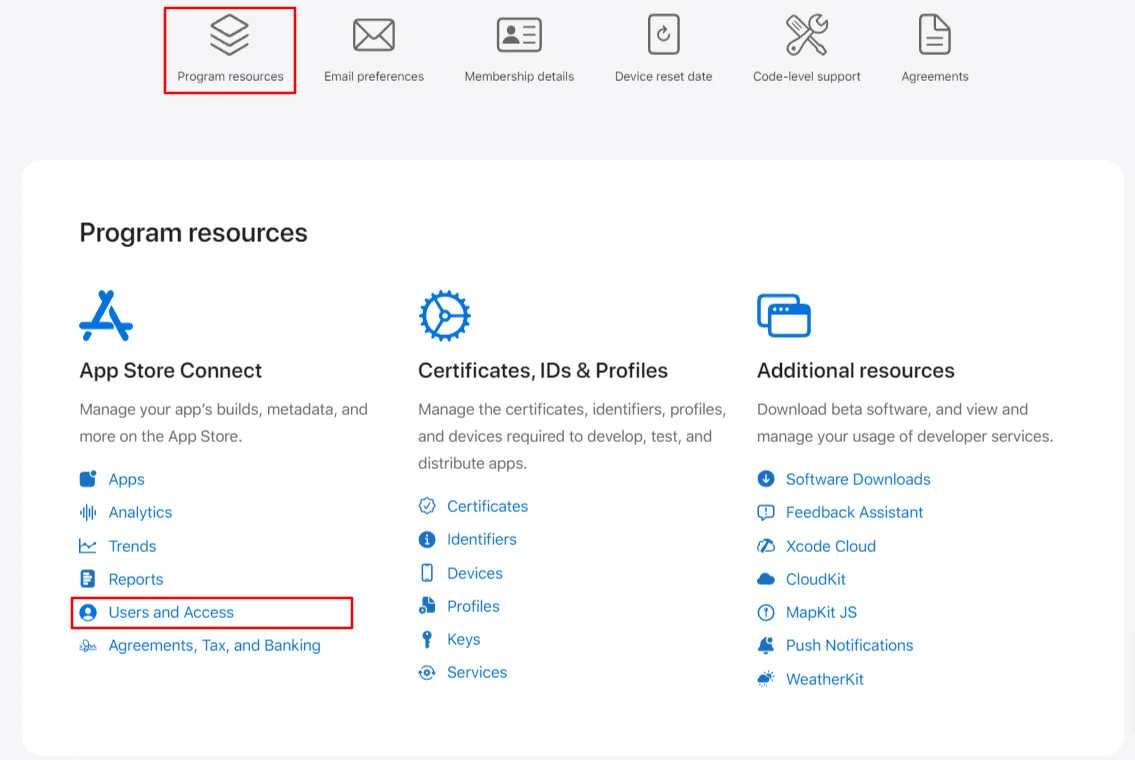
A list of all users associated with your account will appear, along with their assigned roles and permissions.
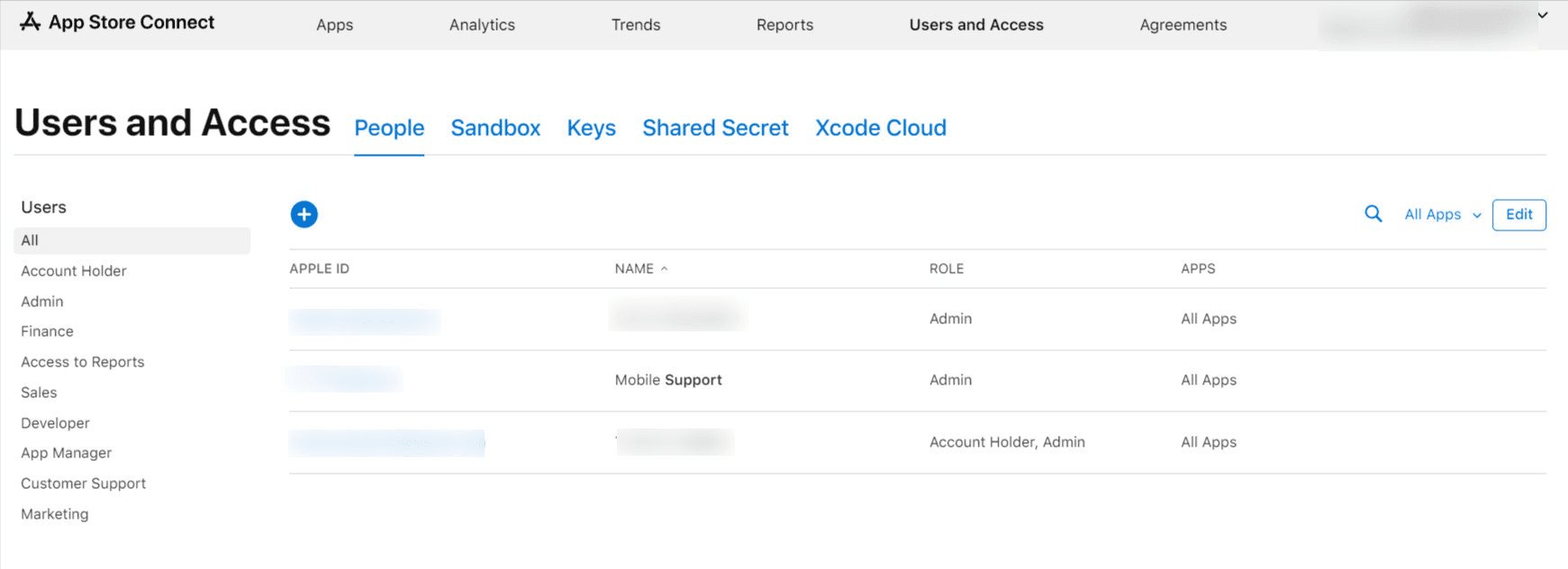
5️⃣ Adding a New User
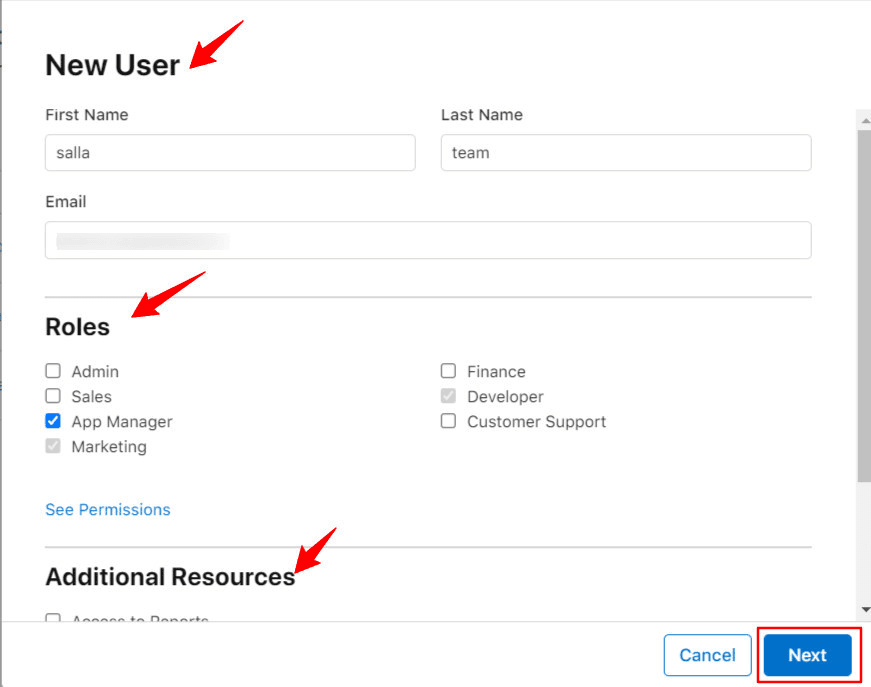
To add a new user:
- Click ( + ) Add User
- Enter all required information
- Assign roles and additional permissions
- Click Next
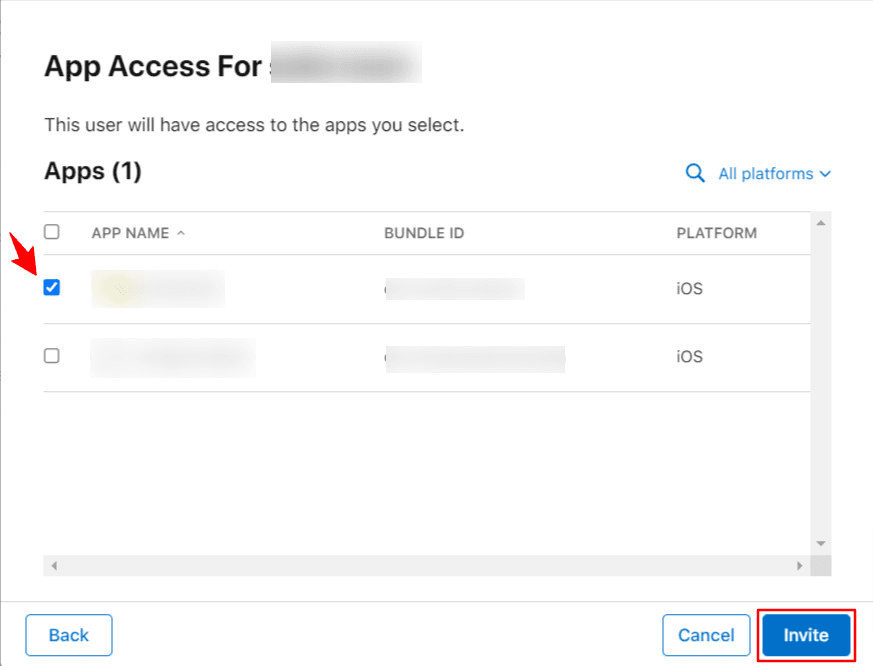
6️⃣ Assign App Access
Select the apps the user can manage, then click Invite to send the invitation.
7️⃣ Managing Email Preferences
From the dashboard, open Email Preferences to manage:
- Account notifications
- App notifications
- Apple announcements
You can also update the email linked to your account through your Apple ID.
📖 Learn more: Creating and Managing an Apple ID
8️⃣ Reviewing Membership Details
Open Membership Details to view all essential account information, including:
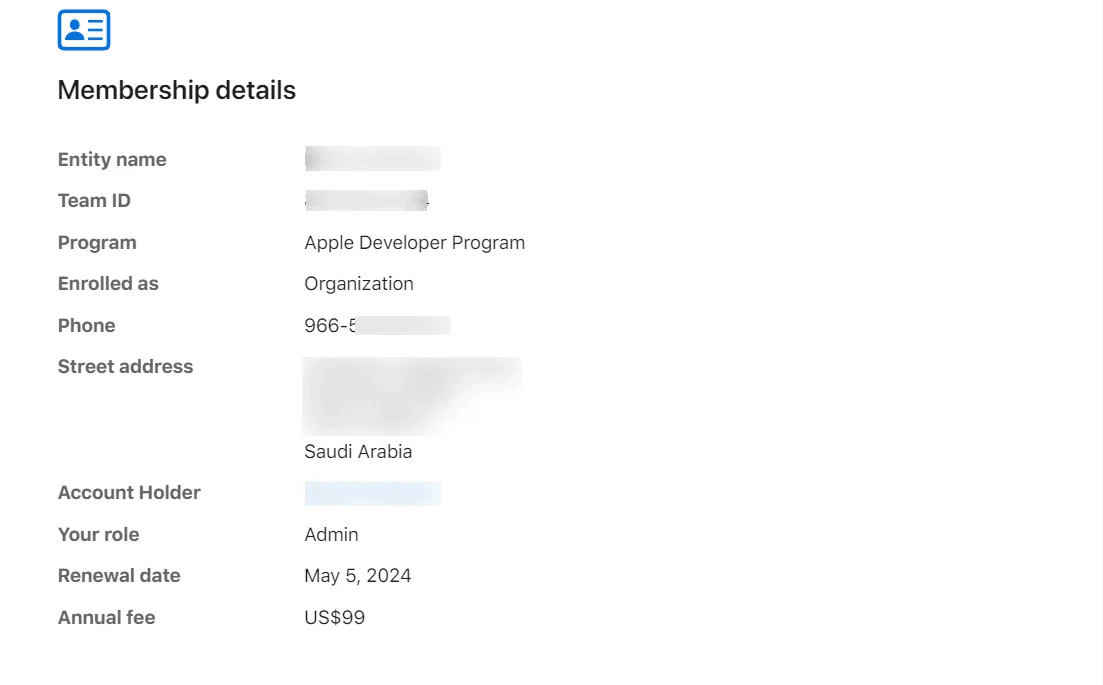
- Entity Name – Legal entity registered with Apple
- Team ID – Used for Apple support and third-party integrations
- Enrollment Type – Individual or Organization
- Account Holder Details – Name, phone number, address
- Membership Expiry Date – Next renewal date and fees
Frequently Asked Questions
Can the Apple Developer dashboard be displayed in Arabic?
No. The Apple Developer dashboard is available only in English.
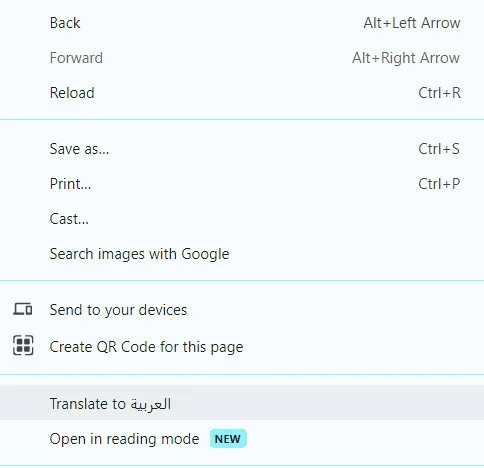
However, you can use your browser’s built-in translation feature (such as Google Chrome’s auto-translate).
Where can I view or update my account information?
- From the Developer dashboard, open Membership Details
- To update company or personal information, click Update your information
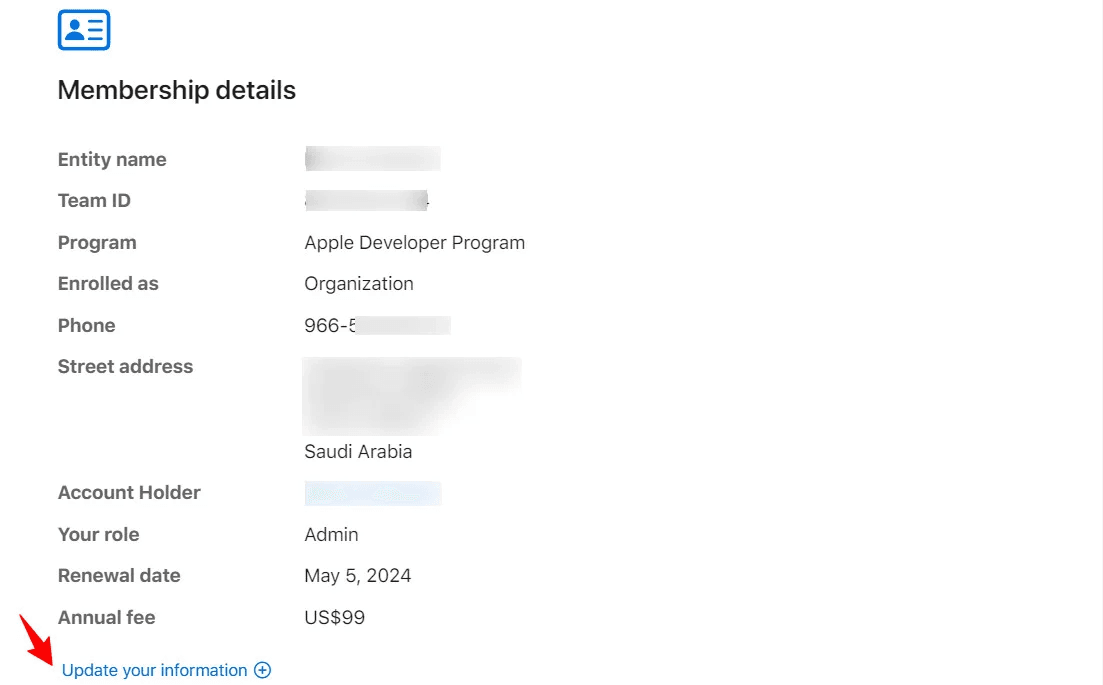
🔔 Only the Account Holder can perform these changes, and official legal documentation is required.
How do I change organization details?
Click Change organization details and submit the updated information (company name, owner name, address).
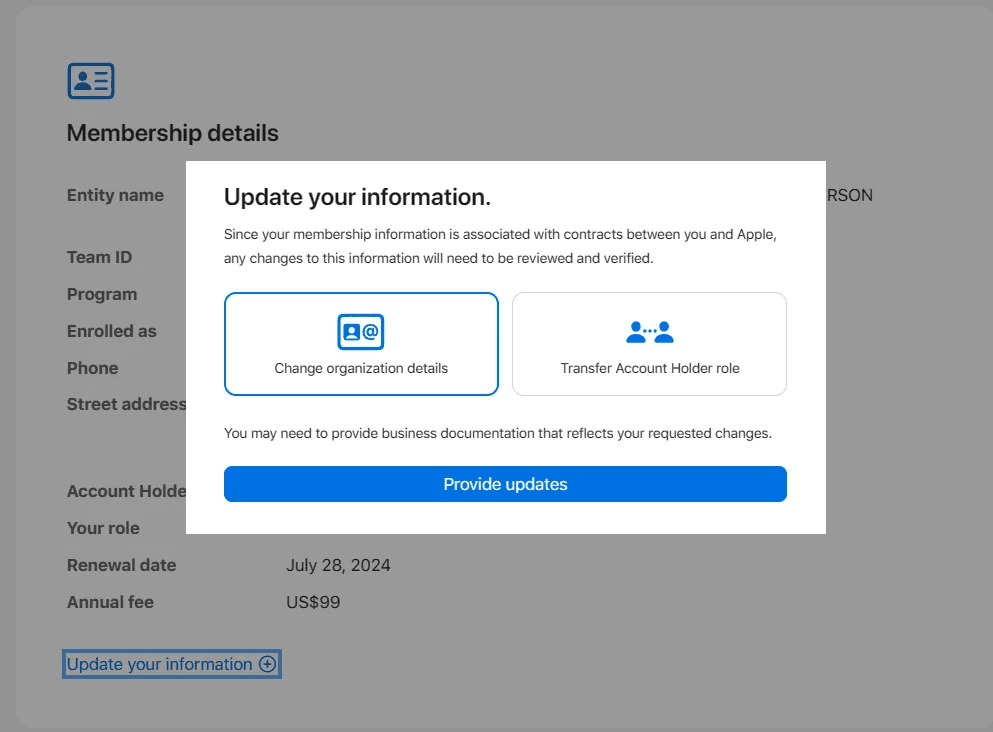
Apple Support will review and process the request.
Can I transfer account ownership?
Yes.
- Open Membership Details
- Click Update your information
- Select a user from your existing users list to transfer ownership
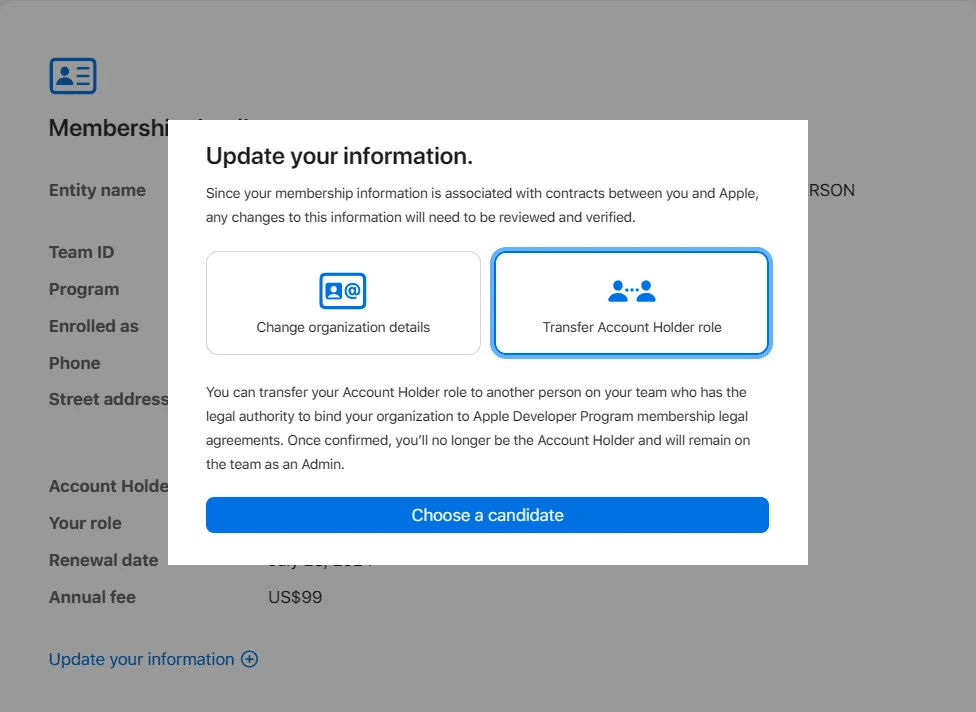
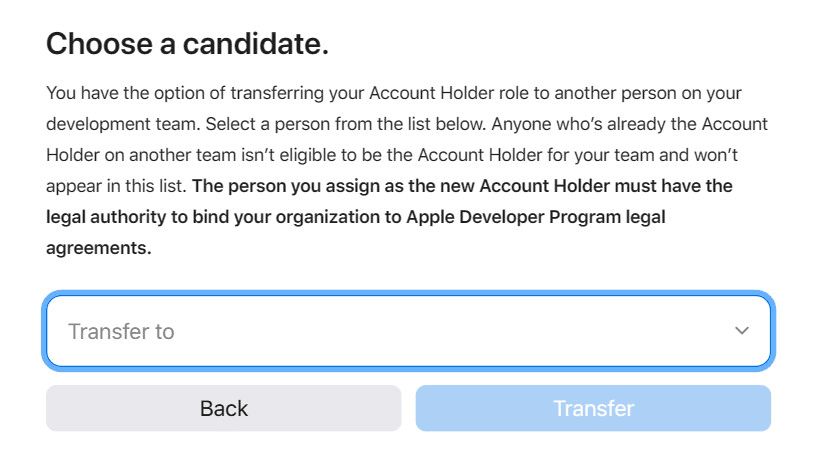
🔔 The selected user must have company-level permissions and be eligible to accept Apple agreements.
Once the new owner confirms via email, ownership is transferred successfully.
You will remain an admin, but no longer the Account Holder.