Have an offer your customers keep missing? Put it where they cannot scroll past it.
The announcement bar gives you a dedicated strip inside your store app for offers, alerts, and anything else worth saying at the right moment. It sits in front of customers while they browse, so your most important marketing message lands clearly instead of getting lost. In this guide, you'll learn how to design the announcement bar using the default template, create an ad, and manage the ads you already have. ✨
To set up the announcement bar, open (Store and sales channels), then (Mobile app), and click Customize on the default template. Open the (Announcement bar) tab, create a new ad, fill in its title, text, and icon, choose its link, category, expiry date, and placement, set its appearance, then save.
📌 Article overview
- How to design the announcement bar with the default template
- How to manage your ads
- Frequently asked questions
👣 How to design the announcement bar with the default template
1. From the main menu, click (Store and sales channels), then (Mobile app).

2. Next to the default template, click (Customize).
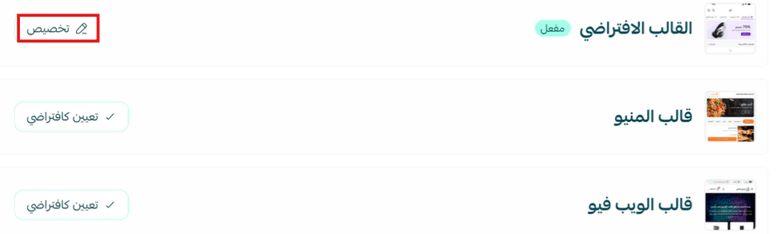
3. Choose the (Announcement bar) tab in the app design page.
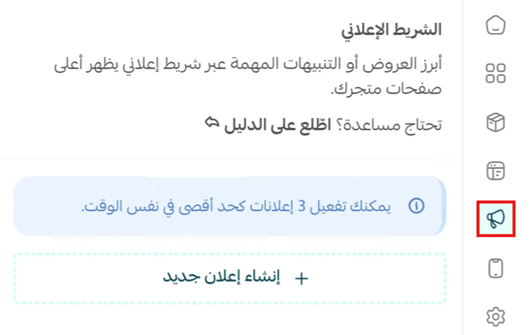
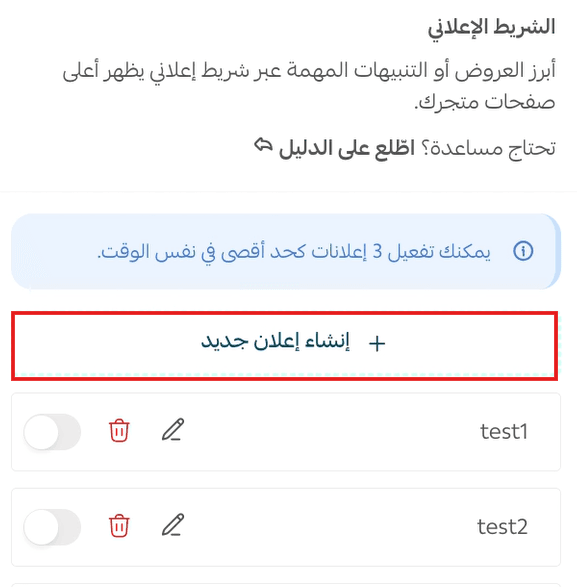
4. Add a new ad by clicking (+ Create new ad).
5. Enter the ad's basic details: ad title, ad text, and ad icon.
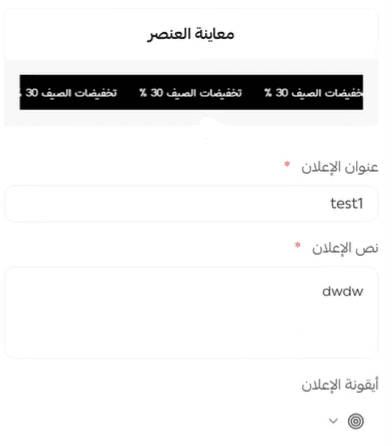
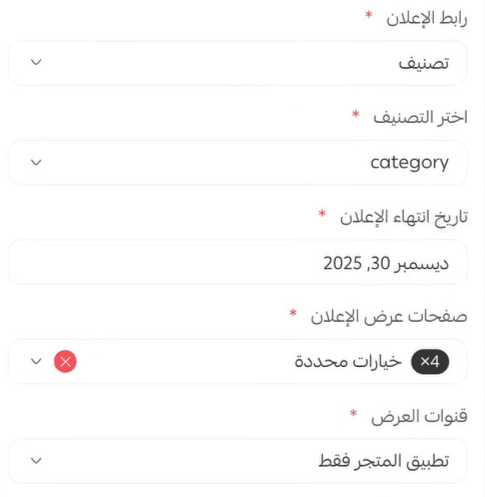
6. Choose the ad link and the category, then set the ad's expiry date and where it appears.
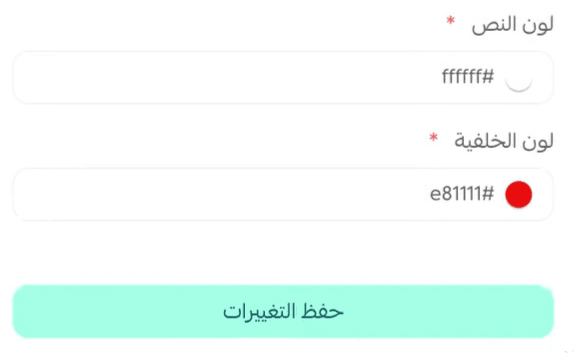
7. Set the ad's appearance, then click (Save changes).
How to manage your ads
1. Edit ad details

2. Delete an ad

3. Hide or show an ad

📝 Important notes
🔔 You can show up to 3 ads at the same time.
An ad stops appearing once its expiry date passes, so set the date to match the campaign you are running.
Hiding an ad keeps it saved for later. Deleting it removes it for good.
Frequently asked questions
❓ How many ads can appear in the announcement bar at once?
Up to 3 ads can be shown at the same time.
❓ What details does an ad need?
Each ad has a title, ad text, and an icon, plus a link, a category, an expiry date, the placement where it appears, and an appearance setting.
❓ Where do I find the announcement bar settings?
Go to (Store and sales channels), then (Mobile app), click (Customize) next to the default template, and open the (Announcement bar) tab.
❓ Can I take an ad down without deleting it?
Yes. Use the hide option to take the ad out of the bar and show it again later.
❓ Do I need to publish an app update for the ad to appear?
No. Save your changes and the announcement bar updates in the app.
Start using the announcement bar to put your best offers and alerts in front of customers inside the app, and give them a clearer, more engaging experience 🚀.