Do your product photos look good enough to stop someone mid-scroll?
Most stores are working with whatever photos they already have, and a proper photo shoot is rarely worth the cost or the wait. The AI Product Backgrounds app pulls your existing product images straight out of your Salla store and drops them into ready-made marketing templates, so you get campaign-quality visuals in seconds with no design skills involved. In this guide, you'll learn how to install the AI Product Backgrounds app, how to use its dashboard, and how to remove it if you no longer need it.
AI Product Backgrounds is a Salla app that turns your existing product photos into professional marketing images. It pulls images from your store automatically, places them inside ready-made templates for different campaigns and occasions, and lets you push the finished image back onto the product card in your store.
📌 Article overview
- What the AI Product Backgrounds app does
- How to install the AI Product Backgrounds app
- How to manage the AI Product Backgrounds app
- Frequently asked questions
🎯 What the AI Product Backgrounds app does
The app is built for Salla merchants who want polished marketing material without booking a photographer. It automates the whole loop:
- Pulls your product images from your store.
- Places each one inside a ready-made marketing template.
- Offers a range of templates suited to different campaigns and seasonal occasions.
- Lets you add the finished image to the product card in your store.
👣 How to install the AI Product Backgrounds app
1. From the main menu, click (All), then under helper tools click (App Store).

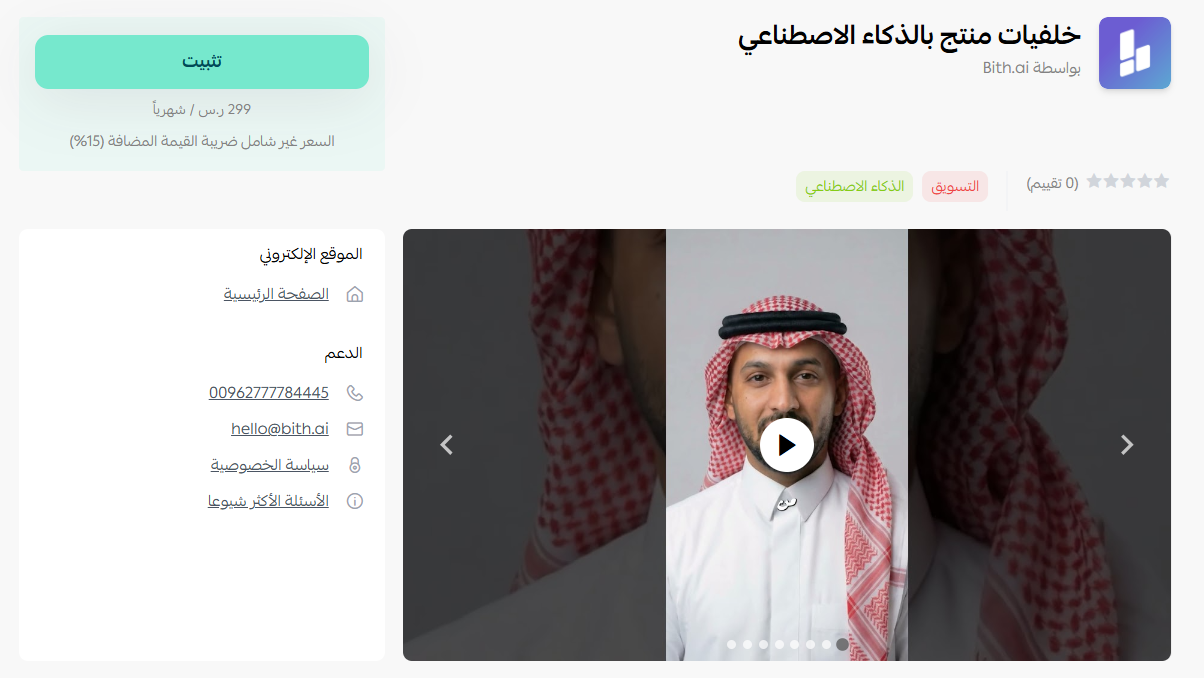
2. On the AI Product Backgrounds app page, click (Install).
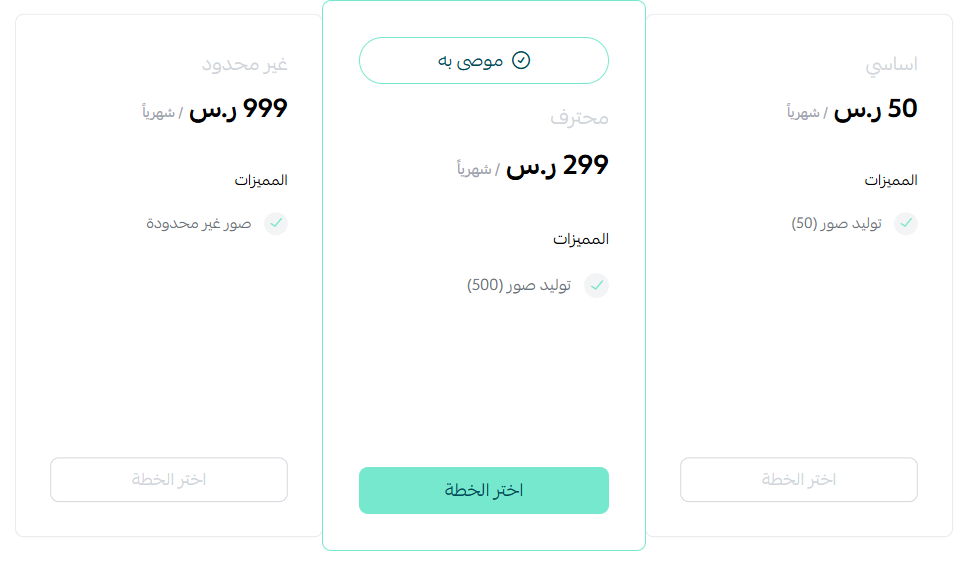
3. Choose the plan that suits you, then click (Choose plan).
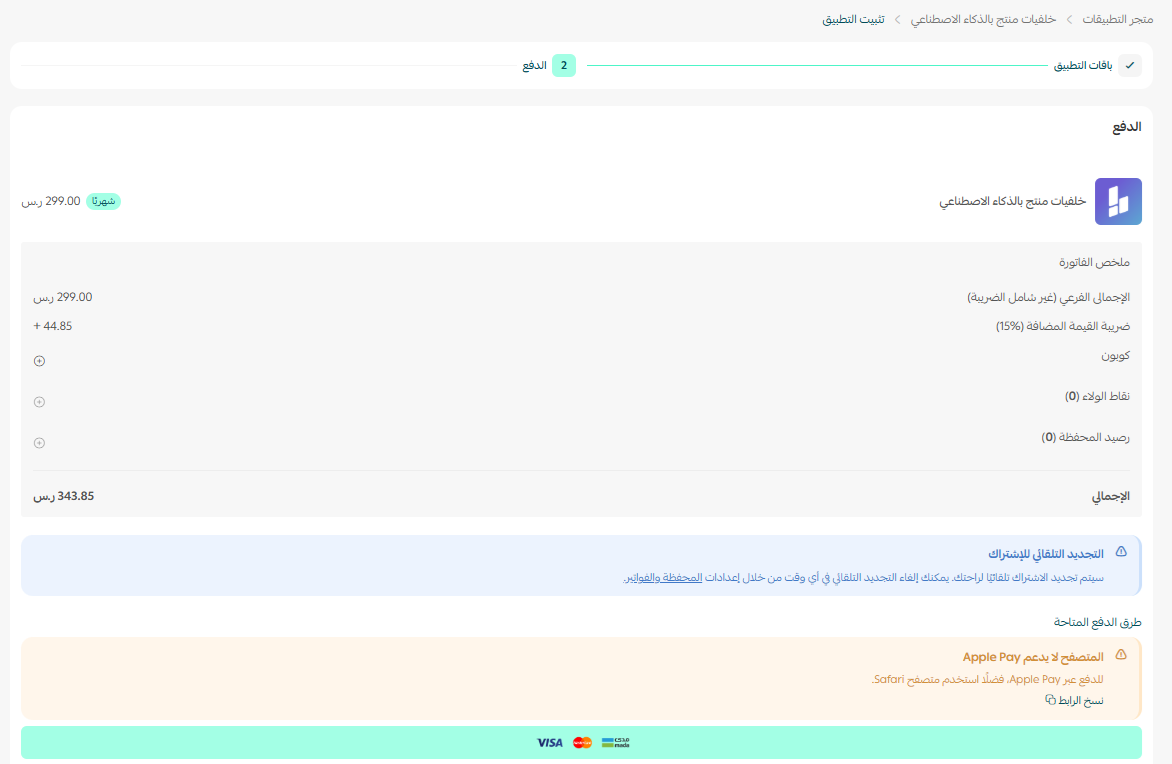
4. Complete the payment to unlock the app's features.
That's it — the AI Product Backgrounds app is installed.
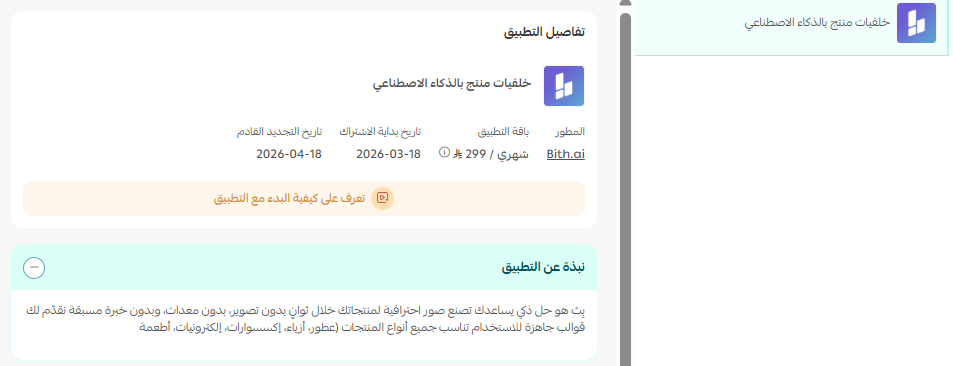
Once the app is active, you'll receive an email with your login details for the AI Product Backgrounds platform. Click (Dashboard).
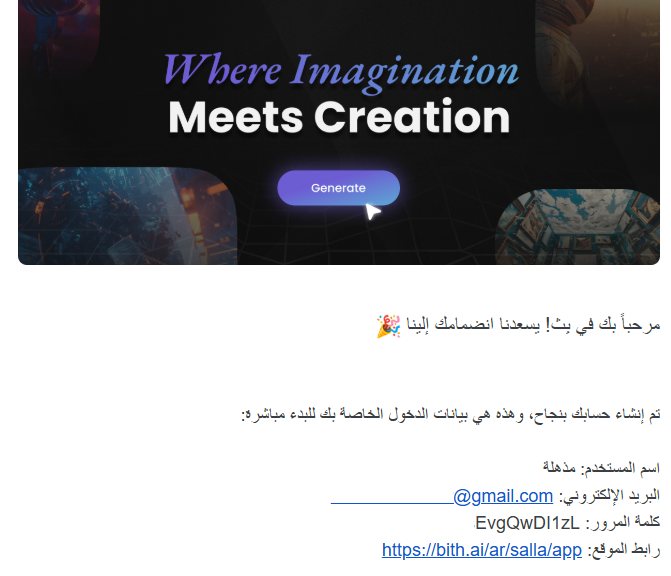
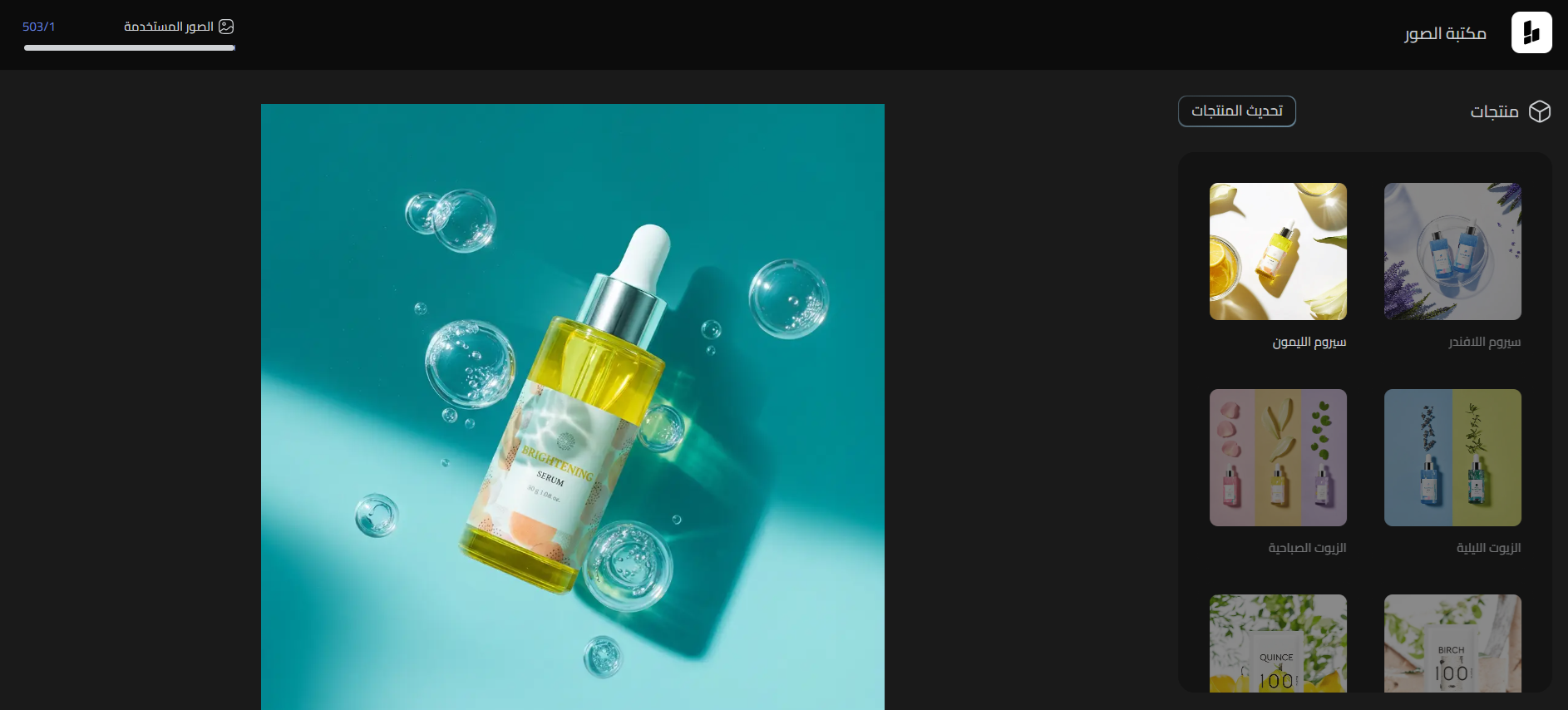
You land on the dashboard and can start using the platform.
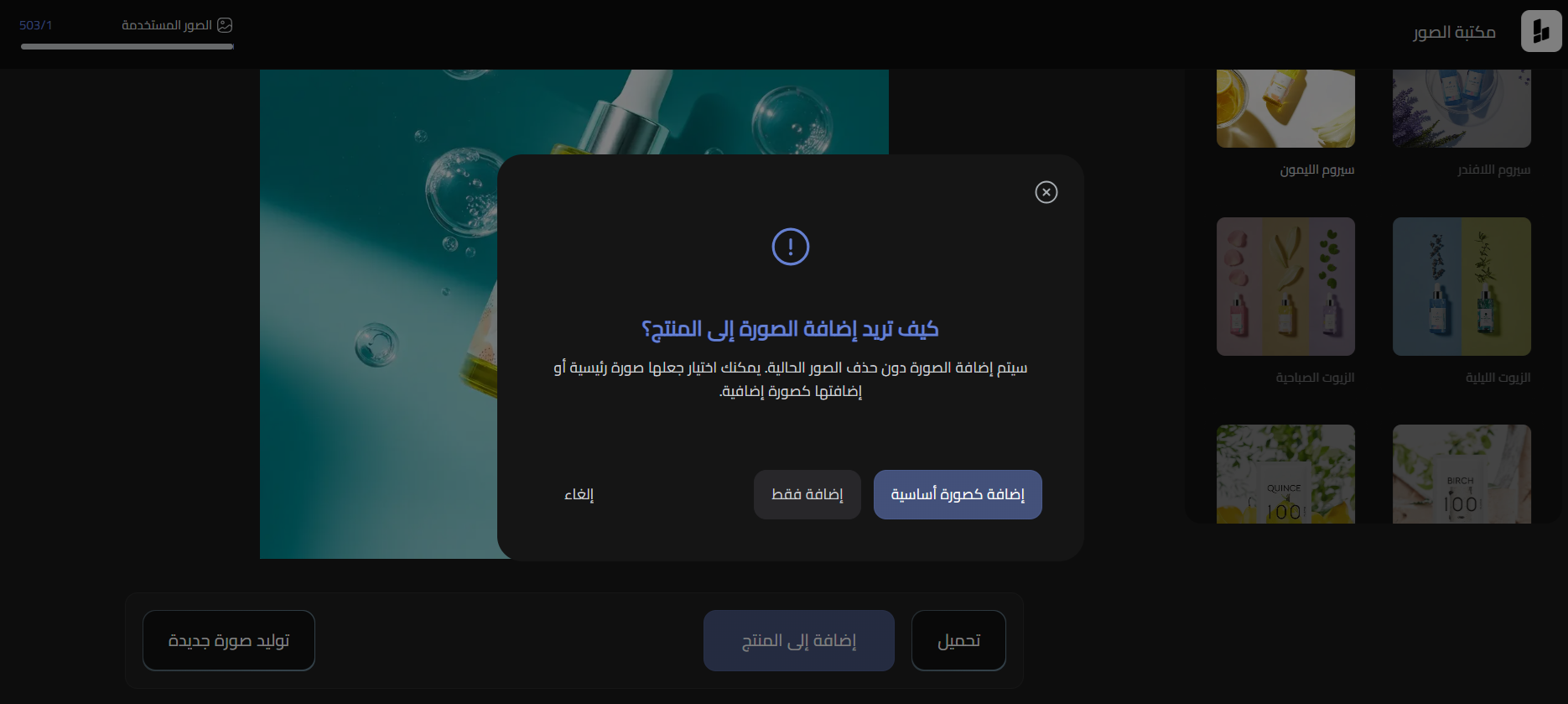
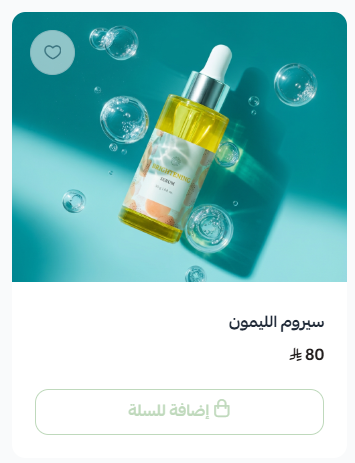
After you generate a product image, you can add it to the product card in your store directly from the platform.
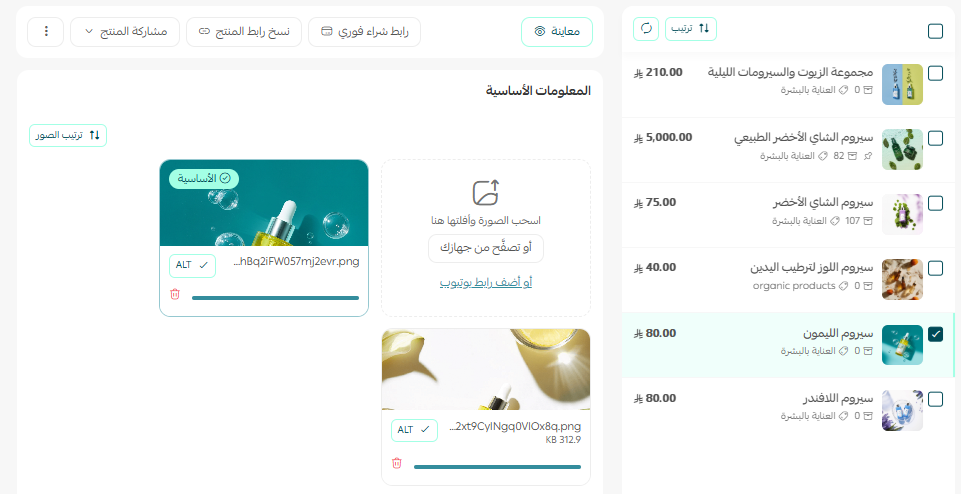
The image then appears on the product card in your store.
Customers browsing your storefront see it too.
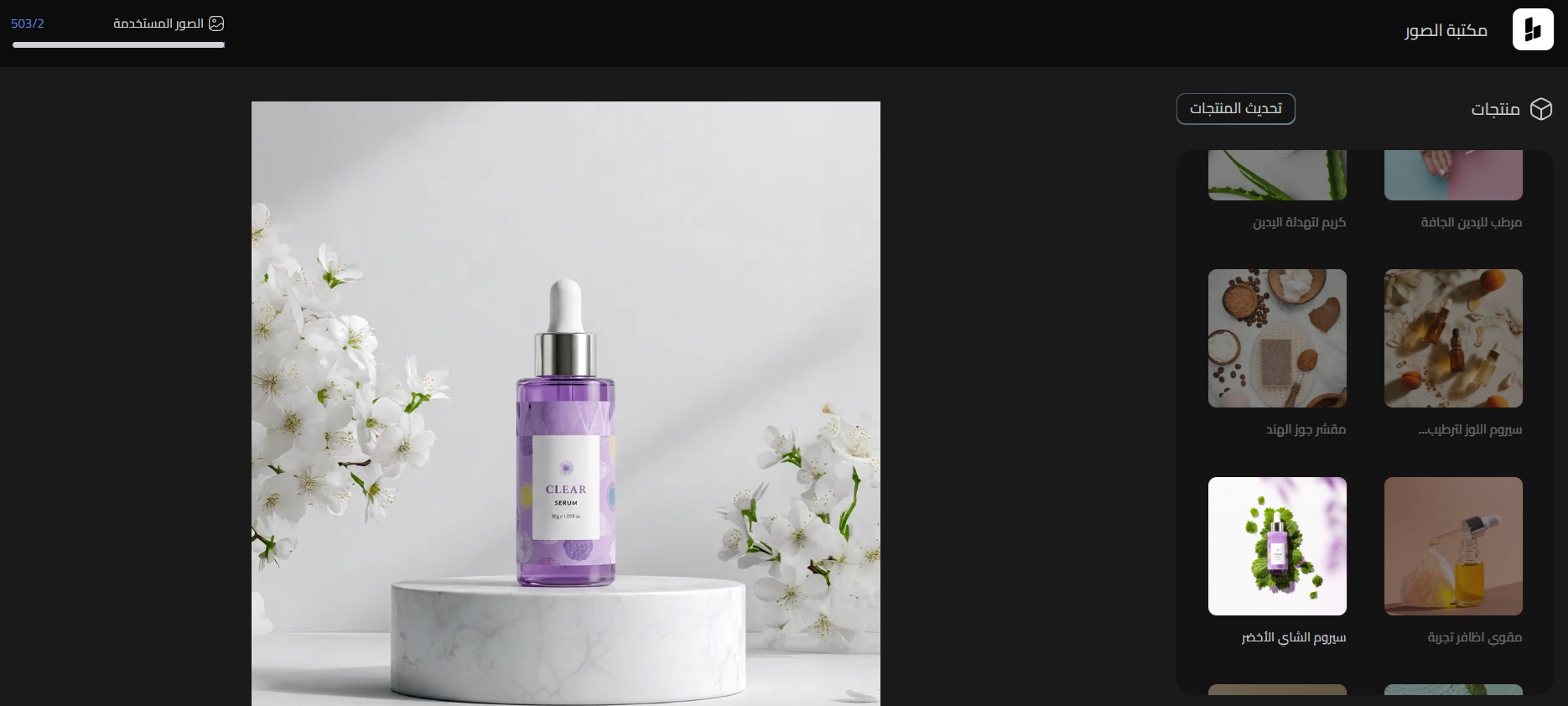
The platform comes with a wide selection of templates to choose from.
🚀 How to manage the AI Product Backgrounds app
Cancel the subscription and remove the app
1. From the app options menu, click (Cancel subscription), then choose a reason for cancelling.

2. From the app options menu, click (Delete app), then choose a reason for deleting.

3. From the deleted apps page, open the app options menu and click (Delete app permanently) to remove it from your store for good.

For more details, visit the AI Product Backgrounds app page.
❓ Frequently asked questions
Do I need to upload my product photos again?
No. The app pulls product images from your store automatically, so you work with the photos you already have.
Where do I get my login details for the platform?
They arrive by email once the app is active. Open that email and click (Dashboard) to go straight to the platform.
Do I have to download the generated image and re-upload it?
No. Once an image is generated, you can add it to the product card in your store directly from the platform, and it appears on your storefront right away.
Is the app free?
No. You pick a plan during installation and complete the payment before the app's features become available.
What is the difference between cancelling and deleting the app?
Cancelling ends the subscription. Deleting moves the app to the deleted apps page, where you can remove it from your store permanently.
Good product photography sells, but it does not have to be expensive. Start with your best-selling products, run them through a few templates, and see which visuals move the needle before you scale it across the catalog.