When a shopper misspells a product name in your search bar, do they get results or a dead end?
Search is where buying intent is highest, and it's also where stores lose people fastest. AI Finder is a smart search and discovery app built for online stores serving Arabic-speaking shoppers. It handles Arabic queries properly, fixes typos on the fly, recommends products based on how each visitor behaves, and reports on what people are searching for. In this guide, you'll learn what AI Finder offers, how to install and activate it on your store, and how to remove it.
AI Finder is a smart search and discovery app for Salla stores. It understands Arabic queries, corrects typos, and recommends products based on each shopper's behavior, then reports on how your search performs. Install it from the Salla App Store, activate it from the email you receive, and tune the settings.
📌 Article overview
- What AI Finder offers your store
- How to install and activate the AI Finder app
- How to manage the AI Finder app
- Frequently asked questions
✅ What AI Finder offers your store
Smart search: Full Arabic language support, automatic spelling correction, and accurate results.
Personalized recommendations: Product suggestions based on each customer's behavior, so more of what they see is relevant.
Advanced analytics: Reports on customer behavior and on how your store's search is performing.
Straightforward Salla integration: Activate it directly, with no technical expertise required.
A tailored shopping experience: Better customer satisfaction and a higher conversion rate.
🚀 How to install and activate the AI Finder app
1. From the main menu, click (All), then under the helper tools section, click (App Store).

2. Find the app using the search field.

3. Open the AI Finder app page, then click (Install).

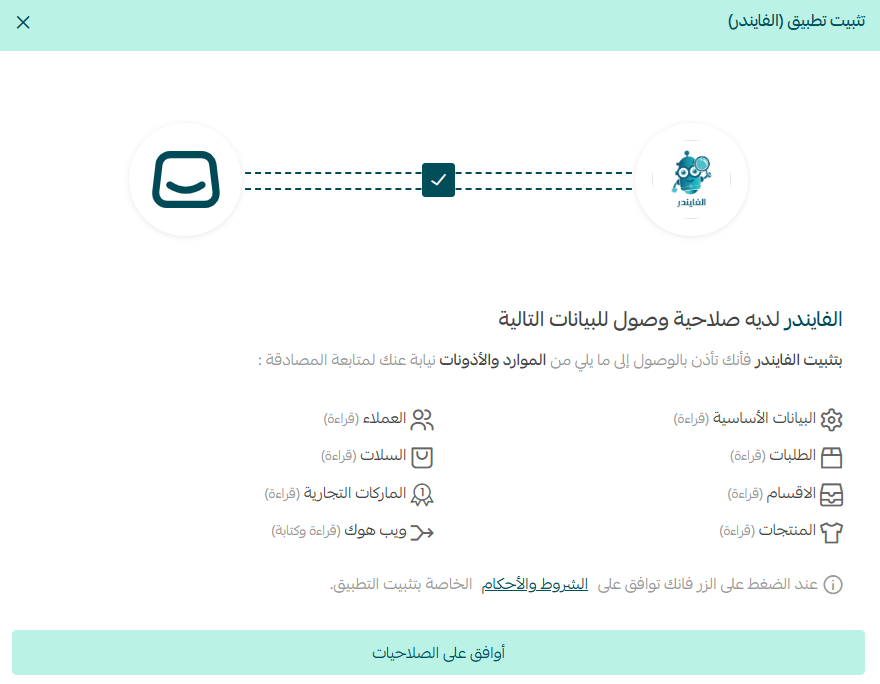
4. Review the permissions the app requests, then click (Approve permissions). The app is now installed on your store.
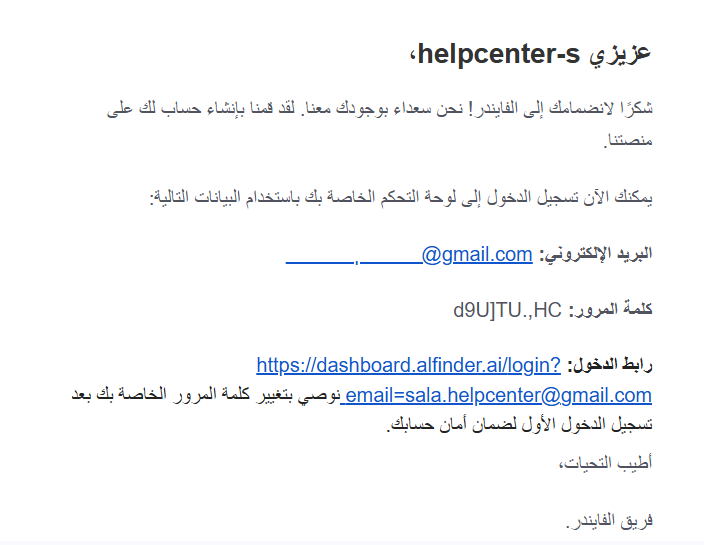
5. Open the activation email sent to your store's email address, then click (Login link).
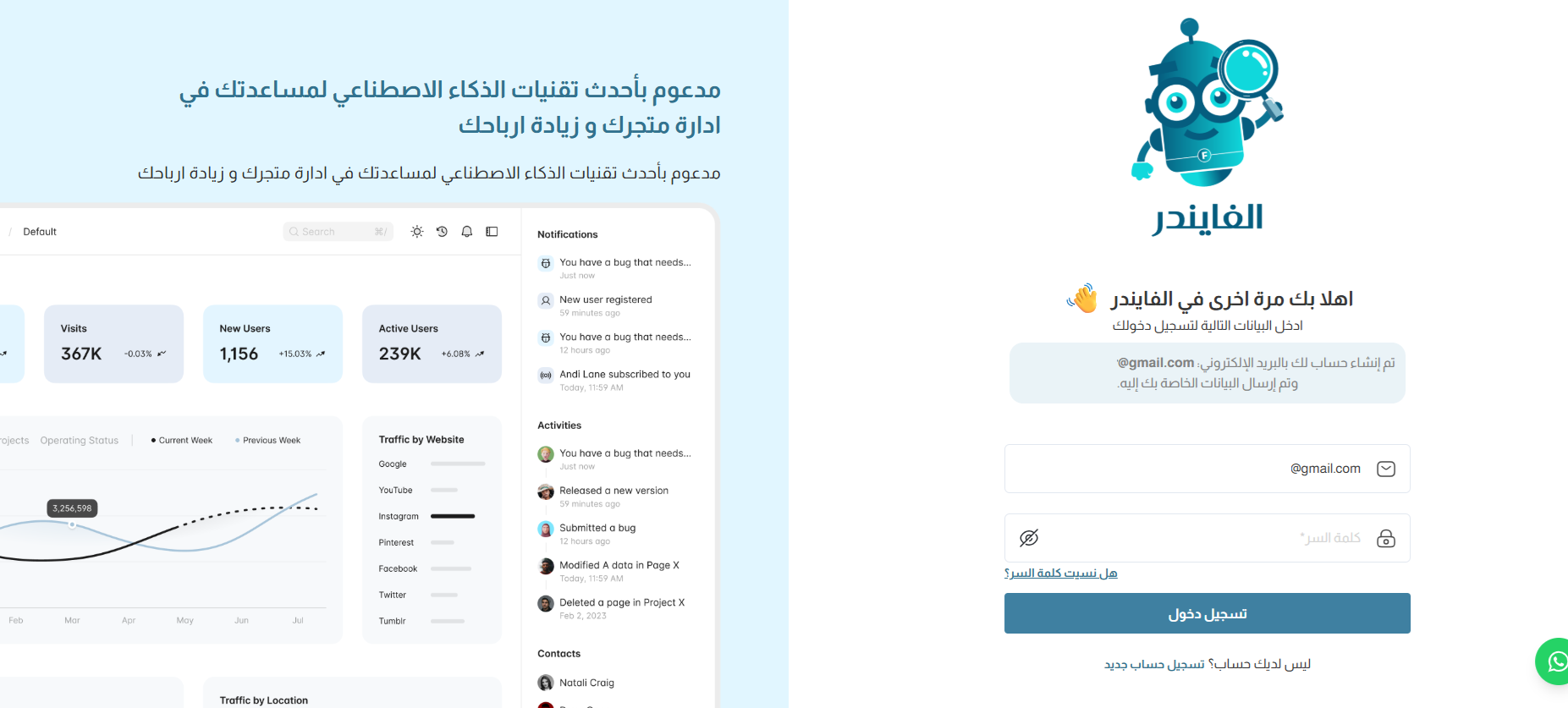
6. Enter the sign-in details from that same email, then click (Sign in).
7. Adjust the search and recommendation settings to match what you want your store to achieve.
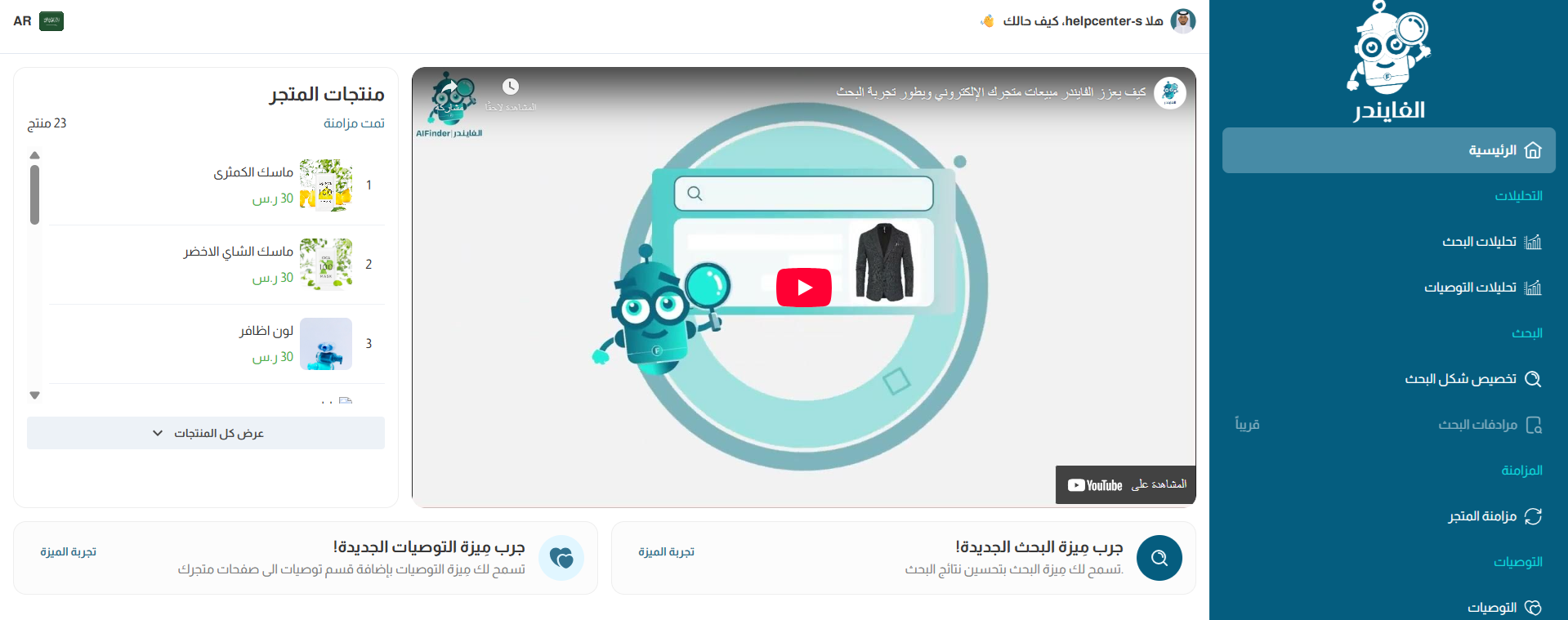
AI Finder is now set up and running on your store.
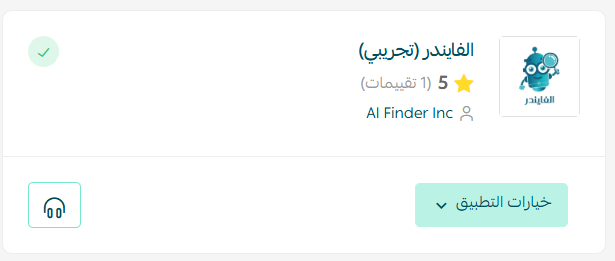
For more on managing your store's apps, see the related guide.
🚀 How to manage the AI Finder app
Remove the app
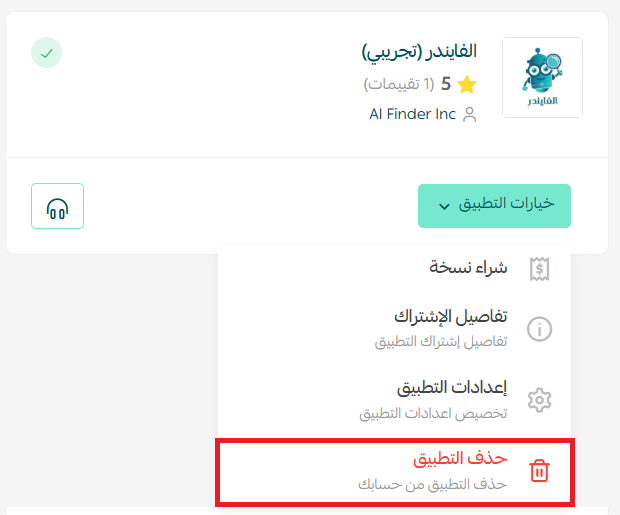
From the AI Finder app card, click (App options), then click (Delete app).
📝 Important notes
- The activation email goes to your store's registered email address, and it carries both the login link and your credentials.
- Search and recommendation settings are managed in the AI Finder dashboard, not in your Salla dashboard.
- Deleting the app returns your store to its default search behavior.
❓ Frequently asked questions
How is AI Finder different from my store's default search?
It's built for Arabic queries, corrects spelling mistakes automatically, and layers personalized product recommendations and search analytics on top of plain keyword matching.
Do I need a developer to set it up?
No. The app integrates with Salla directly, and activation is done through the link in your email.
What do the analytics tell me?
How customers behave in your store and how your search is performing, so you can see what shoppers look for and where results fall short.
Where do I change the search settings?
In the AI Finder dashboard, which you reach through the login link in the activation email.
How do I remove the app?
Open (App options) on the AI Finder app and click (Delete app).
Shoppers who search are already close to buying. Give them results that understand how they type, and you turn your search bar into one of your strongest sales channels.