Are your product photos showing up on someone else's store?
Good product photography is expensive, and once it is online anyone can right-click and take it. A product image watermark puts your logo, your store name, or your own custom text on every product photo, so your images stay recognizably yours wherever they end up. The Product Image Watermark app does this for your whole catalog at once instead of image by image. In this guide, you'll learn how to install the app, sign in to its dashboard, apply watermarks to your products, and remove the app if you no longer need it.
The product image watermark app lets you stamp your logo, store name, or custom text onto your product photos in bulk. Install it from the Salla App Store, pick a plan, sign in to the app dashboard, select the products you want, then apply the watermark in one click.
📌 Article overview
- How to install the Product Image Watermark app
- How to manage the Product Image Watermark app
- Frequently asked questions
👣 How to install the Product Image Watermark app
1. From the main menu, click (All), then under helper tools, click (App Store).

2. Search for the app using the search field.

3. On the Product Image Watermark app page, click (Install).

4. Choose the plan that suits you.

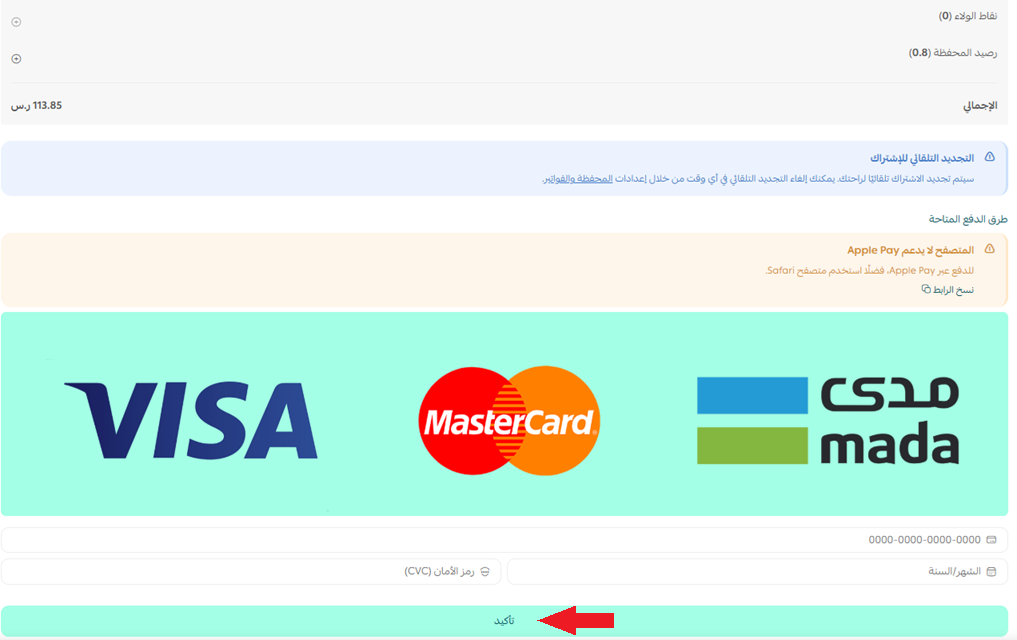
5. Add your payment details, then click (Confirm).
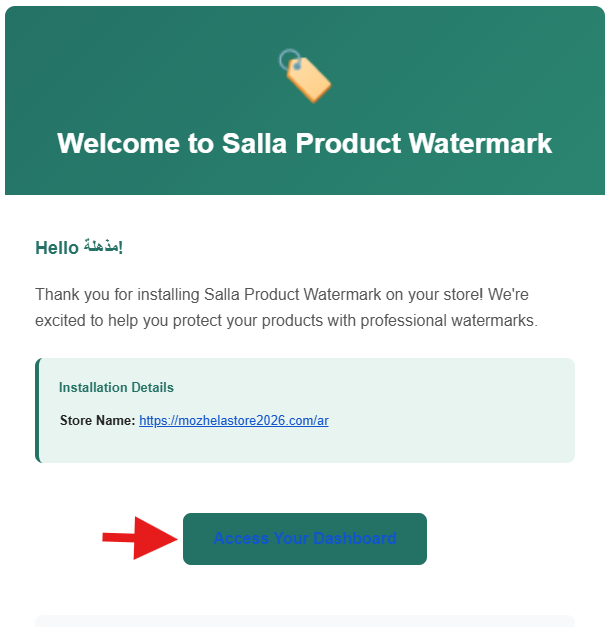
6. Open the email you receive after installation, which asks you to grant access to the app platform, and click (Access your Dashboard).
7. Enter your email address, then click (Send login link).

8. Open the login email and follow the link to sign in to the app platform.

You're now signed in to the app dashboard.

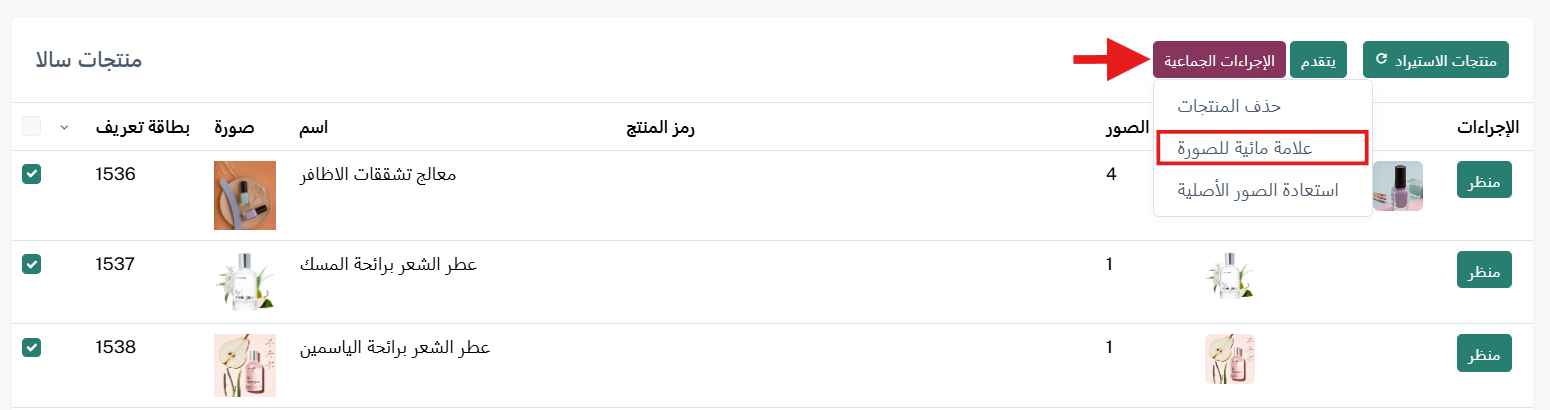
9. Select the products you want to watermark, then click (Watermark image).
🚀 How to manage the Product Image Watermark app
Activate the app
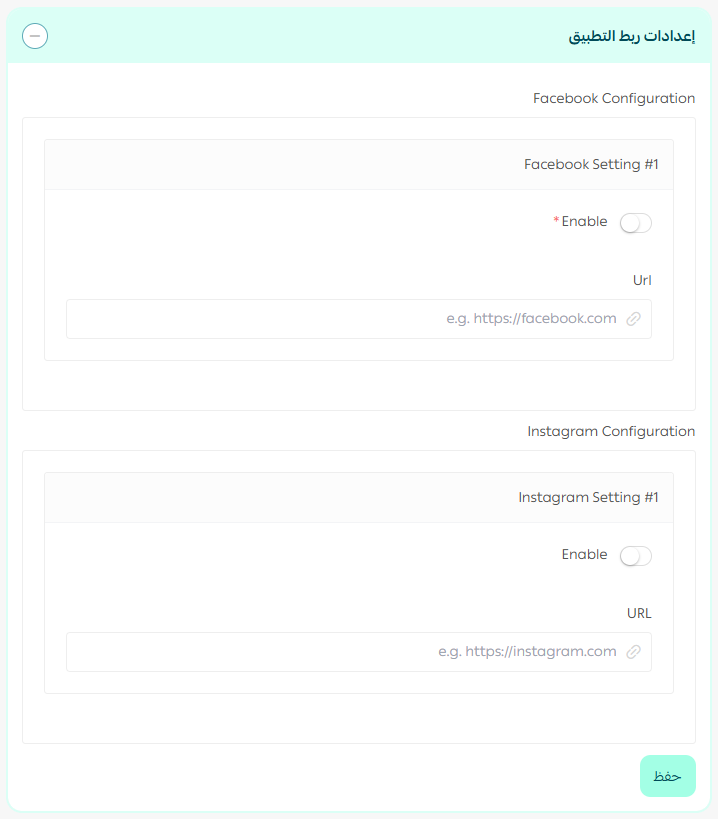
1. From your apps list, click (Activate app).
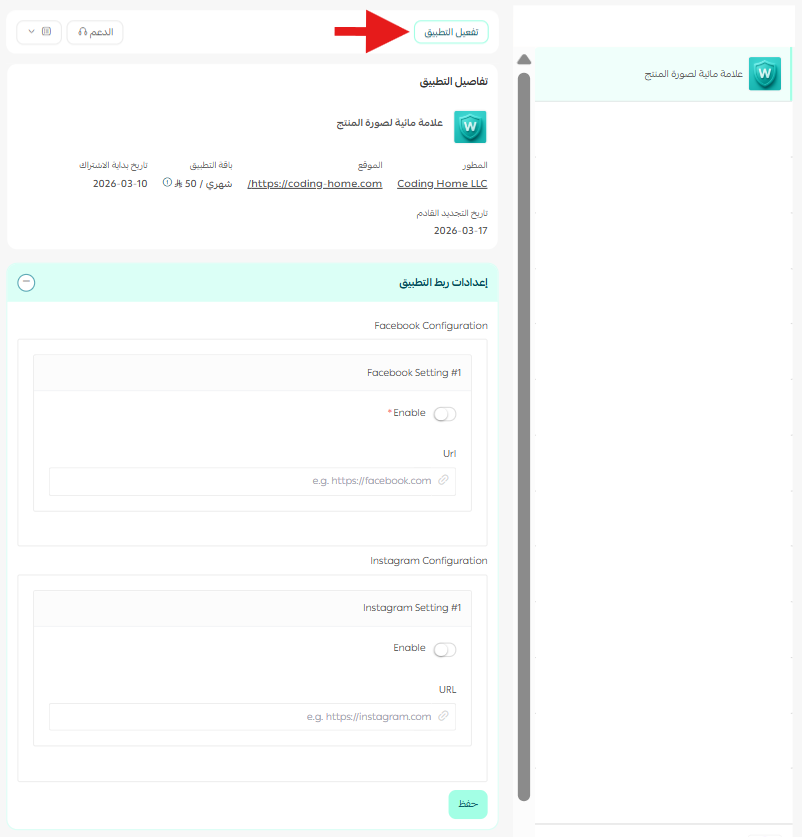
2. Enter the connection details the app asks for, then click (Save). [Verify: the Arabic source asks for social media connection details at this step, which does not match this app's function.]
Remove the app
1. From the app options menu, click (Cancel subscription), then choose a cancellation reason.

2. From the app options menu, click (Delete app), then choose a deletion reason.

3. From the Deleted apps page, open the app options menu and click (Delete app permanently) to remove it from your store for good.

📝 Important notes
- The watermarks are applied from the app's own dashboard, not from your Salla dashboard.
- Canceling the subscription and deleting the app are two separate actions, and deletion only becomes permanent from the Deleted apps page.
❓ Frequently asked questions
Can I watermark more than one product at a time?
Yes. In the app dashboard you select as many products as you want and apply the watermark to all of them in one action.
What can I use as a watermark?
Your logo, your store name, or any custom text or image you choose.
Do I have to pay for the app?
The installation flow asks you to choose a plan and add your payment details before the app is activated.
Where do I sign in to the app?
Through the email you receive after installation. Click (Access your Dashboard), enter your email, and the app sends you a login link.
Does deleting the app remove the watermarks already applied?
Deleting the app removes the app from your store. Any images you already watermarked keep the watermark that was applied to them.
Protecting your product photography takes a few minutes once, and then it keeps working on every image you publish. For more details about the Product Image Watermark app, see the developer's page.