Want to group a set of products for a campaign without reorganizing your whole catalog?
That is exactly what product tags are for. A tag is a light, flexible label you attach to any product, so you can gather related items under one page — a limited-time offer, a seasonal collection, a theme — and link to it from a homepage banner, all without creating a permanent category. In this guide, you'll learn what product tags are useful for, how to add tags to a product, and which plans include the feature.
To add product tags on Salla, open (Products) from your dashboard, open the product and click (Product details), type the tag in the tags field, then click (Add) or press (Enter). Click (Save product details) to finish. Every product carrying the same tag is grouped under one page.
📌 Article overview
- Why use product tags
- How to add tags to a product
- Frequently asked questions
✅ Why use product tags
Tags cover the many grouping needs that don't justify a permanent category in your store. For example, you can collect the products in a temporary offer under one tag, then place a link to that tag's page in a banner on your homepage — and simply retire the tag once the offer ends.
🚀 How to add tags to a product
1. From your dashboard, click (Products).

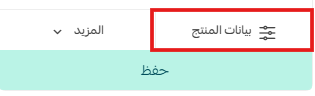
2. From the product page, click (Product details).
3. In the tags field, type the tag, then click (Add) or press (Enter) on your keyboard.

4. Click (Save product details).

❓ Frequently asked questions
Can I add more than one tag to a product?
Yes, you can, as shown here:

Can I delete a tag whenever I want?
Yes, you can remove a tag at any time by clicking the delete button next to it in the product details.

Which plans include this feature?
Product tags are available on the Plus and Pro plans.
Product tags give you a fast, reversible way to shape how customers discover your products — use them for every promotion that doesn't deserve a permanent place in your store's structure.