Would your customers buy more if the products that belong together were sold as one item?
Selling a shampoo, a conditioner and a hair mask as three separate products means three searches and three decisions. Adding a product group to your store bundles ready-made products into a single item sold at one price - usually better than the sum of the parts - so the offer is easier to say yes to. In this guide, you'll learn how to create a product group, add products to it, and control where it appears.
A product group is a product type in Salla that sells several existing products together as one item. You create it like any other product, then open (Product data) and use the (Product group) tab to search for and add up to 10 products from your catalog. The group is sold at its own price.
📌 Article overview
- How to add a product group
- How to add products to the group
- Controlling where the product group appears
- Frequently asked questions
🚀 How to add a product group
1. From the side menu of your dashboard, click (Products).

2. On the Products page, click (New product).

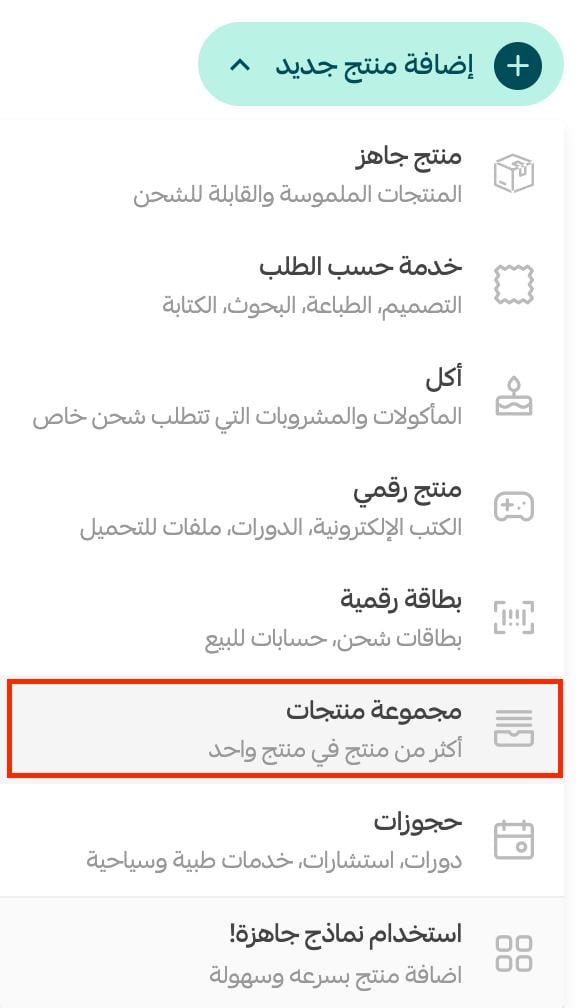
3. Choose (Product group) as the product type.
4. Enter the product's basic details, then click (Save).
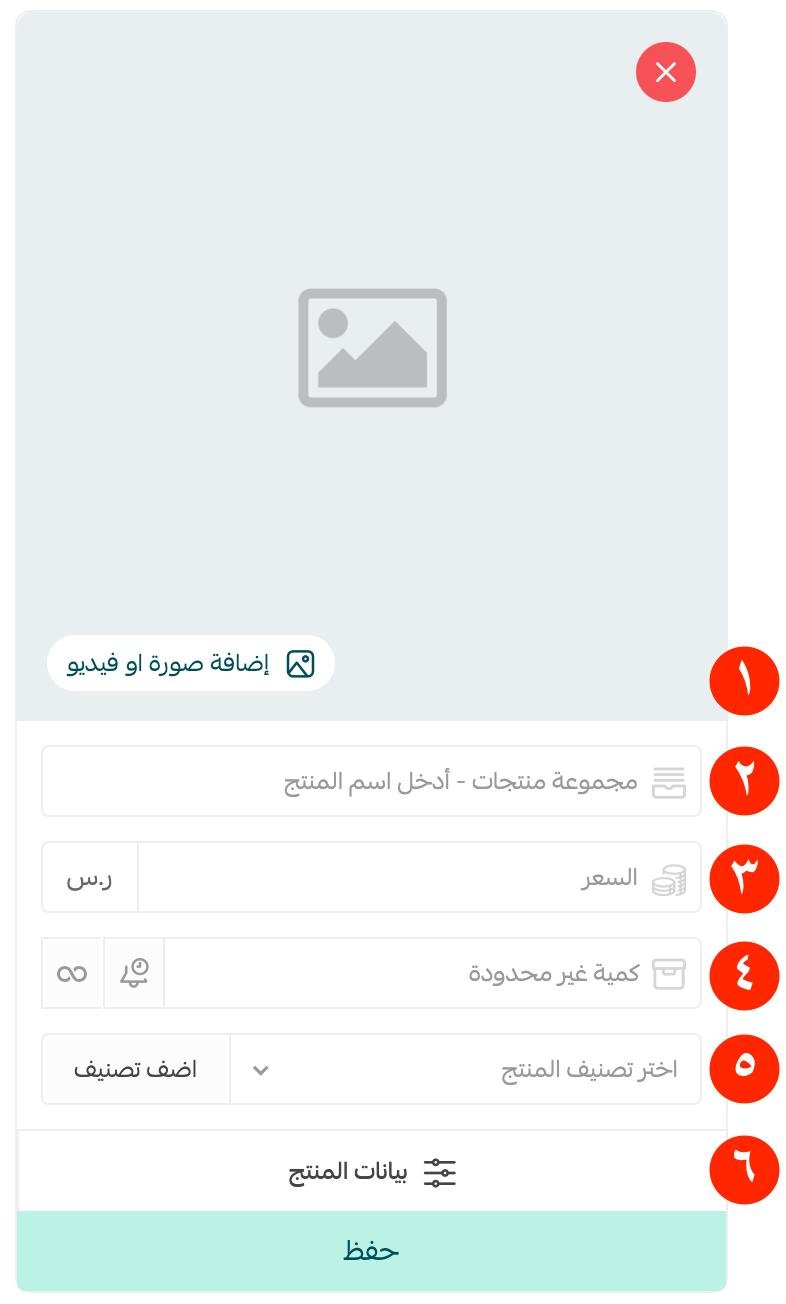
1. Product image - add one or more images. For more on uploading product images and videos.
2. Product name - the name customers will see.
3. Product price - the price the group sells for.
4. Product quantity - how many of the group are available.
5. Product category - used for how products are displayed, product reports and more. For more on managing product categories.
6. Product details - quantity, price, barcode and the rest of the product's specifics.
After saving, the product card looks like this:
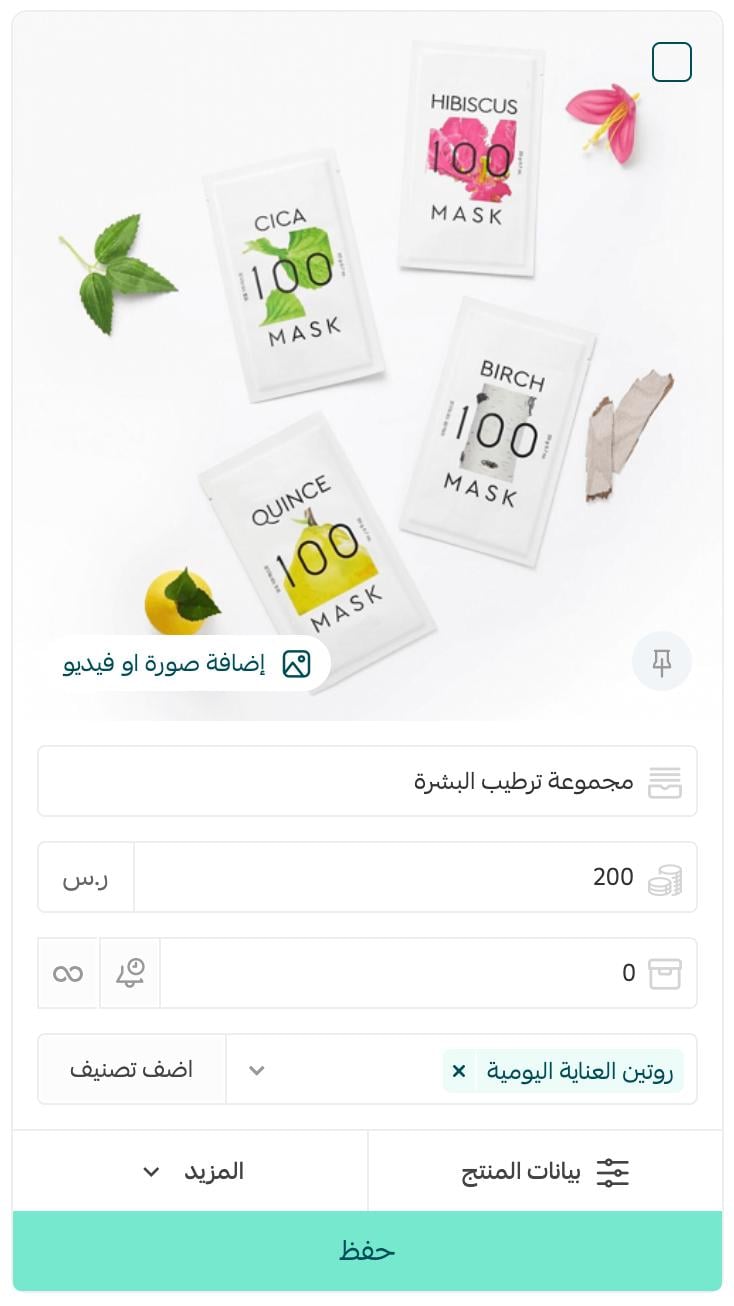
For more on the product card and adding a new product.
And for more on adding product options and controlling how they appear to customers.
To present your products professionally, Salla's merchant services can help - for example adding products and services or image design, product descriptions and product photography. All of them help your products look sharper and more appealing.

👣 How to add products to the group
1. On the product page, click (Product data).
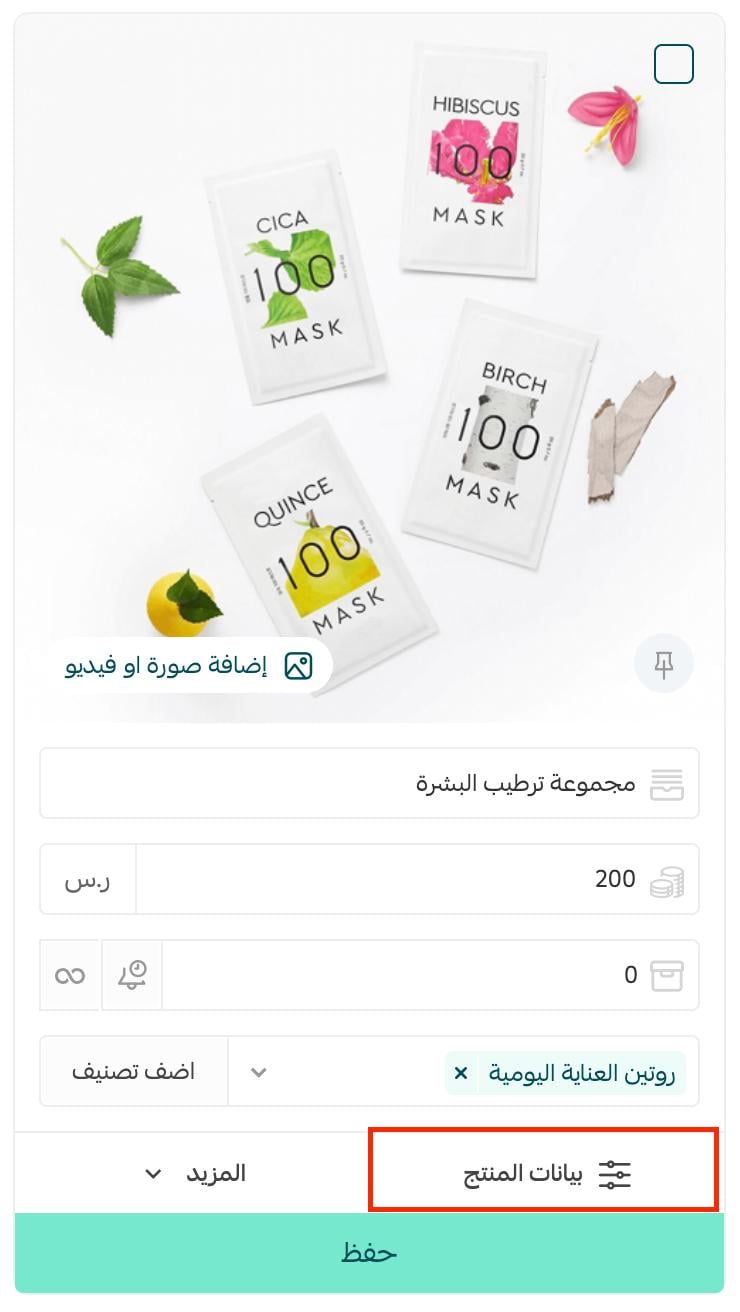
2. On the Product data page, open the (Product group) tab.
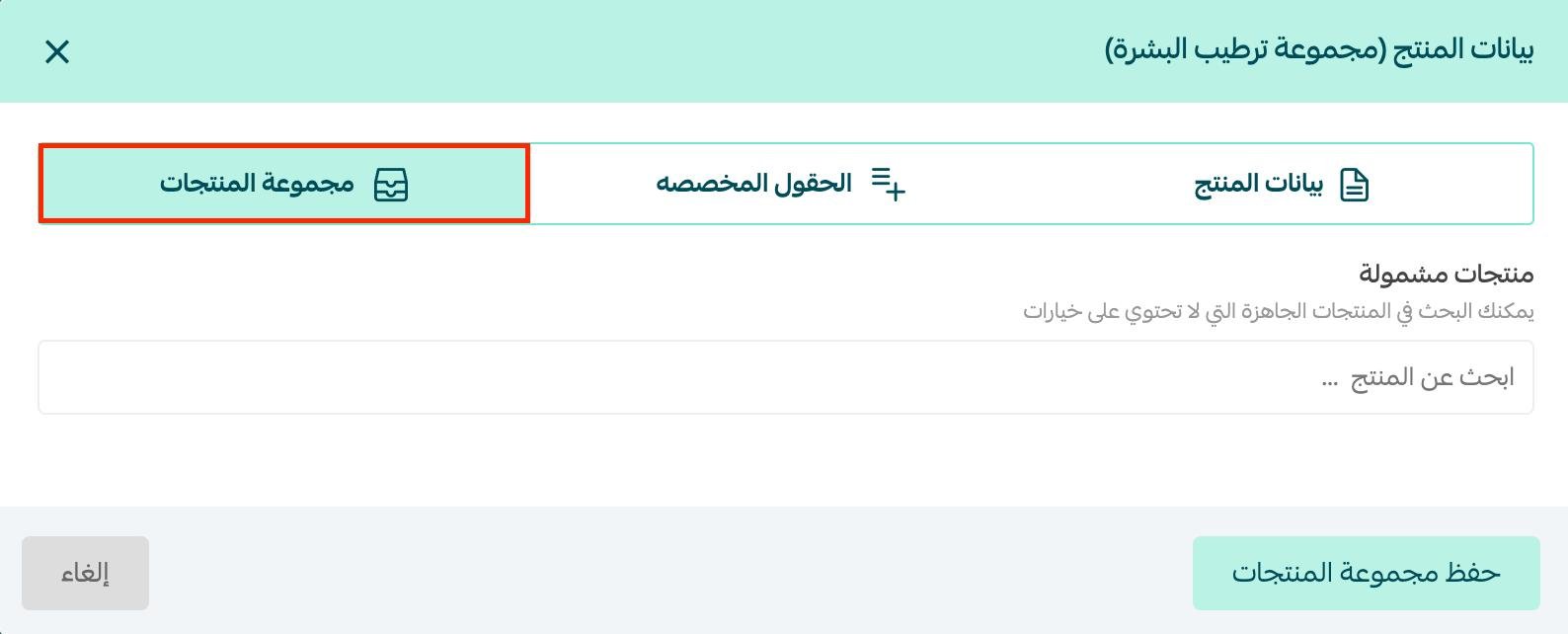
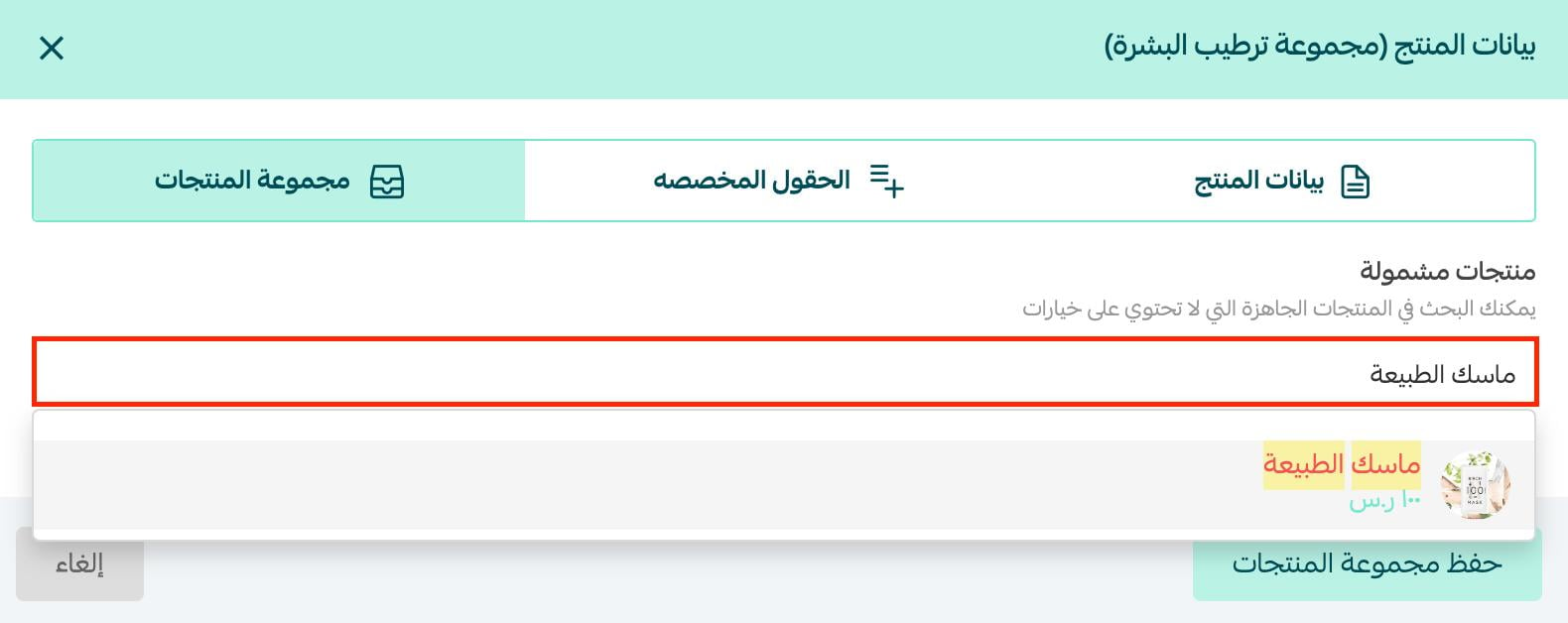
3. Search for the products you want and click each one to add it to the group.
📝 Important note
A group can hold a maximum of 10 products.
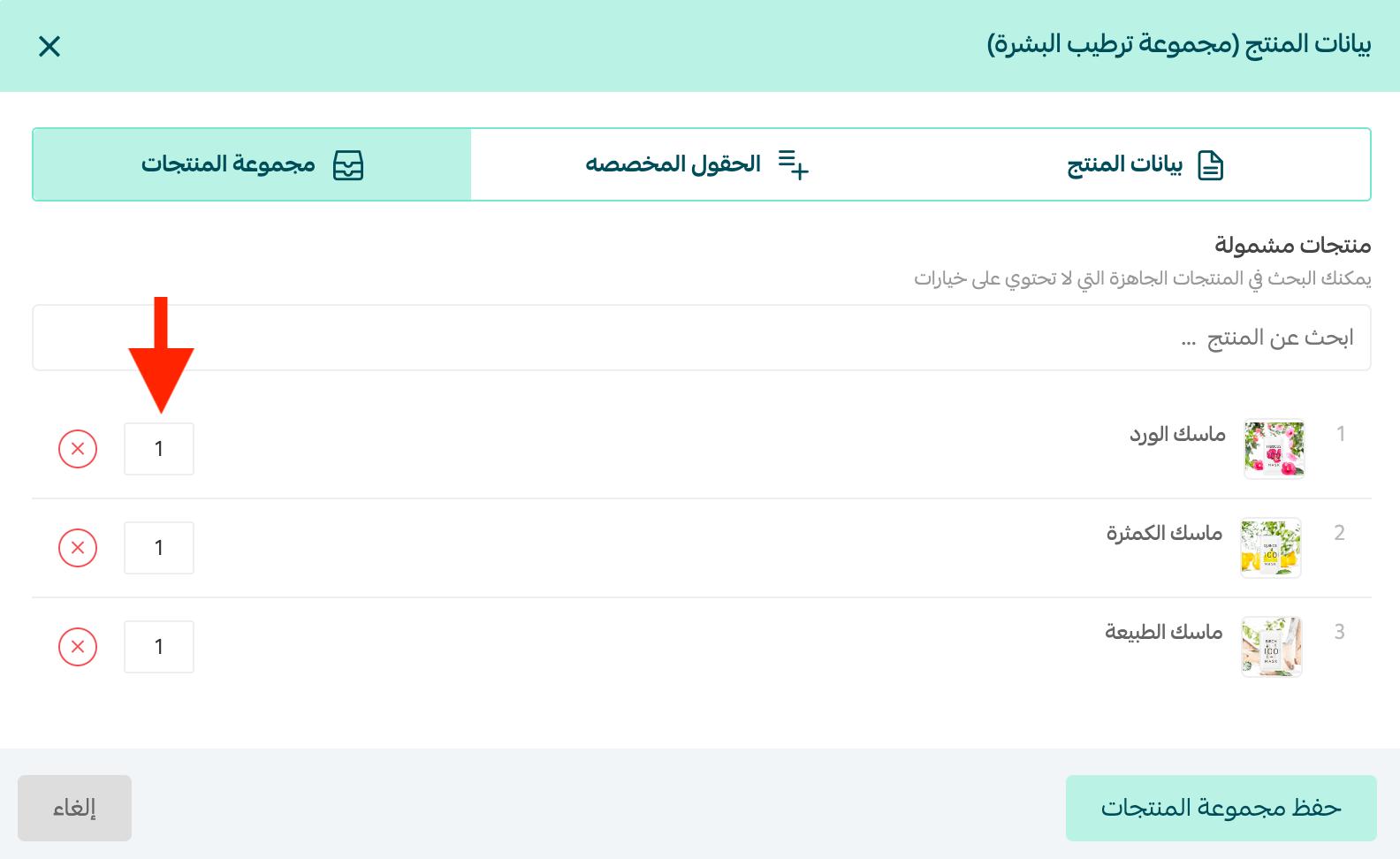
Set the number of products in the group to match what you want to include.
To take a product back out, click the (X) next to it.
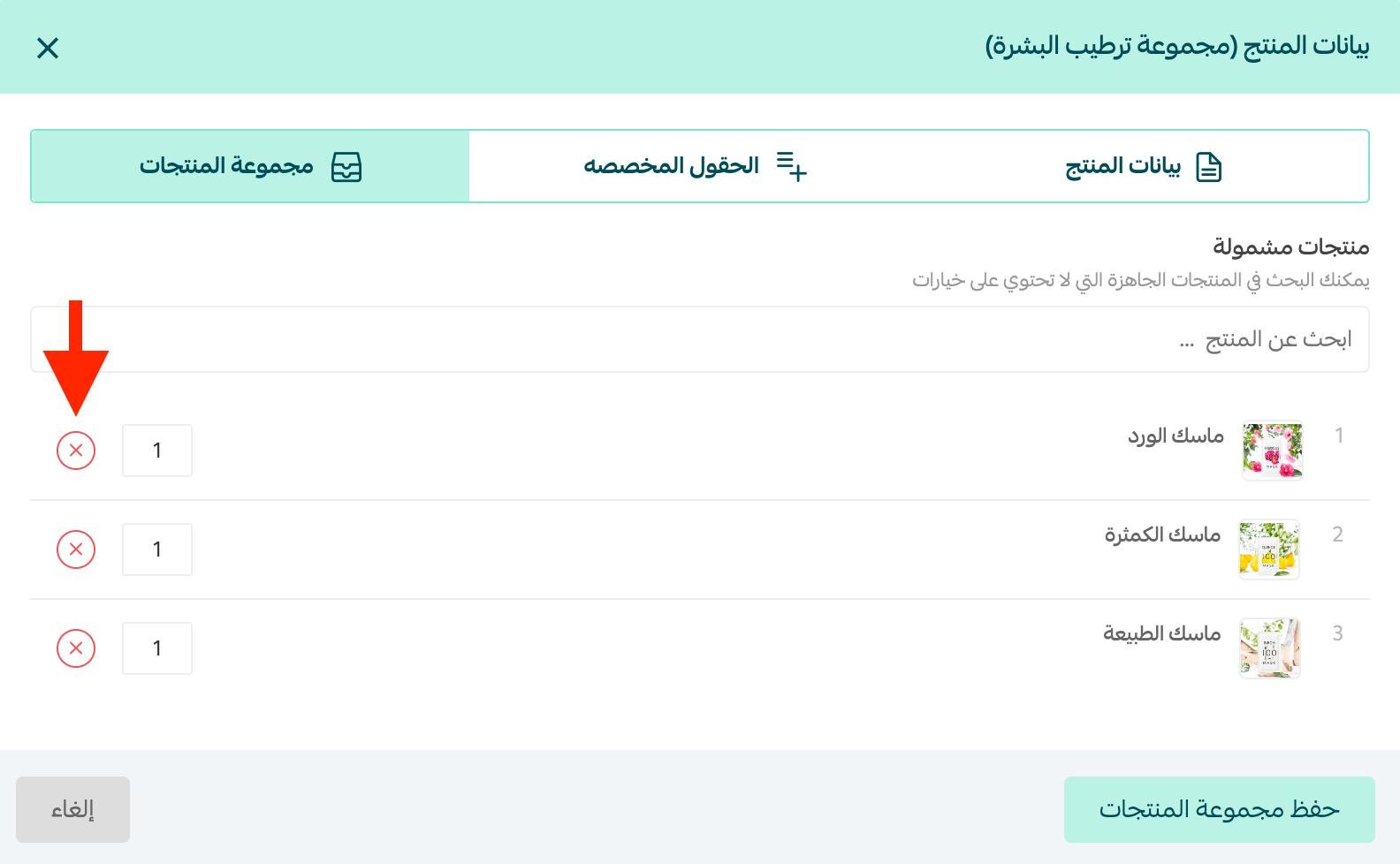
Removing a product from the group does not remove it from your store - it stays available on its own.
This is how the group appears to customers in your store:
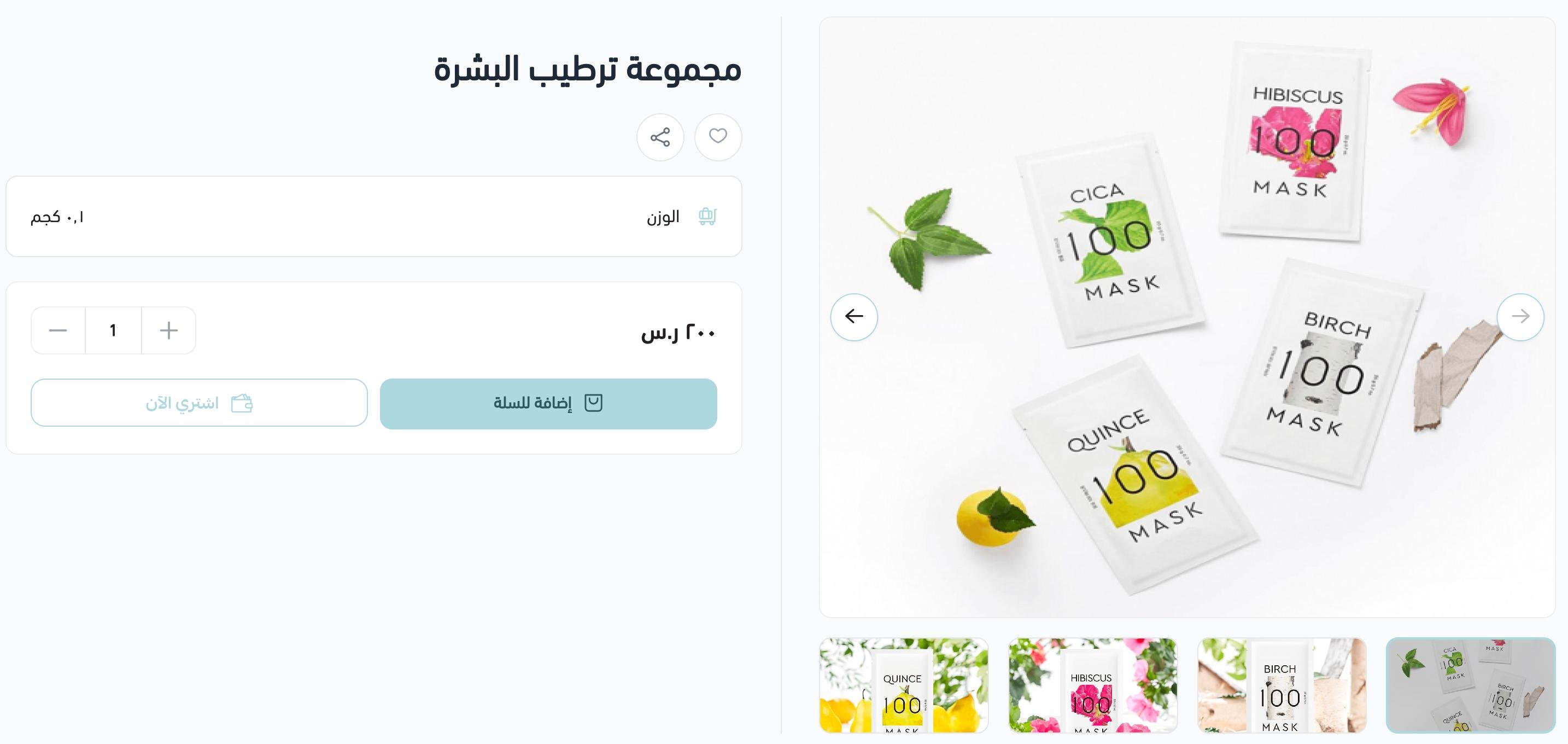
👁️ Controlling where the product group appears
On the Product data page, the (Display channels) field controls whether the product is shown or hidden.

Hide the product from both the store and the app and it appears faded on the Products page with a hidden marker on its card, so customers cannot see it:
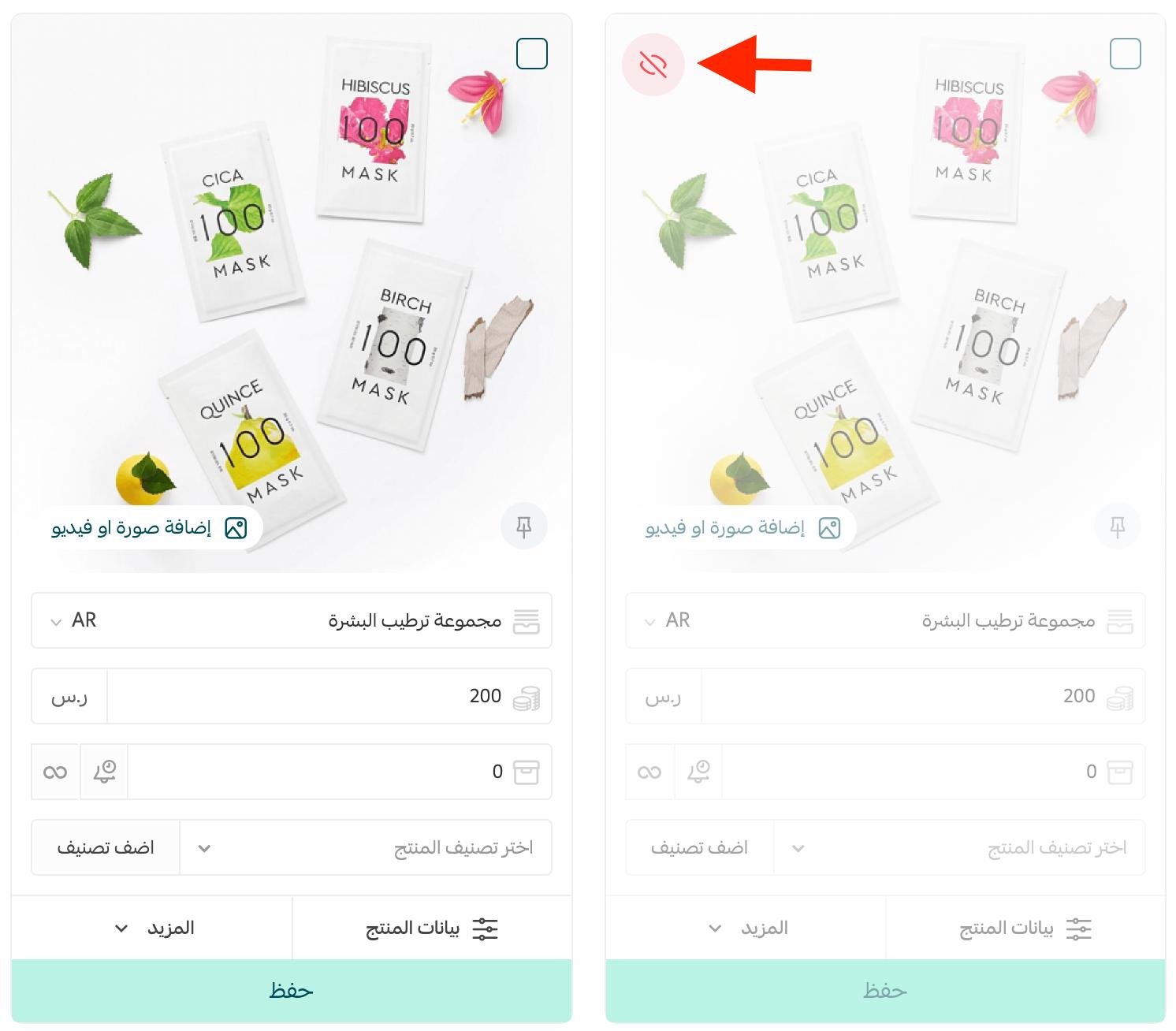
If your store has its own app, you get an extra option for showing and hiding the product in the app. Your choices are:
1. Show the product on the store website only.

2. Show the product in the store app only.

3. Show the product on the store website and in the store app.

4. Hide the product completely from both - select no display channel at all.

❓ Frequently asked questions
How many products can a product group contain?
Up to 10. Set the number of products in the group to match what you plan to add.
Does removing a product from a group delete it from my store?
No. Clicking the (X) only takes the product out of that group. It stays in your catalog and can still be sold on its own or added to another group.
What price does the customer pay?
The price you set on the product group itself, not the total of the individual products. That is what makes the bundle worth buying as a set.
Can I sell the group in the app but not on the website?
Yes, if your store has its own app. Use the (Display channels) field on the Product data page to pick the store website, the app, both, or neither.
Where do I add products after creating the group?
Not on the create screen. Save the product first, then open (Product data) and use the (Product group) tab to search for and add each product.