How quickly can you pull up every order that needs the same handling?
Order tags let you group orders that share something in common — a delivery batch, a special request, a preparation stage — so you can organize, classify, and track them quickly and manage them efficiently. In this guide, you'll learn how to add tags to an order, where the tags appear, and how to search and filter orders by tag.
To add tags to an order on Salla, open (Orders) from the main menu and click the order you want to tag. Click (Add tag), type the tag, click (+) to attach it, then click (Edit order) at the bottom of the page to save. Tags then appear on the order and on the Orders page.
📌 Article overview
- How to add tags to an order
- Frequently asked questions
👣 How to add tags to an order
1. From the main menu of your store dashboard, click (Orders).

2. Click the order you want to add tags to.
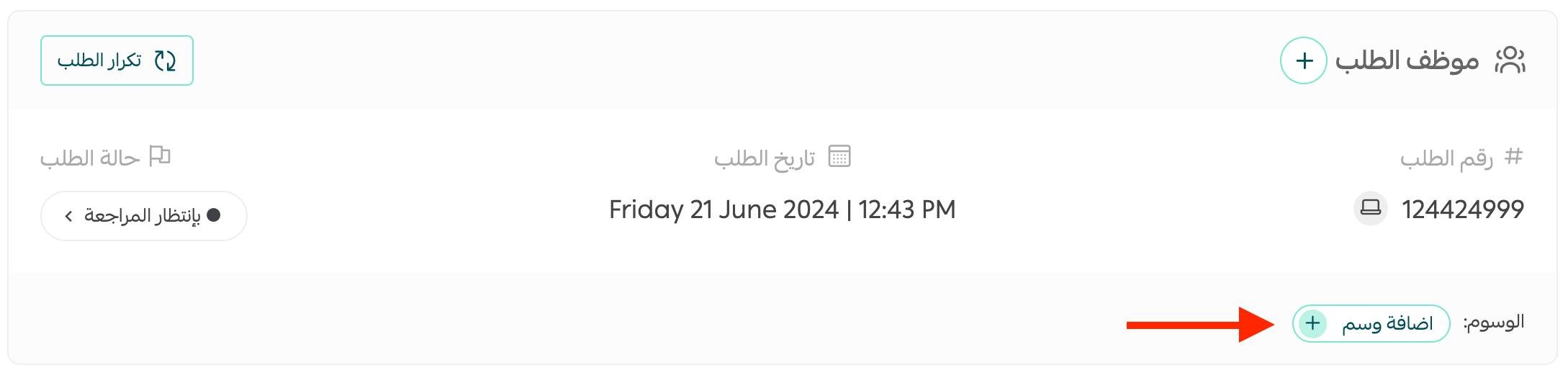
3. In the first section, click (Add tag), then type the tag you want, as shown:

4. Click (+) to add the tag to the order.

5. At the bottom of the order page, click (Edit order) to save the order.

The tags appear on the order like this:
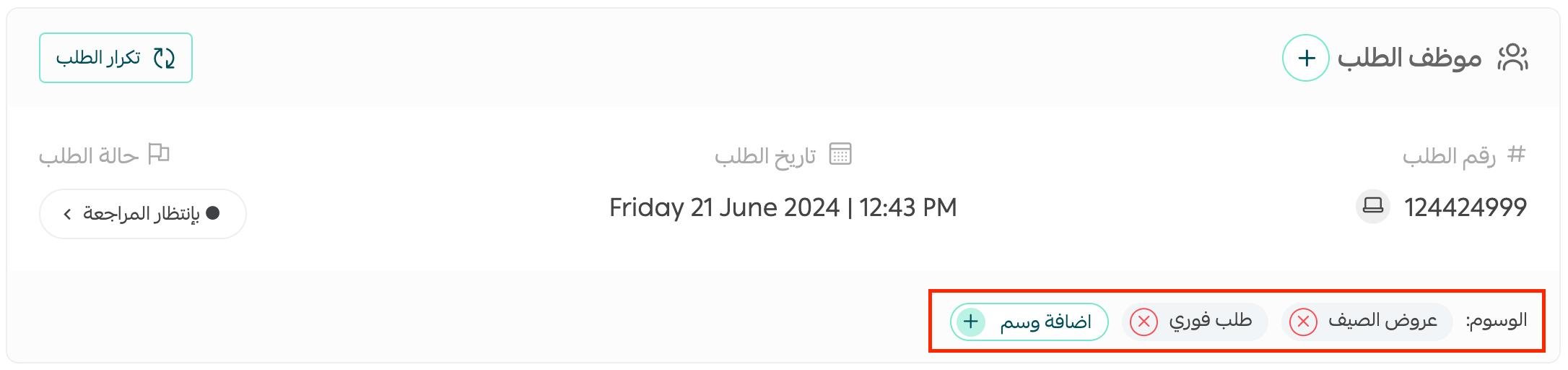
And on the Orders page like this:

❓ Frequently asked questions
Can I use order tags for preparing or shipping orders?
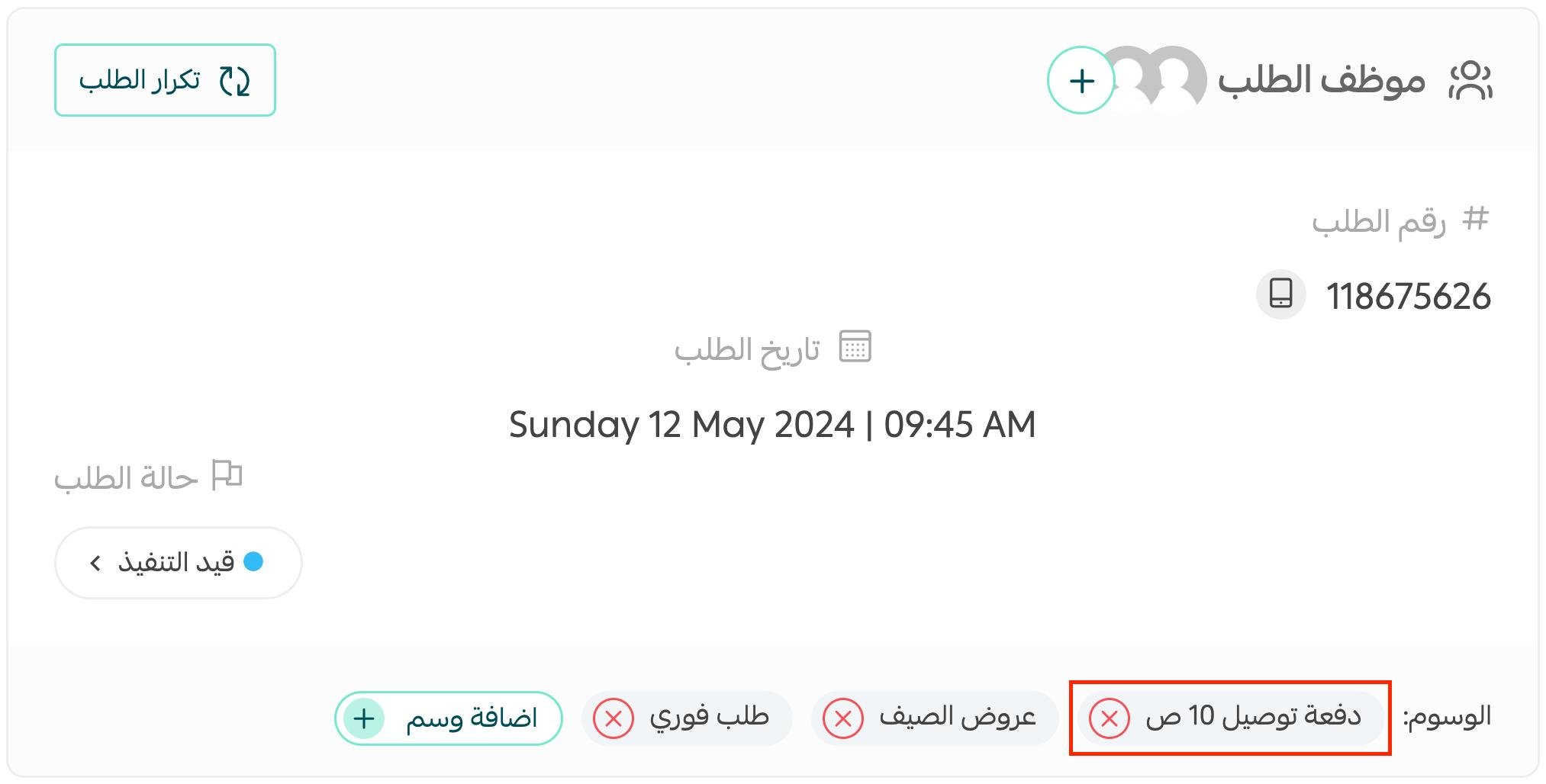
Yes — the feature is very flexible, and you can use order tags to classify orders by delivery or preparation batch.
💡 Example: Add a (10 AM delivery batch) tag to the orders due for delivery at 10 AM, as shown:
Can I search for orders that carry a specific tag?
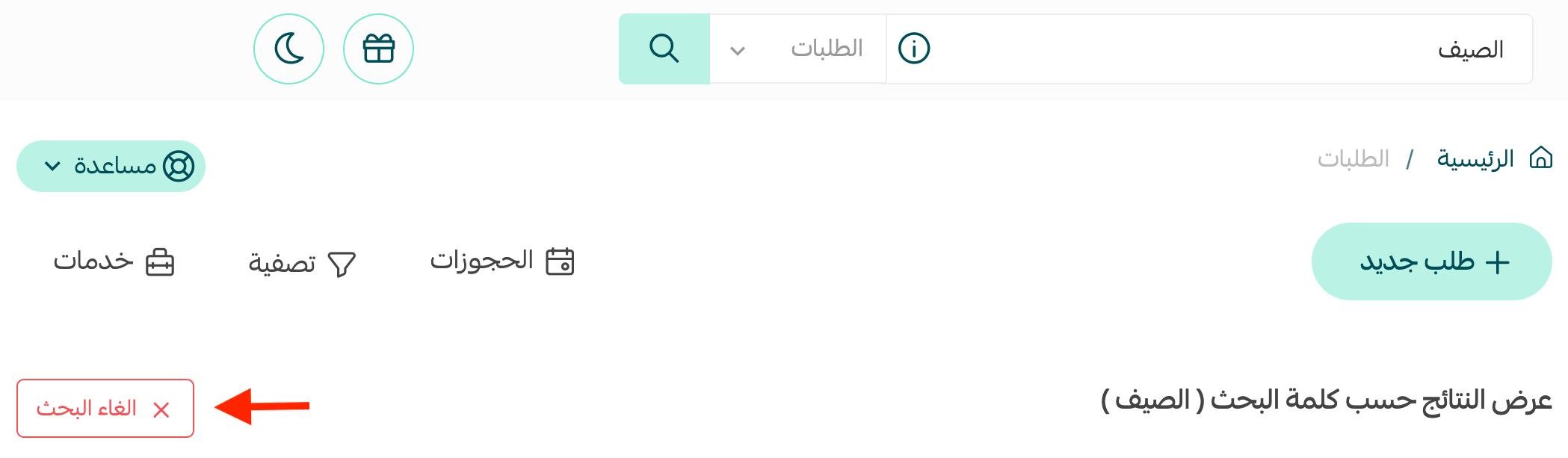
Yes. From the Orders page, type the tag in the search box, and every matching order appears, as shown:
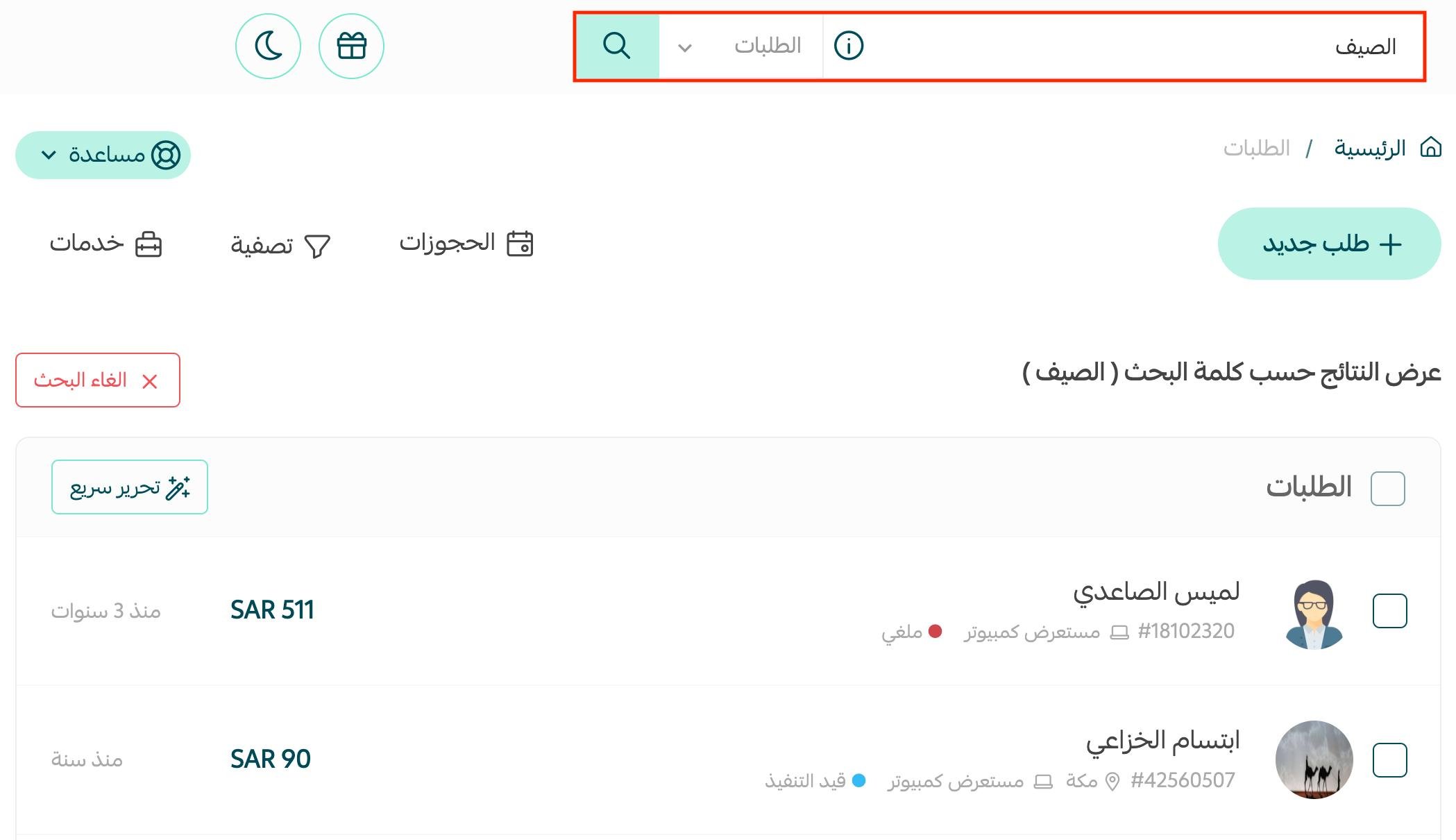
To show all orders again, click (Clear search).
Can I filter orders by tags?
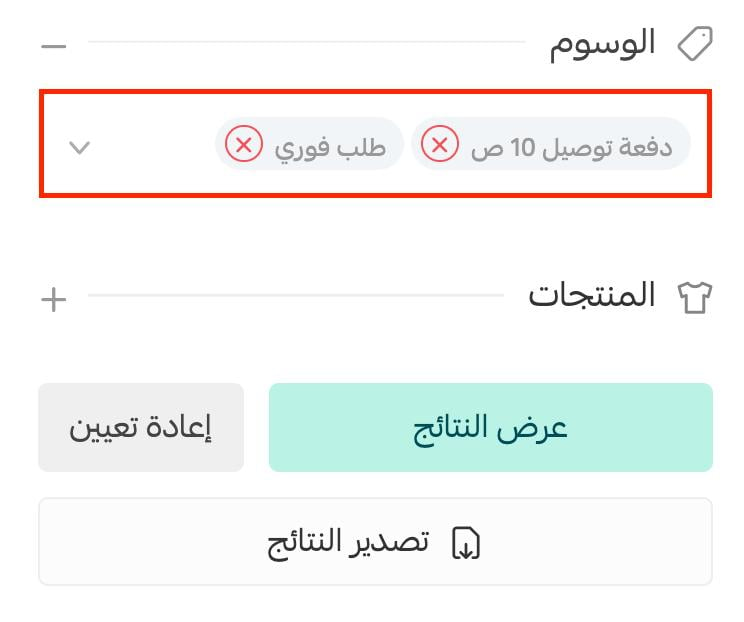
Yes. From the Orders page, click (Filter).

From the tags list, choose the tags whose orders you want to display, then click (Show results).
Which plans include this feature?
The feature is available on all plans.