Running a charity store and want to receive zakat, sadaqah, and support contributions directly through your products?
A donation product is a Salla product type built for exactly that: it covers products whose goal is zakat, sadaqah, or support. In this guide, you'll learn how to add a donation product, set fixed donation amounts, define minimum, maximum, and default amounts, set a campaign goal, and control where the product appears.
To add a donation product on Salla, click (Products) from the side menu of your dashboard, then (New product), and select the product type as a donation product. Enter the basic details and click (Save), then add up to 6 fixed donation amounts from the (Donation options) tab.
🎯 We recommend reading this article to learn how to create a donation product on the new dashboard, set up its details, and track contributions clearly and smoothly.
📝 Important notes
If the product's type is donation, it will not appear in the Click theme at all.
📌 Article overview
- What a donation product includes
- How to add a donation product
- Frequently asked questions
🚀 How to add a donation product
1. From the side menu of your dashboard, click (Products).

2. From the products page, click (New product).

3. Select the product type as a donation product.
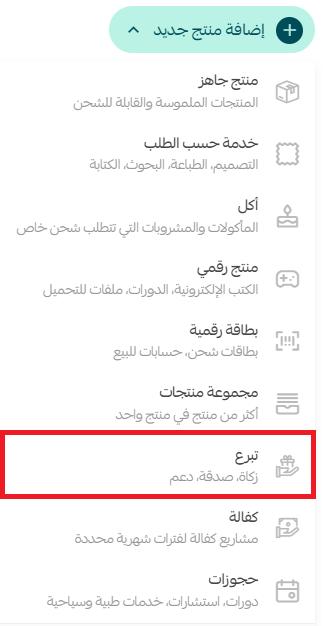
4. Enter the product's basic details, then click (Save).
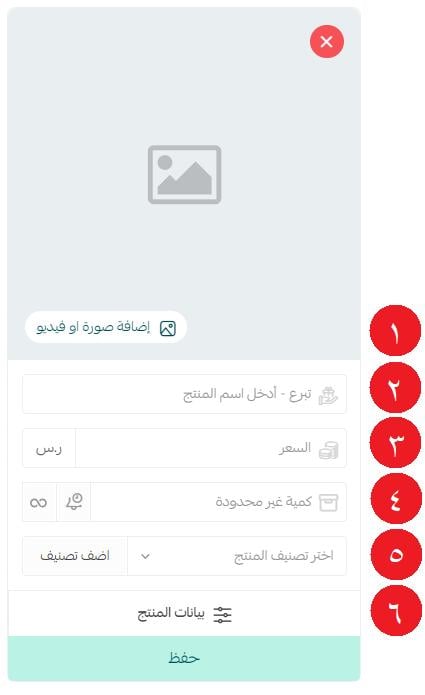
1. Product images — add one or more images. For more details, see uploading product images and videos.
2. Product name — the name customers will see.
3. Product price — the selling price.
4. Product quantity — the available quantity.
5. Product category — helps you customize product display, product reports, and more. For more details, see managing product categories.
6. Product details — to customize details such as quantity, price, barcode, and more.
For more details, see the product card and adding a new product.
And for more details, see adding product options and controlling how they appear to the customer.
5. To add fixed-amount donation options, open the (Donation options) tab in the product details.
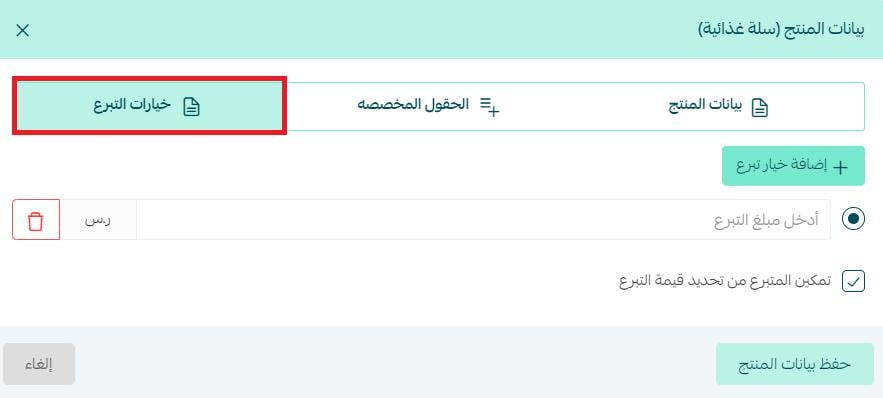
Click (Add donation option) and enter the donation amount. You can add up to 6 donation options.
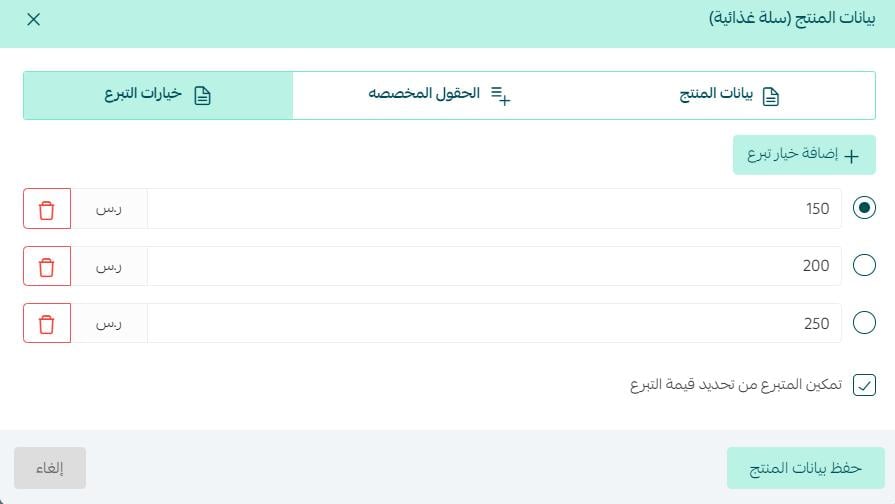
These options appear to the customer in your store like this:
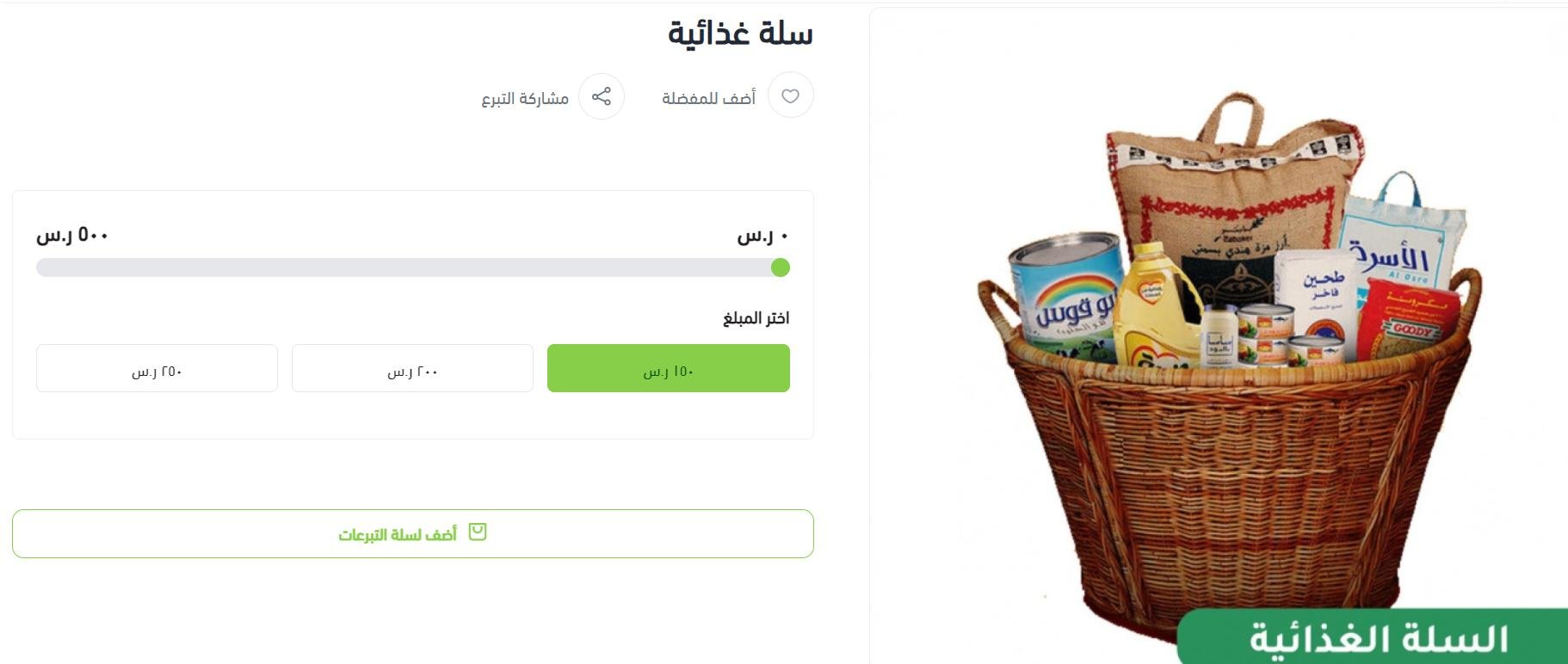
For more details, see adding product options and controlling how they appear to the customer.
❓ Frequently asked questions
We'll answer the following questions:
- Is the quick donation feature available for charities?
- Is there a theme designed for charities?
- Can I set a minimum and maximum donation amount?
- Can I set a goal for the donation campaign?
- Can I let the customer write a note on the product?
- Can the customer donate an amount different from the donation options?
- Can I set the default donation amount?
- Which plans include this feature?
- How do I show or hide the product in my store?
Is the quick donation feature available for charities?
Yes. It lets the customer donate instantly, with no need to enter personal details such as name and email.
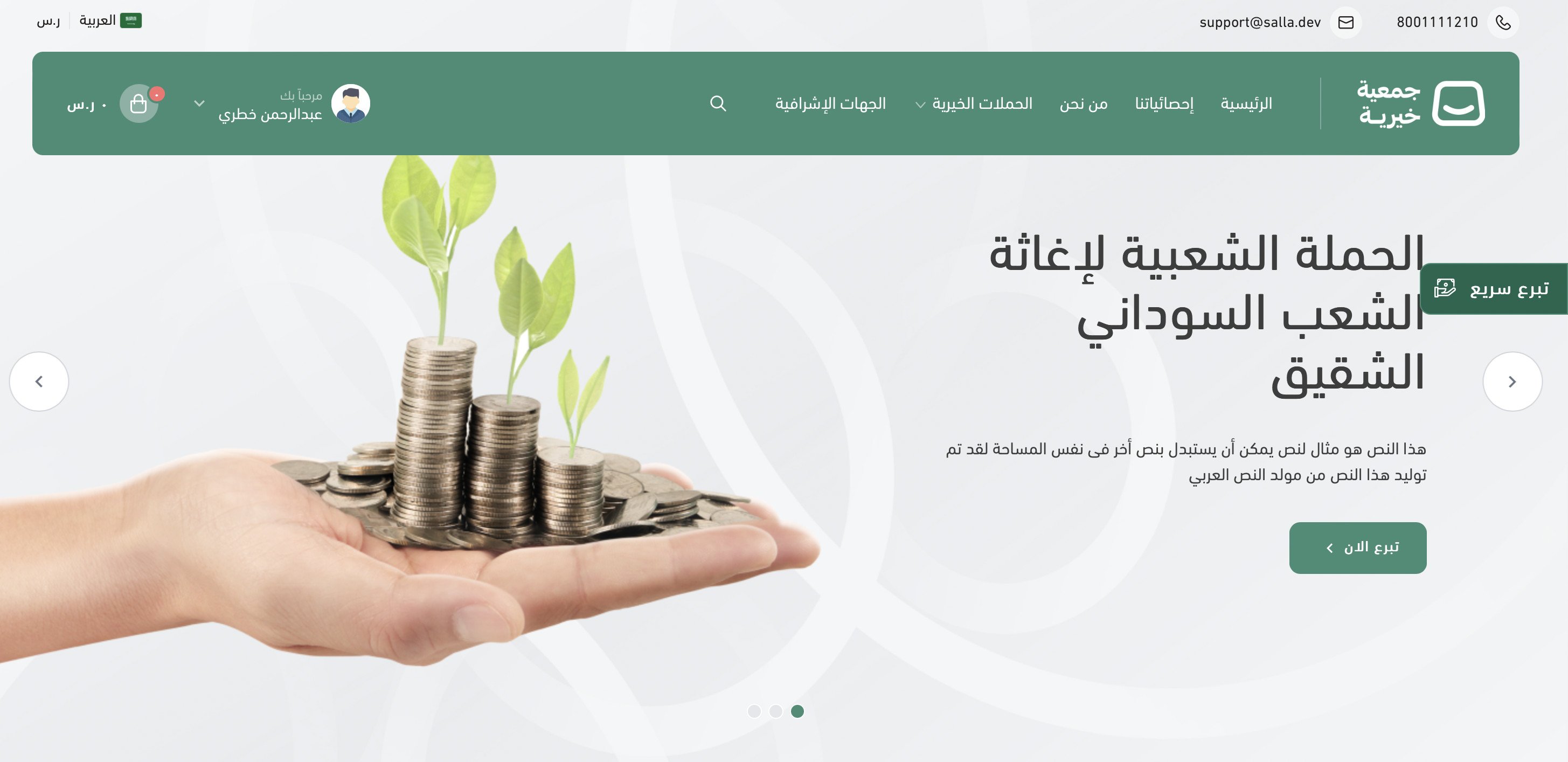
For more details, see managing quick donation settings.
Is there a theme designed for charities?
Yes. The Ataa theme gives you the best features in charity website design. For more details, see the Ataa theme article.
Can I set a minimum and maximum donation amount?
1. From the product card, click (Product details).
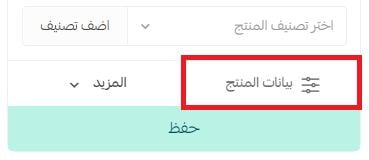
2. On the product details page, enter the minimum and maximum donation amounts.

Leaving either field empty means you are not restricting donors with a limit for that field.
Can I set a goal for the donation campaign?
Yes. From the product page, click (Product details).
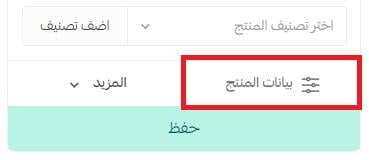
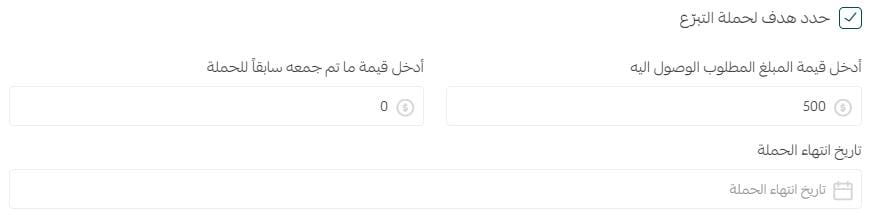
Then enable (Set a goal for the donation campaign), enter the target amount you want to reach and the amount already collected for the campaign, and optionally set the date by which you want to reach the goal.
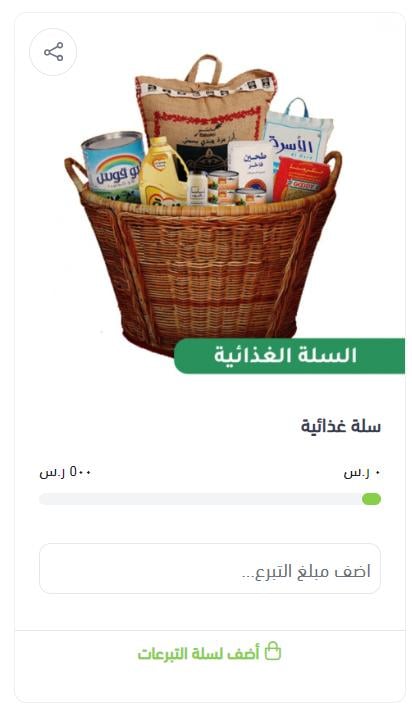
The product appears in your store like this:
Can I let the customer write a note on the product?
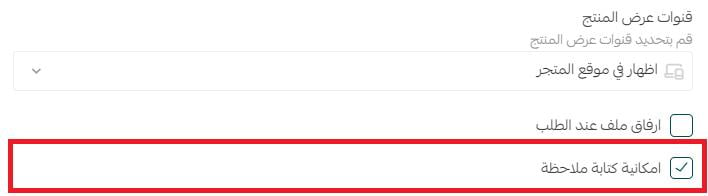
Yes. From the product page, click (Product details), then enable (Allow writing a note).
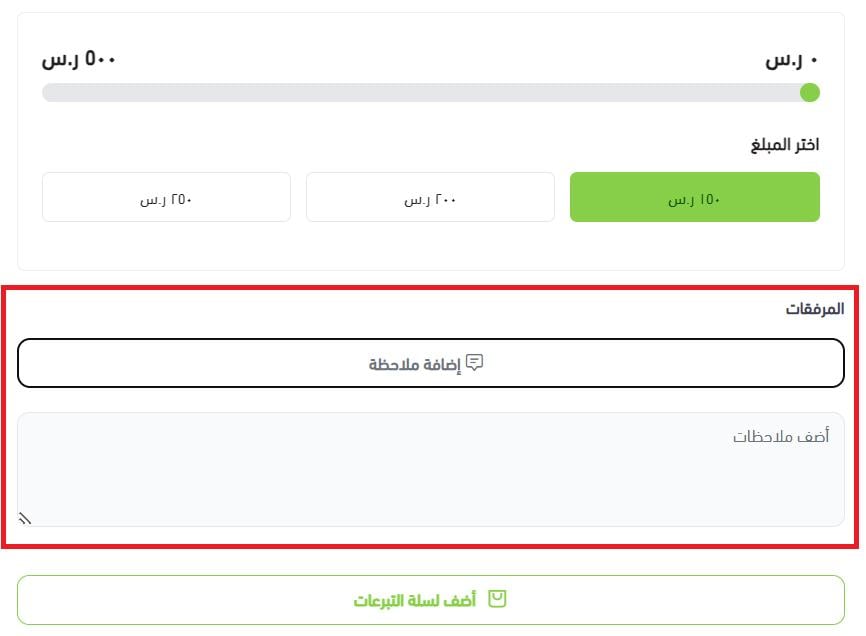
The note appears on the product card like this:
Can the customer donate an amount different from the donation options?
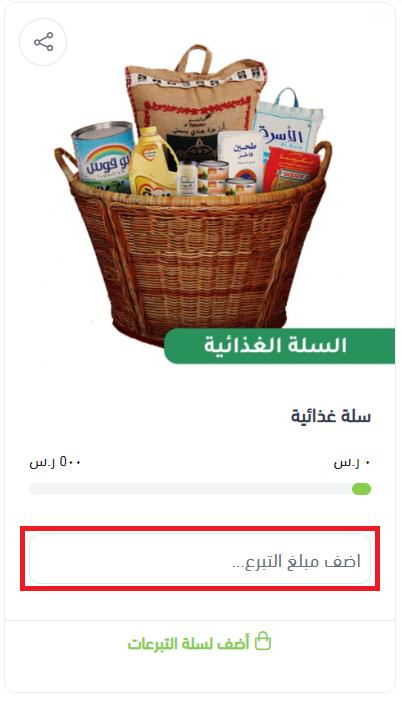
Yes. You can give customers the freedom to enter the amount they want to donate: from the (Donation options) tab in the product details, enable (Let the donor set the donation amount).
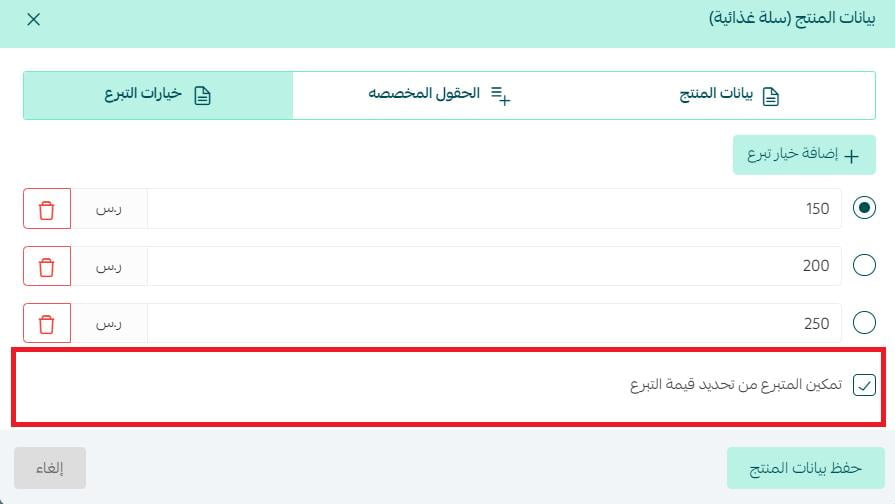
It appears on the product card like this:
Can I set the default donation amount?
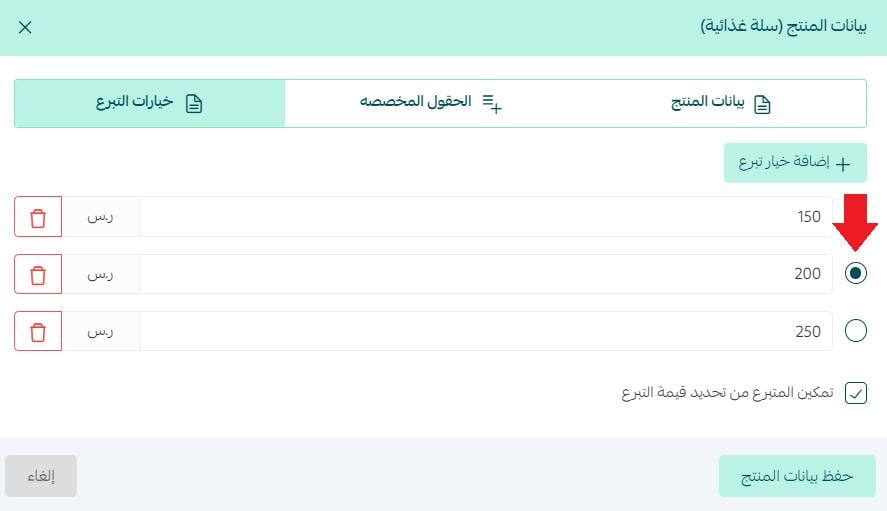
Yes. If you don't mark one of the options as the default, the first option is the default.
To set a default option: from the (Donation options) tab, select the default option you want, then click (Save).
Which plans include this feature?
All plans — provided the entity is a charitable organization.
How do I show or hide the product in my store?
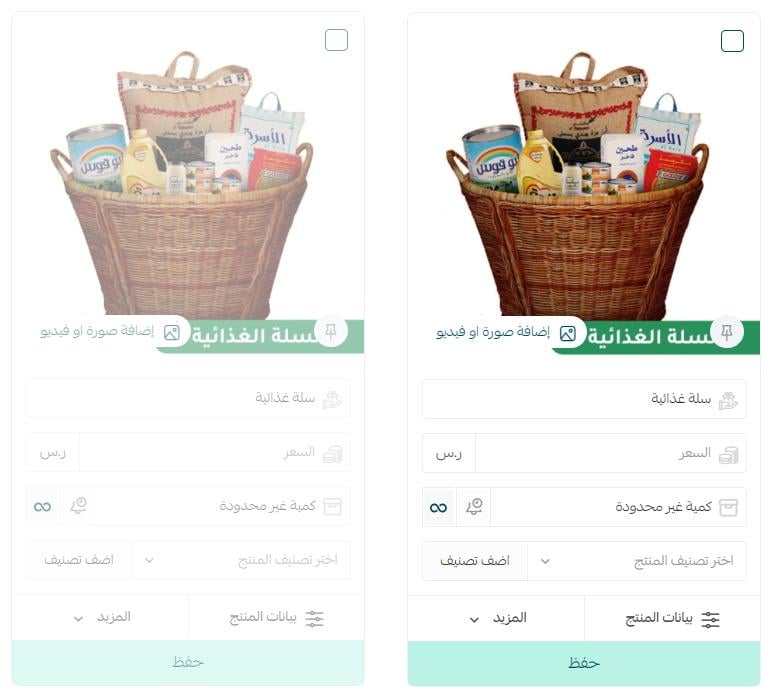
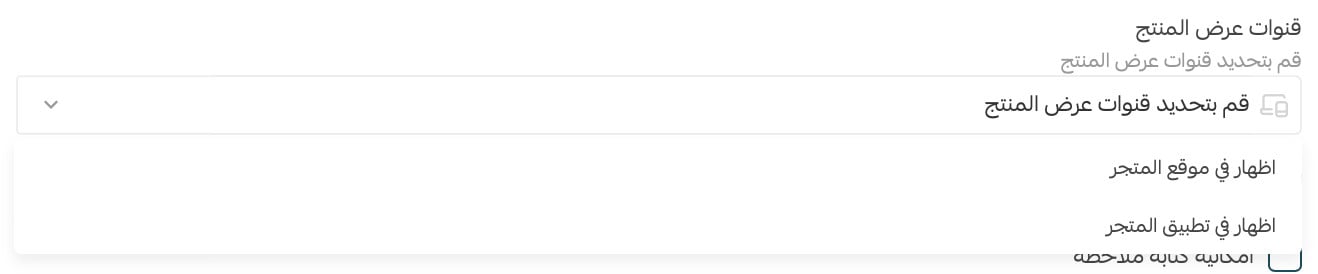
On the product details page, use the product display channels field to show or hide the product.

When you hide the product, it appears watermarked on the products page and is not shown to customers in your store, as in the figure:
If you have a dedicated app for your store, an extra option appears for showing or hiding the product in the app, and you have the following choices:
1. Show the product on the store website only.

2. Show the product in the store app only.

3. Show the product on both the store website and the store app.
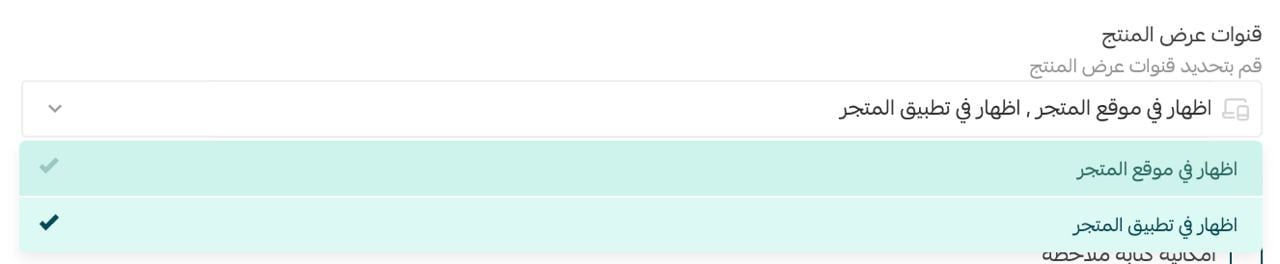
4. Hide the product completely from both the store website and the store app — leave all display channels unselected.
Donation products give charities a complete collection flow — fixed or open amounts, limits, defaults, and a visible campaign goal — so set each condition deliberately and your store does the rest.