Selling an ebook, a course, or a downloadable file? The way you add a digital product decides how smooth that sale feels for your customer.
With Salla, you can add a digital product to your store in minutes, attach the files your customer receives, deliver them automatically the moment payment is complete, and protect your PDF files from copying and resale. In this guide, you'll learn how to add a digital product, how delivery works, and how to keep your files safe.
To add a digital product on Salla, go to (Products) in your dashboard, click (New product), and set the product type to digital. Enter the name, price, and quantity, then attach the files from the (Attached files) tab in the product data page. Customers receive the files by email once payment is complete.
📌 Article overview
- How to add a digital product
- How the digital product is delivered
- Protect your digital product from theft and resale
- Frequently asked questions
👣 How to add a digital product
1. From the main menu of your dashboard, click (Products).

2. From the products page, click (New product).

3. Set the product type to digital product.
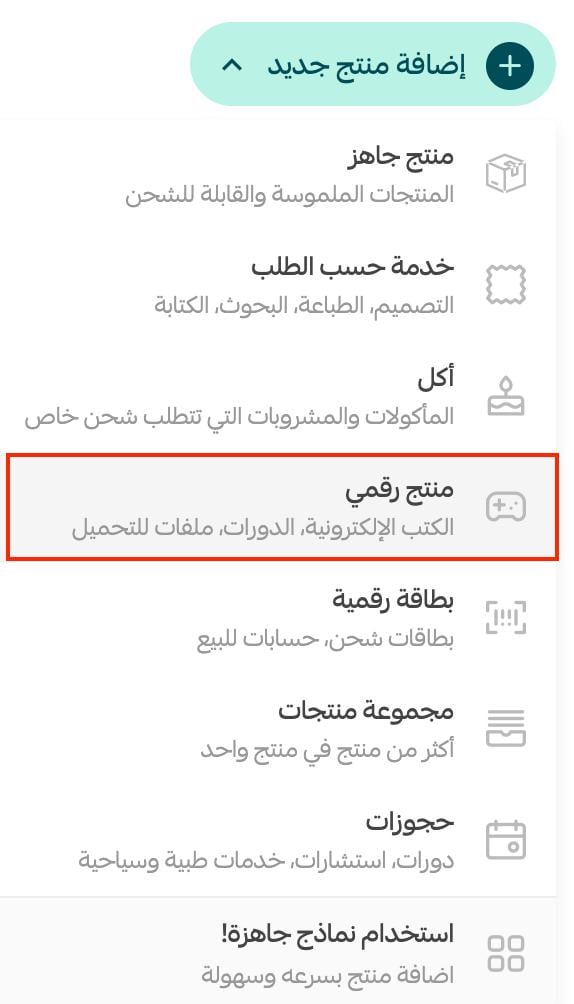
4. Enter the product's basic details, then click (Save).
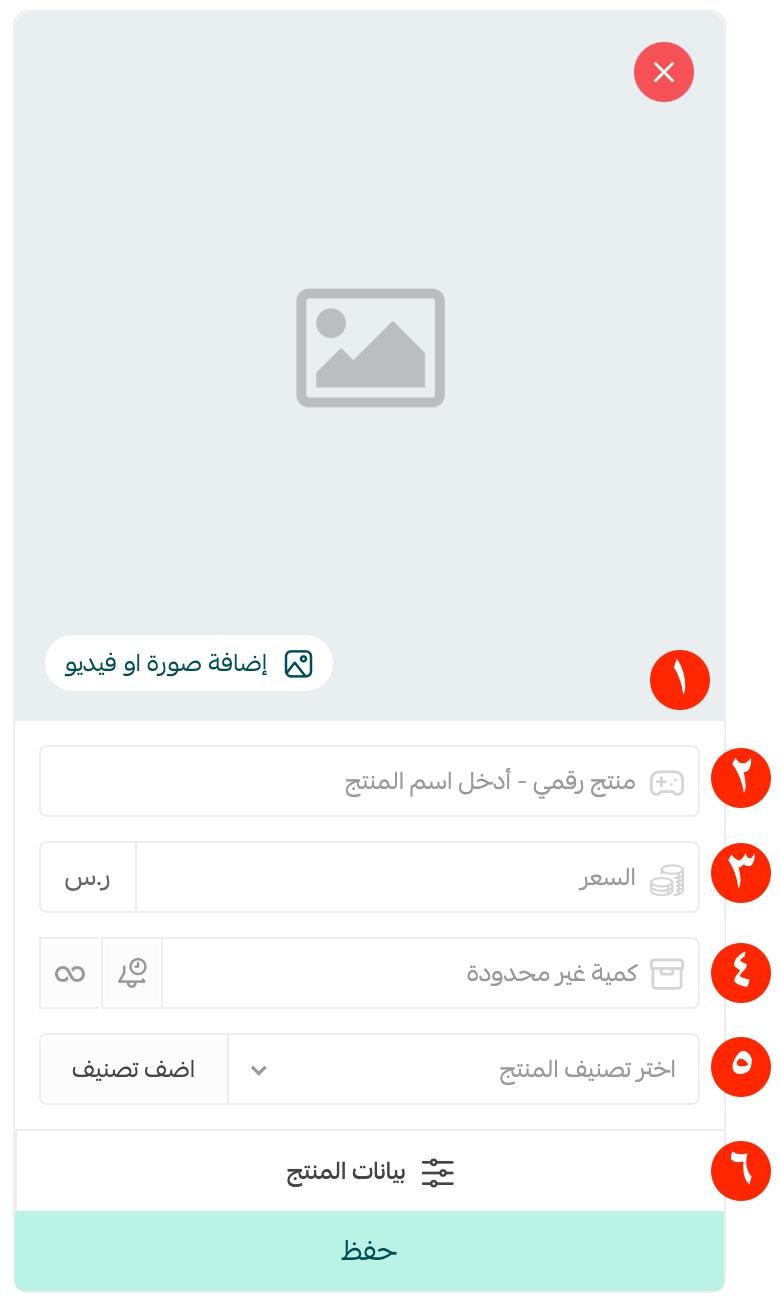
1. Product images: add one or more images. For more details, see adding product images and videos.
2. Product name: the name your customer sees.
3. Product price: the selling price.
4. Product quantity: how many units are available.
5. Product category: helps you organize how products are displayed and reported. For more details, see managing product categories.
6. Product details: fine-tune the quantity, price, barcode, and more.
After saving, the product card looks like this:
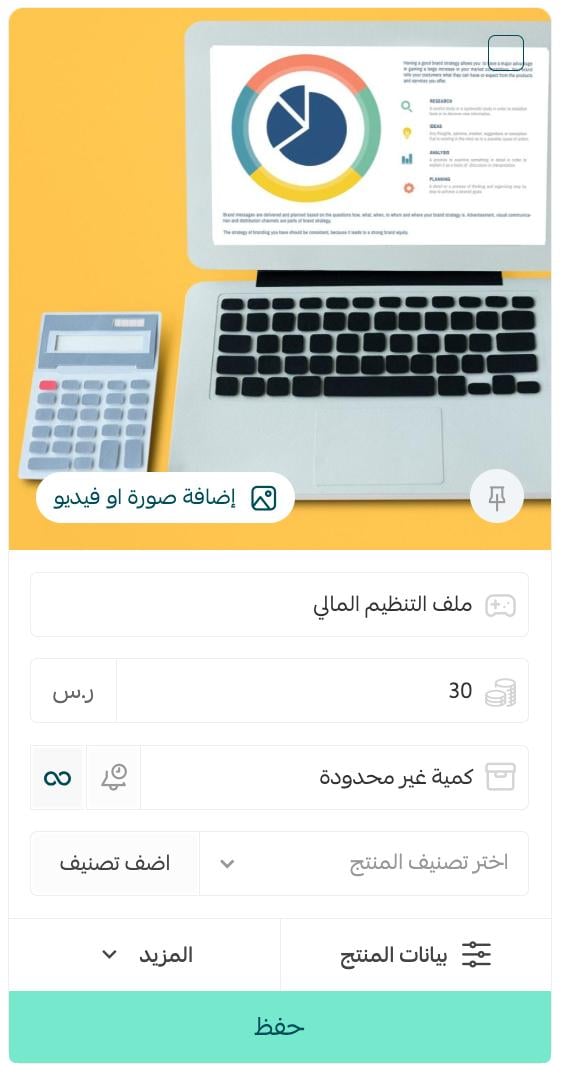
For more details, see the product card and adding a new product.
You can also read about adding product options and controlling how they appear to customers.
Prefer to hand this off? The product upload service from merchant services adds all your digital products for you, and services like image design and product description writing help your catalog look professional.

🚀 How the digital product is delivered
Attach the digital product's files
1. From the product card, click (Product data).
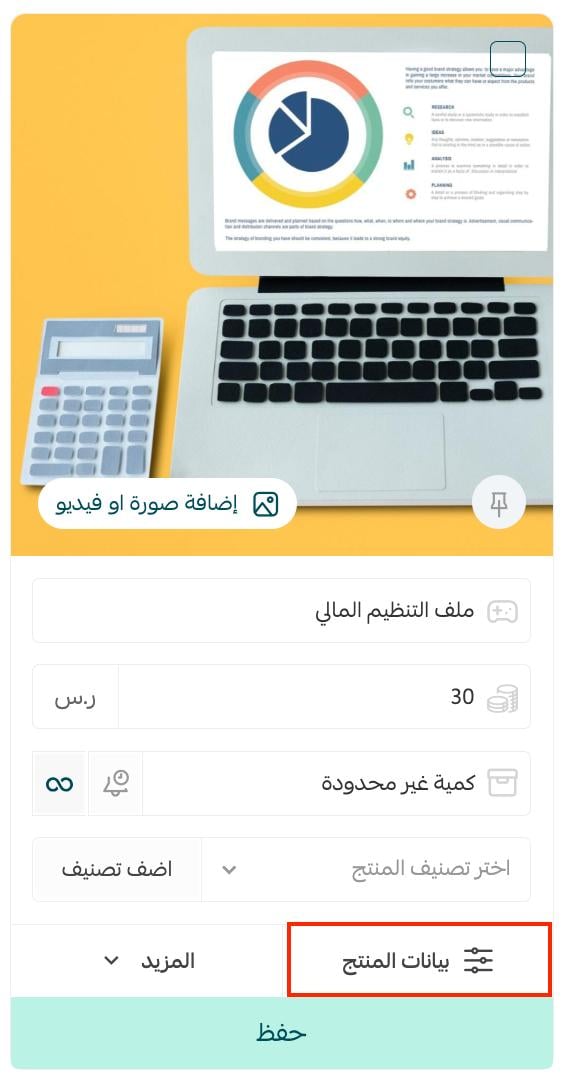
2. From the product data page, open the (Attached files) tab.
Here you can add the files that belong to the digital product — the tab supports more than 50 digital files. When you finish, click (Save product options). To add another file, click the plus sign (+).
3. Click (Browse) and select the file your customer should receive when the order is complete.
To remove a file, click (Delete file) below it.
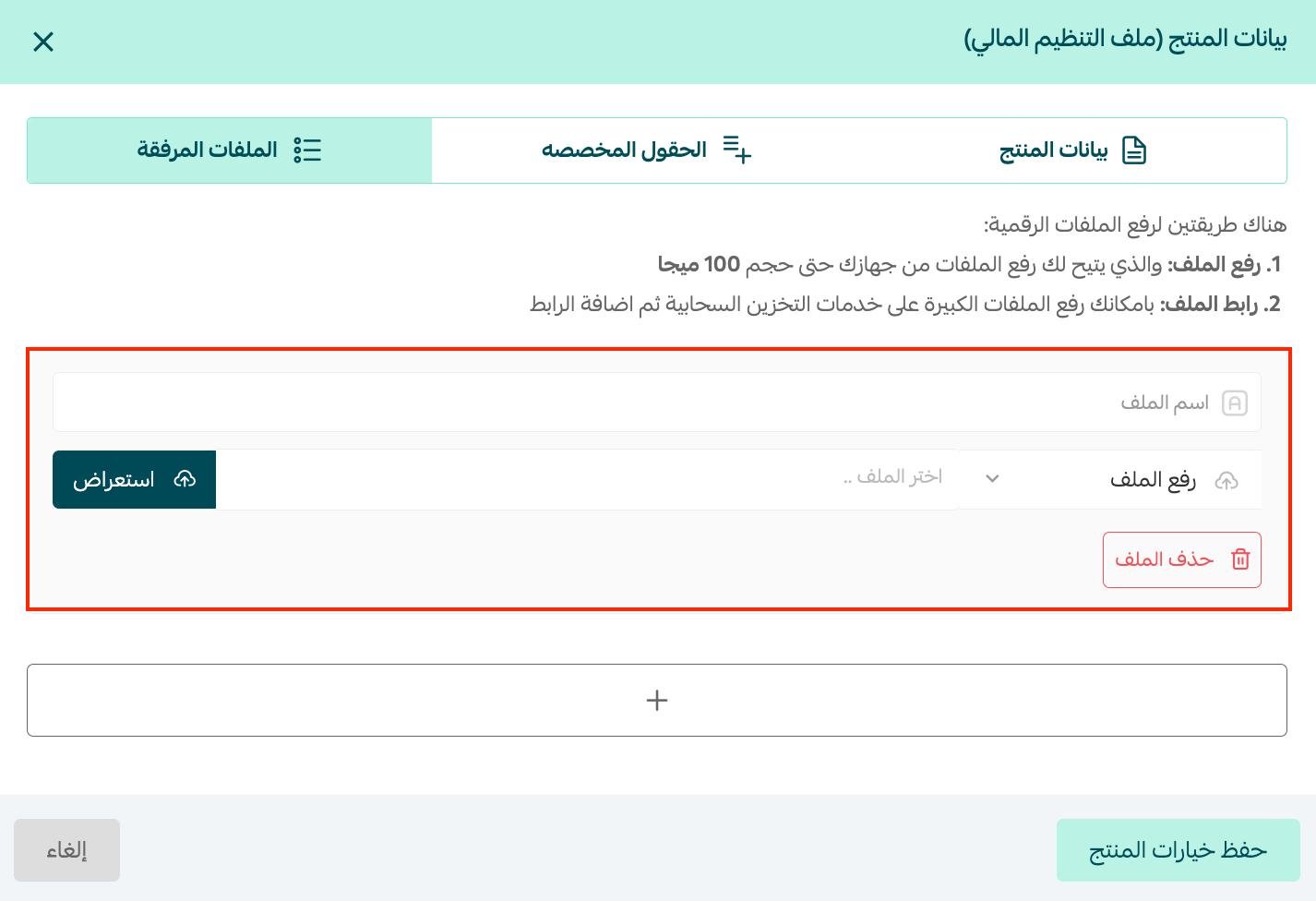
Send the digital product to the customer
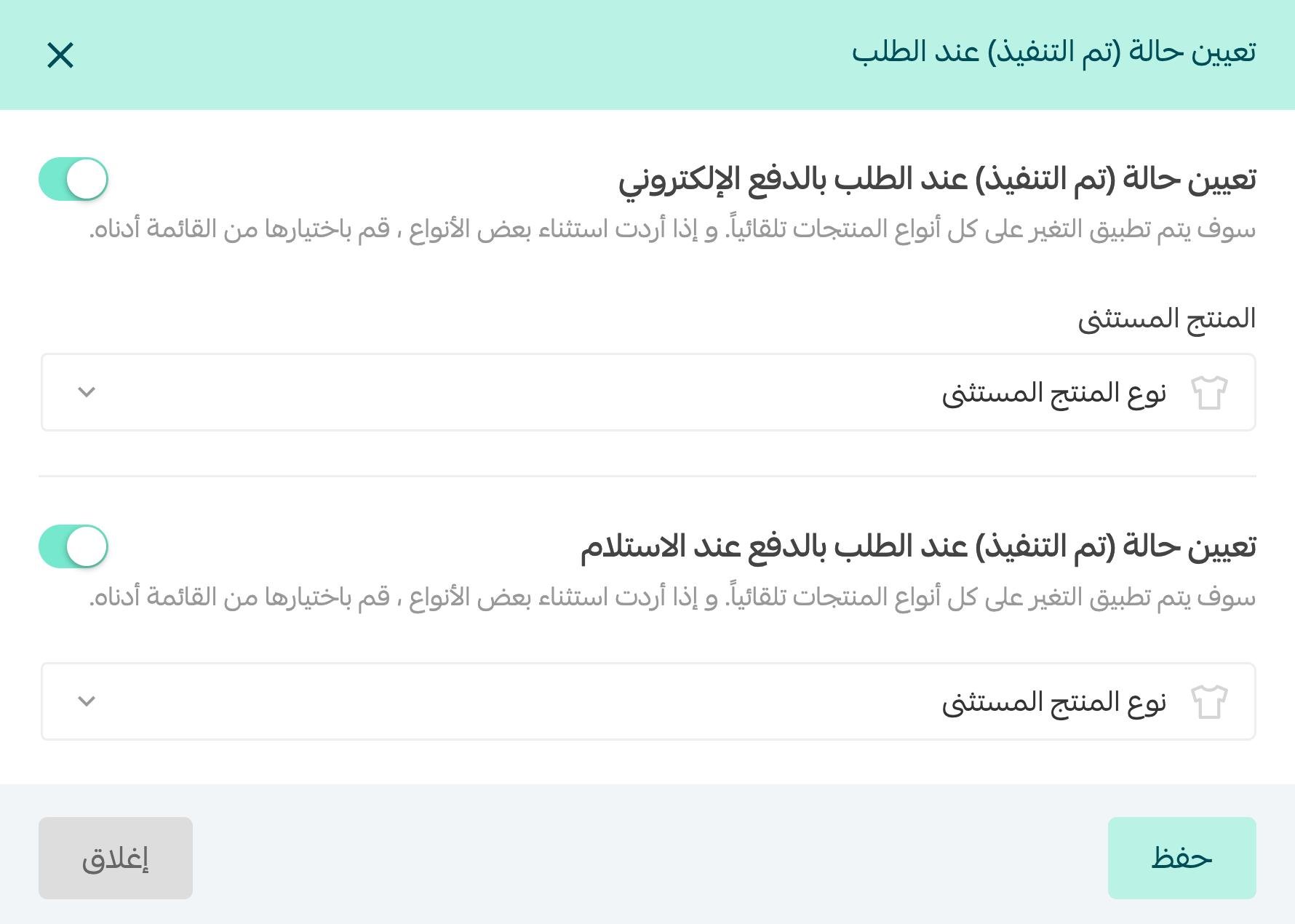
As soon as payment is complete, the digital product or digital card reaches the customer directly by email. That happens when the order status for digital products is set to (Completed) automatically. To set this up:
1. From the main menu of your dashboard, click (Store settings).

2. Go to the (Store options) page.

3. From the orders section of the store options page, click (Set) next to the option that sets the order status to completed.

4. Turn on the completed status for orders paid electronically, choose any product types you want to exclude, then click (Save).
🔒 Protect your digital product from theft and resale
You can stop your PDF files from being copied, republished, or resold:
1. From the main menu of your dashboard, click (Store settings).
2. Go to the (Store options) page.
3. From the product options settings, turn on (Digital product protection mode for PDF files).
With this setting on, PDF files open in a private viewing link tied to the customer. The link renews automatically after every visit, and selecting or copying text is disabled — so the file cannot be copied, republished, or resold.

For more details, see protecting the intellectual property of your digital product.
❓ Frequently asked questions
How do I show or hide the product in my store?
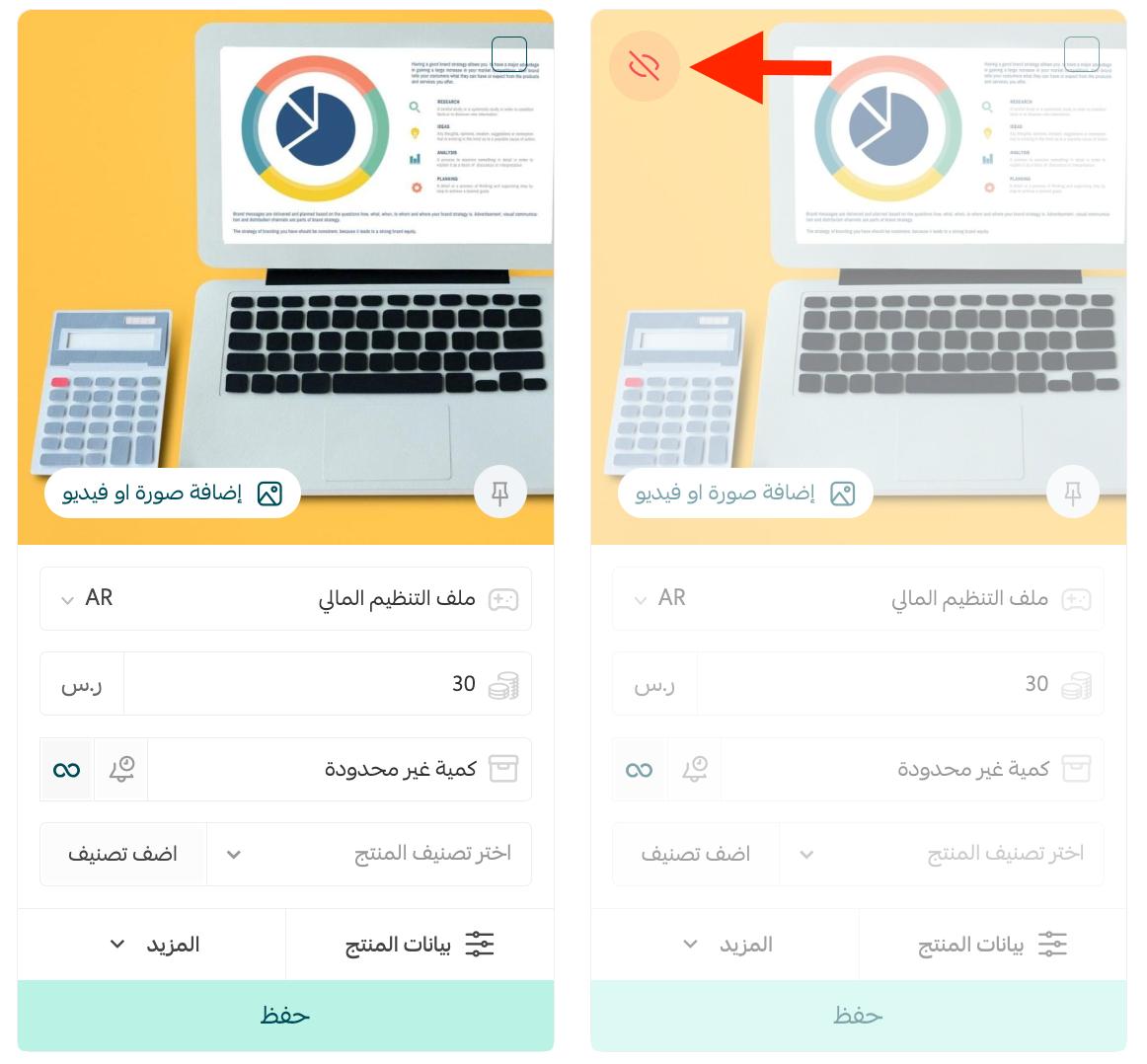
From the product data page, use the product display channels field to show or hide the product.

When you hide the product from both the store and the app, it appears faded on the products page with a hidden badge on its product card, so your customers cannot see it:
If your store has its own mobile app, an extra option controls where the product appears. You can:
1. Show the product on the store website only.

2. Show the product in the store app only.

3. Show the product on both the store website and the store app.

4. Hide the product completely from both the website and the app by leaving all display channels unselected.

How does my customer receive the digital product?
By email, immediately after payment is complete — as long as the completed order status is turned on for electronically paid orders in your store options.
Can I attach more than one file to a digital product?
Yes. From the (Attached files) tab in the product data page, click the plus sign (+) to add each additional file, then click (Save product options).
How do I protect my PDF files from being copied or resold?
Turn on (Digital product protection mode for PDF files) in your store options. Customers then view the file through a private link that renews after every visit, with text selection and copying disabled.
A digital product that is delivered instantly, protected properly, and displayed exactly where you want it — that is what turns a downloadable file into a dependable revenue stream for your store.