Do your customers shop by brand name before anything else?
Many shoppers head straight for the labels they trust, and grouping your catalog by brand makes that journey effortless. The brands feature in Salla lets you create a page for every brand you carry, assign products to it, and even show brand banners on your storefront. In this guide, you'll learn how to add brands to your store, link products to them, and manage, export, and import brands in bulk.
To add a brand on Salla, open (Store settings) from the main menu, click (Brands), then click (+Add new brand). Enter the brand details, upload its logo, optionally add a banner image, and click (Save). You can then assign any product to that brand from its product details.
📌 Article overview
- How to add a brand
- Frequently asked questions
🚀 How to add a brand
1. From the main menu of your store dashboard, click (Store settings).

2. From the Store settings page, click (Brands).

3. Click (+Add new brand).

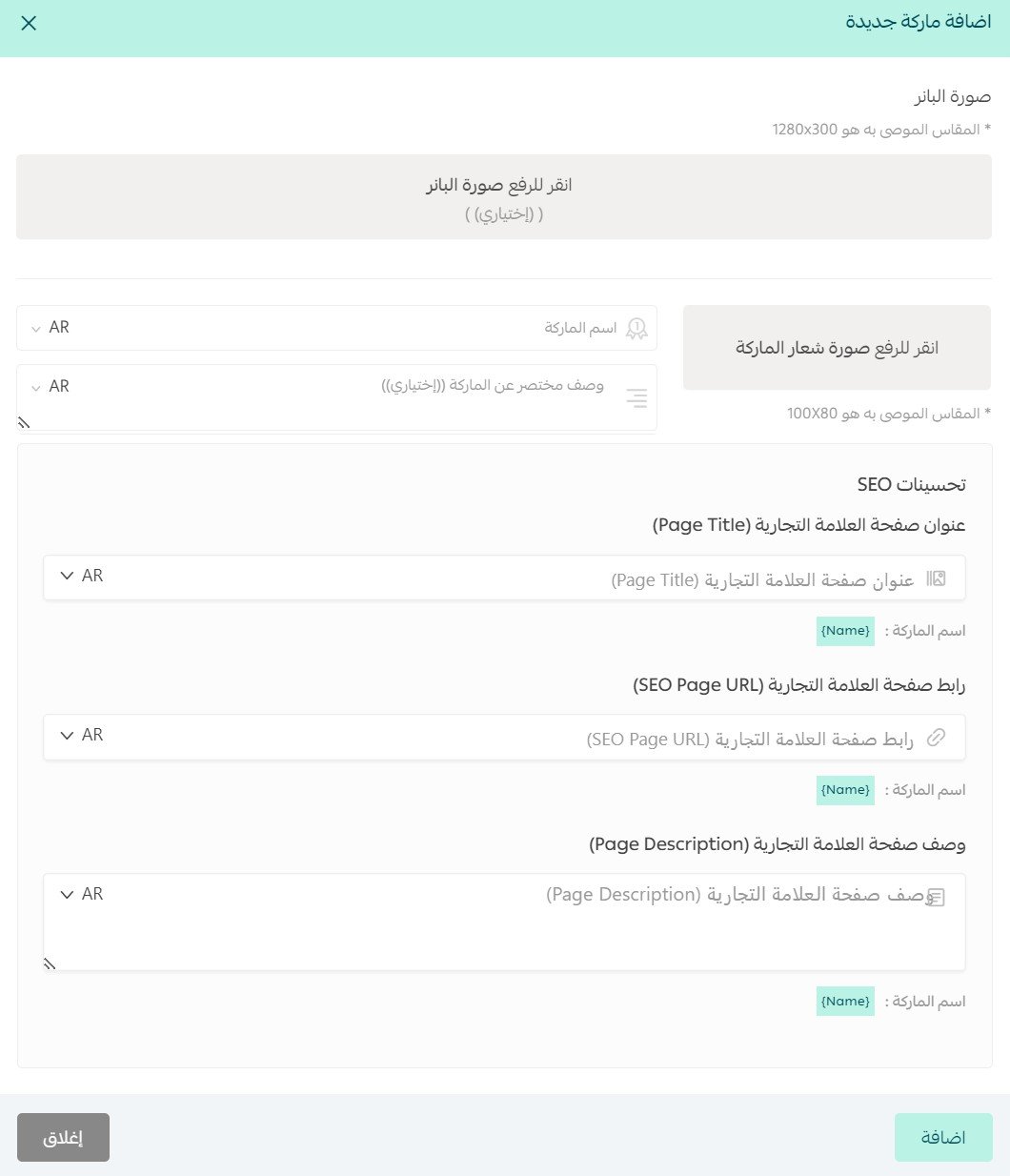
4. Enter the required details, then click (Save).
📝 Important notes
- Add the brand logo, preferably at 80*100 dimensions.
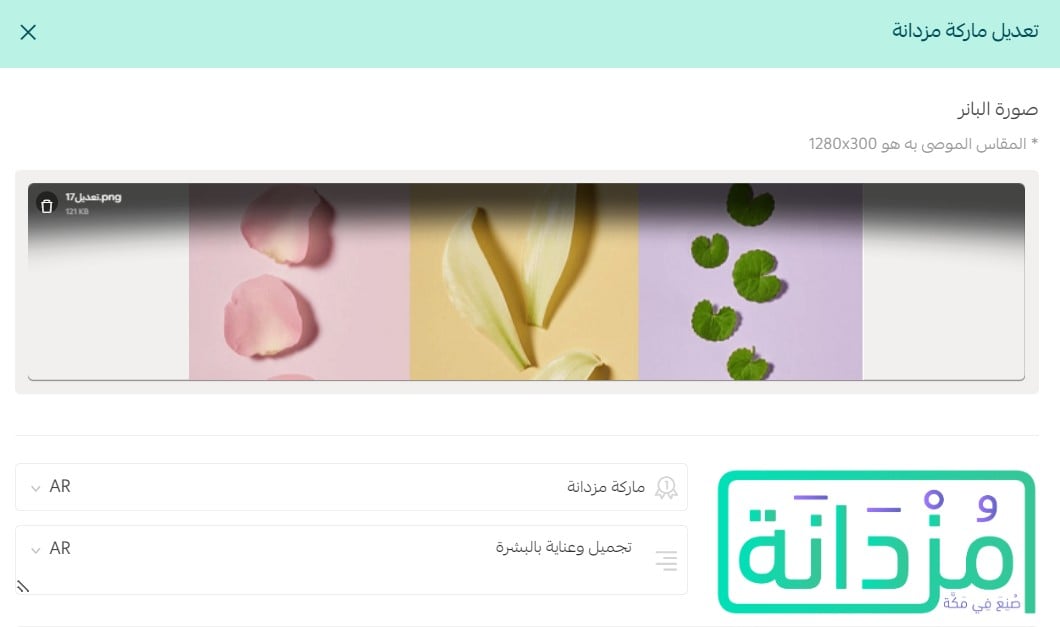
- Add a brand banner image (optional) to display on your store's homepage.
The window will look like this:
❓ Frequently asked questions
We'll cover the following common questions:
- How do I activate the brands feature if it isn't active on my store?
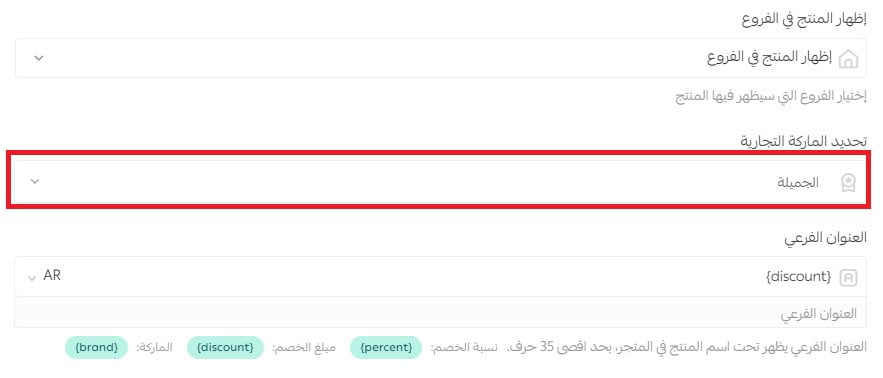
- How can I add products to a specific brand?
- Can I view a sales report for a specific brand?
- Can I delete a brand from my store?
- Can I disable the brands feature on my store?
- How can I control where the brand banner appears on my store?
- Can I export the brands on my store?
- Can I import a set of brands?
How do I activate the brands feature if it isn't active on my store?
1. From the main menu of your store dashboard, click (Store settings).

2. From the Store settings page, click (Brands), then click (Activate feature).

How can I add products to a specific brand?
1. From the Products page, on the product card, click (Product details).
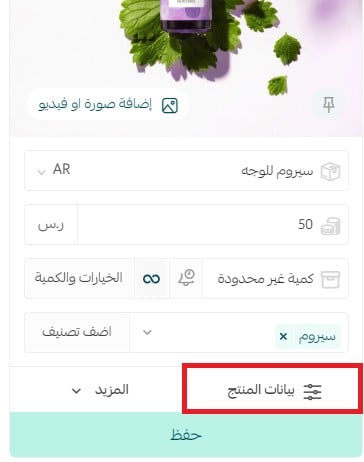
2. From the product details tab, choose the brand the product belongs to.
Can I view a sales report for a specific brand?
Yes, absolutely.
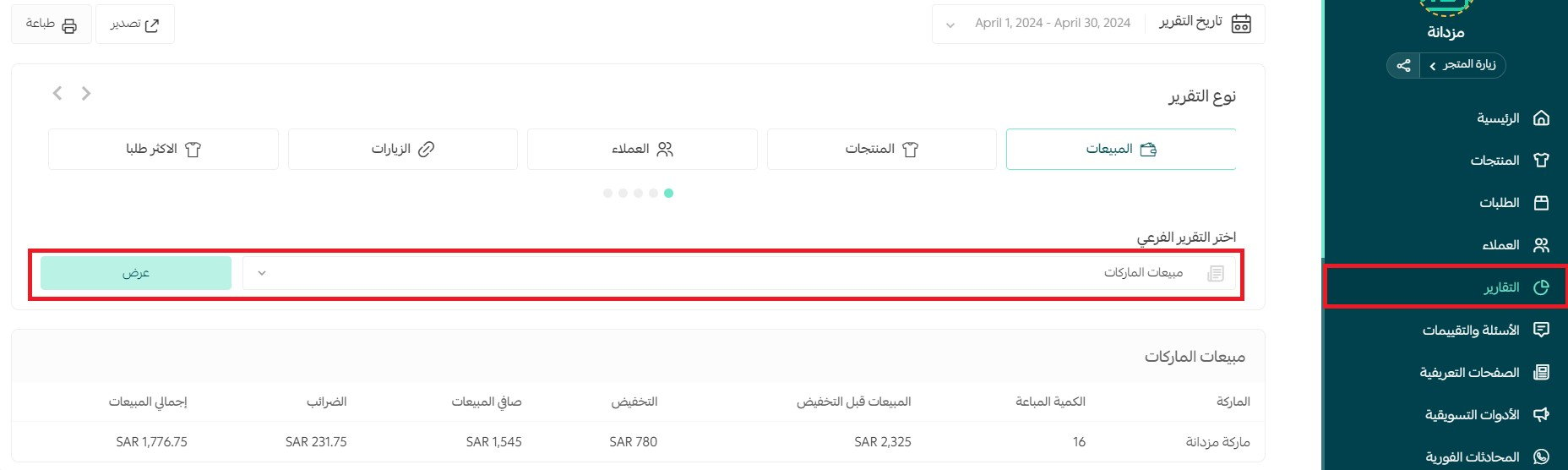
From the main menu of your store dashboard, click (Reports). From the Reports page, click (Sales), choose the (Brand sales) sub-report, then click (View).
Can I delete a brand from my store?
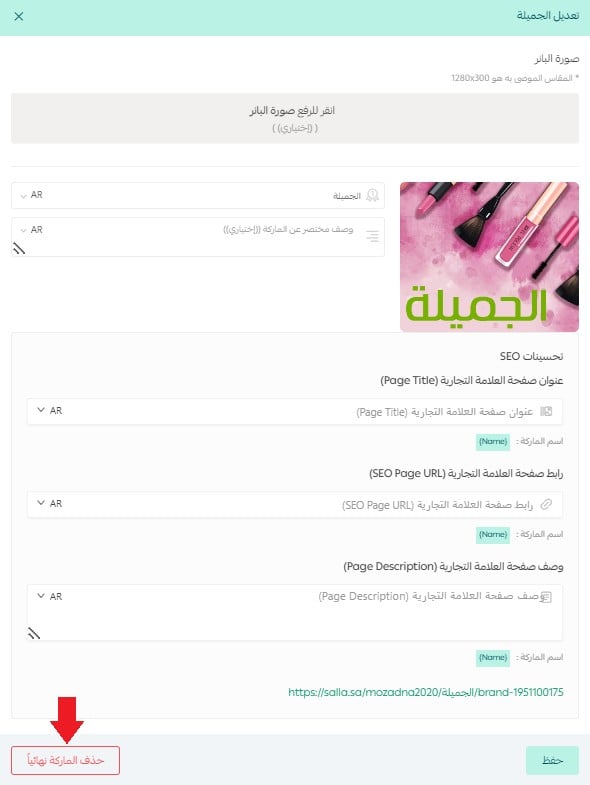
Yes. From the Brands page, open the page of the brand you want to delete, then click (Delete brand permanently).
Can I disable the brands feature on my store?
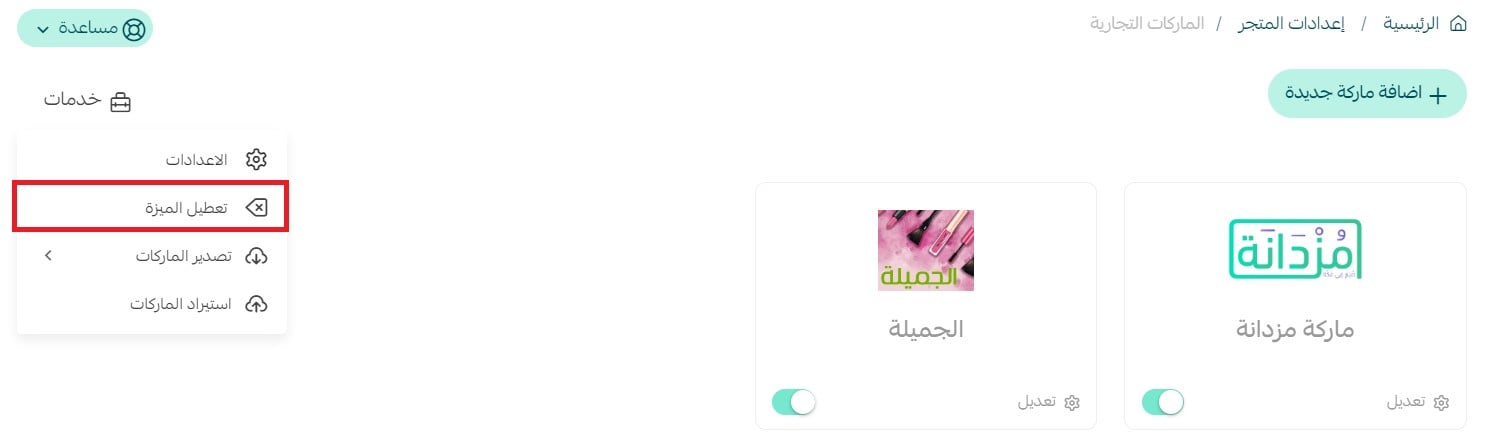
Yes. From Store settings, open the Brands page, then click (Disable feature).
How can I control where the brand banner appears on my store?
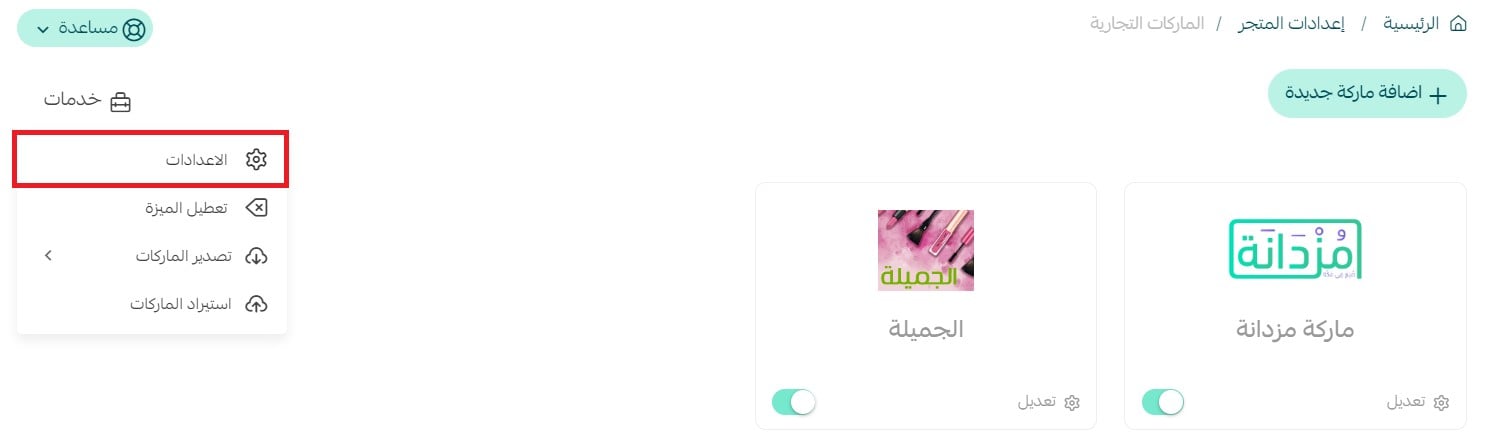
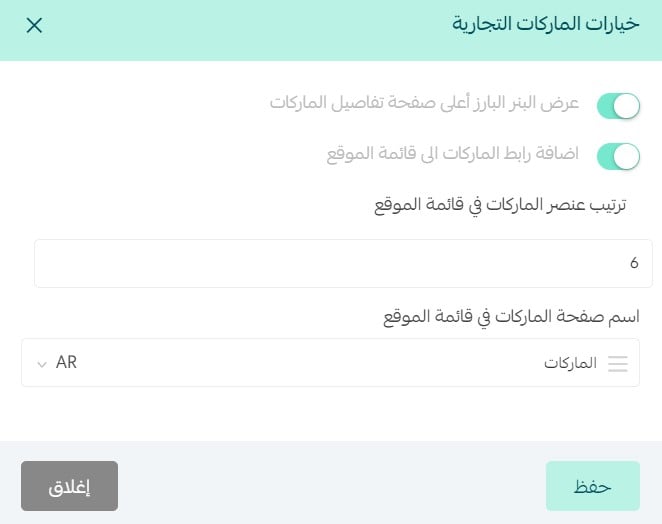
From Store settings, open the Brands page, click (Services), then click (Settings).
Set the brand options — how the banner displays, and whether to add the brand link to the site menu — as shown:
The banner then appears on the brand's own page, as shown:

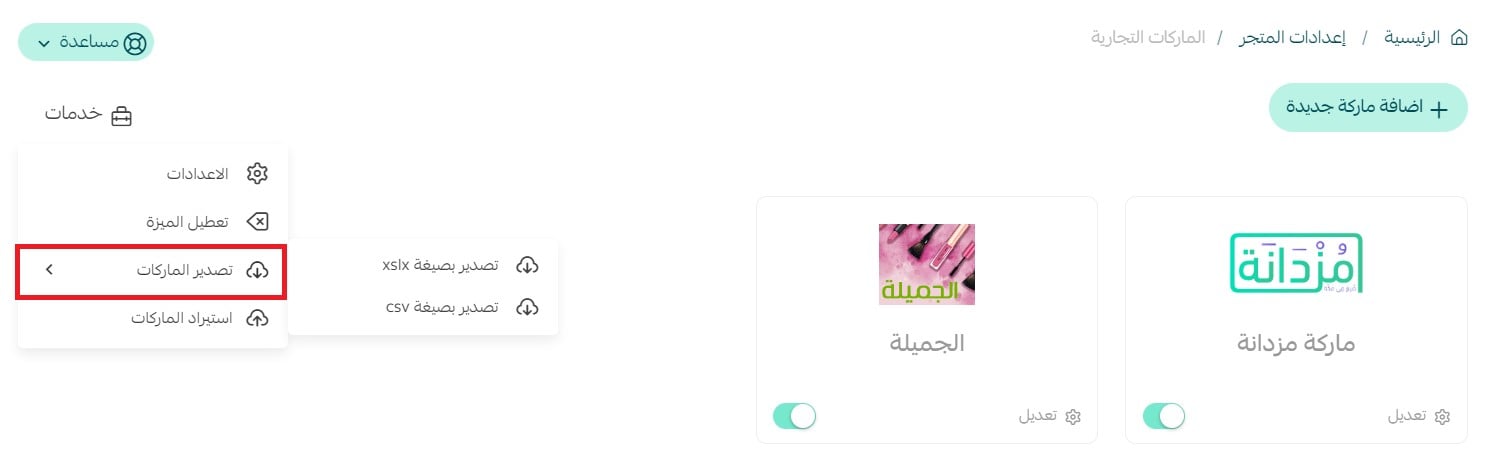
Can I export the brands on my store?
Yes. From the Brands page, click (Services), then click (Export brands).
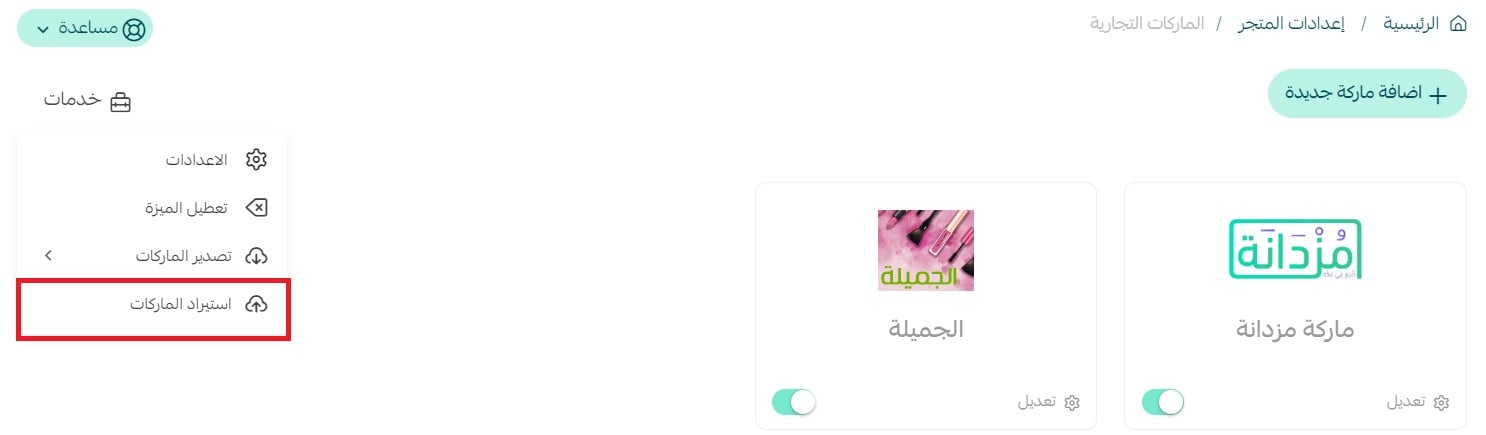
Can I import a set of brands?
Yes. From the Brands page, click (Services), then click (Import brands).
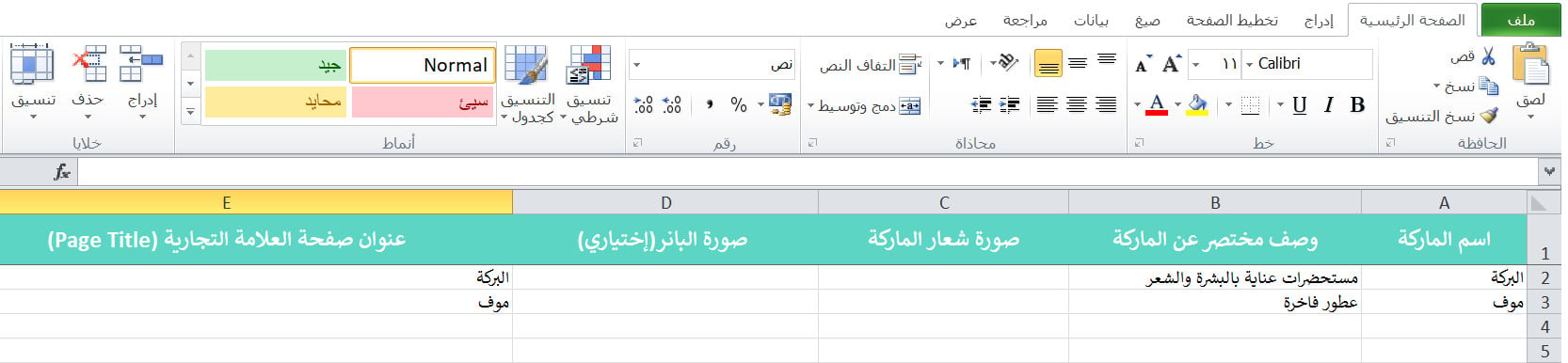
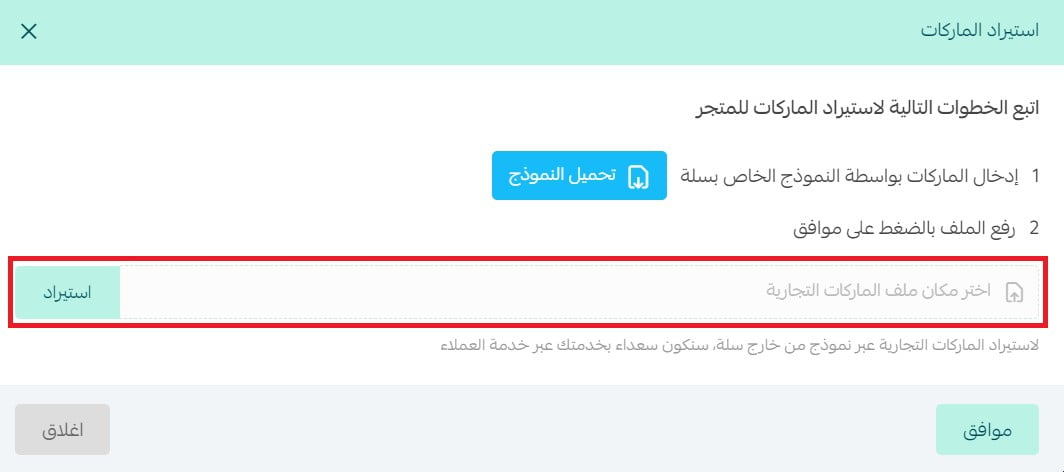
Click (Download template) to download the template approved by Salla.

Add or edit your store's brands in the Excel file, then save it.
Back on the import brands page, select the brands file, then click (Import) to upload the brands to your store.
Allow a little time for the import to finish.

📝 Important notes
If the import runs into errors, you'll be notified as shown:

Click the notification to view the brand import log and fix the error.
