Digital products are a core pillar of modern e-commerce. From ebooks and online courses to downloadable files and digital assets, selling digital products allows you to deliver value instantly with minimal operational overhead.
This guide walks you through how to add a digital product to your store, configure its details, upload delivery files, and ensure customers receive their purchase automatically after checkout.
What is a digital product
A digital product includes, but is not limited to:
- Ebooks
- Online courses
- Downloadable files
- Any content delivered electronically
📌 Article overview
- Adding digital products
- Basic product information
- Advanced settings
- Digital product delivery and file upload
- Custom fields
- Sending the digital product to the customer
- FAQ
Adding Digital Products
1. Go to Products
From the main menu, click Products.

2. Create a New Digital Product
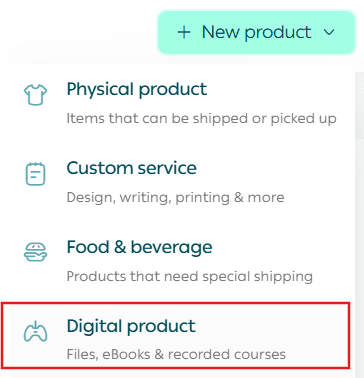
From + Create New Product, click Add and select Digital Product.
Basic Product Information
Enter the basic product details, then click Save.
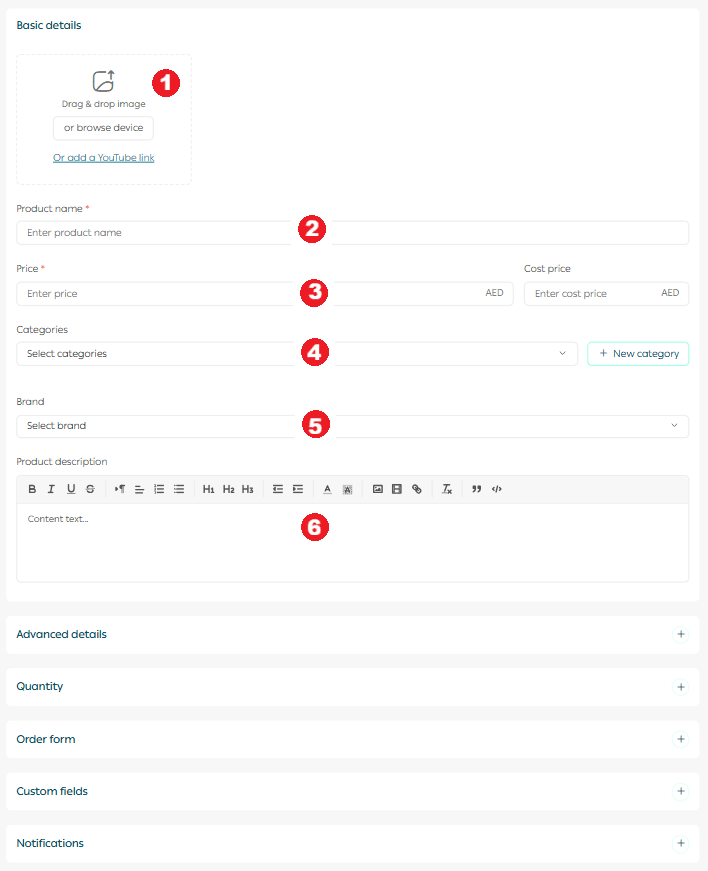
Required fields
- Product images
Upload one or more images that represent the digital content clearly.
2. Product name
This is the name displayed to customers in your store.
3. Product price
Set the selling price and the cost price to track net profit accurately.
4. Product category
Helps organize products, improve reporting, and enhance navigation.
5. Brand
Select the brand associated with the product.
6. Mahally category
Choose the appropriate Mahally category if applicable.
7. Product description
Write a detailed description explaining what the customer will receive. You can format text, add images, embed videos, and include links to improve clarity and conversion.
Important note: Mahally and Souq Eljomla are currently available only for stores in Saudi Arabia.
Advanced Settings
1. Product subtitle
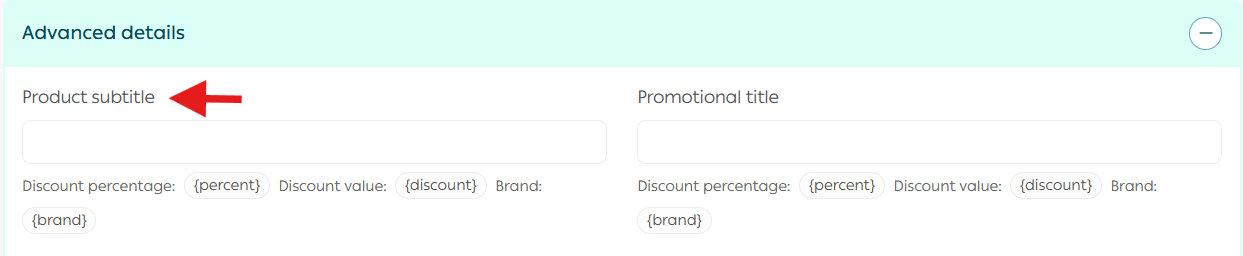
Appears as a highlighted detail under the product name to emphasize a key benefit.
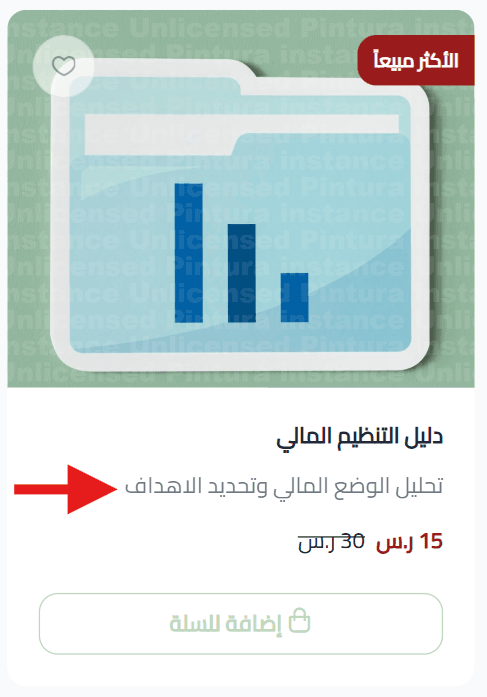
2. Promotional title
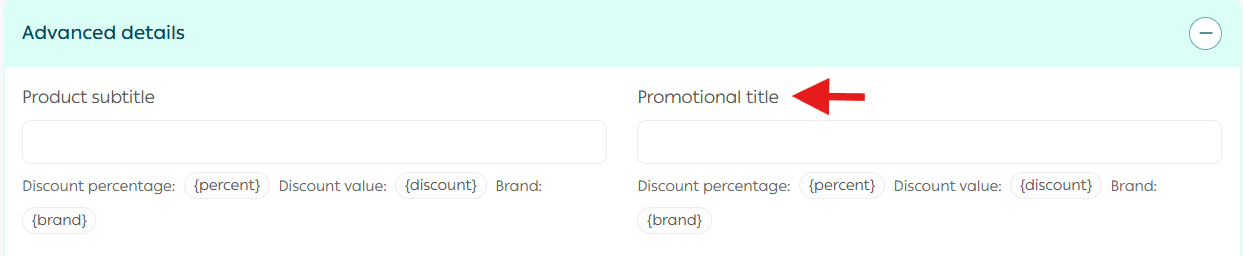
Displayed on the product image to draw attention to an offer, feature, or value proposition.
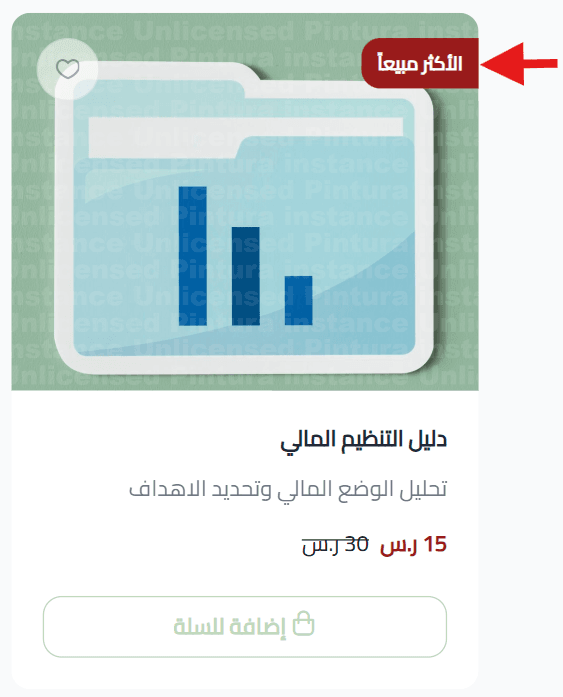
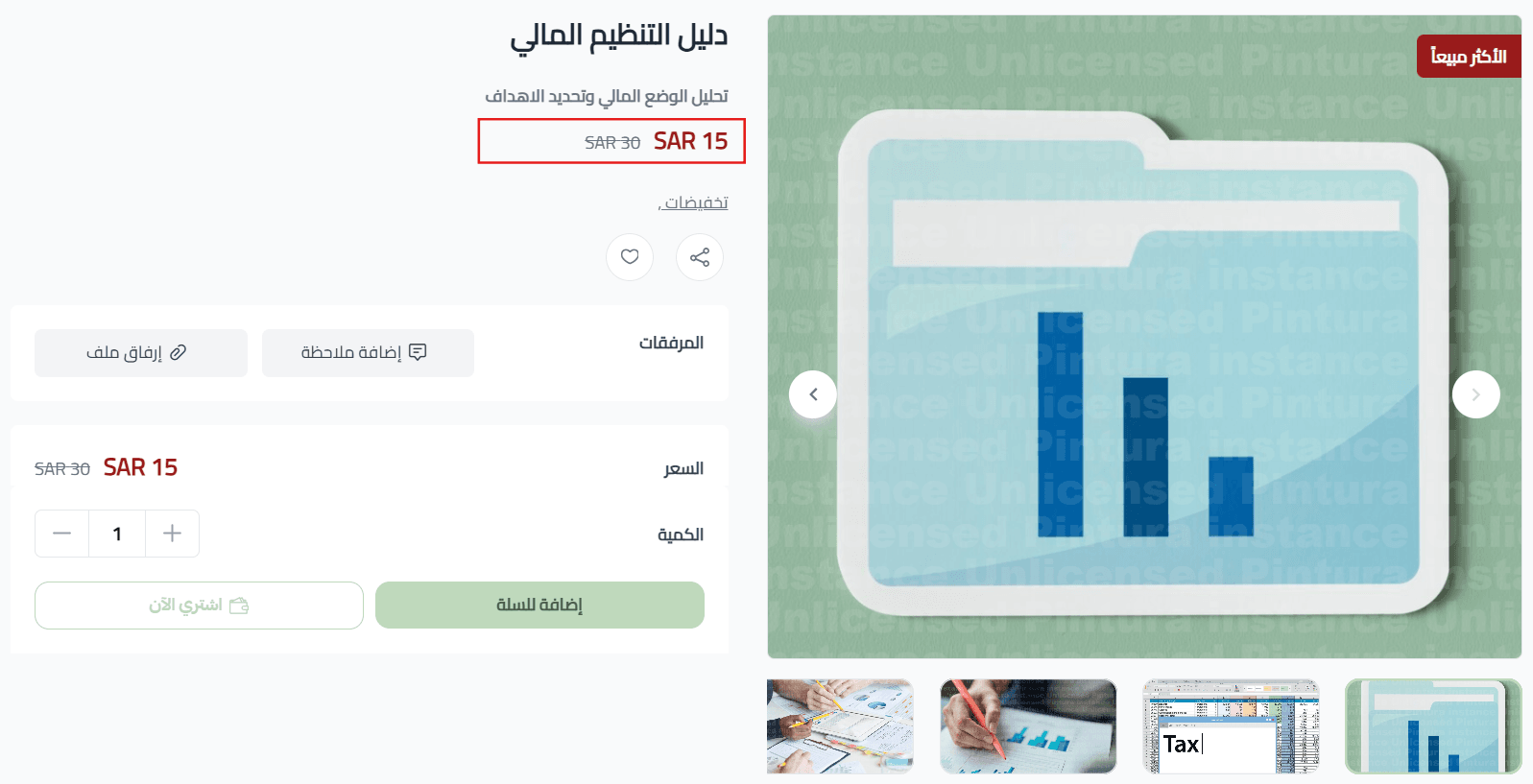
3. Discounted price and schedule

Enter the discounted price and define the start and end dates for automatic promotions.
4. Sales channels

Control where the product is visible:
- Store website
- Store mobile app
- Mahally
You can also select specific branches.
Important note: The Mahally as a sales channel is currently available only in Saudi Arabia.
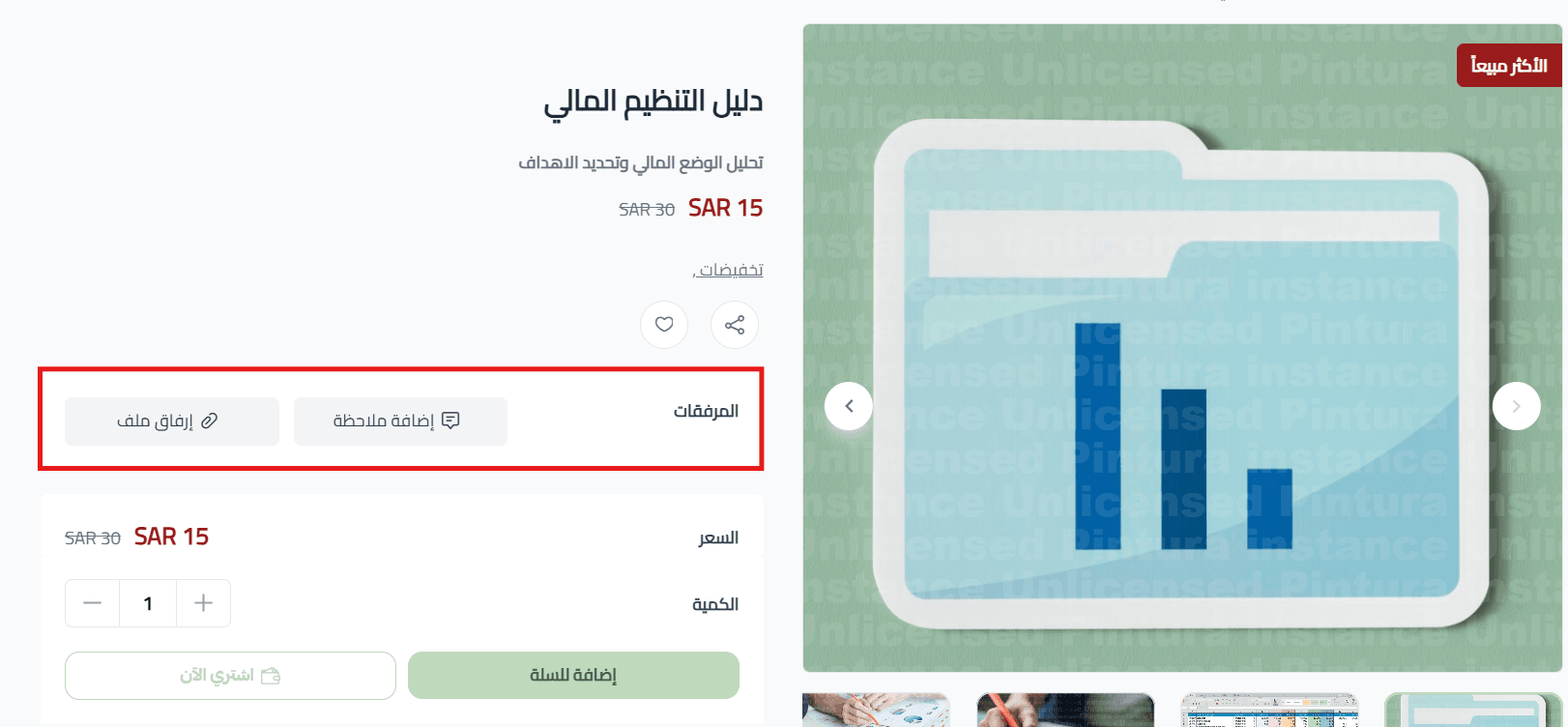
5. Product requirements

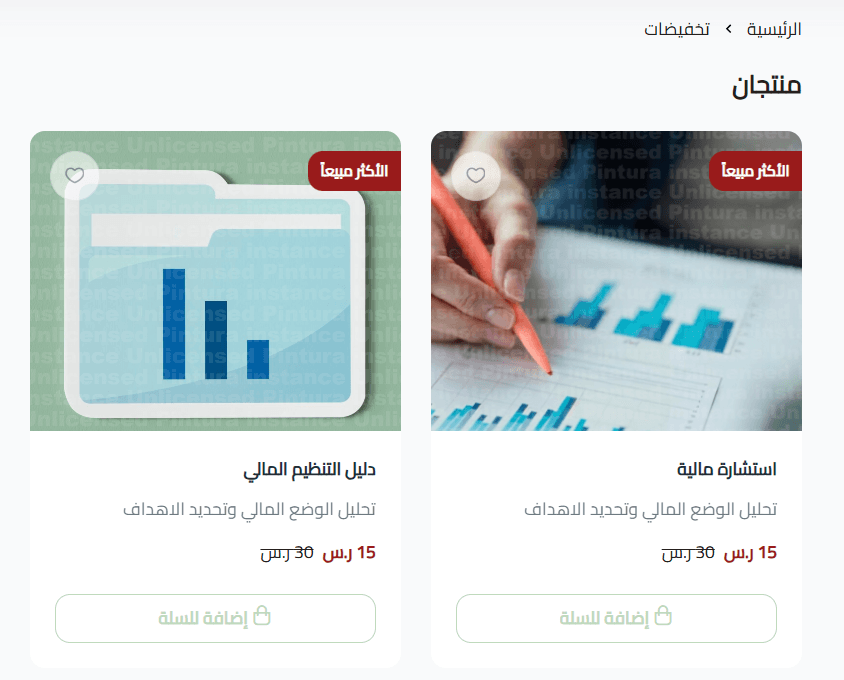
- File upload on order
Allow customers to upload a file when purchasing, such as documents for a financial consultation.
- Order notes
Enable customers to add notes to customize the product according to their needs.
- Taxable product
Define whether the product is subject to tax. A tax note will appear next to the price for customers.

6. Product tags
Add multiple tags to help categorize the product and improve discoverability.

Clicking a tag shows all products with the same tag.
7. SEO optimization
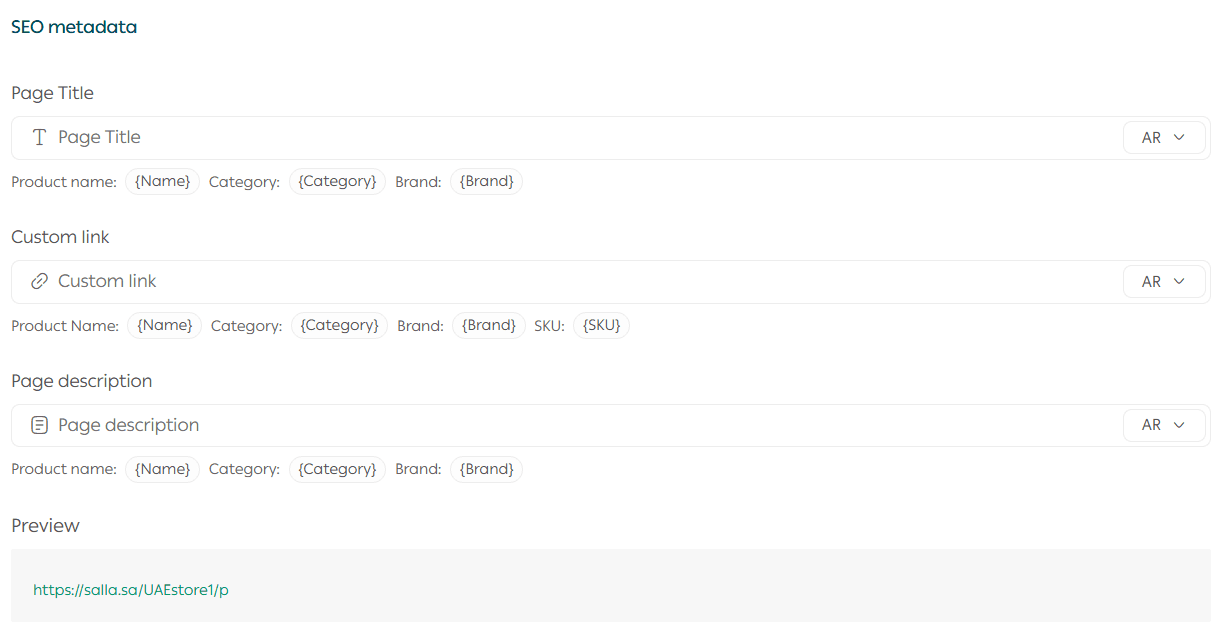
Optimizing your digital product for search engines helps attract new customers and increase sales. Salla provides built-in SEO tools for product pages:
- Product page title
Include the product name, category, and brand.
- Custom product URL
Customize the URL using the product name, category, brand, and SKU for clarity and ranking.
- Meta description
Write a concise description that includes the product name, category, and brand to improve indexing.
Benefits of adding SKU to the product URL
- Improved search engine indexing accuracy
- Easier differentiation between similar products
- Faster access for customers searching by SKU
SEO reminder: Clear, readable URLs improve both customer experience and search performance.
Digital Product Delivery and File Upload
Uploading digital product files
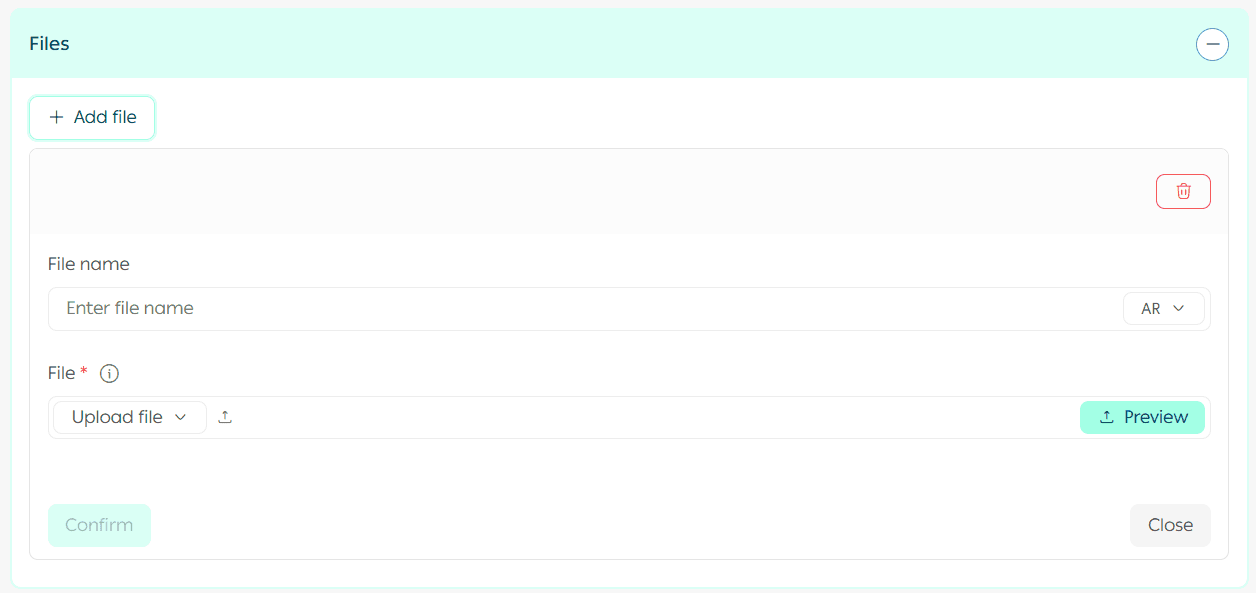
You can attach the files that customers will receive immediately after completing their order.
Note: You can upload more than 50 digital files by clicking + Add File.
File upload steps
- Upload the digital product files
- Enter the file name
- Click Browse, select the file, then click Confirm
- Set a download validity period:
- Days
- Weeks
- Months
- Years
This gives you better control over your content and helps prevent misuse.
5. Enable Allow customers access to newly added files
If enabled, previous buyers will gain access to any new files added later.
Notes:
- Download validity and free access to new files appear only if enabled in file settings.

- File details appear in the customer’s My Account page, including:
- Latest file updates
- Download validity period
- Number of files
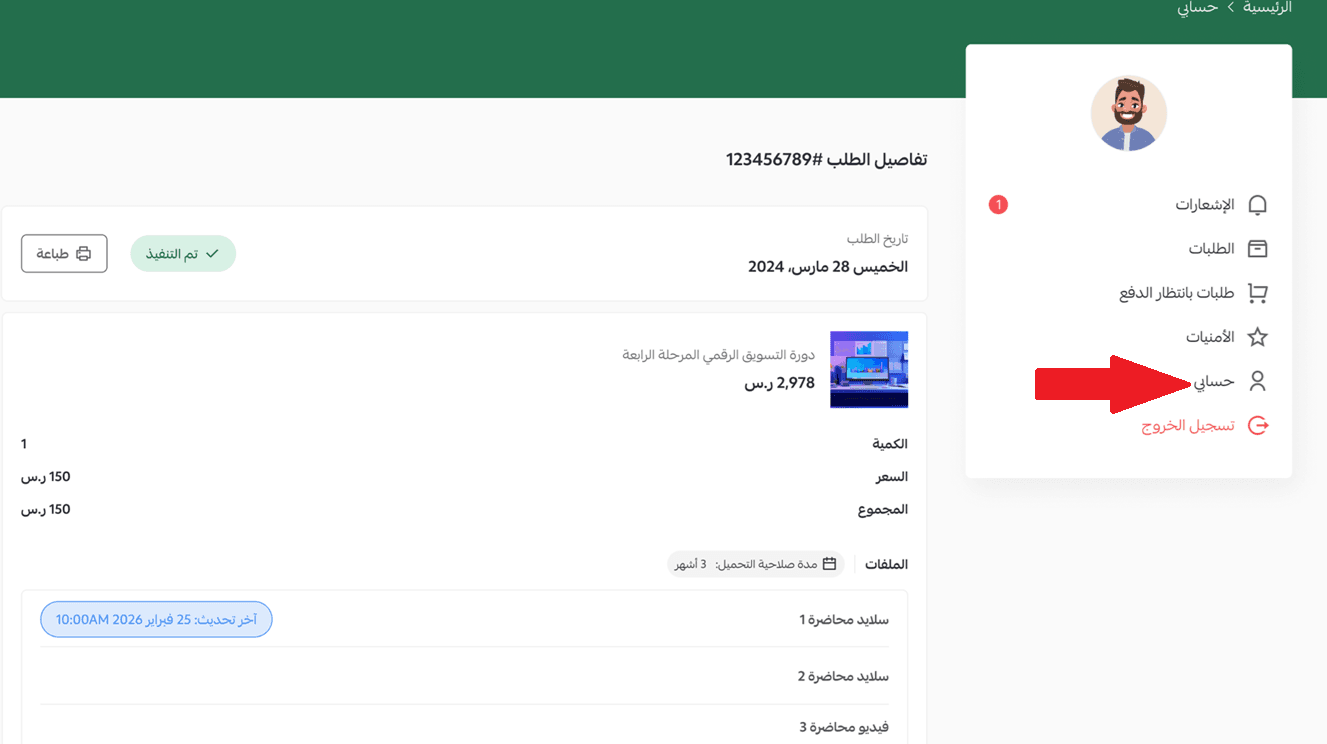
When new files are added, previous orders will not automatically update. This protects your content and encourages repurchase rather than free file sharing.
Tip: Clearly describe included files and bonuses in the product description to increase conversions.
Custom Fields
Custom fields allow you to display additional information on the product page.
Example: Use custom fields to explain file contents, included resources, or usage instructions to increase buyer confidence.
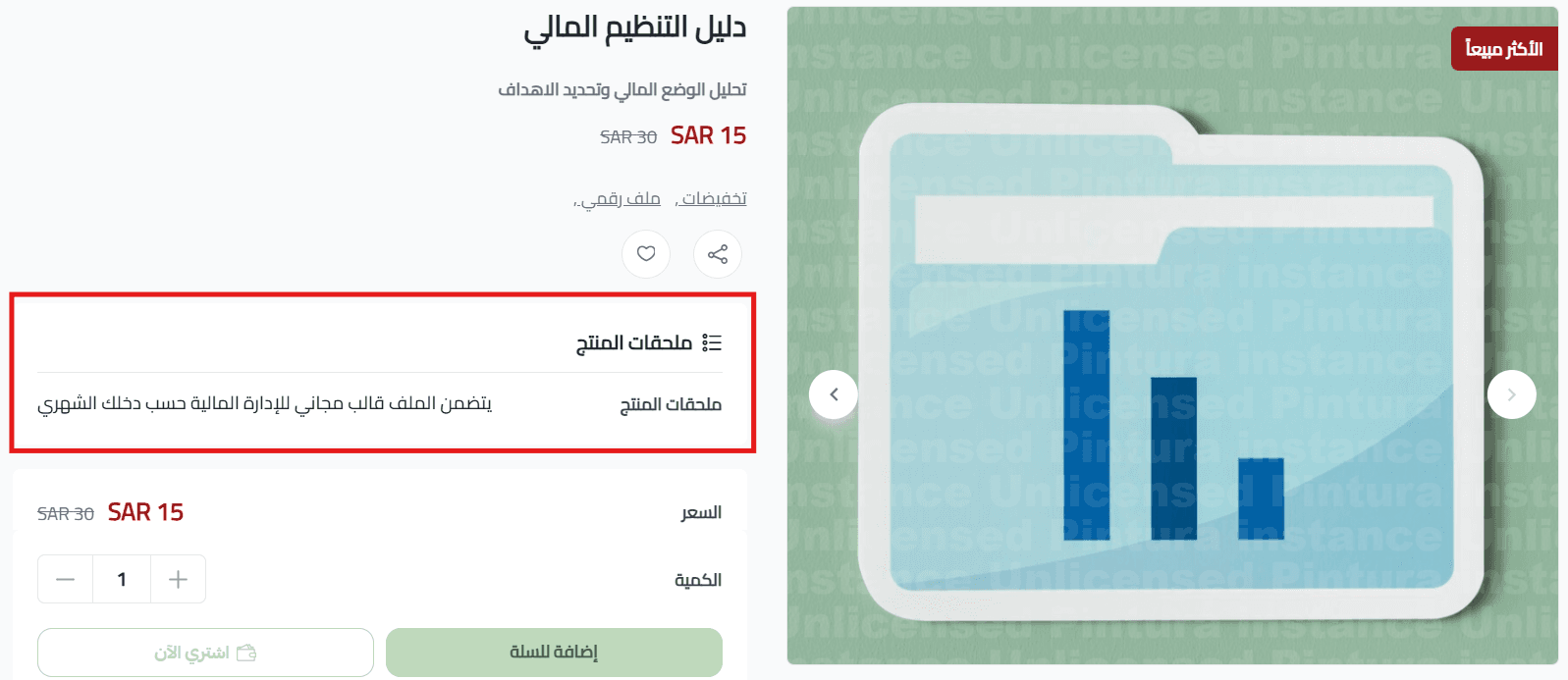
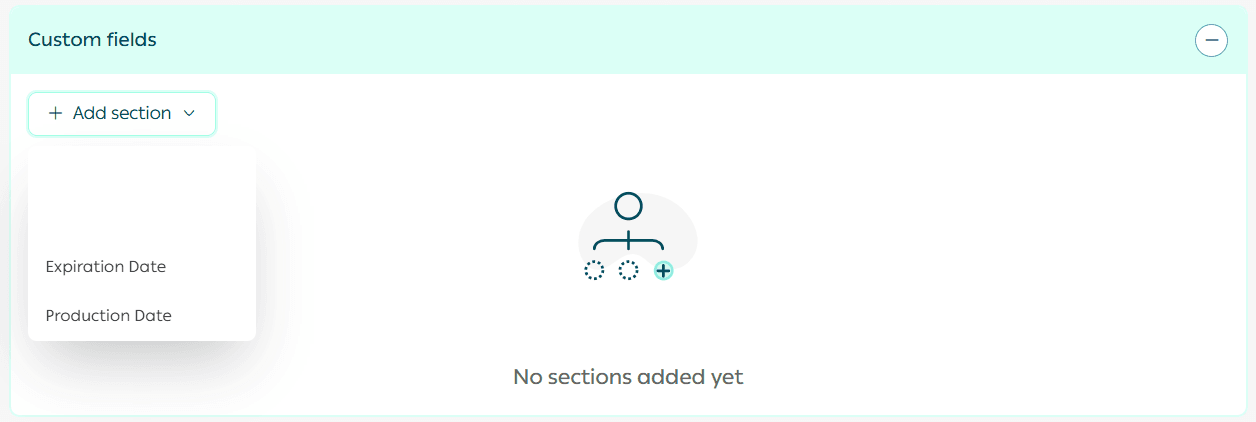
How to add custom fields
- In the Custom Fields section, click Add New Section and choose the field type
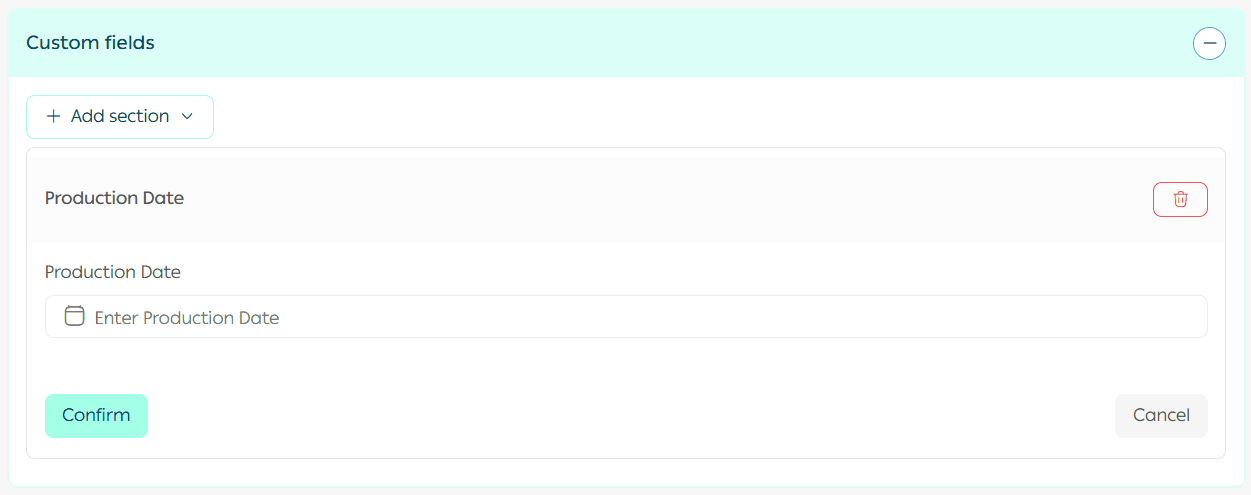
2. Enter the required field data
Sending the Digital Product to the Customer
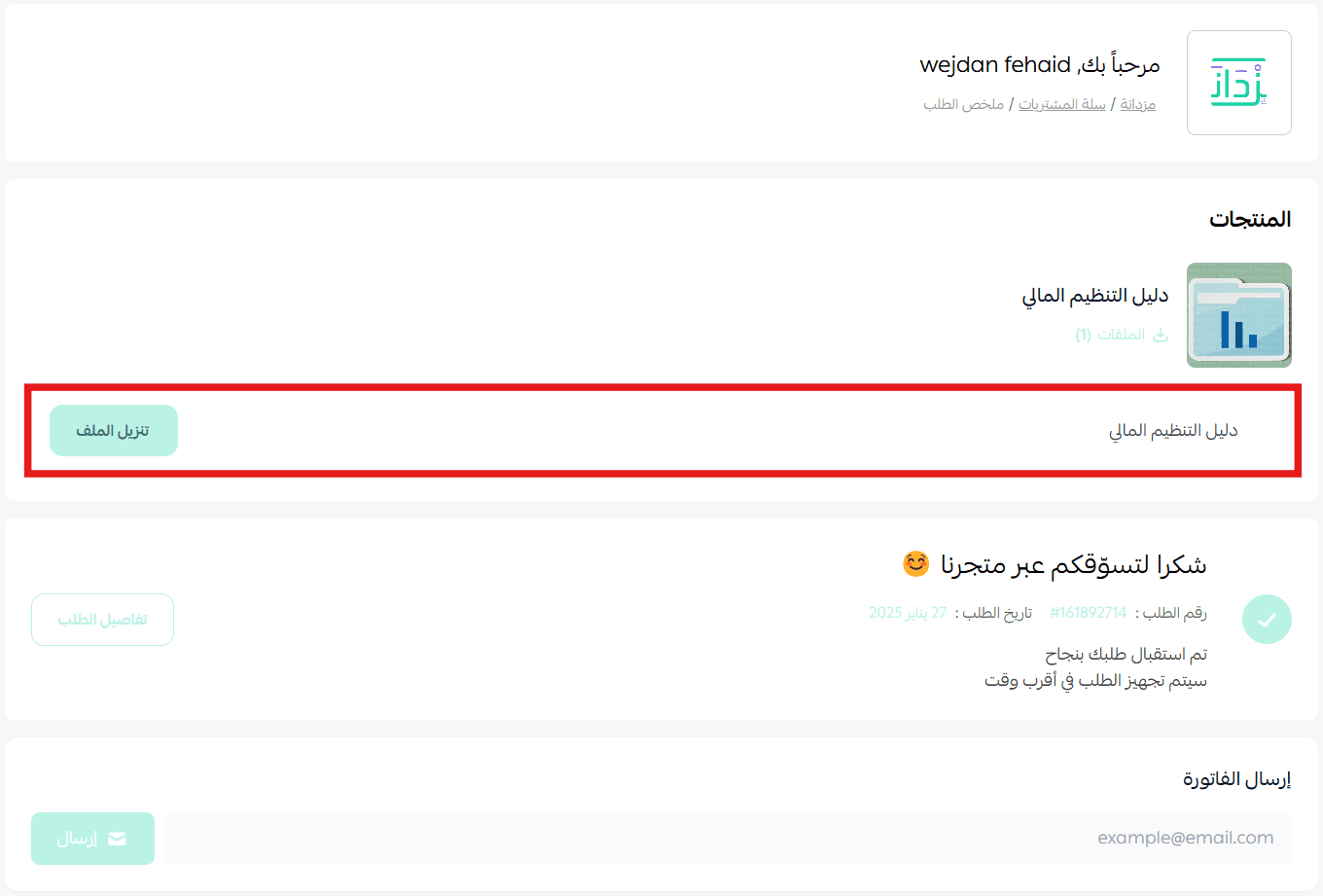
Once payment is completed, the digital product is delivered automatically to the customer via email.
This is done by setting the digital product order status to Completed.
How to configure delivery settings
- From the dashboard, go to Orders then Order Settings

2. Click Customize next to the Completed status

3. Enable Mark order as completed on electronic payment and select excluded product types if needed
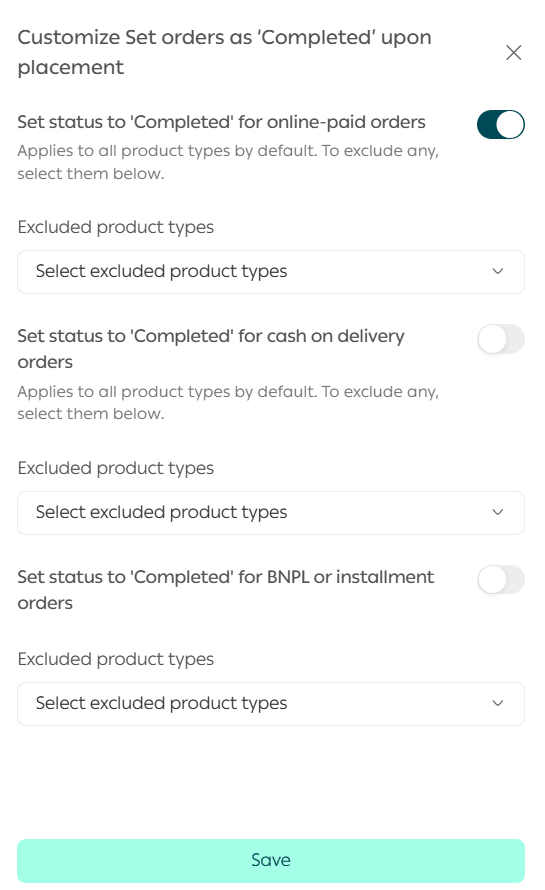
4. Click Save
After this setup, customers receive their digital product instantly after purchase.
Frequently Asked Questions
How can I protect my digital product from piracy or unauthorized resale?
- From the dashboard, go to Products, click More, then Settings

2. Enable PDF Digital Product Protection
This feature:
- Allows viewing files through a secure customer-specific link
- Automatically refreshes the link on each visit
- Disables text selection and copying
This helps prevent copying, redistribution, and unauthorized resale.
For more details, refer to the Digital Product Intellectual Property Protection guide.