Do you need a tax-compliant invoice for every order your store fulfills?
Every order in your Salla store can produce a e-invoice that meets the requirements of the Zakat, Tax and Customs Authority. E-invoicing replaces paper invoices and credit and debit notes with a structured electronic format that seller and buyer exchange and process digitally, which makes filing your tax return far less painful. In this guide, you'll learn what an e-invoice is, how to view and print the invoices attached to an order, how to control their design and language, and when each type of invoice is issued.
To print an order's e-invoice, open the order from the orders page and scroll to the order invoices section, then click (Print) next to the invoice you need. You can also click (Issue invoice) in the payment section of the same page. Every invoice follows ZATCA's format.
📌 Article overview
- What e-invoicing is
- What an e-invoice is
- How to view and print an order's e-invoice
- Frequently asked questions
🎯 What e-invoicing is
E-invoicing is a national initiative that moves invoice and note issuing off paper. Sellers and buyers exchange invoices and credit and debit notes in a structured electronic format, and the whole exchange is processed digitally from end to end.
🎯 What an e-invoice is
An e-invoice is issued and stored in a structured electronic format through an electronic system, and it carries everything a tax invoice must include. A handwritten invoice or a scanned image of one does not count as an e-invoice. There are two types of tax invoice: the tax invoice and the simplified tax invoice.
For more detail, see e-invoicing.
📝 Important notes
To use e-invoicing, you must be registered with the Zakat, Tax and Customs Authority and hold a tax number.
👣 How to view and print an order's e-invoice
Open the order page and scroll to the bottom to reach the order invoices section, where you can preview and print every accounting invoice tied to that order.
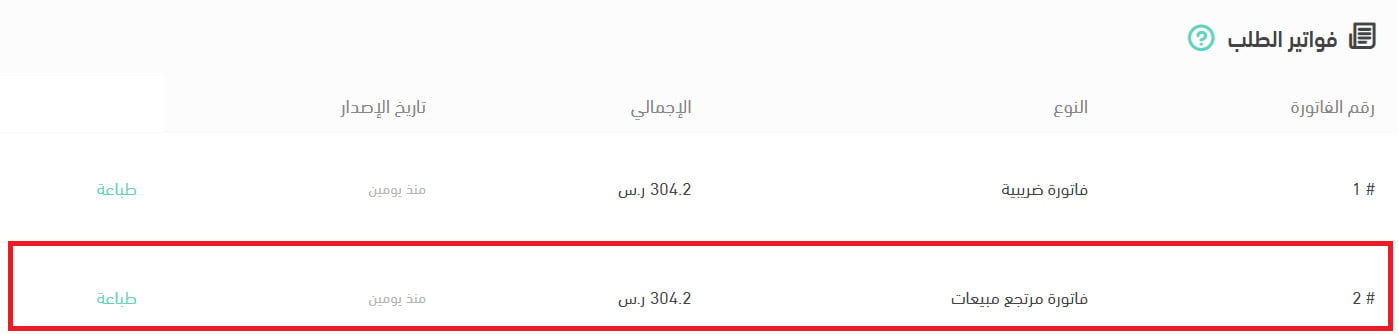
The section may hold a single invoice (the tax invoice) or several, depending on what has happened to the order — returns, edits, and so on.
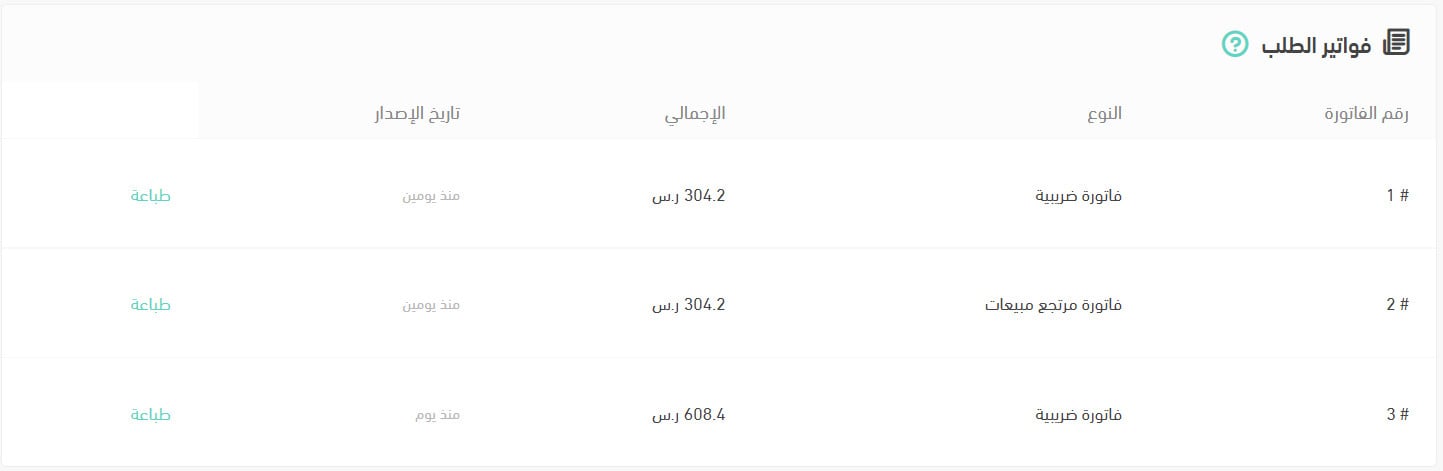
You can print any of an order's invoices in one of two ways.
1. From the order page, in the payment section, click (Issue invoice).

2. Or click (Print) next to the invoice you want in the (Order invoices) section.

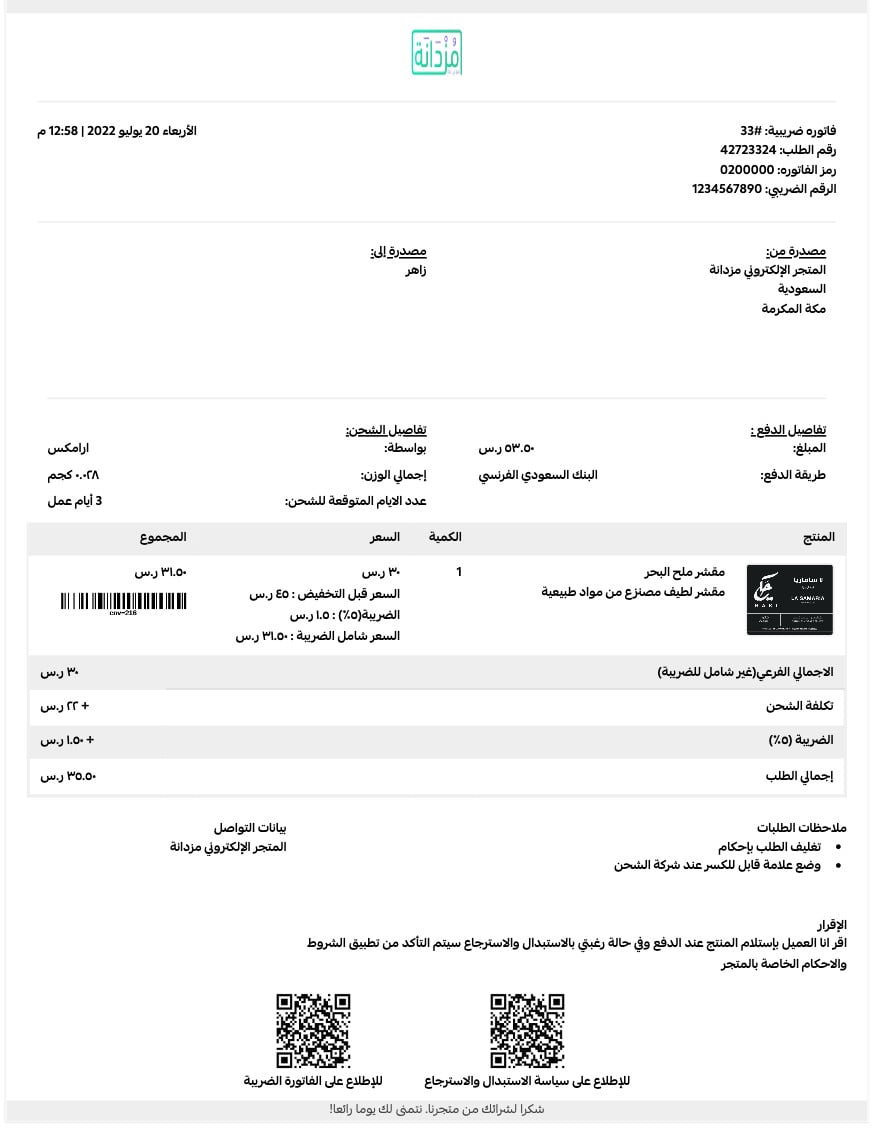
The invoice then appears in a format that matches the Zakat, Tax and Customs Authority's requirements.
❓ Frequently asked questions
Does every store have to apply e-invoicing?
No — only stores that have a tax number. Salla provides the feature purely to make filing your tax return easier.
Are tax invoices supported in Salla?
Yes, fully, and in line with the Zakat, Tax and Customs Authority's requirements.
Do I have to pay tax on e-invoices?
You pay only if you hold a tax number, and only through the tax return you file yourself with the Zakat, Tax and Customs Authority. Salla plays no part in that process.
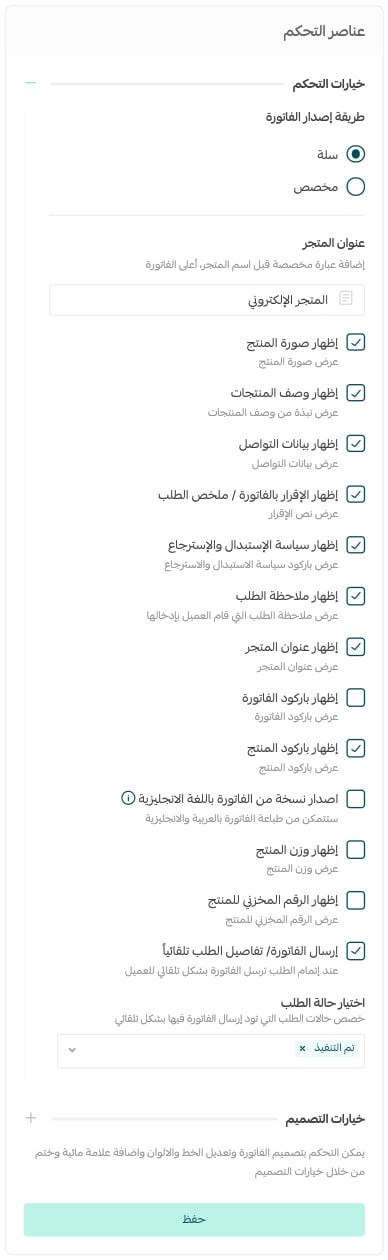
Can I choose which elements show on the invoice?
Yes.
1. From the side menu of your dashboard, click (Store settings).

2. Click (Store invoice settings).

3. Set the control options — how invoices are issued, how they are sent, and more.
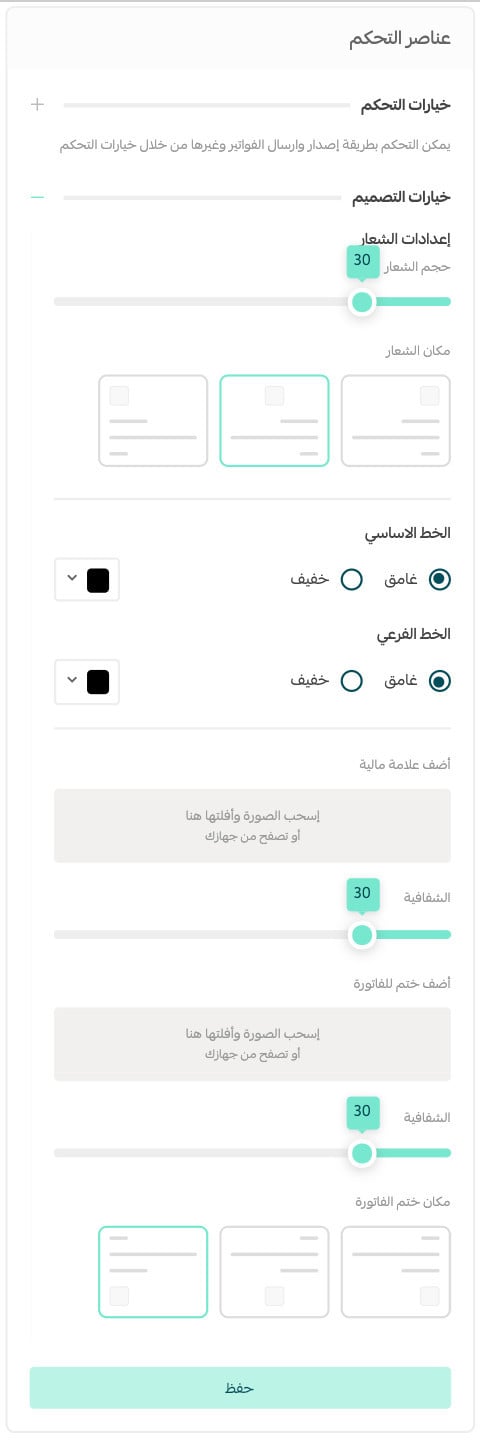
Can I style the invoice design?
Yes.
1. From the side menu of your dashboard, click (Store settings).

2. Click (Store invoice settings).
3. Adjust the invoice design — change the font and colors, and add a watermark and a stamp.
Do my Salla order invoices comply with the e-invoicing system?
Yes. Your Salla store issues order invoices that meet the Zakat, Tax and Customs Authority's requirements.
How do I print an invoice in English?
Step 1: set the control options.
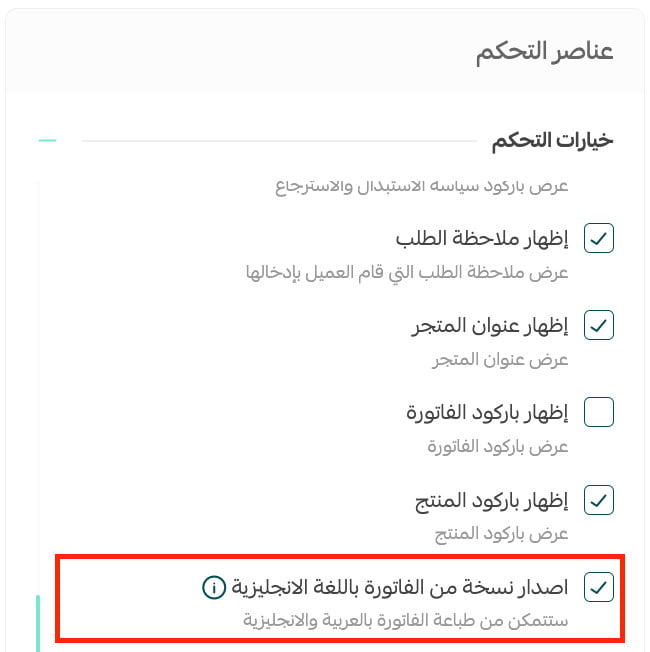
From the invoices page, in the control options section, turn on (Issue an English copy), then click (Save).
Step 2: issue the order invoice.
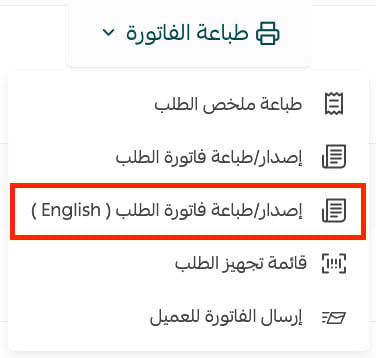
From the orders page, open the order you want, click (Print invoice), then choose (Print order invoice English).
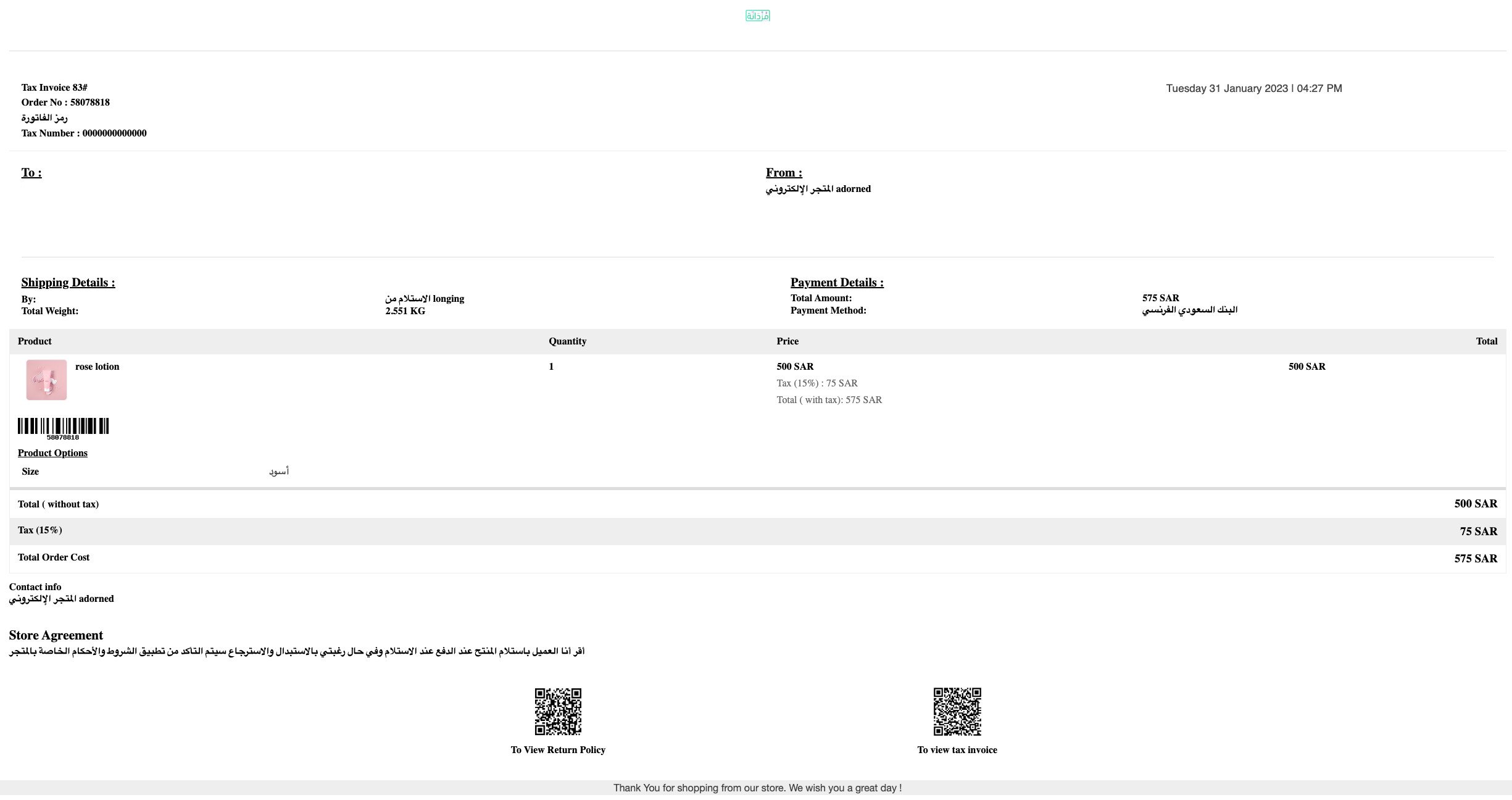
It prints like this.
Does the order invoices section show on every order?
No. The order invoices section appears only when an order has more than one invoice — for example a tax invoice plus a return invoice. Otherwise, print the invoice using the first method, by clicking (Issue invoice) in the payment section of the order page. [Verify: the earlier section states this area can also hold a single tax invoice, which conflicts with this answer.]
When is an order's e-invoice issued?
E-invoices are issued as follows.
First: the tax invoice.
Issued only when:
- The order status is set to (Completed).
- This is the primary tax invoice approved by the Zakat, Tax and Customs Authority.
Second: the return invoice.
Issued in these cases:
- Any edit to the order that raises or lowers its value — the system issues a return invoice automatically.
- The order status changes to (Returned) or (Being returned).
🚧 Heads up: changing an order's status to (Canceled) does not issue a return invoice. A canceled order produces no return invoice, because the original tax invoice is only ever issued at the (Completed) status.
Which invoice counts for tax purposes?
The most recent invoice on the order. For example, if you issue a tax invoice and then a return invoice, the return invoice is the one that counts.
How do I print invoices for several orders at once?
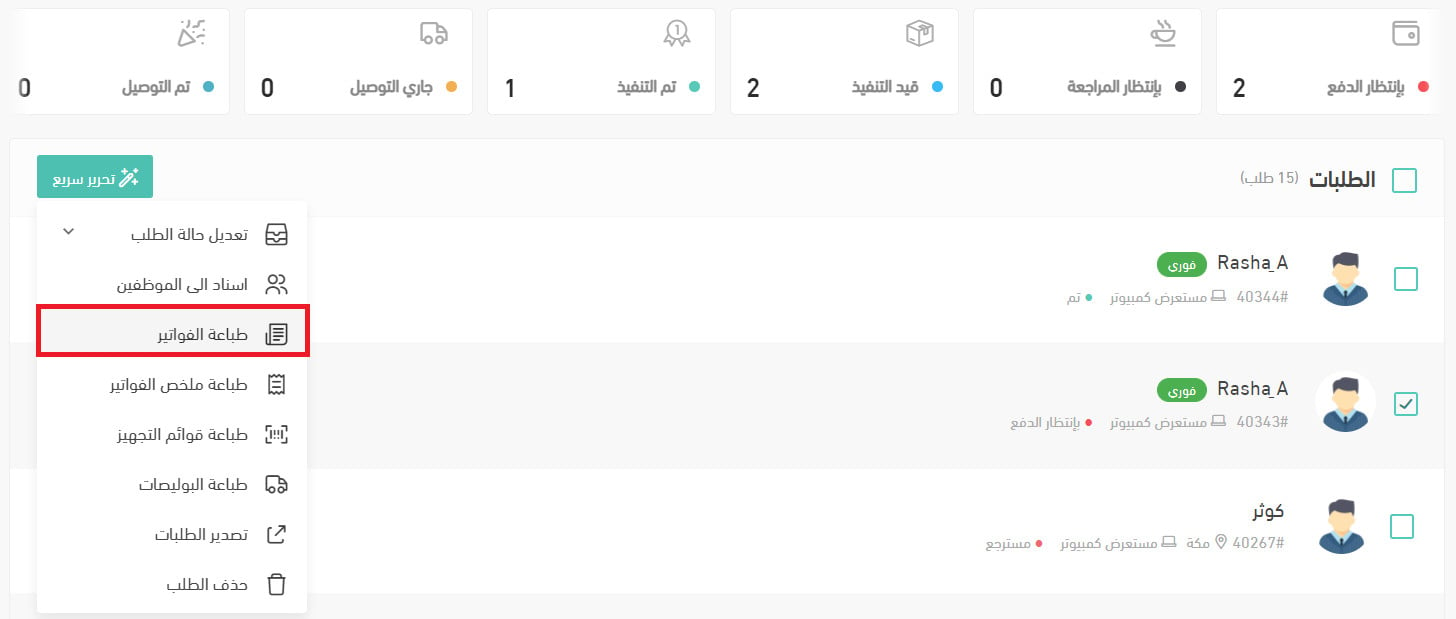
From the orders page, select the orders whose invoices you want, then click (Print invoices) from the quick edit menu.
Keeping your invoice settings tidy — the right elements shown, the right design, and an English copy when you need one — means every order leaves your store with paperwork your accountant and the tax authority will both accept.