Does your store look like the brand you're building?
Your theme decides how your store looks and how visitors feel while they browse it — and the theme store is where you find the right one. You can preview any theme on your own store before you buy, compare how it suits different kinds of business, and install it in a few clicks. In this guide, you'll learn how to reach the theme store, what each of its sections holds, how to preview, filter, and buy a theme, and where to start if you'd rather build your own.
The theme store is in your Salla dashboard's side menu, under (Theme store). It groups themes into sections — suggested, worth trying, featured, discounted, newest, partner themes, and trending. You can search, filter, preview any theme on your own store, read merchant reviews, then buy and customize the one you want.
📌 Article overview
- What is a theme?
- What is the theme store?
- Does my audience affect the design I choose?
- The sections of the theme store
- Theme store controls
- Building your own theme
- Frequently asked questions
🎯 What is a theme?
A theme is a template that brings together a set of elements, features, and refinements to make your store's design more attractive, more flexible, and easier to browse. It's what decides how your store looks and how the customers visiting it feel.
🛍️ What is the theme store?
Salla built the theme store so you can install themes on your store — and preview how your store will look in a theme before you buy it, so the experience you give your customers is exactly the one you intended.
🤔 Does my audience affect the design I choose?
Absolutely. Before choosing your store's design, work out who your business attracts and study what they prefer: colors, how products are laid out, how products are grouped, the way they shop. Then design your store around that, arrange your products in it, and order everything that matters to your potential customer so shopping with you is genuinely enjoyable.
Every theme delivers a different user experience, depending on how it was designed.
💡 Example: if you sell skincare products, you may want your store to radiate calm and luxury. If you sell electronics, you may want it to feel energetic and sharp.
👣 The sections of the theme store
From the side menu of your dashboard, click (Theme store).

The theme store page holds several sections, with promotional offers running between them:
1. Suggested themes
Themes Salla suggests for your store's design based on your business activity and your preferences.
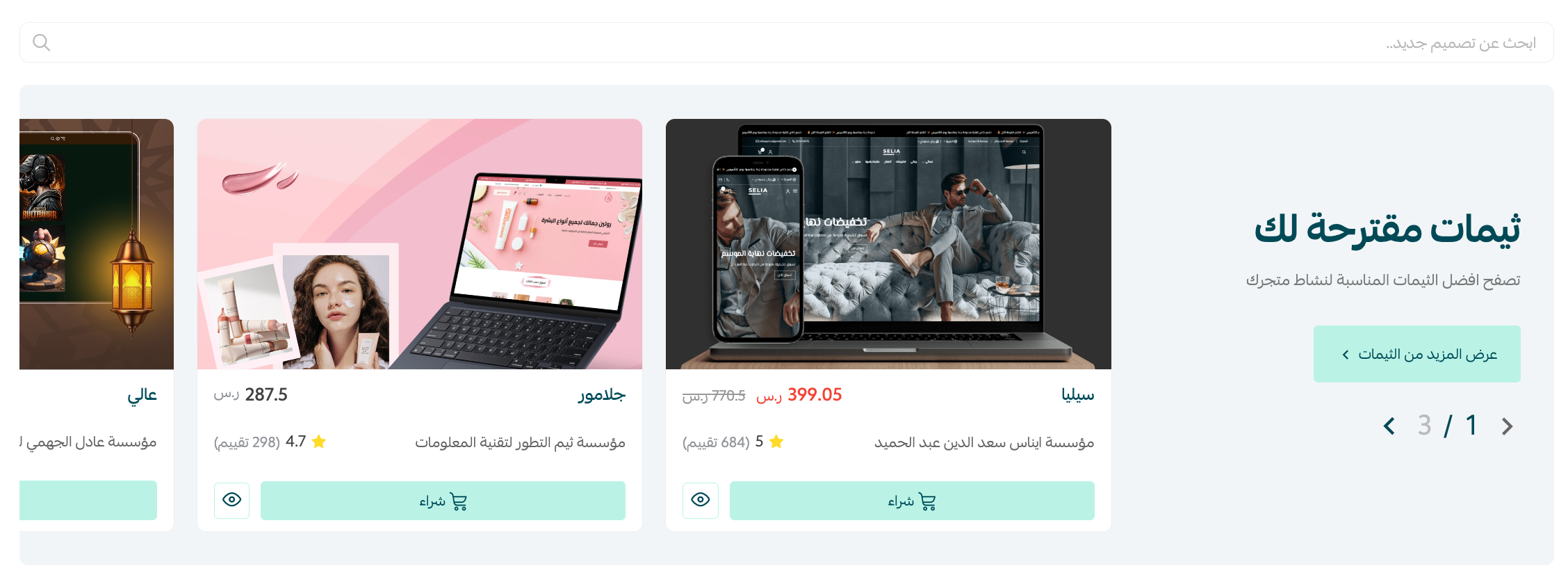
2. Themes worth trying
A group of standout themes to preview on your store.
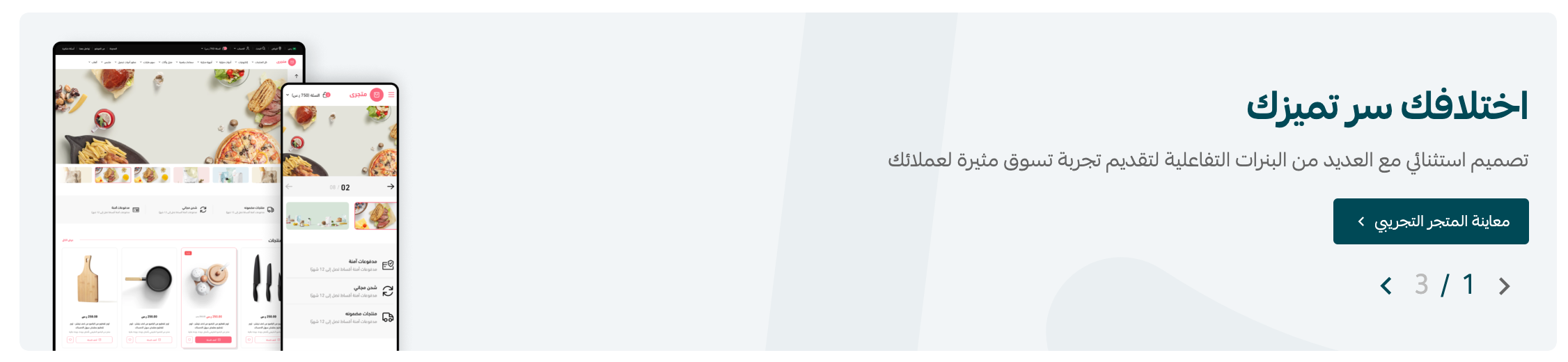
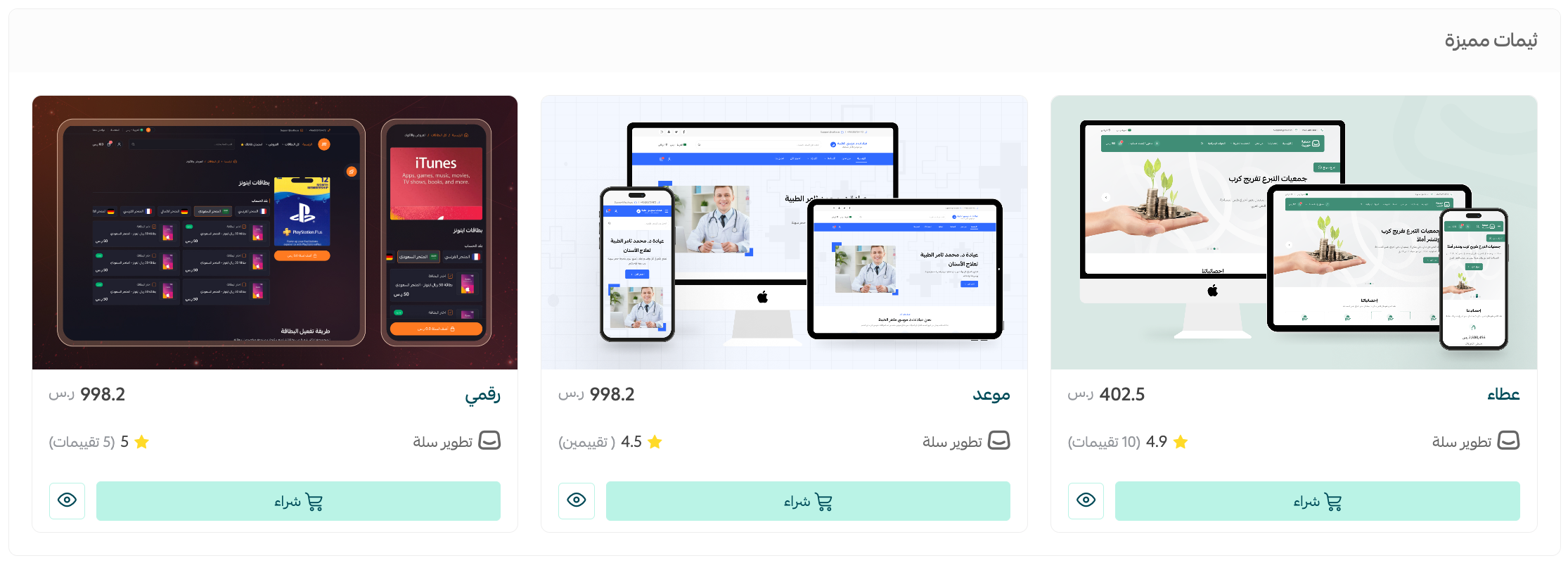
3. Featured themes
Standout themes picked for you by Salla.
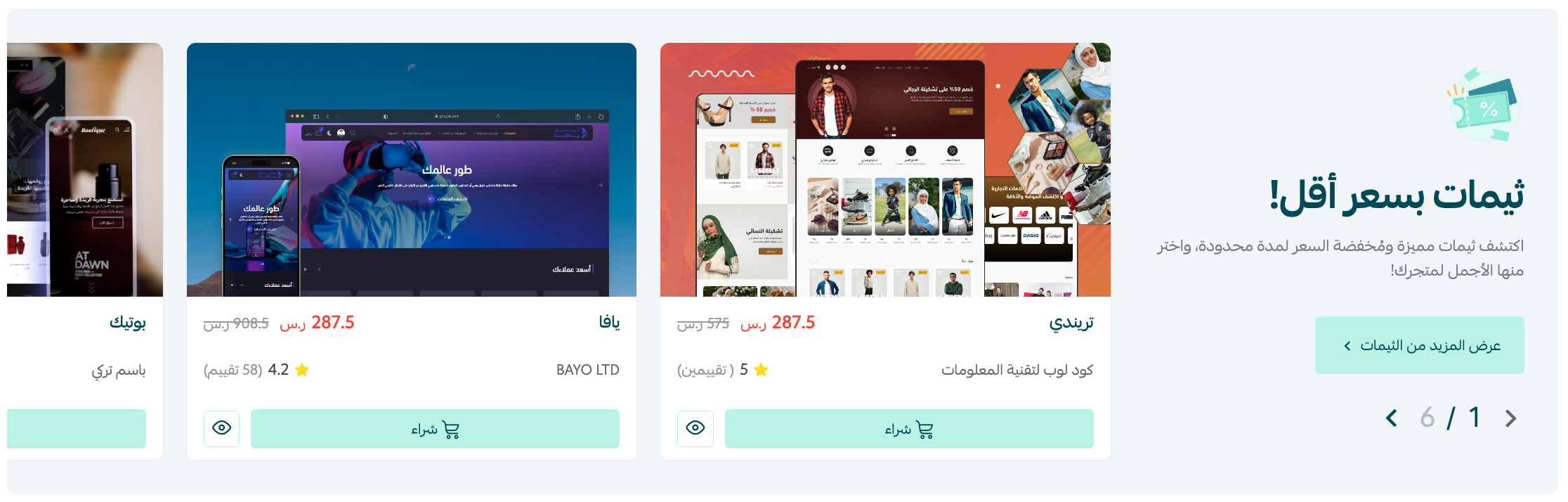
4. Themes at a lower price
Standout themes discounted for a limited time.
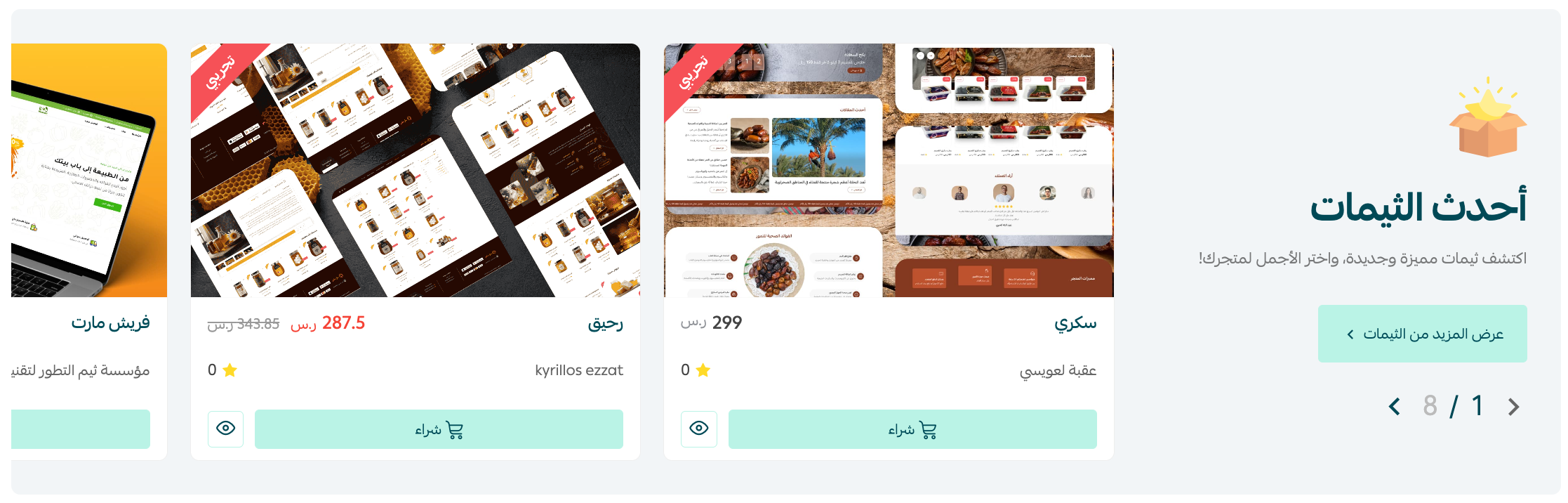
5. Newest themes
The themes most recently added to the theme store.
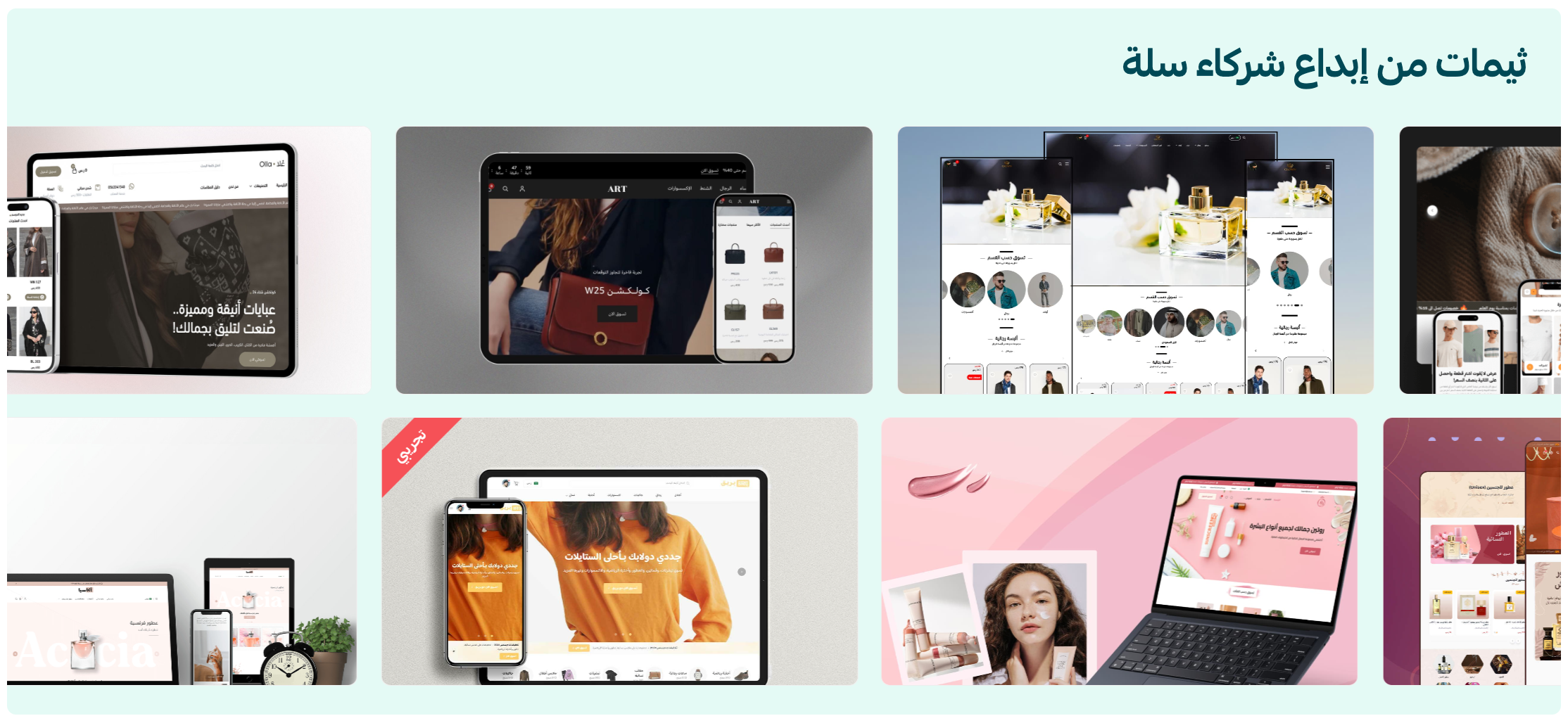
6. Themes created by Salla partners
Standout themes from Salla's partners.
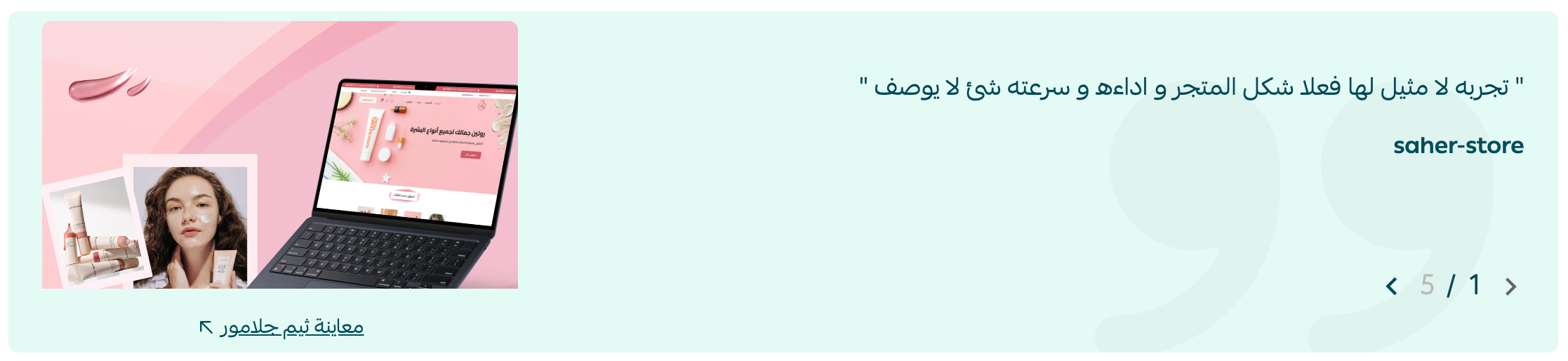
7. Merchant reviews and theme previews
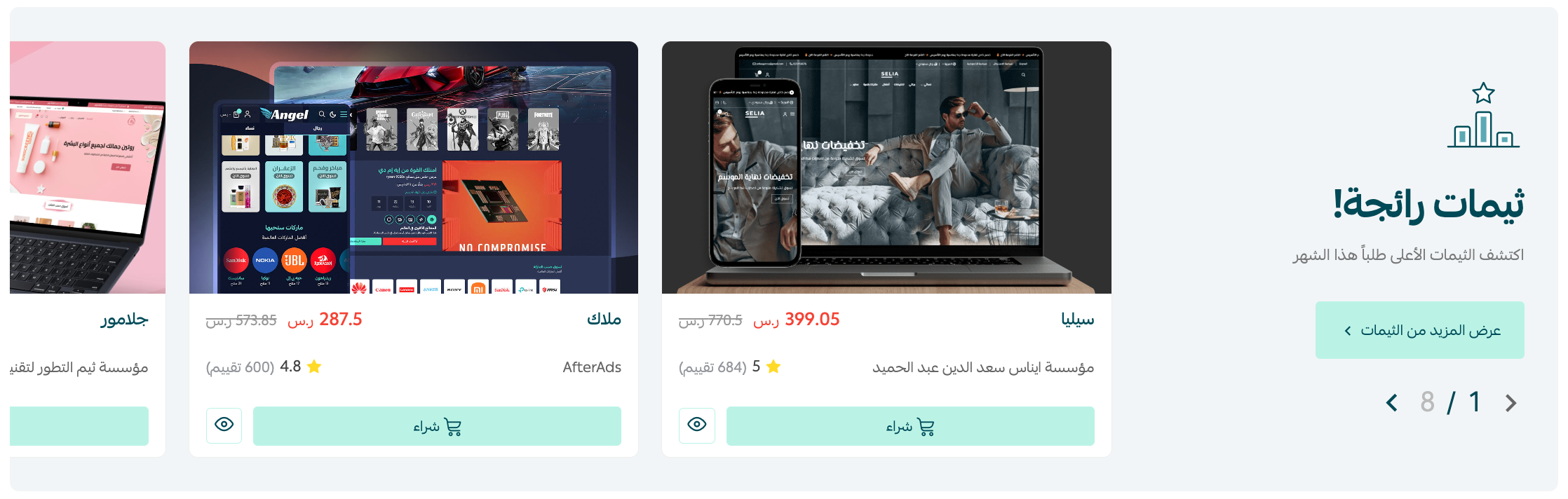
8. Trending themes
The themes merchants buy most.
⚙️ Theme store controls
The theme store gives you plenty of ways to work through the themes on offer. The main ones are:
1. Search for a theme from the search box
2. Show custom fields and product options
3. Preview your store in a theme
4. Preview how a theme suits different business activities
5. Show more themes and filter them
6. Buy a theme
7. View a theme's details
8. Build your own design
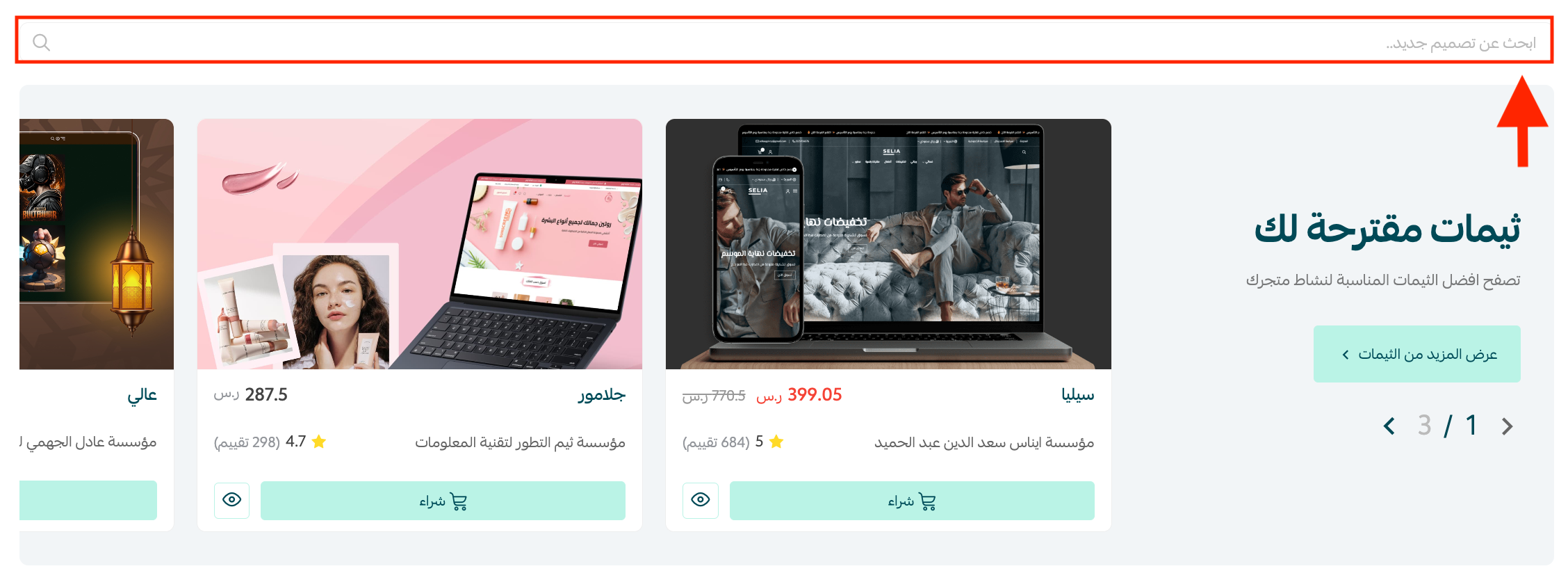
1. Search for a theme from the search box
Use the search tool at the top of the theme store page to look for a specific design.
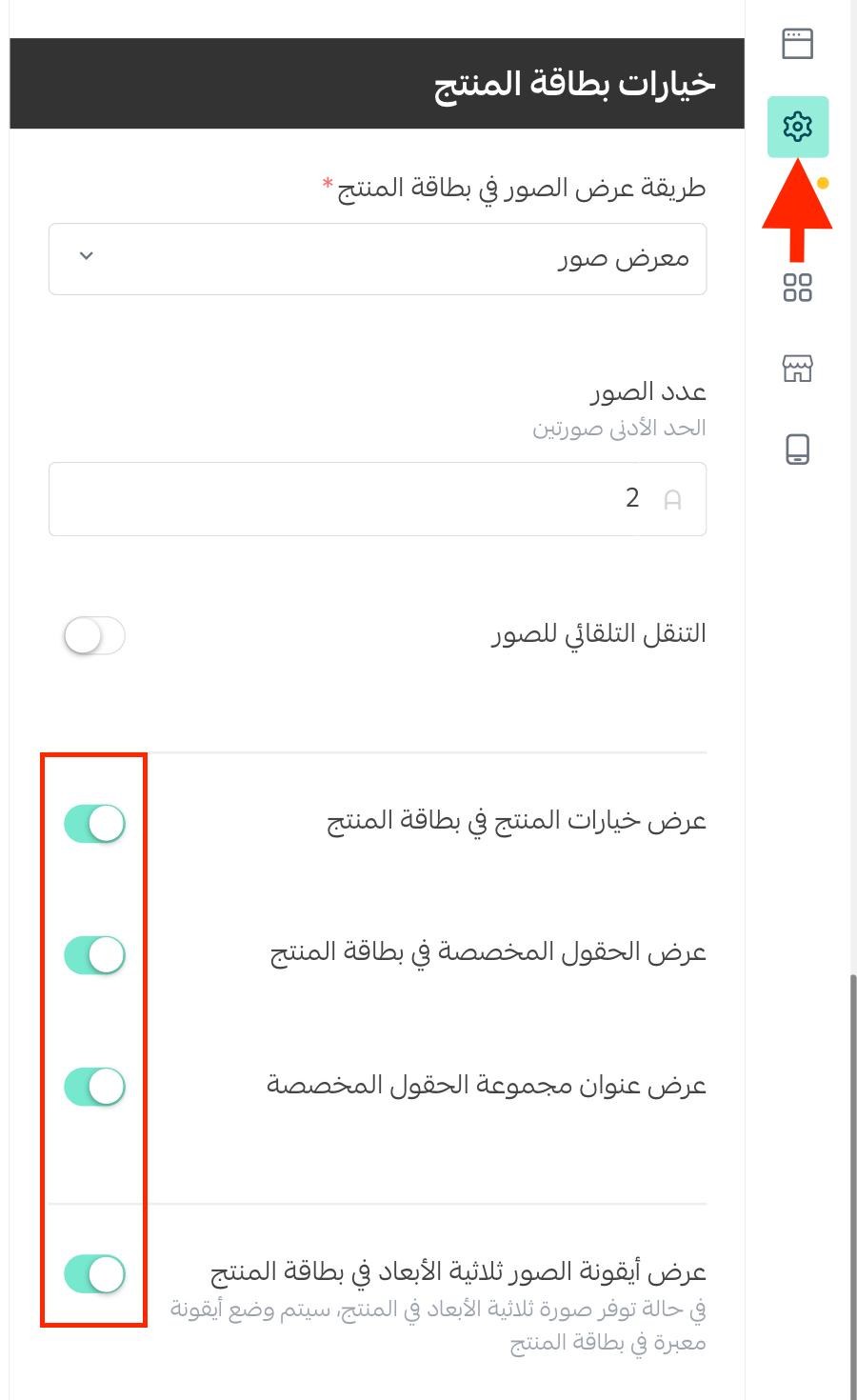
2. Show custom fields and product options
From the theme customization page, go to the design options and turn on the ones that fit what you need.
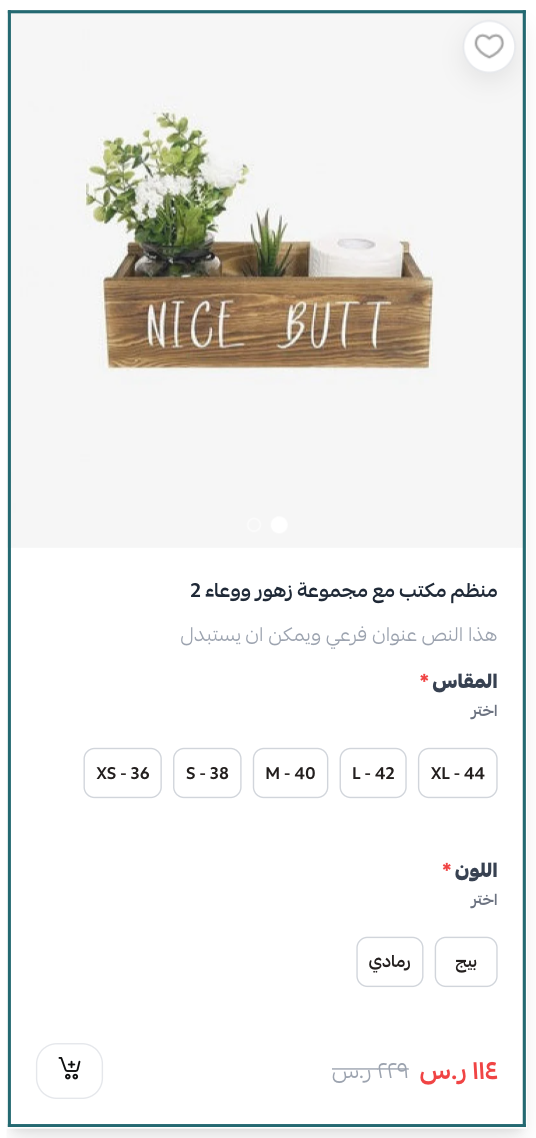
They then appear in your store like this:
📝 Important notes
The feature is available in the best-selling paid themes: Wesam, Malak, Aali, Marah, and Matjar.
3. Preview your store in a theme
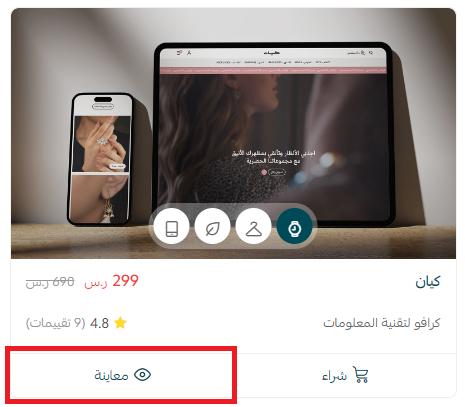
You can preview your store in any theme before buying or activating it, to be sure it meets your store's needs.
From the theme store page, see how your store will look in a theme by clicking (Preview), or preview a specific section.
4. Preview how a theme suits different business activities
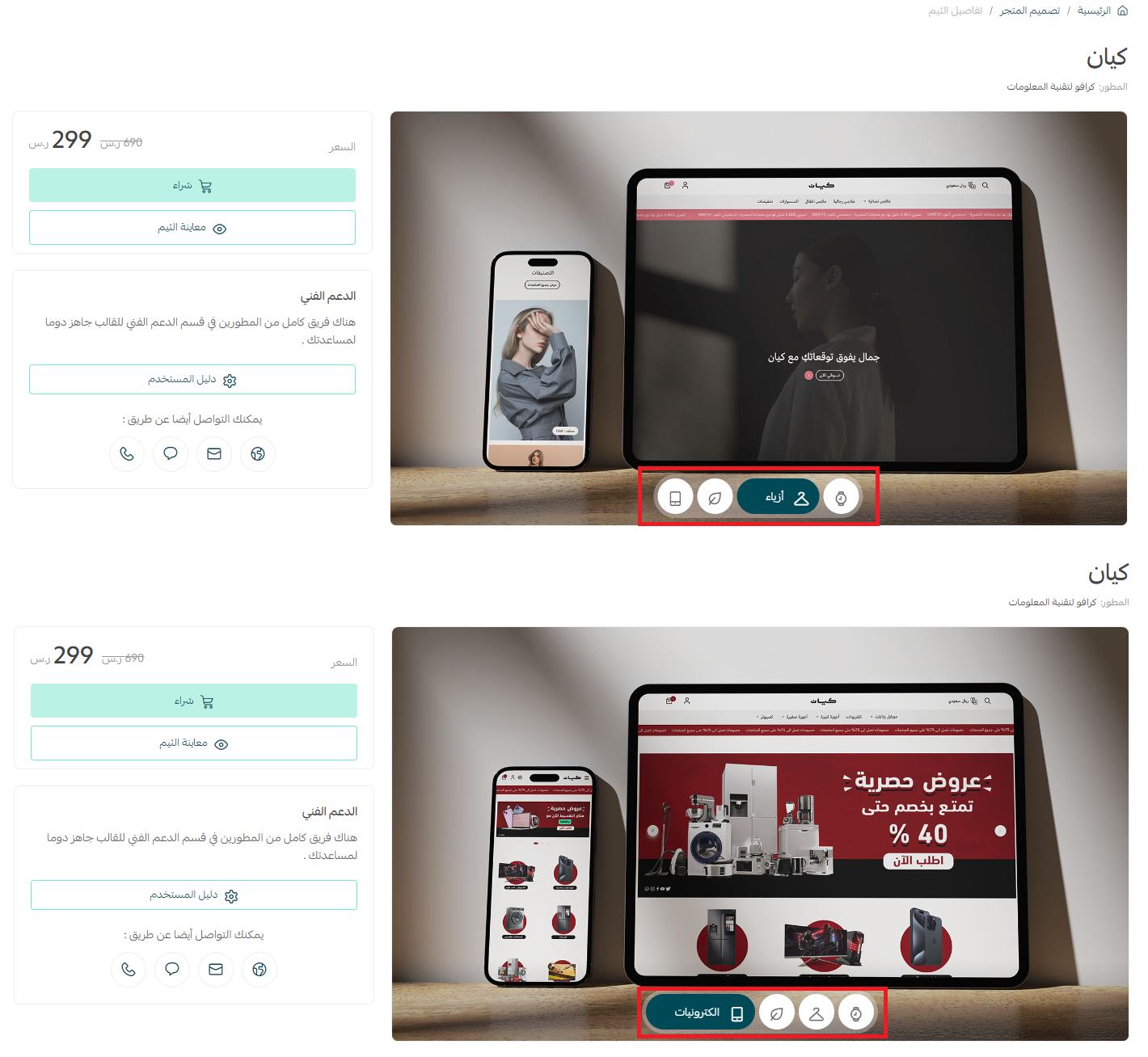
The theme's multi-preview lets you see how well it fits different kinds of business — so you can explore how a theme adapts to your store whatever your line of work, and enjoy the design journey.
5. Show more themes and filter them
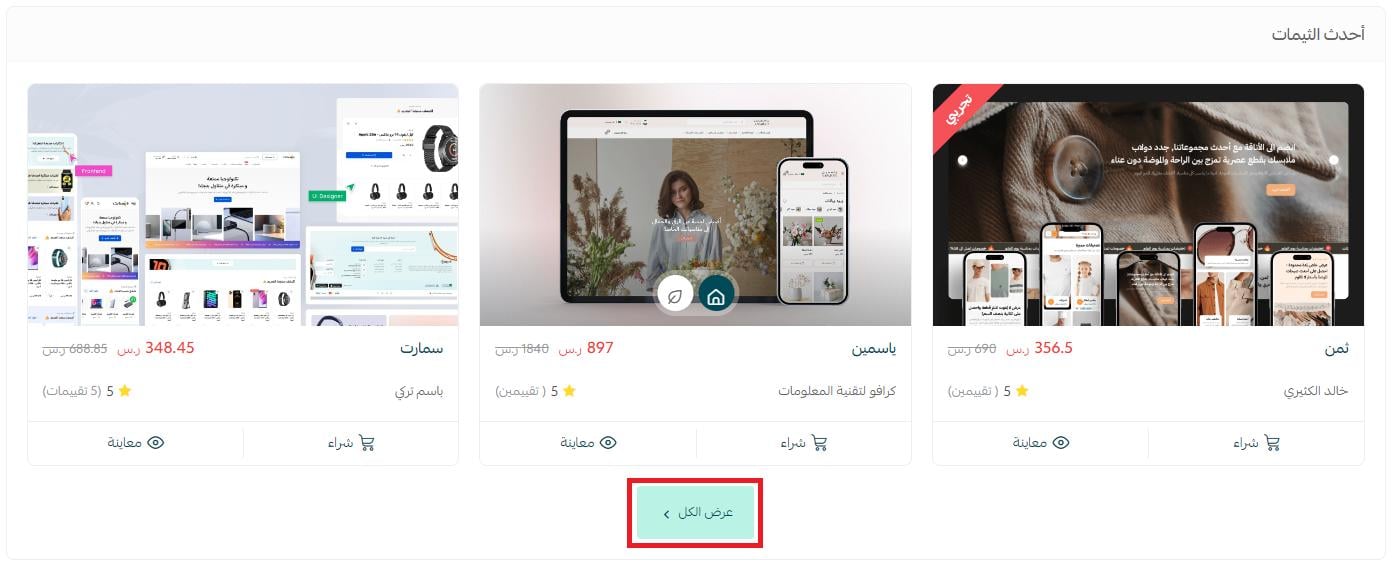
From the theme store page, browse more themes in any section by clicking (Show more).
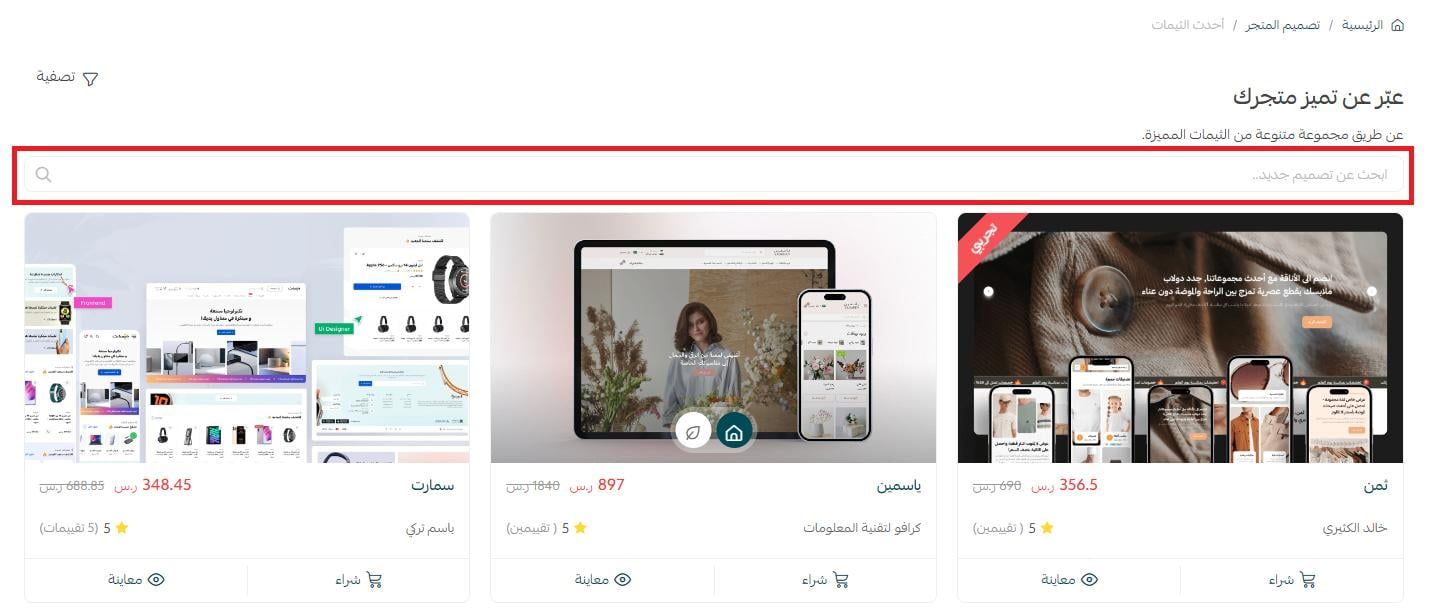
To find a specific theme, type part of its name in the search box:
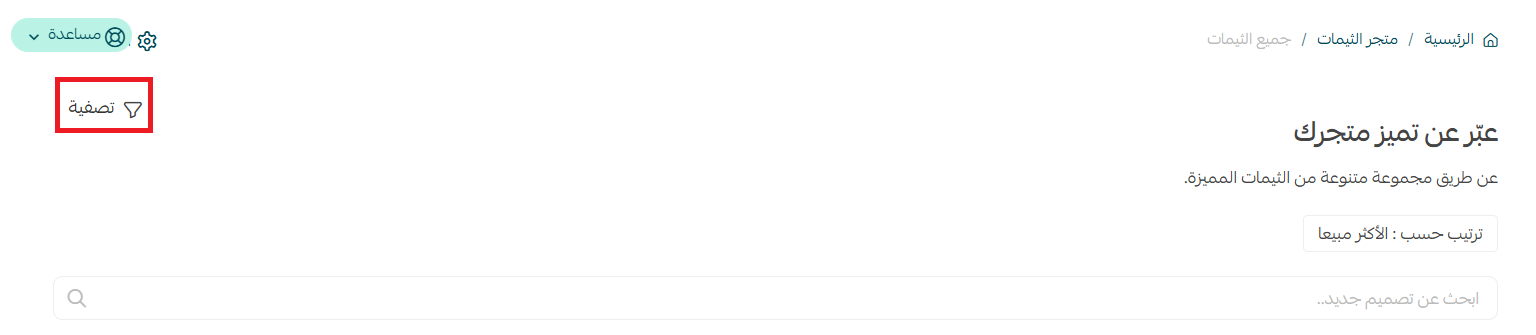
To filter themes from the all-themes page, click (Sort).
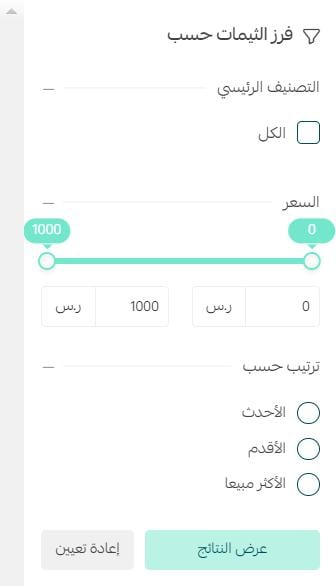
Set the filters that suit you, then click (Show results).
6. Buy a theme
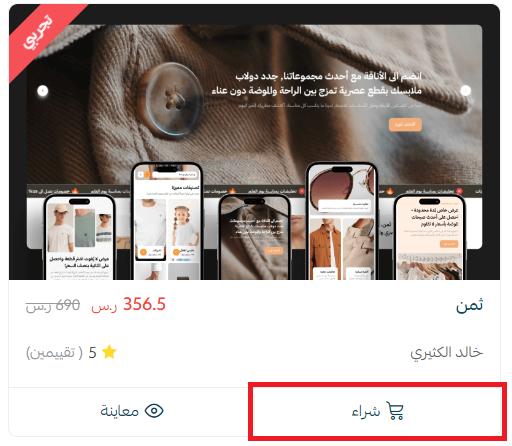
From the theme store page, choose the theme you want to buy and click (Buy).
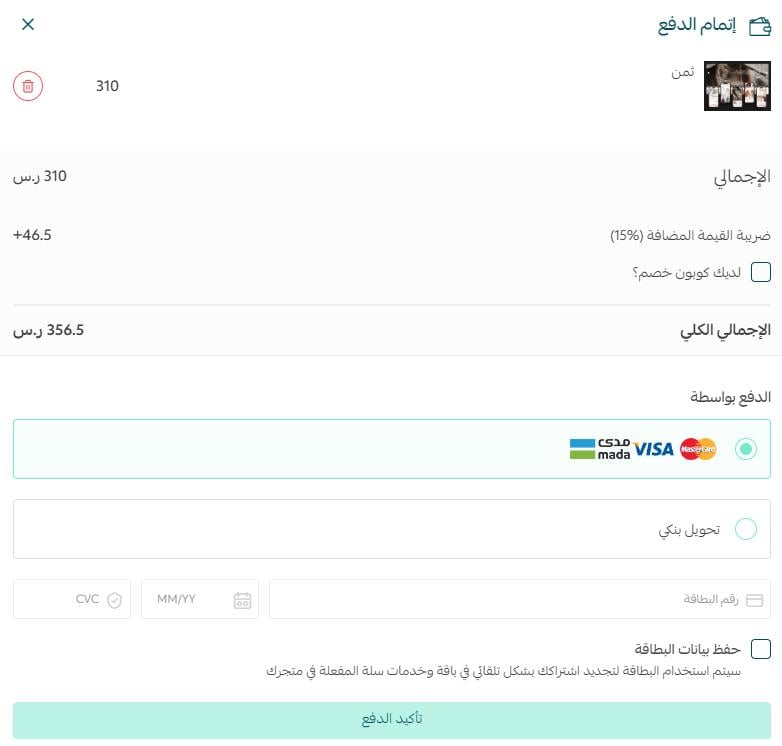
Then complete the payment.
Once the theme is installed, customize it to fit your needs from the store design page.
7. View a theme's details
Clicking a theme opens all of its details, along with the option to contact technical support.
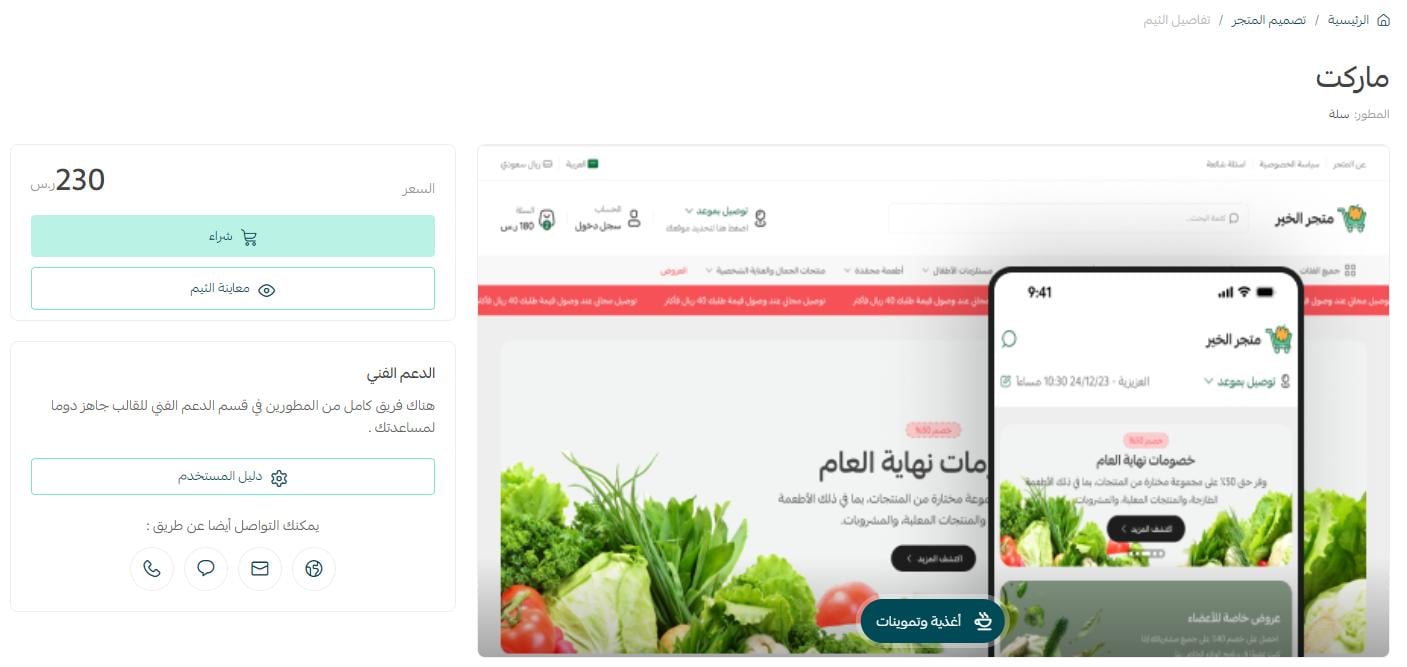
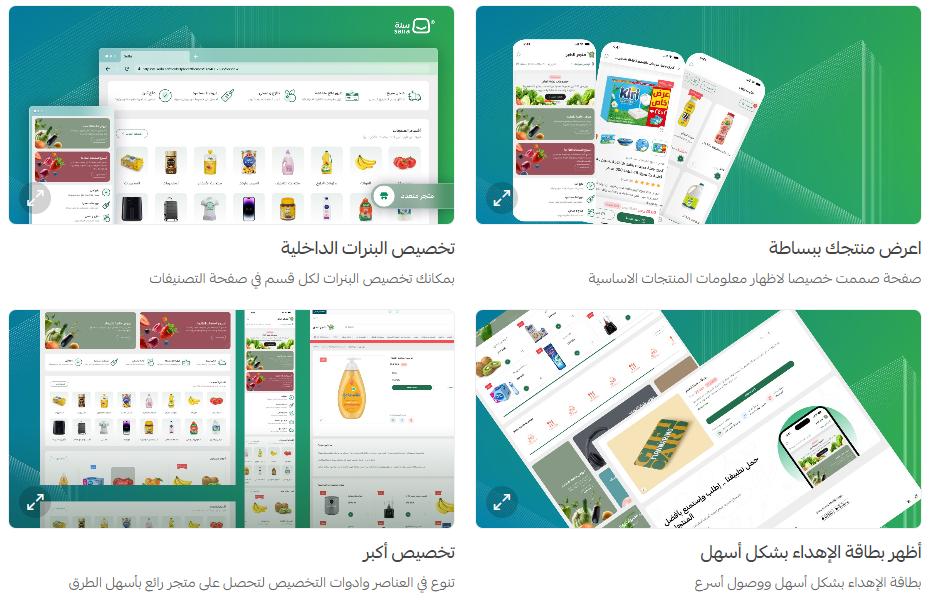
Every image and every new theme feature comes with a clear description.
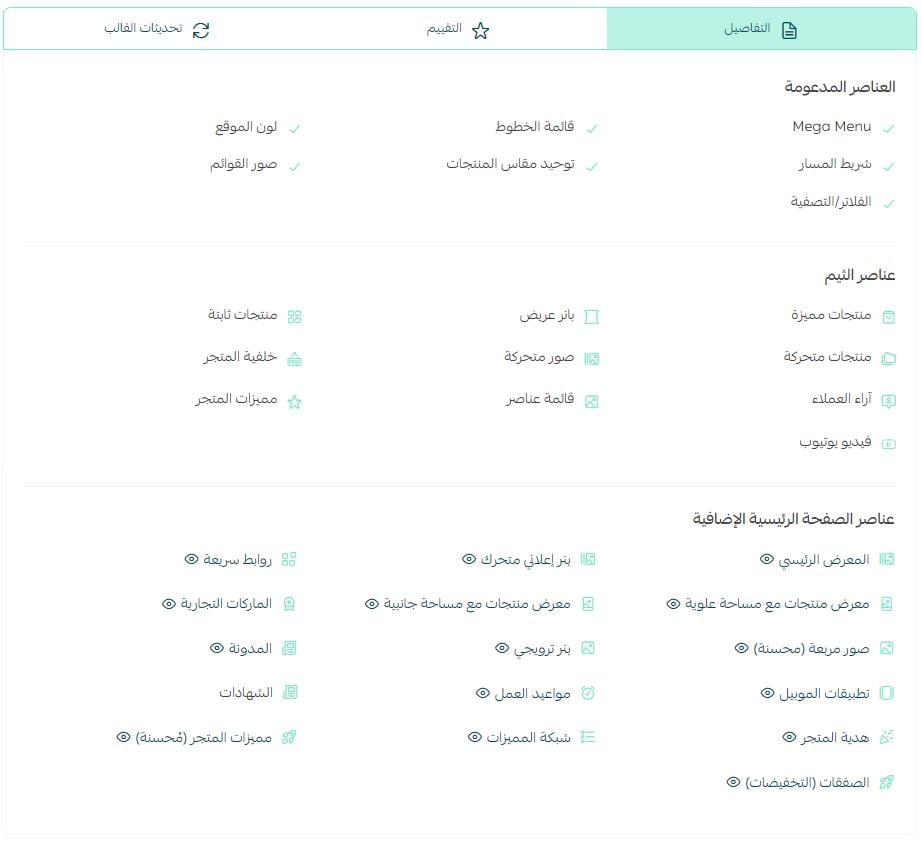
The details tab is also where you learn more about the theme's elements, which elements it supports, its homepage elements, and its internal settings — all before you buy.
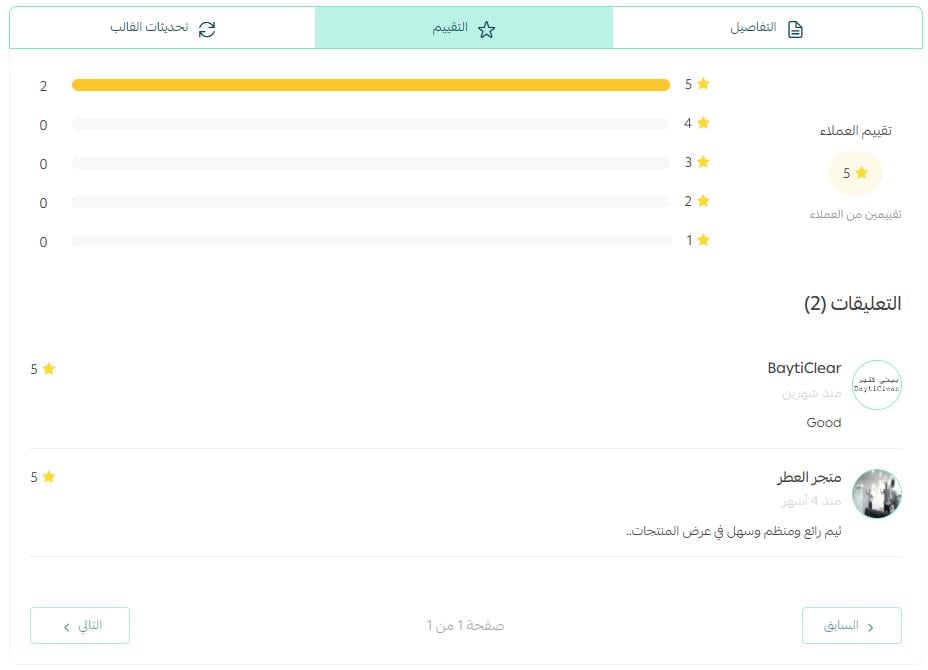
The reviews tab shows you merchants' ratings and their notes.
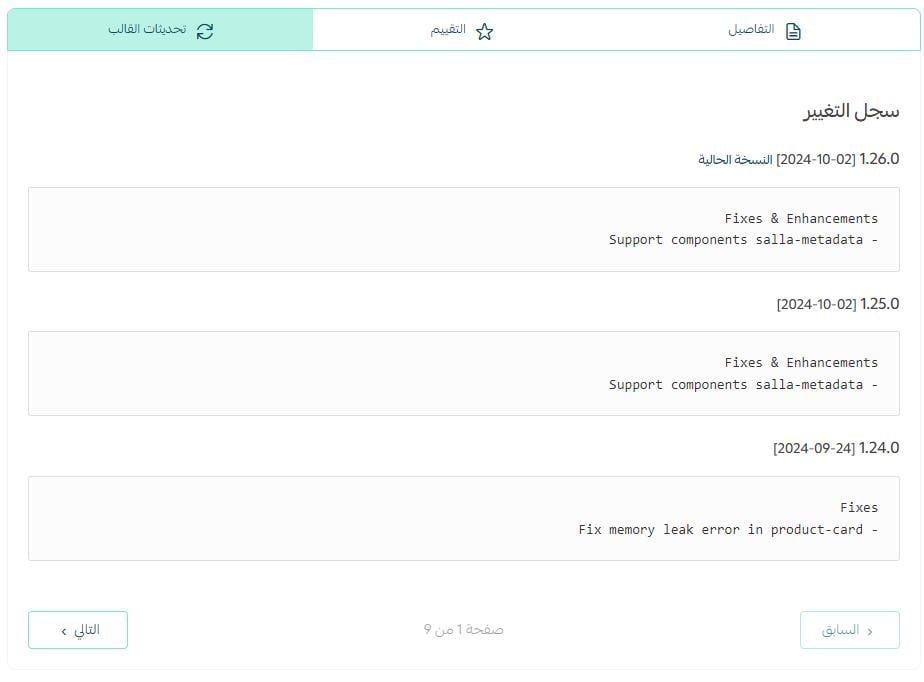
The theme updates tab shows the theme's update history.
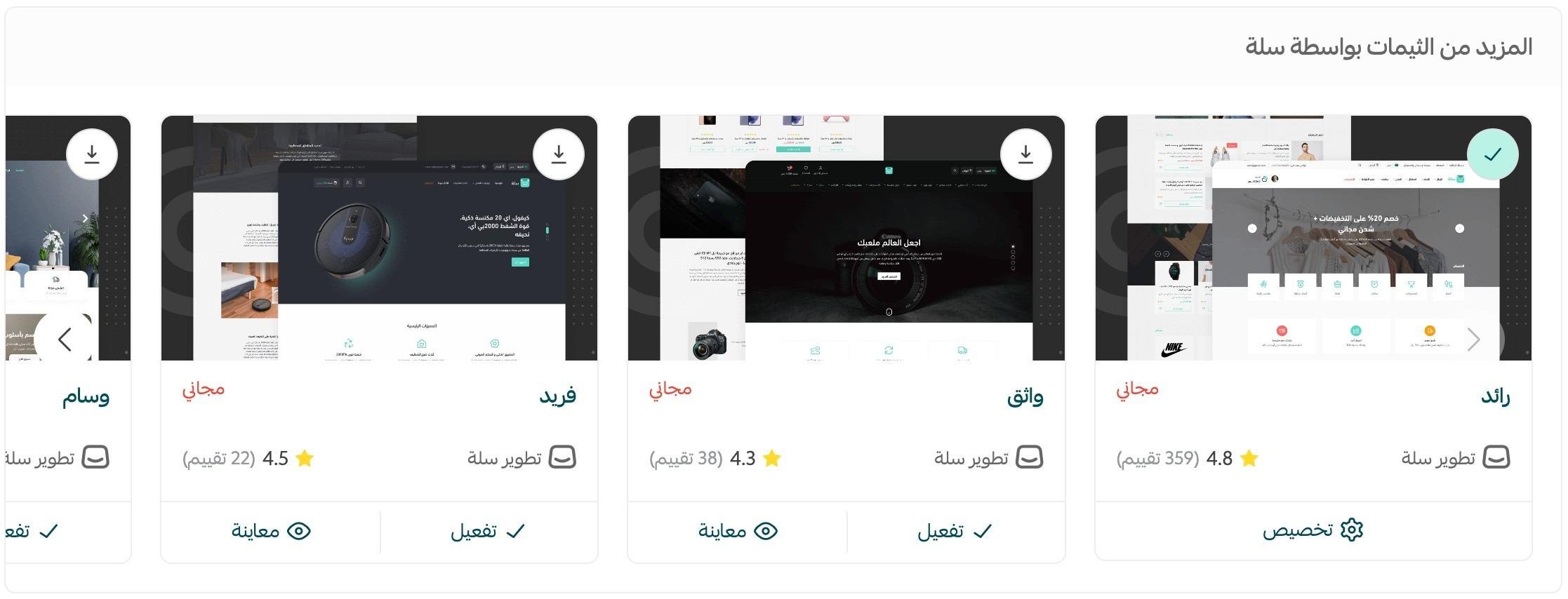
At the bottom of the theme details page, you'll see the developer's other themes, if they have any.
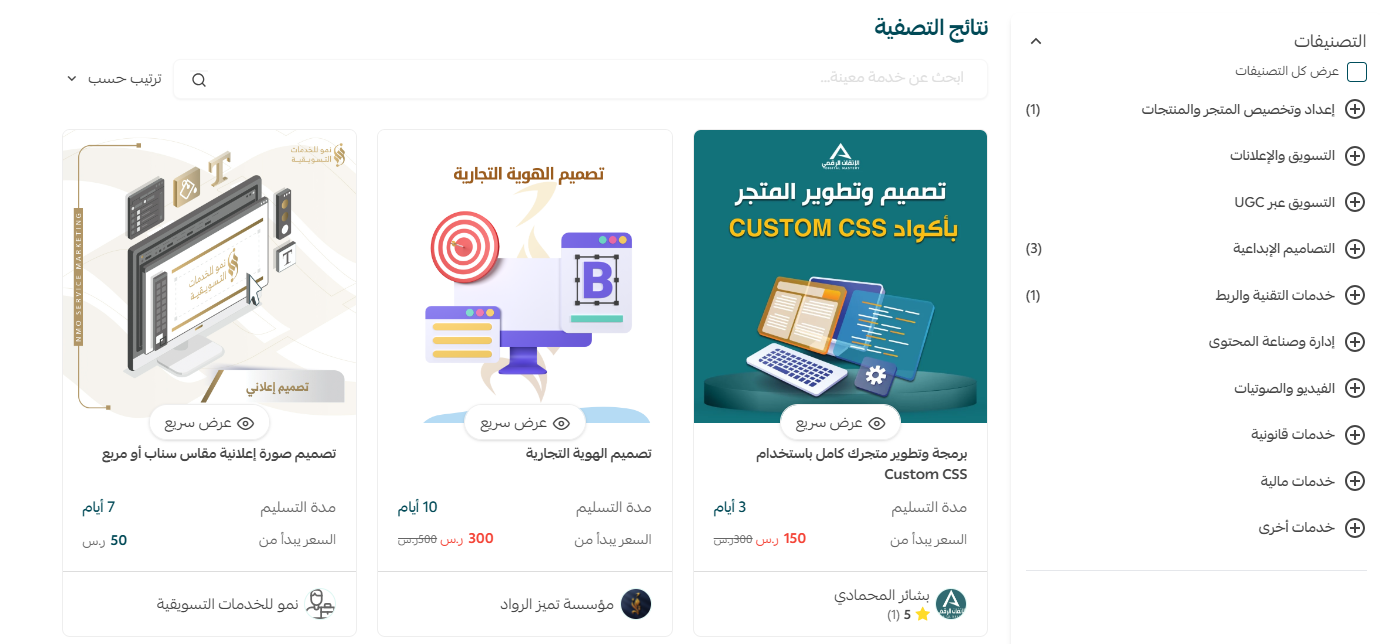
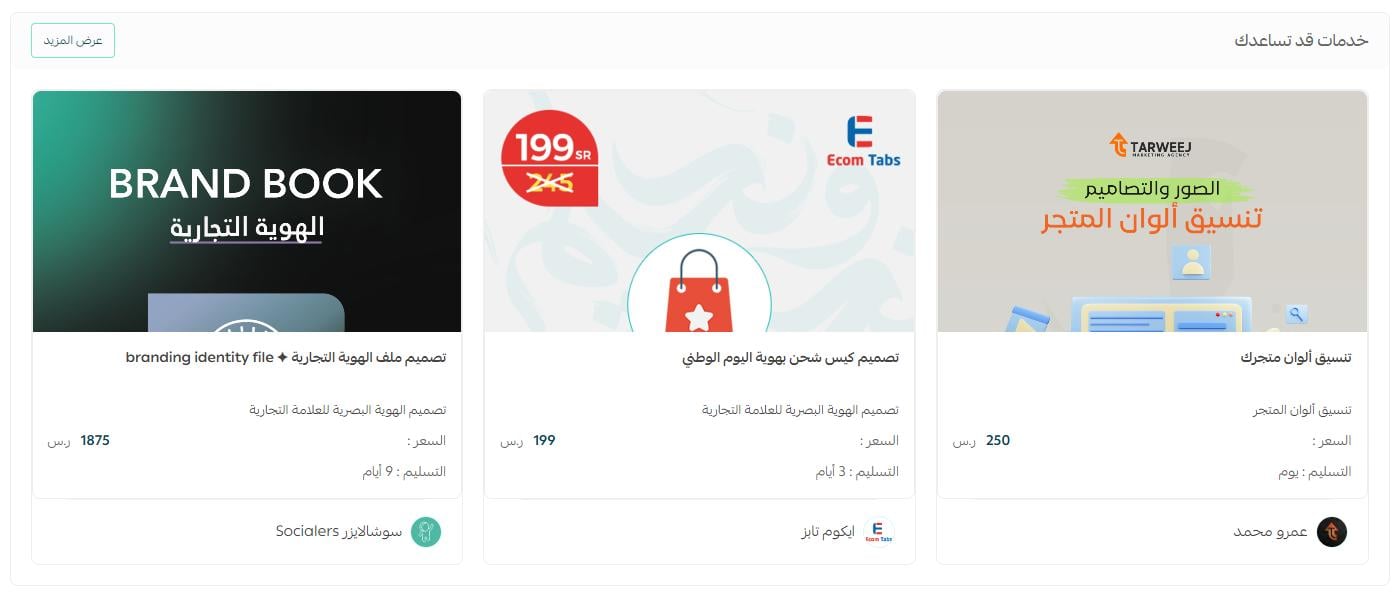
Along with suggested services from the merchant services page.
8. Build your own design
You'll be taken to the Salla developers site, which walks you — or the developer building your theme — through how to start work on a custom theme.

For more details, see building a custom theme with Salla Twilight.
❓ Frequently asked questions
Can I see a theme on my own store before I buy it?
Yes. From the theme store page, click (Preview) on any theme to see how your store looks in it — you can also preview a single section, and use the multi-preview to see how the theme fits different kinds of business.
Where do I find other merchants' opinions of a theme?
Open the theme, then go to the reviews tab to read merchants' ratings and notes. The theme store also has a section dedicated to merchant reviews and previews.
How do I narrow down a long list of themes?
Click (Show more) in any section, type part of a theme's name in the search box, or click (Sort) on the all-themes page, set the filters you want, and click (Show results).
Which themes support custom fields and product options?
The feature is available in the best-selling paid themes: Wesam, Malak, Aali, Marah, and Matjar.
What if I want a theme built specifically for my store?
Choose (Build your own design) in the theme store. You'll be taken to the Salla developers site, where you or your developer can start building a custom theme with Salla Twilight.
🚀 Extra support
To give your store a professional look that speaks to the audience you want, you can bring in professional service providers to set up your main store pages, design a logo, design images, and build the brand's visual identity, or adjust your store's design with CSS.