Would better product photos sell more of what you already stock?
Studio shoots cost money and take time, and most merchants do not have a designer on call. The Sowar AI app uses AI to create and improve product photos directly for your Salla store, so you can produce high-quality images fast without design experience or photography gear. In this guide, you'll learn how to install the Sowar AI app, how to sign in to its platform, how to upgrade your plan, and how to remove the app.
Sowar AI is an AI-powered app for Salla merchants that creates and enhances product images. You install it from the App Store, choose a plan, and sign in to the Sowar AI platform with a magic link sent to your email. From there you generate and edit product photos for your store.
📌 Article overview
- What the Sowar AI app does
- How to install the Sowar AI app
- How to manage the Sowar AI app
- Frequently asked questions
🎯 What the Sowar AI app does
Sowar AI is an artificial intelligence tool for creating and improving product images inside your Salla store. It lets you produce high-quality photos quickly, with no design experience and no photography setup.
👣 How to install the Sowar AI app
1. From the main menu, click (All), then under helper tools click (App Store).

2. Search for the app using the search field.

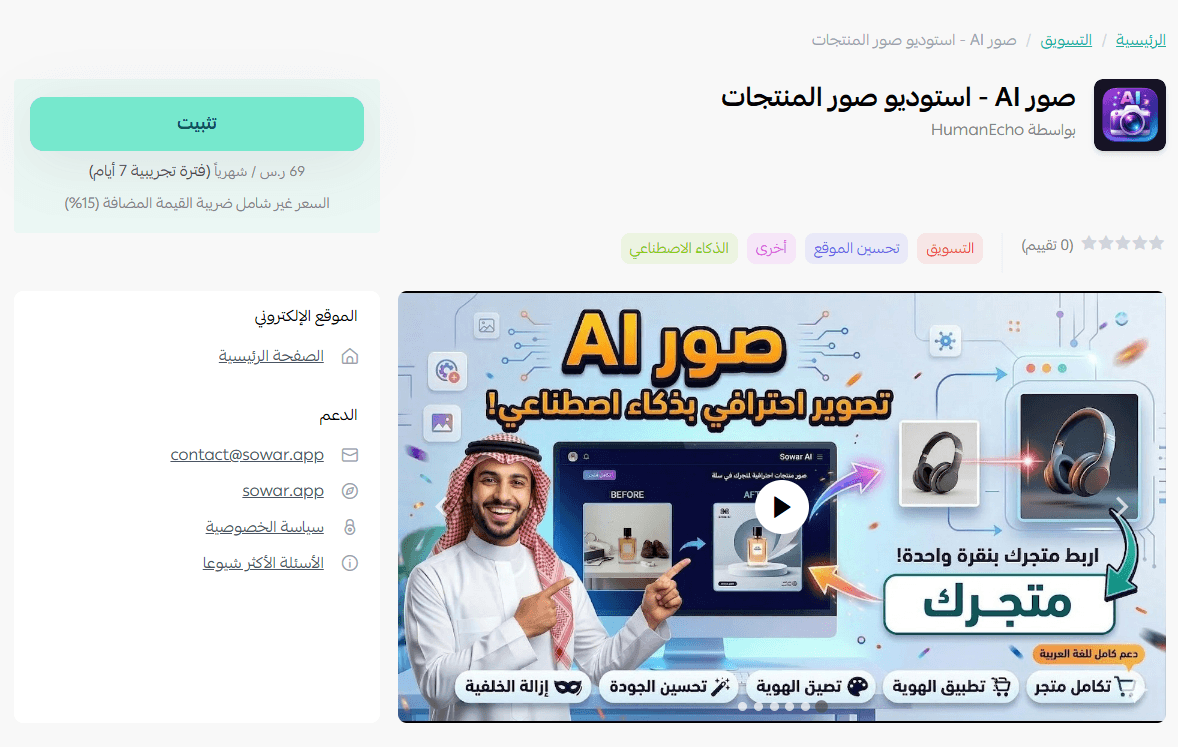
3. On the Sowar AI app page, click (Install).
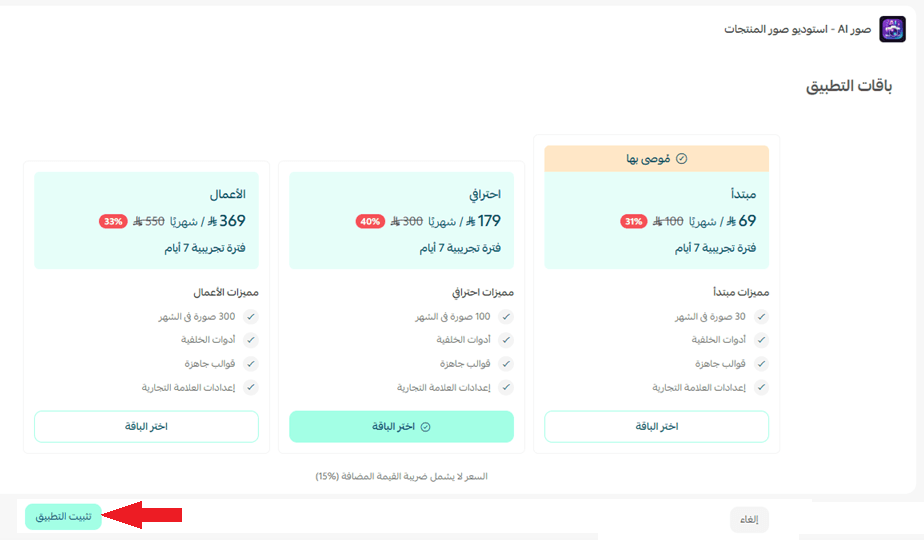
4. Choose the plan that suits you, then click (Install app).
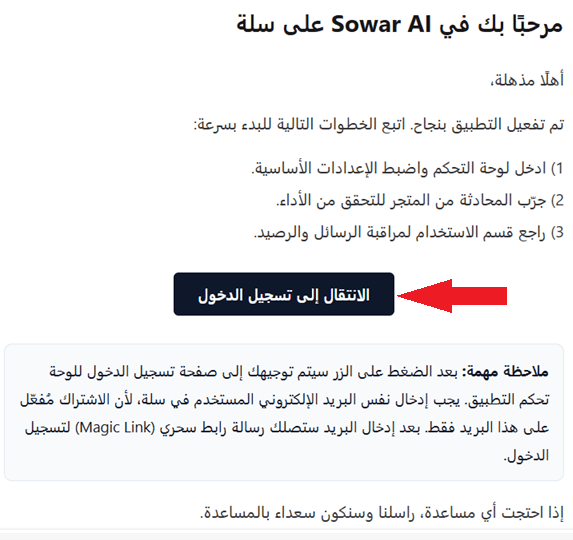
5. Once the app is installed, you receive an email asking you to authorize access to the app's platform. Click (Go to sign in).
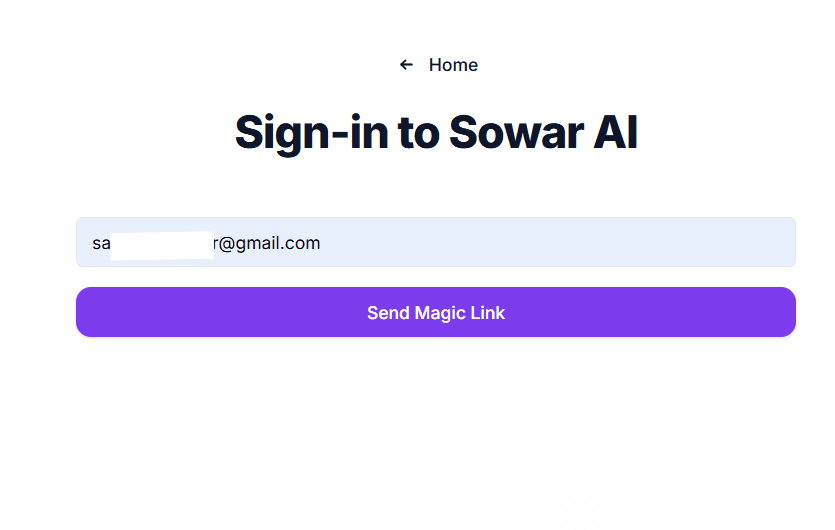
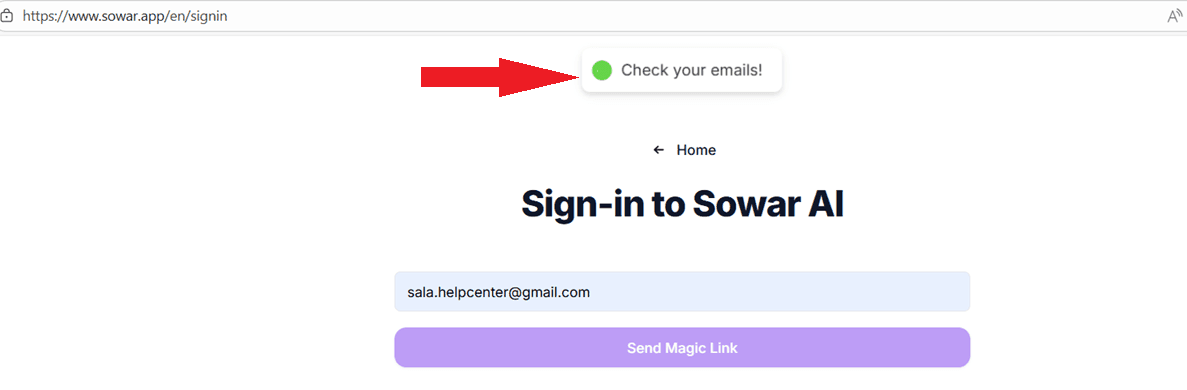
6. Enter your email address, then click (Send magic link).
7. Open the email you receive and click the sign-in link it contains.
🚀 How to manage the Sowar AI app
Upgrade your plan
1. From the app details page in your store, click (Upgrade plan).

2. Choose the plan you want, then click (Go to payment).

3. Fill in your payment details, then click (Confirm) to complete the upgrade.

Customize the app
🎯 You control the app's settings and edit your images from the dashboard of your account on the Sowar AI website.
Cancel and delete the app
1. From the app options menu, click (Cancel subscription), then choose a reason for cancelling.

2. From the app options menu, click (Delete app), then choose a reason for deleting.

3. From the deleted apps page, open the app options menu and click (Delete app permanently) to remove it from your store for good.

For more details, visit the Sowar AI app page.
❓ Frequently asked questions
Do I need design or photography experience to use Sowar AI?
No. The app is built so you can produce high-quality product images without design experience and without a photography setup.
How do I sign in to the Sowar AI platform?
Enter your email address and click (Send magic link). Sowar AI emails you a sign-in link — open the email and click that link to get in.
Where do I edit my images and change settings?
Not in your Salla dashboard. Image editing and app settings live in your account dashboard on the Sowar AI website.
Can I move to a bigger plan later?
Yes. Open the app details page in your store, click (Upgrade plan), pick the plan you want, and complete the payment.
Does deleting the app remove it completely?
Not straight away. A deleted app moves to the deleted apps page, and you remove it for good with (Delete app permanently) from the options menu there.
Better images are one of the cheapest levers you have on conversion. Run your top sellers through Sowar AI first, watch what happens to their product pages, and expand from there.