Your store does not stop when you step away from your desk.
Orders arrive at night, customers ask questions on weekends, and stock runs out at the worst possible moment. The Salla app puts your store in your pocket, so you can add and update products, follow your sales and orders, and answer customers from your phone or iPad, at any time. In this guide, you'll learn what the Salla app does, how to install and sign in to it, and how each of its screens works.
The Salla app lets you run your store from your phone or iPad: add and update products, follow orders and update their status, interact with customers directly, and receive instant notifications about new orders and platform updates. Install it from your phone's app store and sign in with your store account.
📌 Article overview
- What you can do with the Salla app
- How to install the Salla app
- A tour of the app's screens
- Frequently asked questions
✅ What you can do with the Salla app
1. Complete everyday store tasks in a few simple steps: add your products and services, follow and update order statuses, and interact with your customers directly.
2. Work fast. The app is built for the essential tasks in your store, so you can finish them in less time and from any device.
3. Receive notifications straight to your phone or tablet about the latest order statuses and platform updates, so nothing new passes you by.
🚀 How to install the Salla app
1. Open your phone's app store, whether iPhone or Android, and search for (Salla).
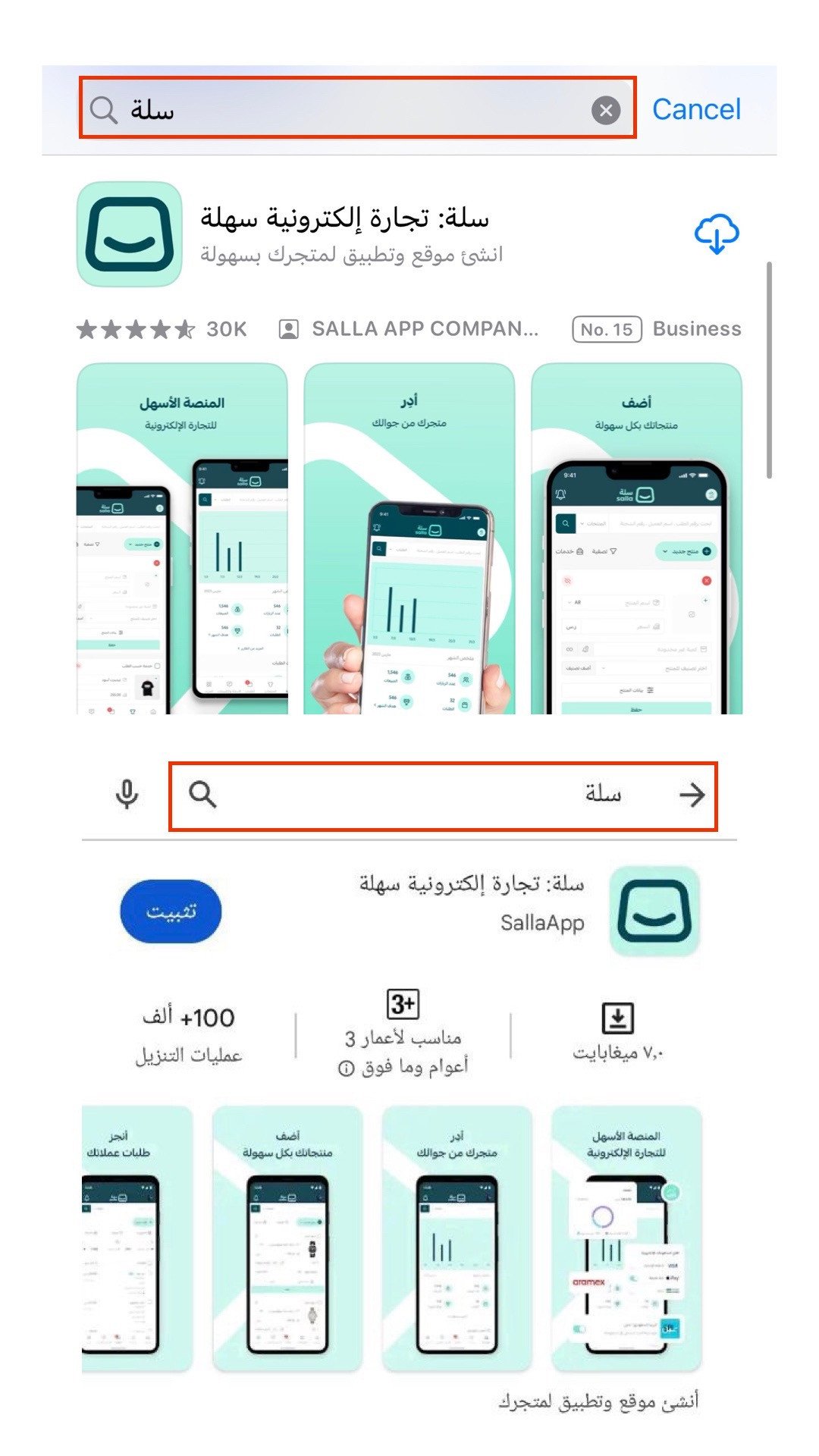
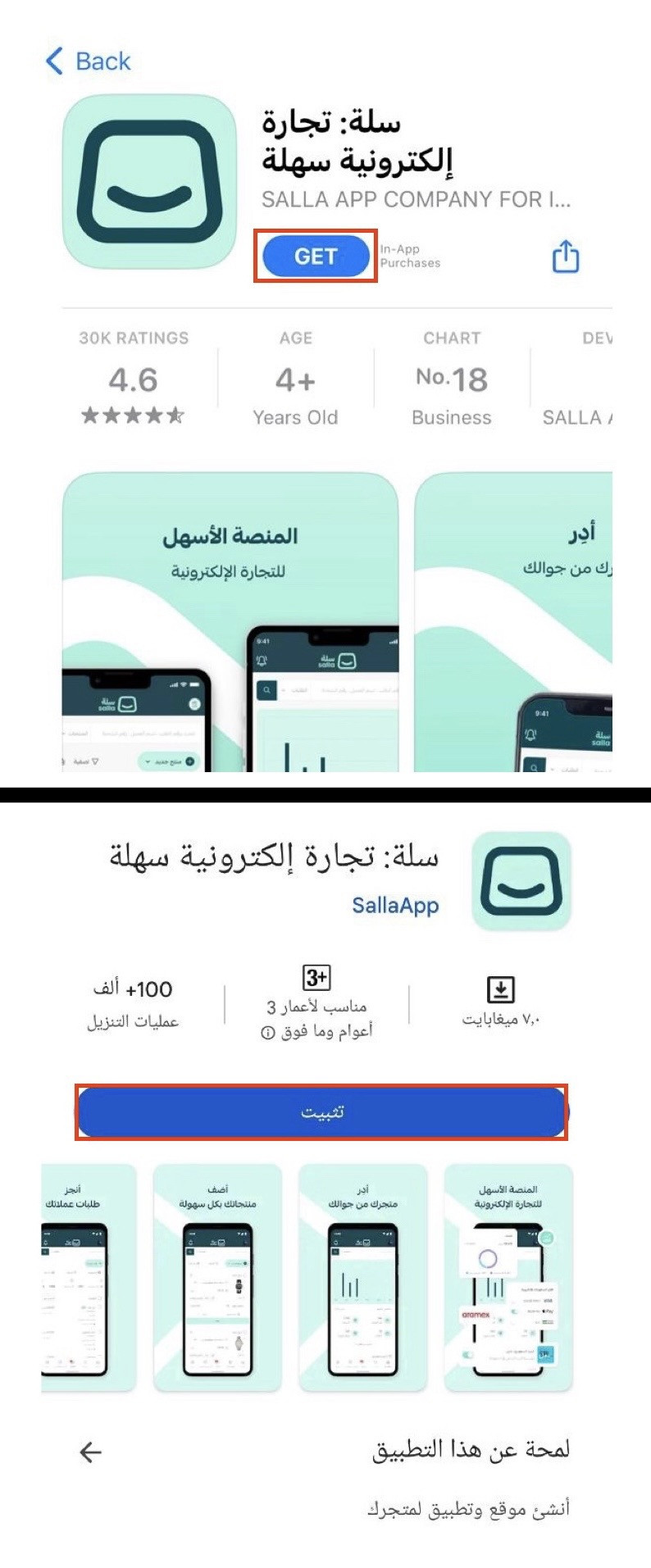
2. Install the Salla app.
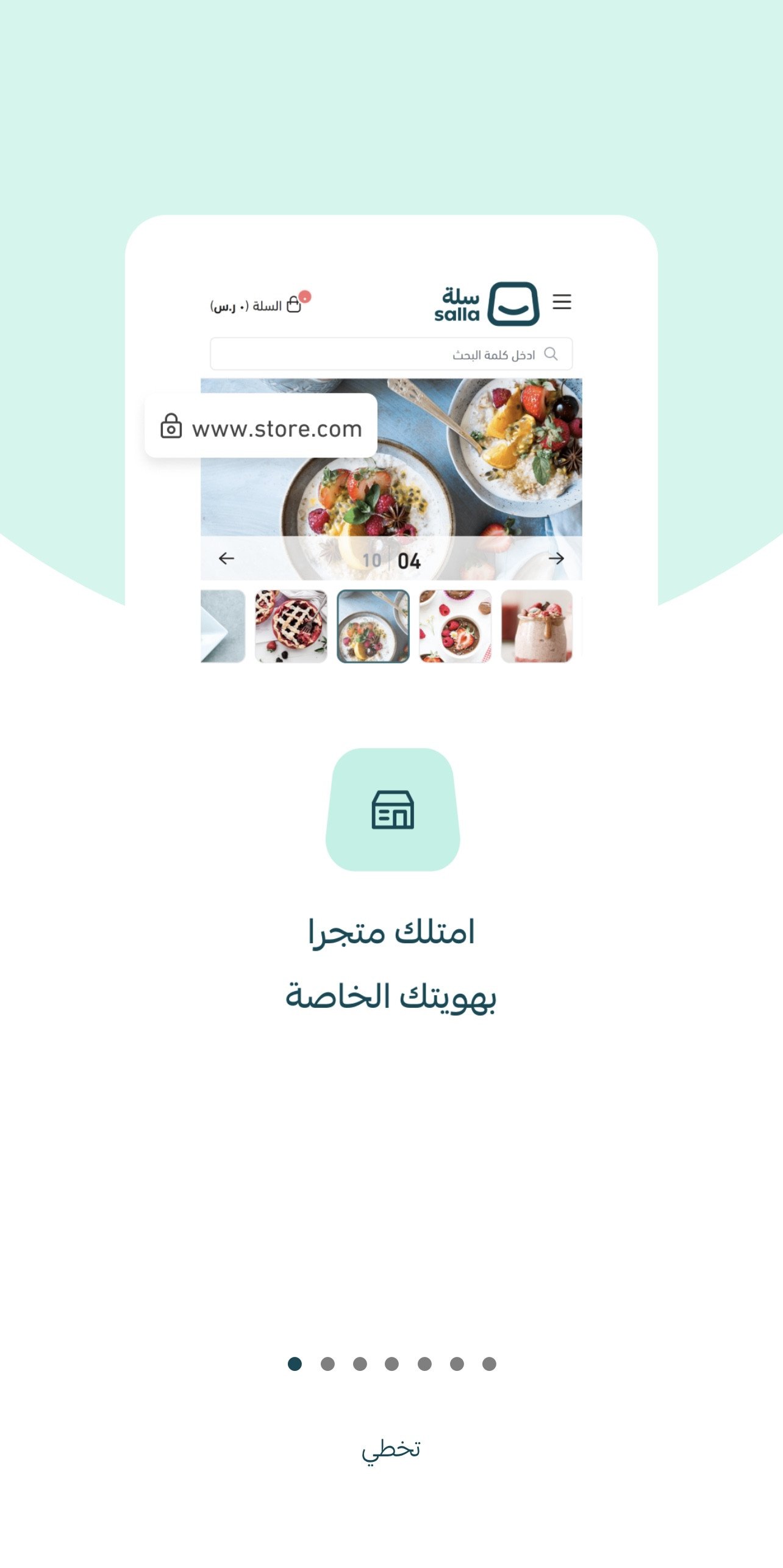
3. Open the app. A short series of screens introduces Salla's main features.
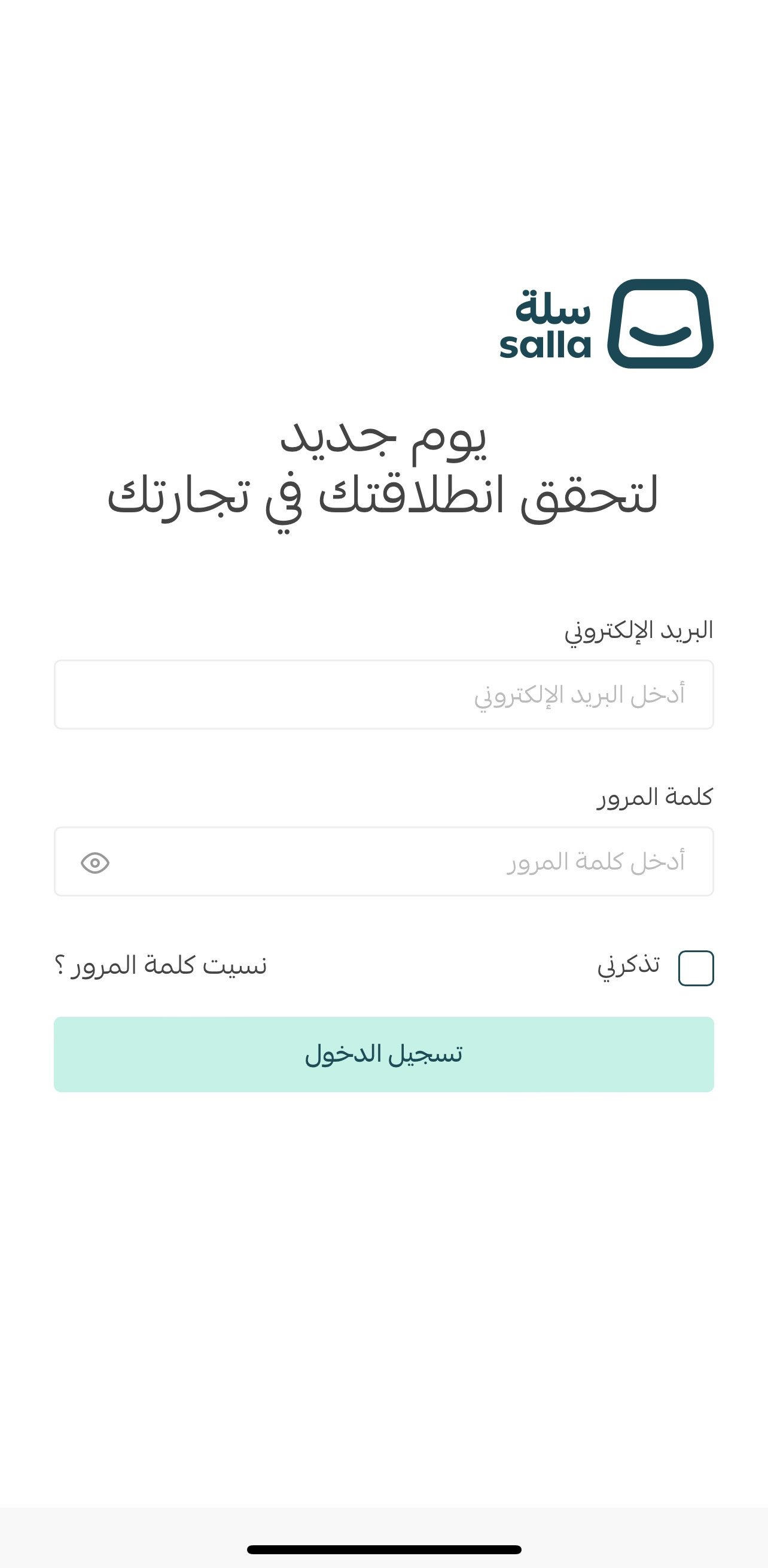
4. Sign in to your store through the Salla app. If you do not have a store yet, create a new account on the Salla platform using a browser first.
5. Follow the quick tour, which walks you through the app's sections.
You are now ready to use the app and start receiving your orders.
👣 A tour of the app's screens
Once the app is installed and you are signed in, you can start following your orders and managing your products and your store.
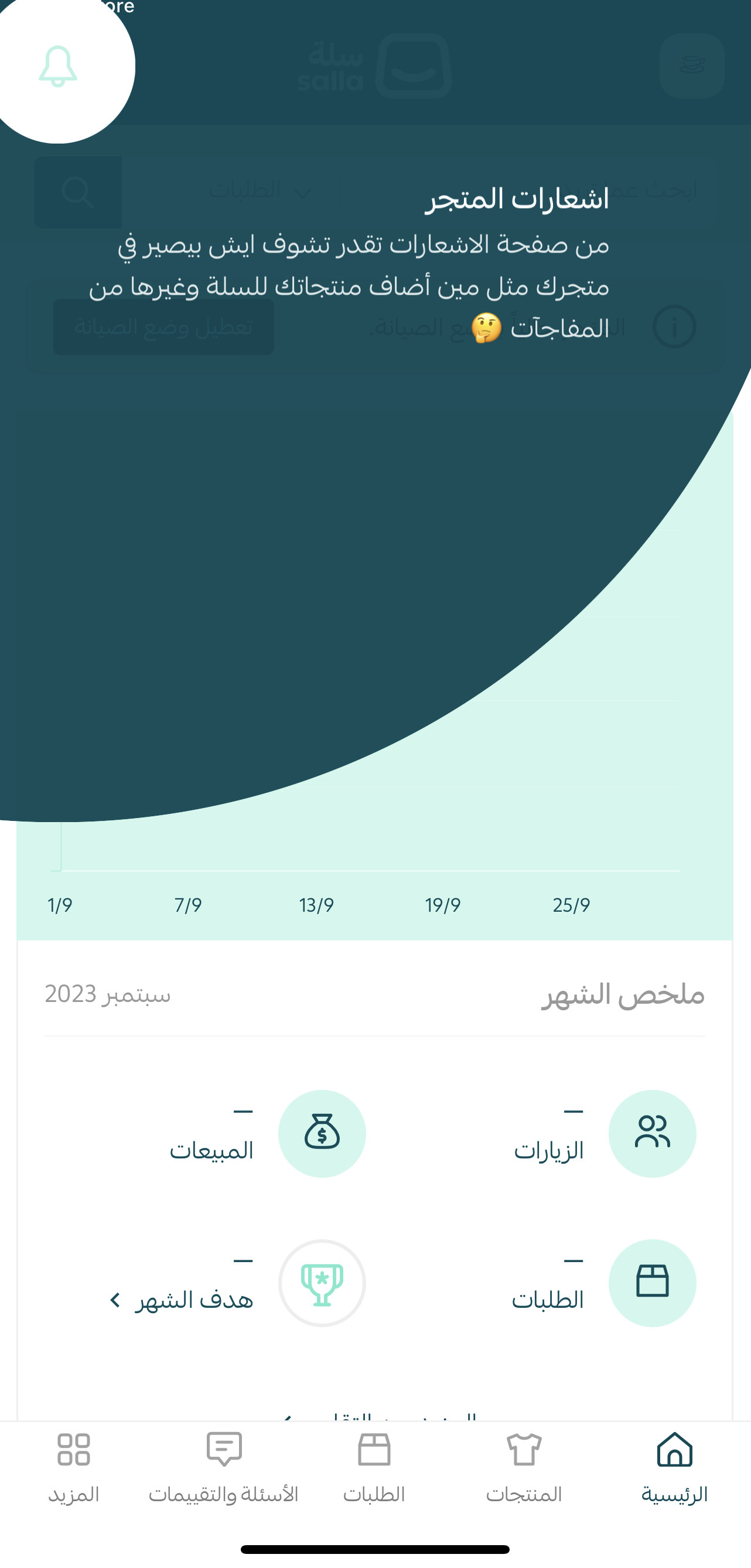
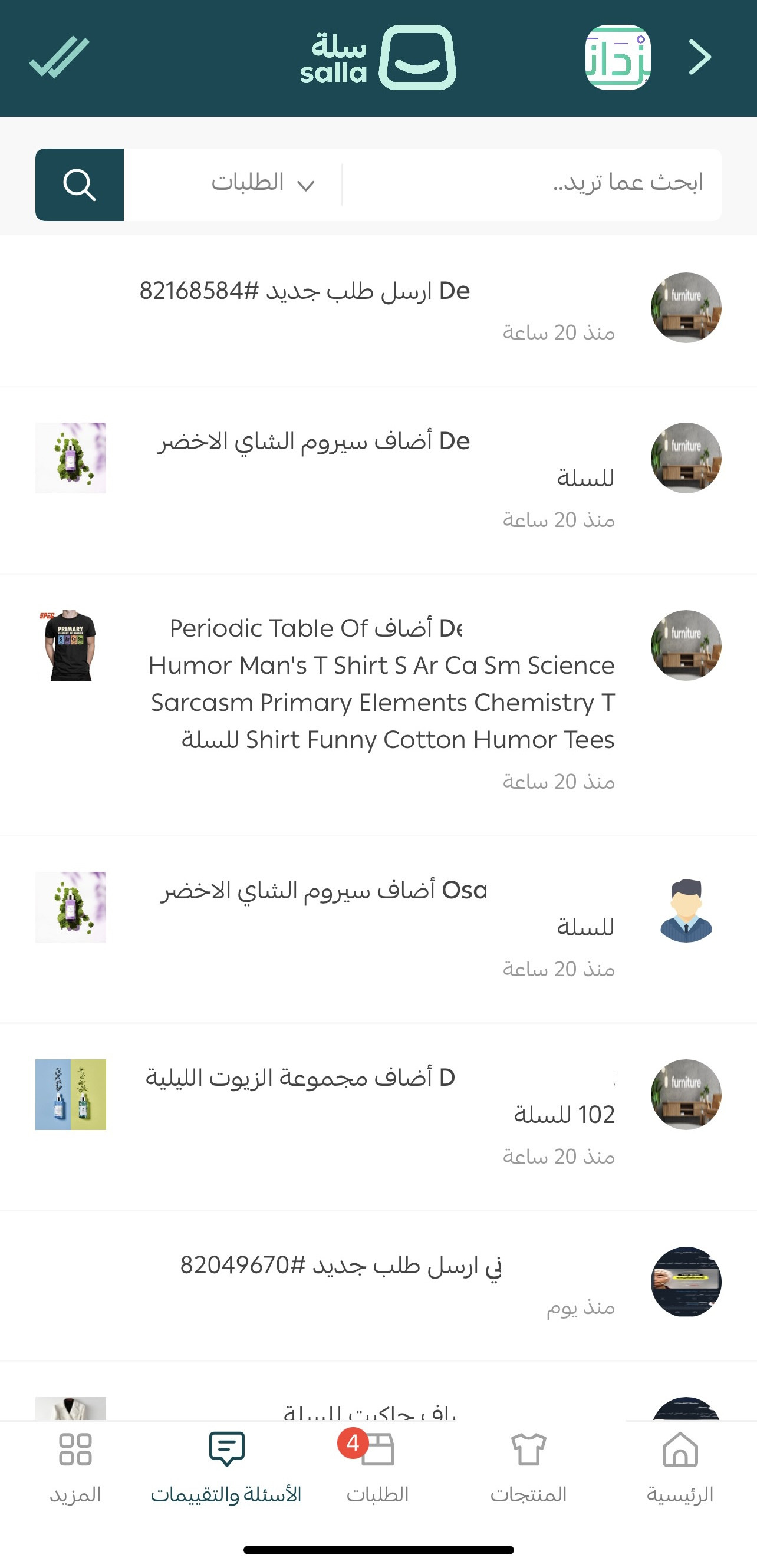
Store notifications page

This is where you follow the latest activity in your store, such as products added to a cart, new orders, and a new question or review on your store.
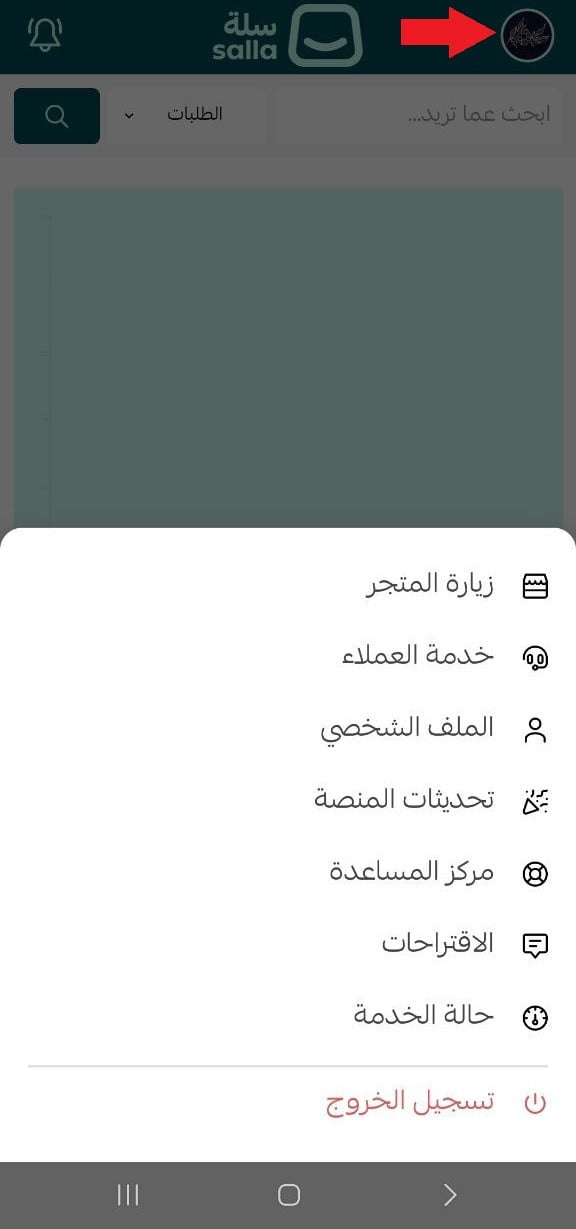
Store menu page
From here you can visit your store's website, catch up on platform updates, and contact customer service if you need help.
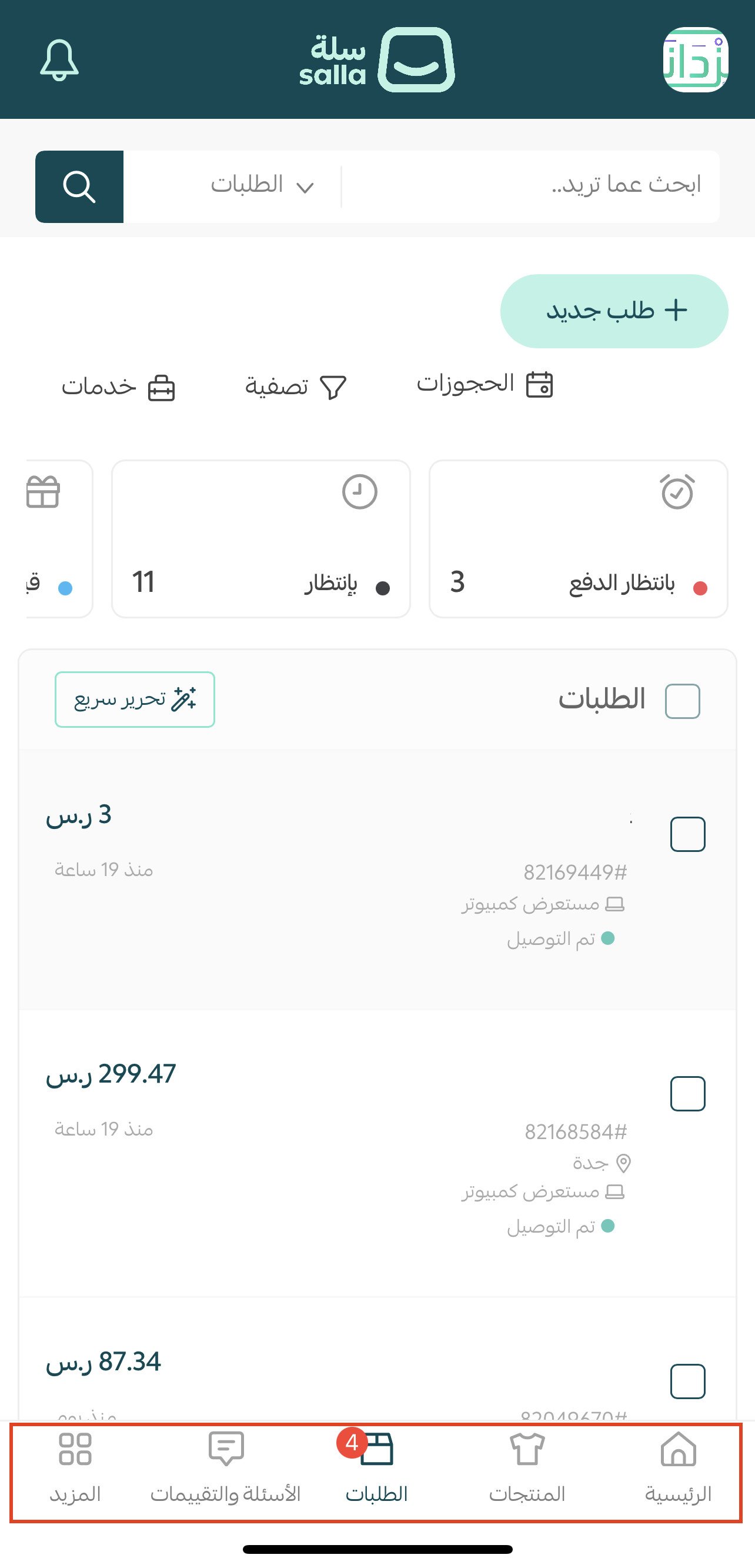
Main tabs
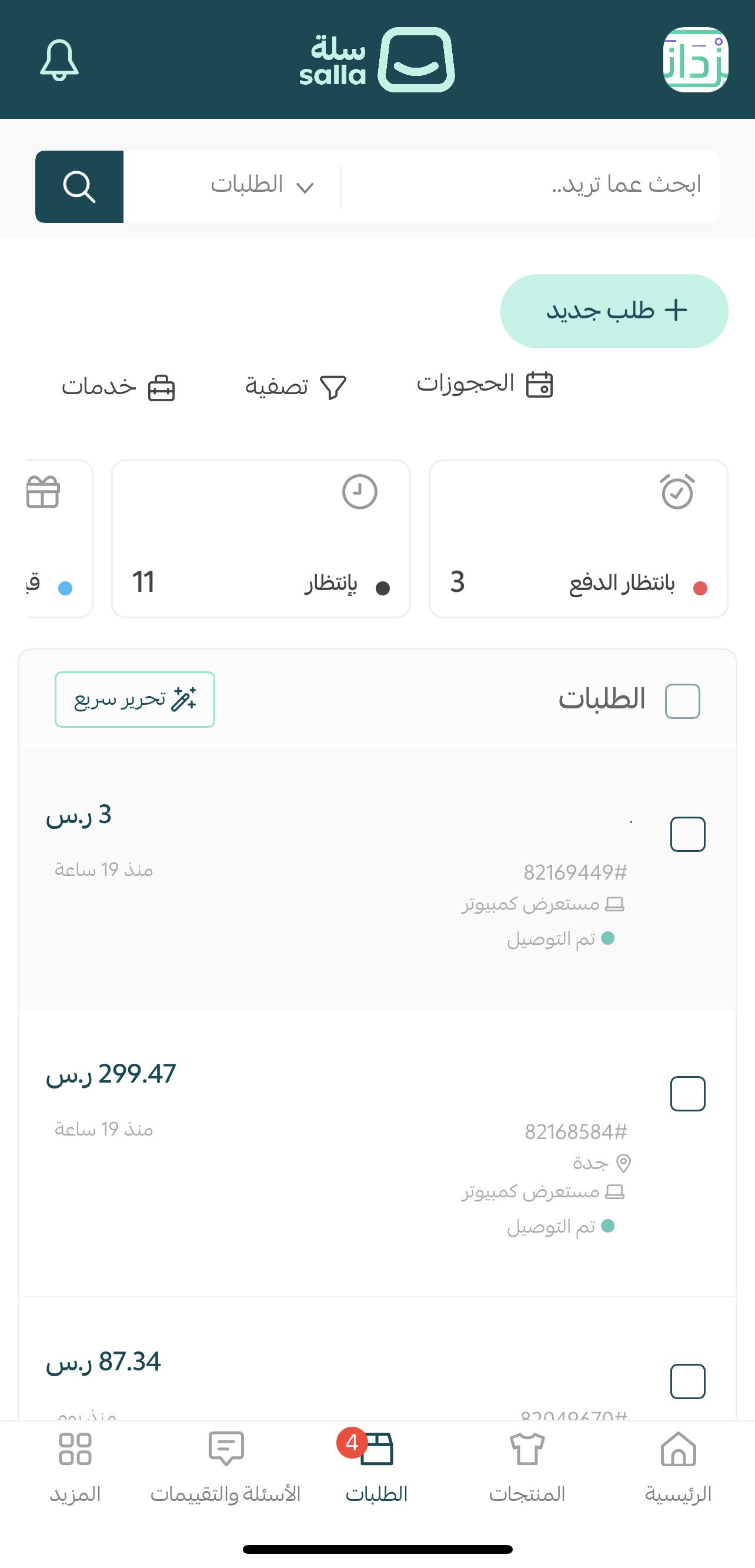
The main tabs give you control over your store's key sections: Home, Products, Orders, and Questions and reviews.
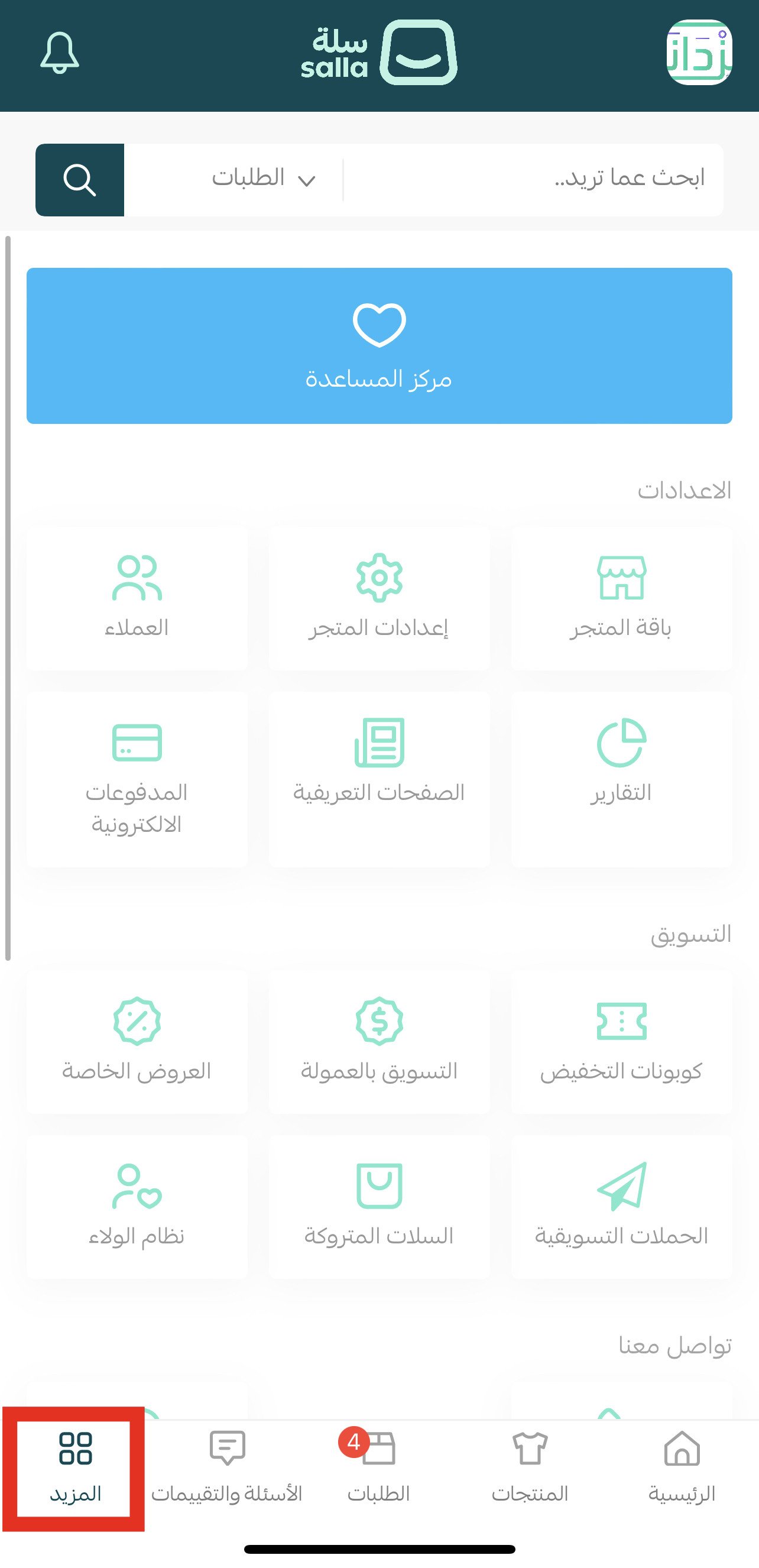
More page
The More page holds your settings, including store settings, shipping and payment settings, and marketing tools.
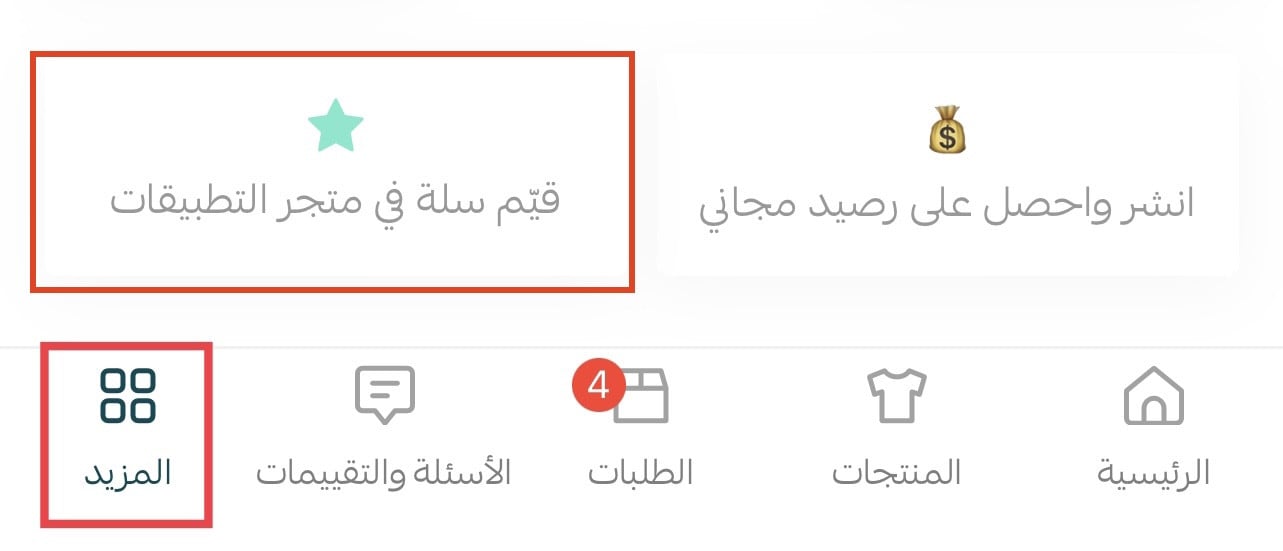
The More page is also where you can rate the Salla app in your app store.
📝 Important notes
- The app signs you in to an existing store. You cannot create a new store account from the app; use a browser on the Salla platform for that.
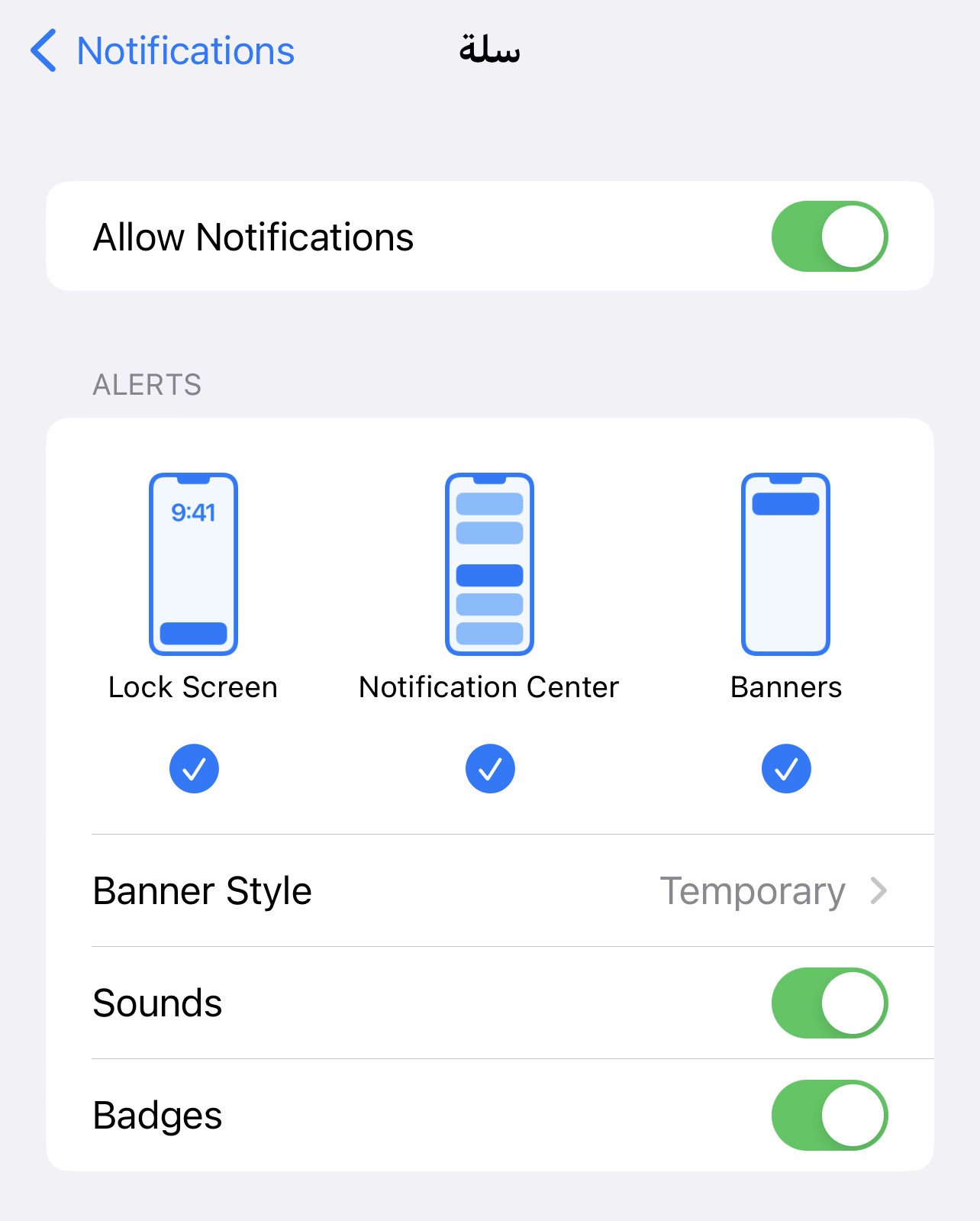
- Order notifications only reach you if notifications are enabled for the Salla app in your phone's settings.
❓ Frequently asked questions
How do I sign in to the Salla app?
First, install the Salla app on your phone. Second, make sure you already have a store account, or create a new store account on Salla using a browser, then sign in with it.
How do I start using the Salla app?
As soon as you have installed the app and signed in to your account, you can start following your orders and managing your products and your store.
How do order notifications reach me?
Make sure notifications are turned on for the Salla app in your phone's settings.
Is the Salla app safe to use?
Your personal and financial data is protected. Salla states that its security and encryption rate exceeds 99.97%.
Which devices does the Salla app run on?
Phones and tablets, on both iPhone and Android. Search for (Salla) in your device's app store to install it.
Running a store is rarely something you do sitting still. With the Salla app installed and notifications turned on, you can answer a customer, update an order, and fix a product listing wherever you happen to be.