Managing your products efficiently is essential for running a successful online store.
Salla’s product management tools allow you to browse products, edit their details, organize them by categories or branches, and apply changes to multiple products at once. Whether you are searching for a specific product, filtering products by category, or updating prices in bulk, these tools help you work faster and more professionally.
This guide walks you through the Products page and explains how to manage multiple products efficiently.
📌Article overview
- Products page
- Product filtering
- Product search
- Bulk actions on multiple products
Products Page
From the main menu, click Products.
- From the Products tab, open the All products.


You will see a page displaying all your store products.
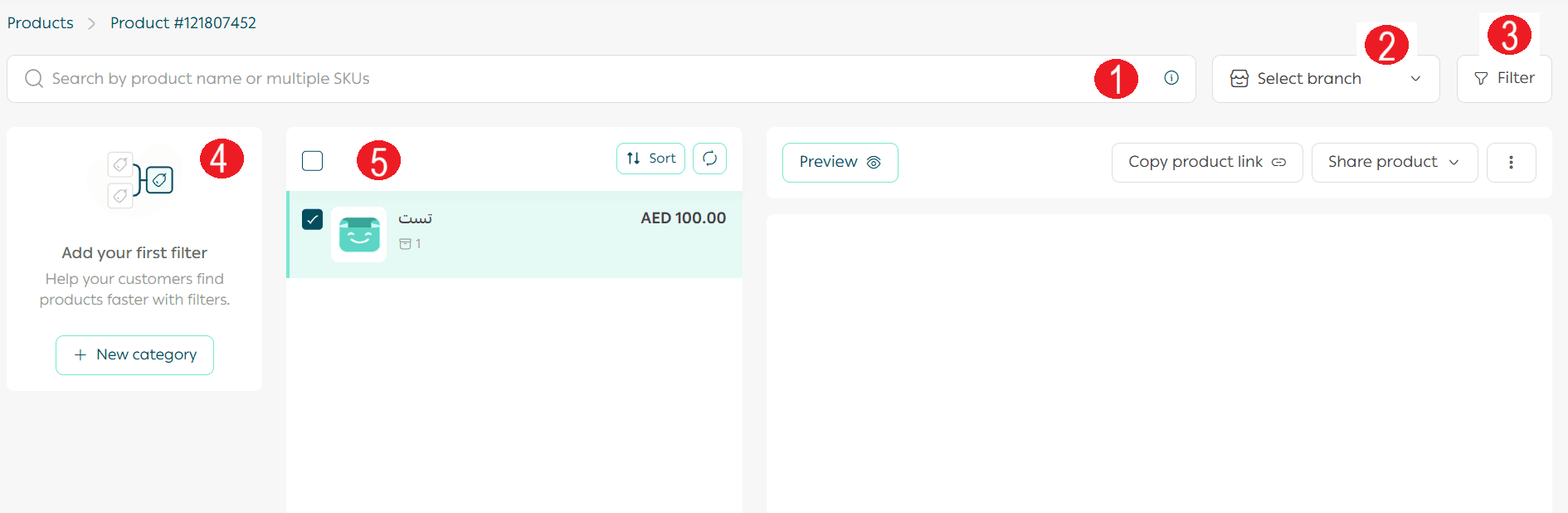
Key sections on the Products page:
- Search bar
Helps you quickly find a specific product by name or code.
2. Branch selector
Allows you to view products assigned to a specific branch.
3. Filter option
Helps narrow down products based on selected criteria.
4. Categories list
Select an existing category or add a new one.
5. Products list
Displays products with sorting options for easier management.
Filtering Products
You can filter products using multiple methods.
Method One: Using Product Filters
- Click Filter.

2. Choose the required filter criteria, such as:
- Product display channels
- Product status
- Product category
- Product brand
- Product type
3. Click Show Results.
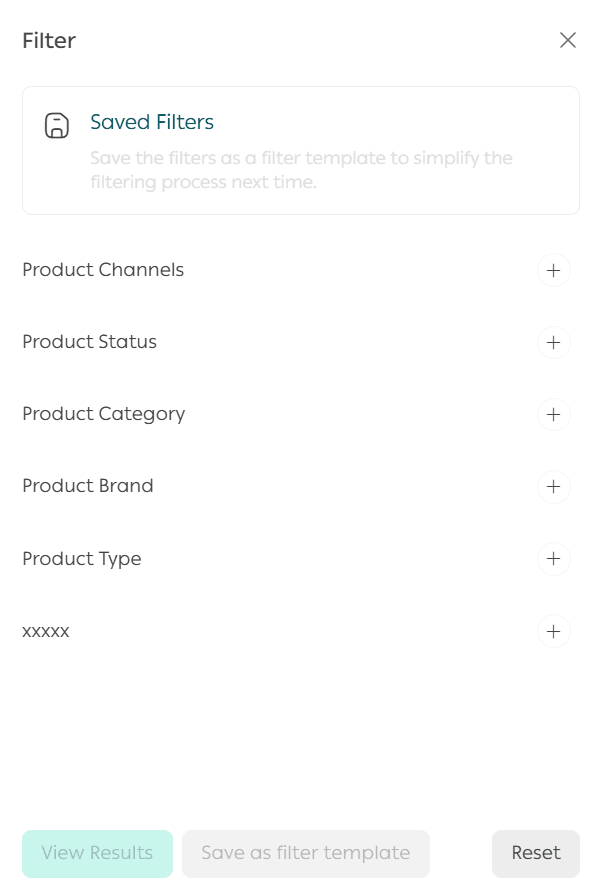
Important notice: Mahally, Souq Eljomla, and Salla Point are currently available only for stores operating in Saudi Arabia.
Method Two: Using Saved Filter Templates
You can save frequently used filters to reuse them later.
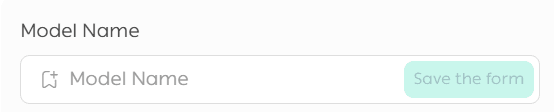
- After selecting filter criteria, click Save as Filter Template.

2. Enter a name for the filter template.
Next time, simply click the saved filter from the filter bar to apply it instantly.
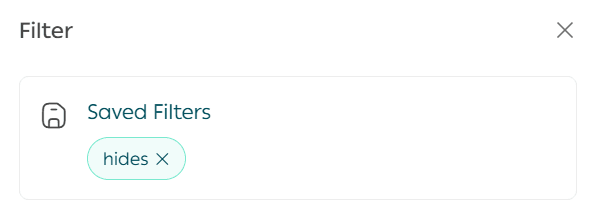
To remove an active filter, click Clear Filter.

Searching for Products
You can quickly search for any product using the search bar at the top of the Products page.
Search by Product Name
Type the full product name or part of it to instantly view matching results.
Search by SKU
You can search for multiple products at once by entering up to 15 SKU codes, separated by commas.
Once submitted, all matching products will appear immediately.
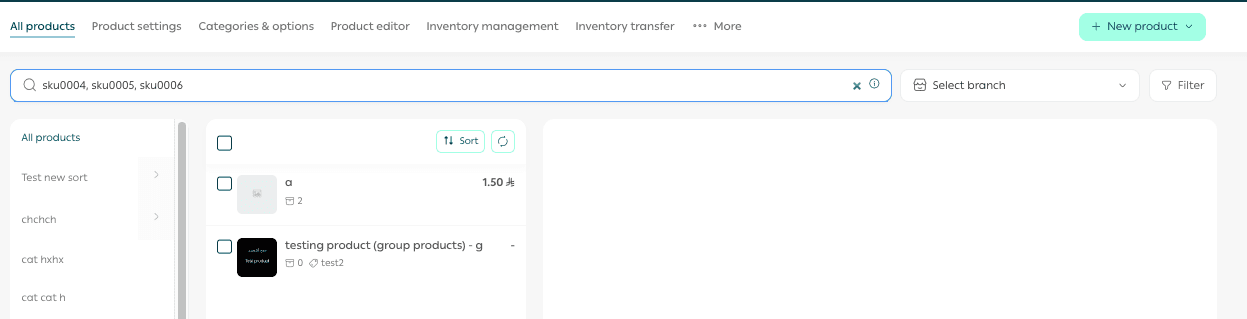
Tip: This method is especially useful when updating prices or stock quantities for specific products without searching for them individually.
Search by MPN or GTIN
The Products page supports searching by MPN or GTIN.
- Enter one code per search
- The matching product will appear immediately

Note: Only one MPN or GTIN code can be searched at a time.
This is particularly useful for electronic products or items that rely on standardized identification codes.
Bulk Actions on Multiple Products
1. Select Multiple Products
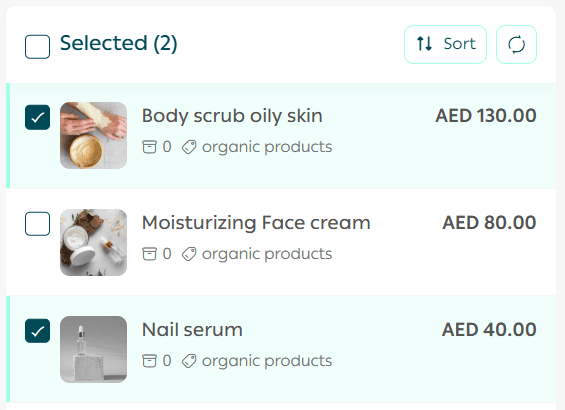
From the products list, select all or some products to apply bulk actions.
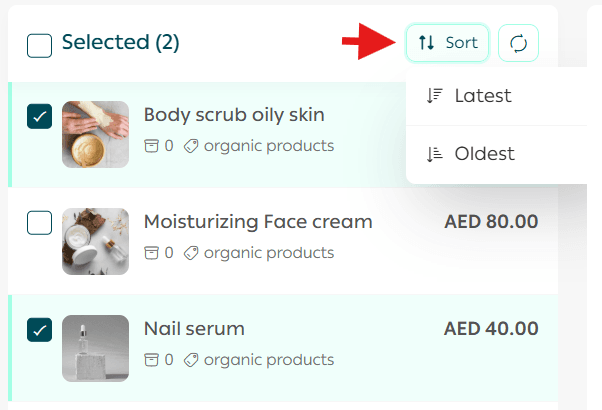
You can also sort products by:
- Newest to oldest
- Oldest to newest
2. Edit Product Data
You can modify multiple product details at once.
Option One: Edit using the Product Editing Table
Allows structured editing of selected products.

For full details, refer to the Product Editing Table guide.
Option Two: Edit Product Information
You can update:
- Categories
- Brands
- Tags
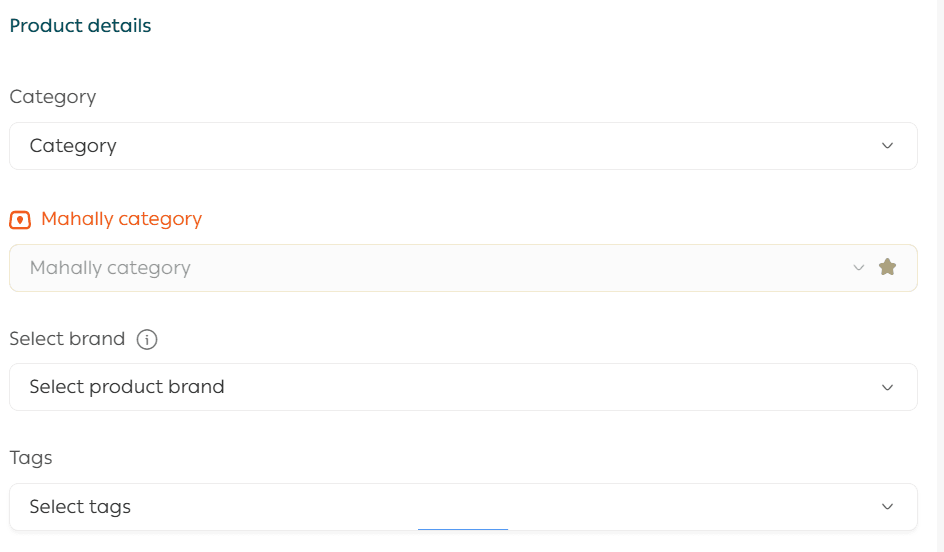
Important notice: Mahally and Souq Eljomla are currently available only in Saudi Arabia.
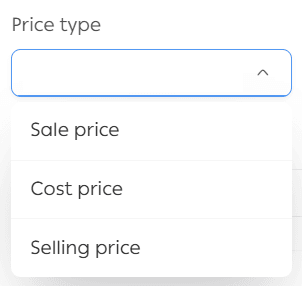
Option Three: Edit Prices
Choose the price type you want to update:
- Discount price
- Cost price
- Selling price
Option Four: Edit Product Display Channels
Control where products appear across different sales channels.
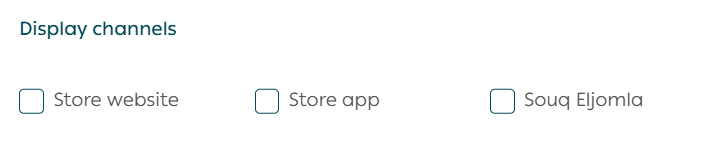
Important notice: Souq Eljomla is currently available only in Saudi Arabia.
3. Apply Actions Scope
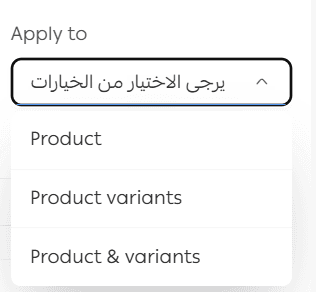
Choose whether the action applies to:
- The product only
- Product options only
- Both product and options
4. Configure Notifications
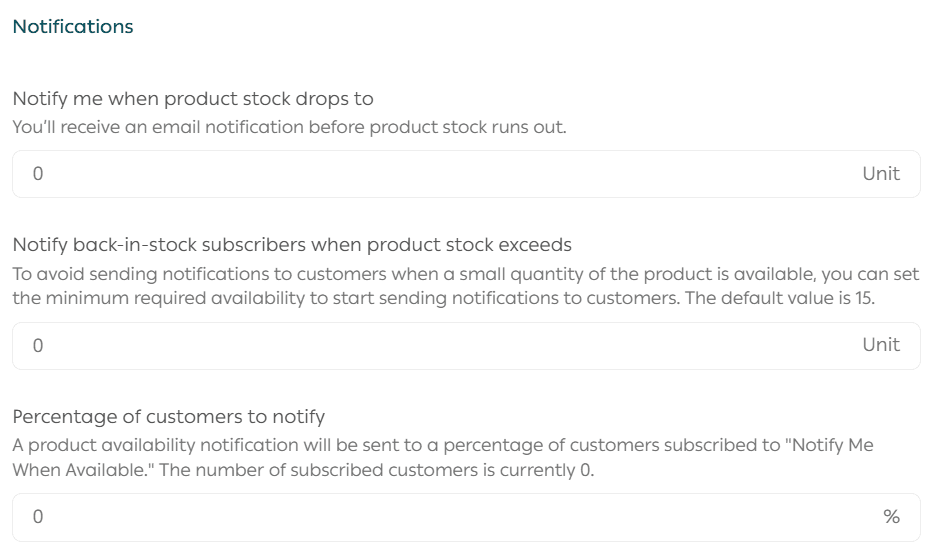
You can manage notifications such as:
- Merchant alerts when stock reaches a specific quantity
- Customer alerts for “Notify me when available” only when stock exceeds a defined quantity
- Percentage of subscribed customers to notify when stock is available
This helps avoid sending alerts for very small stock quantities.
5. Export Product Data
- Select the data fields you want to export.
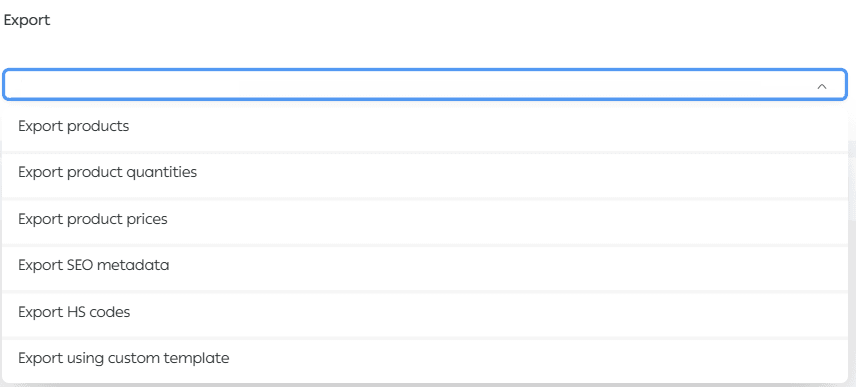
2. Choose the file format.
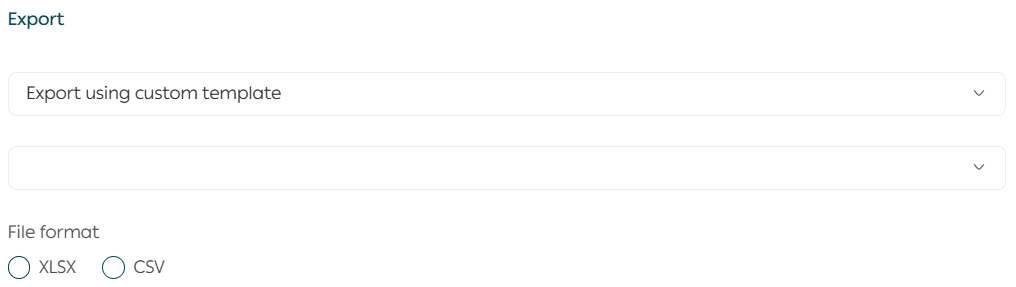
3. Click Execute Actions.
The exported file will be sent to your store email.
You can also export data using predefined templates, such as:
- Discounted products
- Heavy products
6. Delete Selected Products
To remove products permanently, select them and click Delete Products.

Why Bulk Product Management Matters
Using bulk product actions allows you to:
- Save time when managing large catalogs
- Reduce manual errors
- Keep pricing and stock consistent
- Manage seasonal or promotional updates efficiently
Efficient product management is a key pillar of running a scalable and professional online store.