What if you could reach the right customers directly on their phones, right when you have something worth telling them?
With marketing campaigns on Salla, you can promote your store through SMS messages or app notifications, target exactly the customer segment you want, and track how each campaign performs. In this guide, you'll learn how to create a marketing campaign of each type, monitor its performance, and use the campaign management tools in your dashboard.
To create a marketing campaign, open Marketing tools from the main menu, click Marketing campaigns, then click New campaign. Name the campaign, choose SMS or app notifications, enter the message details, select the target segment and goal, schedule the send time, and create the campaign.
📌 Article overview
- What is a marketing campaign?
- Which channels can my campaign use?
- How to add a new marketing campaign
- Frequently asked questions
🎯 What is a marketing campaign?
A marketing campaign is a set of activities aimed at promoting and selling a product or service. It uses a mix of channels — visual, audio, print, and digital media — to reach its target audience.
Which channels can my campaign use?
Campaigns you create here reach your customers through one of two channels: SMS messages or app notifications.
🚀 How to add a new marketing campaign
1. From the main menu of your dashboard, click (Marketing tools).

2. From the marketing tools page, click (Marketing campaigns).

3. From the marketing campaigns page, click (New campaign).
4. Enter the campaign name, select the campaign type, then fill in the campaign details.
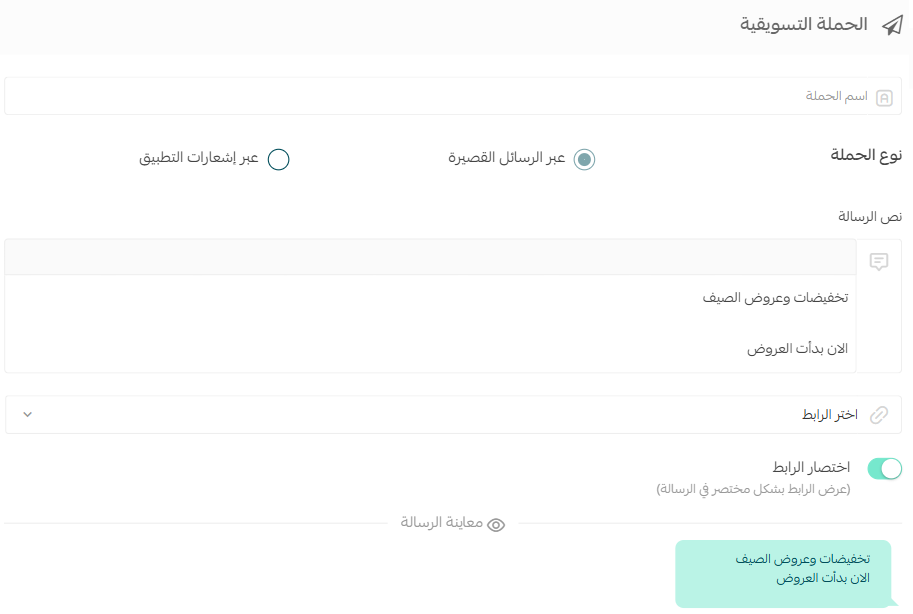
Option one: an SMS marketing campaign
1. Enter the campaign's basic details.
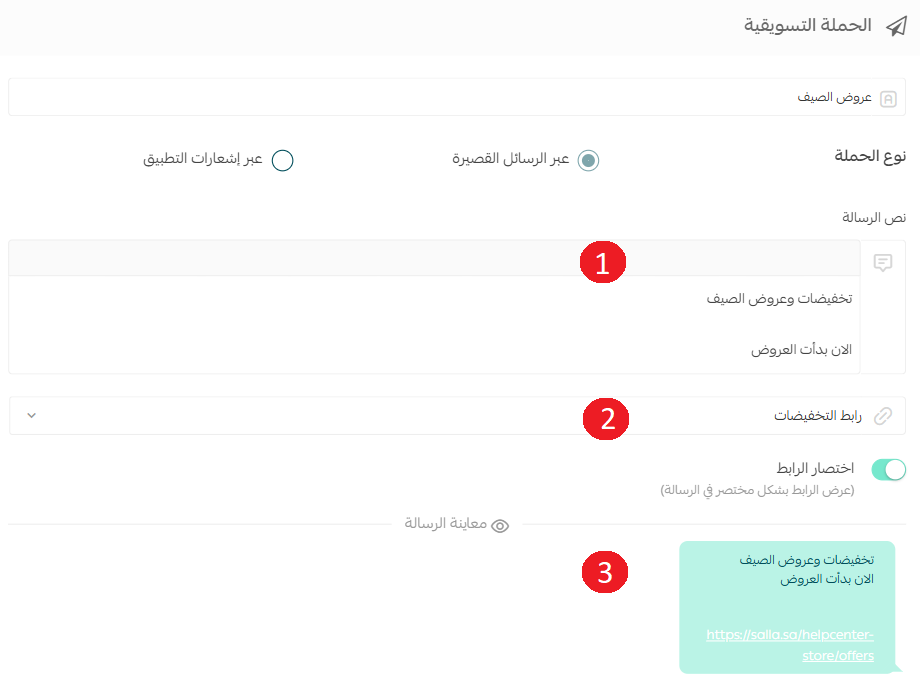
1. The message text the customer receives — plain text only, with no emojis.
2. The link you want the customer to act on.
3. A preview of the message before it is sent.
2. Select the campaign's target segment.
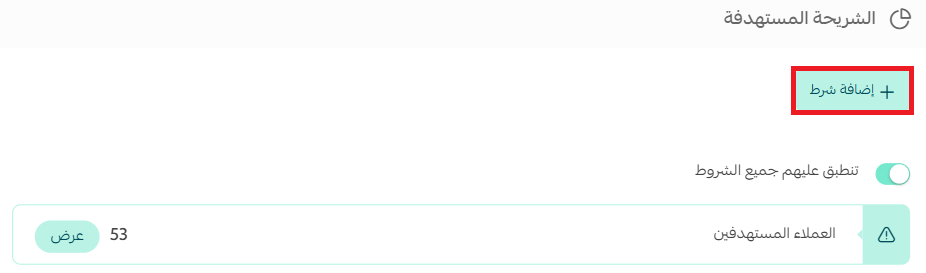
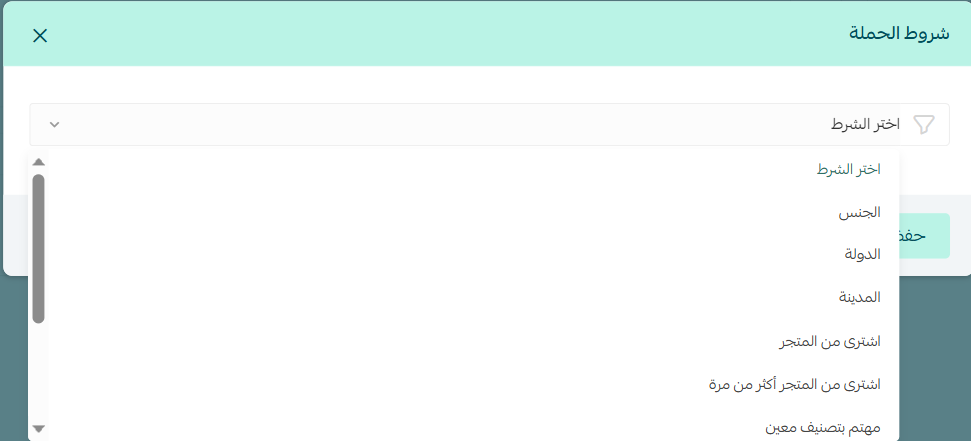
You can add a condition to narrow the target segment precisely, using one of the following conditions:
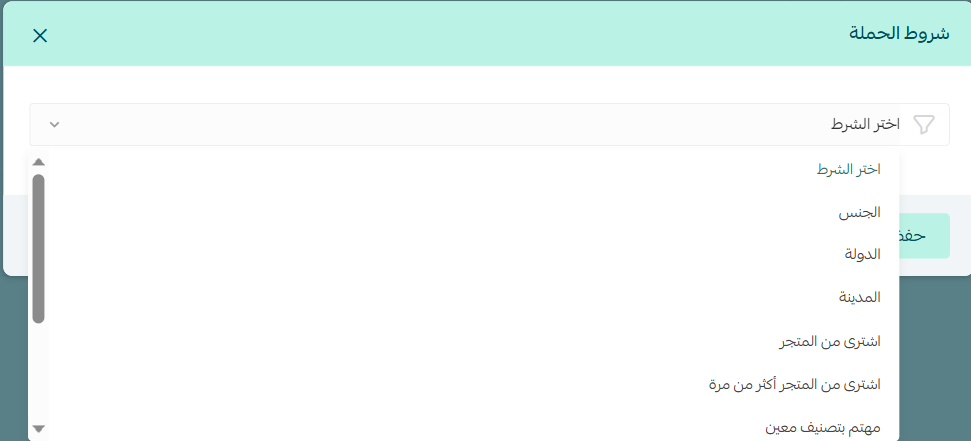
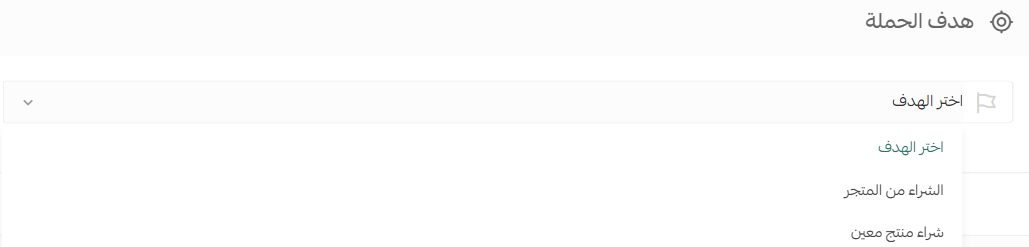
3. Set the campaign goal: a purchase from the store, or the purchase of a specific product.
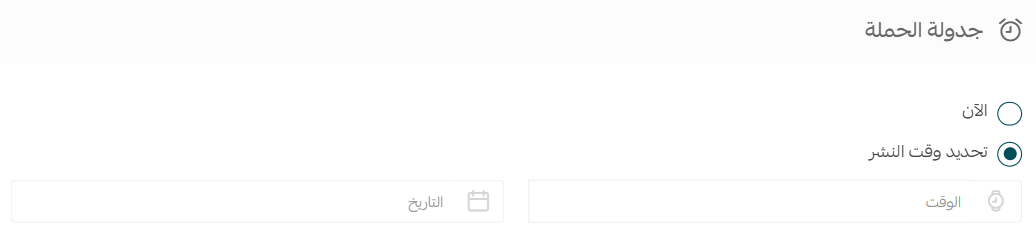
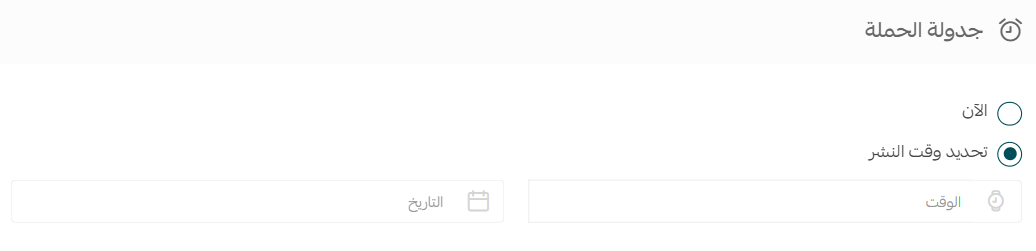
4. Schedule the campaign by setting the send time.
Option two: an app notification marketing campaign
1. Enter the campaign's basic details.
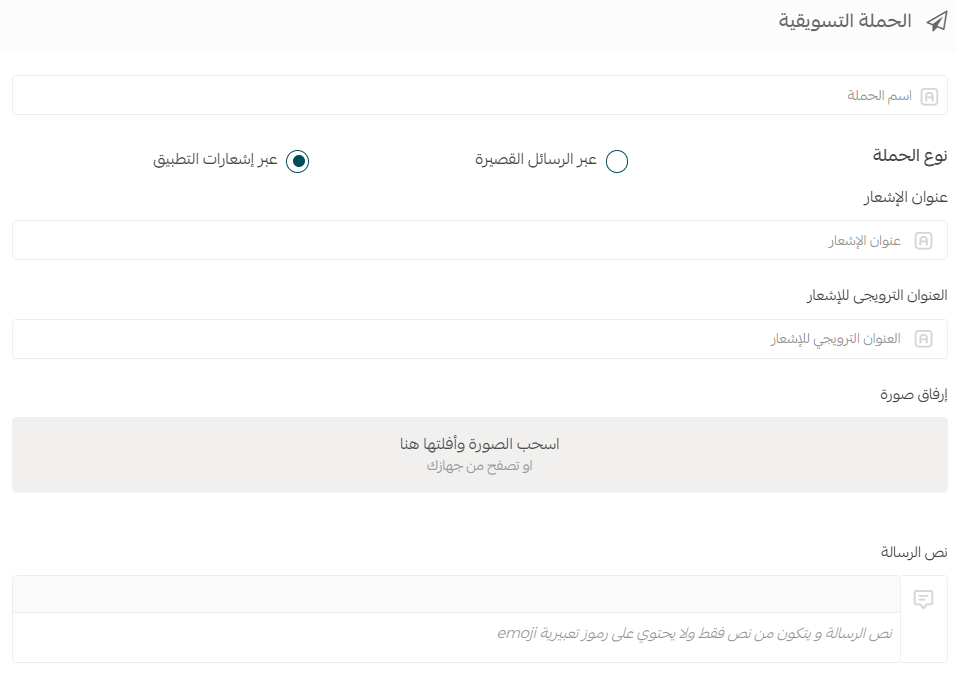
The campaign details include:
- The notification title: keep it short, clear, and expressive.
- The notification subtitle: some mobile operating systems display it and some do not — Android systems are among those that do.
- The icon image you want shown in the notification, plus the message text — plain text only, with no emojis.
The notification preview appears on the phone like this:

2. Select the target segment.
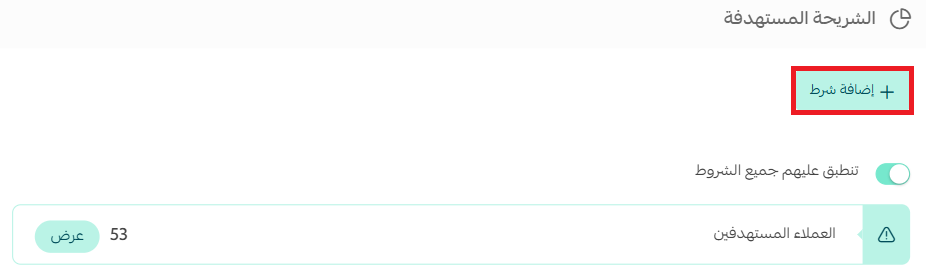
To add specific conditions that narrow the campaign's target audience, click (+ Add condition).
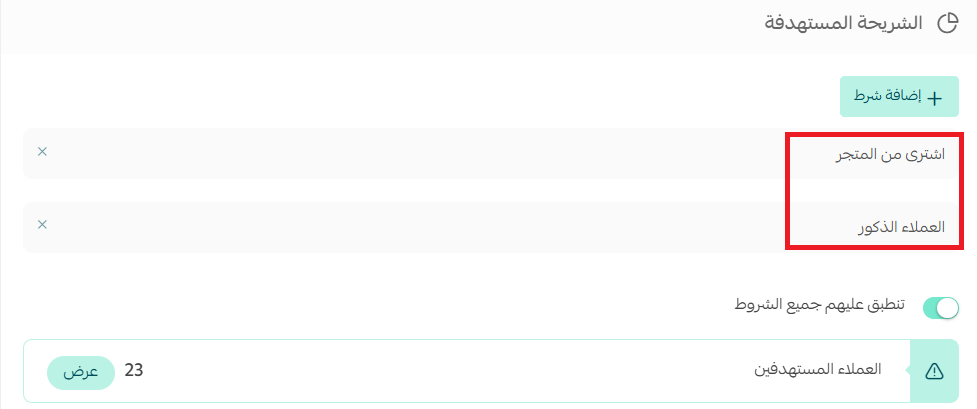
💡 Example: targeting male customers who have bought from the store narrows the target audience from 56 to 29 customers in our example.
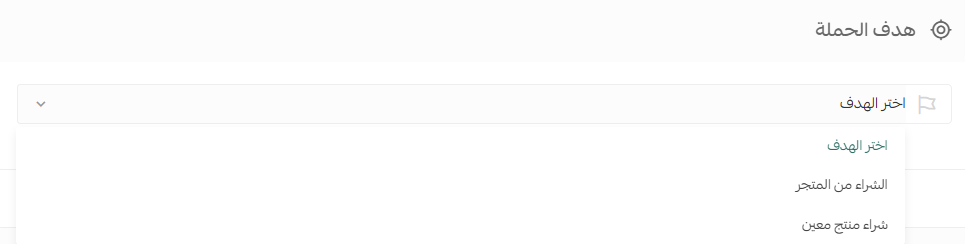
3. Set the campaign goal: a purchase from the store, or the purchase of a specific product.
4. Schedule the send time by setting when the campaign publishes, then click (Create campaign).
If you need help building professional advertising campaigns, take advantage of Merchant services, which offers specialized services from external providers to run your business professionally.
For more details, see Merchant services.
❓ Frequently asked questions
How do I sort marketing campaigns by status?
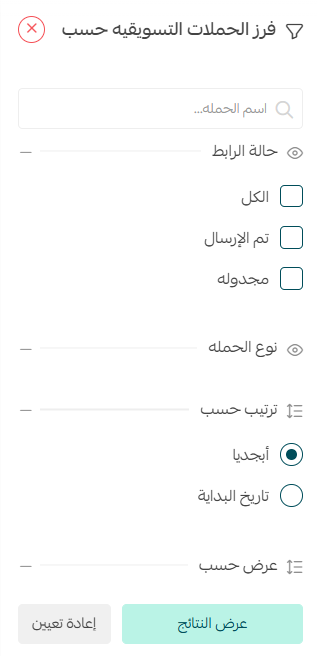
Go to the far side of the marketing campaigns page and click the (Filter) button.

Select the statuses you want to filter by, then click (Show results).
How do I see a marketing campaign's performance?
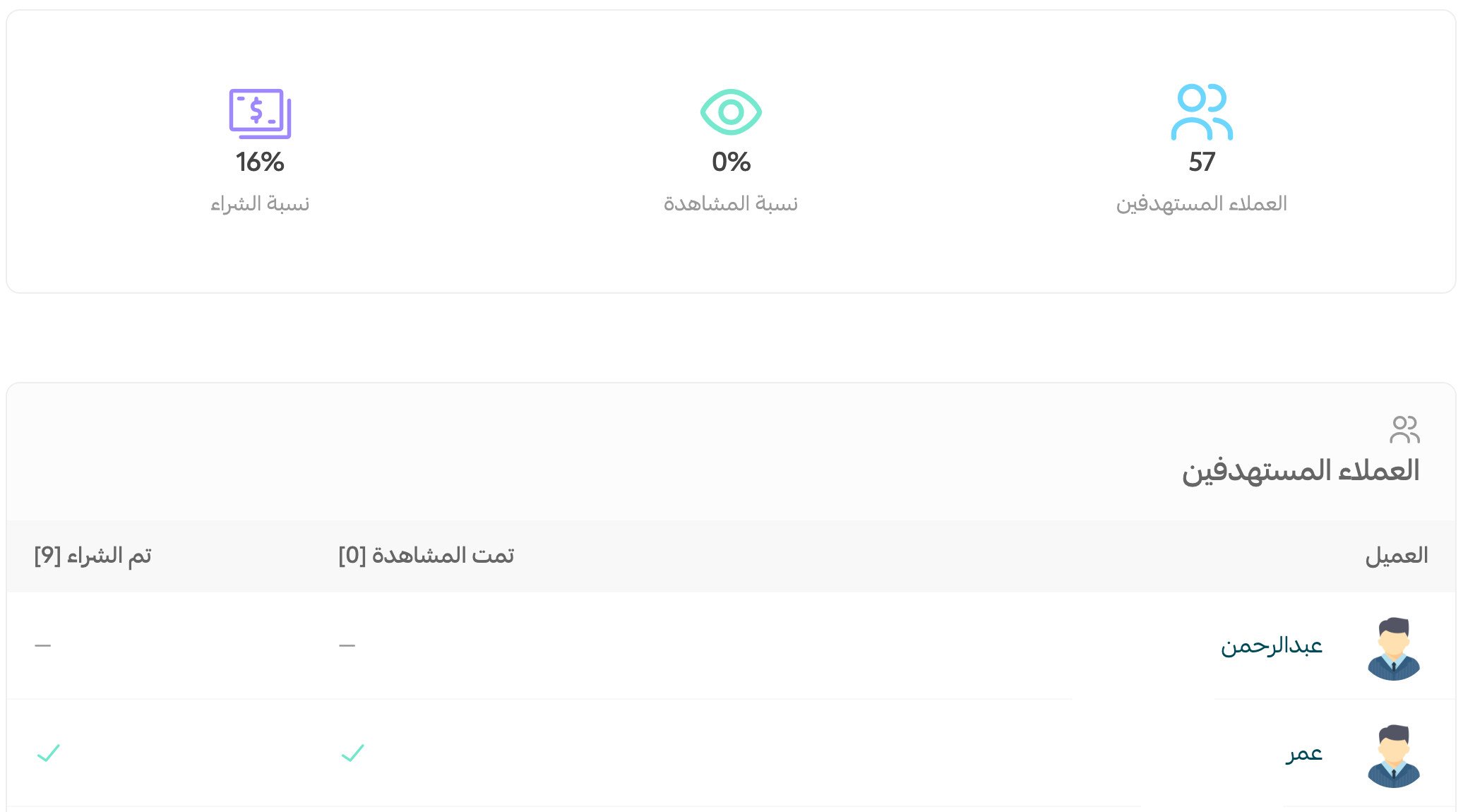
From the marketing campaigns page, click the campaign's (Statistics).

You can view the campaign summary, which covers the targeted customers, the view rate, and the purchase rate.
For more detail, you can review per-customer performance for every customer the campaign targeted: did they see the campaign message, and did they buy?
Can I filter marketing campaigns?
Yes. You can filter your marketing campaigns to reach the ones you need quickly:
1. From the marketing campaigns page in the marketing tools section, click (Filter).

2. Filter campaigns by several criteria:
- Campaign status (all, sent, scheduled).
- Campaign type (SMS, app notifications).
- Sort by (alphabetical, campaign start date).
- Show by (newest first, oldest first).
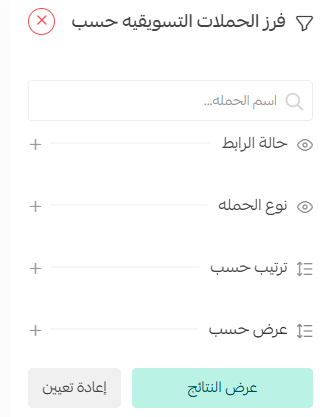
You can also search for a specific campaign by typing part of its name in the search box.
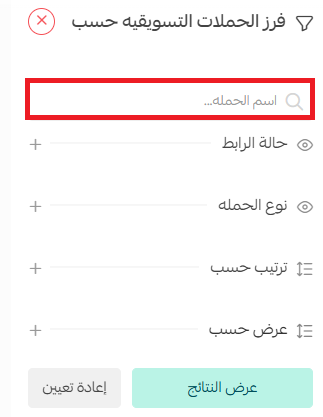
To show all campaigns again, click (Reset).
One last idea: to boost engagement and sales, collaborate with influencers on custom content for seasonal products and special offers — their followers' attention can translate directly into purchases.
For more details, see Creating an influencer marketing campaign.