Does your store look the same to a customer reading it in Arabic and one reading it in English?
The Nomow theme is the first Salla theme with full multilingual support: it translates your store content and flips the direction of your store elements to match the language your customer is browsing in, along with plenty of other features. It's free, and it adds new home page components you can build your storefront around. In this guide, you'll learn how to install the Nomow theme, customize it, and set up its new components.
To apply the Nomow theme, open the theme store from the side menu of your dashboard, then click (Install) on the free Nomow theme details page. The theme moves to your (Store design) page, where you customize it and add its new home page components from (Home page components).
📌 Article overview
- How to apply the Nomow theme to your store
- New components added to the Nomow theme
- Frequently asked questions
- Extra support and learning resources
🚀 How to apply the Nomow theme to your store
1. From the side menu of your dashboard, click (Theme store).
2. On the free Nomow theme details page, click (Install).
Once the theme is installed, customize it however you like from the (Store design) page.
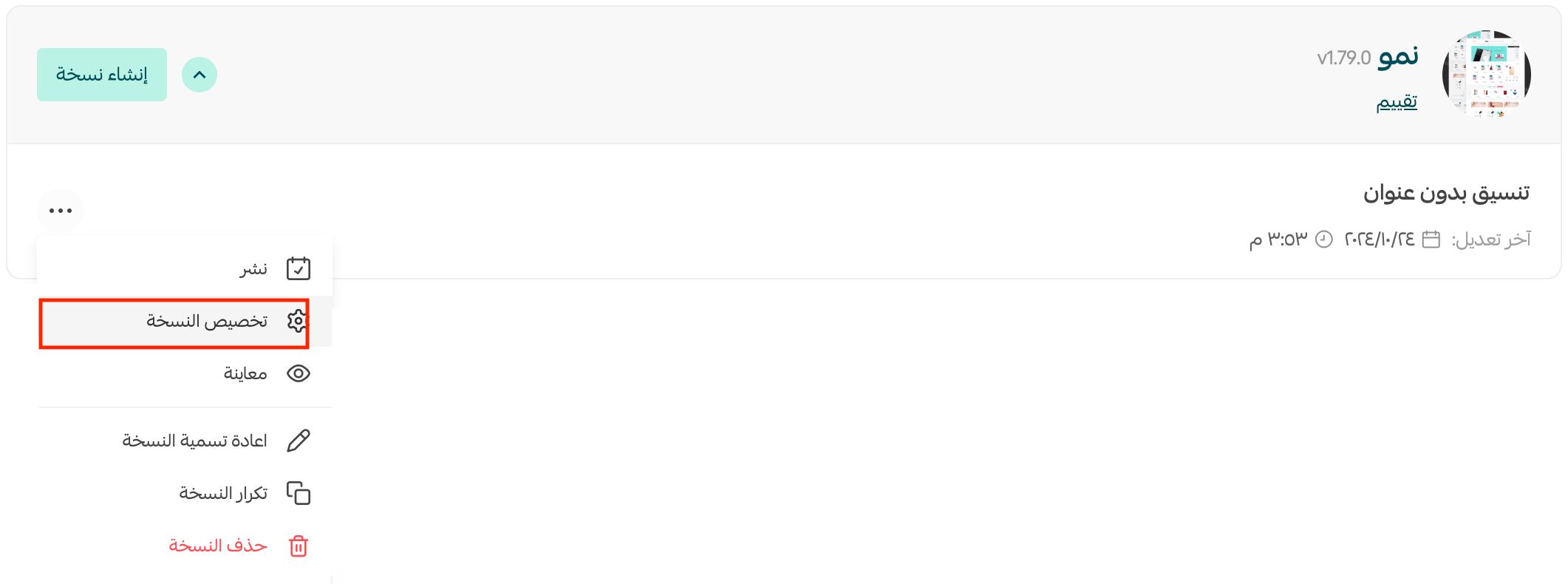
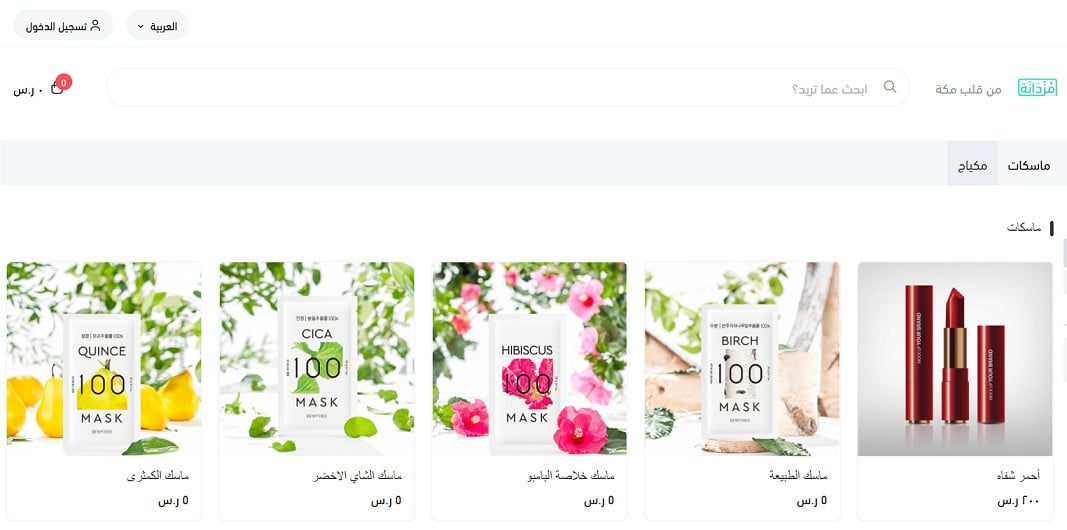
You can preview how your store looks with the theme applied from the theme customization page:
For more details, see managing the theme store and store design.
For more details, see customizing your store design.
✨ New components added to the Nomow theme
The Nomow theme comes with a set of components that make your store look more professional and pull your customers in.
To add the new components to your store, go to the Nomow theme customization page and click (Home page components).
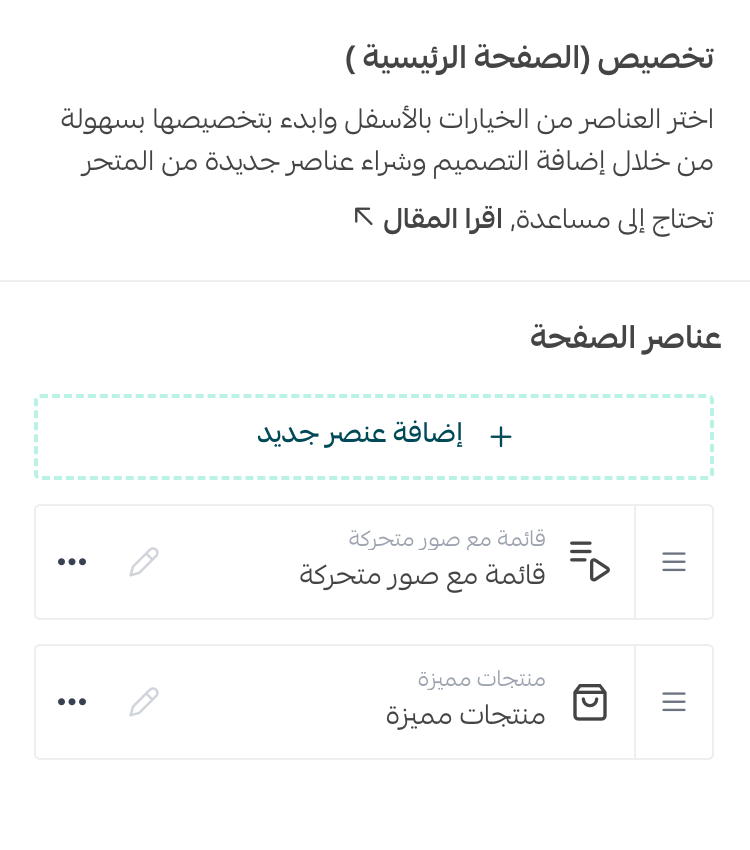
Then click (Add new component).
The new components you can add to your store appear:
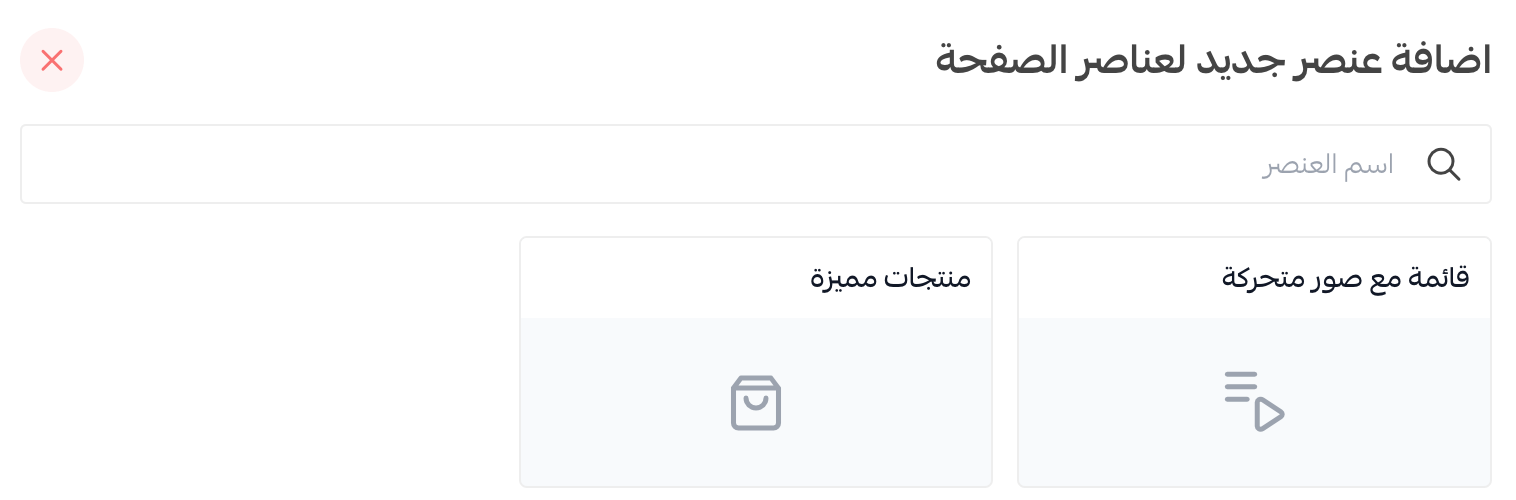
Here's how to set up the most useful of them.
1. List with animated images
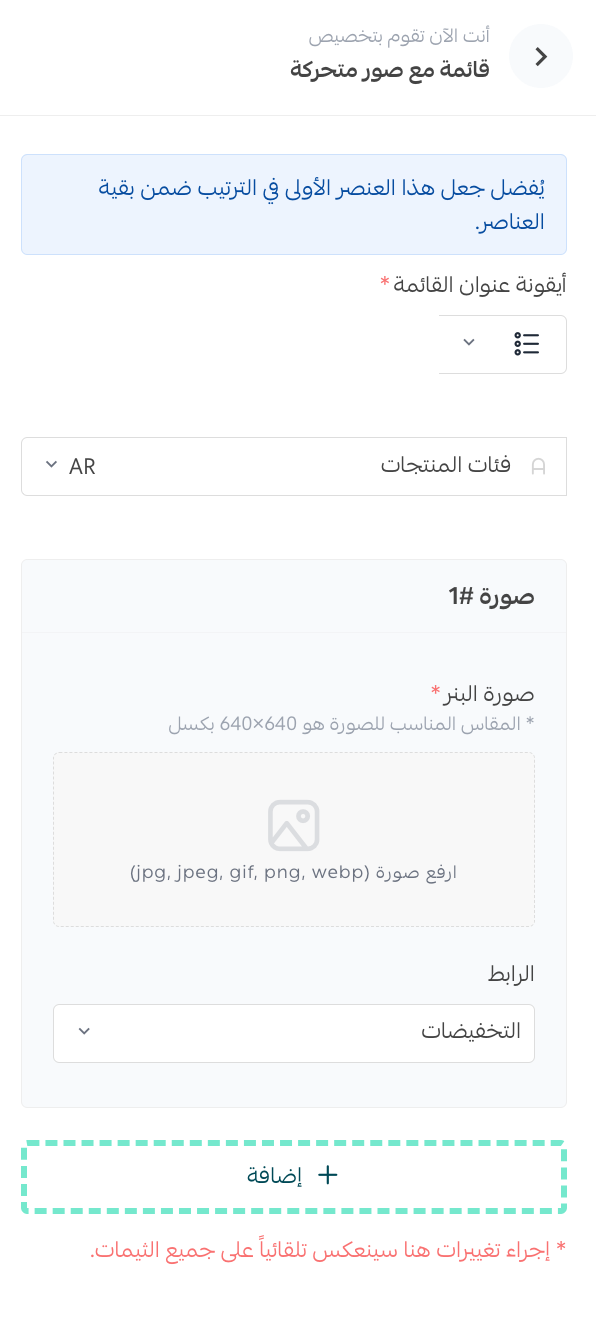
This one is useful for displaying a mix of images. Each image gets a title and can link to somewhere inside your store, such as a category or a product, or to an external link.
To add a list, enter its name and icon first in your default language and then in every other language, and upload images at 640 × 640 pixels. Next, choose the link type that suits each image — a specific category or an external link, for example — and add the images you want.
2. Featured products
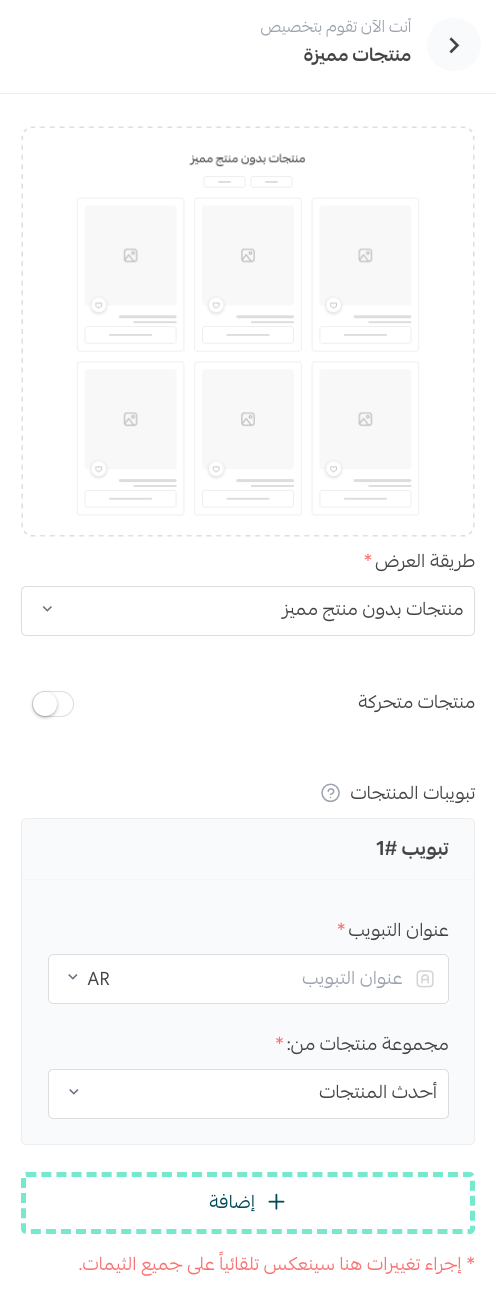
This component lets you show special offers alongside products, products on their own with no featured item, or one featured product surrounded by others.
From the display method list, choose what works for you and enter the details of your featured products — up to 4 products.
❓ Frequently asked questions
Have new design options been added to the Nomow theme?
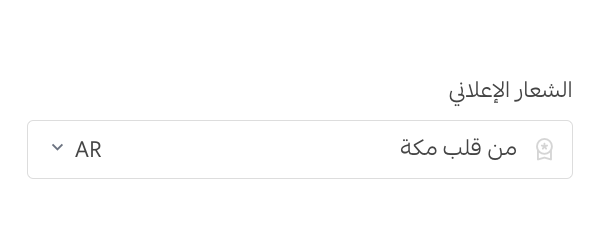
Yes. A great option was added to the Nomow theme: the advertising slogan.
For more details, see customizing your store design.
✅ Extra support resources
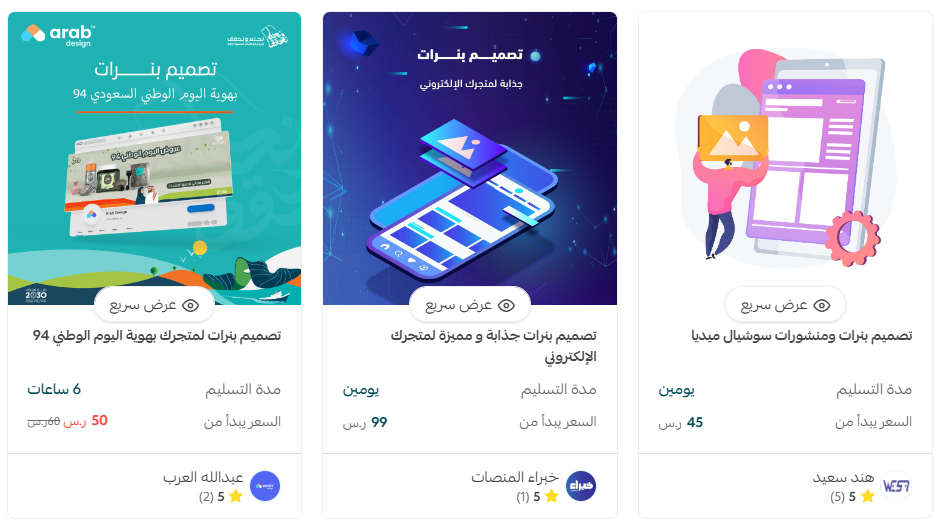
If you need help designing your store, you can use merchant services, which offers specialist work such as logo design, banner and divider design, and color coordination from Salla-verified providers who can handle work for your business professionally.
✅ Other learning resources
Learn with trainer Mohammed Al-Badr how to improve the user experience and design an online store that draws visitors in, moves them to buy quickly, and leaves a positive impression that lasts.